- Compare-Object in PowerShell It allows you to compare files and collections of objects, highlighting differences and similarities with SideIndicator.
- Parameters such as -IncludeEqual, -ExcludeDifferent, -Property or -PassThru control what is compared and how the result is presented.
- The fc.exe command of CMD It offers comparisons in text or binary mode, with options to ignore uppercase letters, spaces, or work with Unicode.
- Combining these tools with scripts, HTML, and email allows you to automate reports and detect changes in data such as lists of MAC or processes.
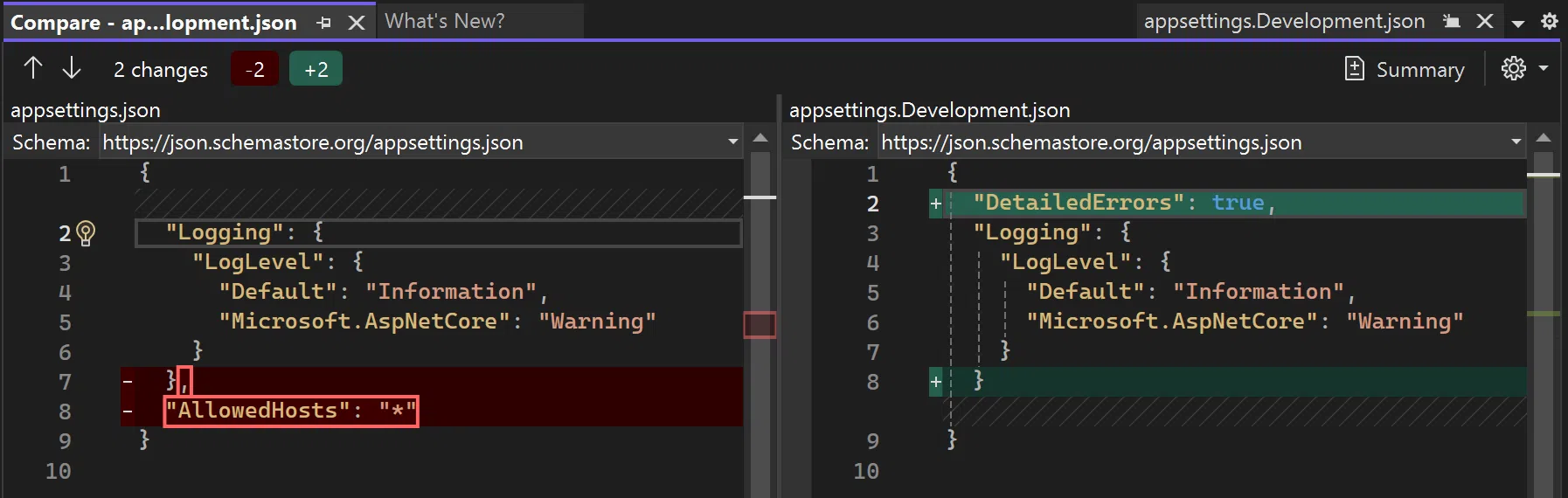
When you need to compare two texts or files to find differences , doing it by eye is a recipe for wasting time and, on top of that, making mistakes. If you work with scripts, configurations, logs , or device listings, having a console tool that highlights what has changed from one version to another is invaluable.
In Windows , the most practical approach is to use PowerShell and the Command Prompt (CMD) , which come pre-installed. With them, you can compare two files, two data sets, or even results in memory and see at a glance what's new, what's gone, and what remains the same. Let's take a closer look at how to get the most out of PowerShell's Compare-Object and CMD's fc.exe command , along with real-world examples and a few extra tips and tricks.
Compare texts with PowerShell using Compare-Object
Compare-Object is the standard PowerShell cmdlet for comparing two sets of objects. In the simplest case, you'll use it to see differences between the contents of two text files, but it actually works with any type of object: processes, TimeSpans, booleans, CSV data, script results, and so on.
The basic idea is very simple: you specify a ReferenceObject (what you're using as a reference) and a DifferenceObject (what you want to compare against the reference). The cmdlet analyzes both sets and returns which elements appear in only one, only the other, or both.
The general default syntax for Compare-Object is as follows:
Compare-Object <PSObject[]> <PSObject[]> >]
Under normal circumstances, Compare-Object attempts to use comparison methods specific to the object type. If it cannot find them, it uses the ToString() method of each input and compares the resulting strings. Additionally, you can specify one or more properties with the -Property parameter to compare only those specific fields.
The result always includes a key property called SideIndicator , which marks where each value comes from: whether it is only in the reference object, whether it is only in the difference object, or whether it is in both when you ask for the equals to be shown.
If you accidentally pass $null to ReferenceObject or DifferenceObject , the cmdlet throws a termination error, so it's a good idea to make sure both sets have data before comparing.
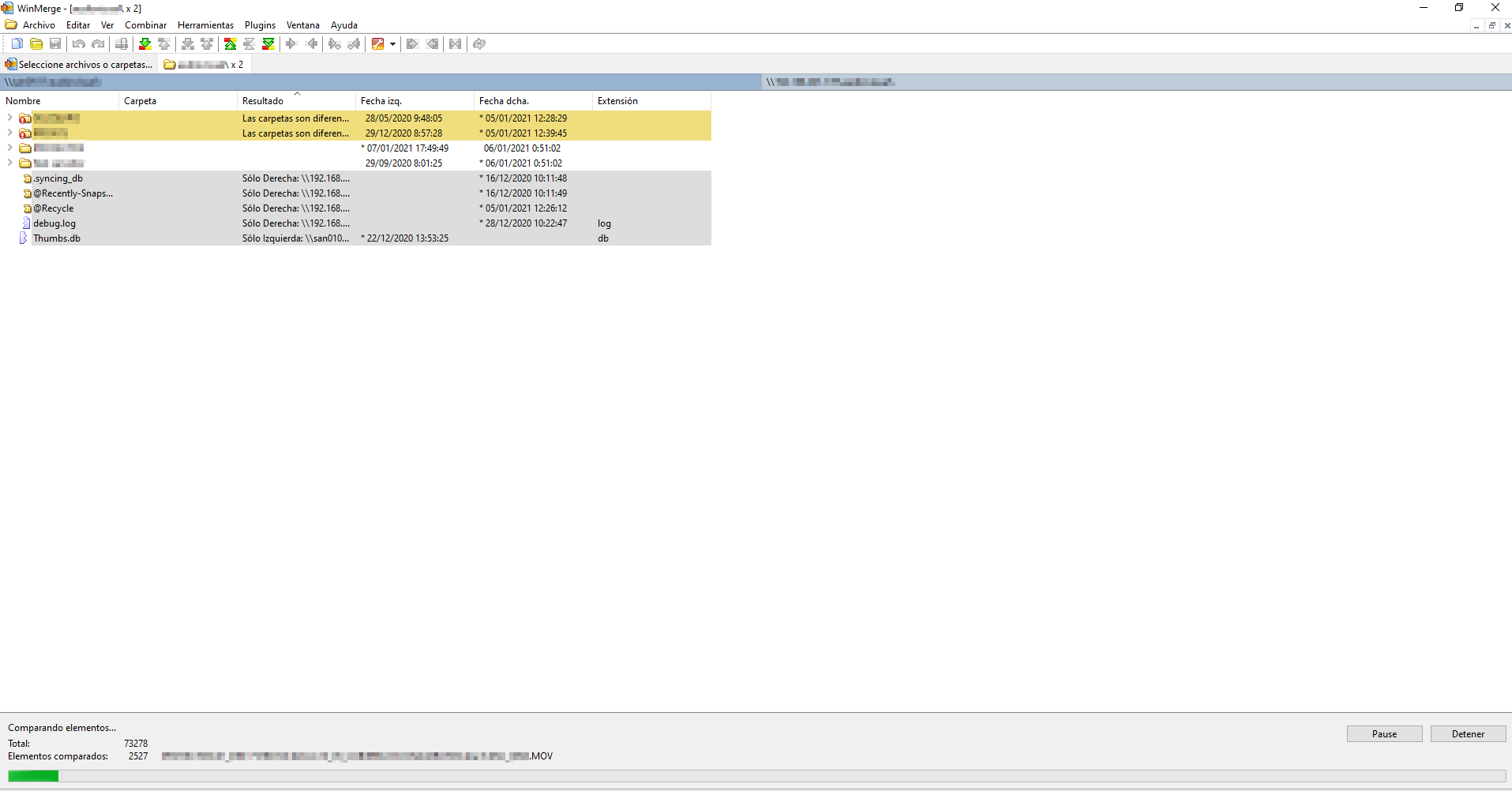
Practical examples with Compare-Object
To fully understand how Compare-Object works, there's nothing better than looking at a series of typical examples, from comparing text files to comparing complex objects or using parameters like -IncludeEqual , -ExcludeDifferent or -PassThru.
Example 1: Comparing the contents of two text files
In this scenario, you have two text files, each with a list of words on separate lines . Compare-Object allows you to quickly see which elements exist only in one file and not in the other.
Let's assume these files:
- Testfile1.txt: dog, squirrel, bird
- Testfile2.txt: cat, bird, raccoon
A typical use of Compare-Object would be this:
$objects = @{

ReferenceObject = Get-Content -Path C:\Test\Testfile1.txt

DifferenceObject = Get-Content -Path C:\Test\Testfile2.txt

}

Compare-Object @objects
The output would look like this, where InputObject reflects the compared value and SideIndicator indicates which side it's on:
InputObject  SideIndicator

-----------  -------------

cat        =>

racoon     =>

dog        <=

squirrel   <=
In this context, "=>" means that the value is only in DifferenceObject (in this case, in the content of Testfile2), while "<=" indicates that it is only in ReferenceObject (Testfile1).
Example 2: Show only the common lines and exclude the differences
You might not need to detect what has changed, but rather to find out which lines are identical between two files . For this, you use the combination of parameters -ExcludeDifferent and -IncludeEqual , although from PowerShell 7.1 onwards, specifying ExcludeDifferent automatically implies IncludeEqual.
An example to see only the common lines would be:
$objects = @{

ReferenceObject = Get-Content -Path C:\Test\Testfile1.txt

DifferenceObject = Get-Content -Path C:\Test\Testfile2.txt

}

Compare-Object @objects -ExcludeDifferent
The result is something like:
InputObject  SideIndicator

-----------  -------------

bird        ==
Here you can clearly see that only the value "bird" is displayed with the SideIndicator "==" , indicating that it is present in both sets. If you used ExcludeDifferent without IncludeEqual in versions prior to 7.1, you might find that nothing appears because both differences and equalities are excluded.
Example 3: Preserving the original type with the PassThru parameter
By default, Compare-Object returns objects of type PSCustomObject with two properties: InputObject and SideIndicator. However, when you want to continue working with the original type (for example, a boolean, a process, a TimeSpan, etc.), you'll need the -PassThru parameter.
Let's look at the difference with a very simple boolean value :
$a = $true

Compare-Object -IncludeEqual $a $a

(Compare-Object -IncludeEqual $a $a) | Get-Member
This shows output with TypeName System.Management.Automation.PSCustomObject and NoteProperty InputObject and SideIndicator properties, in addition to the typical methods Equals, GetType, ToString, etc.
If you are currently using PassThru :
Compare-Object -IncludeEqual $a $a -PassThru

(Compare-Object -IncludeEqual $a $a -PassThru) | Get-Member
In this case, the returned type is System.Boolean , and it's noticeable that the instance has an added NoteProperty called SideIndicator , although this isn't directly visible in the formatted output. This detail is important: the actual type is the original, but with an extra property that tells you whether the value is in reference, difference, or both.
Example 4: Comparing simple strings by properties
Compare-Object isn't just for entire texts; it's also useful when you want to compare specific object properties . For example, you can compare two strings that are completely different in content but have the same length.
An example would be:
$objects = @{

ReferenceObject = 'abc'

DifferenceObject = 'xyz'

Property = 'Length'

}

Compare-Object @objects -IncludeEqual
The result:
Length     SideIndicator

------    -------------

3        ==
Since only the Length property is being compared , the cmdlet indicates that both strings are equivalent in the eyes of that property, even though their text has nothing to do with each other.
Example 5: Comparing complex objects with specific properties
When you move on to more complex objects , such as Windows processes, things get interesting. Imagine you store two different PowerShell processes in different variables, but they share the same process name.
Without specifying properties, Compare-Object compares the result of ToString() from System.Diagnostics.Process , which is usually something like "System.Diagnostics.Process (pwsh)", and considers them equal.
Summary example:
$a = Get-Process -Id 11168

$b = Get-Process -Id 17600

$a.ToString()

$b.ToString()

Compare-Object $a $b -IncludeEqual
The exit:
InputObject  SideIndicator

-----------  -------------

System.Diagnostics.Process (pwsh)  ==
If you want the differences to really show, you need to specify specific properties such as ProcessName, Id, or CPU:
Compare-Object $a $b -Property ProcessName, Id, CPU
In this case you will get something like this:
ProcessName  Id      CPU      SideIndicator

-----------  --     ---     -------------

pwsh       17600  11.4375  =>

pwsh       11168  36.203125 <=
Here it is already clear which instance is which and how they differ in their identifier and in the CPU time consumed.
Example 6: Complex objects that implement IComparable
Some .NET types implement the IComparable interface , which allows Compare-Object to compare them more intelligently . If the objects to be compared are of different types, the cmdlet attempts to convert DifferenceObject to the ReferenceObject type.
For example, comparing a string that represents a TimeSpan with a TimeSpan object itself yields two distinct cases depending on the order:
Compare-Object ("0:0:1") "0:0:1" -IncludeEqual
Starting time:
InputObject  SideIndicator

-----------      -------------

00:00:01   ==
Here, the string becomes a TimeSpan and both objects are considered equal. But if you reverse the order:
Compare-Object "0:0:1" ("0:0:1")
You'll have something like:
InputObject  SideIndicator

-----------      -------------

00:00:01   =>

0:0:1     <=
In this second scenario, the TimeSpan ends up becoming a chain and the result of the comparison considers that the representations are different.
Important Compare-Object Parameters
Compare-Object has a good number of parameters that are worth mastering to get the most out of it. Let's review the most useful ones with a clear explanation of what each one does.

Parameter -CaseSensitive
The -CaseSensitive modifier indicates that the comparison should be case-sensitive . Without this parameter, PowerShell typically treats comparisons in a case-insensitive manner in many contexts.
Main Features:
- Type: SwitchParameter
- Default value: False
- It does not allow wildcards
- Position: appointed (non-positional)
Parameter -Culture
With -Culture you can specify the culture reference used in the comparison , which is very useful when comparing strings that depend on language, specific alphabetical ordering, or regional rules.
His properties:
- Type: String
- Default value: None (use current culture)
- It does not accept wildcards
- Named parameter, optional
Parameter -DifferenceObject
The -DifferenceObject parameter specifies the set of objects to be compared against the reference set . It is required in any call that is not purely positional and is where you load the new data, from the "right-hand side".
Relevant properties:
- Type: PSObject[]
- Required: True
- Accepts pipeline input: True
- It does not allow wildcards
- Position: 1 (when using positional parameters)
Parameter -ExcludeDifferent
The `-ExcludeDifferent` switch hides differences and displays only matches between the reference and difference. Combined with `IncludeEqual`, it reduces the output to the common values.
Key aspects:
- Type: SwitchParameter
- Default value: False
- If used without IncludeEqual in older versions, the output may be empty.
- In PowerShell 7.1+, IncludeEqual automatically implies this.
Parameter -IncludeEqual
The `-IncludeEqual` parameter enables the display of elements that are equal in both sets. By default, `Compare-Object` only returns differences, so this parameter completely changes the type of information returned.
Details:
- Type: SwitchParameter
- Default value: False
- When activated, the output can include both differences and equalities
- When "==" appears in SideIndicator, it means that the value exists in both sets.
Parameter -PassThru
As seen before, -PassThru indicates that Compare-Object should not wrap the objects in PSCustomObject , but instead return the original objects, adding only the SideIndicator property as a NoteProperty.
Key points:
- Type: SwitchParameter
- Default value: False
- Ideal when you need continue manipulating the actual type of the object
- The console display may hide the existence of SideIndicator if the default format of the type does not show it.
Parameter -Property
The -Property modifier allows you to define a specific set of properties to compare in both ReferenceObject and DifferenceObject. Instead of comparing the entire object, Compare-Object is limited to these fields.
Features:
- Type: Object[]
- Default value: None
- It doesn't support wildcards itself, but you can use calculated properties.
- It allows calculated properties, using blocks of script or hash tables with the key Expression
Parameter -ReferenceObject
The -ReferenceObject parameter identifies the set of objects used as the basis for the comparison. It is the "old" or reference point against which the DifferenceObject is compared.
Its most important properties:
- Type: PSObject[]
- Required: True
- It does not accept direct channel input (although it does accept input by name, depending on the usage)
- It does not allow wildcards
- Position: 0 if you use positional syntax
Parameter -SyncWindow
The -SyncWindow parameter controls how many adjacent objects Compare-Object checks when attempting to resynchronize collections when there is no match at the same position. This is especially important when working with long lists where there may be insertions or deletions in between.
Properties:
- Type: Int32
- Default value: ::MaxValue (i.e., iterates through the entire collection)
- Smaller values can improve performance, but They reduce accuracy of resynchronization
Common parameters
Compare-Object also supports common PowerShell parameters : -Debug, -ErrorAction, -ErrorVariable, -InformationAction, -InformationVariable, -OutBuffer, -OutVariable, -PipelineVariable, -ProgressAction, -Verbose, -WarningAction, and -WarningVariable. These don't change the comparison logic, but they do allow you to adjust the output, debugging, and error handling behavior.
Compare-Object Inputs and Outputs
When working with Compare-Object, it's important to be clear about what types of input it accepts and what it returns , because this determines how to chain the result with other cmdlets or scripts.
Inputs
The main pipeline input is received by DifferenceObject , which accepts objects of type PSObject . This allows you to do something like retrieve data with a cmdlet and pass it directly to the comparison without intermediate variables.
Outputs
Regarding the exit, there are two clearly differentiated cases:
On the one hand, when the ReferenceObject and DifferenceObject are exactly the same and you don't use IncludeEqual, the cmdlet returns nothing . This is useful for using Compare-Object in scripts that only act if there are changes.
On the other hand, when differences are detected, Compare-Object returns PSCustomObject objects with the SideIndicator property. If IncludeEqual is also used and the objects are equal, they are also returned, but with the "==" indicator. If PassThru is added, the actual type doesn't change, but each instance incorporates the NoteProperty SideIndicator, even though the formatted view might not display it.
Aliases and notes on Compare-Object
In Windows, PowerShell includes several convenient aliases for calling Compare-Object more quickly, such as compare or diff . These aliases are very useful when you're quickly exploring differences in the console without typing the full cmdlet name.
Keep in mind that when using PassThru , the console output you see might not show the SideIndicator property because the default format for that type of object doesn't include it in the view. This doesn't mean the property doesn't exist: you can easily verify it using Get-Member or by explicitly selecting the property with Select-Object.
Real-world example: Comparing two lists of MAC addresses in Excel using PowerShell
A very common scenario in network environments is receiving a weekly list of unknown MAC addresses and having to check which ones have already been investigated and which are new. To avoid going crazy, the best approach is to maintain a master file with all the MAC addresses already checked and compare the new list with this history.
Let's imagine that two spreadsheets are used:
- Unknown_Devices.xlsx: a cumulative list with all known MAC addresses and their justification.
- test.xlsx: New listing for the week, with a "Mac Device" column.
An inefficient way to approach this would be to loop through each new MAC address and check if it appears in the previous list using simple comparisons like `-ne` . The problem is that comparing a scalar value to an entire column of an Excel dataset doesn't work as expected , and you end up printing almost the entire new list.
Instead, it makes much more sense to load both files with Import-Excel and then use Compare-Object, specifying the "Device Mac" property to compare only that column. Something like this:
$PreviousData = Import-Excel -Path 'H:\Unknown_Devices.xlsx'

$NewData = Import-Excel -Path 'C:\Users\usuario\Downloads\test.xlsx'

Compare-Object -ReferenceObject $PreviousData -DifferenceObject $NewData -Property 'Device Mac' |

Where-Object { $_.SideIndicator -eq '=>' }
This way, you only get the MAC addresses that appear in the new list and not the old one ; these are the ones that need to be investigated and, once justified, added to the master file. If you also wanted to see those that have disappeared, you would look for those with a SideIndicator "<=".
Generate HTML reports and difference logs with PowerShell
Beyond simply displaying text diffs on screen, PowerShell allows you to automate detailed HTML reports and logs using Compare-Object as its core. A detailed example might combine:
- Obtaining the current date and timestamp format for naming files.
- Use of Start-Transcript and Stop-Transcript to dump the entire session to a log.
- Definición of CSS styles to format the HTML report (fonts, colors, tables, alternate rows, etc.).
- Machine or folder tour using hash tables and foreach loops.
- Extraction of files from suppliers A and B with Get-ChildItem, filtering by different dates and extensions (txs, txt, pdf).
- Process-by-process comparison with Compare-Object and interpretation of the SideIndicator to identify problems.
- Converting results to HTML with ConvertTo-Html and customization of headers and columns.
- Sending reports via email using Send-MailMessage and attaching the generated HTML.
In that type of more complex script, it is common to:
Use properties like InputObject and SideIndicator to construct log messages such as "Found on day X in both folders" or "Found difference between source and destination." Special values like "0000" or "0001" are used to indicate that a machine is not generating files.
The result is then formatted with ConvertTo-Html, replacing column names using -replace (for example, changing InputObject to PROCESS and SideIndicator to STATE) and replacing the codes "==", "=>" or "<=" with more readable texts such as "OK", "PROBLEM SUPPLIER-X" or "PROBLEM SUPPLIER-A".
Finally, everything is grouped into a single HTML file, including headings with <h1> and <h2> tags , a summary table of the number of machines, and a footer with the creation date, before sending the report by email to the desired recipients.
Operators and expressions useful to complement Compare-Object
In many PowerShell comparison scripts, it is vital to also master the arithmetic, logical, comparison, membership and type operators , as well as utilities such as -split and -join for manipulating strings.
At the arithmetic level, in addition to +, -, *, /, the modulo operator (%) returns the remainder of an integer division. For example, 5%3 gives 2, because 5 is 1 time 3 with a remainder of 2. These operators apply to both literal values and variables (for example, $var1 + $var2 adds the contents of both if they are numeric, or concatenates strings).
With relational operators, PowerShell offers case-sensitive and case-insensitive variants (-like / -clike, -eq / -ceq, etc.). For example, 'Powershell' -like '*shell' returns True, while 'Powershell' -clike 'p*shell' returns False because the "c" version is case-sensitive.
Membership operators like -in and -contains are very useful when filtering elements: 'shell' -in 'Console','shell' returns True, while 'Console','powershell' -contains 'shell' returns False. They are used in the opposite way, so you can choose the one that best suits your condition's logic.
There are also type operators, such as -is , which you can use to check if a value is of a given type: 'Hello' -is or 20 -is return True, while 'B' -is returns False.
In the logical part, you have -and, -or, and -not (or its abbreviated form!) . For example, (5 -eq 5) -and (8 -eq 9) is False because one of the conditions fails, while (5 -eq 5) -or (8 -eq 9) is True. And -not (8 -eq 9) is also True because 8 is clearly not equal to 9.
Finally, operators like `-split` and `-join` allow you to split and reassemble strings. `-split 'PowerShell is simple'` returns the three terms separately, while `-split ':'` uses the colon character as a delimiter. Conversely, `-join` can join elements of an array into a single string with or without a separator.
Compare texts and files with CMD using fc.exe
If you prefer the classic command prompt, or you're in an environment where CMD is the only option, you can use fc.exe , the long-standing Windows command for comparing files. While its output is less flexible than PowerShell's, it's still very useful for quick comparisons in text or binary mode.
The basic syntax of fc is:
fc /a     ]     <filename1> <filename2>

fc /b <filename1> <filename2>
In text (ASCII) mode, fc compares line by line and attempts to resynchronize files when discrepancies are found. In binary mode, it performs a byte-by-byte comparison without resynchronization attempts, and this is the default mode for extensions such as .exe, .com, .sys, .obj, .lib, or .bin.
Main parameters of fc.exe
The most useful modifiers of fc include:
- /a: abbreviates the output of an ASCII comparison, showing only the first and last lines of each group of differences.
- /b: forces byte-by-byte binary comparison, useful for executables or binary data.
- /c: ignores uppercase and lowercase letters.
- /l: indicates ASCII mode (text), comparing line by line.
- /lb: sets the size of the internal buffer of lines an (default 100); if there are more consecutive differences, fc may abort with a message of files too different.
- /n: displays line numbers in ASCII comparisons.
- /off: does not discard files with the "offline" attribute.
- /t: avoids converting tabs to spaces; if you don't use it, tabs are treated as spaces every eighth position.
- /u: compares files as Unicode text.
- /w: compresses whitespace (tabs and spaces), treating them as a single space and ignoring leading and trailing blanks.
- /nnnn: sets how many consecutive lines must match after a discrepancy to be considered resynchronized; the default value is 2.
Additionally, you can use wildcard characters like * and ? in filenames to compare entire sets. If you put a wildcard in the first filename, fc matches each specified file with the file or set specified in filename2; if the wildcard is in filename2, fc uses the corresponding name from the first set.
fc.exe exit codes
After execution, fc sets an exit code that you can use in batch scripts or automations:
- 0: the files are identical.
- 1: The files are different.
- 2: An error occurred during the comparison.
Examples of using fc.exe
To perform an abbreviated ASCII comparison of two reports:
fc /a monthly.rpt sales.rpt
To compare two files in binary using a batch method:
fc /b profits.bat earnings.bat
If there are differences, you'll see different hexadecimal addresses and bytes for each file. Something like this:
00000002: 72 43

00000004: 65 3A

0000000E: 56 92

000005E8: 00 6E

FC: earnings.bat longer than profits.bat
If they are identical, the message will be more direct:
Comparing files profits.bat and earnings.bat

FC: no differences encountered
You can also compare all .bat files in the current directory with a specific file:
fc *.bat new.bat
Or compare new.bat files on different drives:
fc c:new.bat d:*.bat
And compare all the .bat files from C:\ with the same names on D:\:
fc c:*.bat d:*.bat
When fc performs ASCII comparisons on very large files, it uses an internal buffer of 100 lines by default. If it finds more than that number of consecutive different lines, it may return the message "Resynch failed. Files are too different." For binary comparisons of very large files, fc transparently overlaps blocks in memory until completion.
Subtle details when comparing "identical" text files
A curious case that often arises is encountering two text files that appear identical to an editor or diff tool, but which behave differently in a specific application. Even when selecting everything in both, you might see different character counts, such as 6502 versus 6501.
This type of discrepancy is usually due to invisible characters : a control character, a BOM (Byte Order Mark) in Unicode encodings, an extra line break at the end of the file, differences between CRLF and LF, or a blank space that the comparison tool is ignoring if it is set to not show space changes.
When software requires a very specific text format, those details make all the difference. That's why, if something "doesn't add up," it's advisable to check the file encoding, line endings, and use a binary comparison (with fc /bo or similar tools) to catch any extra or missing bytes.
Both Compare-Object in PowerShell and fc.exe in CMD provide a powerful arsenal for comparing text, files, and object collections. Using them effectively, you can detect changes between versions, generate readable HTML reports, filter for specific information (such as new entries in a MAC address list), and even integrate this data into automated monitoring or validation processes, saving you hours of manual review and drastically reducing human error.


Passionate writer about the world of bytes and technology in general. I love sharing my knowledge through writing, and that's what I'll do on this blog, show you all the most interesting things about gadgets, software, hardware, tech trends, and more. My goal is to help you navigate the digital world in a simple and entertaining way.