- RescueTime automatically records your usage apps and websites and classifies it by productivity to detect patterns and time leaks.
- FocusTime blocks distractions with adjustable levels and can be activated by calendar, goals, or manually.
- The Premium plan adds Focus Sessions, advanced integrations, and historical reporting; Lite covers the essentials at no cost.
- Pros: Solid tracking and analytics; Cons: Uneven mobile app, learning curve, and privacy concerns.
In today's digital world, notifications, social media, and on-demand video constantly compete for our attention, often leaving us with the feeling that the day has slipped away without us fully making the most of it. With a tool like RescueTime, you can clearly see where your time is going and redirect it towards what really matters.
If you've ever wondered "where did my time go?", RescueTime is the perfect solution for you: it works in the background, generates automatic metrics, and adds features to help you focus when needed; it doesn't require you to write anything down by hand and provides practical reports to help you improve your habits.
What is RescueTime?
RescueTime is a time management and tracking application for computers and mobile devices that automatically records app and website usage, categorizes activities, and provides reports to help you make decisions; its goal is to help you understand your patterns and regain control of your day.
Unlike a stopwatch or manual timesheets, here the tracking is passive: you install the software and that's it; the tool labels activities as productive, neutral or distracting to show you what adds up and what subtracts.
The platform is available on Windows , macOS, and Linux , as well as apps for Android and iOS and extensions for Chrome and Firefox; you can also access the web dashboard with daily, weekly, and monthly reports.
How does RescueTime work?
After installation, RescueTime starts recording the time you spend on each app or website and detects when you are not present (for example, if you step away from the computer for a few minutes it stops counting); the data is grouped by categories and productivity levels that you can customize.
The system recognizes window titles, document titles, and URLs if you configure it to, and allows you to define a "whitelist" of sites and programs that will always be logged in detail; anything not included can be saved as general browsing for greater privacy.
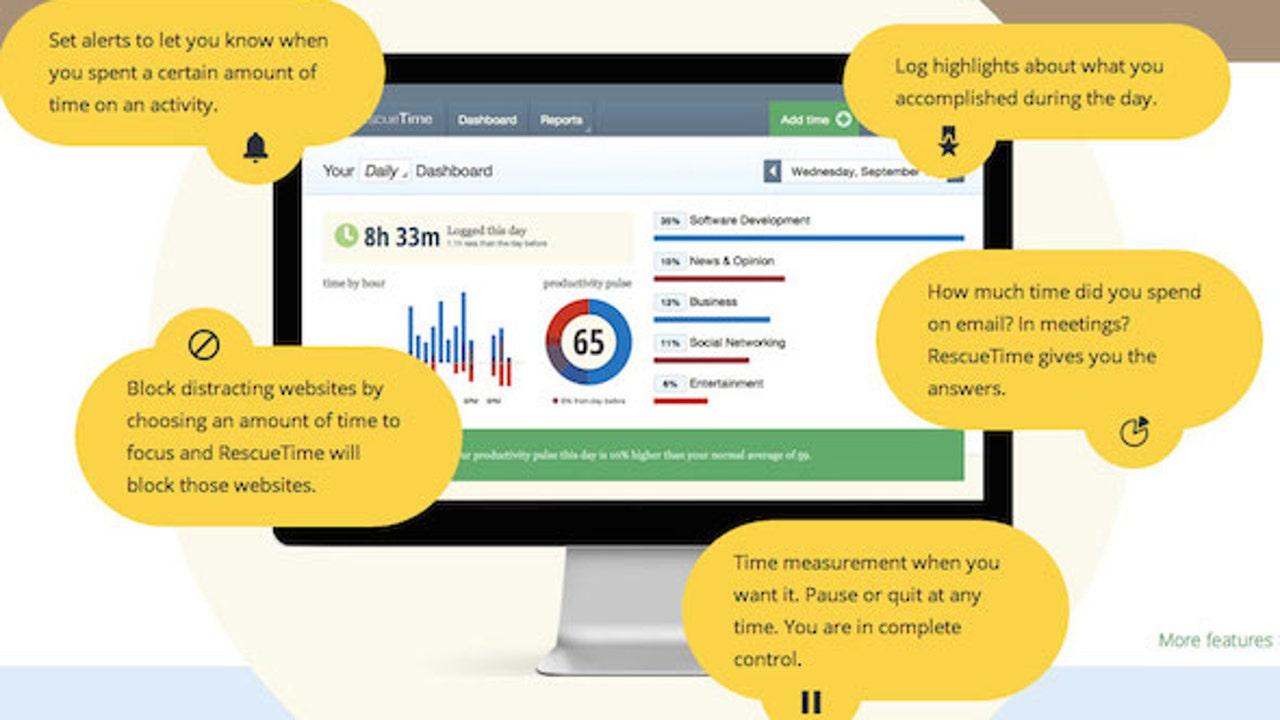
With that information, the panel shows trends, concentration peaks, and most productive time slots; you'll see clear graphs and a productivity pulse that condenses your performance from 1 to 100.
This "Productivity Pulse" is calculated using a weighted average of five major categories ranging from "Focus Work Time" to "Distracting Time"; it allows you to see at a glance whether you are on the right track or need to adjust your course.
Featured Features
FocusTime and Focus Sessions
FocusTime is the built-in distraction blocker: during a session, the app cuts off access to websites and apps that you mark as personal or distracting; you can launch the session with "Get Focused" from the menu bar or system tray icon.
In addition to starting it manually, it can be activated by calendar events or automatically when you exceed a time threshold in personal activities; if you try to enter a blocked website you will see a warning page with options to continue, reclassify or maintain focus.
There are three levels of blocking: Normal (blocks the "very annoying"), Intermediate (blocks "very annoying" and "annoying") and Strict (blocks everything unproductive); when you activate FocusTime, all your linked devices also enter focus mode.
Focus Sessions add a preparation ritual: reminders to drink water or go to the bathroom, a small mental readjustment and a prior commitment before starting; you can even integrate Spotify to set the mood without opening another app.
Automatic activity tracking
RescueTime works in the background and, without you having to touch anything, it records sites, apps, and documents; tracking starts between 12 and 24 hours after installation, at which point you begin to see useful patterns.
You don't need to clock in or manually switch tasks (except in specific FocusTime cases if you want granularity); you can define tracking periods and adjust the recording depth according to your preferences.
Productivity Pulse and Metrics
The productivity pulse is a highly visual marker (donut graphic style) that scores from 1 to 100 how you have used your time; it feeds on your categories and tags, which you can fine-tune to make it more representative.
At the end of each focused session and in the periodic reports, you'll see the breakdown by "highly productive", "productive", "neutral", "distracting" and "highly distracting"; this allows you to immediately pinpoint the usual culprits of your time wasters.
Alerts, goals and reminders
You can set daily or weekly goals, such as "4 hours a day of productive work" or "less than 30 minutes on social media"; when you reach or exceed a goal, you receive notifications to refocus.
Focused Work Goals take into account your scheduled meetings and your specific circumstances to propose realistic milestones; this way you don't set impossible goals that only generate frustration.
AI Assistant and Features (Beta)
All accounts include an assistant with a personalized morning forecast of meetings, concentration gaps, and priorities; it suggests the best time of day to focus between events and tasks.
In beta phase, the platform is exploring an AI-powered assistant to automatically allocate time between projects and clients (especially useful for timesheets); it requires historical data to train the model and gain accuracy.
Community sessions and social responsibility
If the feeling of "not working alone" helps you, you can join live community focus sessions in the style of Pomodoro; virtual co-presence increases motivation and adherence to work blocks.
During your sessions you'll also see how many people are focused at the same time in the world, a little psychological push to keep you in the zone; that social reference usually translates into more consistency.
Integrations and automations
RescueTime integrates with Google Calendar to schedule FocusTime, and with tools like Slack, Trello, IFTTT, or Zapier to automate workflows; this allows you to coordinate your focus blocks with the rest of your stack.
The advanced plan lets you export data to spreadsheets, access historical reports with date tracking, and receive a daily forecast report; it also includes meeting tracking and quick one-click access to meetings.
Plans, prices and availability
RescueTime offers a free (Lite) and a paid (Premium) version, and has historically had options for teams; you can register with your email, download the app and start tracking in minutes.
Lite (free)
The free plan covers the essentials: automatic tracking, a daily goal, views of the previous day, weekly activity reports, and basic alerts; it's perfect for getting started frictionlessly and seeing if it fits your workflow.
Premium
The paid plan costs around $12 per month and between $74 and $78 per year according to the sources consulted; it includes all the features of Lite plus Focus Sessions with locking, calendar integrations and advanced reports.
It also adds data export, detailed historical reports, daily focus forecasting, meeting tracking, and weekly and monthly progress tracking; if you need fine control and automation, this is where it shines.
Platforms: desktop for Windows , macOS and Linux; mobile apps for Android and iOS; extensions for Chrome and Firefox; device coverage allows you to consistently measure your day-to-day activity.
In the past, there have been team-oriented plans ("Empower" and "Pulse") with 30-day trials; if you manage groups, it's worth checking the current offer in case these options become available again.
Advantages and weaknesses according to users
The most frequently mentioned positive aspects: automatic and discreet tracking, powerful reports, and a real reduction of distractions with FocusTime; it's one of those tools that "gives back" you time without requiring manual effort.
Among the drawbacks are several common complaints: the mobile app can crash, the interface could be improved, and some people have reasonable concerns about privacy ; it is also mentioned that the free version falls short compared to the Premium version.
In multi-device setups, some users report desynchronization or slight delays between desktop and mobile, which distorts the picture of the day; it's not frequent, but if you work on many devices, it's worth keeping an eye on it.
Another point: the amount of data can be overwhelming at first, and there is a learning curve to correctly interpreting the reports; a couple of weeks of practice is usually enough to really get the most out of it.
On Reddit, there are comments questioning the annual price of Premium and pointing out registration discrepancies compared to other apps, as well as noticing little evolution in the Windows app for a while; these are opinions to consider if you are concerned about the value/price ratio and the freshness of the development.
Quick Start Guide: Getting Started, Setting Up, and Getting the Most Out of It
- Register and create your account from the official website, install the app on your computer and mobile device, and grant the requested permissions; Without these accesses, the measurement will not be reliable..
- Adjust the categories and labels to your reality: define what is "work," "research," "social media," and what you consider productive or distracting; The better you tag, the more useful the reports will be..
- Review the dashboard weekly to detect trends and favorable time slots; Take advantage of email summaries so you don't forget to do this review..
- Set achievable goals (e.g., 4 hours of focus per day) and set alerts when you overdo it with distractions; small continuous adjustments outperform drastic changes that are not sustained.
- Connect your calendar to schedule FocusTime in blocks that work best for you, and add integrations with Slack or automations with IFTTT/Zapier; Limiting external interruptions multiplies the effect of focus.
- If privacy is a concern, use the whitelist and limit the exhaustive logging to what interests you; you can maintain a balance between visibility and comfort.
Use cases: Who does it make the most sense for?
- Freelancers and remote work: maintaining a routine at home It's not easy, and here RescueTime helps to put limits and habits in black and white; Seeing the breakdown by clients or tasks gives you clarity for billing and prioritizing.
- Students and candidates: managing your studies, classes, and breaks is a lot easier when you block out distractions during peak concentration periods; Focus sessions and daily goals fit like a glove.
- Office professionals and small teams: ideal if you want to optimize your workday and reduce zapping between apps and websites; Weekly reports detect time leaks that go unnoticed.
- Entrepreneurs and SMEs: with multiple hats to wear, time management is critical; By cutting out non-essentials, you free up hours for sales, delivery, and strategy..
Quick comparison and alternatives
RescueTime isn't meant to be a full-fledged project manager, and sometimes you'll need another tool for the "real" work; if you're looking for an all-in-one approach, a popular alternative is ClickUp.
ClickUp combines time tracking, task/project management, dashboards, and even template libraries; it offers Calendar, Gantt, Timeline, or Workload views to coordinate the team.
ClickUp Pricing: Free Forever plan, Unlimited for $7/month per user, Business for $12/month per user, and Enterprise under contact; ClickUp Brain is available in paid plans for $5/member/month.
If you need to measure habits, cut distractions, and gain clarity on time usage, RescueTime is a better fit; if you also want roadmaps, dependencies, and project reporting, consider complementing it with a suite like ClickUp.


Passionate writer about the world of bytes and technology in general. I love sharing my knowledge through writing, and that's what I'll do on this blog, show you all the most interesting things about gadgets, software, hardware, tech trends, and more. My goal is to help you navigate the digital world in a simple and entertaining way.