- Restore the Compatibility tab and adjust modes, permissions, and DPI based on the app.
- Update Windows 11 y drivers: Many bugs are known issues with a patch.
- Identify false positives: Search, UAC, WUSA, or caches may simulate incompatibilities.
- Check the Release Status for specific crashes, KBs, and fixes.
When an older app or game isn't behaving as expected on Windows 11, we often resort to Compatibility Mode to force behaviors from previous versions. Sometimes it works perfectly the first time, and other times not so much: tabs are missing, certain functions are blocked, or there are side effects that seem like incompatibilities but are actually known system or driver issues. Here's a comprehensive guide to help you troubleshoot and restore stability.
In addition to standard compatibility settings (executable properties), there are registry changes, cumulative patches (KBs), security locks, and even system services worth checking. We've gathered everything relevant: from how to restore the Compatibility tab if it disappears, to errors with Easy Anti-Cheat , Intel SST audio drivers , protected playback issues, NDI , and more. Everything is explained step-by-step and with context so you don't waste your time.
Restore the Compatibility tab when it doesn't appear
If you find the "Compatibility" tab missing when opening the properties of an executable file, it may have been hidden by policy . This problem can be easily fixed through the Windows Registry.
- Opens Regedit (Win + R, type regedit and accept).
- Navigate to:
Equipo\HKEY_LOCAL_MACHINE\SOFTWARE\Policies\Microsoft\Windows\AppCompatIf it doesn't exist, check that you are on the correct branch of Policies\Microsoft\Windows. - double click on DisablePropPage and change its value from 1 to 0.
- Close the editor and reopen the properties of the executable: the Properties tab. Compatibility should be back.
This setting disables the policy that hides ownership, returning compatibility mode management to the user. If your PC is part of an organization, this policy might be reapplied; check with IT if the lock reappears.
Set Compatibility Mode Correctly
The classic approach is still valid and useful for older apps or those with erratic behavior . Don't overcomplicate things: the trick is to test and validate changes carefully to isolate the tweak that fixes the problem.
- Right click on the executable or shortcut, Properties > tab Compatibility.
- Check "Run this program in compatibility mode for" and try Windows 8/7. For very legacy software, sometimes Windows 7 is the key option.
- Activate "Run this program as administrator» if the software requires it (installers, system utilities, etc.).
- Use “Change high DPI settings” if you see tiny or blurry interfaces on high-resolution displays.
- If you experience crashes on startup, disable "Fullscreen Optimizations" in games or multimedia apps; sometimes avoid screenshots or loss of focus.
If there is no improvement after several tests, it is probably not a pure compatibility issue, but another system or driver problem . In that case, continue with the following sections.
Issues with Easy Anti-Cheat (EAC) in Windows 11 24H2
For months, some Windows 11 24H2 systems have experienced blue screens of death when loading games that use Easy Anti-Cheat (such as Fortnite ), displaying the "Memory_Management" error. This issue didn't affect everyone: it was more prevalent on 12th-generation Intel (Alder Lake) and vPro platforms , certain AMD Ryzen 5000/7000 series configurations, and with EAC drivers from April 2024.
Microsoft and Epic worked together and released the fix in patch KB5062553 (July). Since then, update blocks have been lifted, and you can now upgrade to 24H2 normally if you were stuck on 23H2. It's a good idea to run games that use EAC so they download the latest anti-cheat drivers.
Remember that support for Windows 11 23H2 ends on November 11, so updating is a priority. To check your exact system edition, go to Settings > System > About and check "Windows specifications".
- Which games use EAC? Among others: Fortnite, Apex Legends, Rust, Tom Clancy's The Division 2, Rainbow Six Siege and War Thunder.
- Does the patch affect performance? No; the performance It is equivalent to equipment that did not suffer from the problem.
- How to upgrade to 24H2? Go to Settings> Windows Update and select “Get the latest updates as soon as they become available,” then tap “Check for updates.”
If you continue to see errors when launching games with EAC despite being updated, reinstall the anti-cheat components from within the game itself and verify that Windows shows the July patch (or later) as correctly installed.
Common Windows 11 errors that are mistaken for incompatibilities
Sometimes we attribute an error to compatibility mode, but the root cause lies in updates , drivers, or settings. These are the most common cases and how to fix them.
1) Windows Update errors (0x80070002, 0x800f081f)
These issues are caused by corrupted update files or a poor connection. Try the troubleshooter : Settings > System > Troubleshooter > Other troubleshooters > Windows Update, or download the update manually from Microsoft.
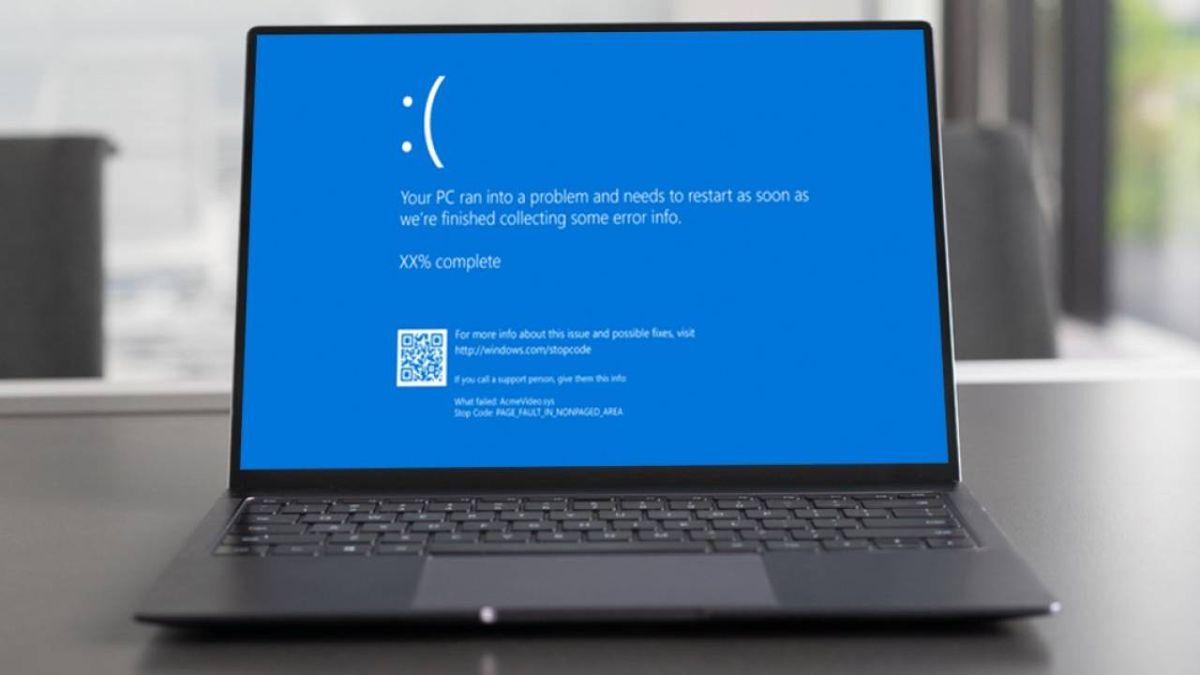
2) Blue Screens of Death (BSOD)
These are usually incompatible drivers, faulty hardware, or conflicting software. Update drivers from Device Manager or the manufacturer's website. If the problem persists, use BlueScreenView to read the dump and locate the culprit.
3) Poor performance or CPU/RAM spikes
This could be due to background programs, visual effects, or a lack of optimization. Disable effects in Settings > System > Display > Advanced settings, clean up startup , and close any processes that launch in Task Manager.
4) Activation errors (0xc004f211, similar)
These errors usually appear after hardware changes or due to invalid keys. Check your license in Settings > System > Activation and, if the problem persists, contact official support.
5) File Explorer crashes
Third-party extensions or corrupted caches can cause crashes. Restart the process from Task Manager or clear the cache with "wsreset.exe" if you're also experiencing issues with the Microsoft Store.
6) Incompatibilities with older hardware or apps
Windows 11 requires TPM 2.0 and Secure Boot , and not all legacy software is compatible. Use compatibility mode (Properties > Compatibility) or consider virtualizing Windows 10 if the application is critical.
7) Unstable Wi-Fi or Bluetooth connectivity
Update your network drivers, and if the problem persists, run a network reset in Settings > Network & Internet > Status. Interference and outdated drivers are common culprits.
If any of these scenarios are beyond your control, consider contacting a trusted technical service ; many specialized workshops can diagnose faulty drivers on the spot, and some third-party articles even recommend visiting stores like TecinfoBCN when the problem persists.
Windows Search Fails: Quick Fixes
When your search engine isn't responding, fixing it prevents you from mistaking the problem for "incompatibility." Try these actions, which restore Search without affecting your files.
- Restart the search process: open the Task Manager (Ctrl + Shift + Esc), go to Details, locate SearchHost.exe, right-click, and click "End Task." Windows will launch it again when you perform another search.
- Run the solver Search and indexing: Settings > System > Troubleshoot > Other troubleshooters > Search and indexing > Run.
- Reset the search experience: Settings > Apps > Installed applications > find “Search” > three-dot menu > Advanced options > Reset.
- Install pending updates from Windows UpdateSeveral recent fixes improve search and its index.
If the search engine still doesn't work after these steps, create a new user profile to rule out a corrupted profile and review corporate policies that limit indexing.
Known issues affecting Windows 11 24H2 apps and services
Microsoft's official "Release Status" portal publishes open and resolved issues. Many appear to be app incompatibilities, but are actually system or driver regressions . We highlight the most relevant ones and their status.
September 2025: Reproduction of protected content
Following non-security update KB5064081 (August 29, 2025) and later updates, some digital TV and Blu-ray/DVD apps that use HDCP- compliant video rendering or audio DRM are experiencing protection errors, buffering, crashes, or black screens. Streaming is unaffected. Microsoft is working on a fix for future updates in Windows 11 24H2.
August–September 2025: Unexpected UAC prompts with MSI fixes (CVE‑2025‑50173)
The August security update KB5063878 hardened User Account Control (UAC) and triggered requests for admin credentials for MSI repairs (msiexec /fu), Autodesk app launches, per-user installations, etc. Error 1730 was also observed with Office 2010 on standard accounts. This was resolved in KB5065426 (September 9, 2025): UAC now only triggers if the MSI contains elevated custom actions and there is a policy-based allowlist option for specific apps.
August 2025: NDI Performance in OBS and NDI Tools
After KB5063878, micro-stuttering and delays appeared when using NDI (screenshot at source). Fixed in KB5065426 (09/09/2025). As a temporary alternative, NDI recommended using TCP or UDP instead of RUDP.
July–August 2025: Error events for CertificateServicesClient
With KB5062660 and later, the Event Viewer displays ID 57 ("Microsoft Pluton Cryptographic Service Provider failed to load…") on every reboot. It is harmless, does not impact running processes, and the fix is automatically enabled with KB5064081 (August 29, 2025) and later, with a phased rollout.
May–August 2025: WUSA fails from shared folders
Installing updates using the Windows Update Standalone Installer (WUSA) or by opening an .msu file from a shared resource containing multiple .msu files can cause ERROR_BAD_PATHNAME after KB5058499 (May 28, 2025). Workaround: Copy the .msu files locally before installing, and after restarting, wait approximately 15 minutes for the Update History to reflect the status. Mitigated via KIR; Group Policy is available for managed environments.
June–July 2025: Parental Consent and Browsers
With Microsoft Family Safety's web filtering, some unsupported browsers could temporarily appear unlocked after updating to new versions. Additionally, unexpected crashes were detected in Chrome and other browsers when children tried to open them without Activity Reports enabled. Mitigation: Enable Activity Reports . This issue was addressed progressively in the July preview (KB5062660).
April 2025: Crash caused by sprotect.sys driver
Systems using the sprotect.sys (SenseShield) driver could experience freezing or a blue/black screen. Microsoft implemented a compatibility block for 24H2; it is recommended not to force an update using the Assistant or Media Creation Tool until SenseShield releases a corrected driver.
December 2024: Audio loss with Dirac Audio (cridspapo.dll)
A subset of devices with Dirac Audio and cridspapo.dll lost speaker and Bluetooth output after installing 24H2. A safeguard was implemented, and the vendor released an updated driver via Windows Update . The hold was removed on September 11, 2025, and the issue was marked as resolved on September 22, 2025. It may take up to 48 hours for the update to be offered; restarting may expedite the process.
October 2024: Camera apps stop responding
With 24H2, on devices with face or object detection enabled, the Camera app, Windows Hello, or other apps could crash. The safeguard was removed on September 18, 2025 ; install the latest security updates to get the fix.
September 2024: Intel Smart Sound Technology (Intel SST)
On systems with 11th generation Intel Core processors and the " IntcAudioBus.sys " driver version 10.29.0.5152 or 10.30.0.5152, 24H2 could cause blue screens. Solution: Update the Intel SST driver to 10.29.00.5714 or 10.30.00.5714 (or later). Ideally, do this via Windows Update . After updating, wait up to 48 hours for 24H2 to be offered; if it isn't, contact your OEM.
Wallpapers and customization apps
Some desktop customization apps were experiencing issues within 24 hours: backgrounds wouldn't appear, icons would disappear, previews would be broken, etc. A phased rollout is in place, allowing users to continue installation by uninstalling the app or updating it to a compatible version. The schedule depends on each developer 's pace.
Installing Windows 11 and Common Error Codes
If you're still migrating to 24H2, it's a good idea to prepare the ground to minimize compatibility clashes , especially on low-end hardware or sensitive software.
- Run the Windows Update troubleshooter before updating.
- Temporarily disable your antivirus or security suite during installation.
- Disconnect unnecessary peripherals (USB, docks) to reduce interference.
- Free up account space: clean up temporary files, uninstall infrequently used apps, or move them large files to an external drive.
- Have on hand a Bootable USB in case you need a clean install.
Typical errors and solutions:
- 0xC1900101: Driver conflict during installation. Update or roll back drivers, uninstall antivirus software, and remove external hardware.
- 0 x 80070070: No space. Save gigabytes by deleting unnecessary files and emptying the trash and temporary files.
- 0x80070002 0x20009: BCD blocks the update. Use "Advanced Boot Options" and fix it from the Symbol of the system.
- Blue screen During or after installation: boot into safe mode, restore system, or update key drivers (chipset, GPU, audio, network).
Remember that Windows 11 is generally stable, but if one of the described errors occurs, following these specific actions will get you back up and running without having to format.
Where to check version status and ask for help
Microsoft maintains a Release Status page for Windows 11 24H2 where you can view open issues, compatibility blocks, and their evolution. From a Windows device, you can open the Get Help app or visit support.microsoft.com for immediate assistance.
If your PC is eligible, go to Settings > Windows Update and click "Check for updates." If it's ready, you'll see "Download and install Windows 11, version 24H2." If not, there might be an incompatibility protection hold ; the page itself will tell you this and link to more information.
For IT administrators, in addition to the "Release Status" documentation, the Windows What's New API is available in Microsoft Graph to programmatically integrate deployment status . Any issues can also be reported through the Feedback Hub app.
The "Version Status" site is available in 11 languages (English, Chinese, French, German, Italian, Japanese, Korean, Brazilian Portuguese, Russian, and Spanish). If your browser does not support one of these languages, you will see the content in English . You can manually change the language from the footer.


Passionate writer about the world of bytes and technology in general. I love sharing my knowledge through writing, and that's what I'll do on this blog, show you all the most interesting things about gadgets, software, hardware, tech trends, and more. My goal is to help you navigate the digital world in a simple and entertaining way.