- Voicemeeter Banana centralizes inputs and outputs with buses A1–A3 and B1–B2 to separate mic, games, chat and music.
- Set “VoiceMeeter Input” as the default output in Windows and “VoiceMeeter Output” as a microphone on your apps.
- Use WDM for lower latency and VB-Cable to isolate specific applications within the mix.
- Improve the mic with Color Panel and compressor/gate, avoiding echo by not sending the virtual input to B.
When multiple applications compete for the same sound channel in Windows, you get echoes, duplicate audio, or awkward silences; with Voicemeeter Banana you can centralize and separate all the audio sources on your PC as if you had a studio mixing console , but in software form.
This guide walks you through the entire process of installing, understanding, and configuring input/output routing, using VB-Cable as "virtual cables ," and fine-tuning your microphone with real-time effects. It's designed for streaming , video calls, gaming, and any situation where you need precise control over voices, music, and systems, with practical tips for avoiding latency, echo, and unwanted mixing.
What is Voicemeeter Banana and how does VB-Cable fit in?
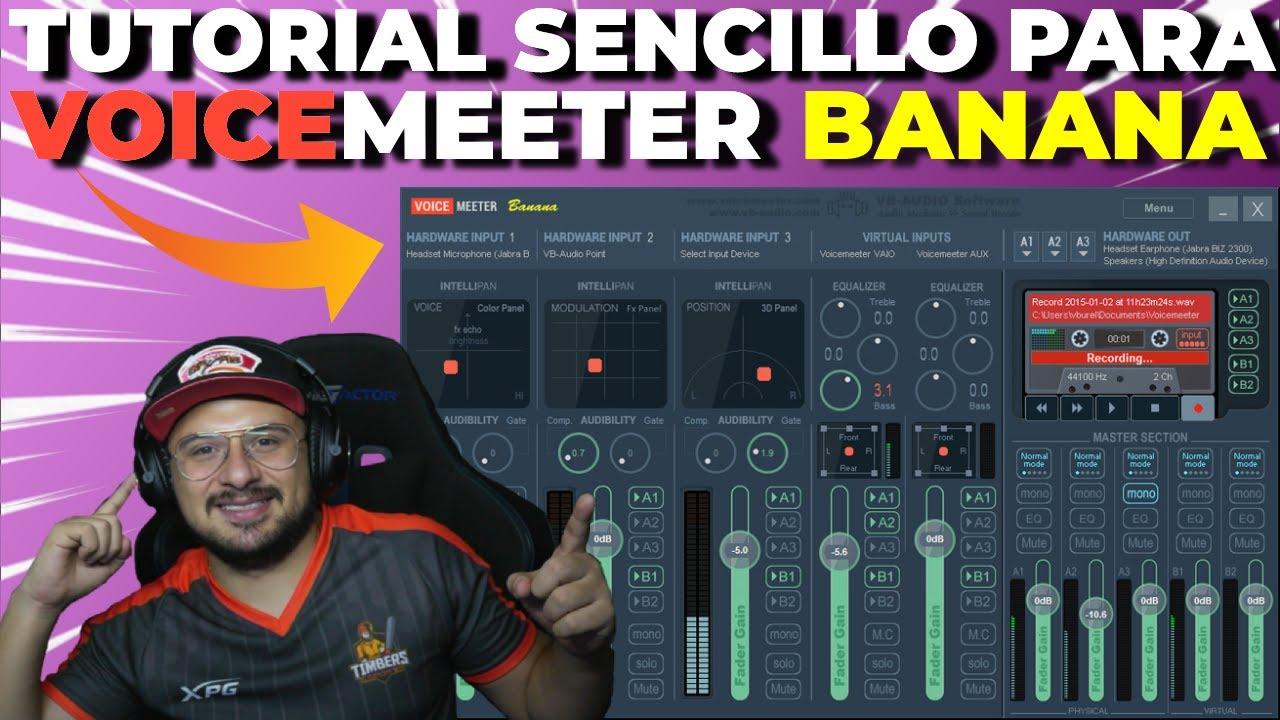
Voicemeeter Banana is the expanded version of VB-Audio's popular virtual mixer that combines physical inputs and outputs with virtual channels , allowing you to decide what each application hears and where it is played back or "injected" as a microphone.
Within the VB-Audio ecosystem, VB-Cable stands out, a virtual audio device that adds CABLE Input (playback) and CABLE Output (recording) ; what you play to the CABLE Input appears as if it were a microphone in CABLE Output, ideal for mixing or isolating sources between programs.
Voicemeeter integrates this concept and takes it further with multiple buses. In Banana, you'll have two virtual inputs (to separate, for example, games and the browser) and two virtual outputs (B1 and B2), in addition to physical channels. This gives you independent control of music, chat, games, and the microphone , all within the same window.
The software is distributed as donationware : it works completely free of charge, but prompts you to donate after a few days. If you find it useful, please consider supporting the developer, as the value it brings to PC audio is enormous.
Available versions: normal, Banana and Potato
There are three editions: the basic one, Banana (the one featured in this guide), and Potato. The standard edition includes 2 hardware inputs and 1 virtual input; 1 hardware output and 1 virtual output —enough to get started and enhance the microcontroller with essential controls.
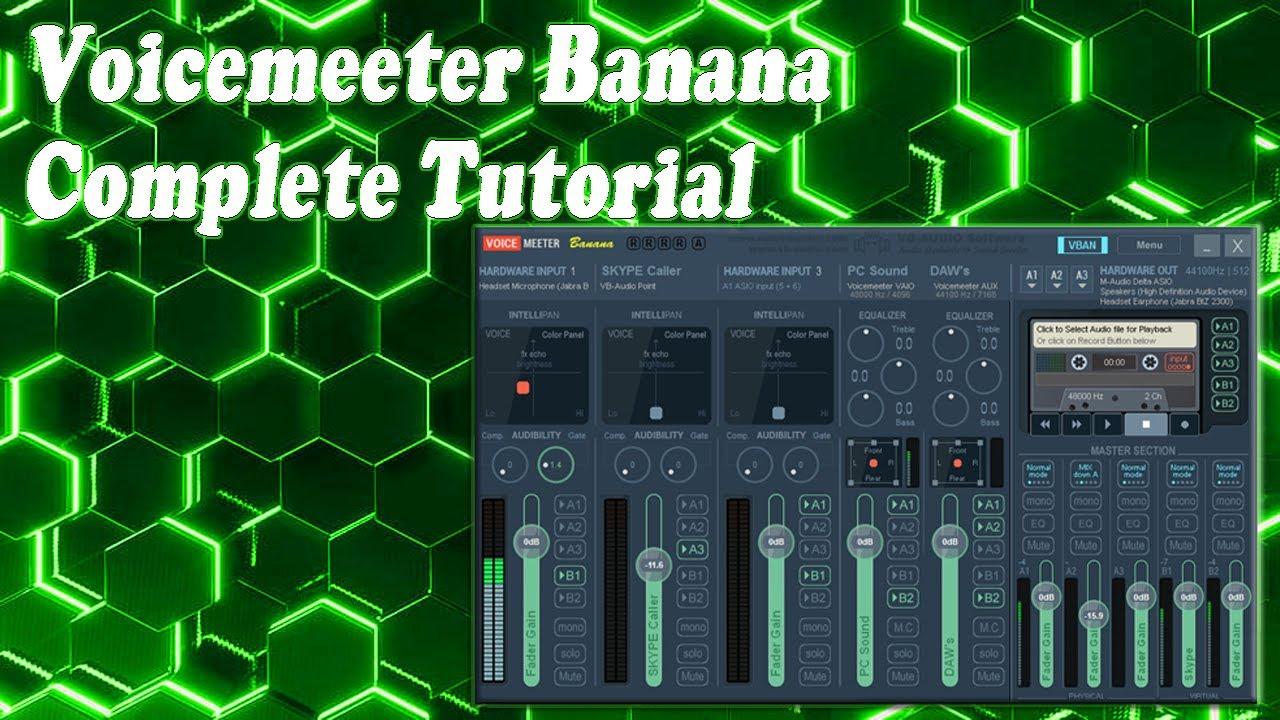
Voicemeeter Banana expands the board with 3 hardware inputs, 2 software inputs (two virtual buses to separate applications), and 3 hardware outputs plus 2 virtual outputs , and includes an integrated 8-channel recorder and VBAN network with 8 in/8 out.
Potato raises the bar for demanding environments: up to 8 inputs and 8 outputs (5 hardware and 3 software), with more effects such as full equalizer, reverb, denoiser and advanced compressor; it comes very close to a professional software mixing console .
Both the standard version and Banana are donationware; Potato requires an activation code after the trial . If you stream or need to separate many sources, Banana is usually the sweet spot in terms of features and cost.
Installation, boot, and default devices in Windows
Download and install Voicemeeter from the official VB-Audio website and also install VB-Cable if you are going to route specific apps through virtual "cables"; after installation, restart your PC so that Windows can properly register the new audio devices.
When you open Voicemeeter, go to Menu and enable Run on Windows Startup . This way, the mixer starts with the system and you won't have any strange changes to your devices every time you turn on your computer.
In Windows sound settings, set "VoiceMeeter Input (VB-Audio VoiceMeeter VAIO)" as the default playback device . This will send all system audio to the program's main virtual bus for mixing.
In your communication or streaming applications, select "VoiceMeeter Output" as your microphone (B1, or B2 if you prefer the second bus), because it will be the virtual output where you will mix your already processed voice without sending them the system audio, unless you want to.
When choosing devices in Voicemeeter, prioritize WDM controllers over MME: they offer lower latency and better synchronization, which is key if you play games or stream in real time.
Inputs and outputs in Banana: how to think about routing
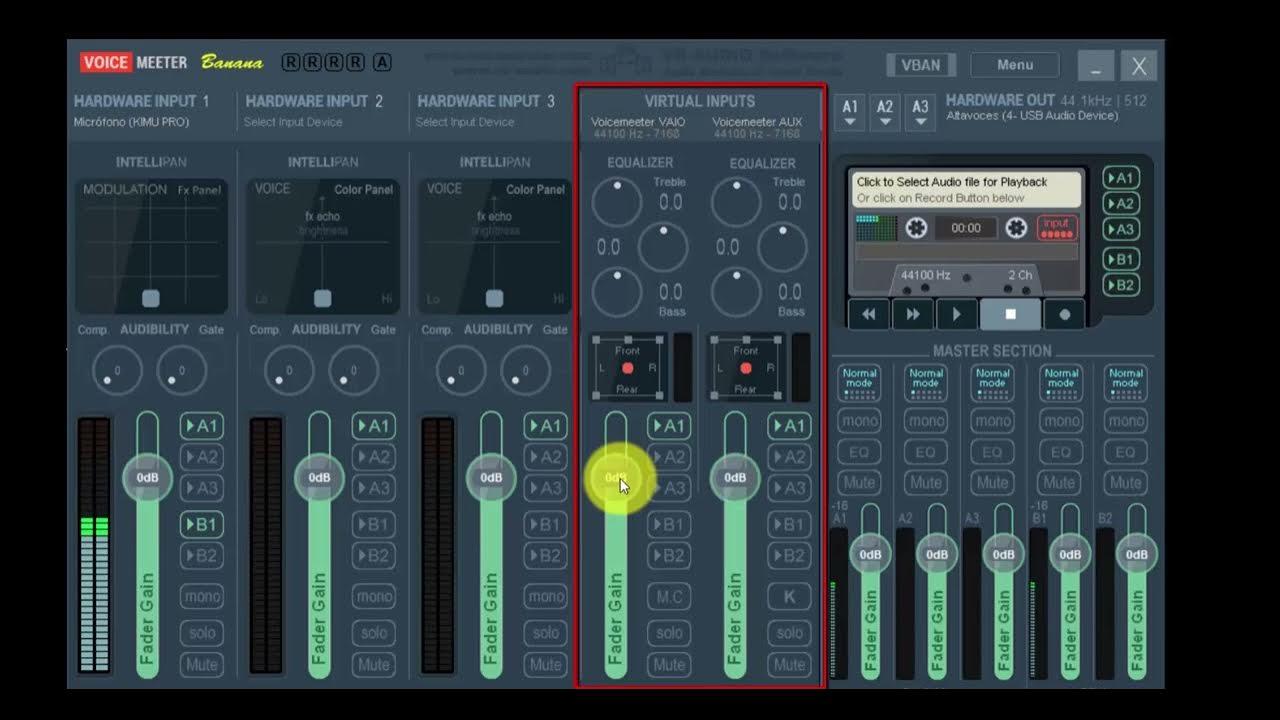
Think of Voicemeeter Banana as a table with five inputs and five outputs , three hardware (green) and two virtual (blue), and five output buses: A1, A2, A3 for physical devices and B1, B2 for virtual outputs.
Hardware inputs 1–3 allow you to select physical sources such as your microphone or a capture card. System audio and audio routed via VB-Cable or other virtual devices are routed to the two virtual inputs (VAIO and a second bus).
In each channel strip, you can activate which buses each signal goes to using the A1, A2, A3, B1, and B2 buttons. For example, select A1 to hear something in your headphones, and select B1 if you want it to go to your "virtual microphone" for Discord/OBS.
To avoid hearing yourself in your headphones, disable bus A on the microphone strip; and to prevent sending all the PC audio to those listening via B1, disable bus B on the main virtual input. This will eliminate the classic "echo" and duplicate mix.
Remember: the microphone should be treated separately; music, games, and the browser can be used together or separately depending on your needs; and the A1/A2/A3 outputs allow you to listen through headphones, speakers, or an external DAC simultaneously or selectively.
Typical scenario: You want to chat on Discord, hear the group through your headphones without their voices being picked up by your virtual microphone, and also listen to Spotify music privately, without it appearing in the stream. This is solved with selective bus routing.
In Discord, select “VoiceMeeter Output (B1)” as your microphone . For output, leave the system's default device, which will be “VoiceMeeter Input (VAIO)”; this way, your audio enters the virtual input and you decide which buses to send it to.
In Voicemeeter, uncheck B1/B2 in the virtual input so your contacts' voices don't travel through your virtual microphone, and leave A1 (or A2) enabled so you can hear them. The result: zero echo in the chat and complete control over the group volume.
For games and browsers, you can separate them. On Windows, go to Sound settings → Advanced sound options and assign the browser to “CABLE Input” (VB-Cable). That audio will then appear on Banana's second virtual bus , independent of the rest.
Now you choose whether that browser sends the audio to A1 (headphones), A2 (speakers), or also to B1/B2. For example, select only A1 so you can hear the music but it won't be received by your stream or voice chat, avoiding copyright claims or other issues.
Choosing drivers: WDM vs MME
When you select devices on outputs A1–A3 and hardware inputs, Voicemeeter will show you several options for the same device labeled WDM or MME . Choose WDM because it reduces latency and improves real-time stability.
Use MME only if WDM doesn't work well with a particular device; sometimes older drivers or poorly compatible USB equipment respond better with MME, but in general WDM is the safe bet for live streams and games.
Improving your microphone: color, compression, and noise gate
The microphone is the star for streaming and meetings. At the top of the channel strip, you'll find the Intellipan/Color Panel , a "sound painting" control that adjusts bass, treble, and a creative echo effect.
Moving the dot to the left increases the bass , which adds warmth to the timbre; to the right enhances the treble for more presence; and upwards introduces an artistic echo (use it sparingly, because it also replicates ambient noise).
Right-clicking switches to the 3D Panel , useful for slightly balancing the panorama if needed, although in mono voice it is not usually critical; it works more as a fine-tuning tool than as a main effect.
In standard Voicemeeter, there's an "Audibility" panel (with an integrated compressor/gate); in Banana, this role is filled by a dedicated noise compressor/gate . Adjust the gate to mute the microphone when you're not speaking and the compressor to suppress peaks when you raise your voice.
If you increase the gain too much, you'll end up with clipping and distortion; keep an eye on the meter and aim for healthy levels. With the Color Panel's moderate compressor and some bass boost, you'll achieve a clean, full-bodied voice without introducing keyboard or fan noise.
Equalizer, S/M buttons and mix control
In addition to the microphone color, you can tweak the virtual input equalizer to fine-tune how you hear your headphones/speakers: boost mids for clarity in voices or attenuate treble if certain frequencies tire you out.
The M and S buttons are key shortcuts: M mutes the current strip, S activates "only" on that source and mutes the others during editing. They're perfect for pinpointing what's causing an echo or for quickly testing routing.
Organize the strips with descriptive names (game, browser, chat, music, microphone) so you don't get lost; mental order helps avoid mistakes like accidentally sending the system to B1 and having others hear your entire desktop.
If you have two listening devices (headphones and speakers), split A1 and A2. You can listen to music through A2 and keep the game and chat on A1; with one click, you can switch between them without going into the Windows Control Panel to change devices.
Recording and Streaming: OBS, Streamlabs, and Banana Recorder
For OBS/Streamlabs, configure your microphone as “VoiceMeeter Output (B1)” and the desktop audio as “VoiceMeeter Input.” This way, they will arrive separately, and you can adjust levels in the OBS mixer without dragging the voice along with the music.
If you want more isolation, use the second virtual bus: send the music to B2, for example, and create a second source in OBS with “VoiceMeeter Aux Output (B2)”. This independent stream allows you to record separate tracks or mute music in VOD.
Voicemeeter Banana includes an 8-channel recorder . Use it to capture voice tests, check levels and latency, or even multitrack without opening your DAW; it's very handy for verifying that the routing is working as expected before a live performance.
Remember to keep the program running at startup with "Run on Windows Startup" enabled, and if you make any major system changes, double-check in Windows that the default output device is still VoiceMeeter Input to avoid breaking the chain.
VB-Cable: Isolate specific apps with a “virtual cable”
VB-Cable adds a virtual speaker (CABLE Input) and a virtual microphone (CABLE Output) to your system. Everything played through the Input is output, making it perfect for routing specific programs within Voicemeeter.
Practical example: Send the browser to CABLE Input from the advanced sound options in Windows. In Voicemeeter, assign CABLE Output as the source of one input and decide whether it goes only to your headphones (A1) or also to a virtual bus (B1/B2).
This allows you, for example, to play music for yourself while streaming without it being received by the live stream or chat, or to isolate system notifications so they never accidentally jump to the virtual mic.
If you need more routing, VB-Audio offers additional cables; the more virtual lines you have, the finer you can separate apps, but it also increases the complexity of the mix, so plan your diagram before you expand.
Extra Features: VBAN and Macro Buttons
VBAN (VB-Audio Network) brings the concept of cables to the local network : you can send and receive audio between devices in the same home/office without physical interfaces. It's powerful for studios, although it's a more advanced area. If you work with streaming, apply QoS rules for games and video calls.
Macro Buttons are a kind of virtual Stream Deck: they assign shortcuts to mute, switch buses, or load presets with a single click. They're great for live performances, where you need quick actions without having to navigate through the entire interface.
Usage tips and common troubleshooting
If you hear nothing after installation, check that in Windows the default output device is “ VoiceMeeter Input (VAIO) ” and that in Voicemeeter output A1 points to your correct headphones/speakers with WDM driver.
If you hear double audio, check that the microphone is not sent to input A (remove A1/A2/A3) or that you do not have "Listen to this device" enabled in the Windows microphone properties; in Voicemeeter it should be sent to B1/B2 and, if you want monitoring, it should be controlled.
If your listeners are also receiving audio from your PC, make sure the virtual input doesn't have B1/B2 enabled unless you want it that way. That's a common reason why music or game audio can sometimes be picked up when you're speaking.
Latency or glitches? Switch to WDM , reduce the buffer size if your system allows it, and avoid unstable USB devices on the main bus. A solid DAC/amp at A1 and a good dynamic microphone usually improve the experience considerably.
If you're going to invest, consider upgrading the microphone first before adding more effects; a decent microphone with a gate and light compression in Voicemeeter performs better than trying to "rescue" a very noisy one with aggressive processing.
Banana vs. regular: When to make the jump?
If you only want to tweak the microphone and have a virtual output, the standard version will do the trick. But if you need two virtual inputs/outputs to separate apps (for example, music and games) or to use the 8-channel recorder, Banana is the better choice.
For complex environments with multiple physical sources, instruments, and more independent buses, or if you want advanced effects (reverb, denoiser, extended equalizer), then Potato will give you extra headroom, although it requires a license after the trial.
With all of the above, you now have the roadmap to master Voicemeeter Banana: install it, set "Run on Windows Startup", set "VoiceMeeter Input" as the default in Windows, route the microphone only to B1/B2 , avoid sending the virtual input to B, choose WDM, use VB-Cable to isolate apps, and add the finishing touches with Color Panel, compressor, and gate; this way you'll get a clean mix, without echoes or duplicates, and ready for streaming, gaming, and video calls with total control of each source.


Passionate writer about the world of bytes and technology in general. I love sharing my knowledge through writing, and that's what I'll do on this blog, show you all the most interesting things about gadgets, software, hardware, tech trends, and more. My goal is to help you navigate the digital world in a simple and entertaining way.
Table of Contents
- 1 What is Voicemeeter Banana and how does VB-Cable fit in?
- 2 Available versions: normal, Banana and Potato
- 3 Installation, boot, and default devices in Windows
- 4 Inputs and outputs in Banana: how to think about routing
- 5 Hands-on setup with Discord, games, and browser
- 6 Choosing drivers: WDM vs MME
- 7 Improving your microphone: color, compression, and noise gate
- 8 Equalizer, S/M buttons and mix control
- 9 Recording and Streaming: OBS, Streamlabs, and Banana Recorder
- 10 VB-Cable: Isolate specific apps with a “virtual cable”
- 11 Extra Features: VBAN and Macro Buttons
- 12 Usage tips and common troubleshooting
- 13 Banana vs. regular: When to make the jump?