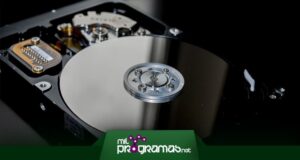
 Hard drives are long-lasting devices and can even operate for decades without being damaged. However, this does not happen in all cases and, whether we like it or not, at some point will lose their useful life.
The problem isn't that the computer might break down, but that we might lose the stored files, which are often irreplaceable. If you want to try to back them up, there are some hard drive file recovery programs that will be very useful.
Top 7 Softwares to Recover Files from Hard Drive
Each hard drive is even designed with backup memory that stores everything you delete, so until the system needs more space, everything you delete will remain there, saved and recoverable.
But we can't access this section simply by going to the recycle bin; you'll need specialized applications like hard drive file recovery programs , so we'll tell you which ones are the best.
▷Read: Do you want to clone a hard drive? These are the recommended software programs ▷
1. Recuva
From the same creators of Ccleaner comes Recuva , a software for recovering deleted files on removable drives that will allow you to access the computer's memory to see the history of everything you have deleted, whether by mistake, accidentally or deliberately.
It's compatible with internal and external hard drives, USB flash drives , SD cards, and any other detected drive. Furthermore, it offers various types of analysis for more targeted searches.
On one hand, Recuva lets you search specific folders on connected devices, ignoring all other files. You can also perform scans based on the type of drive connected.
It is even possible to filter them according to file type, whether you only want to recover images, videos, audio, or executable programs.
If they are still available, a green button will appear, but if they have been lost, the indicators will be yellow and red, which means that you can no longer do anything.
Download it on their Website |
2. EaseUS Data Recovery Wizard
EaseUS Data Recovery is much more intuitive and also offers a well-structured interface, preventing us from having to search for connected removable drives from the computer's control panel.
By simply entering the platform, you will see a graphical summary with all the detected devices, including the local disk where the system is located, SD or USB memory cards or any external hard drive, and you will only need to choose the one you want to analyze from there.
In that regard, EaseUS Data Recovery Wizard has the unique feature that, if the basic scan doesn't work, you can select the deep scan , which uses a specific algorithm to find items embedded in memory. However, this deep scan can take longer, and the duration depends on the size of the disk.
If you just want to find them from a particular folder, on your PC desktop, or in the recycle bin, this might be the best program for finding deleted files.
Download it on their Website |
3.Disk Digger
Similar to Recuva, but with a better interface design. This is an essential tool for any Windows computer because it's lightweight, intuitive, and displays all scannable hard drives.
There, you simply need to click on the drive you want to analyze and then choose the type of analysis you want to perform, including deep digging and normal. The former scrapes the disk surface to search for remnants of deleted files.
Meanwhile, the basic scan will only find recently deleted files that you are guaranteed to be able to recover, so the choice of any option will depend on your urgency, the time elapsed between deletion and the scan, etc.
Additionally, it can be downloaded for free from their website and you won't even need to install it, as it's portable software. However, to restore more than five files per day, you'll need to pay for the app.
Download it on their Website |
4. Testdisk and PhotoRec
These two recovery programs come in an integrated package and serve different purposes, but both will help you in your process of restoring files from a hard drive, and that's what counts.
In the case of PhotoRec , its function is focused on recovering deleted items from cameras , cell phones, and other drives that are generally not detected as removable and, consequently, the previous applications cannot access to function on them.
PhotoRec is more of an advanced forensic software that, in addition to allowing you to recover photos, videos, audios and executable packages, can also obtain all kinds of files in multiple formats, including encrypted ones.
And if the hard drive lost its format for some reason and doesn't let you access all your important files, TestDisk runs as a command prompt and will format it, but without deleting what you have stored on it.
Download it on their Website |
5. PC Inspector File Recovery
The interface design of PC Inspector File Recovery isn't the most up-to-date, but it compensates with a variety of available features. Recovery mode scans all detected disks or only those you manually select.
If you find any file you want to recover, simply check its integrity level, which is displayed in green (available), yellow (partially damaged) , and red (unrecoverable).
Furthermore, PC Inspector File Recovery adds the deletion date to the file when you restore it, so you don't lose this data or can use it as a reference. It also offers various types of analysis , and you can experiment with its settings.
If for some reason your hard drive lost a FAT partition , you can recover and restore it exactly as you left it, but this feature does not work on NTFS partitions , so it is not a tool for all cases.
Download it on their Website |
6. Glary Undelete
Glary's tools are always very helpful, and this time, they provide a platform to recover deleted files from your computer's hard drives , as well as from external and removable drives.
It's compatible with a wide variety of formats, including FAT, NTFS, and exFAT, further expanding its capabilities. You can also perform both in-depth and basic scans without long wait times, as the algorithms are more precise this time around.
Glary Undelete even comes bundled with a tool to adjust various analysis filters , which can be a huge help when you want to specify searches by format, size, date, and file type.
Its design is very minimalist and simple, and the found files panel includes a list with corresponding shortcuts for added intuitiveness. Furthermore, it's one of the few hard drive file recovery programs that features a search bar.
Download it on their Website |
7. ADRC
ADRC is a veteran in its field and has been around for many years, although it was unfortunately discontinued some time ago. Even so, you can install it on Windows 10 using compatibility mode without losing any of its features.
The interface is super basic and somewhat outdated, with a bottom panel that shows you the list of items detected in the hard drive analysis, which are simply all the files that have been deleted so far.
What we like most about ADRC is that it includes several sections that provide us with information about the file, such as its precise location, the space it occupies within the storage , the date of its last modification, and its integrity status.
In this last case, it will appear in English and without an identifying color like other alternatives, but being set to "High" is enough to restore it without losing anything. You can even create bootable versions of the operating system and try to recover it if there's a failure.
Download it on their Website |
Conclusions
Restore deleted files, recover any item from your removable drive, and revive old partitions with Hard Drive File Recovery Programs. The important thing is that you don't lose anything that's important to you.
All these tools have the same functionality, but they differ according to the additional features they can provide, their costs, and even the compatibility of formats detectable in the analyses.
▷You should read: 6 Best Virtual Machine Programs ▷
We generally recommend performing deep scans if the deleted file was deleted a long time ago or if you have deleted many other files with considerable size, as this will give you a better chance of finding them.
Keep in mind that when the list of found files indicates that their integrity is low or they are in red and yellow colors, you will probably be able to do very little to restore them and in those cases you would lose your files, although you will have to try first.

My name is Javier Chirinos and I am passionate about technology. Ever since I can remember, I have been interested in computers and video games, and that passion has turned into a job.
I have been publishing about technology and gadgets on the Internet for over 15 years, especially in mundobytes.com
I am also an expert in online marketing and communication and have knowledge in WordPress development.