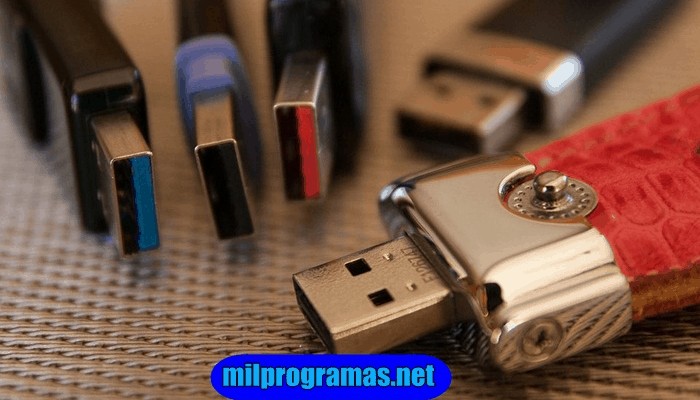
In the old days, to install an operating system or create a rescue disk we had no other option than to burn the entire system to a CD or DVD. While we have nothing against CD/DVD, the method is clumsy, time-consuming and not user-friendly, while most manufacturers are on their way to burying the CD/DVD burner.
Fortunately, we have USB flash drives to our rescue. They're easier to carry and more convenient to use. Plus, unlike CDs or DVDs, we can reuse a USB flash drive, and after using it, we can format the drive and store something else on it. But to use a bootable USB drive, we would need bootable software.
Top 7 USB Boot Programs in 2020
Here are the 7 best programs to create bootable USB drives for Windows and Mac :
You might be interested in: The 5 Best Streaming Programs
01. Rufus (Windows)
When it comes to creating a bootable USB drive in Windows , Rufus is undoubtedly the best tool available. It's free, open source, and easy to use.

In addition to creating bootable USB drives for various operating systems , it can also be used with BIOS flash memory, firmware, and to run low-level utilities. Furthermore, compared to other boot programs, it's the fastest at creating bootable USB drives.
While creating a Windows bootable drive, you will notice that this software offers you different advanced options like partition scheme file system creation and cluster size.
These options are going to prove to be very beneficial when it comes to creating BIOS firmware or other low-level devices. Rufus also allows you to check if the USB drive has any bad blocks and all you have to do is select the checkbox and go to “check device for bad blocks” under the format option. The software may take some time depending on the size of the drive, number of passes, and speed of the USB drive.
Rufus is good for people looking for a fast and free bootable USB creator. The best thing about this software is that it does not require an installation and can be run directly from a portable exe file.
02. Windows USB/DVD Tool (Windows)
If you are a Windows user and need a bootable USB drive for Windows, this is the official tool for you. As the name suggests, this software allows you to create both bootable USB drives and DVD drives.
The specialty of this tool is its ease of use, all you have to do is insert the USB drive, select the ISO and click on the Next option. After the initial format, the software will create the bootable USB drive within minutes.
However, it lacks options for customizing bootable USB drives. For example, you can't change the file/partition scheme or create an extended level or check for bad blocks. If you don't mind the lack of advanced options, go for this one.
03. Universal USB Installer (Windows)
The Universal USB Installer, as its name suggests, allows you to create any type of bootable USB drive. It is easy to use and can create any type of bootable USB drive, whether it's Linux or Windows, special antivirus rescue drives, penetration testing drives, or other low-level boot drives.
The interface is very easy to understand. Simply select the operating system from the drop-down menu, select the ISO file and hit install. Additionally, the software will take care of all the processes of directory creation, boot partition and more.
Another useful feature of this software is that it allows you to create bootable USB drives with persistence storage . You can select the amount of persistence storage while creating the bootable USB drive, but this feature is only available for select Linux distributions.
04. RMPrepUSB (Windows)
If you want a highly customizable and feature-rich bootable USB creator , RMPrepUSB is the one for you. It lets you create almost any type of bootable media. It includes options for testing, partitioning, support for multiple image formats, quick formatting, a custom boot loader, file systems, and a QEMU emulator.
With this software, you can quickly boot into a bootable USB drive using the QEMU Emulator directly on your Windows machine without rebooting the system. This is useful when we want to check if the bootable USB has been created correctly.
Along with that, you can install various bootloaders like grub4dos, syslinux, bootmbr, WEE, and more. As good as the tool sounds, it is not that easy to use. It has a steep learning curve and is meant for advanced users. But the good news is that the official website offers a ton of detailed and helpful guides for your assistance.
05. Etcher (Windows/Mac)
Etcher is the new kid on the block and is the easiest to use on this list. The main idea behind building this software is to remove the complexity of selecting multiple options and settings with different operating systems.
It only takes a few clicks to turn our USB flash drive or SD card into a bootable drive. It works on Windows, Linux-based operating systems, and even MacOS.
Etcher is also available with a Pro variant that is aimed at businesses where more than 100 drives need to be flashed simultaneously. The application is open source and you can head over to the GitHub repo for more information. Future plans for Etcher include support for persistent storage, allowing the live SD or USB flash drive to be used as a hard drive.
06. YUMI – Multiboot USB Creator (Windows)
YUMI – Multiboot USB Creator is designed by the creator of Universal USB Installer. While Universal USB Installer is made to create regular bootable drives, YUMI or Your Universal Multiboot Installer is designed to create multiboot USB drives.
Multiboot USB drives allow you to install multiple operating systems, firmware, antivirus tools, and other utilities on a single drive limited only by its memory. Like Universal USB Installer, YUMI can create persistent storage to back up necessary files between reboots.
07. WinSetUpFromUSB (Windows)
WinSetUpFromUSB is another Windows-based bootable media creator. The tool is specially designed to create a Windows bootable drive, but there is also an option to create bootable Linux distributions using SysLinux or IsoLinux. It is capable of creating bootable media for WinBuilder, WinPE, BartPE, UBCD4Win, etc.
Although the user interface is simple, you can access advanced options under the “Advanced Options” checkbox. Additionally, you can also test bootable media in the QEMU emulator along with other useful tools like 7-Zip, RMPrepUSB, Bootice, and more.
You might also be interested in : The 6 Best Programs to Remove Passwords in Windows 10
The Best Program To Boot USB
This is a list of the best USB boot programs for 2020, which you can use to create a bootable USB drive. If this concept is new to you, Etcher seems like a good option. On the other hand, if you only work with Windows, you can opt for the Rufus or Windows USB/DVD tool.
For everything else, YUMI or the Universal USB Installer is a good option. If you think there's better USB boot software , share your thoughts in the comments section.

My name is Javier Chirinos and I am passionate about technology. Ever since I can remember, I have been interested in computers and video games, and that passion has turned into a job.
I have been publishing about technology and gadgets on the Internet for over 15 years, especially in mundobytes.com
I am also an expert in online marketing and communication and have knowledge in WordPress development.