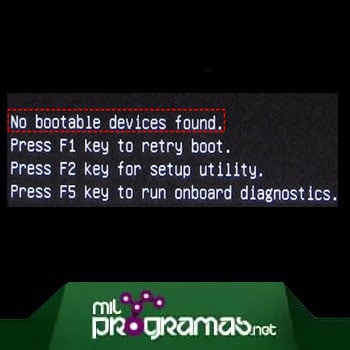
If your computer displays the error message " No bootable device, " don't worry, this article shows you how to fix the problem. Many of the most annoying errors you'll encounter on your laptop or desktop computer leave behind coded messages for you to decipher.
Fortunately, some of them are quite simple, like the " boot device not found " error message at startup, followed by the command prompt . However, when you turn on your computer and are faced with an error message, no matter how critical it may seem, you're bound to feel frustrated and scared.
The "no boot device" error occurs after a user has pressed the power button and the system has gone through the initial BIOS boot process. At the point where the operating system would normally begin to load, a black screen appears , perhaps with a blinking white cursor.
Sometimes, you'll also see a boot disk insertion error message or a hard drive error 3f0 , and then the system will boot to the boot partition or recovery prompt. We'll fix this completely later, but always remember to check the cables.
You might also be interested in: Fixing Office Product Activation Errors
What does “No bootable device” mean?
This error indicates that the computer cannot detect a boot device. Therefore, instead of loading Windows normally, it gets stuck on the black startup screen shortly after the power button is pressed. The "No bootable device" error is generated by the system's motherboard. If you have an HP laptop or PC, you may see error 3f0.
The BIOS contains the boot device sequence for your laptop or desktop computer, and the first boot device is usually the system drive (Windows partition). It also contains the hard drive's hardware address and the instruction sets needed to read the hard drive's Master Boot Record (MBR), or boot sector.
The MBR stores the boot location of the operating system, which is read to start Windows 10 (or whatever version you're running). That's why some versions of this message say " boot device not found, please install an operating system ."
If the BIOS cannot locate the boot hard drives , there is no way to find the MBR or boot sector. The computer will search for any known boot device configuration, and if all devices fail, you will receive the message.
A boot device can be any storage drive connected to your computer, and advanced users can boot from network or remote storage. However, most of us boot from a USB connection , CD/DVD drive, or an HDD/ SSD /NVMe drive connected directly to the motherboard.
What causes the “No bootable device” error?
As mentioned earlier, the "No bootable device" error occurs when your PC cannot find a boot sector. However, we'll delve deeper to understand exactly what the " boot device not found " error means. The startup process is something that usually happens smoothly every time you turn on your computer until, of course, you encounter this startup error.
A boot device is a storage hardware (a hard disk drive, a solid-state drive, etc.) or a partition on your storage device that is clearly identified by your laptop/computer's BIOS (your motherboard's firmware) as a boot storage device. It identifies itself as a boot device in two ways.
- The motherboard examines the storage device hardware ID which is encoded with details such as manufacturer, model, storage capacity, storage speed, interface connection, and transmission data. Basically, the hard drive or flash drive has been inserted into the system board.
- The motherboard maintains a prioritized list of all storage devices connected to the PC. This is called the boot sequence or boot order. The first device that might identify itself as a boot device is the one your PC will boot from. The motherboard then triggers a set of instructions to locate the device's boot sectors and master boot record (MBR).
The MBR then boots Windows. This is how your PC chooses the MBR boot device. Or at least it tries to. If it can’t boot properly from the first one on the list, you’re likely to end up with a “No bootable device” error message.
So now we know the immediate cause of the "boot device not found" error. Next, we'll try to understand what circumstances might cause your boot device to fail to be recognized as such during a proper PC startup.
Main causes of the “No bootable device” error
These are some of the causes of this error:
1. The hard disk boot sector or partition table is damaged
If this important metadata on your hard drive becomes severely damaged or if your drive has bad sectors, your hard drive, or at least the partition containing your operating system (OS), will appear as an empty disk. However, logically all of your data is still on the device, but the navigation signals pointing to it no longer exist.
In this situation, it's unlikely you'll be able to recover the important files on your device, even if you reinstall the operating system. If this happens, stop using the drive immediately and send it to data recovery professionals.
2. Your hard drive is broken
This is a common reason for a “No bootable device” problem. Hard drives typically last between five and ten years before failing, although their lifespan depends on their workload and the stress they are subjected to.
If you can hear your PC's hard drive beeping or making other strange clicking noises, disconnect it from your computer immediately. You will need to replace the hard drive to correct any errors that this will cause.
3. The system boot priority has changed
While this is highly unlikely, sometimes changes to system settings, system battery (BBU) failure, or a user accidentally selecting "restore BIOS default settings" can cause the boot order of storage devices connected to your computer to be rearranged.
This may cause the system to try to boot from a non-bootable storage device, such as a USB flash drive, network location, or empty CD/DVD drive. For example, you can boot from your hard drive with Windows installed on it or from a USB drive with Windows installation/recovery files, but not from the external USB hard drive that has all your family photos.
4. The SATA/IDE cable that connects your hard drive to the motherboard is loose or not working
This is a potential cause that will appear on almost every troubleshooting website on the internet. However, in practice, it's very rare for this to happen . You can also check the SATA cables, which have a 0,1% chance of fixing "No bootable device" problems because it's easy to do and you might get lucky. However, it's much more likely to be one of the three causes mentioned earlier.
How to Fix “No Bootable Device” Error in Windows 10/8/7?
Now, you can try the methods listed below to check if the “No bootable device” error can be fixed.
Method 1. Remove and reconnect all hardware components
First, you can completely shut down your computer, remove all hardware devices, and then reseat them properly. This can help determine if the BIOS failed to detect the system hard drive due to a loose connection, causing the "No bootable device" error. If this doesn't work for your situation, proceed to the next method.
Method 2. Check the boot order
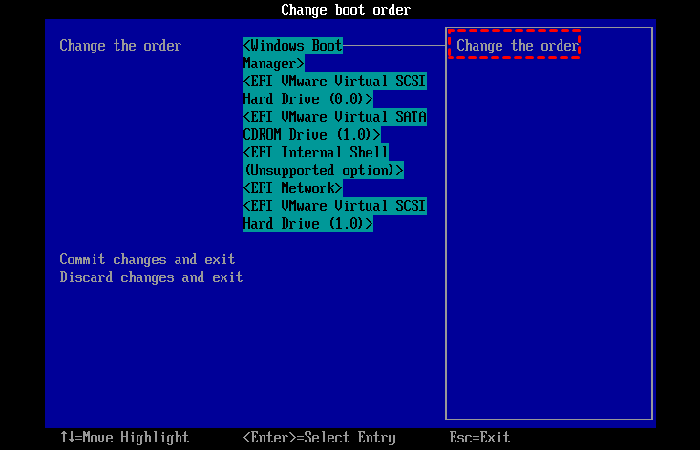
An incorrect boot order could lead your computer to boot from an unbootable hard drive, resulting in the “No bootable device” message. Therefore, make sure that your system hard drive is at the top of the boot order. Here’s what you need to do:
Step 1: Restart your computer and press a specific key ( Del, F2, F10… ) to enter the BIOS settings.
Step 2: Access the " Boot " tab using the right arrow keys on your keyboard. Then move your system's hard drive to the top of the boot order list.
Method 3. Reset the primary partition as active
The partition where the operating system is installed is called the primary partition. It must be set to active for the operating system to boot properly. So, if it is set to inactive by mistake, it will trigger the “No bootable device” issue. So, set it back to active. You need to do it this way:
Step 1: Insert the Windows installation DVD into your computer and boot from it. Select your language and keyboard layout, and click " Repair your computer ."
Step 2: If you are using the Windows 10 or 8 installation DVD , click " Troubleshoot " and then " Command Prompt ." If you are using the Windows 7 installation DVD , on the " System Recovery Options " screen, select the first option, " Use recovery tools that can help ," select Windows 7, and click " Next ." Then select " Command Prompt ."
Step 3: In the elevated command prompt window, type the following commands one by one and then press "Enter".
- lit disk
- select disk 0: 0 is the disk number of the system hard disk.
- list partition
- select partition 1: 1 represents the partition number of your system.
- active
You might also want to know: How to Fix Error Code 5003 in Zoom
Method 4. Check the status of the internal hard drive
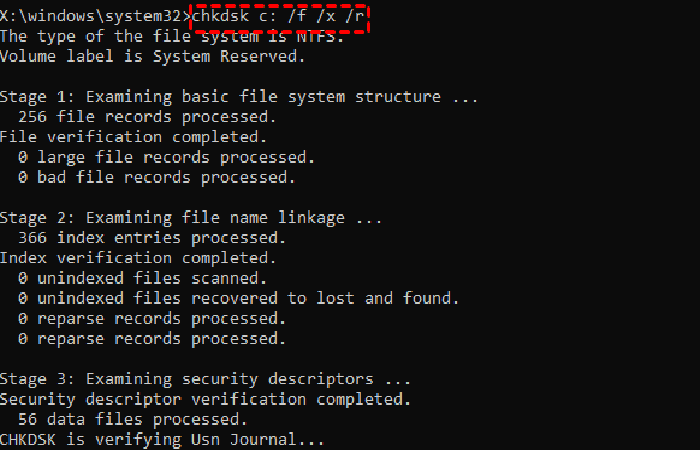
If your internal hard drive has any disk errors, you might see the "No bootable device" error during Windows startup. You can check its status using the CHKDSK.exe tool.
To do this, you can refer to Method 3 for opening the Command Prompt window. Then run the command " chkdsk c: /f /x /r ", which will check for errors on drive C (the Windows operating system is usually installed on this drive) and fix them if possible.
Method 5. Correct boot information (BCD and MBR)
When boot information including BCD or MBR is corrupted by virus attack, power failure, or bad sectors, you may get a “No bootable device” error. You can repair or rebuild such crucial information through Command Prompt commands. Also, you need to enter the Command Prompt window first and then run the following commands in order.
- Bootrec/fixmbr
- Bootrec/fixboot
- Bootrec / scanos
- Bootrec / rebuildbcd
Then restart your computer to see if this resolves your issue. If you cannot access the command prompt because the Windows installation DVD is unavailable, you can switch to AOMEI's Standard Partition Wizard.
With it, you can first create a Windows 10/8/7 bootable media, then boot your computer from it and fix the “boot device not found” issue. Below are the steps to fix the error via the partition wizard:
Step 1: Connect an empty USB drive to a working computer, download, install, and run AOMEI Partition Assistant Standard on that PC.
Step 2: Click on " Create bootable device " on the left side of the main interface and follow the Wizard to create a bootable USB drive.
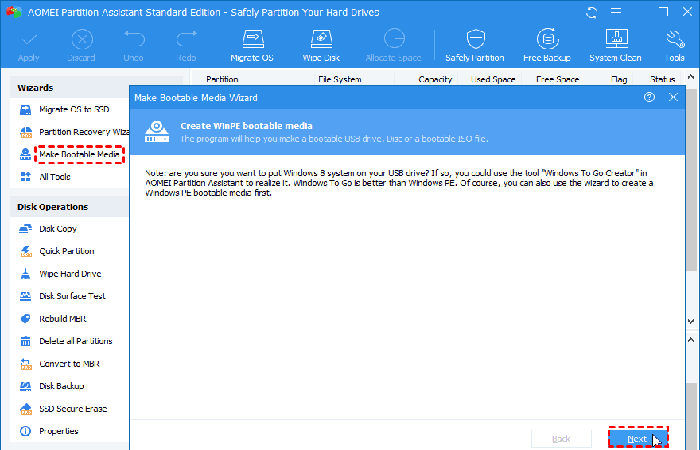
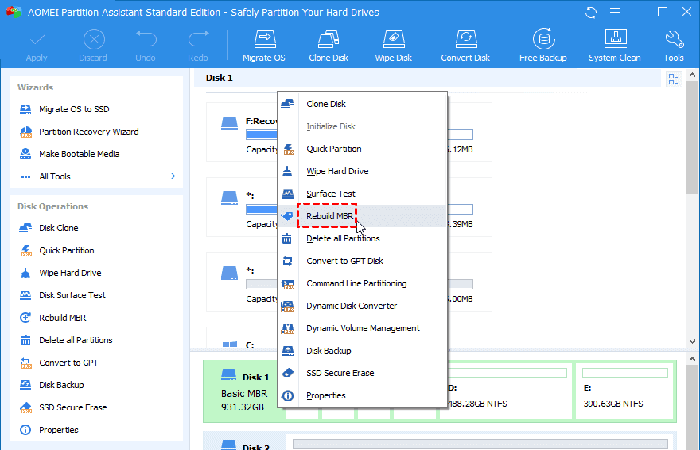
Then, plug this bootable USB drive into the computer that is showing the error. When you log in, you will be in the main interface of AOMEI Partition Assistant Standard. Now you can rebuild MBR in three steps:
Step 1: Right-click on the system hard drive and select " Rebuild MBR ".
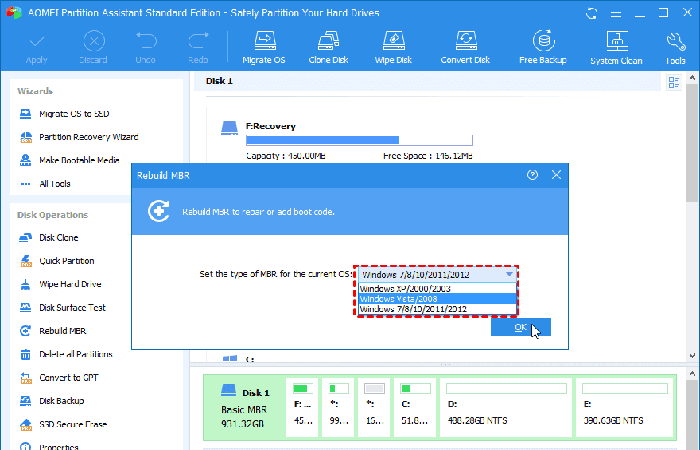
Step 2: Choose an appropriate MBR type for your operating system and click " OK ".
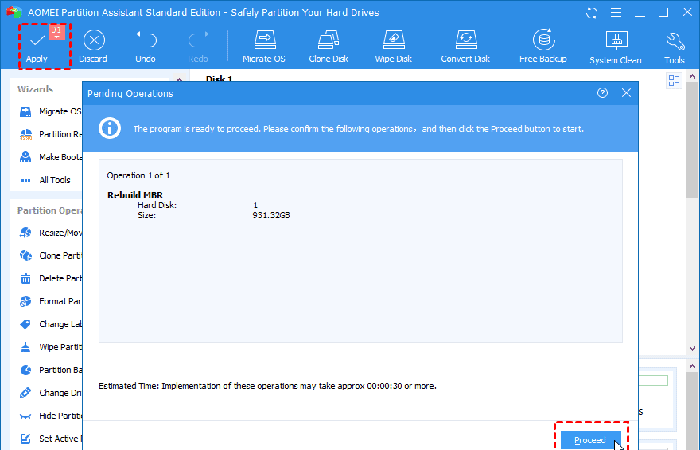
Step 3: Click on " Apply " and " Continue " to confirm the pending operation.
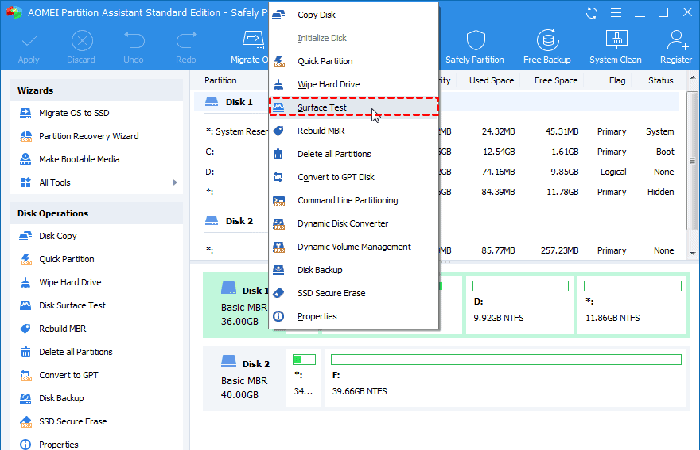
Additionally, you can use this free software to check the status of your system disk: right-click on the system disk, select " Surface Test ," and wait for the process to finish.
Additionally, AOMEI Partition Assistant Standard also supports checking and repairing partition errors: right-click on the system drive and select " Advanced " > " Check Partition ." Choose the first method to check and repair partition errors.
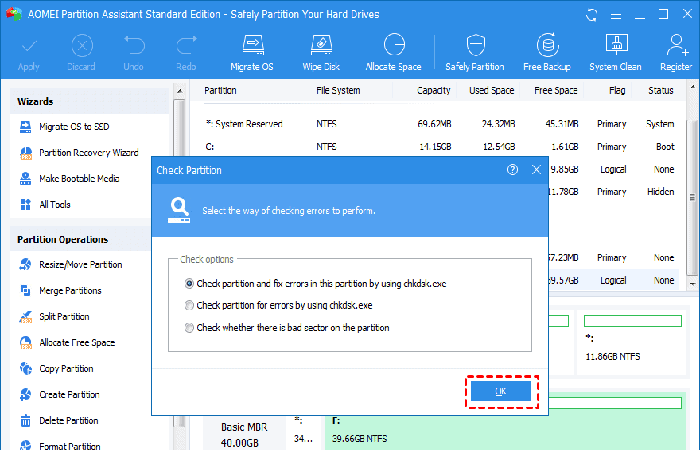
Method 6. Recover deleted boot partition
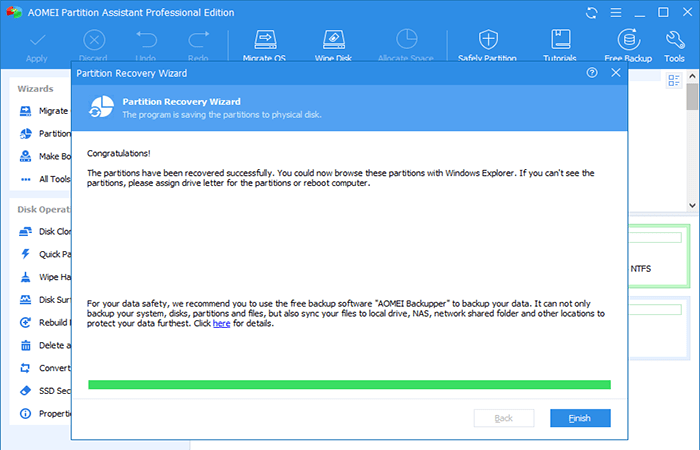
If you accidentally deleted the system partition and the BIOS can't find the boot drive , Windows won't find the boot device either. In this case, you can try using the AOMEI Professional Partition Wizard.
This tool allows you to create bootable media and recover deleted boot partition without loading the operating system. Follow the steps below:
Step 1: Refer to the last method to create a bootable USB drive using AOMEI Partition Assistant Pro. Boot your computer from the bootable media you created, even if no boot device is found.
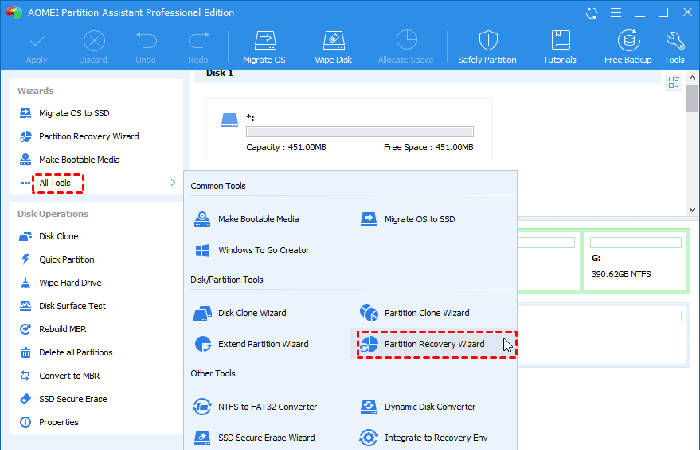
Step 2: On the main interface of AOMEI Partition Assistant Pro , click on " All Tools " > " Partition Recovery Assistant ".
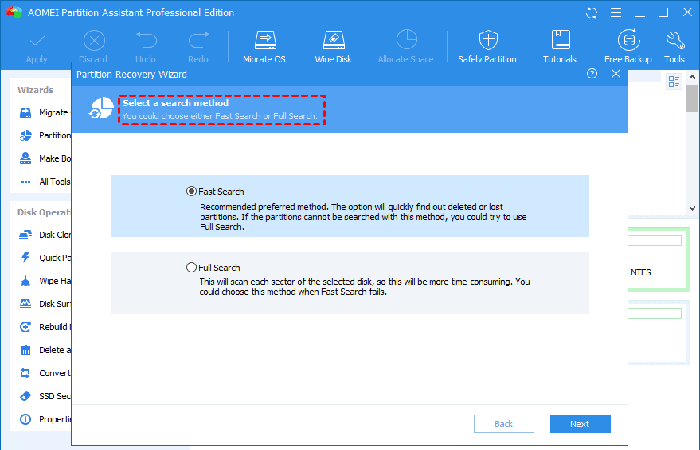
Step 3: Choose a suitable method to search for the deleted boot partition and click " Next ".
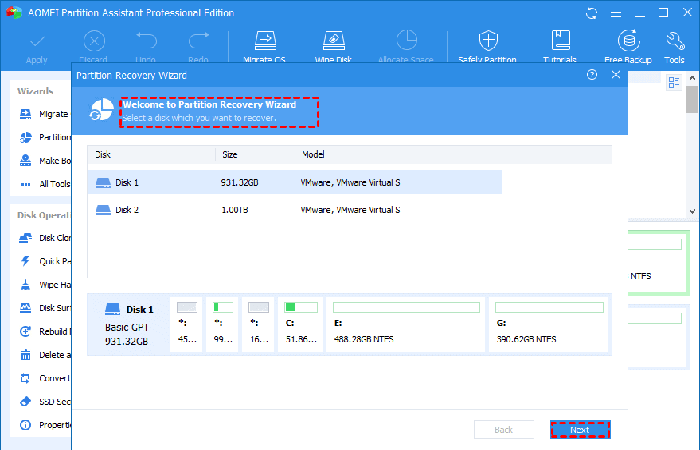
Step 4: Choose the system disk and click " Next ".
Step 5: Next, you can select the deleted system drive and click " Continue " to recover the lost boot partition.
You might be interested in reading: Do you want to clone a hard drive? These are the recommended software programs
Final thoughts
These 6 methods are effective to fix the “No bootable device” error. We sincerely hope that you can get a suitable method according to your special situation. Besides the above functions, AOMEI Partition Assistant also comes with many other excellent features: migrate OS to SSD, clone hard drive to another disk, extend system drive without reboot, and so on.

My name is Javier Chirinos and I am passionate about technology. Ever since I can remember, I have been interested in computers and video games, and that passion has turned into a job.
I have been publishing about technology and gadgets on the Internet for over 15 years, especially in mundobytes.com
I am also an expert in online marketing and communication and have knowledge in WordPress development.