- Green videos in VLC are usually due to acceleration conflicts. hardware, video output modules and drivers outdated graphics.
- Disabling options such as video acceleration and YUV→RGB conversions, or changing the video output, often eliminates screens, lines, and green blocks.
- When the problem lies with the file itself, video repair and conversion tools help to recover or make the damaged videos compatible.
- Keeping codecs, players, operating system, and drivers up to date greatly reduces the likelihood of seeing green screen videos again.

If when playing a movie in VLC you see the green, purple, or totally distorted imageDon't worry, you're not alone. It's a fairly common problem, especially with 4K videos, H.265/x265 files, or when using hardware acceleration, and it can almost always be fixed by tweaking a few options in the player or your system.
In other cases, the problem appears not only when playing back, but also when take screenshots, watch online videos, or use other players , the Windows Media Player or Media Player Classic. Sometimes the screen turns completely green, other times green lines (horizontal or vertical) or green tiles/squares appear that change in every frame and make the video virtually unwatchable.
Common causes of green or distorted videos in VLC
Most of the time, when VLC shows videos tinted green, purple, or full of artifactsThe problem is not with the movie itself, but with how the image is being decoded and displayed on your computer.
Problems with the video file
One possible cause is that the file itself has Internal errors, corruption, or an incompatible formatIf the container or video stream is corrupted, VLC may be unable to properly decode the frames and ends up displaying a green screen or strange blocks.
This is very typical when they have disrupted downloadsfailed copies or conversions The video has been edited, or the files have been partially processed using software. Sometimes the video appears green only at certain points, and other times the entire playback is a riot of green tones.
Incorrect or outdated codecs
Although VLC includes its own codecs, there are still situations where an old or poorly implemented codec This causes certain modern formats (especially some H.265/x265, 4K, profiles) to display incorrectly. HDR or unusual combinations of codec + audio (like Atmos) play poorly.
When the codec doesn't properly understand what it's receiving, errors occur decoding errors which translates into green pixels, color banding, and various distortions. This scenario is more evident with very large 4K videos or those with aggressive compression.
Conflicts with hardware acceleration (GPU)
The most frequent reason for the famous green screen in VLC It's hardware acceleration. VLC can delegate some of the video decoding work to the graphics card (GPU) to improve performance, but if there's a driver conflict, poor implementation, or incompatibility with your GPU, the result is strange colors, banding, or a green screen.
Functions such as the video acceleration YUV→RGB hardware conversions may not work well with certain drivers NVIDIA, AMD or Intelor with certain VLC video output modules (Direct3D, DirectX, OpenGL, X11, etc.).
Video output settings in VLC
Another source of problems lies in the video output that uses VLCDepending on the system and version, you may be using Direct3D, DirectX, OpenGL, X11, GDI video output, etc. A poor combination of output module, graphics drivers, and hardware acceleration can result in green or distorted images.
On many devices, it is enough to try other video outputs until you find the one that works well, without needing to disable all acceleration.
Outdated or corrupted graphics drivers
If your graphics card hasn't received updates in a while, it's very likely that the drivers are not up to date This depends on your operating system or current video standards. It can cause anything from green screens to complete player crashes.
The same applies if the driver has corrupted after a system updateA power outage or an installation problem: the GPU starts behaving strangely, and the first thing that suffers is video playback.
Insufficient hardware performance
On older or very basic hardware, playing 4K videos, H.265/x265 or with high bitrates It can be too demanding. When the processor or GPU can't handle any more, stuttering, dead frames, and green artifacts caused by decoding errors appear.
In these cases, it may be necessary Lower the video quality, disable effects, or use a different player. lighter or to converting the file to a less demanding format.
Third-party software and malware
In some cases, the green screen originates after install suspicious third-party programs, dubious codec packs, browser extensions, or even malware that interferes with video playback.
These programs can Modify system components, codecs, DirectShow filters or GPU configurations that end up breaking the video chain and generating the infamous green tones.
Other factors to consider
Less obvious problems also play a role, such as OS damaged, internal player errors, failures in recent updates, aggressive changes to the firewall, antivirus that interfere with certain modules, or even conflicts with JavaScript and Flash in online videos.
When it comes to videos in browsers, in addition to VLC, other options also come into play. the browser's hardware acceleration, the graphics engine, and the system itselfTherefore, the root of the problem may lie outside the player.
Types of screens and most common green screens
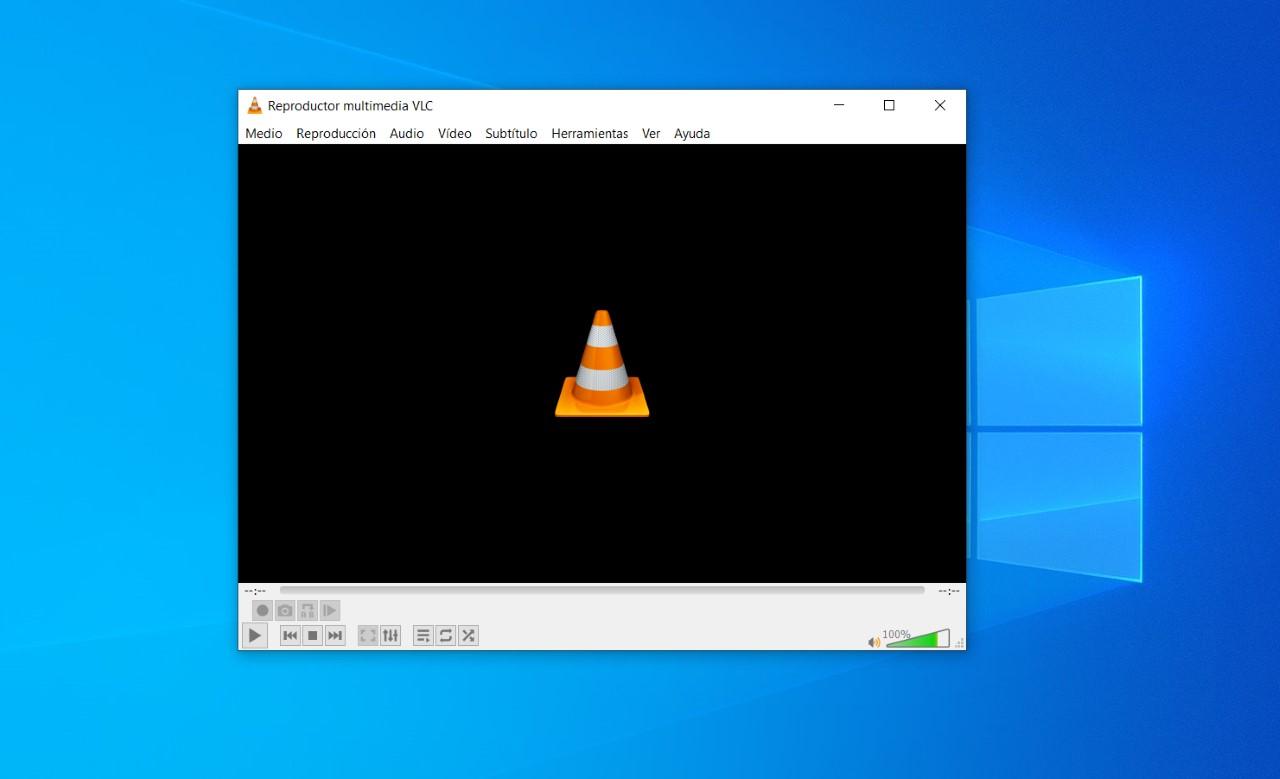
Depending on the origin, you'll see one type of fault or another, but almost all of them can be related to decoding errors, video output, or drivers.
Completely green screen in VLC
This is the classic case: the audio works normally, but The image is a uniform green surface.The most typical cause is hardware video acceleration conflicting with the GPU or the VLC output module.
It is usually resolved disabling acceleration, changing the video output module, or updating drivers/codecsIf the problem only occurs in certain files, it's also worth suspecting corruption of the original video.
Horizontal or vertical green line
Another much-discussed problem is the appearance of a green line at the bottom of the videoor a vertical strip on one side. At first glance it looks like a file error, but it's usually a VLC bug related, again, to how the color conversion is done or how the image is sent to the GPU.
The solution is through gradually disable hardware acceleration options and keep testing until the line disappears. In some systems, that's enough. Change the video output to Direct3D, DirectX, X11, or another without touching anything else.
Green squares and blocks that change every frame
A problem has been reported in Media Player Classic and other players. random green mosaics or squares These artifacts change with each frame, especially in some WMV files. It doesn't matter if video acceleration is enabled or disabled, or if filters like ffdshow are changed: the result remains full of artifacts.
In many cases, those same videos They look good in Windows Media PlayerThis indicates a specific conflict between that player and the filters/codecs it's using. Checking which filters are active is usually helpful here. update or change the codec pack or play the file with another, more compatible player.
Green screenshots in VLC (Linux and other systems)
Another curious symptom is that when doing a Screenshot from VLC, the image comes out completely green.While the video looks (relatively) fine in the player. This has been seen, for example, on Arch. Linux with the default settings.
The origin is usually in how VLC It manages video rendering and color conversion on the GPU.Therefore, the image used for capture is not converted correctly. Adjust the video output module or disable certain acceleration options It usually returns the captures to normal.
How to fix green or distorted videos in VLC
If your problem specifically occurs in VLC, you have several options. direct solutions within the player itself before resorting to external tools.
1. Update VLC and its built-in codecs
The first thing is to make sure you're using the latest version of VLC Media PlayerOften these graphical glitches are fixed in recent versions, especially regarding H.265/x265, 4K and hardware acceleration.
Download VLC from its official website, install the latest version and Check if the conflicting files are still showing up as greenSometimes, that's all it takes.
2. Disable hardware YUV→RGB conversions
A very specific focus of green lines (especially at the bottom of the video) is the option of “Use YUV→RGB hardware conversions” in VLC. To disable it:
- Go to Tools → Preferences → Video.
- Locate the option use YUV→RGB hardware conversions and uncheck it.
- Save the changes, close VLC, and reopen the video.
If the green line persists, it is advisable Try other acceleration and output settings as detailed below.
3. Disable hardware video acceleration in VLC
The most effective measure when you see a total green screen or completely distorted colors It means completely disabling video acceleration in VLC:
- Open VLC and enter Tools → Preferences.
- In the video section (or in the section where acceleration appears), Disables hardware video acceleration.
- Save, close VLC, and play the problematic file again.
In many older desktop computers, or those with modest graphics cards, this is the only way to prevent the GPU from overheating. break the decoding of modern formats.
4. Change the video output module
Another very useful strategy is to try different video output modules depending on your operating system. To do this:
- Go to Tools → Preferences and select the option to show all settings.
- Enter the section Institutional and later Output module.
- Try options like Direct3D, DirectX, OpenGL, X11 or Windows GDI depending on your version of Windows or whether you use Linux.
- After selecting a module, save and restart VLC before trying again.
In many hardware and OS combinations, A compatible output is all that's needed to eliminate the need to adjust the acceleration., or at least to make the green lines and artifacts disappear.
5. Play the file in another compatible player
If after all these adjustments VLC is still showing green videos or videos full of artifacts While they look fine on other players, you might consider using alternatives such as:
- Media Player Classic (MPC-HC or MPC-BE) in Windows.
- Own Windows Media Playerwhich in some cases handles certain WMVs better.
- Other cross-platform players that do not depend on the same modules as VLC.
It's not the most elegant solution, but in some specific devices and formats Changing players is the most practical thing to do. to forget about the green screen.
When to use video repair tools
If the problem is not fixed by changing settings and the same file appears green in VLC, Windows Media Player, Chrome, Firefox, and almost any websiteIt is very likely that the video is damaged.
In that situation, you can resort to Specialized video repair software, which attempts to reconstruct the corrupted data and return the file to a reproducible state.
Tools like HitPaw Univd (Video Converter)
HitPaw Univd is a all-in-one video converter and manager Designed to solve compatibility problems, including those that cause green screens in VLC. Instead of simply playing audio, it allows:
- Convert between a wide variety of formats (AVI, FLV, MOV, MPG, MPEG, MP4, VOB, WMV, RMVB, RM, etc.), making it easy for you to choose a format that VLC handles without problems.
- Offer high-speed conversions maintaining very high video quality, ideal for large collections.
- Use a simple interfaceSuitable even if you are not an expert in editing or conversion.
- Doing batch processing to process many videos at once.
- Include basic editing tools such as cropping excess parts, scaling, improving image, or managing subtitles before conversion.
To deal with videos that cause green screen issues, the idea is convert them to a more standard and compatible format and then play them again in VLC or the player of your choice.
EaseUS Fixo Video Repair
EaseUS Fixo focuses on the direct repair of corrupt video files that cause errors in playback, such as green screens, freezing, or inability to open them.
Among its functions, it allows add multiple corrupted videos to a listLaunch a quick repair and preview the results before saving. For more serious cases, it incorporates a advanced repair mode which uses a healthy sample video to understand the correct structure and apply it to the damaged files.
This type of tool is especially useful when the video has damaged during download, transfer from a camera or mobile device, or during a failed conversionand no player manages to display it properly.
Wondershare Recoverit Video Repair
Recoverit Video Repair is another software focused on repair a wide variety of formats (MOV, FLV, AVI, MKV, 3GP, among others) that suffer from artifacts, green screens, image corruption, or unsynchronized audio.
It allows you to work in two modes: a standard one and another of advanced repair using a sample video Using the same format and parameters as the damaged file, it analyzes the structure, learns how it should be, and reconstructs the problematic file to try to get it to play correctly again.
If neither VLC nor other players can free you from the green screenThese types of solutions may be the last resort before giving up on the file.
Green screen when playing videos in browsers and other players
The green screen problem isn't limited to VLC; it's also very common in Chrome, Firefox, Edge, YouTube and Windows Media PlayerAlthough the search intent focuses on VLC, understanding the bigger picture helps you see that the root cause is usually the same.
Updating graphics drivers on Windows and macOS
A solution applicable to almost all cases is to maintain updated graphics card driversespecially if you see the green screen in Windows 10In Windows you can do it from the Device administratorautomatically searching for new versions, or downloading them from the official NVIDIA, AMD or Intel website.
On macOS, the graphics driver update is coming included in system updatesTherefore, it is advisable to frequently check the Software Update section and keep the system up to date.
Disable hardware acceleration in browsers
When the green screen appears while watching online videos, one of the first things recommended is disable browser hardware accelerationIn Chrome, Firefox, and other modern browsers, this option can be found in the advanced settings menus.
Disabling it forces the browser to use Software processing instead of GPUThis often eliminates the green screen problem, although it may put more strain on the CPU in older computers.
Editing settings in Windows Media Player
For those who still use Windows Media Player and encounter green screens, decoding errors, or videos that won't playIt is recommended to review options such as:
- Uncheck the box “Enable DirectX video acceleration” in the performance tab.
- Update or reinstall the codecs needed for problematic formats.
- Check that DirectX is up to date and correctly installed.
- Re-register components as wmvdecod.dll from the symbol of the system.
Although Windows Media Player is becoming less prominent compared to other players, It remains relevant for certain legacy formats such as some problematic WMVs.
Other system settings and troubleshooter
You can also try this on Windows 10 and later versions. run the built-in troubleshooters These tools are related to video playback or to hardware and devices. They check internal settings that could be causing graphical glitches.
In addition, keeping the system clean of outdated caches, cookies, and temporary filesAvoiding suspicious extensions, as well as reducing the likelihood of encountering videos that turn green in browsers and players, helps to reduce the likelihood of encountering videos that turn green in browsers and players.
Tips to avoid future green screens in videos
Beyond fixing the problem when it arises, it's worth adopting Some routines to minimize these errors In day to day.
Best practices in Windows
On Windows systems, it is highly recommended. Update your graphics drivers every time you update your operating system.This avoids incompatibilities between a recent version of Windows and older drivers that don't handle the new APIs well.
Also helps use reliable players and drives For your videos, avoid overusing codec packs of dubious origin and periodically clean caches and junk files that accumulate and can cause unexpected errors.
Recommendations for Mac users
On macOS, it's a good idea Switch browsers if a particular one is causing problems. Avoid green or distorted videos, and try to keep your system updated. Closing unnecessary tabs and freeing up resources can also prevent playback conflicts.
It is also advisable delete cookies and temporary files regularlyAnd don't forget the classic tip to restart your computer if strange errors start appearing when playing videos.
When you encounter videos that appear green or distorted in VLC, it's almost always due to a combination of incompatibilities between codecs, hardware acceleration, and graphics driversWith file corruption as an occasional addition; understanding these causes, trying different video outputs, disabling acceleration when necessary, keeping the system and drivers up to date and, if necessary, resorting to video repair tools will give you a much better chance of enjoying your movies and series again without that annoying green tint ruining the experience.

Passionate writer about the world of bytes and technology in general. I love sharing my knowledge through writing, and that's what I'll do on this blog, show you all the most interesting things about gadgets, software, hardware, tech trends, and more. My goal is to help you navigate the digital world in a simple and entertaining way.