
Want to know how to fix green screen in videos on Windows 10? It can be irritating when a green screen appears in the video you're watching. Green screens usually occur due to problems with your device's graphics processing unit (GPU).
Also, you may face green screen issues while playing videos on VLC player and Windows Media Player. All these cases may seem overwhelming, but they can be solved once you follow the steps provided here. You can also prevent green screen from appearing on your videos if you consider the tips in this article. Stay with us
Part 1: Why does the screen go green in videos?
There are several reasons why the screen goes green in videos which include:
You might also be interested in reading about: Audio and Video Out of Sync in Windows 10: 19 Solutions
1. Green screen in videos due to outdated graphics card drivers:
Problems with graphics cards can be the main factor responsible for green screen in videos. This happens when graphics drivers are outdated and therefore can no longer support efficient video processing and playback on your device.
GPU rendering is simply the use of a graphics card to render functions such as videos. If your drivers are not as up to date as your operating system, then the green screen error is on the rise.
2. Green screen in videos because Flash player is not supported
This happens when the Flash client playing your video doesn't have the capacity to support the video, especially when the video quality is high. Additionally, a green screen error can occur due to poor performance of your computer's hardware caused by damage or corruption.
3. Green screen in videos by untrusted third-party software
Software from a third-party source, when used on your system, can cause system errors, resulting in a green screen in videos. This is even more true when malware or similar threats end up on your system when you download third-party software. It could even be a virus bundled with the software itself.
4. Other factors for the green screen error in videos by
Other factors responsible for the green screen in videos include corrupt or damaged video files, errors that occur when downloading and transferring videos, corrupt operating systems , as well as errors in media playback programs.
Part 2: How to fix green screen in videos
In this part you will find different solutions to try to fix the green screen error in your videos.
Solution 1. Fix Green Screen in Videos with Wondershare Repairit
Wondershare Repairit is a product published by Wondershare that allows you to fix video errors on all devices. Furthermore, this tool is unique because it prevents you from losing your video files after repair. This tool repairs videos in various formats, including MOV, FLV, AVI, MKV, and 3GP. It repairs videos in two ways:
Download | Victoria Download | Mac
You can even use its advanced repair mode to improve the quality of video repair. This mode uses data from a sample video to repair your corrupted file. Recoverit analyzes the video structure and learns how the corrupted video, which has the same format as the sample video, works and thus repairs the corrupted videos.
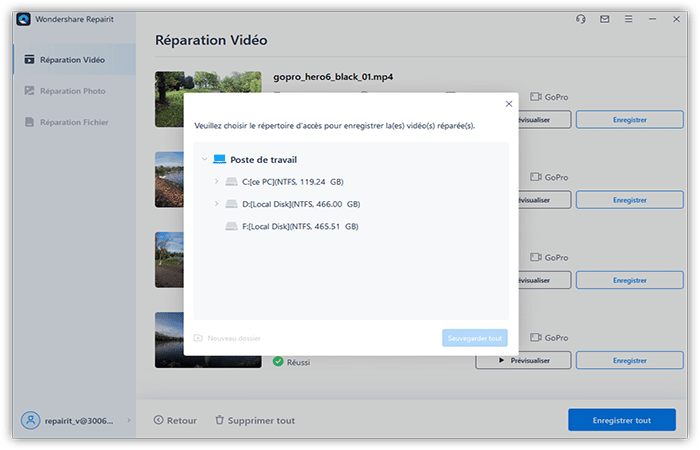
Video files that got corrupted during the video conversion, editing, or transfer process can be repaired with Wondershare Repairit. You can follow the steps below to fix green screen in videos using this tool:
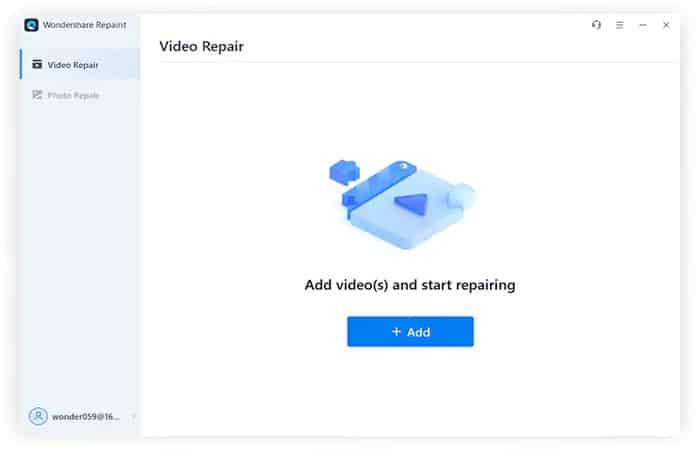
- Step 1:: Add the damaged video files. Move your damaged video files to Wondershare Repairit interface by running «Add video and start repairing«.
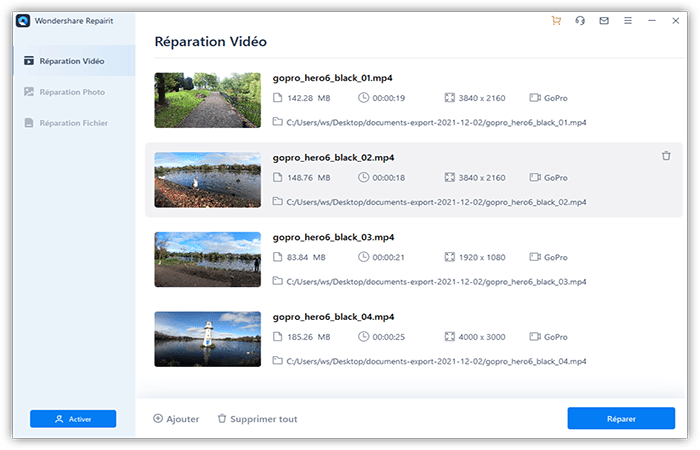
- Step 2:: Start the video repair process. Click on the “Repair video» to begin the repair process of the video files you have added.
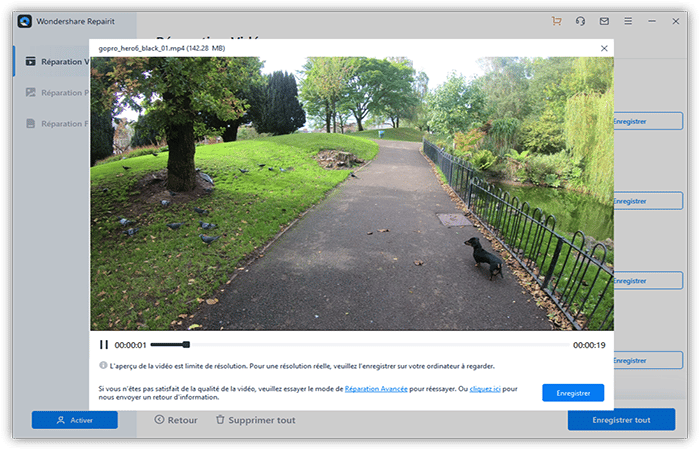
- Step 3:: Preview and save. The progress bar will indicate when the repair process is complete. Preview the video file and save it to the desired location.
- Step 4:: Add a sample video for «advanced repair«. After adding a sample video, Wondershare Repairit will use your information as a reference point to repair your severely damaged video file.
NOTE : The sample video file must be in the same format as the corrupted video file. Additionally, both must be from the same device. This ensures they contain the same video elements that Recoverit can use for further analysis and repair.
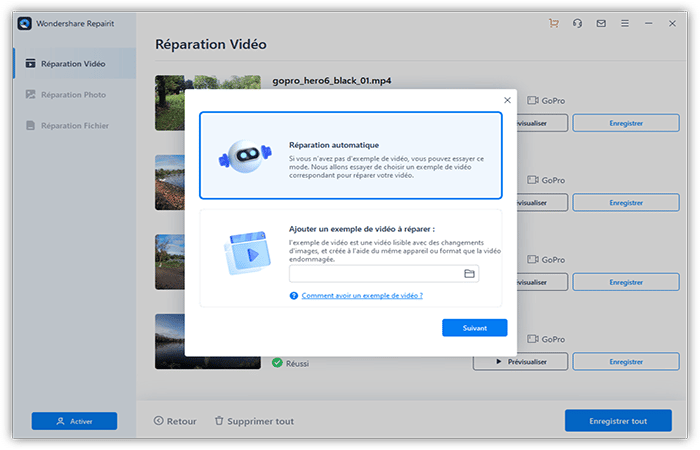
- Step 5:: Add sample video files. This is an optional step. You can only proceed with this step if your video is not repaired after the initial repair above. For severely damaged video files, it is important to add and repair the damaged video again. Now backup the files.
Download | Victoria Download | Mac
Solution 2. Fix Green Screen in Videos with Windows Media Player
Windows Media Player is the default video and audio player on the Windows operating system. If you get a green screen on your videos during playback in Windows Media Player, you can fix them using the following solutions.
Modify the parameters.
The steps to change Windows Media Player settings are as follows:
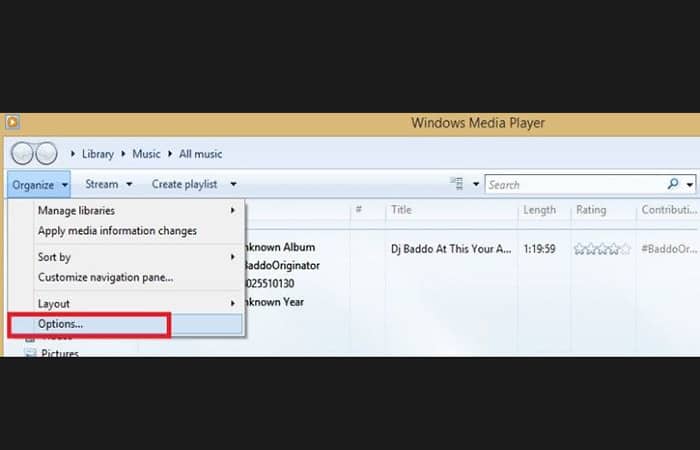
- Step 1:: Start Windows media Player. Go to the menu bar «Tools", choose "Options«. Press the « keyAlt» on your keyboard.
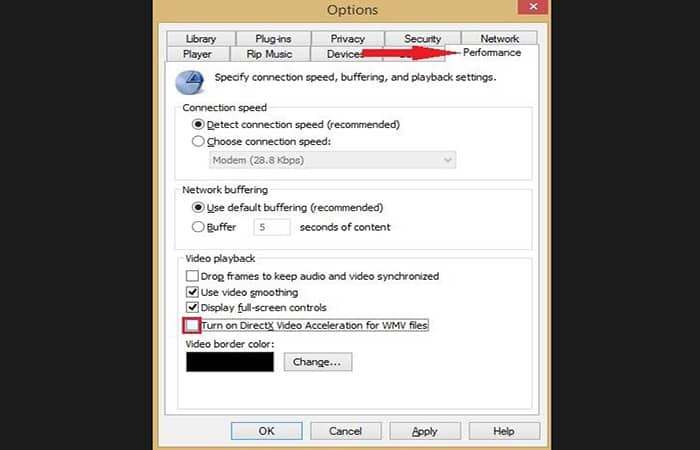
- Step 2:: Choose "Unlimited«. Go to the box next to «Enable DirectX video acceleration» and uncheck it.
Update your codecs
- Step 1:: Visit the Microsoft website, download the «Codecs«.
- Step 2:: Download the installation file that you will later use to install the codecs you downloaded.
- Step 3:: In this solution, you can also use third-party codecs and not necessarily from Microsoft directly.
Make sure DirectX is up to date
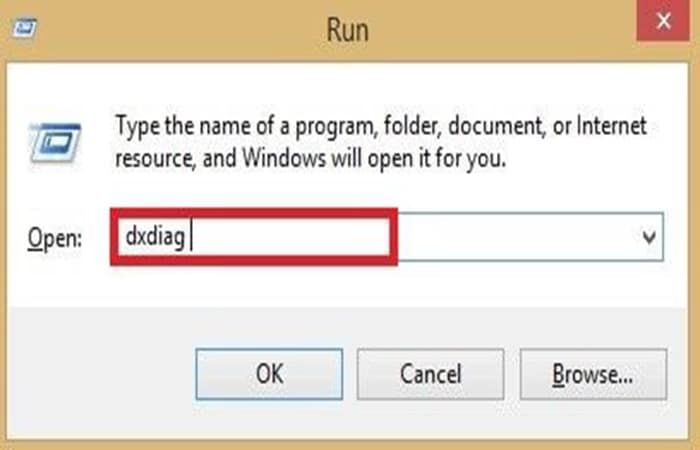
- Step 1:: Press the keys «Win» + «R».On symbol of the system, writes: dxDiag. Press the « keyEnter» on your keyboard.
- Step 2:: Navigate to the pop-up window and locate where the DirectX version is displayed and make a note of it.
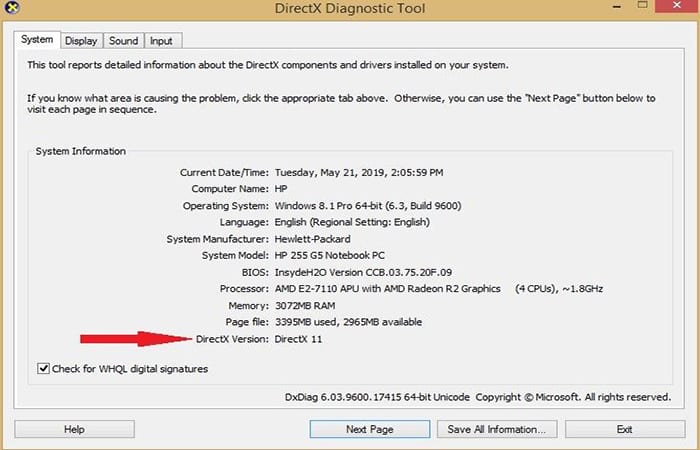
- Step 3:: Go to your browser and visit the official DirectX website. If there is a newer version of the program than the one you are familiar with, you should download it.
- Step 4:: Open the file you downloaded and install it on your PC.
Re-register Windows Media Player
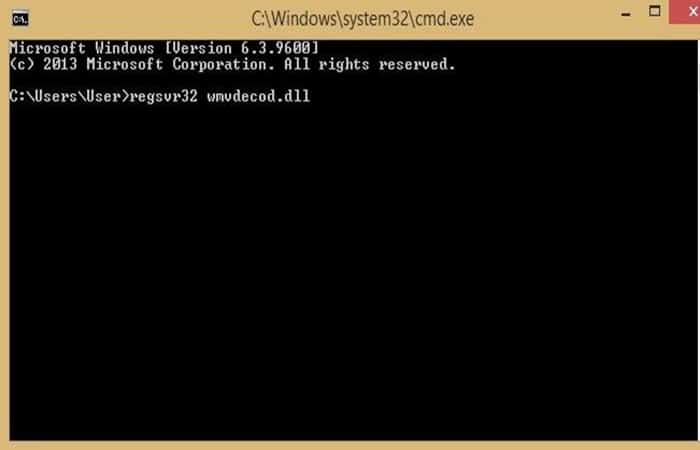
- Step 1:: Start the «symbol of the system» of your system as administrator
- Step 2:: In this interface, type «regsvr32 wmvdecod.dll«, then Press «Enter» on your keyboard.
Keep in mind that this solution is limited to videos played on Windows-based systems and devices. This means that for other operating systems, such as Macs , you cannot fix the green screen with this solution. However, read on to learn how to fix the green screen on all devices and still recover all your lost video data.
Solution 3. Fix Green Screen in VLC
VLC is a free media player capable of supporting the playback of different media files with ease. Being a media player, you cannot use the following methods for videos on CDs, for example. You can fix the green screen in VLC by following the steps below:
Install the latest version of VLC.
Please uninstall VLC from your computer and try reinstalling it, before playing videos again.
Modify your VLC settings:
To do this on Windows, follow the steps below.
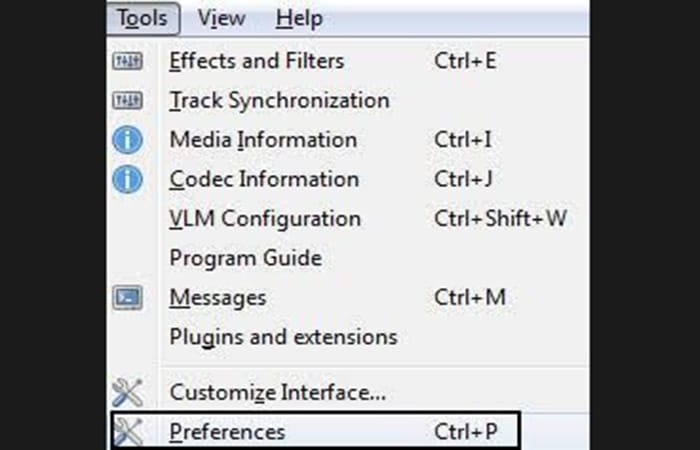
- Step 1:: Click on «Tools» from the menu, then select «Preferences«.
- Step 2:. Defines the option «See all parameters» before choosing the module «Institutional">"Departure from«. For newer versions of Windows (from XP), try the output modules «DirectX 3D","OpenGL","DirectX" Y "Windows GDI video«.
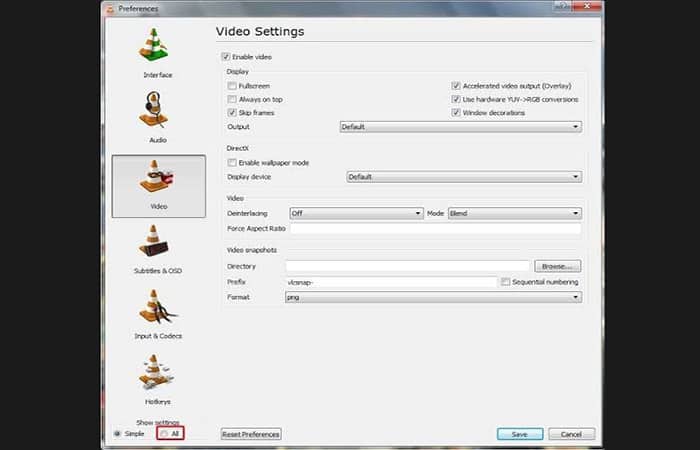
- Step 3:: Restart your VLC to play properly without the green screen error.
Disable hardware acceleration.
Go to VLC media player preferences and disable video acceleration; an older computer can cause this error from a video card that cannot support recent high-quality videos. Read the files by restarting the application.
If you're not using VLC or WMP to play your videos, or if those players can't fix your green screen problem, you should use Wondershare Repairit to resolve the issue.
Download | Victoria Download | Mac
Solution 4: Disable your hardware acceleration:
It is commonly used as an online solution for green screens in videos. The steps differ between browsers.
For Internet Explorer / Microsoft Edge:
- Step 1:: Go to «Search", writes "Internet Options» and choose from the menu.
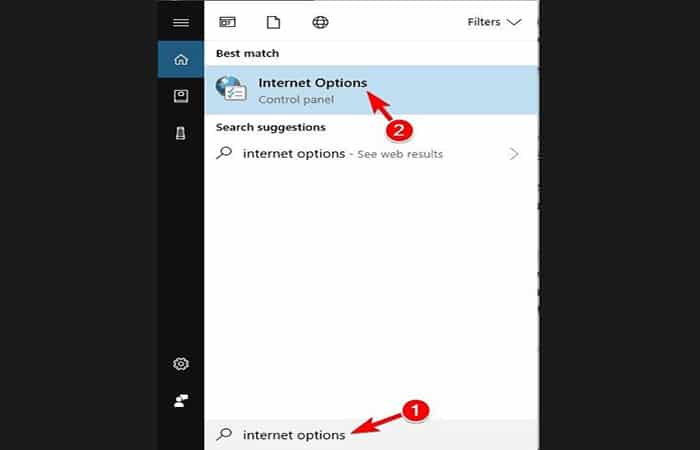
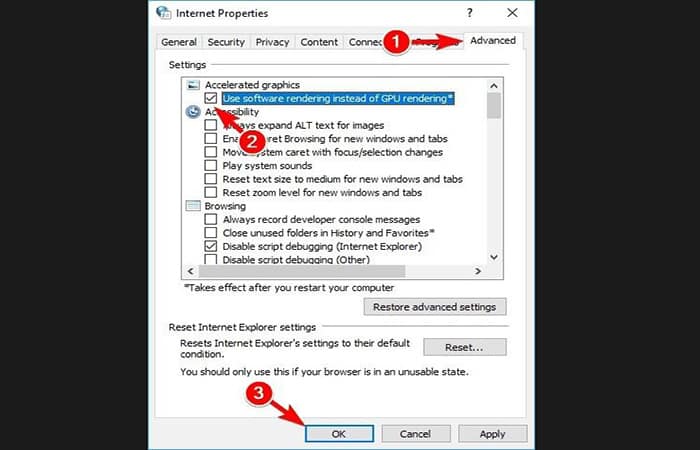
- Step 2:. Go to the « tabAdvanced". In "Accelerated graphics«, check the box next to «Use software rendering instead of GPU rendering*«. Select «Apply»And click«Accept«. Your changes will be saved.
For Firefox:
- Step 1:: Choose "Menu «. Click on «Options«.
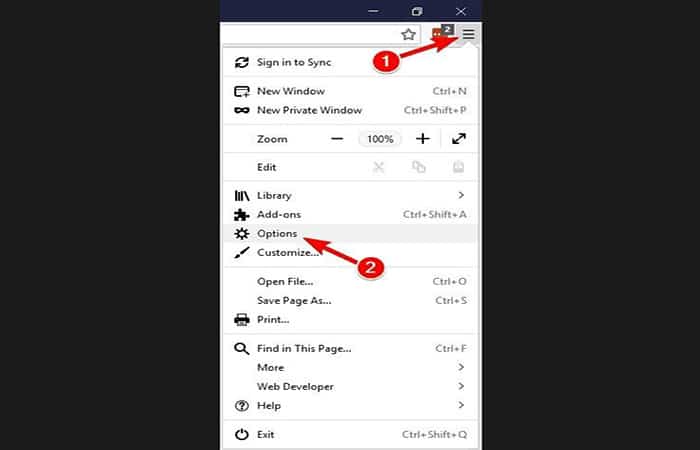
- Step 2:: In the section "General«, go to «Unlimited» and uncheck the boxes «Use recommended performance settings" Y "Use hardware acceleration when available«.
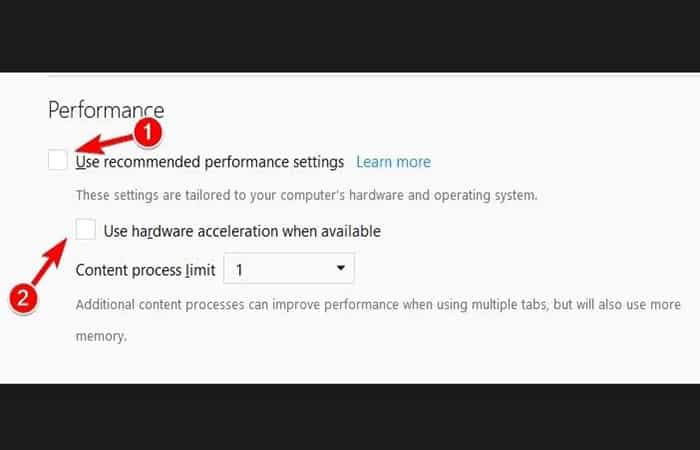
- Step 3:: Close the tab «Options» and hardware acceleration will be automatically disabled.
For Google Chrome:
- Step 1:. Click on “Menu” and select “Configuration«.
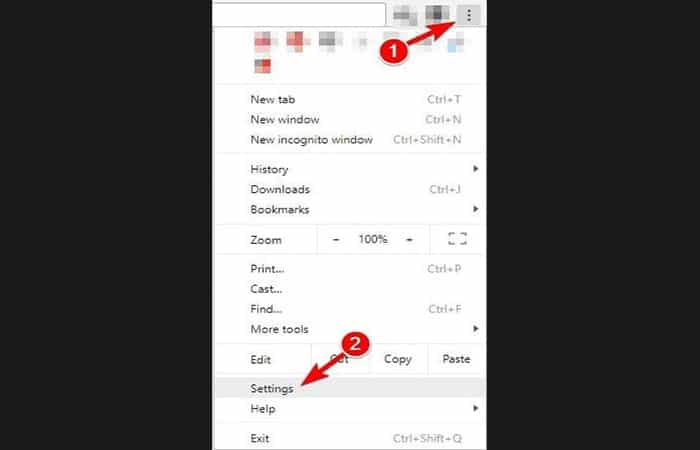
- Step 2:. In the options of «Configuration«, Select «Advanced«.
- Step 3:. In the section "System«, disable the option «Use hardware acceleration when available«.
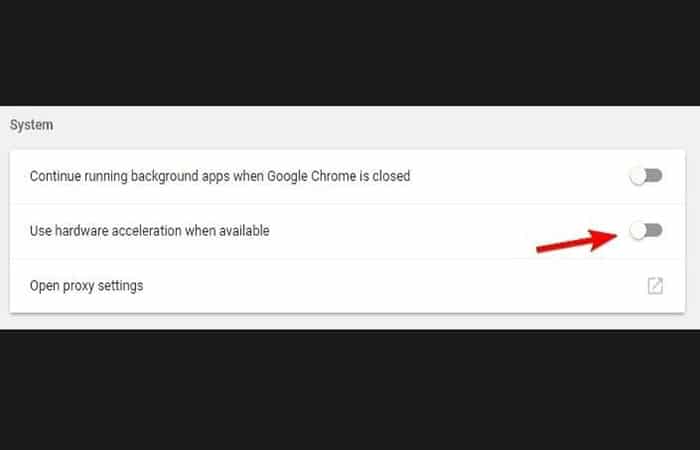
- Step 4:. Close the tab «Configuration» and then restart your Google Chrome.
Solution 5: Update your graphics card driver:
To update your graphics drivers in Windows, make sure you are logged in as an “Administrator.” Follow these steps:
- Step 1:: Press the Windows key (Win) + r
- Step 2: Enter the combination: devmgmt. msc. Press the « keyEnter«.
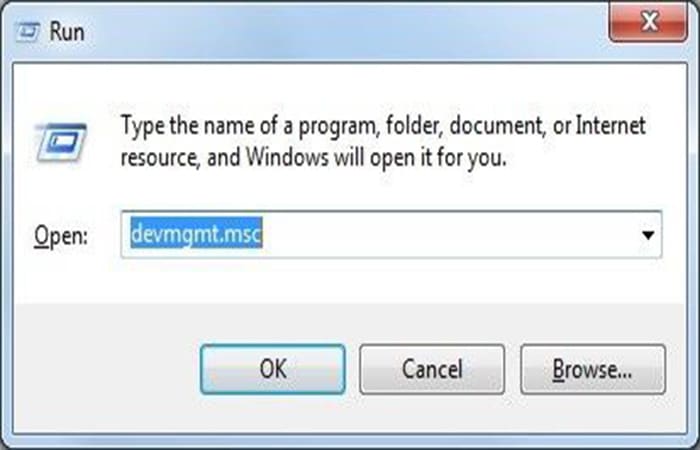
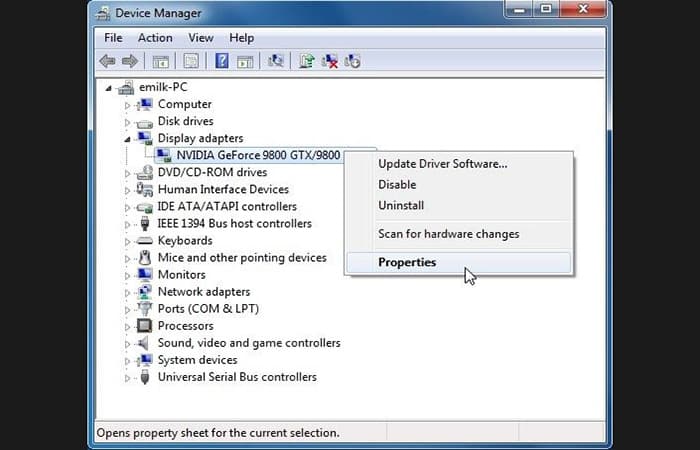
- Step 3:: In the list of «Display adapters«, right click on the « optionRecorders» and Select «Properties«.
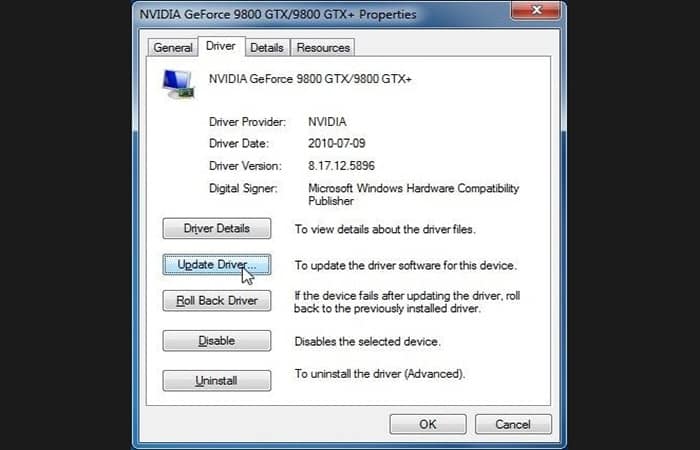
- Step 4:: In the tab «Controller«, Select «Update Driver«.
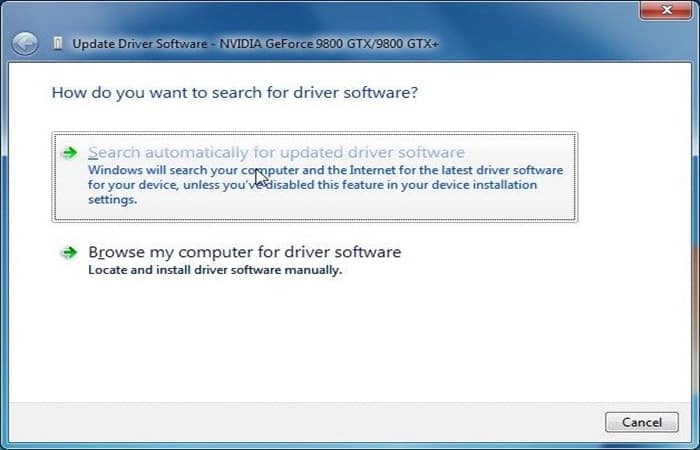
- Step 5:: Choose «Automatically search for updated driver«.
- Step 6:: Let the on-screen instructions guide you through the update process.
Solution 6: Run the Windows troubleshooter
You can run your PC troubleshooter to fix the green screen in Windows 10 by following these steps:
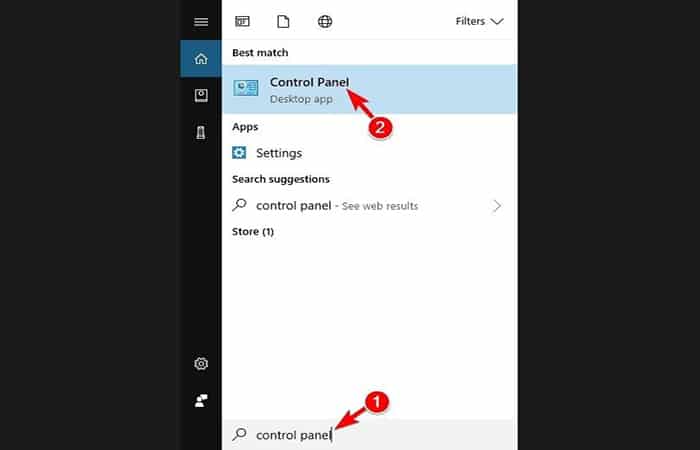
- Step 1:: Press Win + WILL To open the search box, type “control Panel«. Choose the option «Control panel»From the menu.
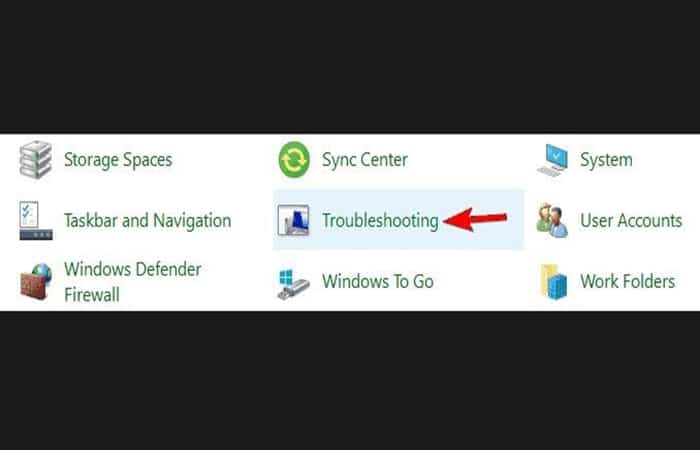
- Step 2:: In the window «Control panel«, go to «Problem solving«.
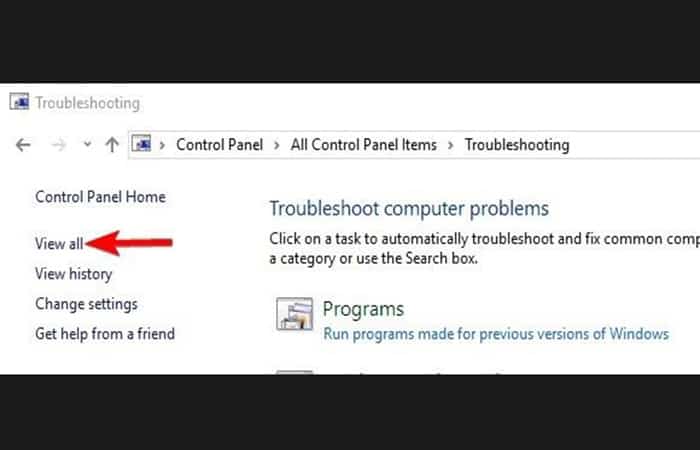
- Step 3:: Choose "Mostrar todo»In the left panel.
- Step 4:: Choose "Hardware and peripherals«.
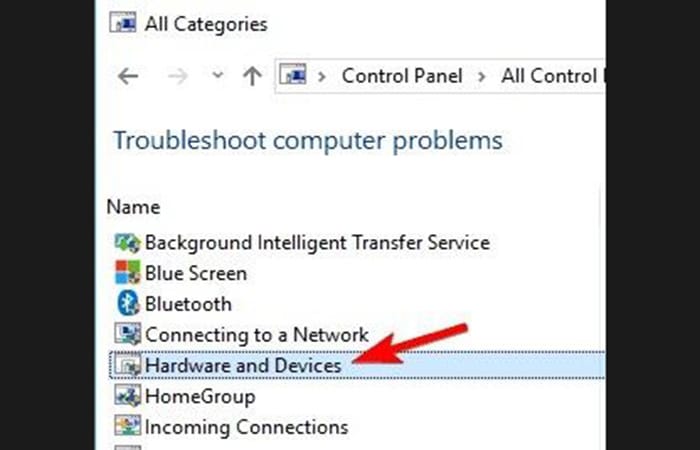
Follow the on-screen instructions to complete the troubleshooting process and resolve your video's green screen issue.
Solution 7: For YouTube videos
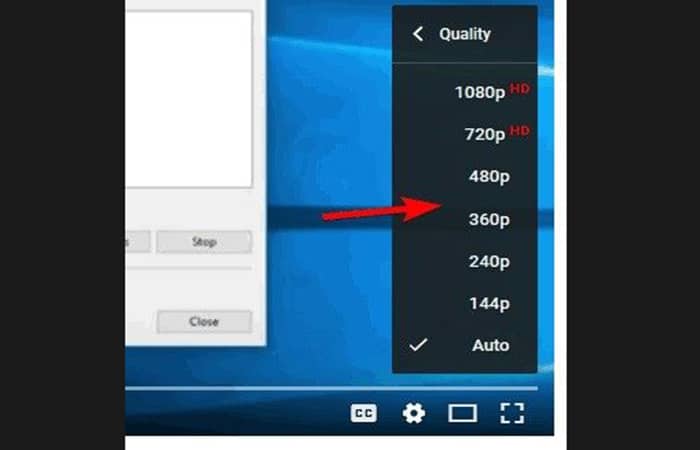
For persistent green screen on YouTube videos, try changing the video quality so that your device can easily support it. Proceed as follows.
- Step 1:: Open your browser and watch the desired YouTube video
- Step 2:: Click on the icon «Gear» and in the menu, Select «Quality Control«.
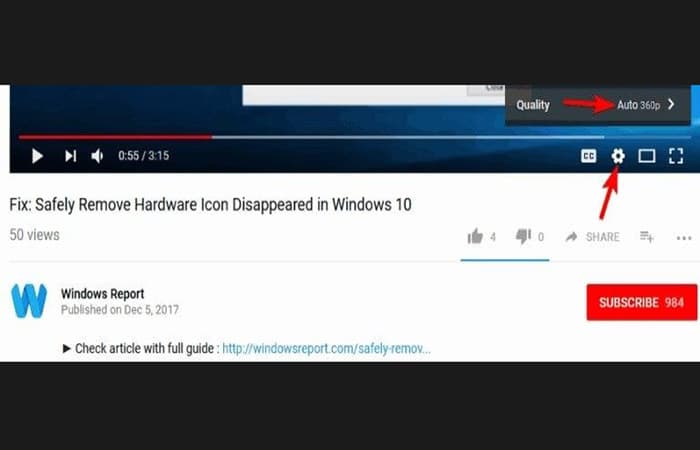
- Step 3:: You can now select a different video quality than the default.
Part 3: Avoid green screens on video on Windows and Mac
It's great to know how to fix green screens on your system, but it's even better to know how to prevent the green screen from covering your videos in the first place. Here are some tips:
1. Tips for Windows computers against green screen video
- Make sure to update your PC's graphics drivers every time you upgrade your Windows operating system. This is important because when you play your videos on a computer that uses outdated graphics drivers that are incompatible with the latest version of Windows, you are likely to encounter video file corruption issues that can cause your screen to turn green.
- Use good flash drives and disks to avoid video corruption. Use players that can handle higher quality videos.
- Play your videos in another media player instead of Windows Media Player all There.
- Regularly clear all your cache data to remove junk that could be causing problems for your system.
- Always update your browser to the latest version, so you can handle the latest enhanced qualities of online videos.
2. Mac Tips for Video Playback
Here you can learn about: Methods for Cutting Videos in Sony Vegas – Complete Guide
- Use other browsers to play your online videos. This is possible in a situation where a particular browser has a habit of displaying a green screen when you watch videos on it.
- When watching online videos, make sure other tabs and windows are closed so that activities from those open windows don't cause errors and affect the video you're playing.
- Make sure you periodically delete all cookies and Temporary files saved on your Mac. This frees up space for your system.
- Restart your computer whenever you have used it for a while and want to play a video. Sometimes simply restarting your computer will make your video work fine again after a glitch.
- Having seen that it is possible to fix green screens in videos for both Mac and Windows, you should have no reason to worry. You can prevent a green screen from appearing on your system by taking the precautions outlined above.
Download | Victoria Download | Mac
Conclusion
As you can see, these are the solutions and tips you can use when the green screen appears when playing your videos. Remember that many times this error can be solved by simply restarting your PC. We hope we have helped you with this information.

My name is Javier Chirinos and I am passionate about technology. Ever since I can remember, I have been interested in computers and video games, and that passion has turned into a job.
I have been publishing about technology and gadgets on the Internet for over 15 years, especially in mundobytes.com
I am also an expert in online marketing and communication and have knowledge in WordPress development.