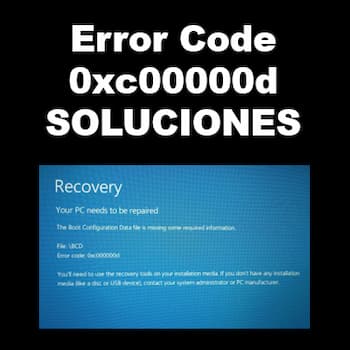
Error code 0xc00000d is also known as a boot configuration data error . It is generated by the Windows operating system if the Boot Configuration Data (BCD) file is missing or corrupted. The hexadecimal number 0xc000000d is the error code generated by Windows.
Many users receive an error message that says like: Your PC needs to be repaired with error code 0xc00000d. This message usually appears when your system is unable to boot properly and displays a blue screen on your monitor.
What is the BCD file?
The Boot Configuration Data file, or BCD file for short, is a very important system file for the Windows operating system. It contains several vital pieces of boot-related information such as:
- Available boot partitions,
- Operating system labels on those partitions,
- A boot order priority,
- Default boot label,
- Timeout interval before activating the default start tag, etc.
Previous versions of Windows used a simple text file called boot.ini to hold these boot parameters. At boot time, the system file ntldr used to consult this file and perform the necessary boot operations. From Windows Vista onwards, the scenario changed: boot.ini is replaced by a BCD file and the Windows boot manager replaces ntldr.
The actual BCD file is no longer a simple text file , but now has a format similar to Windows registry hives. As a result, without a specific Windows command, you cannot edit this file directly.
The BCD file is located in /boot/BCD of the active partition on MBR-based systems, while on UEFI-based systems it is located in /EFI/Microsoft/Boot/BCD of the EFI system partition. The BCD file can be lost or corrupted for various reasons, such as boot sector viruses, improper shutdown, sudden power failure, forced shutdown due to system freeze, etc.
Whatever the case, the Windows boot manager will not be able to boot the operating system if the perfect BCD file is not there. Therefore, it generates the error code 0xc00000d, to indicate its failure.
What is error code 0xc00000d?
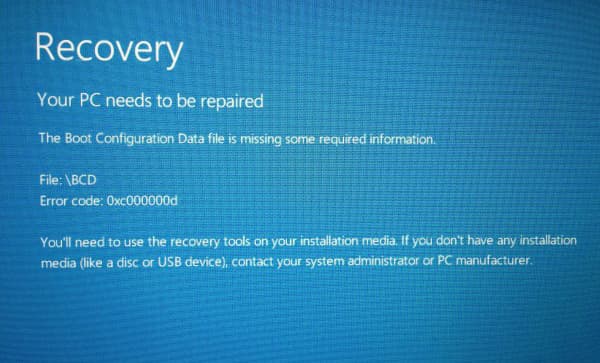
Recently, many users have reported seeing error code 0xc00000d in Windows 10 when trying to boot up. Typically, this error prevents them from logging into Windows and displays only a blue or black screen.
The Windows operating system is very communicative, i.e. it is ready with feedback, most of the time. Whether it is a successful operation or a system failure, Windows will inform us. If any non-fatal error occurs when Windows is running, it will generate a message in an easily understandable format.
In that case, Windows has extensive and sophisticated messaging tools available in its shell and kernel. A problem arises when there is a fatal error during the execution of Windows or the error has occurred at the initial stage of booting. Not having a sophisticated messaging tool at hand, Windows reports such errors using specific hexadecimal error codes.
Error 0xc000000d. Solutions
It's important to note that the BCD file is not an ordinary text file . Therefore, we cannot simply reconfigure it using a text editor. Furthermore, we must remember that this file is activated during the initial boot process, so we won't receive any support from a running Windows system.
In fact, during that time we cannot interact with the operating system. Therefore, we have to use specific methods that can make a small input to the operating system to fix error code 0xc00000d.
Solution 1: Change the data cable and power cable of the hard drive
Yes, this may sound a bit strange, but connectivity or electrical failure on the power and data cable, during an early stage of boot, is a definite reason for the error code 0xc00000d. Obviously, this is an issue for desktop computers only.
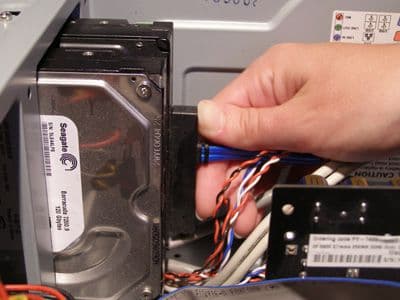
- Turn off your system completely.
- Unplug the power cord.
- Open the system cabinet
- Remove the power cable and the data cable which is connected to the hard drive.
- Now wait 2-3 minutes and then reconnect the cable.
Solution 2: Automated Recovery
Here's another simple method to fix the 0xc00000d error code problem. All you have to do is boot your PC/laptop from a bootable DVD or USB drive. Here are the steps:
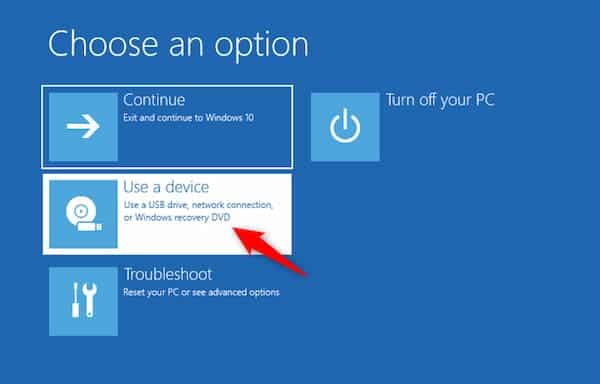
- Boot your PC using a bootable USB or DVD Windows (download from here)
- When you start the setup, select date, time, etc.
- Choose siguiente and then select repair your computer
- Choose Solve problems
- Choose Advanced
- Choose Setup repair
- After all the necessary tasks, reboot the system.
Don't miss: Fixing Error 8DDD0020 in Microsoft Update
Solution 3: Recovery via Command Prompt
You can also try to run the command during the system boot process. This is another way to fix the error code 0xc00000d. What you need to do is follow the steps below:
- Boot your PC using a USB or DVD Windows boot
- When you start the setup, select date, time, etc..
- Choose siguiente and then select repair your computer
- Choose Solve problems
- Choose Advanced
- Select the symbol of the system
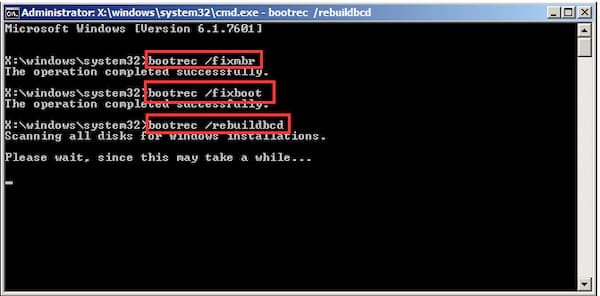
- Then enter the following commands, one by one
- bootrec/fixmbr
- bootrec/fixboot
- bootrec / scannow
- bootrec/rebuildbcd
- Thereafter, reboot the system and this will solve the problem.
Solution 5: Replace the hard drive
If none of the above methods have worked, then something is wrong with your hard drive. It may be corrupted or damaged. In that case, you can replace it with another hard drive (new or old) and connect it to your PC and try restarting to resolve error code 0xc00000d. Then you can try restarting the system with a fresh installation of Windows 10.
Solution 5: System Restore
System Restore is the simple yet effective method to fix error code 0xc00000d. But unlike system restore from regular Windows 10, the boot process does not allow any option to keep the files when Windows sleeps. So, use this option only when you have the backup of your files.
- Press the power button in the system and keep pressing the F12 button on your keyboard.
- Once the boot selection menu appears, go to the boot menu with the arrow keys choose USB HDD: PEN DRIVE NAME and press the Enter button
- Now the Windows system will load the recovery software using the USB/Pen drive.
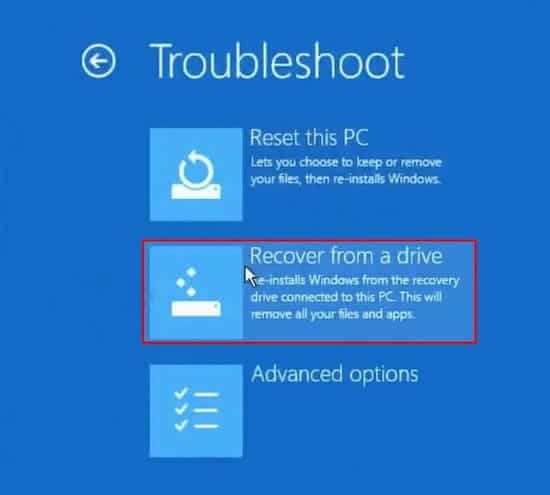
- Now follow the wizard, Choose the keyboard distribution and choose Solve problems.
- Now choose the option Recover from a drive.
- Next, choose, just delete my files
- And finally click on the button Recover
- This will boot the system to reinstall the operating system.
Final words
Error code 0xc00000d can be very annoying and may seem complicated to resolve, however, it's not impossible. With these methods, you can easily resolve the problem of this error appearing on your system.

My name is Javier Chirinos and I am passionate about technology. Ever since I can remember, I have been interested in computers and video games, and that passion has turned into a job.
I have been publishing about technology and gadgets on the Internet for over 15 years, especially in mundobytes.com
I am also an expert in online marketing and communication and have knowledge in WordPress development.