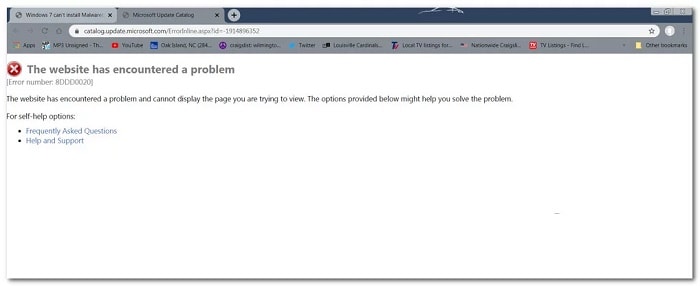
Some Windows users encounter error 8DDD0020 when attempting to manually download an update through the Windows Update Catalog. This issue is reported to occur on Windows 7, Windows 8.1, and Windows 10.
After researching this particular issue thoroughly, it turns out that there are several different causes that can trigger this error. Here is a list of possible culprits that could be responsible for this problem:
- Outdated third-party browser: It turns out that you can expect to see this error code if the connection to the Windows Update Catalog is refused due to an outdated version of the browser. In this case, you can resolve the problem by updating your browser version to the latest version or by resorting to Internet Explorer.
- Internet Options Cache Corrupted: In certain circumstances, you can expect to see this problem due to a fairly common ActiveX bug that ends up inhibiting the connection to the Windows Update Catalog. In this case, you can resolve the problem by forcing the clearing of the Internet Options cache related to the IE browser.
- Internet Explorer 11 Error: If you have this problem on Windows 10, the problem is most likely caused by an incorrectly configured security protocol. To easily fix this problem (without installing the fix), you can temporarily disable IE11 to force the use of an older version of Internet Explorer while downloads updates from the Windows Update Catalog.
- System file corruption: In more severe circumstances, you may see that this issue occurs due to some kind of system file corruption that disrupts the connection with WUC. In this case, you need to perform a repair install/clean install if the built-in utilities are unable to fix the problem.
- License problem: According to some affected users, it is also possible that this error is occurring due to a licensing inconsistency that you cannot resolve yourself. In this case, you will need to contact a Microsoft support agent and ask them to investigate the issue.
How to fix error 8DDD0020
Now that you know all the potential situations that can generate this error, here is a list of methods that other affected users have successfully used to get to the bottom of this problem:
1.- Update the browser or use Internet Explorer
If you only see this error when trying to access the Windows Update Catalog from a third-party browser like Google Chrome or Mozilla Firefox, you should start by forcing your browser to update to the latest version.
You are most likely seeing error 8DDD0020 due to a security vulnerability that has not yet been patched by your browser, causing Microsoft to refuse the connection.
If you've already made sure your third-party browser is up to date and you're still seeing the same error, the only option at this point is to switch to Internet Explorer and try using the Windows Update Catalog from there.
Internet Explorer comes pre-installed by default regardless of your version of Windows, so there is nothing to install on your part.
To open Internet Explorer, press the Windows key + R to open a Run dialog box. Inside, type the command iexplorer in the text box and press Enter to automatically open an IE window.
Once you are inside the Internet Explorer window, use the Microsoft Update Catalog as normal and check if you still see error 8ddd0020 when you try to install an update from the catalog.
If you still have the same problem even when using Internet Explorer, move on to the next potential solution below.
2.- Reset the Internet Options cache in IE
If you see error 8DDD0020 while using Internet Explorer (IE 8 or earlier), the problem is likely related to an ActiveX failure that prevents your computer from establishing a secure connection with the Windows Update Catalog.
In this case, the solution is simple: you must perform a complete reset of your built-in browser by accessing the Advanced tab of Internet Options and resetting the cache that contains the temporary ActiveX files.
Several affected users have confirmed that this fix finally allowed them to use the Windows Update Catalog normally.
Follow the instructions below to reset the Internet Options cache from the Advanced tab:
- Press the Windows key + R to open the indicator Run. Inside the text box, you have to write the command inetcpl.cpl and press Log in to open the menu Internet Properties. If he UAC (User Account Control) prompts you, make sure to click on it Yes to grant administrator access.
- When you are inside the menu Internet Properties, click on the tab Advanced from the ribbon menu at the top.
- Inside the tab Advanced, scroll down to settings Reset Internet Explorer and click on the button Resetting.
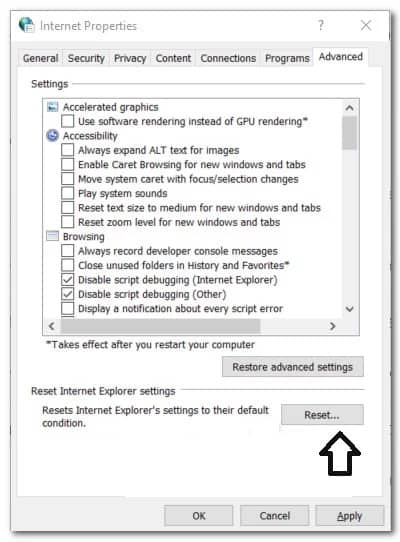
- In the confirmation message, check the Delete personal settings box and press Reset to clear the current Internet Explorer cache along with temporary data related to your account.
- Once the cache has been successfully cleared, restart your computer and see if the problem is now fixed.
3.- Revert from IE11 (Windows 10 only)
If you're experiencing this issue on Windows 10, the problem is likely caused by a bug affecting Internet Explorer 11.
Several users facing the same issue have confirmed that they have been able to resolve the problem by disabling IE 11, which forces the operating system to revert to the previous version of Internet Explorer.
We have identified several user reports where affected users have managed to work around this issue by using the Windows Features screen to prevent their Windows installation from using IE 11.
Note: This change doesn't have to be permanent. You can only temporarily disable IE11 and update it through the Windows Update Catalog before reverting to the latest version of Internet Explorer.
Follow the instructions below to temporarily disable Internet Explorer 11 from the Windows Features screen so you can access the Windows Update Catalog through your IE/Edge browser:
- Press the key Windows + R to open a dialog box Run. Next, make sure to copy the command appwiz.cpl inside the text box and press the key Log in to open the screen Programs and Features.
- Inside the screen Programs and Features, Click on Enable or disable Windows features (in the left side menu).
Note: When prompted by User Account Control ( UAC ), click Yes to grant administrator access.
- When you are inside the Windows Features screen, uncheck the box associated with Internet Explorer 11 and click Yes in the confirmation message to effectively disable Internet Explorer 11.
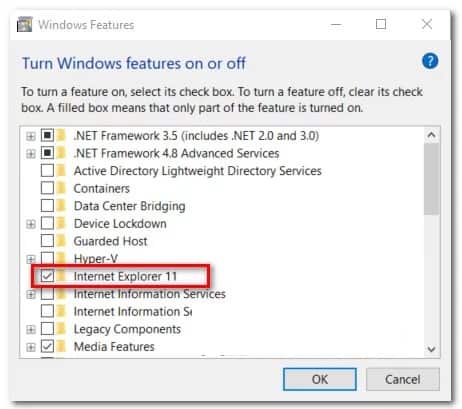
- Once Internet Explorer 11 has been disabled, restart your computer and see if you can now download updates through the Windows Update Catalog.
If the solution was successful and you were able to complete the installation of the pending update through the Windows Update Catalog, you can continue and re-enable Internet Explorer 11 by reverse engineering the instructions above.
If this method was not successful for you, please move on to the next potential solution below.
4.- Perform a repair installation / clean installation
If none of the above methods have worked for you, it is very likely that you are dealing with some kind of file corruption of the underlying system that is your machine establishing a connection with the Windows Update Catalog.
In this case, the only thing you can do at this point (besides seeking specialized assistance) is to reset all relevant operating system components that are related to your current Windows installation.
And when it comes to doing this, there are 2 different methods that will allow you to do this:
- Repair facility: This is, without a doubt, the best way to reset all the relevant Windows components because it allows you to do so without touching any of your personal files present on the operating system drive. But keep in mind that the main drawback is that this procedure is quite tedious and you will be required to use compatible installation media to perform this operation.
- Clean Install: This is the easiest procedure because it can be started directly from the GUI menu of the Windows 10 installation. But keep in mind that unless you manage to back up your data in advance, expect to lose all personal data on the operating system drive (apps, games, personal media, documents, etc.)
If a clean install or repair install is off the table, move on to the next potential solution below to see how you can get in touch with a Microsoft LIVE agent.
5.- Contact Microsoft support.
If none of the above methods have worked for you, one last troubleshooting avenue you should explore is to contact a Microsoft support agent and ask them to fix the problem for you.
Since the issue affects Windows Update, you will be assigned to a WU expert who will take remote control of your machine and perform a series of troubleshooting steps aimed at identifying and resolving the 8ddd0020 error with Windows Update.
There are several ways to contact a Microsoft agent, but the quickest and easiest way to get support is to call the toll-free number specific to your country of residence.
Here is the official list of Microsoft toll-free support numbers.
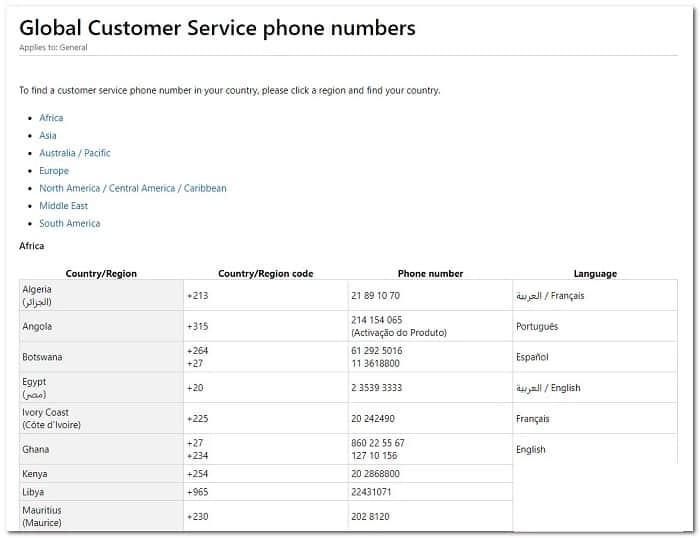
Note: Please be aware that, depending on your region and the number of available support agents, it may take some time before you are assigned one. You will most likely be asked a series of security questions to confirm that you are the license owner.

My name is Javier Chirinos and I am passionate about technology. Ever since I can remember, I have been interested in computers and video games, and that passion has turned into a job.
I have been publishing about technology and gadgets on the Internet for over 15 years, especially in mundobytes.com
I am also an expert in online marketing and communication and have knowledge in WordPress development.