
There has been a recent increase in user reports that Warzone has started crashing with error 6.154 . The issue is typically reported to occur after a game update. There are mixed disc read errors such as:
- Disk read error [6.154]: “common_mp.fp”
- Disk Read Error [6.154]: “mp_hackney_am.fp”
- Disk read error [6.154]: 'global.stream.mp.fp'”
- Disk Read Error [6.154]: 'mp_hackney_am.fc'
- Disk read error [6.154]: mp_don3.fp
- Disk Read Error [6.154]: code_post_gfx
- Disk read error [6.154]: 'common_base_mp.fp'.
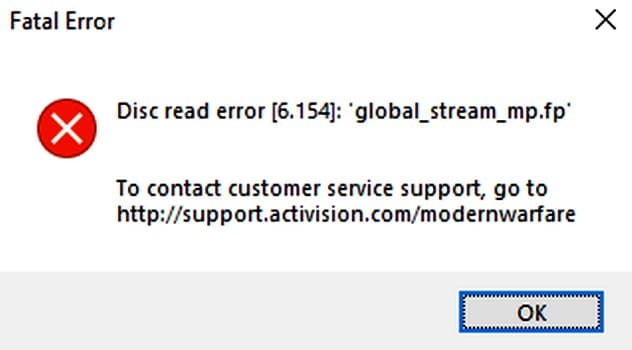
Warzone crashing with error 6.154 can mainly be caused by the following:
- Applications, conflicting services and devicesIf there are any applications, services, and devices on the system that conflict with Warzone, then the game may crash with error 6.154.
- Files and installation from the game damaged- If essential Warzone game files are corrupted or the game installation is damaged, the game may start to crash.
- BIOS XMP Profile: If the XMP profile in the BIOS is enabled, overclocking the RAM may cause Warzone to crash.
- Faulty RAM or GPU- If your system's RAM or GPU is faulty, it may cause Warzone to crash.
To help you fix this error, I invite you to continue reading our guide and apply some of the methods we show you below.
What should I do to fix error 6.154?
As I just mentioned, there are different methods you can apply to fix error 6.154. You just have to take note of the recommendations we describe below so you can fix the error and continue enjoying your game.
Update Windows on your computer to the latest version
Warzone might crash with error 6.154 if your PC's Windows is outdated, as the operating system may have become incompatible with the game and other system components. Updating your PC's Windows to the latest version can resolve this Warzone issue.
- Click on Windows, search and open Search for updates.
- Now, in the resulting window, click on the button Search for updates and, if Windows updates/optional updates are available, download and install the updates.
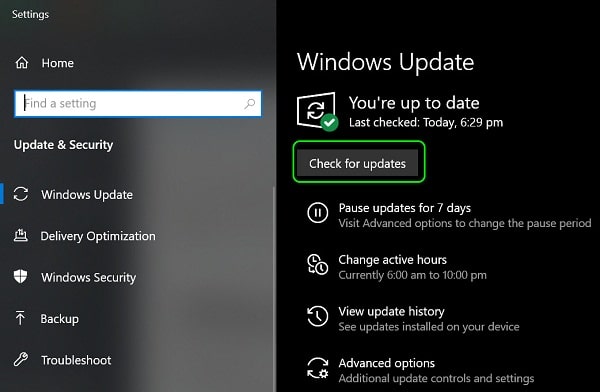
- Once installed, restart your PC and upon restart, launch Warzone to check if error 6.154 is cleared.
- If the issue persists and the game keeps running even after displaying the fatal error, check if you can drag (or use Alt + Tab to switch to the game window) the error message to the side of the screen and continue playing the game.
Start Warzone as administrator and modify its installation
The Warzone crashing issue could be a result of the game's inability to access a protected section of system memory/file due to a lack of administrator privileges. In such a case, launching the game as an administrator may fix the Warzone crashing issue.
- Open the launcher Battle.net and select Warzone.
- Now expand your Options and select Show in Explorer.
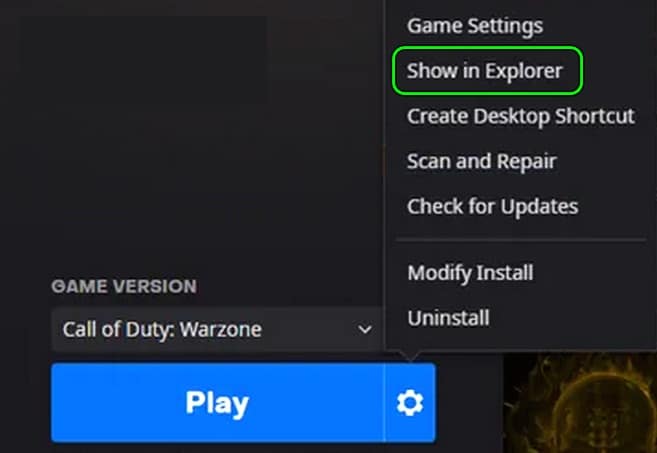
- Then, right click en Warzone and select Run as administrator.
- Check if the Warzone crashing error is cleared.
- Otherwise, right-click the file again. Warzone EXE in Explorer and select Properties.
- Now go to the tab Compatibility and uncheck Run this program as administrator (if checked).
- Then, launch Warzone from the Battle.net launcher as usual and check if the crashing issue is resolved.
- If that didn't work, open the launcher Battle.net and select Warzone.
- Open your Options and select Modify installation.
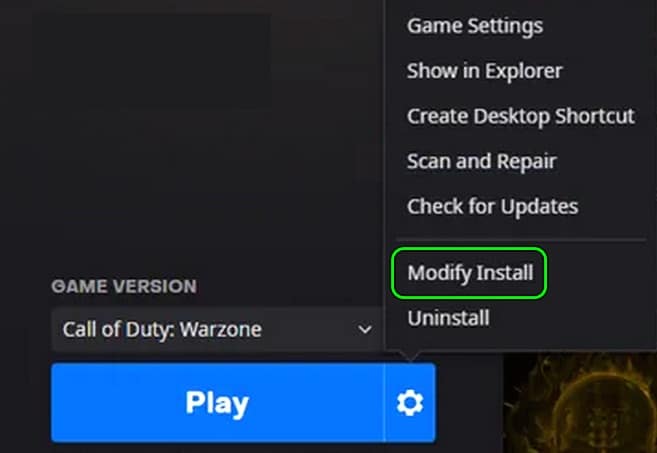
- Entonces uncheck following:
Bell
Special operations
Survival
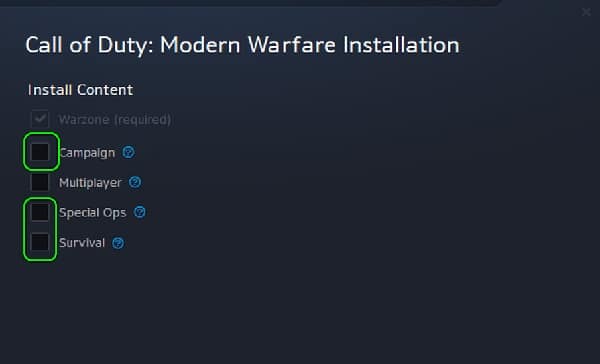
- Now ceiling lamp changes and launch Warzone to check if the crashing issue is resolved.
- If the problem persists, make sure your system/GPU is well ventilated (don't forget to clean the system/GPU fan from dust) and see if that solves the problem.
Disable PC game mode
Warzone may crash if Windows game optimization techniques (i.e. Game Mode) are hindering the game's performance, and disabling them may resolve the crashing issue at hand.
- Click on Windows, search Game mode and then Open Game Mode Settings.
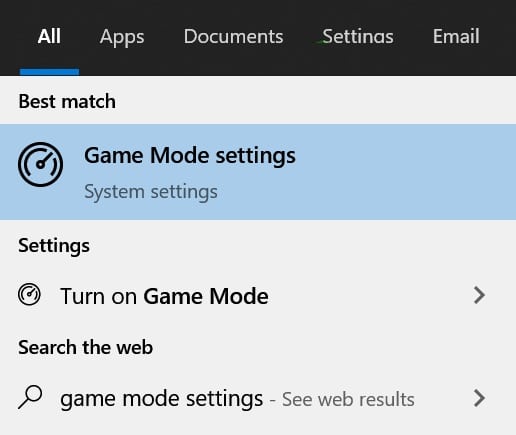
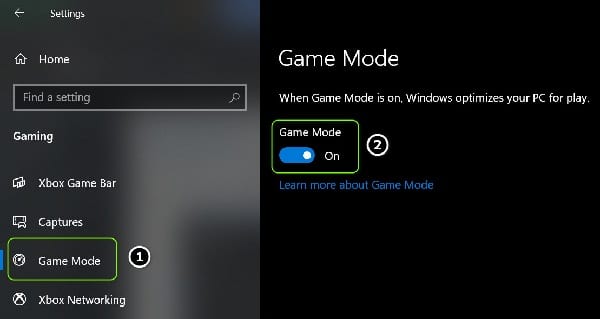
- Now disable the game mode by switching your switch to the off position and if a low latency option is shown, disable that as well.
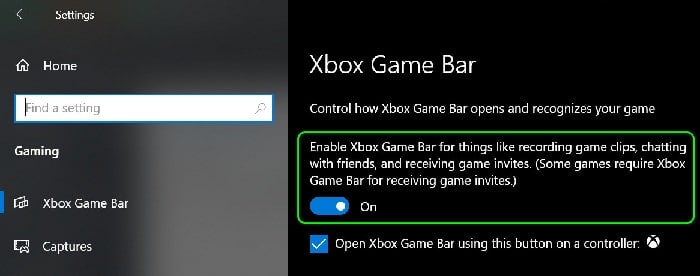
- Then go to the tab Xbox Game Bar and disable it.
- Reboot your system and upon reboot, launch Warzone and check if the crashing error is fixed.
- If the problem persists, check to see if you can play the game on a different region solves the problem.
Optimize Warzone gameplay in Nvidia GeForce Experience
Warzone may crash with error 6.154 if the game isn't using the system's optimal graphics settings, causing the system to fail to properly render the game's graphics. In this case, optimizing Warzone in Nvidia GeForce Experience (or any other OEM graphics utility) may resolve the issue.
- Open the utility GeForce Experience and select the game Call of Duty.
- Now click on Optimize (if the game is not optimized) and then launch Warzone to check if it works fine.
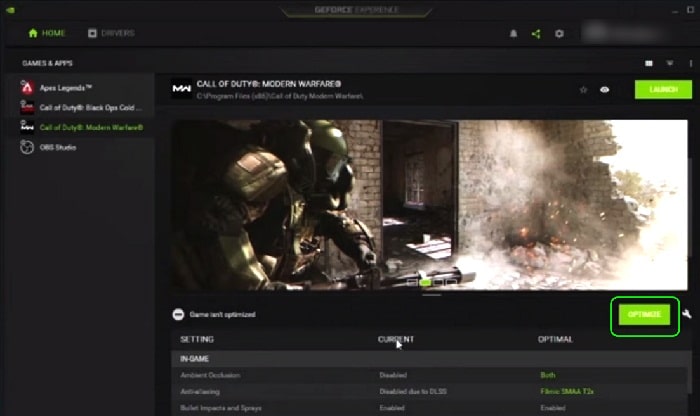
- If that didn't work, check if lowering the game resolution fixes the issue. Otherwise, check if playing the game in borderless, fullscreen, or windowed mode resolves the issue.
Disable conflicting system services
There may be different system services that can conflict with the Warzone game modules and cause the game to crash. In such a case, disabling the conflicting services in the system services manager may solve the problem.
- Click on Window, search Services, right-click on it and from the mini-menu select Run as administrator.
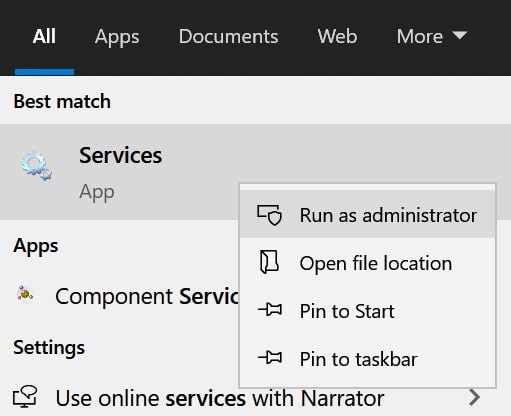
- Now Double click on a service of Nvidia (such as NVIDIA Display Container LS) and change your Start type a Disabled.
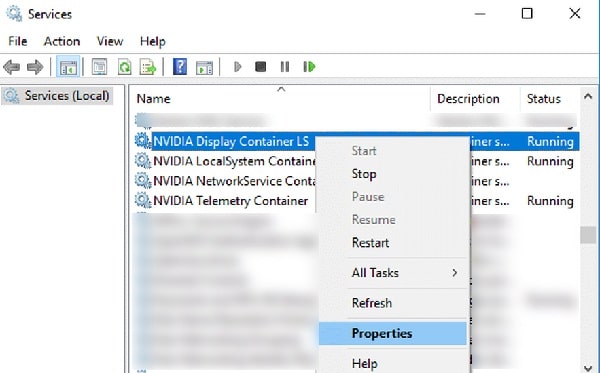
- Then click Stop y repeat the same for all other Nvidia services (like NVIDIA LocalSystem Container).
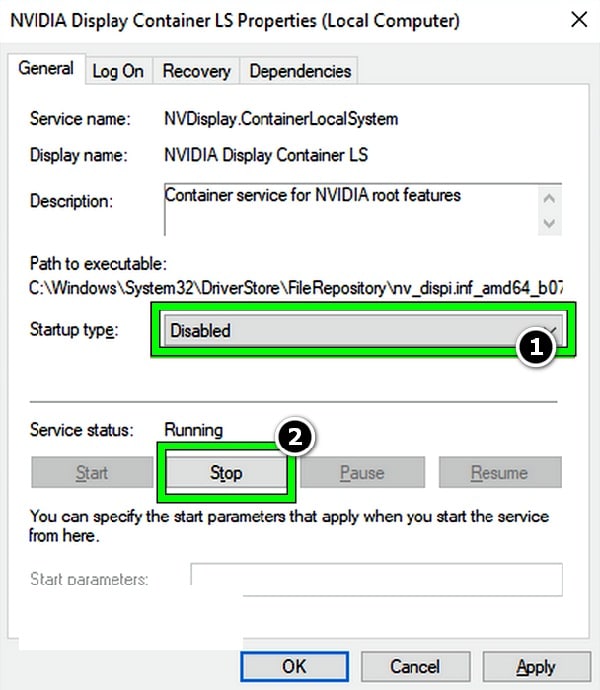
- Launch Warzone and check if it runs fine without crashing.
Uninstall Sonic device from system
The Sonic Device is a reported culprit causing the Warzone 6.154 crashing error, and if your system has it, then uninstalling it may resolve the issue.
- Right click on Windows and mark where it says Device administrator.
- Now expand the tab Audio input and output or the tab Sound.
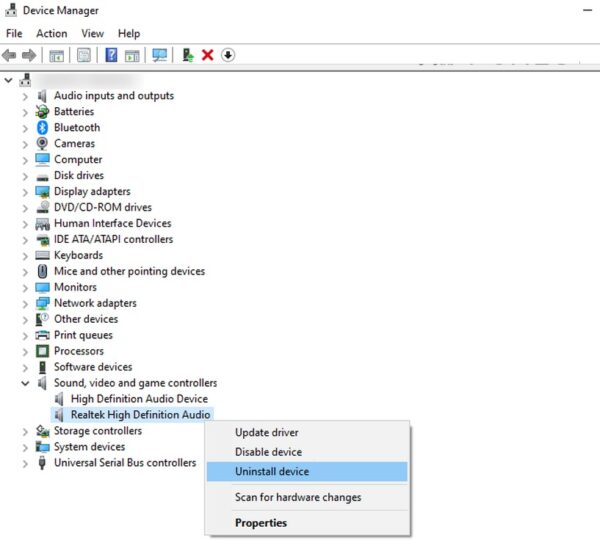
- then right click at the Sonic device and select uninstall.
- Brand Remove the driver software for this device (if displayed) for the Sonic device and click uninstall.
- Waiting until the driver is uninstalled and repeat same to uninstall all Sonic related devices in Device Manager like Sonic Studio Virtual (make sure to check all tabs in Device Manager).
- Once done, right click on Windows and select Applications and features.
- Then expand Sonic Studio (or any other Sonic app) and click on uninstall.
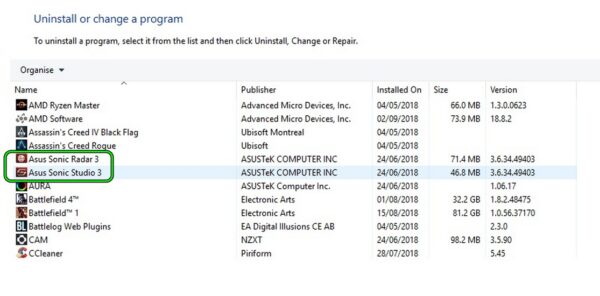
- Confirm to uninstall the Sonic app and sigue the on-screen prompts to complete the uninstallation process.
- Once this is done, right click in the icon of volume in the system tray and select Sounds.
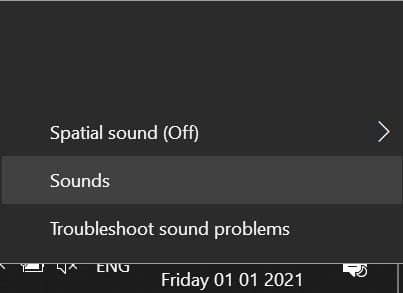
- Now go to the tab Playback, right click on a Sonic device (if displayed) and select Disable.
- Then go to the tab Recording and disables a Sonic device (such as Sonic Sound Mixer), if it is displayed.
- Now restart your system and upon reboot launch Warzone and verify that error 6.154 is removed.
If that didn't work and the Sonic device reappears in Device Manager, check if uninstalling the Realtek device in Device Manager, restarting your system, and using only the generic audio driver resolves the issue.
Clean startup windows and uninstall conflicting applications
Warzone error 6.154 could be caused by interference from a third-party application. Here, clean booting Windows and uninstalling the conflicting applications can resolve the issue.
Perform a clean boot of your Windows PC and check if the Warzone game launches fine.
If so, you can re-enable startup applications one by one until you find the problem. Once you find it, you can uninstall the application or keep it disabled from starting your system and launching Warzone.
The following applications are reported to cause error 6.154 for Warzone, and if your system has any of these applications, you can uninstall them:
- afterburning
- Discord
- Aquasuite
- Game first
- Razor Synapse
For clarification, we will discuss the Afterburner uninstallation process.
- Right click on Windows and select Applications and features.
- Now expand Afterburner and click uninstall.
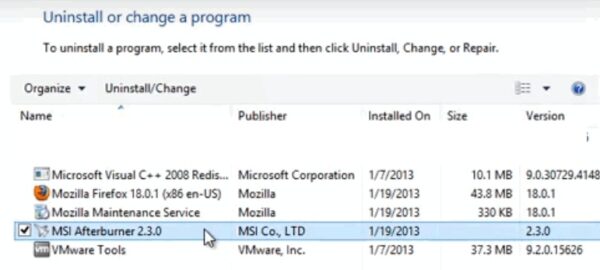
- Confirm to uninstall and sigue the on-screen prompts to uninstall Afterburner.
- Once this is done, restart your system and upon reboot launch Warzone and check if it launches without crashing.
Increase System Paging File Size
The page file, or virtual memory , is a portion of the system's storage that the operating system uses as RAM if the system runs out of RAM. If the page file size is too small, Warzone may crash with disk error 6.154 because it lacks the necessary memory. In this scenario, increasing the system's page file size can resolve the Warzone crash issue.
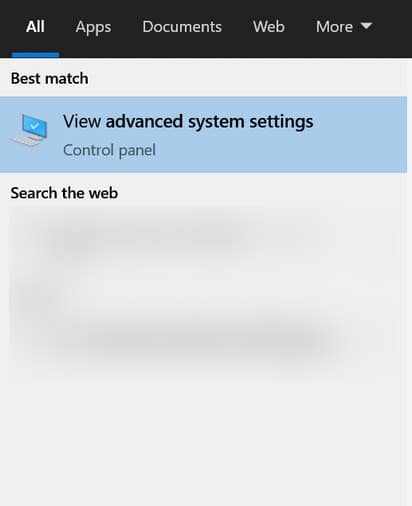
- Click on Windows, search and open Advanced System Settings.
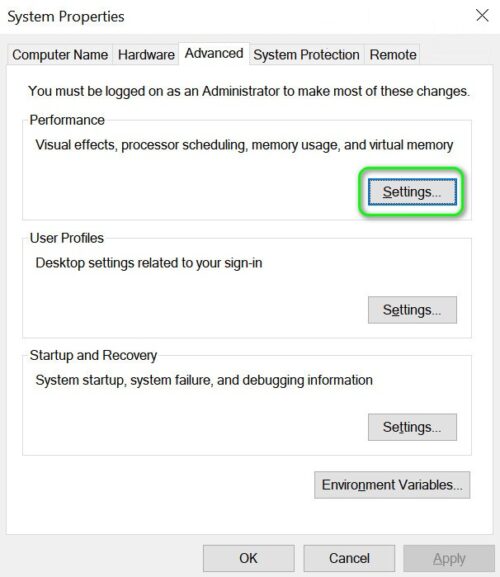
- Now open Configuration (in the Performance section) and go to the tab Advanced.
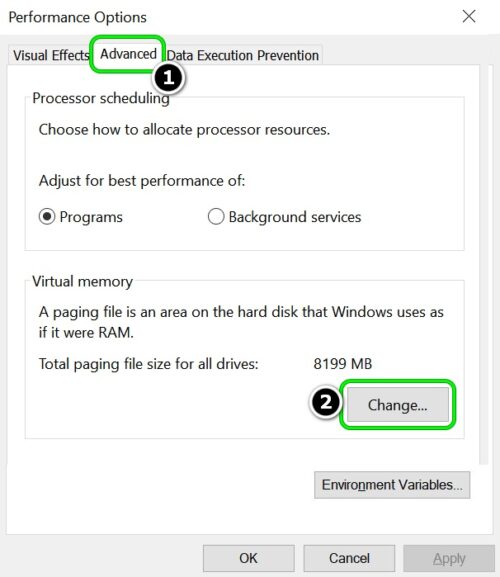
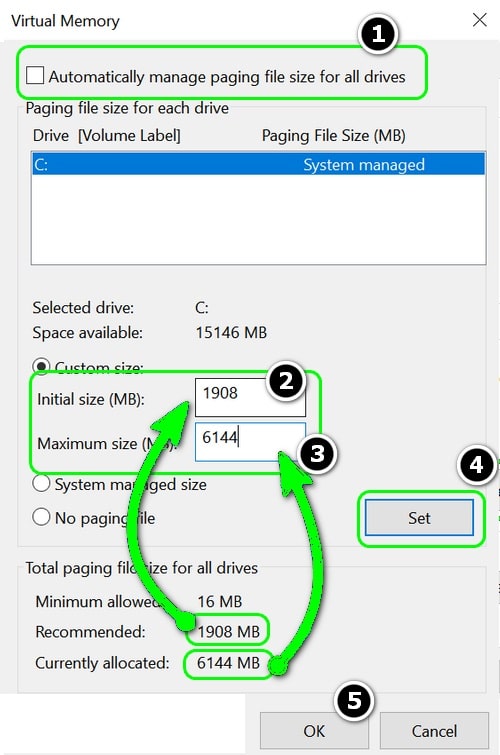
- Then click Change in the Virtual Memory section and uncheck Automatically manage paging file size for all drives.
- Select the system unit in the units and brand section Custom size.
- Then in the box Initial size, enter the value Recommended, and in the box Maximum size, enter the value Currently assigned.
- Click on Establish and then click Apply/OK.
- Reboot your system and upon reboot, launch Warzone and check if the crashing issue is resolved.
- Otherwise, check if you configure the Initial size en 1.5 X RAM and the Maximum size en 3 X RAM remove the Warzone bug.
Delete the Warzone Player folder in the documents directory
The Warzone Player folder in the Documents directory contains various Warzone settings/configurations, and if this folder is corrupted, the game may crash with disk read error 6.154. In this case, deleting the Players folder in the Documents directory (the game will create a new Player folder with default settings when launched) may resolve the issue.
- Press right click on Windows and choose the option Run.
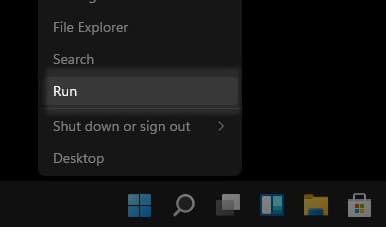
- Now browse to the following route:
Documents
- Open the Call of Duty folder y remove Folder Players.
- Launch Warzone and check if you are free from the crashing issue.
- If that didn't work, check to see if you can change the mask of the player solves the problem.
Scan and repair each of the Warzone game files
Corrupted Warzone game files can cause error 6.154. Scanning and repairing your Warzone game files may resolve the issue.
- Open the launcher Battle.net and select Warzone.
- Now open your Options and select Scan and repair.
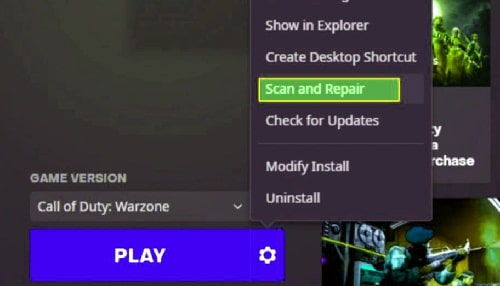
- Waiting until the scanning and repair process is complete.
- Once done, launch the Warzone game and check if the crashing issue is resolved.
Reinstall the system graphics driver and related application
You may encounter error 6.154 in Warzone if your system graphics driver is corrupted and reinstalling it may resolve the issue.
- Right click on Windows and select Device administrator.
- Now, expand Display adapters and right click on the display device (like Nvidia).
- Then select uninstall and in the resulting menu, mark Remove the driver software for this device.
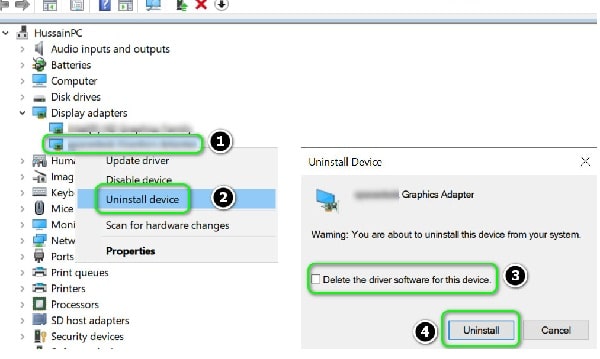
- Click on the uninstall y waiting until the driver is uninstalled.
- Once uninstalled, right click on Windows and select Applications and features.
- Expand the graphics utility (such as Nvidia GeForce Experience) and click uninstall.
- Confirm to uninstall the graphics utility and sigue the on-screen prompts to uninstall it.
- Once this is done, restart your system and, upon reboot, let Windows install a generic display driver (if it tries to).
- Now launch Warzone and check if the crash bug 6.154 has been removed.
- If the problem persists, check if reinstalling the latest graphics driver solves the problem.
- If that didn't work, check if uninstall the graphics driver with an uninstaller third party as Display Driver Uninstaller (DDU) and then reinstall. Check if the driver resolves the issue.
Edit PC BIOS settings
There may be certain BIOS settings (such as XMP) that can cause the Warzone 6.154 error, as these settings can affect the system's ability to properly handle in-game modules. In this scenario, editing the related BIOS settings may remove the Warzone error.
Warning :
Proceed at your own risk as editing system BIOS is a skilled job and if something goes wrong, it can brick your system and cause permanent damage to your data system.
Disable XMP in system BIOS
- Boot your system into the BIOS and go to the tab MIT.
- Now expand Advanced CPU Settings and select Extreme memory profile (XMP).
- Then select Disabled y guard changes made.
- Now shawl from the system BIOS and start the system in Windows.
- Launch Warzone and check if the game crashing issue is resolved.
Update the system BIOS to the latest version
Update the system BIOS according to the manufacturer's instructions:
-
- HP
- dell
- lenovo
- MSI
- Door
- Once the system BIOS is updated, boot the system into Windows and launch Warzone to check if the crashing issue is resolved.
Reset the system BIOS to factory defaults
- Start the PC in the BIOS and click Restore settings (near the bottom right of the screen).
- then confirms to restore the BIOS and once done, start the PC in Windows.
- start now Warzone and check if it is free from the 6.154 crash error.
Reinstall the Warzone game
Warzone may display crash error 6.154 if the game installation is corrupted and reinstalling the game (a download larger than 100GB) may resolve the issue.
- First, make sure you create a copy security of essential game data/information.
- Now open the launcher Battle.net and select Warzone.
- Then, open your Options and select uninstall.
- Confirm to uninstall the game and wait until Warzone is uninstalled.
- then restart your PC and when it restarts, right-click on Windows and select Applications and features.
- Now expand Warzone (if displayed) and click uninstall.
- After this, confirms to uninstall Warzone and sigue prompts to complete the uninstallation process.
- Once this is done, restart your PC and when you restart, remove Warzone remnants from the following directories:
% temperature%
C: \ Windows \ Temp
C:\Program Files\
C: \ Program Files (x86) \
C:\Program Files\Common Files\Blizzard Entertainment
C:\Users\Public\Games\
C:\Users\Public\ Public Documents\Blizzard Entertainment\
- Once this is done, restart your PC and when you restart it, it returns to to install
- Once installed, launch Warzone and hopefully the Warzone crash bug 6.154 will be cleared.
Check the system RAM or GPU
If the issue persists even after reinstalling the game, your system's GPU or RAM may be causing the Warzone crashing error.
The system's RAM modules can be checked for errors by removing them one by one until the problematic one is found. If you have some spare RAM modules available (for example, from an older PC), check if using those resolves the issue. Additionally, faulty RAM can also be identified by running Memtest or Windows Memory Diagnostics.
Note that the problem can also occur if the system RAM is in the wrong configuration . Installing the RAM in the correct slots according to the OEM instructions, such as slots 1 and 3, or 2 and 4, will resolve the issue. Warzone may also crash if the RAM voltages are not within the recommended specifications, and ensuring this also resolves the problem.
If the RAM is working properly, check if using a different graphics card or using the integrated graphics card after disconnecting the dedicated graphics card from the system resolves the problem.
If the problem persists, you can reset Windows to factory defaults or perform a clean installation of Windows.
With these simple methods you can put an end to Error-6.154, if you have any recommendations don't forget that we have a comment box below. Thanks for reading us, until next time.

My name is Javier Chirinos and I am passionate about technology. Ever since I can remember, I have been interested in computers and video games, and that passion has turned into a job.
I have been publishing about technology and gadgets on the Internet for over 15 years, especially in mundobytes.com
I am also an expert in online marketing and communication and have knowledge in WordPress development.
Table of Contents
- 1 What should I do to fix error 6.154?
- 1.1 Update Windows on your computer to the latest version
- 1.2 Start Warzone as administrator and modify its installation
- 1.3 Disable PC game mode
- 1.4 Optimize Warzone gameplay in Nvidia GeForce Experience
- 1.5 Disable conflicting system services
- 1.6 Uninstall Sonic device from system
- 1.7 Clean startup windows and uninstall conflicting applications
- 1.8 Increase System Paging File Size
- 1.9 Delete the Warzone Player folder in the documents directory
- 1.10 Scan and repair each of the Warzone game files
- 1.11 Reinstall the system graphics driver and related application
- 1.12 Edit PC BIOS settings
- 1.13 Disable XMP in system BIOS
- 1.14 Update the system BIOS to the latest version
- 1.15 Reset the system BIOS to factory defaults
- 1.16 Reinstall the Warzone game
- 1.17 Check the system RAM or GPU