
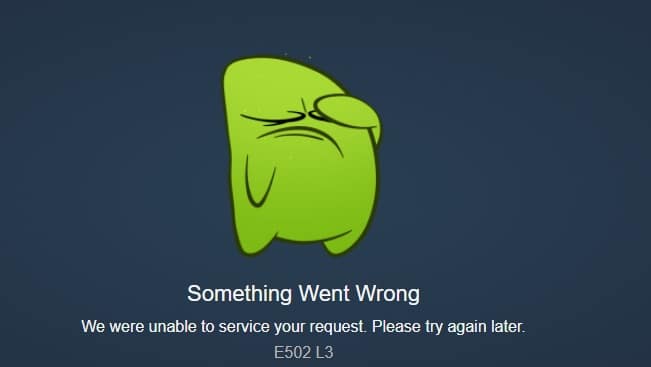
Some Steam users have encountered error code E502 L3 when trying to use the platform. The error message " We were unable to process your request. Please try again later " appears when Steam's servers were unable to process your action.
It turns out that the aforementioned code often appears when users try to log in to the platform or use the Steam Store to make a purchase. The reason for this issue is quite simple. In most cases, it occurs when Steam's servers are experiencing problems.
In this article, we will show you a list of different methods that you can use to fix the problem, so just pay attention to the following information.
How can I fix the E502 L3 error on Steam?
In case you didn't know, Steam is the most popular and widely used game distribution platform available. Often during a sale, users encounter the above error code when trying to use the Steam Store to make a purchase.
In such a case, the problem is usually due to slow servers or in some cases, they are not responding to the request you make. In such a scenario, the problem tends to be general and is often resolved within a while. However, there are scenarios where the problem is limited to you only.
This can happen when your Windows Firewall or any other third-party application interferes with the request you are making.
With that being said, let’s get started and show you the different methods you can use to fix the E502 L3 error code on Steam.
Check the status of Steam servers
The first thing you should do when you encounter this problem is check the status of the Steam servers. It turns out that, in most cases, the error code occurs when the Steam servers are experiencing issues or are unresponsive for some reason.
In such a scenario, the problem is not under your control and all you can do is wait for Valve to fix the issue on their end.
However, to stay informed, you can use a famous third-party website that updates others about the status of Steam servers. In case of a problem, you can head to the steamstat.us website to find out. If there is a problem, you will simply have to wait until it is resolved.
Disable the third-party antivirus installed on your computer
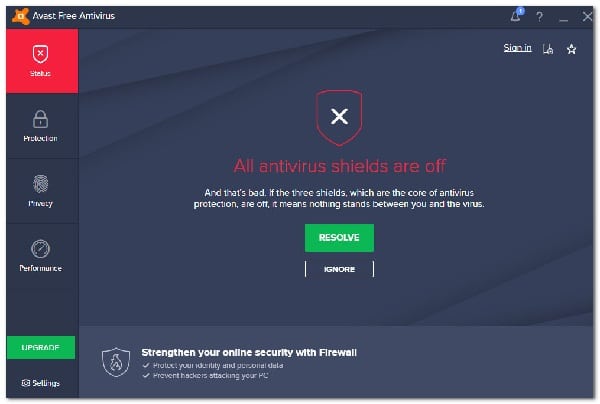
It turns out that in some cases, the problem can be caused by the third-party antivirus you have installed on your system. This can happen when your system's security program interferes with the Steam client process by not allowing the request to be carried out.
In addition to that, some antivirus programs now come with web security features that monitor and manage your web activity and can also interfere with your browser.
In such a scenario, you need to completely disable the third-party security program on your computer and then try using Steam to see if that resolves the issue. Additionally, the problem can also arise in some cases due to some other application on your PC. In such a case, we recommend you perform a clean boot to see if that fixes the error message.
Disable Windows Defender Firewall
Windows Defender Firewall is responsible for managing all incoming and outgoing requests on your computer. If Steam is unable to process your request, as indicated by the error message, it could be because Windows Defender Firewall is blocking requests from the application.
If this case is applicable, what you can do is simply turn off Windows Defender Firewall to see if the problem goes away. In case it does, you will simply need to make sure that the Steam client is whitelisted in Windows Firewall. Follow the instructions below to disable Windows Defender Firewall:
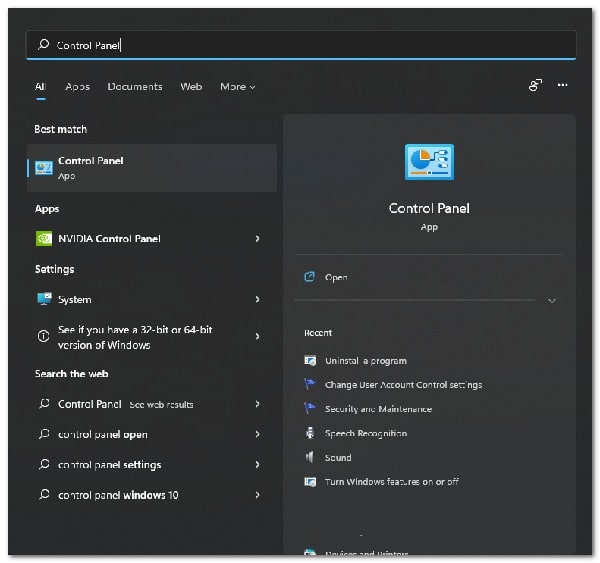
- First, open the Start menu and search for the panel control. Open it.
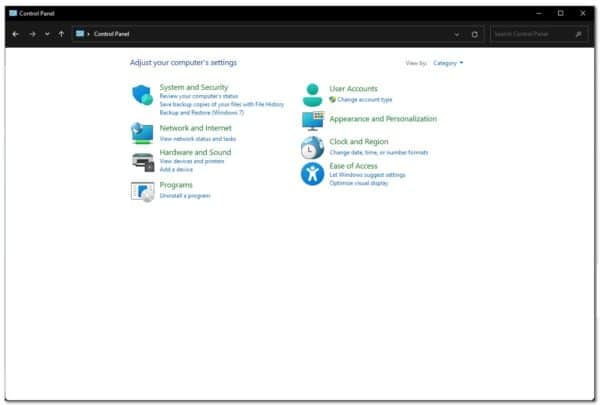
- After this, inside the Control Panel window, click on the option System and security provided.
- There, click Windows Defender Firewall.
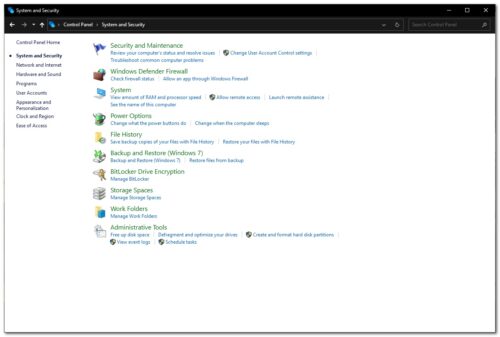
- After that, on the left side, click on the option Turn on or off Windows Defender Firewall provided.
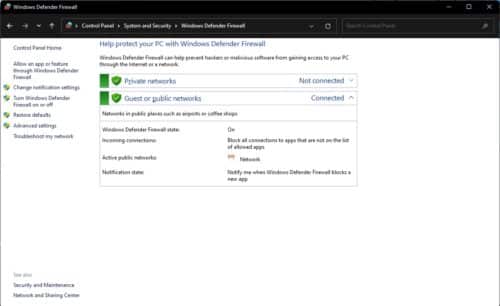
- Finally, choose the option Disable Windows Defender Firewall for network configuration act y private and then click OK.
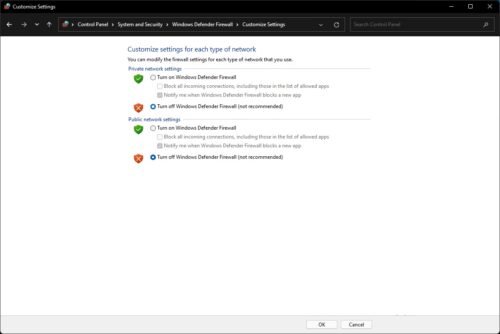
- Once this is done, see if the problem still exists.
Reinstall the Steam client
In case you are experiencing the E502 L3 error code only on your Steam client and the website works fine when you try to access it via the browser, then it is most likely that the issue is caused by the Steam installation files.
If this case is applicable, what you can do is simply reinstall the Steam client on your system so that all the files are updated. Doing so will remove any damaged or corrupted files. Follow the instructions below to uninstall Steam:
- To get started, open the Panel control by searching for it in the Start menu.
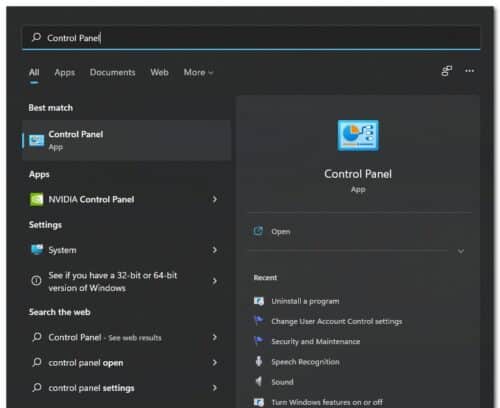
- In the Control Panel window, click the option Uninstall a program in Programs.
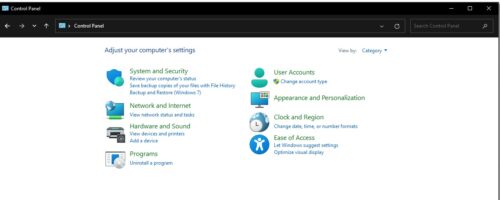
- There, from the list of applications installed on your system, look for Steam.
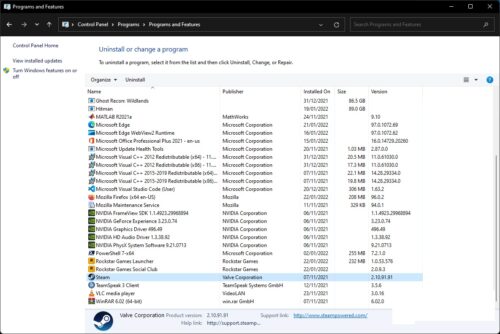
- Once you have located it, simply double-click on it to uninstall it from your computer.
- With Steam uninstalled, go ahead and restart your computer.
- After that, head to the website and download the installer again.
- Install Steam on your PC and see if the problem still persists.
If you've made it this far, I can only thank you for reading us. I hope that each of the methods described in this guide will help you when fixing this error. Don't forget that you can share your experience in our comments section. We'll see you again in a future post. Until then.

My name is Javier Chirinos and I am passionate about technology. Ever since I can remember, I have been interested in computers and video games, and that passion has turned into a job.
I have been publishing about technology and gadgets on the Internet for over 15 years, especially in mundobytes.com
I am also an expert in online marketing and communication and have knowledge in WordPress development.