Some Windows 11 users are experiencing a strange issue where every game they try to install from the Game Pass service fails with the same error code : 0x00000001 . This problem was originally present in Windows 10, but is now resurfacing on a massive scale with the release of Windows 11.

What causes error 0x00000001 in Windows 11?
We investigated this issue thoroughly and realized that there are many potential causes that could be responsible for this behavior on Windows 11. Here is a list of culprits that are known to cause error 0x00000001 on a Windows 11 computer:
- Microsoft gaming service corrupted: In many documented cases on Windows 11, the error 0x00000001 is usually displayed when there is some kind of corruption issue affecting the Microsoft Gaming Service. If you are dealing with this kind of problem, the solution is to reset the problematic service or reinstall it from an elevated command prompt. PowerShell.
- Corrupted app installer application- Another service known to contribute to this issue is the App Installer Service. Other users who were also experiencing this issue reported that the problem was completely fixed after resetting the App Installer from the Windows 11 GUI.
- Inconsistency with the Microsoft Store app and Xbox: The Temporary files accumulated by the Microsoft Store and the main Xbox app can also be responsible for error code 0x00000001. Most of these types of issues can be resolved by resetting both components and clearing the temporary fleet of files.
- The problem with the Xbox app: The revamped version of the Xbox app on Windows 11 is currently very unstable and should be avoided when possible. If you receive the error when trying to download the game from the Xbox app, try downloading it again from the Microsoft Store.
- Xbox app installation folders damaged: If all attempts to install GamePass games fail with the same error code, it's also possible that there's some sort of inconsistency affecting the core folders where game data is stored. One way to fix this, in this case, is to force the Xbox app to recreate the installation folders.
- Windows Update KB5004476 is missing: There is actually an optional update (KB5004476) that is actually a crucial part when you want to install a GamePass game through the Xbox app. If this update is missing, you can quickly fix the problem by installing the update through the Microsoft Update Catalog.
- Incorrect DNS range: another possible reason why all the requests are denied downloads GamePass is an incorrect DNS range that forces the MS server to terminate the connection. If you find yourself in this particular scenario, you should be able to fix the problem by doing an IP/DNS flush from a symbol of the system high.
- DNS provider does not allow 'settings-win.data.microsoft.com': If you are using a PiHole or have a leaked DNS, you are most likely dealing with this issue due to the fact that Microsoft now requires the telemetry host/IP to be reachable. In case your DNS provider is blocking 'settings-win.data.microsoft.com', you can fix the problem by making sure your host is authoritative.
- Third-party antivirus interference: It turns out there are several third-party AV suites (particularly Zone Alarm) that could be affecting your connection to Microsoft's download servers. If you're using a third-party antivirus with a history of interfering with GamePass downloads, temporarily turn it off or uninstall it to prevent the error from occurring.
- System file corruption: Under certain circumstances, system file corruption can also be responsible for the error code 0x00000001. When troubleshooting a curious case of system file corruption, you should start with DISM and SFC scans before you start performing a repair installation or clean installation of your PC if the problem persists.
Now that we have looked at all the possible culprits that could be responsible for this issue, let's go over all the solutions that other affected users have successfully used to get to the bottom of this problem:
Reset apps installer and game services
Since the most common underlying cause of this problem is incorrect temporary files generated by game services or app installer applications , the first thing you should do if you are currently experiencing error 0x00000001 in Windows 11 is to use the installed applications menu to reset both applications and remove the temporary files associated with them.
You can do this by opening the main Settings app , then going to the Apps & features menu and resetting both apps via the Advanced options menu.
Note: Depending on your version of Windows 11, the App Installer application may be outdated; in this case, ignore it and simply reset Game Services.
If you're looking for specific step-by-step instructions on how to reset the Gaming Services & App Installer apps via the Settings menu, follow the steps explained here:
- Press the tecla Windows + I to open the main menu of Configuration on Windows 11.
- Once you are inside the main menu of Configuration, Click on Applications in the vertical menu on the left. In case the vertical menu is not visible by default, click on the action icon (top left corner of the screen).
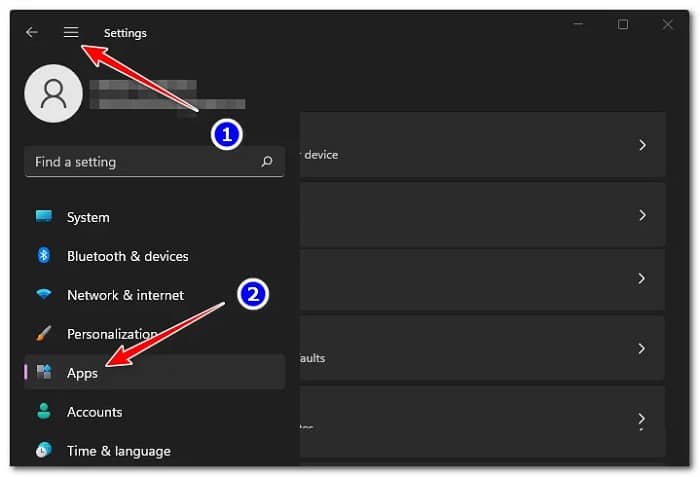
- Next, in the menu of Applications dedicated, click on Installed applications.
- Once you are inside the menu Installed applications, use the search function at the top to search gaming services.
- In the list of search results, you must click on the action icon associated with the Gambling services and then click Advanced in the context menu.
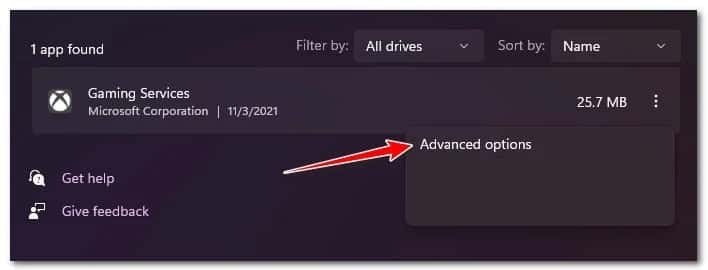
- Once you are inside the menu Advanced Optionss, scroll down to the tab Resetting and click on the button Reset to continuation.
- In the confirmation message, click Resetting once again to start this procedure.
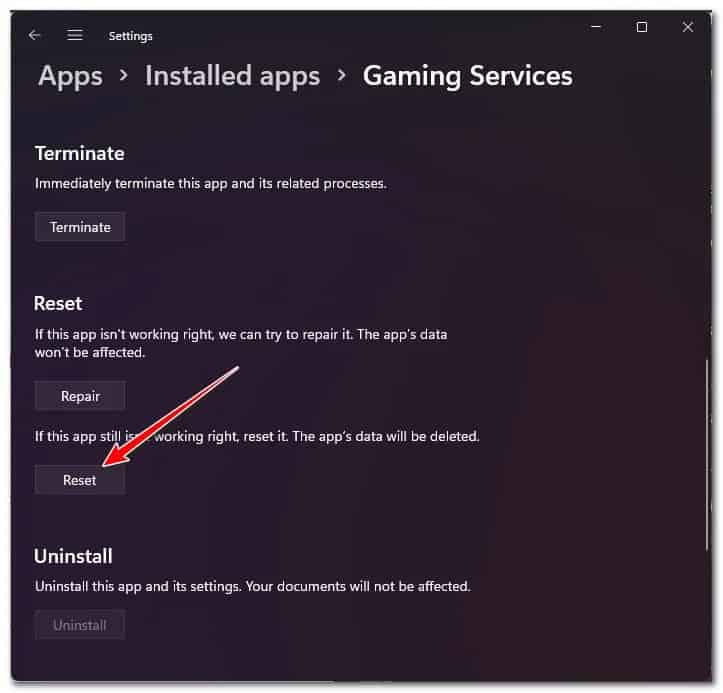
- Once the operation is complete, repeat steps 4 to 7 with the installation application of the enforcement also.
Note: If the app installer is outdated and you can't find it when you search, drop it and go to the next step.
- Restart your Windows 11 PC and see if you can now install GampePass games without seeing the same type of 0x00000001 error.
If the same problem still occurs, continue with the next method.
Reinstall Microsoft Gaming Services
If the first method didn't work for you, the next thing you need to troubleshoot is a possible corruption issue affecting Microsoft Gaming Service.
If you are actually dealing with some sort of corruption issue rather than a problem caused primarily by temporary files, the 0x00000001 error will not be resolved by a simple app reset.
If you find yourself in this scenario, the next thing you should do is use a series of elevated PowerShell commands to uninstall the Microsoft Gaming service pack and then reinstall it once again.
Several affected users have confirmed that the issue was finally resolved once they followed the instructions below to resolve a potential case of Game Services corruption:
- Press the Windows key + R to open a dialog box Run. Then write 'wt' inside the text box and press Ctrl + Shift + Enter to open the application Windows Bus Terminal with administrator access.
- When you are asked for it User Account Control (UAC), click Yes to grant administrator access.
- Once you are inside the Windows Terminal application, type or paste the following Powershell command inside and press Log in to effectively uninstall the entire infrastructure of Microsoft Gaming Services:
get-appxpackage Microsoft.GamingServices | remove-appxpackage-allusers
- Wait until the command is processed successfully. This process may take a few minutes depending on whether you are using a traditional hard drive or a SSD.
- Next, once you get the success message, use the same elevated window to run the following command to reinstall the same package. Microsoft Gaming Service that you previously uninstalled with the command above:
start ms-windows-store://pdp/? productid = 9MWPM2CQNLHN
- Once the second command has been processed successfully, restart your PC.
- After your Windows 11 PC restarts, try installing the same game that was previously failing with the same 0x00000001 error and see if the issue is now fixed.
If you still get the same error code, you can try the following solution.
Install the game from Microsoft Store (if applicable)
Please note that in some cases, you can bypass the error entirely by forcing the game to be downloaded from the Microsoft Store instead of the Xbox app.
Several affected users who are only experiencing the 0x00000001 error when installing games through the Xbox app have confirmed that the issue no longer occurred once they attempted to download through the Microsoft Store.
Note: If you manage to download the game through the Microsoft Store, you will also see it appear within the Xbox app.
If this scenario is applicable, follow the steps below to install the game from Microsoft Store and avoid error 0x00000001:
- Press the windows key to open the start menu.
- Write 'store', then click Microsoft Store in the list of available options.
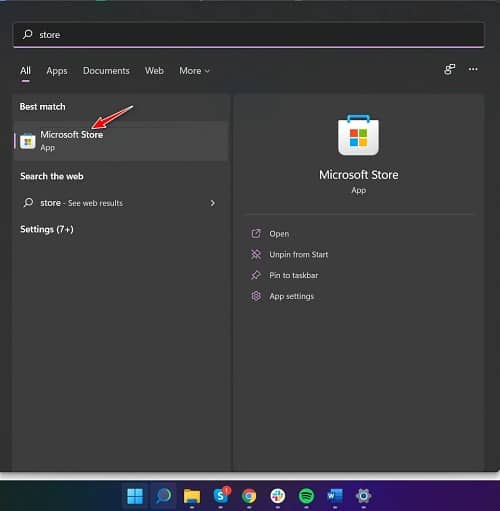
- Once you are inside the menu Microsoft Store, use the search function at the top to find the list of GamePass that shows error 0x00000001 when you try to install it through the app Xbox.
- Once you manage to find the correct list, follow the instructions to download it locally and see if this allows you to bypass the error.
In case the same type of problem still appears, you can try the following method.
Reset the Microsoft Store and Xbox app
Please note that the core game service is not the only component that could be responsible for producing temporary files that could ultimately cause the 0x00000001 error.
Please note that regardless of where you try to download the GamePass game when you see the error (Microsoft Store or the Xbox app), the two components are interconnected.
That is why the next step you need to do (in case the first two methods above fail) is to reset the Microsoft and Xbox app from the same Installed Apps menu.
Note: Resetting these components is a different procedure than repairing them. Resetting will also delete temporary file folders (in addition to reinstalling the application files).
Follow the instructions below to get the complete guide on how to reset the Microsoft Store and Xbox app:
- Make sure both the Microsoft Store and the Xbox app interface are closed and not running in the background.
- Press the tecla Windows + I to open the application Configuration on Windows 11.
- Once you are inside the application Configuration, Click on Applications in the left menu. If this menu is hidden by default, click the action icon at the top to make it visible.
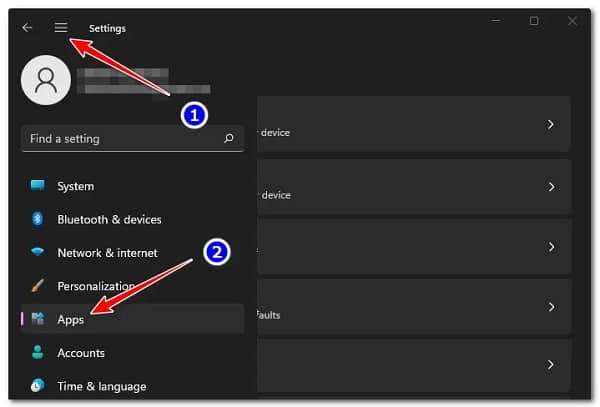
- After you are inside the menu Applications, Click on Installed applications.
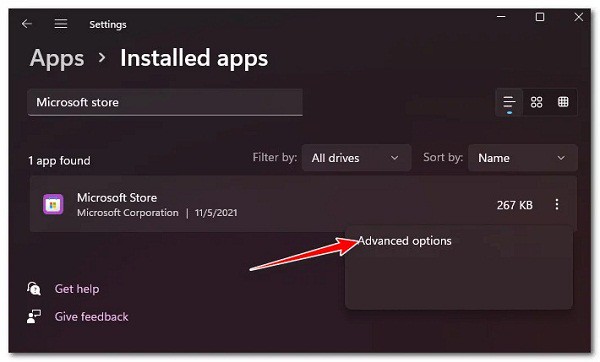
- Within the Installed Applications menu, start by searching for 'Microsoft Store', then click Enter.
- Next, in the list of results, click the action button associated with Microsoft Store and then click Advanced.
- Inside the menu Advanced from the Microsoft Store, scroll down to the feature Resetting, then click Resetting once again to effectively restore Microsoft Store.
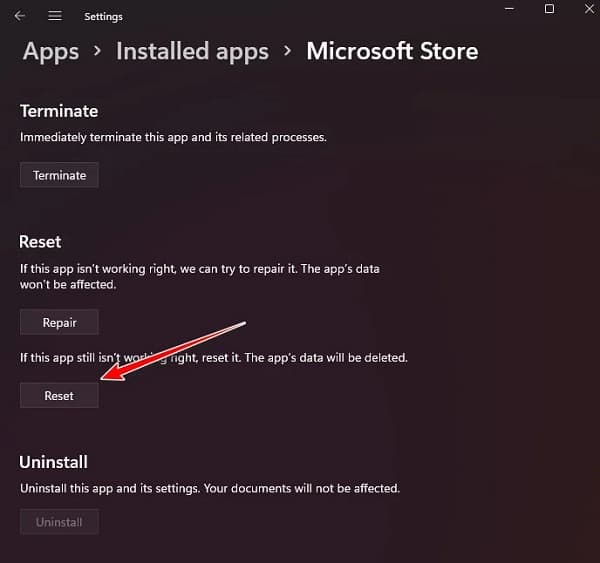
- In the confirmation message, click Resetting once again to initiate the Microsoft Store component reset procedure.
- Repeat steps 4 to 7 with the Xbox app also.
- Restart your PC and see if you still encounter the same 0x00000001 error when trying to download GamePass games locally.
If the problem is still not resolved, try the following solution.
Recreate the Xbox app installation folders (if applicable)
If you noticed this problem started occurring immediately after adding a new HDD or SSD to your PC, you may be able to fix the problem by forcing your Xbox app to create (or recreate) the Windows apps and program files for the new drives you just connected.
Note: To do this, you will first need to uninstall and then reinstall the game service.
Once you've given the game service app a fresh start, follow the steps below to recreate the Xbox app installation folders :
- Open the Xbox app and navigate to the list of the game that is crashing with error 0x00000001 and click on Install.
- In the next installation message, click Change (do not choose the unit that is preselected).
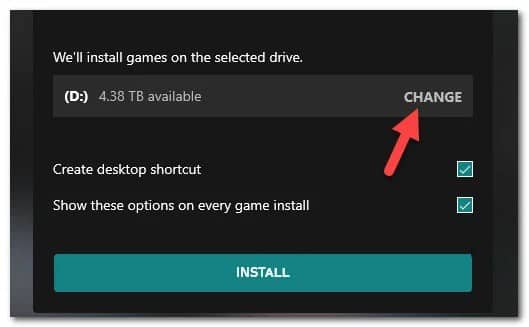
- Next, select the drive where you want to recreate the two folders and wait 5 seconds or more; during this time, the application will recreate the folders).
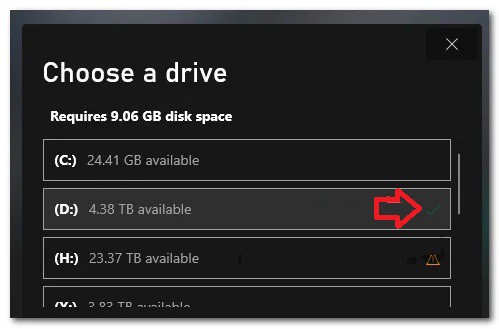
Note: You will notice the green check box appear when the operation is complete.
- Finally, click on Install to try downloading the GamePass game again.
Note: If the procedure was successful, you should no longer encounter error 0x00000001.
- In case this method doesn't work for you either, try the next method.
Install Windows Update KB5004476 (if applicable)
It turns out that you can also expect to deal with this particular issue in a scenario where your Windows 11 installation is missing an optional update (KB5004476) that is actually a key component of the Windows Store when you want to play games from the GamePass library.
Normally, you can easily install this update by accessing the Windows Update screen and installing all pending updates.
However, this might not be enough in some scenarios, as some affected users have confirmed that, in their case, the KB5004476 update was not available within the Windows Update screen.
If you also encounter this scenario, you can always use the Microsoft Update Catalog to manually download and install the problematic update.
Follow the instructions here to get the complete installation guide for update KB5004476 through the Microsoft Update Catalog:
- Open your default browser and navigate to the official Microsoft Update Catalog page.
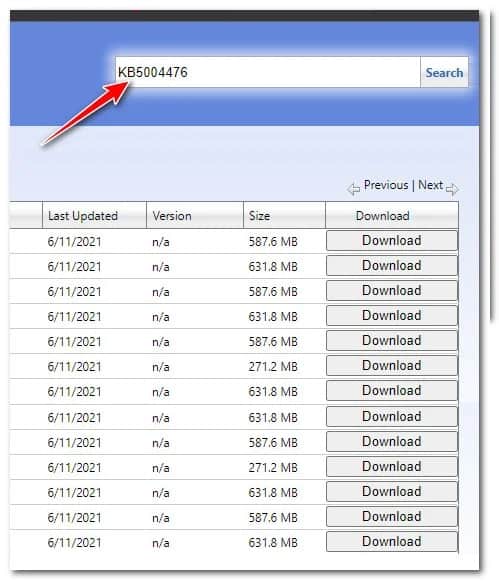
- Once inside, use the search function (top right corner) to search 'KB5004476'.
- Next, look at the list of results and see which of the listings is compatible with your Windows installation - look at the architecture type and Windows version and click the button. Download once you have found a match.
- In the list that just appeared, click on the hyperlink to start the download.
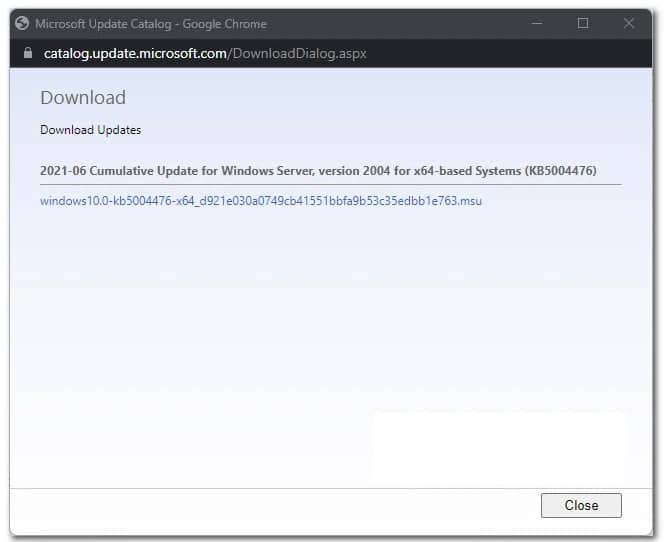
- Once the update files are downloaded locally, navigate to the location where the update was downloaded, then double-click the file .ini to start installing the update.
- Follow the remaining prompts to complete the installation of the Windows update, then restart our PC and see if the operation is complete.
If the same type of problem still occurs or this particular method was not applicable, try the following.
Flush DNS
In case you are experiencing this issue intermittently, the problem could be related to a network inconsistency facilitated by an incorrect DNS (Domain Name System) range that ends up disconnecting the connection between your PC and the Microsoft download server.
Typically, if an incorrect DNS range is to blame for the 0x00000001 error, you can usually fix it by opening an elevated Command Prompt to clear the DNS cache.
This method is confirmed to be effective for both Windows 11 and Windows 10 users.
If you are looking for step-by-step instructions on how to clear your current DNS cache, please follow the instructions below:
- Open a Run dialog box by pressing Windows key + R. Then write 'cmd' inside the text box and press Ctrl + Shift + Enter to open a symbol of the system high.
- When you see the message User account control, Click on Yes to grant administrator access.
- Once you are inside the indicator CMD elevated, type the following command and press Enter to effectively flush the DNS cache on your PC:
ipconfig / flushdns
Note: What this will essentially do is delete any information currently stored in the DNS cache; this will force the router to assign a new DNS range.
- Once the operation is successful, close the elevated CMD prompt and try downloading the GamePass game once again
In case your attempt to re-download the game ends with the same 0x00000001 error, please continue to the next potential solution below.
Allow 'settings-win.data.microsoft.com' in DNS filtering software (if applicable)
Please note that the action of installing GamePass games now requires the telemetry host/IP to be reachable. This is a new change that Microsoft introduced with Windows 11.
Of course, this isn't a problem for the vast majority of users, but if your DNS ends up blocking settings-win.data.microsoft.com, expect to see this error every time you try to download something through the Xbox app or Microsoft Store app.
So in case you are using a filtered DNS or a software solution like PiHole, all you need to do is allow the host (at least while installing the games).
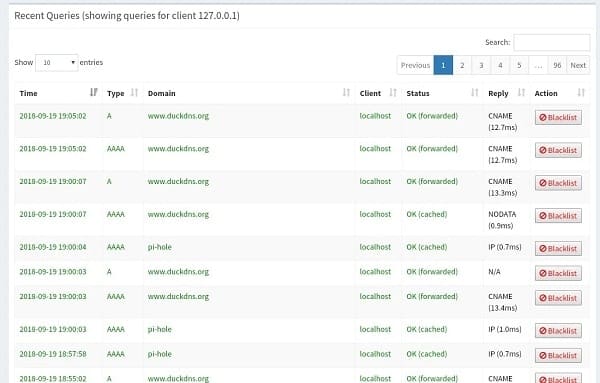
Note: After the games are successfully installed, you can use your filtered DNS solution to disable the host once again.
Of course, the exact instructions for allowing 'settings-win.data.microsoft.com' in your DNS filtering software will be different depending on the tool you are using.
If this method doesn't work for you either or you've made sure that your DNS filtering software isn't interfering with the download, try the next method.
Uninstall ZoneAlarm Antivirus + Firewall (if applicable)
If you're using a third-party antivirus that monitors your entire network (antivirus + firewall), you'll also need to make sure it doesn't interfere with the Xbox app's attempts to download GamePass games.
This is not a problem with the built-in security tool ( Windows Defender ) or major third-party utilities like BitDefender or Norton, but smaller security suites like ZoneAlarm (Antivirus + Firewall) are known to cause error 0x00000001 in Windows 11.
If you are using Zone Alarm Antivirus + Firewall or a similar third-party tool, the only solution to exclude the possibility of interference is to temporarily uninstall it and delete any remaining data belonging to it.
Note: Simply disabling real-time protection will not be enough, as the same security rules set by your firewall will remain in effect.
Next, we'll tell you the steps to follow to temporarily uninstall the problematic firewall package and see if this fixes the 0x00000001 error in Windows 11 for you:
- Press the Windows key + R to open a dialog box Run. Then write 'appwiz.cpl' and press Log in to open the menu Programs and Features.
- Once you are inside the menu Programs and Features, identify the third-party security package you want to uninstall, then right-click on it and choose uninstall in the context menu that just appeared.
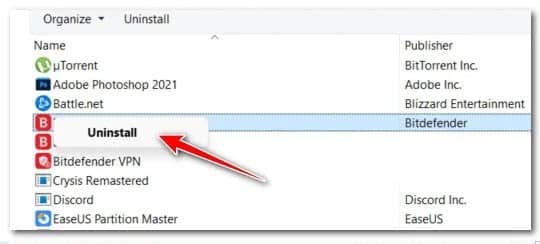
- Next, follow the on-screen instructions to proceed with uninstalling the problematic antivirus/firewall.
- Before you restart your PC and check if the problem has been resolved, you should also take There all with Delete any remaining data left by your firewall.
- Restart your Windows 11 PC and see if you can now download the GamePass games that we previously failed to download with error 0x00000001.
Perform DISM and SFC scans
If you've gotten this far without any results and have tried all of the possible solutions above, you should start seriously considering a possible system file corruption issue that could be affecting dependencies used by the Xbox app or the Microsoft Store app.
In such a scenario, the least intrusive approach is to use a couple of built-in tools (SFC and DISM) to remove all instances of system file corruption and ensure that no Windows dependencies are affected by the corruption.
If you decide to follow this route, the first thing you should do is perform a simple System File Checker scan from an elevated CMD prompt.
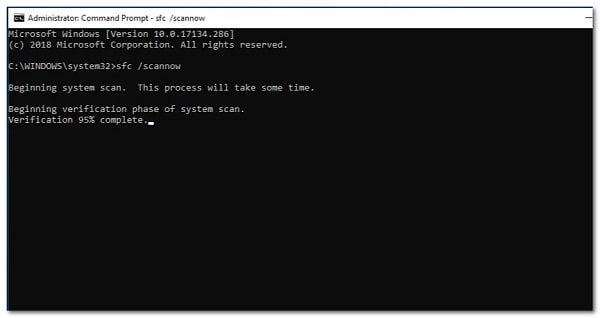
Note: The SFC scan uses a locally stored file to replace each corrupted file with a healthy equivalent. You do not need to be connected to the internet to perform this type of scan.
Once the System File Checker scan is complete, restart your PC once more and deploy an elevated DISM (Deployment Image Servicing and Management).
Note: Although DISM will also replace corrupted system files with healthy equivalents, it does things differently. Instead of using a local file, it uses a subcomponent of Windows Update to download healthy copies of the system files that need to be replaced. Make sure you have a stable internet connection before starting a DISM scan.
Once you manage to run the DISM and SFC commands, reboot one last time and see if you can now download the GamePass game without encountering the same error.
If the problem persists, try our last recommendation.
Perform a repair installation or a clean installation
If you have made it this far and you are still unable to download GamePass games as you are still getting error 0x00000001 (even after following all the methods above), then you are most likely facing some type of system file corruption that cannot be resolved conventionally.
In this case, you have two ways to move forward:
Option 1: Perform a clean installation : This operation will update your entire fleet of Windows system files and fix most corrupted system files. However, the downside is that you will lose all data currently stored on the same partition as your operating system (if you don't back it up beforehand).
Option 2: Perform a repair installation : While this process is a bit more tedious, you can perform a repair installation (in-place repair) to resolve each instance of system file corruption without using any of your personal data. You can keep all your applications, games, and personal media currently present on the operating system drive.

My name is Javier Chirinos and I am passionate about technology. Ever since I can remember, I have been interested in computers and video games, and that passion has turned into a job.
I have been publishing about technology and gadgets on the Internet for over 15 years, especially in mundobytes.com
I am also an expert in online marketing and communication and have knowledge in WordPress development.