- Error 0xC0000142 in Office is usually caused by corrupt files, version conflicts or disabled services.
- Update Office and itself Windows, as well as repairing and even completely reinstalling the suite, are common and effective solutions.
- Controlling optimization tools and always maintaining official software reduces the occurrence of this error.
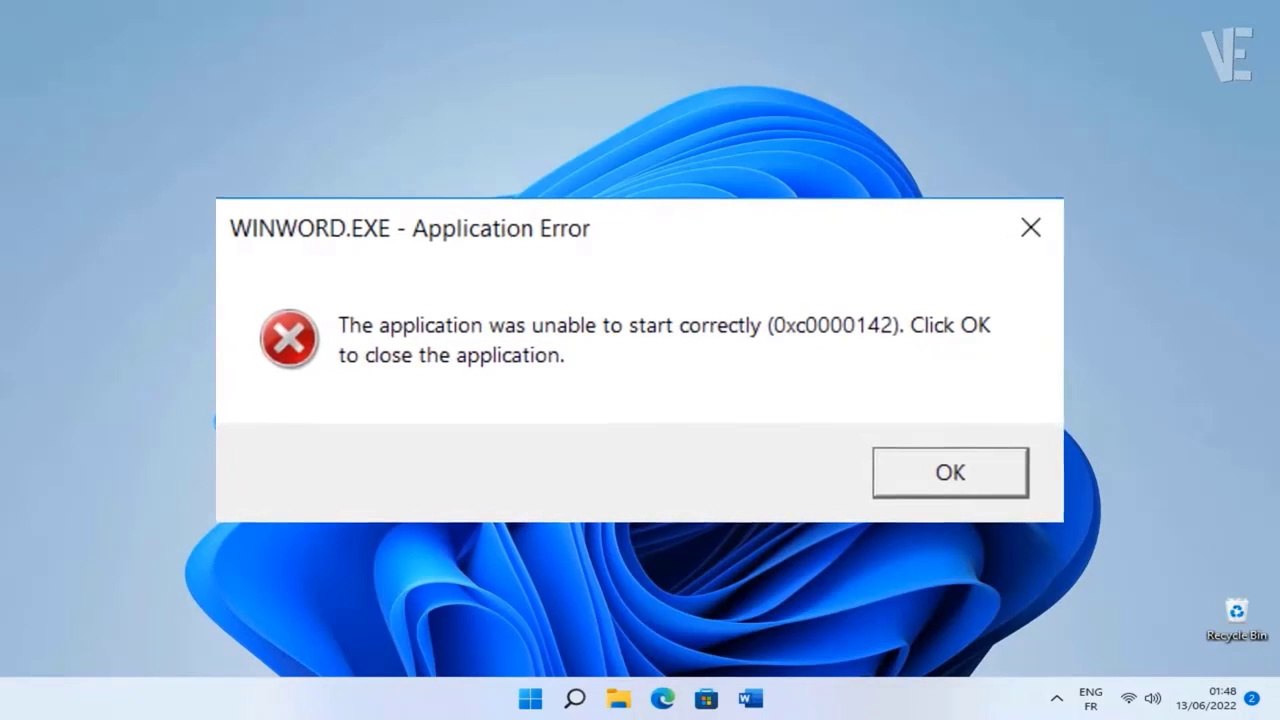
If you've ever tried to open Word , Excel, PowerPoint, or any other Microsoft Office application and encountered the Error 0xC0000142 message, you've likely experienced the frustration of not being able to access your documents or work tools. This problem is more common than it seems and can affect both Windows 10 and Windows 11 users , causing a lot of uncertainty and questions about how to fix it effectively.
In this article, you'll find a complete explanation of why error 0xC0000142 occurs when starting Office, its most common causes, and a detailed overview of all the possible solutions that have proven effective. We'll guide you step-by-step to regain access to your Office suite, with clear explanations tailored to both beginners and advanced users.
What does error 0xC0000142 mean in Office?
Error 0xC0000142 usually appears when you try to open an Office application and the program refuses to run correctly, displaying a message warning that the application could not be started.
This situation can be due to multiple factors , but most of the time it is caused by corrupted files in the Office installation, problems with updates, conflicts with old versions, disabled system services, or even some third-party software that has modified essential files of the suite.
Most common reasons for error 0xC0000142 in Office
Before getting into the solutions, it's helpful to know the most common causes of this problem:
- Damaged or corrupted Office files as a result of incorrectly deleted previous installations, or due to the use of programs such as optimizers and cleaners (for example, CCleaner, AVG TuneUp or Norton) that may have accidentally deleted critical files on occasion.
- Pending updates for both Office and Windows itselfIf you have an outdated operating system or suite, incompatibilities may arise.
- Essential services disabled, particularly the Office Software Protection Platform or Software Protection. If any of these key services are not running, Office may fail to start.
- Remains of old facilities, whether from previous versions of Office or from other programs that have left files in the Windows registry.
- Licensing issues, especially on computers where unofficial activators, expired licenses, or KMS systems have been used.
Step-by-step solutions for error 0xC0000142 in Office
We'll address each of the recommended solutions one by one, from the quickest and most common to the most advanced procedures, so you can regain full use of Word, Excel, PowerPoint, or any other Office tool. It's important that you follow the steps in order, checking after each one if the problem has been resolved . If not, move on to the next alternative.
Solution 1: Update Office to the latest available version
In many cases, a simple update process can resolve the error . Microsoft recommends ensuring you are using at least version 2102 (build 13801.20808) or later. If you have automatic updates disabled, you can force an update by following these steps:
- Click on the Windows search bar and type Task Scheduler. Open the app.
- Within the programmer, navigate to the Task Scheduler Library, then enter Microsoft> Office.
- In the center panel, locate Automatic updates for Office 2.0. Right click on that task and select Run.
Then, open any of your Office applications to see if the problem has disappeared. If it doesn't resolve the issue, continue with the next method.
Repair Office from the Control Panel
Another effective technique is to use the built-in repair function in Office . The process may vary depending on your version of Windows or the type of installation of the suite (Click-to-Run or MSI), but the general steps would be as follows:
- Accesses Control panelgo to Programs and Features.
- Select your version of Microsoft Office and press Change.
- From the options that appear, choose between Quick repair o Online repairOnline repair is more thorough, but takes longer and requires an internet connection.
- Follow the on-screen instructions and wait for the process to complete.
When you're done, restart your computer and try opening your Office applications again.
Run Windows Update and check for system updates
Keeping Windows properly updated is essential. System updates usually include patches for compatibility issues with both Office and services related to activation and security . To ensure everything is up to date , check the Common Errors section in Windows Update .
- Open the Configuring Windows (you can press Windows key + I).
- Accede to Update and security and click Search for updates.
- Install all pending updates and restart your computer.
Once the process is complete, try launching Office again.
Check that software protection services are active
For Office to function correctly, certain Windows services must be active . The two most important are:
- Office Software Protection Platform
- Software protection
To check and activate them if necessary, follow these steps:
- Click the start button, type Services and open the corresponding application.
- Scroll down the list and look for the services mentioned above.
- Right click on each one, select Properties and check that the Start type be like Automatic and the Service status en Running.
- If the state is listed as Detained , press Start.
This action usually resolves the error when it is related to Office licensing or validation.
Complete cleaning and reinstallation of Office with the official tool
If the previous solutions haven't worked, there may be remnants of old installations or corrupted files preventing the suite from functioning correctly . Microsoft offers a free tool to completely uninstall Office from your computer, removing any traces from the registry, expired licenses, and even illegal activators. For more details, you can visit this comprehensive tutorial on activation errors.
The procedure to follow is as follows:
- Download the Office uninstall tool from the official Microsoft website.
- Run the program and follow the instructions. All versions of Office present on the system will be displayed; mark them all for removal.
- The process can take between 15 and 60 minutes depending on the speed of your PC and the amount of debris to be removed.
- When finished, restart your computer.
- Download and install the version of Office that corresponds to your original license, avoiding pirated versions or KMS activators.
- Activate Office with your valid key; this way, you'll avoid validation issues and the error will disappear.
This method is especially useful if you've tried everything else and still can't open the apps. It also resolves potential conflicts with older versions or Office accounts that may have been left on the system.


Passionate writer about the world of bytes and technology in general. I love sharing my knowledge through writing, and that's what I'll do on this blog, show you all the most interesting things about gadgets, software, hardware, tech trends, and more. My goal is to help you navigate the digital world in a simple and entertaining way.