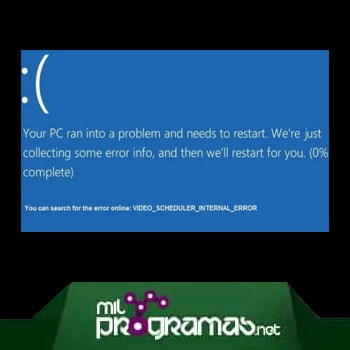
VIDEO_SCHEDULER_INTERNAL_ERROR is a BSOD error with a bug check value of 0x00000119 and is displayed when a fatal violation is detected. When the error is diagnosed using the Exchange diagnostic tool, related information is displayed.
This problem is most commonly related to the graphics card and its drivers. The computer often displays "STOP Error 0x119: VIDEO_SCHEDULER_INTERNAL_ERROR " when you try to open the same program.
The window runs very slowly and responds slowly to mouse and keyboard input. The computer also freezes periodically. The screen also locks up every 10 to 15 minutes. In some cases, the screen locks up before or immediately after the user logs on.
You might also be interested in: Fixing the "You need permission to perform this action" error
Causes of VIDEO_SCHEDULER_INTERNAL_ERROR
There are numerous reasons for this particular error. The most common is that the drivers are old, corrupted, or improperly installed. Drivers may be working fine one day, and the next day stop working for various reasons, ultimately causing error 0x119.
After installing new hardware , the chances of encountering this problem are very high. Keep in mind that your VIDEO_SCHEDULER_INTERNAL_ERROR may not be related to hardware driver issues, but it's always good practice to keep all your system drivers up to date to ensure optimal performance.
Over time , your system may develop hard drive errors due to unintentional, improper, and repeated shutdowns , or an incomplete or corrupted software installation. As a result, you may experience screen errors associated with VIDEO_SCHEDULER_INTERNAL_ERROR.
Sometimes, the video programmer error can also occur due to RAM (memory) corruption. If you experience “beep” codes at startup or when restarting your computer randomly, then the memory is most likely corrupted.
If you have recently added new RAM to your computer system, I recommend that you remove it immediately to make sure that it is not the cause of the video scheduler error. Below are some of the methods to try to fix the VIDEO_SCHEDULER_INTERNAL_ERROR.
Method 1: Install all available Windows updates
Sometimes, it can be as easy as updating Windows with the latest Service Pack or any other patch released by Microsoft to resolve the internal video scheduler error.
To check for a Windows update, click the Start button . Type Update in the search box. Press Enter . The Windows Update dialog box will appear on your screen. Click the Install updates button if any updates are available.
Method 2: Roll back to the previous driver
Sometimes, this error is also caused by incorrect or corrupted video card drivers. Reinstalling them may fix the problem. Hold down the Windows key and press R.
Type devmgmt.msc in the Run dialog box. Expand the Display adapters section by double-clicking it. Right-click the item that appears. Select Properties . When the Properties window appears, select the Driver tab . Then, click Back.
You might also want to know: How to Fix Error Code 5003 in Zoom
Pro Method: Use DDU (Display Driver Uninstaller) for amd/nvidia cards
If nothing works, then you'll have to move on. There are two situations here:
- Where you can log in.
- The ones you can't log in to.
The goal is to boot the system into Safe Mode so it loads with only the essential drivers and minimal settings. But before proceeding with the steps below, make sure you download DDU from here and copy it to an external drive, or if you were able to log in, download and save it to your desktop before booting into Safe Mode.
For Windows 8/10
If you can access it, click the Start button in the bottom right corner, hold down the SHIFT key , and while holding it down choose Shutdown -> Restart to enter advanced options.
If you can't log in, restart your PC and interrupt the restart process when you see the Windows logo on the screen. The text below the logo will say " Preparing Automatic Repair ." When you see this, wait for the system to take you to Advanced Mode.
For Windows Vista/7
If you are using Windows 7 or Vista, restart your computer and repeatedly press F8 until you see the Advanced Boot Menu . If you don't see this menu, restart and repeatedly press the F8 key until you do.
When you see it, select Safe Mode . You'll be able to enter this mode without any problems. Windows 7 will take you directly to Safe Mode after you choose the Safe Mode option.
But if you're using Windows 8 or 10, after the "Preparing automatic repair" message , you should be taken to Advanced Options when you choose Troubleshoot -> Advanced Options -> Startup Settings . Wait for the system to restart. After the restart, choose Option 4 by pressing 4 on your keyboard to boot into Safe Mode.
Once in Safe Mode, when you copy the DDU file to your desktop (if you saved it to a USB drive) or locate the downloaded file, move it to a new folder. This ensures that the extracted files remain within the folder. Otherwise, they will be extracted to the location where you saved the file.
Once you've done that, click the Display Driver Uninstaller icon and run it. Don't worry if it shows " Windows 8.1 " as the system detected it. Go ahead, choose your card type from the drop-down menu, then select Option 1, which is Clean and Restart.
After the driver cleanup is complete, the system will reboot back into normal mode. Now, you can go to the manufacturer's site to download and install the latest driver for your graphics card.
We recommend you read: Fixing Dwm.exe Errors: Is it Safe? Is it a Virus?
We hope you were able to resolve the VIDEO_SCHEDULER_INTERNAL_ERROR error. We have shown you a number of solutions for this. Remember to try each of these until you find the most suitable one. If you have any comments or suggestions, you can let us know in the comments section. We will be looking forward to hearing your opinions.

My name is Javier Chirinos and I am passionate about technology. Ever since I can remember, I have been interested in computers and video games, and that passion has turned into a job.
I have been publishing about technology and gadgets on the Internet for over 15 years, especially in mundobytes.com
I am also an expert in online marketing and communication and have knowledge in WordPress development.