
It's no secret that Microsoft always strives to keep its customers satisfied, ensuring your files don't end up in the wrong places. Even so, this protection can sometimes be overstepped, leading to the error message "You need permission to perform this action." This is especially true when trying to delete a folder, run an application, or simply open one of your files.
This is an error that seems to have no clear origin, for this reason, it is normal that it overwhelms you a little and you want to know the root of its cause. But do not worry so much about it, I have prepared this guide for you to learn some efficient solutions. So I invite you to continue reading and learn with me how to fix the error you need permission to perform this action.
What is causing the error? Do you need permission to perform this action?
This is a tricky bug, partly because it's hard to know the actual cause of this error. Most of the time, those affected say that it may be due to permissions expiration. As you know, permissions give you the ability to run user account settings that prevent specific actions from being performed. This usually increases security on shared computers.
However, when these permissions are modified in a bad way, errors such as the one we are dealing with in this guide can appear. It can even cause devastation, so much so that even with an administrator account you will not be able to establish new files, folders or make modifications to existing ones.
Another possible cause of this error is associated with the use of certain third-party applications or malware infections.
Whatever the origin of this error, we are here to help you solve it in the shortest amount of time possible. So, once again, I invite you to continue reading so that you can learn with us.
How can I fix the error you need permission to perform this action?
Once we have a clearer idea about the possible cause of this failure, it is time to look for a solution. Within this post we have listed some very useful methods for you. Of course, we make sure that you can regain full control of your system as soon as possible.
Note : Some of these possible solutions require you to use your administrator account. This means that you can perform various tasks from this account that may modify system settings. Don't worry, this is necessary to restore the taskbar.
That said, we can now begin to analyze the most viable solutions to the error you need permission to perform this action.
1.- Disable any third-party antivirus
As I mentioned above, one possible cause of this error is that a third-party application is backing it up. If you're a Windows 10 user, it's very likely that you have antivirus software installed that's causing this error. The quickest, safest, and most practical way to find out is to temporarily disable it and see if the problem disappears or persists.
Note: It's important to turn on Windows Defender when you turn off your antivirus. This program is a built-in part of the Windows 10 operating system and protects your computer from malware. In short, it provides security while your computer is running.
That said, I'm now going to show you the steps you need to follow to disable your antivirus:
Open the Task Manager on your computer ; you can do this in one of these ways:
- Right-click on your computer's taskbar and select the Task Manager option found in the context menu.
- You can also press the Ctrl + Alt + Del keys and wait for the window with the security options to appear. Then, you have to select where it says Task Manager.
- When Task Manager starts in compact view, you have to click on the option that says More details which appears right at the bottom left of your screen.
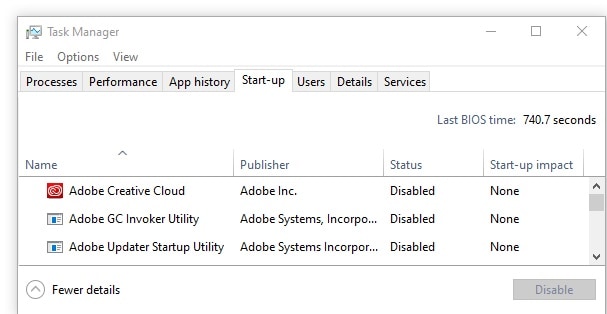
- Go back to the start menu (at the top of the window, select Task Manager). Here you can see each of the applications that start up with your computer when it is launched.
- Afterwards, you have to choose your third-party antivirus application, and then click on the option Deactivate. Once this is done, the application status should change to Disabled.
- You must repeat this with each third-party antivirus software that you currently have installed on your computer, then you have to Reiniciar your team.
After completing these steps, your computer will start without the third-party antivirus , allowing you to see if the error was resolved or if it still appears.
If you can make changes, create folders or delete files as usual, it is likely that your antivirus is causing the error. For this reason, it is best to use a different antivirus to avoid further damage to your permissions or contact with the manufacturer.
2.- Scan the computer with Windows Defender
Continuing with the topic of antivirus software, there's a high probability that your computer is infected with malware, which is causing the error. To confirm if this is the case, you can use Windows Defender to perform a full system scan and remove any potential viruses.
- The first thing you need to do is press the icon Windows located in the lower left corner of the screen, better known as the start menu.
- Then you have to click on the option Configuration, identified with a gear icon.
- When the configuration window finishes loading, you will be able to see different menu options. You have to click where it says Update and security.
- Go to the left menu and select the page Windows security.
- Click where it says Protectionagainst viruses and threats to open a new window.
- Now you have to click on the link Analysis options and then choose a complete analysisAlthough this action takes a long time, it is best to run it and not skip a quick scan. Malware is an expert at hiding itself, so it is important to perform full system scans.
- All you have to do is wait for the analysis to finish and take appropriate corrective measures against any threats you find.
3.- Create a .bat file to take ownership
You can regain full ownership of a specific folder by using the .bat file. Creating such files only takes a little time, they are easy to create and if you follow these steps it will be easier for you:
- Right click in any empty space on your desktop, then you have to select the option that says New and create a text document.
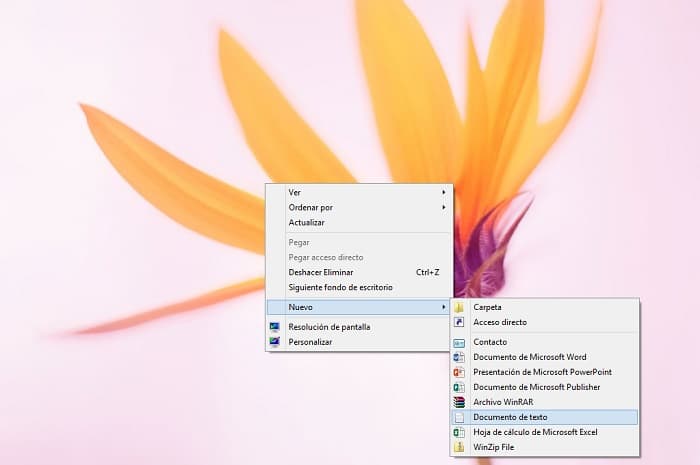
- Name it Fix.txt and open it with your preferred text editor.
- Make sure to copy and paste these lines:
SET DIRECTORY_NAME = » DIRECTORY”
TAKEOWN /f% DIRECTORY_NAME% /r /dy
ICACLS% DIRECTORY_NAME% / grant administrators: F / t
BREAK
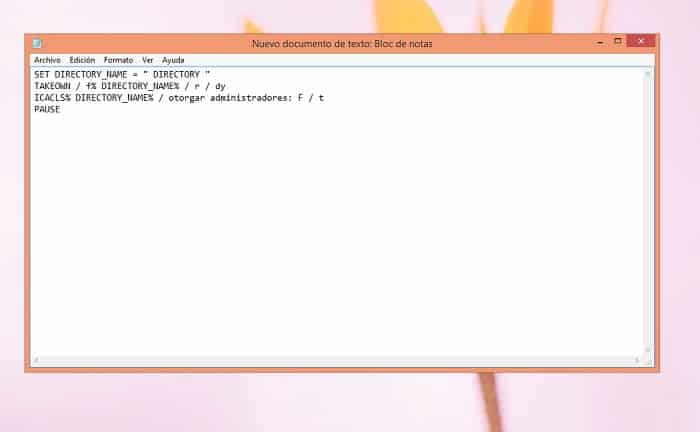
- The next step is to replace the DIRECTORY with the respective path to the folder that is causing the problem. For example, if the problem is manifesting in a folder with pictures on your desktop, you should replace it with “C:\Users\your username\Desktop\Pictures”.
- Now you have to save Fix.txt, then navigate back to your desktop and rename the Fix.bat folder. You will be prompted with a warning about changing the file extension; just make sure to click Yes.
- Afterwards, you have to right click on Beat and select Run as administrator.
- All you have to do is check if you have access or can delete the folder that was causing the problem.
4.- Change permissions without taking possession
If you intend to change the owner of a folder or file, you just need to grant the corresponding permissions to be able to access them.
For example, if you work with sensitive files, transferring ownership from one location to another can lead to more conflicts or concerns within a shared device. This is one of the reasons why giving appropriate permissions to each user ends up being the best solution to the error you need permission to perform this action.
That said, I will now show you what you need to do to change the respective folder or file permissions in Windows 10.
- Click right on the file or folder that is causing the problem, then select the option Properties in the context menu.
- Then go to the tab Security located at the top of the Properties window.
- Now you must click on the option Moving forward.
- Check if your user has total control in the Access column list.
- If you see anything other than “Full Control” or don’t see your username listed, click the Add button.
- Click the Select Parent link at the top of the window.
- A writable field will appear titled Enter the name of the object to selectHere, you just need to copy your local username. You need to be careful not to misspell anything and be aware that this option is case sensitive.
- Then you must click on the button that says Check names to validate your username, press the button that says Accept.
- Place a check mark next to Full Control. This automatically checks all actions except those called Special Permissions.
If after completing all the steps above you verify that the error is the result of a permissions confusion, this action is most likely the most suitable for you.
5.- Run a System File Checker (SFC) scan
I have told you on several occasions that Windows 10 has the particularity of integrating functionalities that solve and find problems on your computer. The system file checker is one of them, this tool detects and resolves various faults within the system.
I recommend that you find a pencil and paper to write down the steps you need to follow to run an SFC analysis.
- Press the keys Windows + R to launch the Run utility, then enter the command cmd and press Ctrl + Shift + Enter. This will form the symbol of the system with administrator permissions.
- Then you have to click on Yes and enter your password if prompted.
- After this, you have to copy the following command and press the Enter key: SFC / scannow
- You must wait for the scan to finish. This may take some time, depending on your system. Make sure the scan is not closed or interrupted, as progress will be lost.
- If any fault or error is identified, the SFC scanner will automatically look for a way to fix it.
We hope these recommendations help you fix the "You need permission to perform this action" error. If none of the methods work, we recommend restarting your Windows 10 operating system.

My name is Javier Chirinos and I am passionate about technology. Ever since I can remember, I have been interested in computers and video games, and that passion has turned into a job.
I have been publishing about technology and gadgets on the Internet for over 15 years, especially in mundobytes.com
I am also an expert in online marketing and communication and have knowledge in WordPress development.