- DisplayFusion expands the capabilities of Windows to work with multiple monitors, adding taskbars, profiles, and precise control of each screen.
- It offers advanced fund management, screensavers, and splitting of monitors into virtual sections, integrating online services and linked profiles.
- It incorporates customizable functions, triggers, and scripts to automate the movement and organization of windows and system settings.
- The Pro version with a lifetime license unlocks all advanced features, while the free edition covers basic multi-monitor needs.

If you work or play with multiple monitors simultaneously, you've probably noticed that Windows alone falls a bit short. Window management, taskbars, and backgrounds become a mess as soon as you connect a second screen. This is where DisplayFusion comes in, a tool specializing in multi-monitor management, profiles, and desktop backgrounds that has carved out a serious niche among advanced users, gamers, and professionals.
Beyond the typical "multi-monitor program," DisplayFusion has become a complete suite for controlling resolutions, profiles, backgrounds, shortcuts, and automations . From separate taskbars on each screen to custom C# scripts and remote control via mobile, the application covers almost any scenario you can imagine when working with two, three, or more displays.
What is DisplayFusion and what is it used for?
DisplayFusion is an advanced multi-monitor setup management software for Windows . Its main purpose is to address the limitations of the operating system when working with more than one screen: it adds additional taskbars, allows you to define monitor profiles, control independent wallpapers, create custom functions to move and organize windows, and even automate tasks based on system events.
Although Windows has improved with each version, it still doesn't offer a truly complete experience for those who use two, three, or more monitors extensively . DisplayFusion integrates right into this solution: it gives you tools to better organize your desktop, save time, prevent windows from randomly jumping to another monitor, and also customize the visual appearance of your entire workspace.
The application is available in a free version and a Pro version . The free version covers basic multi-monitor functions, while the Pro version unlocks all the features: advanced profiles, automations with Triggers, scripts, remote control, powerful taskbars on all monitors, and many fine-tuned configuration options.
Licenses, free trial, and updates
One of the program's strengths is that its Pro license is offered as a lifetime license, with updates included . This means you pay once and are entitled to future versions and major updates, without annual fees or hidden subscriptions.
For those who want to try before they buy, the developer offers a 30-day trial of DisplayFusion Pro . This demo includes virtually all the features of the full version so you can use the program extensively in your daily work and see if it's truly worth the investment. After the 30 days, you can continue using the free edition with its limitations.
In addition to the traditional purchase channel on the official website, DisplayFusion is also available through stores like Steam , where the key is integrated with your account and automatically replaces a trial license the first time you launch the program from the platform. This is convenient if you already manage most of your software and games through Steam.
Regarding pricing, the standard Pro license is typically offered as a single license for one PC, for both personal and business use . Site licenses are also available for large businesses and organizations , with customized pricing. The free version, while somewhat limited, can be used indefinitely after the trial period ends.
Advanced monitor and profile settings
One of DisplayFusion's biggest advantages is its ability to precisely control the settings of all your monitors . From the application, you can adjust the resolution, color depth, refresh rate , and orientation of each screen without relying solely on the Windows control panel.
These configurations can be saved as monitor profiles . Each profile records how your screens are positioned, their resolutions, and other relevant settings. This is especially useful if, for example, you work with a laptop that you sometimes use alone, other times with an external monitor, and occasionally with a workstation and multiple monitors . One click (or a keyboard shortcut) and everything is back to the correct setup.
Furthermore, you can link a wallpaper profile to a monitor profile , so that when you connect or disconnect displays and switch profiles, the wallpapers automatically adapt to the new configuration. DisplayFusion also supports scenarios with technologies like AMD Eyefinity or Nvidia Surround , where multiple monitors are combined into a single, large display, respecting bezels and offsets.
Division of monitors and “virtual monitors”
A very powerful and lesser-known feature is the ability to divide monitors into virtual sections . DisplayFusion allows you to split a large physical screen (for example, an ultrawide) into several virtual areas that behave as if they were independent monitors.
This means that each section can have its own taskbar, background, maximize rules, and functions . When you maximize a window, instead of filling the entire physical panel, it only fits within its assigned virtual "section." For those using 21:9 or 32:9 monitors, this option makes a single, enormous screen much more manageable.
The split also takes into account details like ATI and Nvidia bezel compensation , preventing windows from being "hidden" behind the compensated areas. And the functions for moving windows to the next monitor adapt to these splits, treating them as if they were independent screens in every respect.
Multi-monitor taskbars
By default, Windows displays the main taskbar on only one monitor or in a basic, replicated form , which isn't always ideal when working with multiple screens. DisplayFusion solves this by adding a full taskbar to each connected monitor.
Each bar can be configured to show all open windows or only those on that monitor . This helps maintain order: if an application is running on the secondary screen, it's located in that screen's bar, without being mixed in with the rest.
Taskbars include button grouping, auto-hide, window previews, pinned shortcuts , and a customizable system tray . You can even adjust the position of the Start button, the arrangement of the clock and system icons, or define different shortcuts on each bar, adapting them to each workflow.
Wallpapers and multi-monitor screensavers
For the visual aspect, DisplayFusion allows you to manage different desktop backgrounds on each monitor or use a single panoramic image spread across multiple screens, adjusting it to fit coherently.
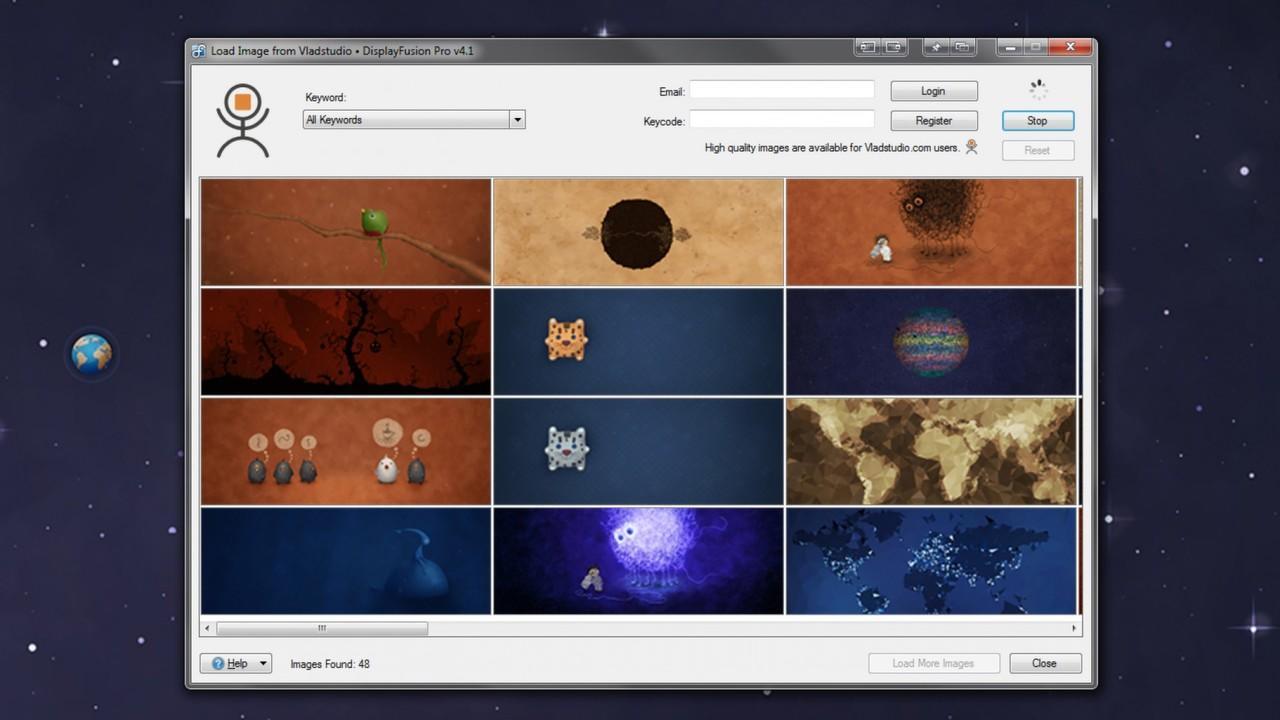
The program integrates with image services like WallpaperFusion, Flickr, InterfaceLIFT, Vladstudio, and others , so you can search for and download wallpapers directly from the software, in addition to using your local collections. You can apply mosaic modes, stretch, scale, crop, adjust position, and apply color tints to each image to refine the result.
It also offers independent screensaver management per monitor , something Windows doesn't natively provide. You can assign a different screensaver to each screen or replicate the same one across all of them, depending on your preference. Furthermore, the tool allows you to change the Windows start/lock screen image , rounding out the overall visual customization.
Window management, title bar buttons, and shortcuts
One of the classic annoyances of using two monitors is moving windows between screens or manually repositioning them each time . DisplayFusion offers several features to simplify this process, from extra buttons in the title bar to configurable keyboard shortcuts .
You can add custom buttons to each window's title bar (along with the standard minimize, maximize, and close buttons) to perform actions such as sending the window to another monitor, snapping it to a specific area, changing its transparency, loading a profile, or running a macro. This saves many clicks in the long run.
On the other hand, the program includes more than 30 pre-configured functions for common tasks (moving, resizing, organizing windows, changing backgrounds, loading profiles, etc.), and allows you to create your own custom functions . All of these can be assigned to keyboard shortcuts or title buttons , or even integrated into the DisplayFusion taskbar's jump list menus.
Among the window management options, you'll also find features like snapping, similar to Snap in Windows , quick organization for working with two applications side-by-side, and saving and restoring your desktop icon layout . This last feature is very useful when you frequently change screen resolutions or connect and disconnect monitors.
Triggers and automation
If you want to go a step further, DisplayFusion incorporates a Trigger system capable of reacting to system events . You can have the program "listen" for window creation or focus, desktop unlocking, periods of inactivity, monitor changes, and various other events.
When a condition is met, you can execute predefined commands or custom scripts to manipulate windows, launch applications, change profiles, or modify settings . For example, you can specify that when your video editor opens, it should always automatically be sent to the secondary screen at full size and with a specific color profile.
Recent versions have corrected various problems related to secondary monitors fading incorrectly when using Monitor Fading or window position profiles not loading correctly from shortcuts, reinforcing the reliability of these automations in complex scenarios.
Features with scripts and advanced customization
For more technical users, DisplayFusion offers scripted functions (macros) written in C# or other compatible languages within the program's environment . This opens the door to highly complex and specific automations.
You can create anything from simple scripts to reposition a specific window to routines that change various settings, launch applications, adjust resolutions, and apply backgrounds sequentially. Once created, each scripted function behaves like any other function in the program: you can assign it to hotkeys, title buttons, taskbars, or even invoke it from your mobile remote.
Monitor fading and visual focus
Another interesting feature, especially useful if you work with many screens, is Monitor Fading . This feature allows you to dim the brightness or visual presence of monitors you're not actively using , helping you focus your eyes on what's in front of you.
You can configure secondary monitors, or even specific windows or applications , to dim while the rest remain at normal brightness. Recent versions have fixed bugs where the dimming of non-primary monitors could be incorrectly reversed in certain modes, improving stability.
Remote control from mobile phone or tablet
DisplayFusion includes a remote control system accessible from phones and tablets . Using a compatible app or interface, you can connect to your PC and perform various actions without touching the computer's keyboard or mouse.
Among the capabilities of this remote control are changing wallpapers, moving windows, activating or deactivating monitors, and launching functions or scripts . This can be very useful if you use your PC as a media center, home server, or remote work device, and want to make quick decisions from the couch or another room.
Useful settings for Windows 10 and Windows 11
In addition to the multi-monitor core, DisplayFusion adds a collection of Windows 10 and Windows 11- specific settings designed to improve system usability.
In Windows 10, for example, you can move the power user menu (Win + X) to the current mouse position, disable the lock screen , and modify other behaviors that are not available by default. In Windows 11, the program offers options such as using classic Explorer context menus or hiding the lock screen , helping to restore features that many users miss.
Compatibility, requirements and performance
DisplayFusion is compatible with a wide range of Windows versions , including modern versions of Windows 10 and Windows 11, as well as various 32-bit and 64-bit editions of Windows Server. Older versions of the program supported systems such as Windows 2000, XP, and Vista, although current versions focus on more recent platforms.
To function correctly, the program requires the .NET runtime (currently .NET 7 or 8, depending on the version) and the Microsoft WebView2 component. If you don't have them installed, the installer will download and configure them automatically, so you don't need to worry about finding them yourself.
On systems with many displays and very advanced configurations, DisplayFusion may consume slightly more resources than simpler solutions . This isn't a problem for most modern PCs, but it's worth considering if you're working with less powerful machines or dozens of monitors.
Installation and first steps
The installation process is quite straightforward. From the official DisplayFusion website, you can download the installer for either the Pro version or the free edition . Once downloaded, run the file and follow the wizard's instructions.
During installation, the program may prompt you to install .NET Desktop Runtime or WebView2 if it detects they are missing . It is recommended to accept this to avoid future errors. Once the process is complete, you will be able to open DisplayFusion from the Windows Start menu.
If you already have a Pro license key, simply enter it in the corresponding settings section to activate all features . From there, it's a good idea to spend a few minutes configuring your monitor preferences, taskbars, backgrounds, and keyboard shortcuts, starting with the basics and gradually adding advanced features.


Passionate writer about the world of bytes and technology in general. I love sharing my knowledge through writing, and that's what I'll do on this blog, show you all the most interesting things about gadgets, software, hardware, tech trends, and more. My goal is to help you navigate the digital world in a simple and entertaining way.