The monitor is the most essential output device in your computer setup. Regardless of the other upgraded components you have, the monitor is the most important because it gets the output from the monitor.
Monitors are constantly evolving and becoming more powerful. If you're looking for a good monitor, you should know about the refresh rate and learn how to change it.
Monitor refresh rate is an essential factor in understanding monitor performance. Monitor performance is highly dependent on the refresh rate.
Changing your monitor's refresh rate is especially important for CRT monitors because a low refresh rate can cause screen flicker . Conversely, a high refresh rate eliminates flicker. In this article, we'll explain how to change your monitor's refresh rate.
Much like fps, a high refresh rate results in a much smoother image by eliminating visible screen flicker – for example, 60Hz vs 120Hz can dramatically improve the experience.
Frames are smoothed out by frame interpolation, but for refresh rate, with modern technology in a flat panel LCD monitor, screen flickering is eliminated by developing the monitor's refresh rate. The monitor's refresh rate indicates the monitor's quality and specifications.
The refresh rate of your monitor will depend on your monitor . Generally, cheaper monitors have lower refresh rates, while more expensive monitors have comparatively higher refresh rates.
Using the correct monitor refresh rate can improve your viewing experience . Gaming monitors generally have higher refresh rates. Again, you can adjust your monitor's refresh rate yourself using the settings options.
Even if you have multiple monitor connections to your PC, each monitor will have its own refresh rate and you can change them through their separate refresh rate settings.
When choosing or buying a monitor, you should prioritize the monitor's refresh rate for optimal performance. However, other factors such as color accuracy, viewing angle, response time , pixel count, and many others should also be considered.
Monitor refresh rate
 Before we know how to change the refresh rate of the monitor, it is important that we understand what this is all about. The monitor refresh rate indicates the number of times your monitor updates with new images every second..
This process is measured in Hertz (Hz) and refers to how quickly the monitor can refresh the displayed image per second. The faster the monitor's refresh rate, the smoother the video output will be.
A monitor is 60Hz, meaning it refreshes an image 60 times per second. Similarly, a 144Hz monitor will refresh 144 times per second, and a 240Hz gaming monitor will refresh 240 times per second.
A higher monitor refresh rate results in smoother video output . This means there will be no lag on the monitor screen, and you can have very fluid video.
A monitor with a higher refresh rate updates an image for a longer time and that results in smooth video and eliminated screen flickering.
On the other hand, a lower refresh rate will be the reason for flickering and movement on your monitor screen. The lower refresh rate cannot update an image for a longer time, and that makes for a slow and laggy video.
If you have been using a low refresh rate monitor, you would have experienced screen flickering, screen tearing or lines and that happens especially during an intense action scene or a high graphics scene.
Overall, the 60Hz monitor refresh rate is good enough for normal, everyday computer work. You may notice some jitters when moving the mouse on the computer screen, but it is an optimal refresh rate.
If you have a monitor below 60Hz, then you start to experience serious problems. Again, if you are a gamer, a monitor with a 60Hz refresh rate may be better.
But, for a better gaming experience and smooth video performance while playing, you should buy a monitor with a refresh rate of 144 Hz or 240 Hz.
Video performance depends on the monitor, resolution, color accuracy, and graphics card you're using on your computer. But it's also possible to adjust your monitor's refresh rate manually for better video quality and a smoother, sharper viewing experience.
You might be interested in: How to Change the Primary and Secondary Monitor in Windows 7 and 10
How to change the refresh rate of the monitor
Monitor refresh rate is something you can't check on a day-to-day basis. But it holds an important rule for improving your video quality and can even make a huge difference in what you see on the screen.
Refresh rate indicates how often an image on your computer screen is updated and directly affects how clearly you can see an image or how smoothly you can play a video or video game.
To change the monitor refresh rate in Windows 10, follow these steps:
- First of all, do click on the windows icon in the lower left corner of your monitor.
- From this window, click on the icon Configuration to open the window settings menu.
- In the window settings menu, you must select the option of the work. The system should be the first option that has a laptop icon.
- You must tabulate the display option which is in the top left corner of the screen if it is not already selected.
- Select the monitor you want to change. This step occurs if you have more than one monitor connected to your PC.
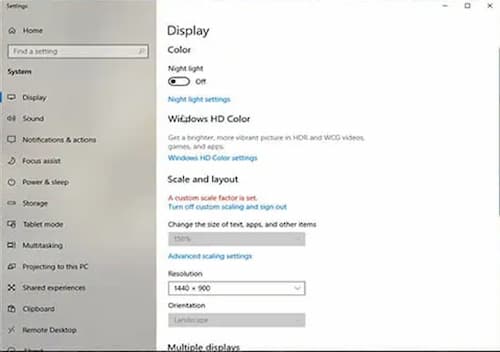
- You need to scroll down and find the advanced display settings. You will see this on the right side of the window and under the multiple displays section. Click on the advanced display settings option. A new Windows message will appear.
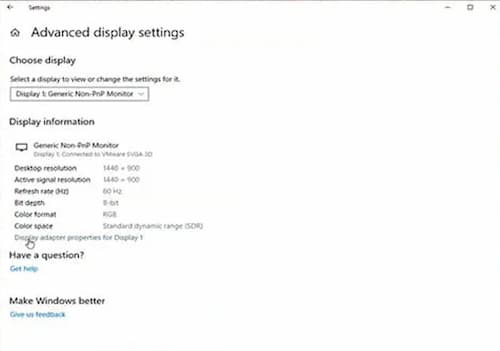
- From the new window, you must click on the option display adapter propertiesYou'll find it in the bottom right corner of your screen. If you're using more than one monitor, you can select the one you want to change the monitor refresh rate on by clicking the drop-down menu below the choose display option.
- After selecting the display adapter properties option, a new window will appear. At the top of the new window, you will find many options. Windows will open with the adapter tab by default. But you need to click on the tab Monitor in this window.
- In the section of monitor settings, you will find a drop-down menu called screen refresh rateYou will see the current refresh rate of your monitor. But you can select the refresh rate you want from this drop-down menu.
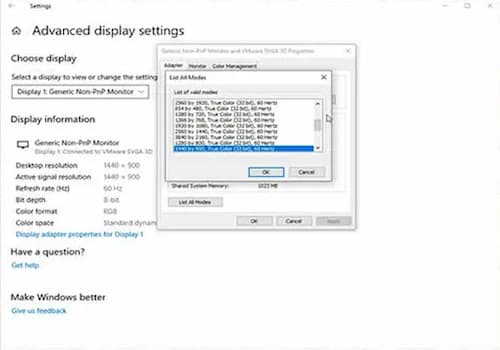
- After selecting the desired refresh rate, you need to click on the option Apply.
- Finally click on the button Accept to confirm this change.
Change monitor refresh rate in Windows 7
To change the monitor refresh rate in Windows 7, just follow these steps:
- click with it right button anywhere on the home screen. A new message will appear with a list. At the bottom of this message, you will find the option to screen settings. Click on the display settings option.
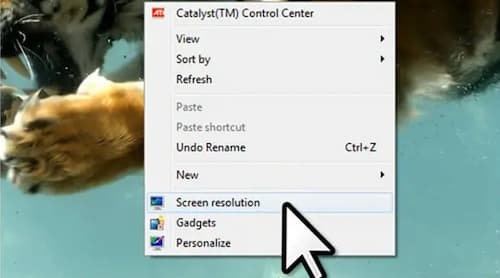
- A new window will appear. From this window, you must select the screen resolution command.
- If you have more than one monitor connected to your PC, you must select the one on which you want to change the refresh rate.
- Click on the option Advanced configuration and you can find it at the bottom of the window.
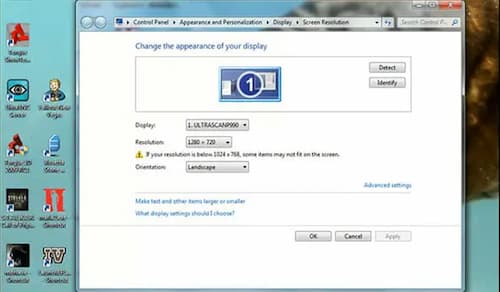
- A new configuration window will come up with many lists of options. Select the tab for the monitor.
- In the monitor settings section, you will find a drop-down menu. Then, choose the refresh rate of the monitor you want from this drop-down menu.
- After selecting the refresh rate, you need to click on the button Apply to configure the settings.
- Finally click on the button Accept to confirm everything.
Final words
If you're having problems with your monitor's image, the best thing to do is check the refresh rate. If it's not providing a clear image, you can change your monitor's refresh rate using the guide we've provided.

My name is Javier Chirinos and I am passionate about technology. Ever since I can remember, I have been interested in computers and video games, and that passion has turned into a job.
I have been publishing about technology and gadgets on the Internet for over 15 years, especially in mundobytes.com
I am also an expert in online marketing and communication and have knowledge in WordPress development.