- The Application panel concentrates manifest, service workers, caches and storageControlling the SW lifecycle and caching strategies prevents obsolete content. Test on real devices and use remote debugging to validate installation. Take care of quota, IndexedDB, performance, and monitoring for a robust PWA.
The good news is that modern browsers give us everything we need to see their inner workings: the Application panel in DevTools, emulators, remote debugging, and utilities for manifests, caches, and storage . We'll walk through it all step by step, with practical techniques and recommendations to help you navigate the process smoothly.
Panel Application: the operations center for PWAs
The Application panel in DevTools is the Swiss Army knife specifically for PWAs: from here you can inspect the manifest, control service workers, view caches, and manage storage. It's the starting point for inspecting, modifying, and debugging the key elements that make a PWA special.
Its most relevant sections for PWAs are: Manifest (to review the manifest and its installability), Service Workers (for lifecycle management, simulations, and state), Cache Storage (to view cached resources), and Storage/Clear Storage (to delete logs and data in one fell swoop). In Chromium browsers, you can also emulate offline mode and key events from here.
Quick tip : If you're testing frequent changes and the service worker is acting up, use the Update on reload and Bypass for network options to force updates or temporarily ignore the cache during debugging.
Web manifest: installation, presentation and fine-tuning
The web app manifest defines how the PWA is presented: name, short_name, icons, start_url, display, colors, and more. If you get it right, users will be able to install the app on Windows (Start), macOS (Applications), or on the Android and iOS home screens.
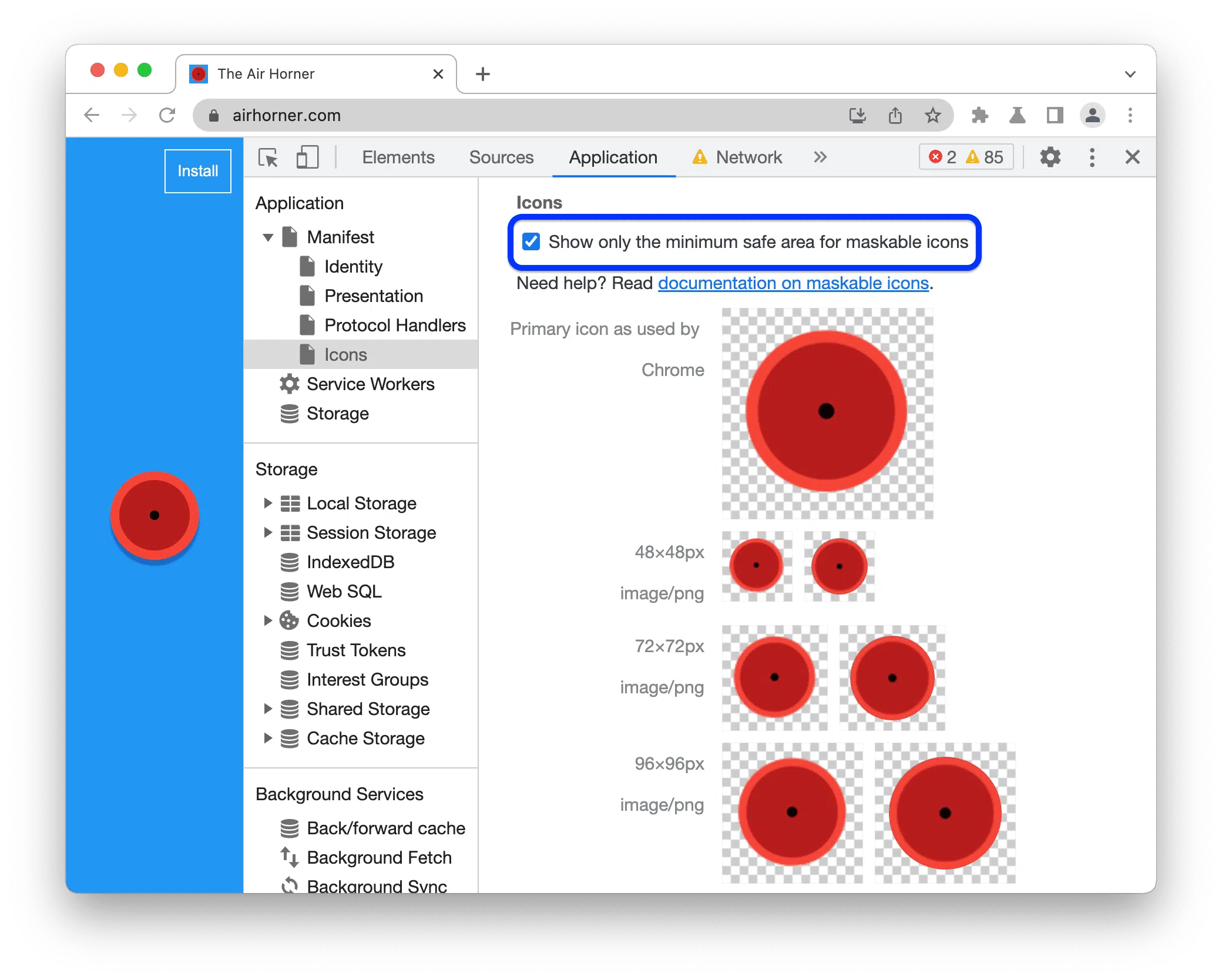
In Application > Manifest , you'll see the manifest's status, its fields organized into Identity and Presentation blocks, and the Icon list with its masks to verify safe areas in maskable icons. Also displayed are sections for Protocol Handlers to test URL handler registration, Shortcut #N with the defined shortcuts, and Screenshot #N to review screenshots used in a rich installation dialog.
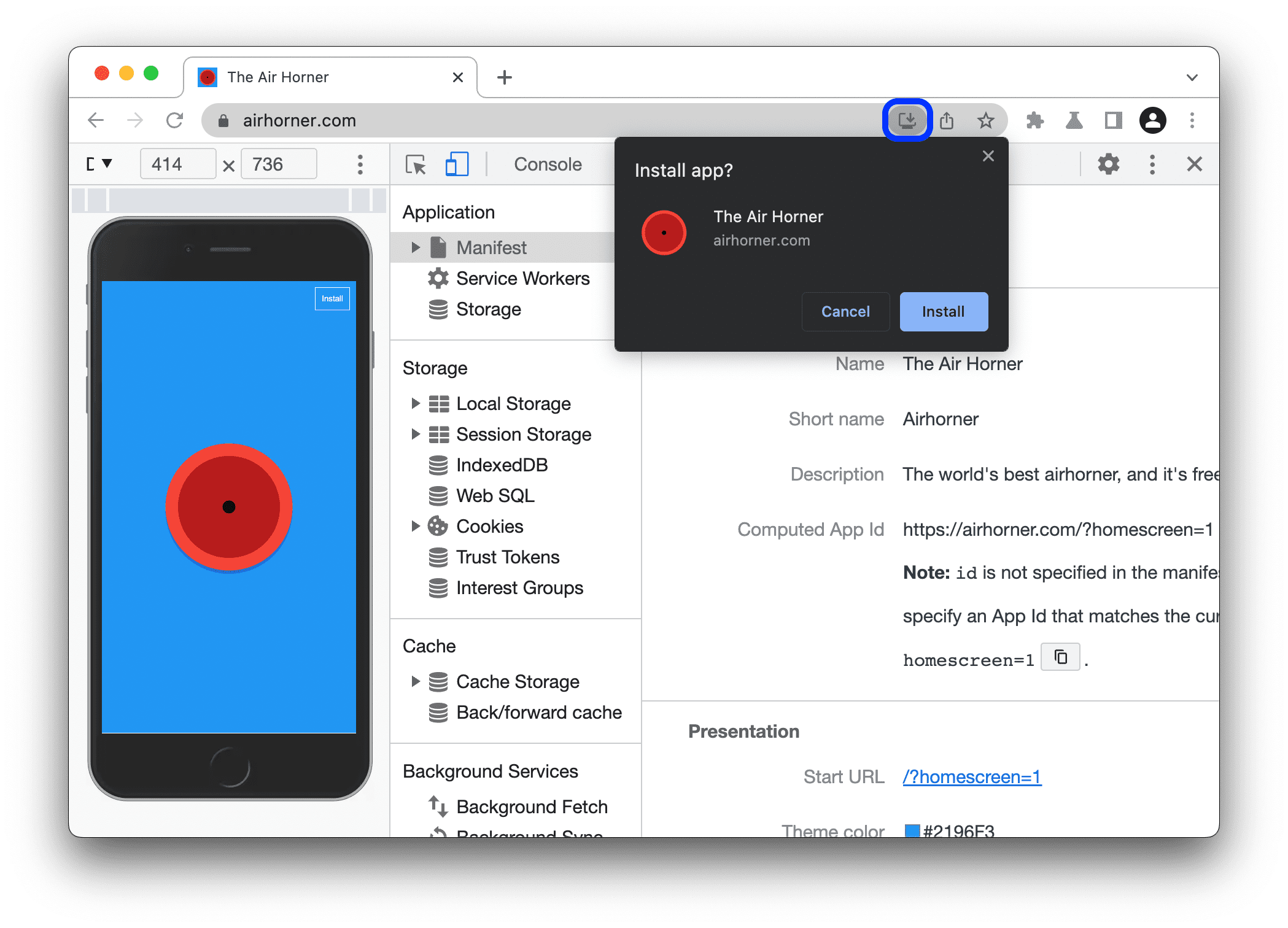
Installability and errors : If there are problems (for example, an icon that won't load), an Installability section will appear with the details. Keep the Console open when you start the installation; it will tell you in real time if anything is blocking the process.
Testing the desktop installation is straightforward with the Install button in the address bar, although you can test the actual mobile flow using remote debugging on an Android or iOS device. If you can add it on Chrome desktop, it should work on mobile as well.
Service Workers: Lifecycle, Simulations, and Hard Errors
- Service workers They are the heart of the PWA: they run in the background, intercept requests, enable caching, push notifications, background synchronization and the offline mode. Debugging them well is the difference between a responsive PWA and one that becomes outdated or breaks at the first touch.
- Application > Service Workers This is the central command: you'll see the active record in the current source, its scope, source (with a link to code), status, and the ID of the running worker. stop or start it manually to simulate reboots and hunt for errors bad global state assumptions.
- Key switches: Offline (takes the tab offline, just like Network), Update on reload (forces update on every reload), Bypass for network (ignores SW and goes to network), and actions like Update, Push (tickles push without payload), Sync (simulates sync events) or Unregister (erases the current registration). If there are errors, you'll see a Errors badge with direct access to the Console.
- View all recordsIn Chromium, the view-all link takes you to chrome://serviceworker-internals/?devtools, where you can inspect in depth. In Edge, there are equivalent options, including client details and focus to jump to the associated tab.
Caches, quota, and storage: avoid surprises with limits
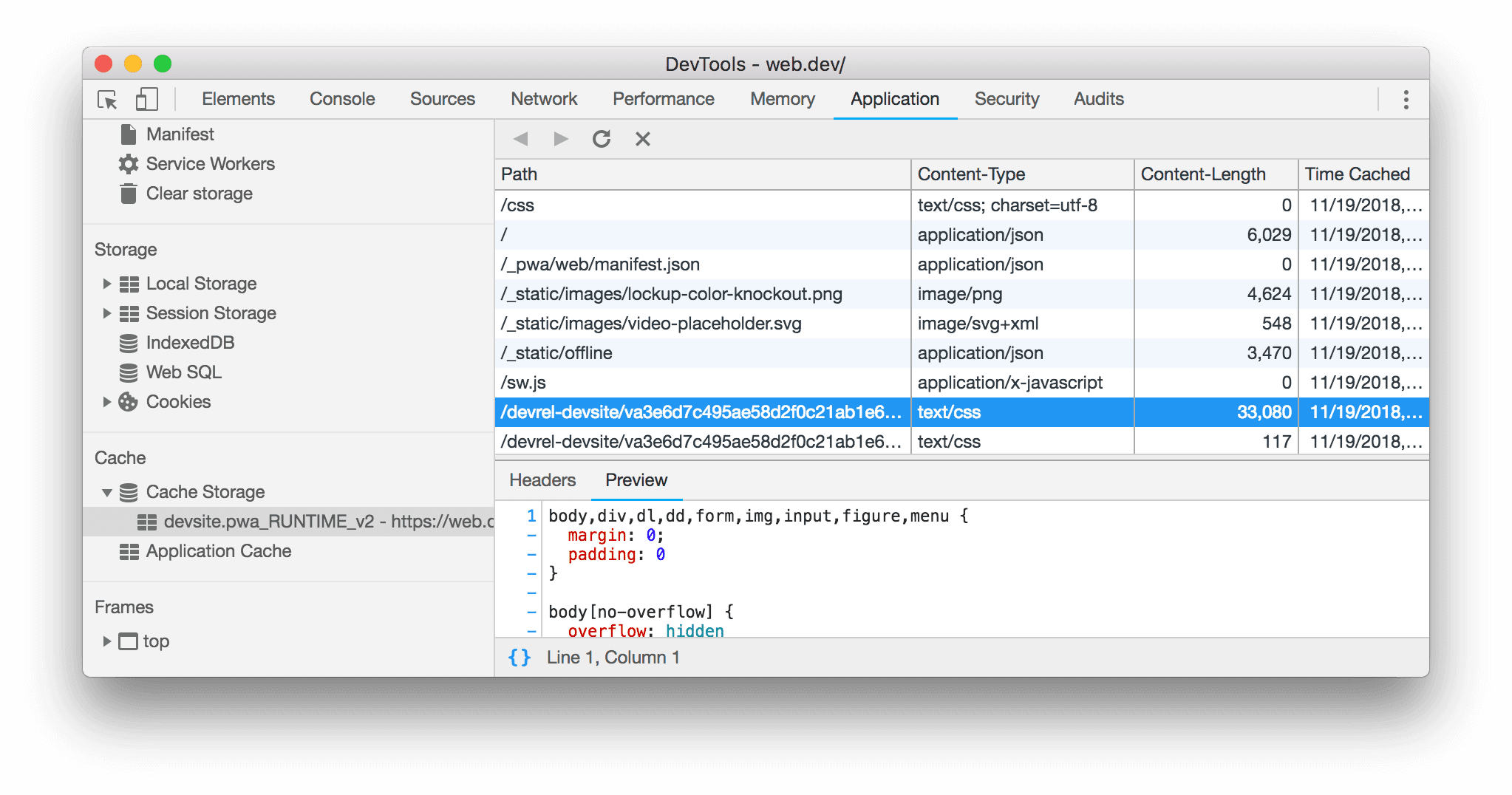
- Cache Storage Displays, in read-only mode, the resources stored with the Cache API by your software. Note that the first time you open a cache and add a resource, DevTools may not detect it immediately: refresh the page to see it listed.
- Quota usage and opaque responses: Some responses will appear as "opaque" (CORS not enabled, different origin, CDN). To prevent information leakage, browsers apply padding to size reported; in Chrome/Edge, any cached opaque response contributes a minimum of ~7 MB to the storage count. This can trigger a QuotaExceeded sooner than expected if you abuse opaque.
- clear storage It allows you to unregister the service worker and clear all caches and storage with one click. It's a godsend when you want a clean state and ensure that subsequent tests do not reveal any residue.
- Storage Centralizes Local/Session Storage, IndexedDB, cookies, quota, and a clear data button. Use it to review IndexedDB tables, Web Storage status, and measure the total occupied for your PWA on the device.
Installation, shortcuts, screenshots and protocols
- App Shortcuts bring up common actions from the installed icon. In the Manifest tab you will see each Shortcut #N with its details; add only the ones the user actually uses so as not to overload the menu.
- Screenshots enrich the installation dialog. Review them in Screenshot #N to confirm formats, texts, and that they represent your value stream well in the first impression.
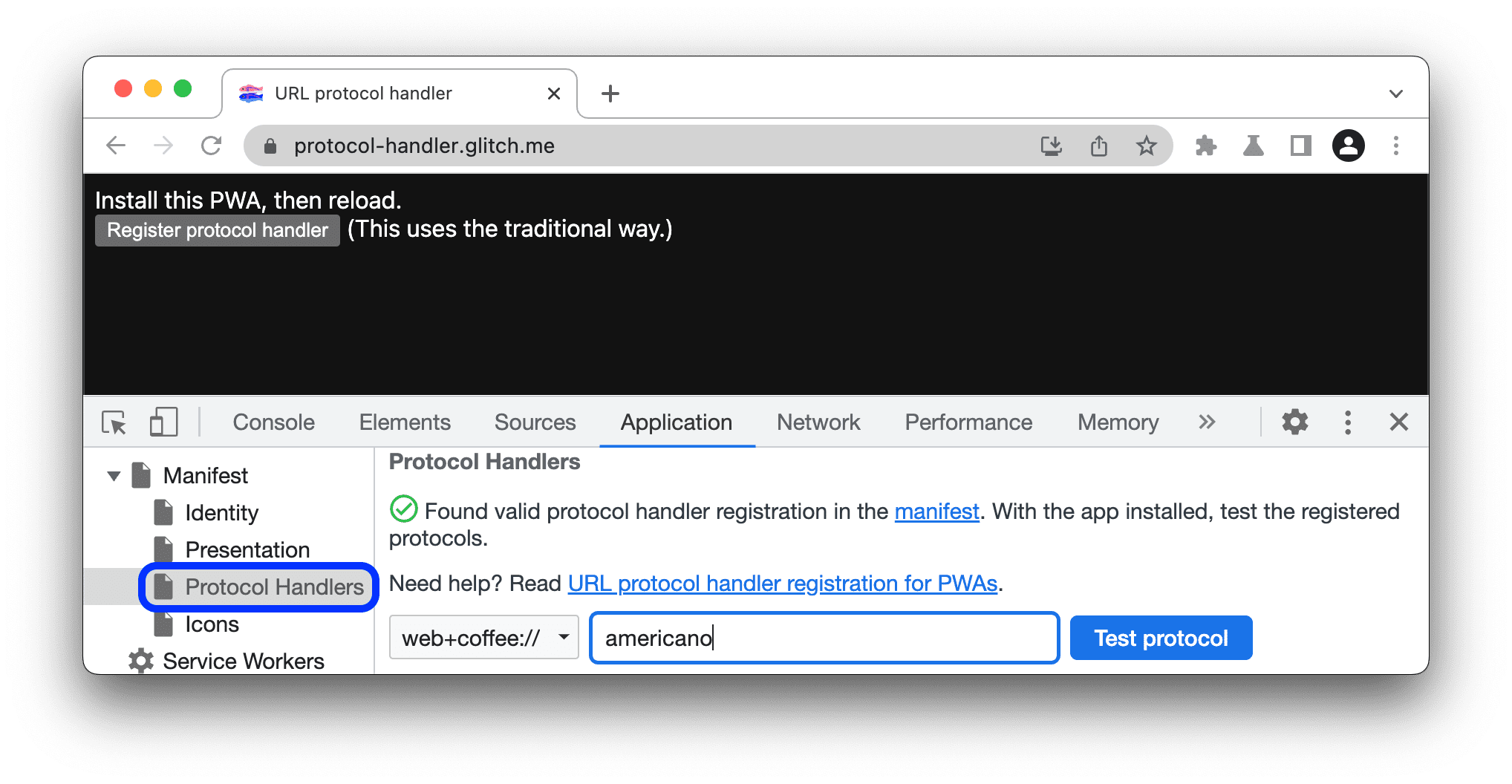
- Protocol Handlers register your PWA to handle links with its own schema (e.g., web+something). In Application > Manifest you can test a protocol by entering a URL and letting the PWA process it if it is registered.
- Installation diagnosis In Chromium: On Android, open about:wepapk to see apps installed via WebAPK and request updates; on desktop, you have about:apps (a friendly list) and about:app-service-internals (a debug view) to review. status and updates.
Development cycle: Test changes and don't fight with the cache
- Rapid iteration- During development, the fastest way is to enter the local URL (e.g., http://localhost:8080) and reload with F5. Since a software already caches static files, your changes may not be reflected: use Empty cache and hard reload (right click on the Reload button) or check Bypass for network in Service Workers.
- Manifesto and reinstatement- If you change the manifest, install the PWA to validate the installability criteria. If you modify the manifest again, uninstall and reinstall it to verify. all the changes reliably.
- Debugging SW code: In Sources you can switch to the worker context to set breakpoints and follow the execution of the service worker thread independently of the page. This is key to hunt for lifecycle bugs.
- Background services: In Chromium, Application > Background Services allows you to record push, sync, and similar events over the SW API to see what happens in the background no active window.
Testing on devices, emulators, and remote debugging
- Device Mode in DevTools allows you to simulate screen sizes, UA, and network. It's useful for responsive design and network conditions, but it doesn't fully cover all the requirements. installation, display mode and shortcutsFor that, it's better to go for devices or simulators.
- Apple Simulator (macOS with Xcode) lets you test on real iPhones and iPads at the engine level, with mobile Safari and the Web.app for PWAs. Useful shortcuts: Command-Shift-H (Home), Control-Command-Shift-H (App Switcher), and rotate with Command-Right/Left. Using localhost there points to the localhost of the Mac, which is very convenient.
- Android Emulator (Android Studio) with images that include Play Services allows you to install Chrome and other browsers from the Play Store or via APK. Note that each AVD can take up 5 GB or more, and your localhost is not your PC's: For local URLs, configure port forwarding from Chromium DevTools.
- remote debugging: Major browsers support remote inspection. In WebKit, Remote Inspector for Safari and PWAs installed on iOS/iPadOS; in Chromium, Remote Debugging for Chrome, Edge, or Samsung Internet; and Firefox Remote Debugging for Android. Connect by USB, turn on debugging and you'll see the pages and apps to inspect.
- PWAs installed on Android can be debugged with Chromium remote tools; you'll see the app context and can open DevTools as if it were a tab, which is great for diagnose installation problems or SW in WebAPK.
Safari and Firefox: What to expect from your tools
Safari has more limited support for PWAs: there's no software state inspector, cache view, or manifest and installability tools on iOS/iPadOS. You can, however, open a running software inspector using Develop > Service Workers (Console, Sources, and Network). Extensions like Service Worker Detector help fill these gaps.
Firefox supports service workers across all platforms and has a manifest for Android installation. In Developer Tools > Application > Service Workers, you can view registration, status, and override it, and in Application > Manifest, you can review values. Storage allows you to manage IndexedDB and Cache Storage seamlessly.
Cache, offline, and content update strategies
Typical problem : outdated content due to a poorly implemented cache-first strategy. For resources that change frequently, consider network-first or cache-then-network, and reserve cache-first for truly immutable static data.
Network-first example (adapted): self.addEventListener('fetch', (event) => {\n event.respondWith(\n caches.match(event.request).then((cached) => {\n return cached || fetch(event.request).then((networkResponse) => {\n return caches.open('dynamic-cache').then((cache) => {\n cache.put(event.request, networkResponse.clone());\n return networkResponse;\n });\n });\n })\n );\n});
Offline with booking page: Cache an offline.html in install and use it as a fallback when fetch fails. This way the user sees a useful message instead of a blank screen. self.addEventListener('install', (event) => {\n event.waitUntil(\n caches.open('static-cache').then((cache) => cache.addAll(['/offline.html']))\n );\n});\nself.addEventListener('fetch', (event) => {\n event.respondWith(\n fetch(event.request).catch(() => caches.match('/offline.html'))\n );\n});
Update SW without friction: uses self.skipWaiting() in install and proposes a UX to reload when there is a new version. This way you avoid users being left with old versions until all tabs are closed. self.addEventListener('install', (event) => {\n self.skipWaiting();\n});
Push, Background Sync, and Background Tasks
Push Notifications: From Application > Service Workers you can emulate a push without payload to validate the UI. Make sure to define icon, actions and data to enrich the notification. self.addEventListener('push', (event) => {\n const options = {\n body: 'Tienes novedades',\n icon: '/images/icon.png',\n actions: [{ action: 'open', title: 'Abrir' }, { action: 'dismiss', title: 'Cerrar' }]\n };\n event.waitUntil(self.registration.showNotification('Actualización disponible', options));\n});
Permissions : Request notifications at the appropriate time and handle "denied" requests effectively without being repetitive. Offer in-app alternatives to avoid bothering users who don't want notifications.
Background Sync: Queues operations when there's no network and retries upon reconnection. Useful for offline forms or upload queues. self.addEventListener('sync', (event) => {\n if (event.tag === 'sync-data') {\n event.waitUntil(syncData());\n }\n});\nfunction syncData() {\n return fetch('/api/sync', {\n method: 'POST',\n body: JSON.stringify(offlineQueue),\n headers: { 'Content-Type': 'application/json' }\n });\n}
Background Services in Chromium record background events (push, sync, etc.) to see what happens when there's no window. It's perfect for auditing workflows that don't depend on page focus.
Big Data: IndexedDB, Performance, and Memory
Use cache storage for static and critical resources; for large datasets or user-generated content, use IndexedDB . It's asynchronous, resilient, and avoids quota caps due to opaque responses. Organize stores with clear keys for fast and reliable reads.
IndexedDB Minimal Example: let db;\nconst req = indexedDB.open('PWA-Data', 1);\nreq.onupgradeneeded = (e) => e.target.result.createObjectStore('dataStore');\nreq.onsuccess = (e) => { db = e.target.result; };\nfunction storeData(key, data) {\n const tx = db.transaction('dataStore', 'readwrite');\n tx.objectStore('dataStore').put(data, key);\n}
Optimize performance: Compresses images, minifies CSS/JS, splits bundles (splitChunks), defers non-critical loads, and crops third-party scriptsTools like Webpack make smart packaging easy. optimization: { splitChunks: { chunks: 'all' }, minimize: true }
Conference proceedings- Monitor leaks with the DevTools Memory tab; remove unused listeners and avoid holding huge objects in memory. A simple removeEventListener in time it saves you degradations and crashes on modest devices.

Passionate writer about the world of bytes and technology in general. I love sharing my knowledge through writing, and that's what I'll do on this blog, show you all the most interesting things about gadgets, software, hardware, tech trends, and more. My goal is to help you navigate the digital world in a simple and entertaining way.