- Use native macOS tools (Wi-Fi Recommendations and Wireless Diagnostics) to detect the actual cause.
- DNS, DHCP, and caches often explain most of the errors: changing DNS and renewing leases helps a lot.
- firewall VPN and antivirus (e.g., ESET filter) cause blocks; temporarily disable them and adjust the rules.

When your Mac loses internet access, the problem can stem from many sources: misconfigured network settings, temporary router failures , interference, applications blocking traffic, or even a macOS bug . The good news is that, with a logical order of troubleshooting steps, it can usually be resolved without needing to visit a repair shop.
This guide provides a comprehensive and practical overview for macOS (including Sequoia) that covers everything you need: integrated system diagnostics, quick checks, advanced DNS and DHCP troubleshooting, firewall and antivirus conflicts, public networks with captive portals, Ethernet with USB-C adapters, and what to do if the problem is hardware- related . It progresses step by step, avoiding unnecessary complications.
First of all: confirm if the problem is on your Mac
Before changing anything on the system, it's a good idea to troubleshoot the problem: try the same network with another device (phone or tablet) and see if it works normally . If there's still no connection, the issue is most likely with the network, the router, or your internet service provider (ISP), not your Mac.
If the problem only occurs in one specific app, try another application that uses the internet, such as a web browser. When Safari, Mail, or another service fails to connect, but other apps do , it's likely a partial software or permissions issue . If everything fails, the problem is system-wide.
A classic fix that solves more than you might think: turn off your router, wait 10–15 seconds, and turn it back on . Let it boot up completely and try again. Restarting your Mac also helps clear caches and system states that may have become stuck.
Check Wi-Fi recommendations and Wireless Diagnostics
macOS offers immediate clues. Click the Wi-Fi icon in the menu bar and, if they appear, check the "Wi-Fi Recommendations ." This section suggests actions when it detects connection problems (it's not usually available for enterprise networks or networks created with personal hotspots).
For a more in-depth analysis, use Apple's built-in Wireless Diagnostics tool . Press and hold the Option (Alt) key, click the Wi-Fi icon, and select "Open Wireless Diagnostics." Follow the wizard: it will scan your network, save logs, and provide recommendations tailored to your situation.
This utility includes very useful extras: Information (network details), Logs (.log), Scan (scans nearby networks), Performance (signal/speed/quality graphs), and Detector (Wi-Fi traffic) . These help you identify interference, channel saturation, or intermittent drops.
Check that you are actually connected to the Wi-Fi network
It might sound obvious, but sometimes your Mac is offline or on the wrong band. Open System Settings > Wi-Fi and confirm you're connected to the correct network with a strong signal . If you're connected to the network but have no internet access, the problem might be with your router or internet service provider.
If you're using older AirPort devices, AirPort Utility provides information about the base station and WAN connection status. Verify that the device has an IP address, DNS settings, and an active internet connection . If not, restart the base station and check the cabling.
Network Connection Status: Colored Lights That Say It All
Go to System Settings > Network. In the sidebar, you'll see services like Wi-Fi, Ethernet, or Bluetooth PAN. A green indicator means the service is set up and connected; yellow means it's active but not connected to the internet; and red means it's not set up . Select the service to see more details.
If you're using PPPoE, check the PPPoE information: leave the "PPPoE Service Name" field blank, unless your ISP requires a specific value . Incorrect information here can block authentication and leave you without internet access.
Compare your settings with those provided by your ISP (IP address, subnet mask, gateway, DNS). Enter the most recent configuration as provided by your ISP , especially if they have changed your router or profile.
Cables, router, and ISP: ditch the basics
If you're using Ethernet or an external modem, check the cabling. Make sure the cables are secure, the modem/ONT is powered on, and the router has finished booting . Even a loose connector can leave you without a connection.
Check the router/ONT LEDs. If there's no internet light or it's flashing an error, call your internet service provider as it could be a line problem . If possible, try a different LAN port or cable to rule out a faulty cable.
When everything seems to be working but it's still not, wait a few minutes and try again . Your provider may be experiencing a temporary issue. Don't hesitate to contact them if the outage persists or affects other devices as well.
Quick fixes on macOS Sequoia when Wi-Fi drops or won't connect
After updating to Sequoia, some users have noticed instability: intermittent crashes, apps that won't connect to the internet, or network issues . Start with the basics and upgrade if needed.
1) Turn Wi-Fi off and then back on . Wait 10–15 seconds in between to force a refresh. Often the connection is "cured" by restarting.
2) Restart your Mac . This clears temporary caches, restores network components to a stable state, and prevents transient conflicts.
3) Forget the network and add it again . In System Settings > Wi-Fi > Your network details > "Forget this network". Reconnect (including password). This clears corrupted profiles that prevent the connection from being established properly.
4) Update the system . System Settings > General > Software Update. The latest versions of Sequoia include connectivity bug fixes that may affect you.
DNS, Cache, and DHCP Leases: What Fixes the Most with the Least Pain
Changing your DNS settings or editing your hosts file greatly improves stability when the problem is with name resolution. In Wi-Fi > Details > DNS, remove incorrect entries and add, for example, Google (8.8.8.8 and 8.8.4.4) or Cloudflare (1.1.1.1 and 1.0.0.1). If changing your DNS settings resolves the issue, the problem was with the resolver.
To clear the DNS cache, open Terminal (Applications > Utilities) and run: `sudo dscacheutil -flushcache; sudo killall -HUP mDNSResponder` . Enter your administrator password and try again . This removes expired or corrupted responses.
When the IP address doesn't match the network or there's a conflict, renew the lease: Wi-Fi > Details > TCP/IP > Renew DHCP Lease . Forcing a new IP address usually resolves recurring outages due to LAN conflicts.
Firewall, third-party apps, and antivirus: the usual suspects
The built-in firewall provides protection, but sometimes it's overly protective. Temporarily disable it in System Settings > Network > Firewall and check if the connection returns. If it's the problem, create rules or exceptions instead of leaving it disabled.
Several Sequoia 15 users have reported that, with the firewall active, Safari and other apps are unable to access the internet . Even after changing the settings, the block reappears. In that case, in addition to updating to the latest version of macOS, reset the firewall rules and check for any network extensions that might be interfering.
Beware of third-party software: VPNs, proxies, content filters, and security suites can block traffic without your knowledge. Close or temporarily disable these apps and try again. Update to their latest versions to avoid compatibility issues.
A frequently reported issue: the ESET network filter on macOS can block Wi-Fi . Check in Preferences/Network (or Settings/Network) if there's a filter called 'ESET Network' and remove it using the '-' button. If the problem persists, uninstall ESET using its official uninstaller (Applications > ESET > Show Package Contents > Contents > Helpers) and restart. This will confirm whether it was the cause.
Public networks with captive portal: How to force the login window
In cafes, hotels, or airports, many networks require a welcome page. Sometimes your Mac doesn't display it, leaving you unable to browse. A solution that works very well is to manually open the Captive Network Assistant.
In Finder, go to /System/Library/CoreServices/Captive Network Assistant.app/Contents/MacOS and run 'Captive Network Assistant'. Connect to a public network, and the authentication window should appear . Trying to load captive.apple.com in Safari might also help, although it doesn't always open the portal.
Interference and connected hardware: not everything is software
USB 3.0 devices , hubs, and unshielded cables can generate noise that affects the 2,4 GHz band . Temporarily disconnect your USB peripherals and test the connection. If it improves, reconnect them one by one to find the culprit . Placing the router away from sources of interference also helps.
If you're using your iPhone as a hotspot, remember to keep an eye on the battery, check your cellular coverage, and make sure the hotspot is turned on in Settings > Cellular . If your Mac goes to sleep, the tethering connection might drop, and you'll need to reconnect.
Ethernet on MacBook and iMac 24": adapters and features
Many Mac laptops rely on USB-C adapters for network cabling. Make sure your adapter supports your contracted speed (for example, 1 Gbps) . Some hubs require external power to operate at 100%. If the hub isn't powered, the interface may not stabilize the connection.
When you connect via Ethernet through USB-C, in Settings > Network the service may be called 'USB LAN' or something similar. If it appears in green, you have a wired internet connection even if the name is different . If you can browse the internet via cable but not via Wi-Fi, the problem lies with the wireless connection.
On the 24-inch iMac without a rear Ethernet port, you have two options: buy the official adapter integrated into the power supply or use a USB-C to Ethernet adapter . Check for compatibility and drivers if required by the manufacturer.
Commands and tools for further diagnosis
A sustained ping test indicates stability. In Terminal, run: ping 8.8.8.8 . If there is packet loss or very erratic latency, it could be a problem with the router, the line, or interference . If the ping is stable but websites aren't loading, consider DNS issues.
If you suspect corrupted network configuration files, you can reset them. In Finder, go to 'Macintosh HD' > Library > Preferences > SystemConfiguration and back it up . Then delete these files: com.apple.airport.preferences.plist, com.apple.wifi.message-tracer.plist, com.apple.network.identification.plist, com.apple.network.eapolclient.configuration.plist, NetworkInterfaces.plist, and preferences.plist . Restart and reconnect to Wi-Fi . This forces macOS to regenerate the network configuration from scratch.
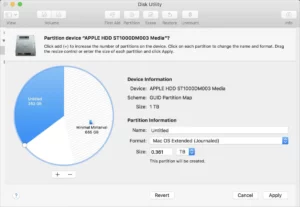
Another utility that can help is Disk Utility's First Aid . While it doesn't repair Wi-Fi, it does correct file system errors that sometimes cause unusual behavior. Close apps, run Disk Utility's First Aid, and rule out a disk failure as the cause.
If nothing else works, there are advanced options available in macOS Recovery Mode using Terminal. This is for experienced users and is useful for repairing permissions, clearing low-level caches, or reinstalling the system without erasing your data . Only resort to this if you are comfortable with it and have a backup.
Wi-Fi address privacy and less common settings
The "private Wi-Fi address" improves privacy by changing the MAC address for each network. In certain environments, this can cause filtering or authentication problems . In System Settings > Wi-Fi > Your network details, set this option to static if you're experiencing incompatibilities. Check if a stable address resolves the connection issues.
When to call your ISP or Apple and what to do if it's hardware
If after all the tests you're still having the same problem and other devices are also failing, contact your internet service provider. Restart your router and, if that doesn't improve, have them check your line and equipment . They can send a technician to your home to take measurements.
When all your other devices are working fine but your Mac isn't, consider the hardware. A damaged network card or moisture/impact damage can explain persistent problems . Request a diagnosis from Apple: if it's covered under warranty or is a defect, the repair may be free . If it's an older Mac out of warranty, consider professional repair.
As a temporary or permanent solution, you can use an external USB network adapter . They're inexpensive, about the size of a flash drive, and add Wi-Fi or Ethernet without opening your computer. Connect it, install the driver if necessary, and you'll have a second network interface . If everything works fine with the external adapter, then you know the problem was with the internal one.
Quick checklist for macOS Sequoia if Wi-Fi is still a problem
Go through this list when you're stuck: turn Wi-Fi off and on, restart your Mac and router, change your DNS, renew DHCP, forget and reconfigure your network, temporarily disable your firewall, close VPN/antivirus/filters, remove filters like ESET Network, clear your DNS cache, and check for USB interference . Only move on to more advanced troubleshooting if the basics don't work.
For public networks that don't display the login, manually open the Captive Network Assistant . If you're using adapters, confirm speed and power compatibility . If you can browse via cable but not Wi-Fi, focus on the wireless connection (channels, interference, profiles).
This guide covers everything from the basics to advanced troubleshooting steps to restore internet access on your Mac. With macOS's built-in tools, correct DNS/DHCP settings, and by checking your firewall, antivirus, and adapters, most issues can be resolved . If the problem persists, it's time to contact your ISP or Apple support to definitively rule out a hardware failure.

Passionate writer about the world of bytes and technology in general. I love sharing my knowledge through writing, and that's what I'll do on this blog, show you all the most interesting things about gadgets, software, hardware, tech trends, and more. My goal is to help you navigate the digital world in a simple and entertaining way.
Table of Contents
- 1 First of all: confirm if the problem is on your Mac
- 2 Check Wi-Fi recommendations and Wireless Diagnostics
- 3 Check that you are actually connected to the Wi-Fi network
- 4 Network Connection Status: Colored Lights That Say It All
- 5 Cables, router, and ISP: ditch the basics
- 6 Quick fixes on macOS Sequoia when Wi-Fi drops or won't connect
- 7 DNS, Cache, and DHCP Leases: What Fixes the Most with the Least Pain
- 8 Firewall, third-party apps, and antivirus: the usual suspects
- 9 Public networks with captive portal: How to force the login window
- 10 Interference and connected hardware: not everything is software
- 11 Ethernet on MacBook and iMac 24": adapters and features
- 12 Commands and tools for further diagnosis
- 13 Wi-Fi address privacy and less common settings
- 14 When to call your ISP or Apple and what to do if it's hardware
- 15 Quick checklist for macOS Sequoia if Wi-Fi is still a problem