- The FTP protocol allows for efficient and flexible file sharing over the network. Windows 11.
- Properly configuring FTP requires installing IIS, adjusting permissions, and understanding its security risks.
- There are more secure alternatives such as FTPS and SFTP, recommended for sensitive transfers.

Are you thinking about setting up your own FTP server on Windows 11 and don't know where to start? File transfer via FTP remains an essential tool in many home and business networks, even though it's often perceived as outdated or complicated. The reality is that, when properly configured, connecting computers or sharing folders via FTP on your local network (or even remotely) is easier than it seems. You just need to follow a few simple steps, understand some basic concepts, and take minimal precautions regarding permissions and security.
In this article, we'll delve into the details of setting up a native FTP server on Windows 11 using Internet Information Services (IIS) . We'll cover all the key aspects: from associated security risks, requirements, practical configuration, and real-world examples, to tips for accessing it from different devices and more advanced alternatives. If you're looking for a comprehensive, practical, and detailed guide on how to install and run an FTP server on Windows 11, this is the information you need.
What is FTP and what is it used for in Windows 11?
The File Transfer Protocol (FTP) is a veteran but still highly valued technology that allows you to transfer files between a client (for example, your personal computer) and a server over a TCP/IP network. Although more modern and secure alternatives exist, FTP remains an easy and flexible option for sharing files within a local network or for managing downloads and uploads on servers of all types.
In the case of Windows 11, FTP support comes standard thanks to its integration with IIS (Internet Information Services), an environment that allows you to set up both a web server and an FTP server without using external software. This turns your computer into an access point for sharing folders, multimedia files, or entire directories with other devices on your network (and, if you wish, from outside, although with precautions).
Why is it useful to have an FTP server at home or in the office?
- Allows Share large volumes of files without relying on cloud services or third parties.
- It's ideal for managing automatic backups, transferring work documents, or quickly installing files on other computers.
- It works both locally and over the Internet., if the ports and firewall are configured correctly.

Important aspects before creating an FTP server in Windows 11
Before diving headfirst into installing and configuring your own FTP server with Windows 11 , it is essential to take into account a series of details, both functional and security-related:
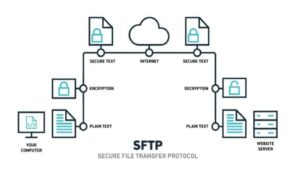
- Clear transmission: The standard FTP protocol does not encrypt data or passwords, making it vulnerable to interception if you use a public network or the Internet. If you plan to use FTP outside your local network, consider alternatives such as FTPS (FTP over SSL/TLS) or SFTP (FTP over SSH), which do offer encryption.
- Compatibility with Windows versions: Native FTP server management using IIS is only available on Windows 11 Pro, Enterprise, or Server versions, not on Windows 11 Home.
- Permissions and users: define from the beginning Who can access to your shared folders, what permissions it will have (read, write, both) and whether access will be anonymous or with authentication.
- Location of folders: Choose a well-organized directory structure and clearly define the root (home) folder for your FTP files, separating the data to be shared from other sensitive parts of the system.
- Firewall and ports: The standard port for FTP is 21, but if you router or firewall blocks it, you'll have to open it to allow access. Remember to set it both in Windows Defender Firewall, if necessary, on your home router.
The following section breaks down step by step the complete process for installing, configuring and securing the operation of an FTP server on Windows 11 with IIS.
Prerequisites for setting up an FTP server on Windows 11
To achieve a fully functional and secure FTP environment on your system, you will need to meet the following technical and configuration requirements:
- Windows 11 Pro, Enterprise or Server with local administrator rights.
- Access to Control Panel and Internet Information Services (IIS) functions.
- At least one folder dedicated to file sharing, with the appropriate permission structure.
- An FTP client for testing, such as Windows File Explorer (natively supports FTP), third-party clients like fileZilla, or the line of commands of Windows.
- Internet connection (optional), if you plan to access from outside your local network.
Installing IIS and Native FTP Server on Windows 11
The first step is to make sure you have the necessary components installed for both IIS and the FTP service. Windows 11 includes this functionality as an option, and you can add it by following these steps:
- Open the Control panel and go to 'Programs and Features'.
- Click on 'Turn Windows features on or off'.
- In the pop-up window, locate 'Internet Information Services' and expand the tree to fully select 'FTP Server', including its two suboptions: 'FTP Service' and 'FTP Extensibility'.
- Make sure the box 'Web Administration Tools' is also enabled. This will allow you to access the IIS management panel.
- Apply the changes and wait for Windows to install the necessary files.
In Server versions, the procedure is similar, but you will need to go through 'Server Manager' > 'Add roles and features' , selecting the 'Web Server (IIS)' role and, within it, the FTP service.
Once the installation is complete, you'll have the environment ready to create your first FTP site. For more information about the features and capabilities of your router's USB port, you can consult your router's USB port features and capabilities.

Creating and Initially Configuring an FTP Site in IIS
The core of your FTP server will be an FTP site in IIS , which you can customize to suit your access, security, and permissions needs. The process begins with the 'Internet Information Services (IIS) Manager' console, accessible from the Windows Tools menu or via direct search.
Steps to create a basic FTP site:
- In the left pane of IIS Manager, expand your computer and click right click on 'Sites', selecting 'Add FTP site…'.
- In the wizard, enter a descriptive name for your FTP site and select the folder (physical path) you want to share. You can create a dedicated folder in, for example,
C:\FTPor wherever you prefer. - Set the link and listening port: It's common to leave the default port 21 and specify the IP address on which you want to accept connections. If your computer has multiple network interfaces, you can decide which one FTP will listen on.
- Adjust the SSL options: You can create an FTP server without SSL if you are only going to operate on an internal network, but if you want secure access from outside, it is preferable to have a certificate and select the option 'Require SSL' to encrypt connections.
- Define the authentication and user authorization permissions: You can choose between 'basic' authentication (system or local users) or 'anonymous' (not recommended). For authorization, choose whether permissions apply to 'all users,' 'specific users,' or 'specific groups,' and whether read-only, write-only, or both are allowed.
- Complete the wizard and your FTP site will be active, ready to be tested.
At this point, it's possible to have multiple FTP sites on the same server, managing each with its own paths and users. If you wish, you can also consult the different versions of Windows Server to better understand the operating system variations. Remember to thoroughly document the paths and users for each environment to avoid confusion later.
Managing users and groups for FTP
To precisely control access to the FTP server, it's recommended to create specific users and groups with only the strictly necessary permissions. This allows you to limit users' access to certain folders and functions, minimizing security risks.
Recommended steps:
- Create one or more local users from 'Settings' > 'Accounts' > 'Family & other users' > 'Add another person to this team'.
- Assign strong passwords, and if you want to enhance security, set them to prevent them from changing or expiring, depending on the type of access you intend.
- Organize users in groups if several people are going to have the same rights to the shared folders.
- Make sure to enter only the necessary users/groups in the FTP root folder permissions tab and remove any that don't require access.
Adjust folder permissions in File Explorer , under 'Properties' > 'Security', removing inheritance if you don't want other users to gain accidental access. Grant full control only if absolutely necessary; otherwise, limit access to read or write, depending on each user's needs.
Permissions and security on shared folders via FTP
Ensuring the privacy and integrity of your files is key. By default, Windows permissions can be too permissive; it's important to review and adjust them before opening the FTP server to more users or, especially, to external users.
Safety recommendations:
- Disable permission inheritance so that only designated users get direct access.
- Remove generic groups like 'Users' or 'Everyone' from the permissions list unless you really want any local account to be able to access them.
- Manually add specific users and grant only the strictly necessary permits. Full control for administrators or superusers only, and read/write permissions for those who require them.
- Consider creating a folder structure with different levels of access, depending on the roles or functions of each user.
A misconfiguration can allow anyone on your network (or even outside if you open port 21 on your router) to access or modify all your shared files. Be careful when reviewing these sections.
Configuring the firewall to enable FTP access
Windows Defender Firewall and, if applicable, your router's firewall typically block external access to sensitive ports like FTP 21 by default. To allow access to your FTP server:
- Opens Firewall and Network Protection from Windows Security Settings.
- Choose 'Allow an application through the Firewall'.
- Check the corresponding box 'FTP Server' to allow incoming connections on port 21.
- If you plan to access from outside the local network, you will need to access your router's administration panel and create a port forwarding rule (port forwarding) for port 21 to the internal IP of your FTP server.
Remember that exposing FTP to the Internet without encryption can be very risky; if you do this, use FTPS or SFTP and restrict IP access whenever possible.
Access to the FTP server from different clients
Once you've set up your server, you have several ways to access your shared folders:
- From Windows File Explorer, simply type in the address bar
ftp://IP-del-servidorand press Enter. You'll be prompted for user credentials. You'll then see the folders and files as you would a normal shared folder. - With third-party FTP clientsas the FlashFXP, WinSCP, or Cyberduck. You only need the server's IP, username, password, and corresponding port.
- Using the command line (CMD), you can log in to your server with the command
ftp IP-del-servidorand use classic commands (get, put, ls, cd, bye, etc.) to transfer files. - From the webAlthough many modern browsers no longer allow direct FTP access, some still support it for local networks or with specific configurations.
Furthermore, PowerShell allows you to automate uploads, downloads, and bulk file management using scripts, which is useful in business environments or for scheduling recurring tasks. For this, you can consult tools and scripts for automating FTP.
Advanced IIS settings, limits, and optimization for FTP
IIS offers granular control over FTP server connections and behavior to accommodate advanced needs or handle high-demand scenarios. Among other things, you can:
- Set control and data channel timeouts, allowing you to automatically disconnect inactive users and free up resources.
- Configure the maximum number of simultaneous connections, ideal for avoiding saturations.
- Define minimum bandwidth requirements for each transfer.
- Disable anonymous authentication and force basic or integrated authentication, increasing security.
- Monitor and log all server activity, useful for auditing or detecting suspicious behavior.
Basic commands and management from the terminal
Whether you manage FTP sporadically or use it daily, knowing a few basic commands can save you a lot of time:
ftp dirección_del_servidor: connect to the desired FTP server.open dirección_del_servidor: Opens a connection to a server within an active FTP session.lsodir: Lists the files in the remote directory.cd nombre_directorio: Change the remote directory.put archivo_local: Upload a file from your PC to the server.get archivo_remoto: Download a file from the server to your computer.mput *.txt: Upload all files with the .txt extensionmget *.jpg: Download all jpg files from the remote directory.delete archivo_remoto: Deletes a file on the FTP server.bye: closes the session and ends the connection.
From PowerShell , you can also automate transfers with scripts such as:
$ftpUrl = "ftp://server.com/path/file.txt" $user = "username" $password = "password" $localFile = "C:\path\file.txt" $webClient = New-Object System.Net.WebClient $webClient.Credentials = New-Object System.Net.NetworkCredential($user, $password) $webClient.UploadFile($ftpUrl, $localFile)
Recommended FTP clients for Windows 11
While Windows offers a basic FTP client on the command line and direct support through File Explorer, many users prefer more graphical, powerful, and intuitive solutions:
- fileZilla: is the most popular and versatile FTP client, supporting FTP, FTPS, and SFTP. It allows you to manage transfers by drag and drop, resume interrupted uploads, compare directories, and integrates well with both Windows and Mac OS. Linux or macOS. Additionally, its server version is highly recommended for those looking for alternatives to Windows FTP.
- WinSCP: SFTP/FTP protocol-oriented, simple and capable of automating tasks using scripts, synchronizing directories and even editing files remotely.
- Cyberduck: Available from the Microsoft Store, it is easy to use, supports multiple protocols, and is ideal for users looking for a quick solution.
Security tips and warnings when using FTP in Windows 11
Traditional FTP does not encrypt data or credentials, so anyone who intercepts the traffic can access your files or passwords . Therefore, if you plan to expose your server outside your local network:
- always consider FTPS (FTP over SSL/TLS) or SFTP (FTP over SSH), both options encrypt the connection and prevent interception.
- Disable anonymous access and limit access by IP or range, whenever possible.
- Set strong passwords and change your login credentials regularly.
- Review and monitor access logs from IIS to detect suspicious attempts.
- Regularly update your operating system and all IIS components, especially if they are exposed to the Internet.
- In critical environments, consider professional solutions such as NAS servers, storage in the cloud or alternative protocols (SMB, HTTPS, WeTransfer) to share files more securely.
Extra settings and tricks for your FTP servers in Windows 11
In addition to the usual steps, there are small details that can make a difference in your daily experience:
- Quick access via shortcuts: Creates desktop shortcuts to directly open an FTP connection in File Explorer, using the path
ftp://usuario@ipdelservidor. - Automate your workflows: Integrates scripts into the Windows Task Scheduler for periodic transfers, backups, or directory synchronization.
- En domestic environmentsFTP is sufficient for sharing videos, music, or documents between devices. In businesses or open networks, FTPS/SFTP or more secure protocols are preferable.
- Remember that most modern browsers have discontinued FTP support, so we recommend using a dedicated client or Windows File Explorer.
If you're looking for greater flexibility, you can opt to set up third-party FTP servers, such as SFTP Server , ProFTPD, Xlight FTP Server, or Baby FTP Server. Some of these are much easier to manage and offer advanced features like additional authentication, detailed logs , and multi-user support. For more secure integration, it's also advisable to consult how to configure a dynamic DNS for your FTP server.
Other interesting alternatives for file sharing include:
- Cloud storage (Google Drive, OneDrive, Dropbox, Mega), convenient, secure and with controlled shared links.
- WeTransfer for one-time sending of large files without prior configuration.
- SMB/CIFS Networks and NAS servers, ideal for homes and small offices.
If you only need to share files in a local, trusted environment, FTP is more than adequate and its speed is ideal. But if you're going to open your server to the outside world or work with sensitive data, prioritize encrypted options and limit permissions as much as possible.
Setting up an FTP server on Windows 11 with IIS is easier than it seems if you follow a structured plan and properly configure permissions, users, and firewall rules. The best part is that you have all the flexibility of a professional server with the operating system's native integration, allowing you to combine it with third-party clients and automated scripts to streamline your daily tasks. By paying close attention to security and the folder and user structure, you can enjoy a robust, efficient system perfectly tailored to your needs, whether you work from home or in a small office.

Passionate writer about the world of bytes and technology in general. I love sharing my knowledge through writing, and that's what I'll do on this blog, show you all the most interesting things about gadgets, software, hardware, tech trends, and more. My goal is to help you navigate the digital world in a simple and entertaining way.