- The FC command allows you to compare one or more files in Windows in text, Unicode, or binary mode, accurately indicating their differences.
- Your options (/A, /B, /C, /L, /U, /W, /LBn, /nnnn, /N, /OFFLINE, /T) adjust how discrepancies are interpreted and displayed.
- FC returns exit codes (0, 1 or 2) that facilitate its integration into scripts and automations to verify changes.
- It supports paths, drives, and wildcards for comparing batches of files and can be used in both CMD and PowerShell by invoking fc.exe.
If you work with scripts, reports, code, or simply want to check if a file has been modified, the command Windows console fc It's one of those discreet but incredibly useful resources that almost no one knows much about. You don't need to install anything or use external programs: it's included in the operating system itself and is ready to use from the command prompt or PowerShell—you can see how Compare texts and files in PowerShell or CMD.
In the following lines we will see How to compare files using the FC command in WindowsIt covers the comparison modes offered (ASCII, Unicode, and binary), the meaning of each parameter in the official Microsoft syntax, how to interpret output codes, and several practical examples for everyday use. Everything is explained step-by-step in clear language, without omitting any important technical details.
What is the FC command and what is it used for?
The command FC (File Compare) It's a Windows command-line tool used to compare the contents of two files or two sets of files and display the differences between them. It's compatible with Windows 10, Windows 11, earlier versions, and server editions. Windows Server 2019, 2022 and later.
When you run FC, the system analyzes both files and tells you are they identical, do they differ, and in what ways do they differ?Depending on the option chosen, it can work at the text level (line by line), Unicode text, or at the binary level (byte by byte), so it adapts to both plain text files (Compare files in Notepad) such as executables, images, or other binary formats.
In addition, FC allows you to refine the type of comparison thanks to several options: you can Ignore uppercase and lowercase letters, ignore whitespace, display line numbersIt allows you to limit the number of consecutive differences the internal buffer can handle, compare files marked as offline, and more. It's much more flexible than it first appears.
It is important to note that, although it can be invoked from PowerShell, in this environment fc is an alias of the Format-Custom cmdletTherefore, if you want to use the classic file comparison tool, you must explicitly type fc.exe instead of just fc, to ensure that the correct binary located in C:\WINDOWS\fc.exe.
Complete syntax of the FC command
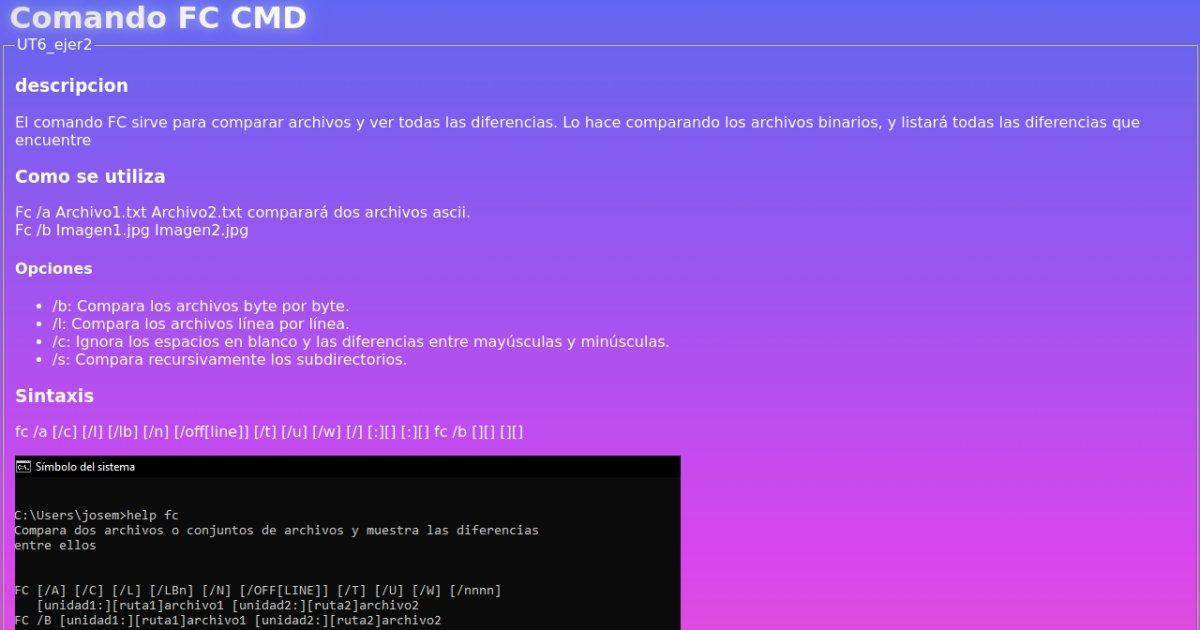
The official syntax of the command, according to Microsoft Windows help, includes two main modes of use: text comparison (ASCII or Unicode) y binary comparisonThe general form is as follows:
fc /a ] <archivo1> <archivo2>
fc /b <archivo1> <archivo2>
In practice, this means you can add one or more modifiers precede the filenames to adjust FC's behavior. The path and drive parameters are optional, so simply specify the filename if it's in the current directory; otherwise, you'll need to also specify the path or drive.
The classic help that appears when running fc /? In a Spanish command prompt, the syntax is summarized as follows (formatted for better understanding):
FC       ]
archivo1 archivo2
FC /B archivo1 archivo2
In all these variations, file1 y file2 These represent the first and second files (or file patterns) to be compared. Wildcard characters are also supported, allowing entire groups of files to be compared in a single command.
Meaning of each parameter of the FC command
The true potential of the command becomes clear when you see what each option does. These are described in detail below. all parameters recognized by fc.exe as they appear in Microsoft documentation and in the built-in help.
Comparison modes
/A – Enables a simplified output mode for ASCII text comparisons. Instead of listing all the lines that differ between the two files, FC only shows the first and last line of each group of differencesIt's very useful when there are large blocks of changes and you don't want the console to fill up with endless text.
/B – Force one byte-by-byte binary comparisonIn this mode, no attempt is made to resynchronize the data stream after a discrepancy is found; it simply proceeds and displays each detected difference. This is the default mode for files with typically binary extensions such as .exe, .com, .sys, .obj, .lib, or .bin, even if you don't explicitly specify the /B switch.
/L – Instruct FC to perform a ASCII line-by-line comparisonalways attempting to resynchronize the files after detecting a difference. This is the default mode for all files that are not considered binary (i.e., those without the executable and similar extensions mentioned earlier).
/U – Change the behavior of fc to treat files as Unicode text filesThis option ensures that the specific encoding (such as UTF-16) is respected and that characters beyond basic ASCII are correctly interpreted.
Control of capitalization, spaces, and tabs
/C – It makes the command ignore the differences of upper case and lower caseIf only the casing changes (for example, "Hola" versus "HOLA"), the lines will be considered equivalent and will not be marked as different. Note that this applies to letters, but not other characters.
/W – Compress and minimize the importance of blank spaceThat is, tabs and spaces. When a line has a long sequence of consecutive spaces or tabs, FC will treat them as a single space. Additionally, if you use /W, the command ignores the initial and final spaces of each line during the comparison, which is great for scripts or texts where indentation is irrelevant.
/T – Disables the automatic conversion of tabs to spaces. By default, FC usually treats tabs as spaces with breaks every eight characters, but with /T The tabulations are respected as isThis is useful when exact alignment is part of the meaningful content.
Internal buffer management and synchronization
/LB – Adjust the size of internal line buffer which FC uses when comparing text files. By default, this buffer allows you to handle up to 100 different consecutive lines. If the two files you are comparing have more than 100 consecutive lines without matches, the program considers that the files have moved too far apart and interrupts the comparisonWith this parameter you can raise or lower that limit, specifying a specific number of lines instead of 100.
/ – Specify how many consecutive lines must match After a discrepancy, FC considers that it has successfully resynchronized both files. The default value is 2. If, after a block of differences, it finds fewer than nnnn consecutive identical lines, those lines will still be displayed as part of the differences, because the program assumes that the files remain misaligned.
Offline viewing and archiving options
/N – It causes the line numbers When performing an ASCII comparison, you will see, alongside the content, the actual line reference of each file, which is essential when you later need to manually edit the file in question.
/OFF – By default, FC skips files that have the "offline" attribute set. This option tells the program that Also compare files marked as offlinewhich can be useful in environments where data is stored in remote locations or special file systems.
File specification and quick help
In addition to the options above, it's important to understand how to specify files on the command line. The part of the syntax consisting of file1 y file2 define the first and second file which FC will compare. You can use full paths, relative paths, and, if needed, different drive letters.
The command also supports wildcard characters: * y ?If you include an asterisk or a question mark in file1, FC will take all files that match that pattern and compare them to the file or pattern specified as file2. And if you use the wildcard in file2, the tool will apply the equivalent filename1 to complete the remaining pattern and establish the pairs that should be compared.
Finally, the modifier /? It is not part of the comparisons as such, but rather serves to show the command's built-in help at the command prompt. Run fc /? It's the fastest way to review syntax on your own computer, always in the language of your Windows installation.
How FC displays differences between files
The output format offered by FC varies slightly depending on what we are doing. ASCII/Unicode text comparison or a binary comparisonUnderstanding this format will help you read the results faster and locate the information you need.
In a standard ASCII comparison, after executing the command, FC usually displays the first name of the first file, followed by the lines from that file that are different from the second file. Then appears the first line that coincides again in both files, which acts as a re-synchronization point. Then the structure is repeated with the second file: its name, the different lines, and the first subsequent matching line.
When you activate binary mode with /BHowever, things change: each discrepancy is presented with a syntax of this type: \<XXXXXXXX: YY ZZ>. The value XXXXXXXX It is a relative hexadecimal address (starting with 00000000) that indicates the position where the distinct byte pair was found. Next to it are shown YY y ZZ, which are the hexadecimal values of the non-matching bytes belonging to file1 and file2 respectively.
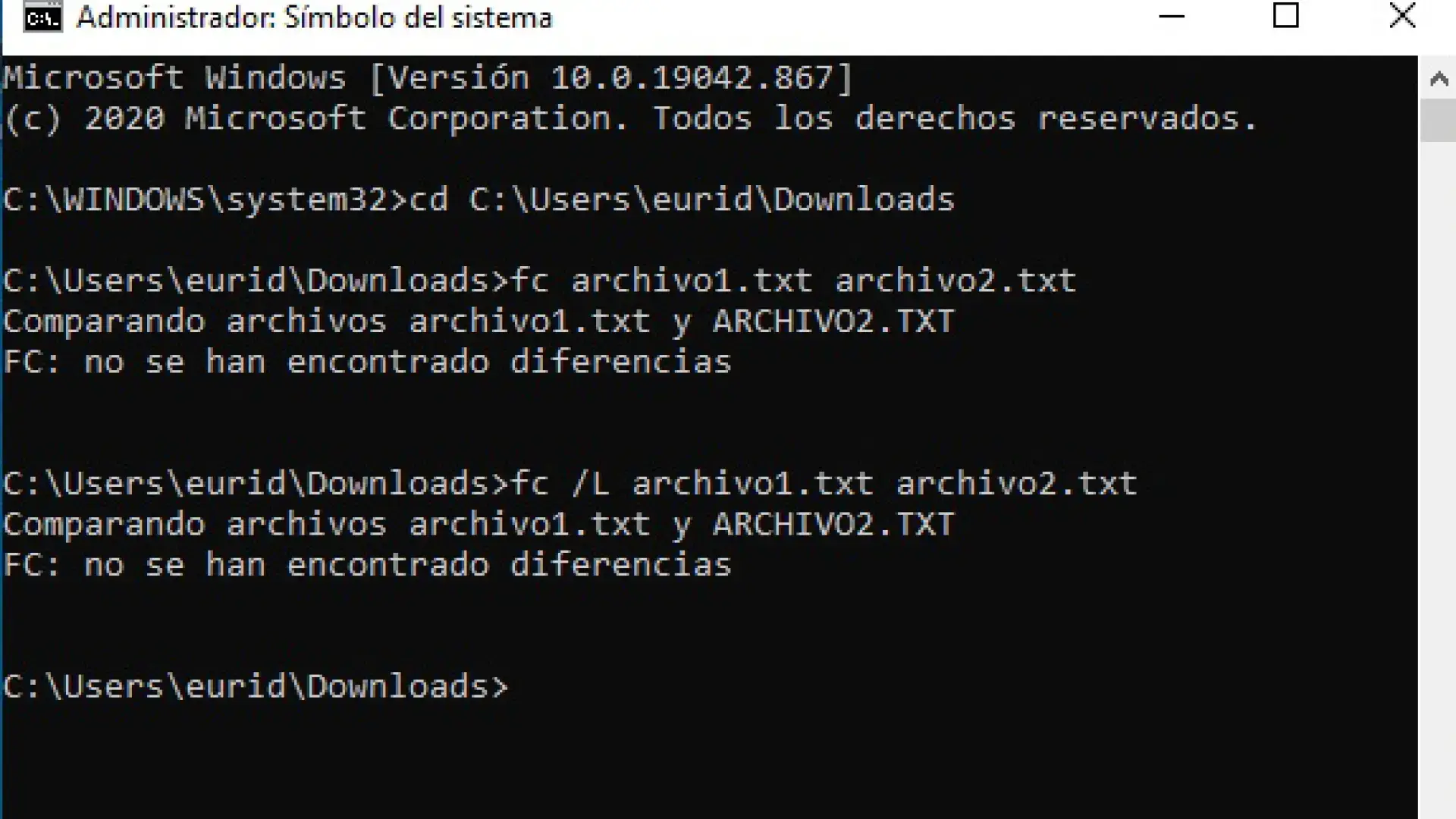
If the binary comparison reaches the end of one of the files and the other still contains data, FC will indicate that one of the files is longer than the otherHowever, if after analyzing all the content it does not detect any difference, a message like this will appear on the screen FC: no differences encountered, or its localized equivalent, making it clear that both files are identical.
In ASCII mode, FC relies on its internal buffer of 100 lines (unless you modified it with /LBn) to read and match by blocks. If the files are so different that it cannot find a match within that block, it will display the message "Resynch failed. Files are too different.", indicating that it has been unable to realign the two text sequences in a reasonable way.
FC command exit codes
Beyond the text you see on the screen, the executable fc.exe returns an exit code to the operating system when it finishes. This code is extremely important when using FC within batch scripts or automations, because it allows you to make decisions based on the comparison result without having to manually analyze the returned text.
The exit code table is very simple and remains constant:
- 0 – The files being compared are identicalNo difference in content was found.
- 1 – The files are differentThere is at least one discrepancy between file1 and file2.
- 2 – A error during comparisonIt may be related to permissions, inaccessible files, read problems, or invalid parameters.
In a batch file where you want to verify changes, you can use these codes with commands like IF ERRORLEVEL or similar constructions, so that the script acts in one way or another depending on whether the files match or not.
Practical examples of FC usage
Once the theory is understood, the most useful thing to do is to see specific commands that you can execute These examples are used in everyday file comparison in Windows. They are based directly on the official documentation and Windows help.
Compare two text files in ASCII mode
Imagine you have two reports, monthly.rpt y sales.rptAnd you want to see how they differ, but without overwhelming your screen with lines. You could use:
fc /a monthly.rpt sales.rpt
With the /A option, FC will only display the first and last line of each difference blockwhich makes the result much more readable when the changes are extensive.
Compare binary files (e.g., batch scripts)
If what you're interested in is checking for byte-level changes in two batch files, let's say profits.bat y earnings.batIdeally, use binary mode:
fc /b profits.bat earnings.bat
If there are differences, you'll see something like several lines with different hexadecimal addresses and byte pairs. If, on the other hand, the two files match 100%, FC will return a message indicating that No differences were found during the comparison.
Compare all .bat files to a reference file
Sometimes it's useful to compare several files at once against a new version that acts as a template. For example, if you want to compare each .bat file in the current directory with new.batYou can use this command:
fc *.bat new.bat
FC will go through all the .bat files in the current directory that match the pattern and compare them one by one with the new.bat file, showing you the differences between each pair.
Compare files with the same name on different drives
Another fairly typical situation is checking if the files on drive C and drive D match, for example, when you're validating a backup. To compare all the .bat files in the root directory of C: with their equivalents on D:, you can type:
fc c:\*.bat d:\*.bat
In this case, FC will compare each batch file in the C: root with the file it has the same name in the root of D:If you only want to compare a specific file, you would simply need to specify the name instead of the wildcard *.bat.
Using FC in the Windows console and in PowerShell
The classic Windows command console, known as CMDIt offers an ideal environment for taking advantage of the FC command, but you can also use it from PowerShell with a slight difference. In CMD, simply open a window (for example, by typing cmd in the Start menu) and execute the commands exactly as shown in the previous examples.
In PowerShell, as already mentioned, fc is an alias of the Format-Custom cmdletTo avoid conflicts and ensure you are using the classic Windows file comparator, you must type fc.exe instead of simply fcFrom that point on, the parameter syntax remains the same as in CMD.
Many users combine FC with other common console commands, such as CD (to change folders), DIR (to list the contents of the directory), TREE (to view the subfolder tree), MOVE o RENAME (for moving or renaming files), and utilities such as FIND to search for text strings within one or more files.
It is entirely feasible to integrate FC into more complex scripts that perform backups, synchronize directories, or verify configuration files have not been modified with respect to an original template, taking advantage of both the exit codes and the specific comparison options.
Simplified FC usage variants and frequently used options
In some training materials or class notes, it is common to find a simplified version of the syntax, highlighting only the most frequently used options. For example, a very common abbreviation is:
fc archivo1 archivo2
In this representation, /b serves to indicate a binary comparisonIf omitted, the comparison is assumed to be of text type (ASCII by default or Unicode if /U is specified). File1 and file2 remain the names of the files you want to compare.
Many summaries also list the following as key options: /b for byte-by-byte comparison, /l for line-by-line comparison, /c for case-insensitive comparison, and /s for comparison recursively subdirectoriesIt should be clarified that the /s option is not part of the official FC syntax in Windows (it usually belongs to other commands), but it is sometimes cited in generic file comparison schemes or in notes that mix different commands.
In any case, always using the built-in help of fc /? and the official documentation will ensure you have the correct list of parameters for your version of Windowswithout confusing options from other commands with those of FC.
Given all the above information, the FC command reveals itself as a surprisingly complete tool for anyone who needs to check for changes between files in Windows: it allows you to compare in text, Unicode or binary mode, adjust how spaces, uppercase letters and tabs are handled, manage files offline, control the buffer and re-synchronization, interpret exit codes in scripts and work with patterns and wildcards for entire batches of files, all without resorting to external applications and taking advantage of a utility integrated into the operating system itself.

Passionate writer about the world of bytes and technology in general. I love sharing my knowledge through writing, and that's what I'll do on this blog, show you all the most interesting things about gadgets, software, hardware, tech trends, and more. My goal is to help you navigate the digital world in a simple and entertaining way.