- Kernel-Power 41 is a hard shutdown record: the key is to find the root cause, not the event.
- The most common causes are unstable PSU, RAM/BIOS and faulty drivers.
- Diagnose with a viewer, tests in safe mode, SFC/DISM and controlled stress.
- It prevents losses with backups and corrects them with power and firmware adjustments.
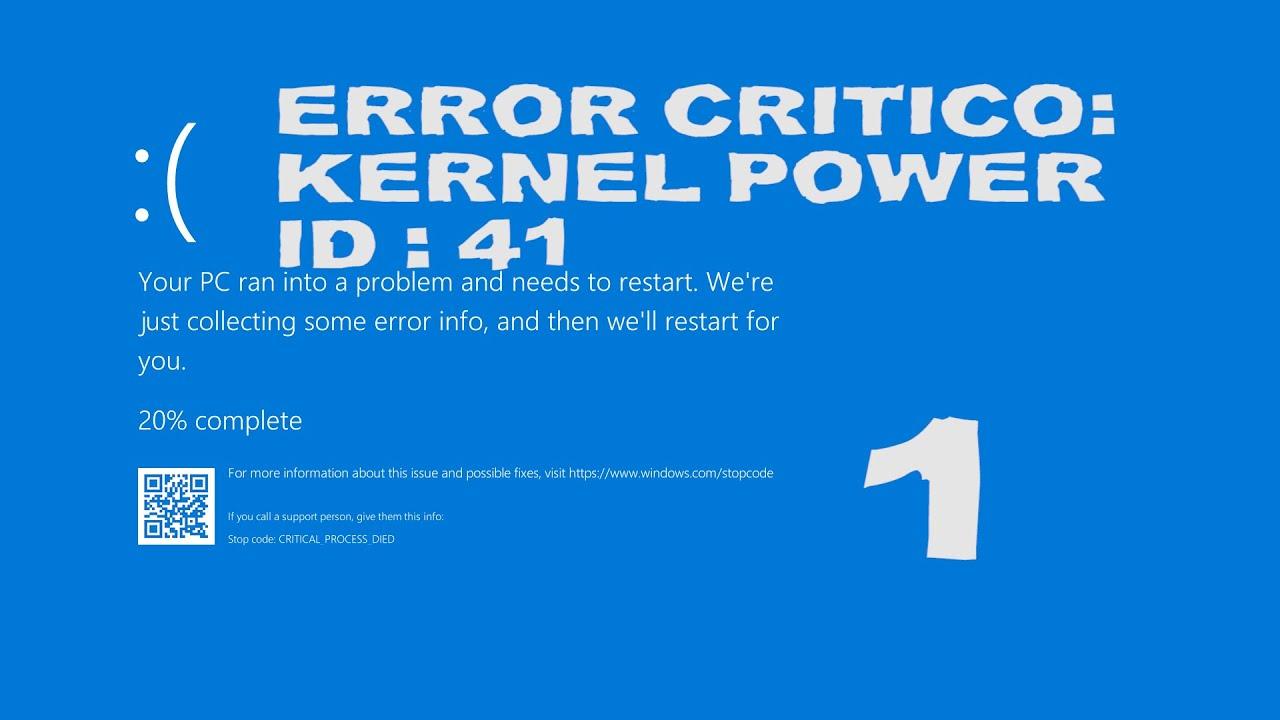
When Windows suddenly shuts down or restarts without warning, the Event Viewer often logs the dreaded Kernel-Power event with event ID 41 (see how to interpret error codes ). This log isn't the problem itself, but rather proof that the computer shut down abruptly due to a crash, freeze, power failure, or a Blue Screen of Death (BSOD ). If you've encountered blue screens, random restarts, or messages indicating that the system didn't shut down properly, you're experiencing a typical case of this event.
Several users describe very similar situations: after changing a hard drive or reinstalling Windows, the PC starts displaying blue screens and restarting in a loop (see how blue screens and black screens compare ); others report that the computer crashes on its own when playing games, running a power supply benchmark, or even while sitting on the desktop doing nothing unusual. The worrying thing is that, even after running checks like SFC and DISM without errors, event 41 continues to appear, prompting a determination of whether the cause is hardware or software - related.
What exactly is the Kernel-Power 41 event?
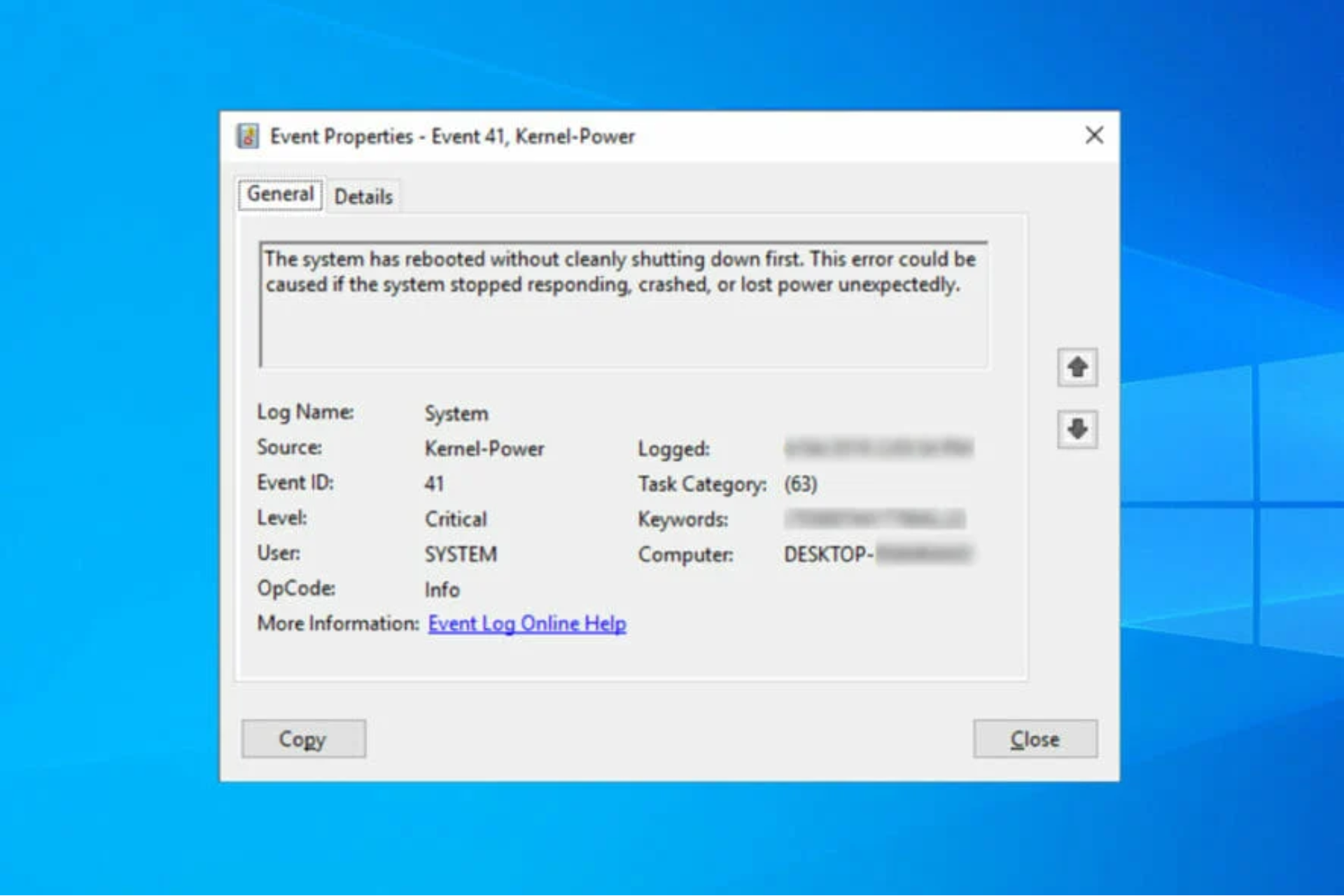
The Kernel-Power 41 event indicates that the system shut down or restarted unexpectedly, without a clean shutdown. In the Event Viewer, you'll see a description like " The system restarted without a clean shutdown first ," a task category (63), and sometimes keywords like 0x8000400000000002. It's not uncommon to find fields like SleepInProgress=0 , BootAppStatus=0 , or BugcheckInfoFromEFI=false , which help you understand the state the machine was in when everything went wrong.
When a Blue Screen of Death (BSOD) occurs, bugcheck parameters are often logged. For example, a BugcheckCode 126 , which is 0x7E in hexadecimal, has been observed, accompanied by BugcheckParameter1=0xffffffffc0000005 (access violation), a fault address , and context addresses. In practice, 0x7E usually points to a driver or module that executed improper kernel code, which aligns with faulty drivers , unstable memory, or driver conflicts . To analyze minidumps and identify the culprit module, tools like BlueScreenView for analyzing screenshots are very useful.
Common symptoms and typical scenarios
The reported patterns are repeated across many systems. Among the most common scenarios are: unexpected restarts with or without a BSOD, intermittent crashes that only leave a trace in the Event Viewer, and freezes while stressing the GPU or CPU in games and benchmarks. It's common for the error to appear in the logs several times in a row as the system attempts to automatically recover and then crashes again.
There are cases where the computer boots up, runs a power supply benchmark, and then, a second later, shuts down with a critical Event 41 error. Others describe blue screens when turning on their laptops after months without problems, and even random reboots on the desktop without any heavy load. All of this suggests that, although the event may be the same, the causes can vary from power issues to third-party software.
You will also see log variations such as “ Kernel Power Event ID 41 (63) ” and different combinations of parameters (such as the 0x9F associated with sleep states), which gives clues to the context of the failure but does not by itself point to the exact origin.
Common causes of Kernel-Power 41
In practical terms, Kernel-Power 41 is a symptom of an underlying problem. Common causes include: insufficient or faulty power supply , unstable hardware, aggressive overclocking (CPU, GPU, or RAM), incompatible drivers , memory errors, outdated BIOS , conflicting third-party software, and corrupted system files.
Many issues arise under demanding workloads (games, 3D, rendering, benchmarks) where the system requires peak power. In these scenarios, a power supply unit (PSU) that theoretically " has plenty of watts " can fail if its rail power delivery, transient response, or overcurrent/overcurrent protection (OCP/OTP) doesn't behave as expected. Other times, the root cause is a driver (graphics, audio, chipset) that triggers a poorly managed kernel thread and activates a bug check.
- Power and supply: uncovered peaks, PSU protections acting, loose cables or bad electrical connection.
- RAM and controllers: unstable modules, aggressive XMP/EXPO profiles, duplicate (e.g., audio) or corrupted drivers.
- BIOS/UEFI and firmware: older versions with bugs, outdated SSD/NVMe firmware.
- Software and files: third-party utilities, intrusive antivirus software and system corruption.
How to tell if it's a hardware or software problem
The key is isolation. Start with the Event Viewer : check the time of event 41 and see if there are any logs just before it ( WHEA , disk errors, driver errors). If the bug check exists, note the code (for example, 0x7E) and its parameters. Then, try to reproduce the error: does it occur while gaming, under GPU/CPU load, or when the system is idle? This clue is invaluable for separating power and thermal issues from purely logical conflicts.
Boot into Safe Mode . If the system is stable there, the problem usually points to drivers or software. If it still shuts down abruptly in Safe Mode, the focus shifts to the power supply unit (PSU), RAM, storage , or motherboard. Check temperatures with reliable tools: although many cases don't show elevated temperatures, it's worth ruling out throttling or abnormal spikes.
Test your memory. Using the Memory Diagnostic Tool (mdsched.exe) or a more in-depth test, you can detect problematic modules or unstable XMP profiles. Also, run SMART tests on your hard drives and, if they are mechanical, listen for unusual noises. These checks help validate that RAM and storage are not causing abrupt shutdowns.
Don't forget the cabling: reseat the power supply connectors to the motherboard and GPU, check the GPU cables end-to-end, and verify the power outlets and power strips. On some systems, simply relocating connectors or using separate dedicated lines for the graphics card has eliminated shutdowns under load.
Effective solutions in Windows and hardware
1) Adjust power options
Some power-saving profiles may force power-saving states that conflict with certain drivers. Go to Control Panel > Power Options > Change plan settings > Change advanced settings . Under Hard disk and Sleep, set it to "Never" (or 0). Apply the changes and restart. In many cases, disabling disk shutdowns and sleep settings prevents conflicting states from occurring.
2) Update drivers (and check for duplicate audio drivers)
From Device Manager , go through the GPU, chipset, LAN/WiFi, audio, and storage sections, and use " Update driver ." Supplement this with the latest versions from the NVIDIA/AMD/Intel websites and your motherboard manufacturer's website. If you see duplicate audio drivers under "Sound, video and game controllers," disable the one you don't use or the suspicious duplicate; several crashes have been linked to audio issues.
3) Disable fast startup
Fast Startup can leave the system in a hybrid state that causes problems upon restarting. In Power Options > Choose what the power buttons do > Change settings that are currently unavailable, uncheck Turn on fast startup . Restart; although it may boot somewhat slowly, many computers will stop registering Kernel-Power 41.
4) Avoid silent restarts
Disable " Automatically restart " in System > Advanced system settings > Startup and recovery. This way, if a BSOD occurs, you'll see it and get the actual bug check code, crucial for diagnosing the cause instead of just getting a vague reboot and an unreliable Event 41.
5) SFC and DISM to repair the system
Although SFC/DISM may not report any problems in some cases, it's a necessary step. Open Command Prompt as administrator and run: DISM.exe /Online /Cleanup-Image /ScanHealth , then DISM.exe /Online /Cleanup-Image /RestoreHealth , and finally sfc /scannow . If DISM repairs the image and SFC corrects files, you reduce the risk of corruption triggering the bug check.
6) Uninstall conflicting software and recent drivers
If the problem started after installing a utility, driver, or game, try uninstalling it. Do this preferably in Safe Mode if stability is poor. Highly intrusive antivirus programs, overlay services, and aggressively tweaking apps (or beta versions of drivers) are common suspects; if you suspect a driver is the cause, see our 11 solutions for APC index mismatch for related remedies.
7) Disable overclocking and adjust the RAM
Reset everything to factory settings in the BIOS: remove CPU/GPU overclocking, disable XMP/EXPO profiles, or lower the frequency/timings to JEDEC. Even if it appears stable in benchmarks, slight memory instability can trigger 0x7E errors or hard restarts under specific scenarios. Also, be aware of errors like CLOCK_WATCHDOG_TIMEOUT , which are often related to CPU threads and overclocking.
8) Update the BIOS/UEFI and SSD firmware
An older BIOS may contain known bugs related to power management, PCIe, or memory. Check the version using "System Information" (msinfo32) and, if necessary, update from the motherboard manufacturer's website, following the manual precisely. Ensure a stable power supply is available and uninterrupted. While you're at it, also update the firmware of your NVMe/SSD if there are any revisions that fix crashes or connection drops.
9) Check the power supply: PSU, cables and outlet
Even with power supplies rated for ample wattage, power outages can occur due to transients, overcurrent protection (OCP), or ripple. Try a different outlet, avoid overloaded power strips, and use separate PCIe cables for the GPU. If your PC crashes within one second of running a PSU benchmark , it's likely the power supply's protection circuit or a power surge it can't handle. If possible, test with a different, high-quality PSU or use a UPS to rule out micro-outages.
10) Physical maintenance of the equipment
Open the case and clean off any dust. Check that the RAM is properly seated and that the ATX/EPS/PCIe connectors are secure. Verify that there are no loose or shorted screws and that the fans spin freely. This check prevents poor connections from causing intermittent outages that are difficult to trace.
Real cases that give clues
A user with an AORUS B450 Pro WiFi motherboard , three DDR4 3200 modules, a Zotac RTX 4060, and a Ryzen 9 5900X processor was experiencing random restarts while gaming, working in Photoshop, or at idle, despite normal temperatures, tested RAM, and a Windows reinstallation. In systems like this, suspicion is shared between the power supply unit (MWE Gold 750 V2) and the stability of the RAM with three modules, which is more sensitive than with 2x8 or 2x16 modules. Reducing the RAM to two modules or relaxing XMP settings could be the deciding factor.
Another case involving an Asus ROG Strix B550-F , Ryzen 7 5800X, RTX 4070, 32 GB (4x8) at 3200 MHz, and a Corsair RM1000x PSU reported drops within a second of starting a power supply benchmark. This pattern suggests the PSU's protection circuitry is triggering, perhaps due to a spike in the test's startup current or a problem with the cabling/plug. Even with a high-end RM1000, it's advisable to try a different power outlet and cables , check the benchmark's load mode, and, if possible, compare the results with another PSU to narrow down the issue.
On laptops with an RTX 3060 , event 41 can occur after an isolated BSOD and continue to appear in the viewer without any visible symptoms. If the only truly critical event was the blue screen and the others coincide with restarts due to updates, the logical course of action is to update GPU and chipset drivers, disable fast startup , and monitor the situation. If the problem doesn't recur, the remaining event 41 occurrences are likely the result of forced shutdowns or scheduled restarts.
In another case, after replacing a faulty hard drive and reinstalling, the computer experienced blue screens and automatic recovery. The user ran SFC and DISM without errors . In such scenarios, there might be a poorly installed driver, pending SSD firmware , or a RAM module nearing its limit with XMP enabled. Disabling XMP, reinstalling the storage controller driver, and confirming that the BIOS is up to date helps stabilize the system.
Backup and data recovery
When a PC frequently freezes and restarts, the risk of data loss is real. Before delving into risky tests, it's advisable to have a system image or, at least, a backup of your critical files. Utilities like MiniTool ShadowMaker make it easy to create scheduled backups of your system, disks, and folders with just a couple of clicks. Its trial mode allows you to assess whether it fits into your workflow.
The typical workflow with a backup tool is simple: install it, select "This PC," go to the "Backup" section, and create a system backup to your chosen destination. If your hard drive crashes or you need to restore quickly, having that image speeds up the return to normal. And if you're going to update the BIOS or change sensitive settings, having a backup is the best safety net.
If your system won't boot or freezes before you can copy anything, there are recovery solutions like Stellar Data Recovery Professional that allow you to create bootable media to retrieve your data from a Windows system that won't start. The idea is to recover your important files first, and then you can focus on fixing the underlying Kernel-Power 41 error without fear of losing your documents.
If your PC is registering Kernel-Power 41, start by ensuring you have backups, gather clues from the Event Viewer, remove overclocking and aggressive profiles, update drivers and BIOS when necessary, reconfigure power settings, and if the pattern points to shutdowns under load, focus on the power supply . With a methodical approach and controlled testing, the vast majority of cases can be resolved without replacing half the system, and if you do have to replace something, you'll know exactly which component is causing the problem.


Passionate writer about the world of bytes and technology in general. I love sharing my knowledge through writing, and that's what I'll do on this blog, show you all the most interesting things about gadgets, software, hardware, tech trends, and more. My goal is to help you navigate the digital world in a simple and entertaining way.