- Face ID allows for two appearances: the primary appearance and an alternate appearance, with biometric data saved only on the iPhone.
- Mask mode works on certain models and is less secure; the Apple Watch offers an additional unlock.
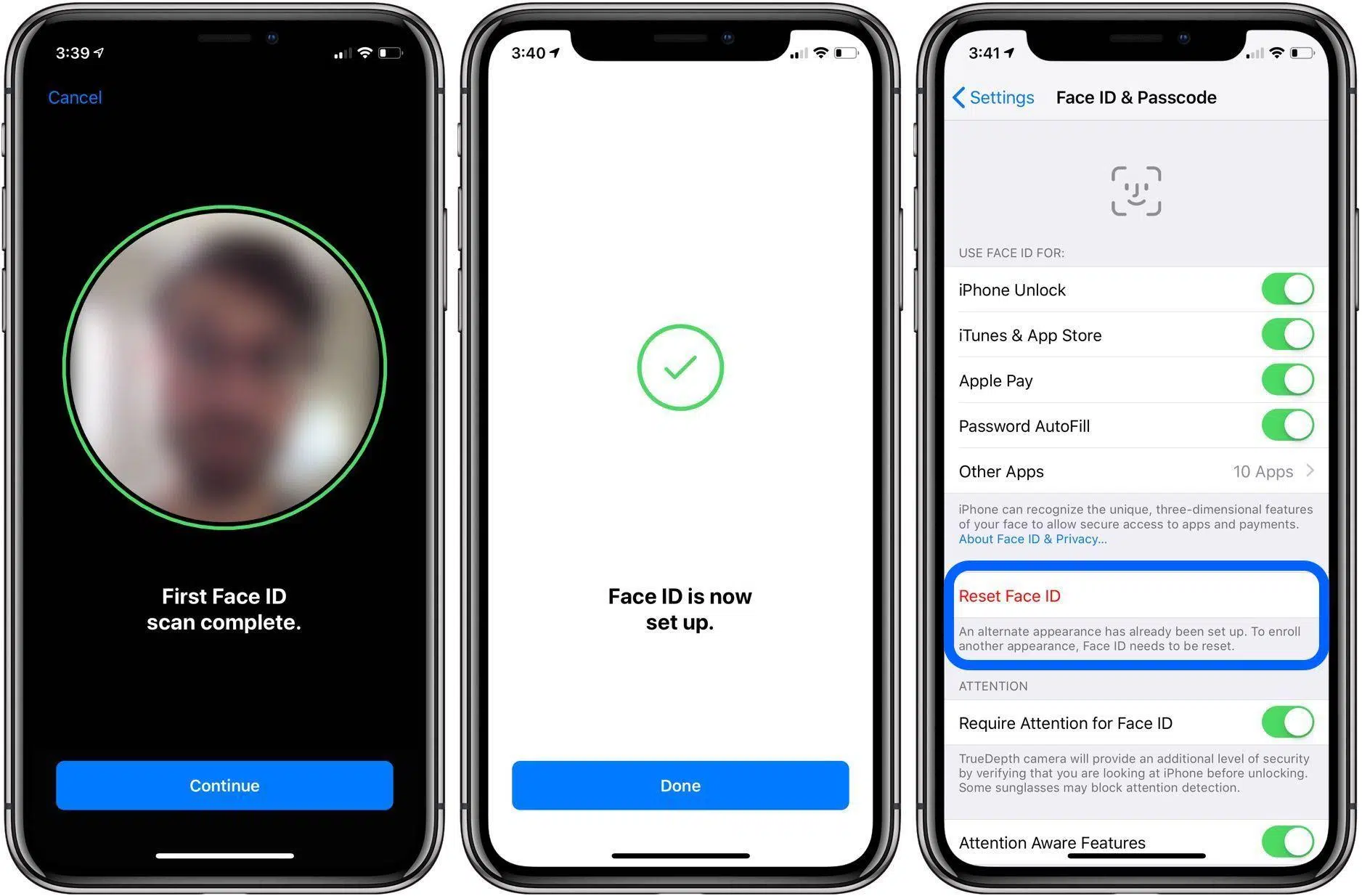
- To switch faces, you must reset Face ID; registering the same face twice does not improve protection.
- Face ID access includes purchases, Apple Pay y apps sensitive; some actions still require a password.
If you've ever wanted your iPhone to recognize another person or identify you in less common situations, you've come to the right place. Here you'll find a clear and straightforward explanation of how to add another face to Face ID, the limitations Apple imposes, how it works with a mask, and what alternatives you have with the Apple Watch. The goal is for you to master all the Face ID options without missing a thing.
In addition to guiding you step by step, we'll review what access Face ID grants within the system, which models can be unlocked with a mask, and some important security considerations to keep in mind. We'll also explain why iPhones don't allow more than two Face ID appearances and how this differs from what many Android phones do.
Face ID today: what it is, what it's for, and why add another face
Since its introduction with the iPhone X in 2017, Face ID has become the flagship biometric system on iPhones, giving facial recognition the leading role and relegating Touch ID to specific models like the iPhone SE family. Apple has been refining the reliability of Face ID, but there are situations (new glasses, makeup, face masks) where registering an alternative might be useful.
This is where the "Set Up an Alternate Appearance" option comes in. In practice, this means you can register a second appearance: it can be your own face under different conditions (for example, with and without glasses) or the face of another trusted person. It's a very useful feature if you occasionally share your iPhone with your partner or children.
Over time, Face ID has also received specific improvements, such as mask mode on certain models and the ability to add "clear glasses" as a recognized accessory. These small updates make daily life easier, especially in situations where the face changes or part of it is covered.
It's worth mentioning that the system hasn't been without its critics and attention-grabbing headlines, with debates about its "dark side" and cases where Apple acknowledged potential flaws in very specific circumstances. Even so, Face ID remains the default option on the vast majority of modern iPhones due to its speed and convenience.
Before we get into the details, a brief note on privacy: the biometric data used by Face ID is stored on the device itself, within the Secure Enclave, and is not uploaded to external servers. This means that if you reset your iPhone, you'll have to set up Face ID from scratch because that information isn't included in your backup.
What access does Face ID grant on the iPhone?
Registering a face (or an alternate appearance) isn't just for unlocking your iPhone. Face ID unlocks a host of features that rely on your identity for security. When you add a second face, that person will have the same level of access to everything that depends on Face ID.
These are the areas you will be able to access once your face is verified with Face ID, just like on current iPhones:
- iPhone unlock without entering the access code.
- App Store Purchases and purchasing music on iTunes.
- Subscription sign-up through the App Store.
- In-app purchases (additional or in-game content).
- Access to Wallet and whatever you have configured in it.
- Payments with Apple Pay both online and in stores.
- Connecting to vehicles with CarPlay and use of its functions.
- Viewing emails and passwords saved.
- Password autofill in apps and websites.
- Access to apps that require Face ID (for example, banking apps).
- Change the iPhone code and related settings.
- View the Notification Center with the iPhone locked.
- Access to the Control Center while the iPhone is locked.
- View Widgets on the Lock Screen without entering code.
- Live activity tracking on the lock screen.
- Run commands with Siri according to active permits.
- Controlling home devices with the Home app.
- Return missed calls ’s relationship with the terminal locked.
Despite all this, there are particularly sensitive actions (for example, changes to your Apple ID, certain iCloud settings, or Search) that will require your password. Face ID makes everyday life easier, but Apple maintains several additional barriers for high-risk transactions.
How to add a second face (or “alternate appearance”) to Face ID
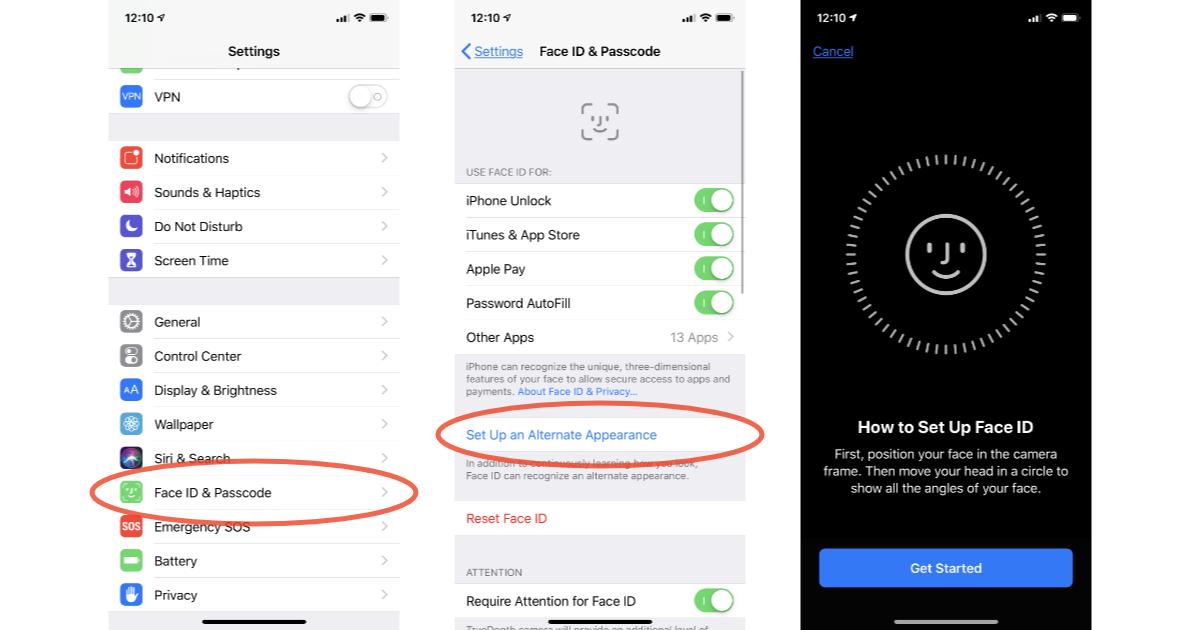
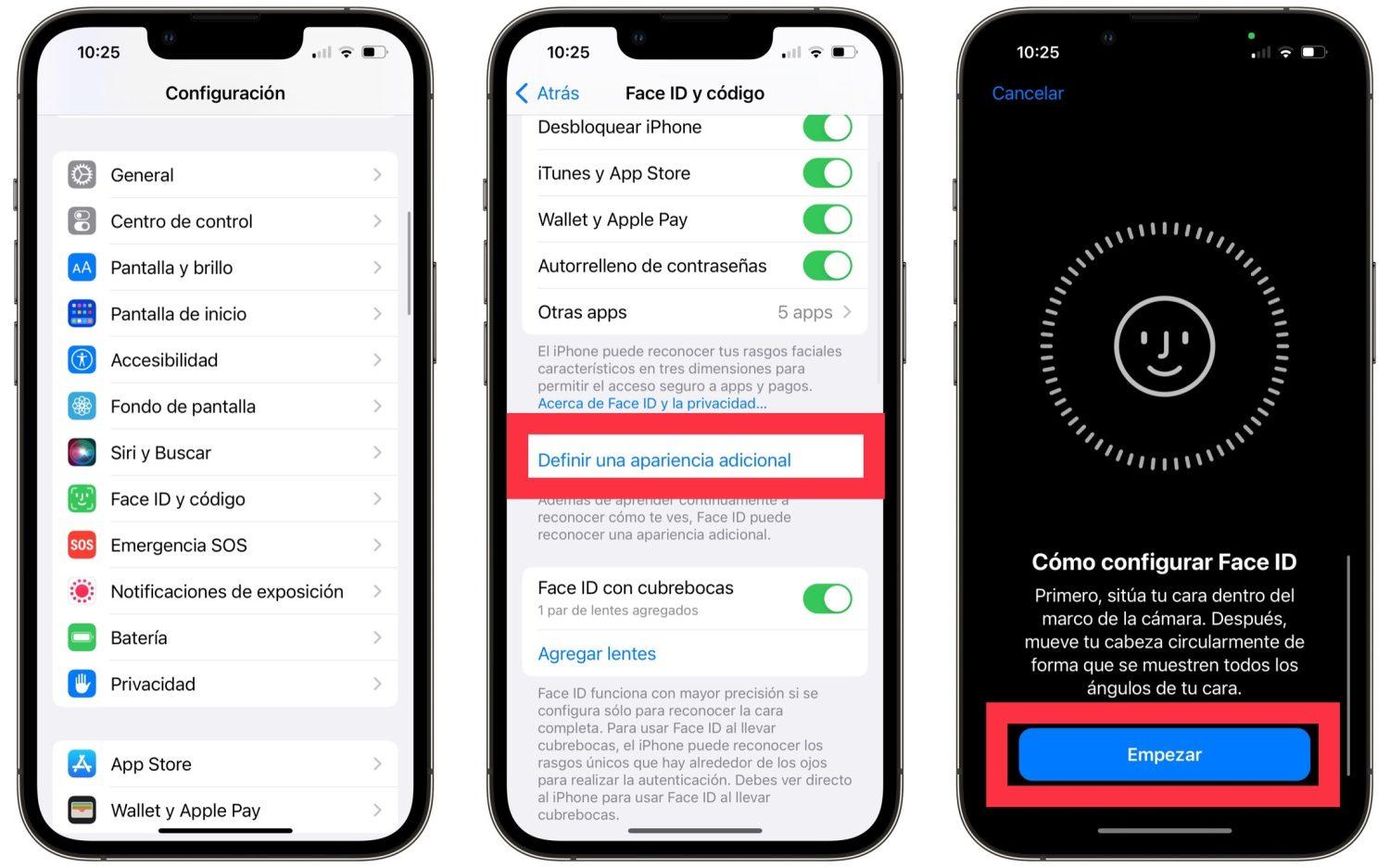
The process is very similar to when you first set up Face ID. It's done through your iPhone's settings, and if prompted, you'll need to enter your passcode for security. Registering your second appearance is completed in two facial scans, gently moving your head.
To avoid any confusion, here are the steps , rewritten so you can't miss them:
- Open Settings on your iPhone.
- Go to “Face ID and code”.
- Enter the iPhone passcode if requested.
- Tap “Set up an alternate appearance.”
- Press “Start” when it appears on the screen.
- Follow the instructions for the first facial examination by moving your head in a circle.
- Click “Continue.”
- Complete the second exploration.
- Confirm with “OK” and that’s it.
If the person being registered has a physical limitation or difficulty performing the full head movement, tap "Accessibility Options" during the process to facilitate the capture. And if the person is blind, there is an option to disable "Require Attention for Face ID" (in Settings > Accessibility) so that they don't need to keep their eyes open.
Important: With Face ID, you can only have two active appearances at a time (your primary appearance and an alternate one). It's not possible to add a third face , unlike Touch ID, which allows multiple fingerprints. And, if you're wondering, registering the same face twice doesn't provide any additional security, contrary to the old advice to "add your fingerprint multiple times." With Face ID, there's no need to duplicate your own face because the system is already sufficiently accurate.
What if you want to change one of your appearances? Here's a clear limitation: you can't delete just one face. To start over, you'll have to tap "Reset Face ID" and register both appearances again from scratch.
Face ID with a mask: how it works and how to activate it
On iPhone 12 and later, there's an option to use Face ID with a mask, which analyzes unique features around your eyes to verify your identity. This feature works alongside the other Face ID options, and you can turn it on or off whenever you want.
To manage this, go to Settings > Face ID & Passcode and you'll find several relevant actions :
- Activate “Face ID with mask” and follow the instructions on the screen.
- Add “glasses” to your appearance (only clear glasses, not sunglasses).
- Disable “Face ID with mask” if you no longer want to use it.
In addition, Apple introduced Apple Watch unlocking, compatible with all iPhones that support Face ID, designed as a relief when wearing a mask. If you're wearing your watch, it's unlocked, and you meet the software requirements, your iPhone will unlock with haptic feedback on your wrist.
Watch unlock requirements: iOS 14.5 or later on iPhone and watchOS 7.4 or later on Apple Watch. To set it up: Settings > Face ID & Passcode > turn on “Unlock with Apple Watch” . If you detect that someone has accessed your device without permission, you’ll see the “Lock iPhone” option on your watch to immediately require the passcode.
Models compatible with Face ID with a mask
Starting with iOS 15.4, mask unlock works on a specific list of models. If your iPhone isn't listed, you can still use the method with Apple Watch, but partial mask recognition won't work directly on the iPhone.
- iPhone 12mini
- iPhone 12
- iPhone 12 Pro
- iPhone 12 Pro Max
- iPhone 13mini
- iPhone 13
- iPhone 13 Pro
- iPhone 13 Pro Max
- iPhone 14, 14 Pro and 14 Pro Max
- iPhone 15, 15 Plus, 15 Pro and 15 Pro Max
- iPhone 16, 16 Plus, 16 Pro and 16 Pro Max
- iPhone 16e
Keep in mind that Apple warns that this feature is less secure than "full" Face ID. Analyzing only the eye area slightly reduces the level of protection, which makes sense given the reduced facial information available.
Security, questionable tricks and good practices
Although many people have done it in specific situations, lowering your mask to show your nose can expose you to health risks, especially in crowded places or on public transport. It's not recommended, and the sensible thing to do is maintain distance if you need to remove your mask, even slightly.
There's also an "unofficial" method some people have used to try and train Face ID to recognize faces with part of them covered. It involves resetting Face ID, setting up your normal face, and then, as an alternative, repeating the process while covering about a quarter of your face with a piece of paper. Be aware that this reduces security and increases the likelihood that someone else could unlock your iPhone without your permission.
From a practical standpoint, if you're looking for comfort while wearing a mask, the best option is to activate the official mode when your iPhone is compatible, or to use the Apple Watch to unlock your device. Both options are designed by Apple and offer a reasonable balance between comfort and protection.
Finally, remember that Face ID can be adjusted to be more accessible. In Settings > Accessibility, you'll find "Require attention for Face ID" and other options that make it easier for people with specific needs to be recognized. These features make Face ID usable by more people without compromising its core security.
Why doesn't Apple allow more than two skins? Differences from Android
Many Android phones allow you to register multiple faces without much hassle, and they also combine facial recognition with a fingerprint reader (sometimes under the screen). The comparison is obvious: on iPhones, Apple limits Face ID to two faces and hasn't incorporated in-display Touch ID in its flagship models . To see how other biometric systems work, check out the comparison with Windows Hello.
This decision reflects their philosophy: fewer, more controlled variables to maintain a high level of security. Currently, on iPhones, you can't add a "third face" or use both Face ID and Touch ID simultaneously on the same device (except for specific models that only have Touch ID). This can be frustrating if you frequently share your iPhone, and the system takes a few seconds before displaying the passcode keypad.
If that's your situation, consider registering an alternate appearance for the person you share your iPhone with, or, if you use an iPad , using profiles and restrictions where appropriate. Each platform has its own rules, and in Apple's case, the design prioritizes limiting the number of appearances for security.
Turn Face ID on, off, and adjust: Useful shortcuts
In addition to the alternative appearance, it's helpful to have your most frequently used quick settings handy: enabling or disabling Face ID with a mask, adding your glasses, and controlling unlocking with your Apple Watch. Everything is located in Settings > Face ID & Passcode, so there's no need to delve too deeply into the settings.
If you frequently wear new glasses, the "Add Glasses" feature is a lifesaver. Apple recommends clear glasses (not sunglasses) for easier recognition. This helps prevent recurring errors every time you change frames.
Is Face ID failing you more than usual? You can reset it and set it up from scratch, or check if "Require attention" is enabled, because with very dark sunglasses or certain filters, it might have more trouble reading your eyes. Small adjustments make all the difference between a Face ID that works perfectly and one that forces you to enter your code every few minutes.
Privacy, local storage, and the role of cookies
Returning to privacy, it's crucial to remember that Face ID doesn't upload your facial model to the cloud. The biometric information is encrypted and remains within the iPhone's Secure Enclave . Therefore, when you format the device, everything needs to be set up again.
On another note, when you visit websites with guides like this one, it's normal to see a cookie notice to improve your experience and remember your preferences. These cookies reside in your browser, help recognize you when you return, and help understand which sections are of most interest . They are unrelated to Face ID, but it's important to distinguish between them to avoid conflating different privacy concepts.
Face ID with Apple Watch: Setup and Usage Steps
If you meet the requirements (iOS 14.5+ and watchOS 7.4+), enabling unlock with your watch is quick: Settings > Face ID & Passcode > “Unlock with Apple Watch.” From then on, when you go to unlock your phone while wearing a mask and your watch is unlocked, you’ll feel a tap on your wrist.
That tap alerts you that the iPhone has been unlocked without needing to enter the passcode. If you realize it wasn't you, the watch will display "Lock iPhone" to force the phone to lock immediately. It's a secure and very convenient way to bypass the passcode when Full Face ID isn't working.


Passionate writer about the world of bytes and technology in general. I love sharing my knowledge through writing, and that's what I'll do on this blog, show you all the most interesting things about gadgets, software, hardware, tech trends, and more. My goal is to help you navigate the digital world in a simple and entertaining way.