
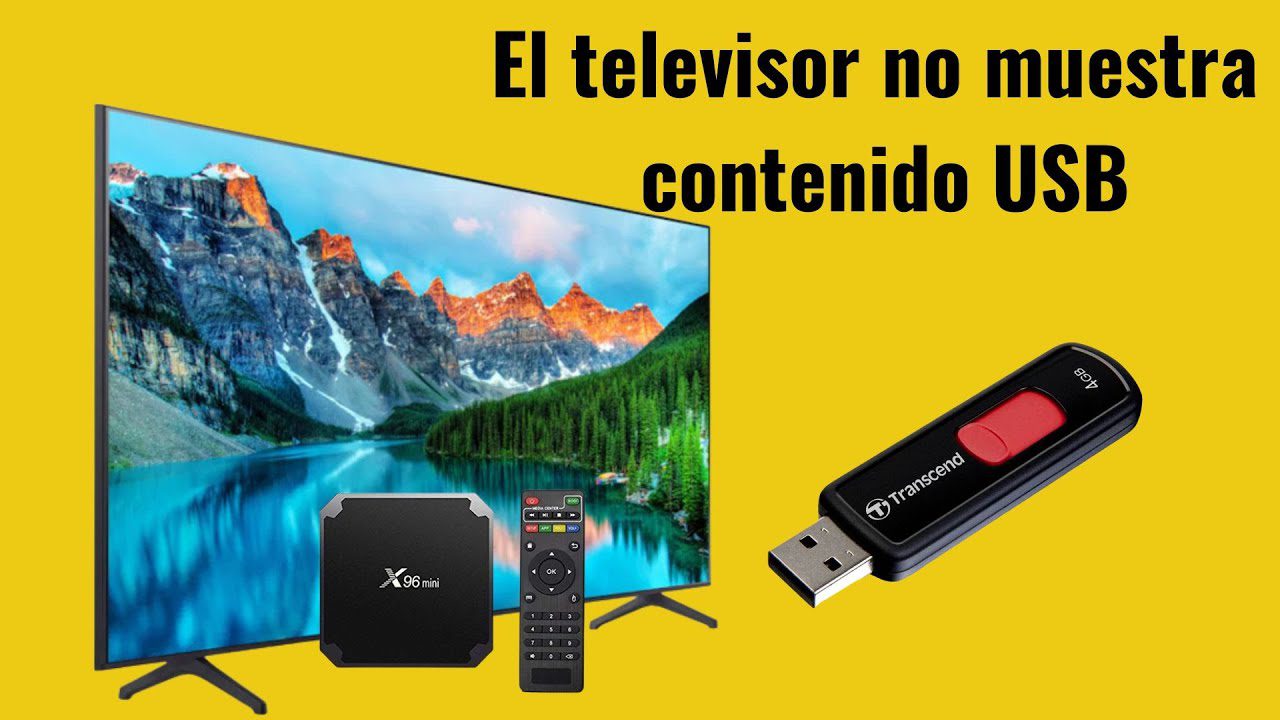
Who hasn't been there? You download a video, copy it to a USB drive, and, full of excitement, plug it into your brand-new Smart TV… only to be met with a terse error message. The file won't play. The questions begin: Is the file corrupted, is it the USB drive, or is the TV simply not recognizing it?
Understanding which codecs smart TVs from different brands support is key to avoiding compatibility issues and enjoying any movie or series from a USB drive or external hard drive. In this guide, you'll find everything about codecs, containers, file formats, and USB systems from major brands (Samsung, LG, Sony, Xiaomi, Philips, TCL, Hisense, Panasonic), along with practical tips and useful resources for converting videos and avoiding interruptions.
Why don't some videos play on your Smart TV?
The number one cause of playback failures on televisions is codec and format incompatibility. We often think that simply copying any file to a USB drive should be enough, but the reality is more complex. It's not enough for the file to be .mp4 or .mkv ; what matters is how the information is "packaged" and what "language" (codec) the video and audio were encoded in.
If your TV doesn't recognize the file or reads it without picture or sound, the problem is probably with the codec used . Each TV model and brand has limited support for specific codecs , and this can even vary between different generations from the same manufacturer.
Codecs vs. containers: not the same thing
The first thing to understand is the difference between a codec and a container . A " codec " is the software (or algorithm) responsible for encoding and decoding audio and video content, compressing it to save space and facilitate transmission or storage . The most well-known video codecs are H.264 (AVC), HEVC (H.265), MPEG-2, VP9, DivX, and XviD , and audio codecs are MP3 , AAC, Dolby Digital, DTS, and WMA.
On the other hand, the " container " is the file format: mp4, mkv, avi, mov, vob, ts, etc. Think of it as the box that carries the different video and audio tracks. A single container can hold different codecs . That's why not all .mkv or .avi files will be compatible with your TV.
So, the file extension (like .mkv or .mp4) only indicates the container. What really matters is how the video and audio are encoded. Your TV might be able to read the container, but if it doesn't know how to "unpack" the codec, then you'll have playback problems.
How to identify which codec a file uses?
Have you ever come across a file you're unsure if your TV can read? It's crucial to find out which codecs it's encoded with before driving yourself crazy trying one after another. Fortunately, there are free programs that will tell you instantly. The most practical and well-known is VLC Media Player.
- Open the video in VLC on your computer
- Click on Tools > Codec Information
- There you will see if the video is in H.264, HEVC, MPEG-2, etc., and the audio in AAC, Dolby Digital, MP3, etc.
With that information, you can compare it to your Smart TV's compatibility list and decide if you need to convert it. Additionally, if you want to learn more about improving file compatibility, visit our guide to programs for watching TV on your PC.
Main video and audio formats for Smart TVs
Each brand and model supports specific containers and codecs. The most common are:
- Videographer: MP4, MKV, AVI, MOV, WMV
- Audio: MP3, AAC, WMA, Dolby Digital (AC3), PCM, DTS (although many recent TVs no longer support DTS)
However, actual compatibility depends on the container and codec combination . For example, an .mkv file with HEVC video and DTS audio might not play if the TV doesn't understand DTS or doesn't support HEVC in that file type.

Complete guide: Codecs and video and audio formats supported by each TV brand
Here's a detailed rundown of the latest information on USB file system and format compatibility from major brands:
Samsung
Samsung stands out for its broad compatibility with formats and codecs , especially in its newer ranges. It typically supports:
- Containers: MP4, MKV, AVI, WMV, FLV
- Video codecs: H.264, MPEG-4, HEVC (H.265 on newer models), MPEG-2, DivX/XviD*
- Audio codecs: MP3, AAC, Dolby Digital, WMA, PCM
Samsung, like LG, has been removing support for DTS in models from 2020 onwards. If you need DTS audio, look for TVs from previous years or use converters.
Many recent Samsung models can play 4K video in HEVC and HDR10+ (but not Dolby Vision, only HDR10 and HDR10+).
Sony
Sony televisions , especially the BRAVIA range , are usually compatible with:
- Containers: MP4, MOV, AVCHD
- Video codecs: H.264, MPEG-4, MPEG-2, HEVC
- Audio codecs: AAC, Dolby Digital, MP3, LPCM, WMA
Additionally, many Sony BRAVIAs can handle SRT subtitles and support resolutions up to 4K. Some models also support HDR10 and Dolby Vision.
LG
LG offers good compatibility, although there are differences between models and generations . Common formats:
- Containers: MP4, MOV, MKV, AVI (DivX), ASF, WMV
- Video codecs: H.264/AVC, MPEG-4, HEVC (on newer models), MPEG-2, DivX/XviD (except some advanced features), VP8/VP9
- Audio codecs: MP3, AAC, Dolby Digital, DTS (until 2019-2020), WMA, PCM, ADPCM
LG models manufactured since 2021 have incorporated exFAT support in their USB ports. In previous generations, only FAT32 and NTFS were recognized.
Xiaomi
According to the manufacturer , all Xiaomi TV series support FAT32, NTFS, and exFAT on their USB ports. Regarding video formats, their Smart TVs are typically compatible with:
- Containers: MP4, MKV, AVI, MOV
- Video codecs: H.264, HEVC, MPEG-4, VP9
- Audio codecs: MP3, AAC, Dolby Digital
Hisense
Compatibility with Hisense TVs is generally good, although the brand confirms that its TVs support FAT32 and NTFS but not exFAT . For video and audio:
- Containers: MP4, MKV, AVI, MOV
- Video codecs: H.264, HEVC, MPEG-4
- Audio codecs: MP3, AAC, Dolby Digital
Philips
Official information is scarce, but in tests, Philips TVs can read NTFS and FAT32 disks , while exFAT support is inconsistent. The most common supported video formats are:
- Containers: MP4, MKV, AVI, MOV
- Video codecs: H.264, MPEG-4, VP9
- Audio codecs: MP3, AAC, Dolby Digital
TCL
According to official support, only FAT32 is compatible with all models, although some users have reported it also working with NTFS. For video and audio:
- Containers: MP4, MKV, AVI
- Video codecs: H.264, HEVC, MPEG-4
- Audio codecs: MP3, AAC, Dolby Digital
Panasonic
Panasonic's OLED range from 2022 and 2023 supports FAT16, FAT32, exFAT, and also NTFS (although the latter is not always listed in official specifications). Android TV ranges also support this, although only FAT32 is listed as "official." Regarding multimedia formats:
- Containers: MP4, MKV, AVI
- Video codecs: H.264, HEVC, MPEG-4
- Audio codecs: MP3, AAC, Dolby Digital
Format and codec compatibility: quick table by brand
| Brand | Video Formats | Common Codecs | USB Systems |
|---|---|---|---|
| Samsung | MP4, MKV, AVI, WMV, FLV | H.264, HEVC, MPEG-4, DivX/XviD, Dolby Digital | FAT32, NTFS, sometimes exFAT |
| Sony | MP4, MOV, AVCHD | H.264, HEVC, MPEG-4, Dolby Digital | FAT32, NTFS, exFAT (recent models) |
| LG | MP4, MKV, AVI, MOV | H.264, HEVC, MPEG-4, VP9, Dolby Digital | FAT32, NTFS, exFAT (since 2021) |
| Xiaomi | MP4, MKV, AVI, MOV | H.264, HEVC, Dolby Digital | FAT32, NTFS, exFAT |
| Hisense | MP4, MKV, AVI, MOV | H.264, HEVC, Dolby Digital | FAT32, NTFS |
| Philips | MP4, MKV, AVI, MOV | H.264, HEVC, Dolby Digital | FAT32, NTFS (exFAT variable) |
| TCL | MP4, MKV, AVI | H.264, HEVC, Dolby Digital | FAT32 (NTFS in some cases) |
| Panasonic | MP4, MKV, AVI | H.264, HEVC, Dolby Digital | FAT32, exFAT, NTFS (some models) |
Audio formats: pay attention to the case of DTS and Dolby Digital
Another common source of problems is DTS audio . Both Samsung and LG dropped support for DTS on most models starting in 2020, opting only for Dolby Digital and PCM. If your .mkv files have a DTS audio track , your TV will likely play the picture but not the sound. In that case, you'll need to convert the audio track to AC3 or AAC using a converter. For more information on compatibility, see how to play Spotify on your Smart TV.
Most Smart TVs support Dolby Digital (AC3) , which has been the industry standard for home theater and streaming for years . Some brands maintain support for DTS in higher-end or older models, but don't rely on it.
HDR formats: HDR10, HDR10+, Dolby Vision
When playing 4K or Full HD files, it's increasingly common to find videos with HDR (High Dynamic Range) . The current standards are:
- HDR10: The most universal (open and free), supported by almost all brands (Samsung, LG, Sony, TCL, Panasonic, Hisense…)
- HDR10 +: Exclusive to Samsung and some smaller brands; adds dynamic metadata.
- DolbyVision: Proprietary, with dynamic metadata, more brightness and color depth; supported by Sony, LG, Philips, Panasonic… but not by Samsung (at least until 2023/24).
If you want to enjoy the full dynamic range, check if your TV supports Dolby Vision or is limited to HDR10/HDR10+ (you can check this on the manufacturer's website or in the TV's picture settings menu). Many streaming services ( Netflix , Disney+, Prime Video) utilize Dolby Vision, but downloaded files are usually in HDR10 because it's free and universal.
What about USB file systems?
The USB file system is almost as important as the codec . If the TV doesn't recognize the drive, the video format doesn't matter. There are three main standards:
- FAT32: Almost full compatibility with all TVs, but limited to files of maximum 4GBIf you have movies or TV shows in 4K, they'll probably exceed that limit.
- NTFS: It allows files much larger than 4GB. Most brands have supported it for years, although some may be problematic for older models.
- exFAT: The most modern, it allows for huge files and native compatibility with Windows and macOS. Not all TVs support it (only LG, Xiaomi, Sony, and Panasonic on recent models). Note that LG is only adding exFAT from 2021 onward.
Check your TV's manual, but as a general rule, for large content files (4K, HDR), use NTFS or exFAT if your TV supports it . For smaller or older videos, FAT32 will work fine.
What to do if your file isn't compatible? Converters and tips
All is not lost if your TV won't play a file. The solution is to convert it to a format and codec that your model supports. Here's how:
- Identify the codec of your video and audio with VLC or programs like MediaInfo
- Convert the file using HandBrake (free and very easy) or Format Factory
- Choose H.264 for video and AAC or AC3 for audio (compatible with almost all TVs). The most common formats are MP4 or MKV.
- Avoid excessively high resolutions or bit rates; many models can't handle 4K video at speeds above 60 Mbps.
The role of USB: tips to avoid mistakes and scares
It's not just a matter of formats and codecs. The way you format your USB drive or external hard drive can determine whether the TV detects it or not.
- FAT32: Better universal compatibility, but files max. 4GB. Ideal for short films, music, old series.
- NTFS: It supports large files and plays on almost all modern Smart TVs. If your TV is from the last five years, this will be your best option.
- exFAT: Used mostly if you want to share the USB between Mac and Windows. Check compatibility on your TV, as it may fail on Hisense and Philips.
If you're going to use the recording or "time shift" function (pausing DTT), keep in mind that the TV itself will format the USB to its preferred system. Recordings can usually only be played on that specific TV due to copyright restrictions.
What about subtitles?
Most Smart TVs support subtitles in SRT or SUB format when they are in the same folder and have the same name as the video. Note that some models only accept SRT, and not all support embedded subtitles in MKV files. Additionally, if you want to learn more about how to adjust subtitles on your system, check out what M3U files are and how to create them.
Resolution and bit rate: another hidden limitation
Many TVs can read 4K files but don't handle very high bitrates . If you have a highly compressed Ultra HD movie with a bitrate of 80 or 100 Mbps, it might stutter or not open at all. Always reduce the bitrate to around 30-40 Mbps if you're having problems, especially on budget models or older ones.
HDR on streaming services, Blu-ray, and consoles: what about the codecs?
Not all HDR is the same, nor does it work the same everywhere . To watch movies or series in HDR on Netflix, Prime Video, Disney+, and other platforms, you need:
- A model compatible with the specific standard (HDR10, Dolby Vision, HDR10+)
- Streaming plan that allows Ultra HD quality (for example, on Netflix only with the Premium plan)
- Good internet connection and set streaming quality to "High"
With consoles, compatibility also varies:
- PlayStation 5 and PS4 Pro: HDR10 but no Dolby Vision
- Xbox Series X/S: HDR10 and Dolby Vision (in games and video)
- Chromecast Ultra, Fire TV Stick 4K: support HDR10 and Dolby Vision, Fire TV also supports HDR10+
Advanced codecs and special formats: AV1, VP9, Blu-ray 4K and more
Most modern Smart TVs are starting to support VP9 (for 4K YouTube) and AV1 (the industry's new compression standard, more efficient than HEVC). For playback of ripped 4K Blu-rays, your TV will need to support MKV with HEVC (H.265) codecs for video, and audio tracks in AC3, AAC, or FLAC (DTS may not work, as explained earlier).

Passionate writer about the world of bytes and technology in general. I love sharing my knowledge through writing, and that's what I'll do on this blog, show you all the most interesting things about gadgets, software, hardware, tech trends, and more. My goal is to help you navigate the digital world in a simple and entertaining way.