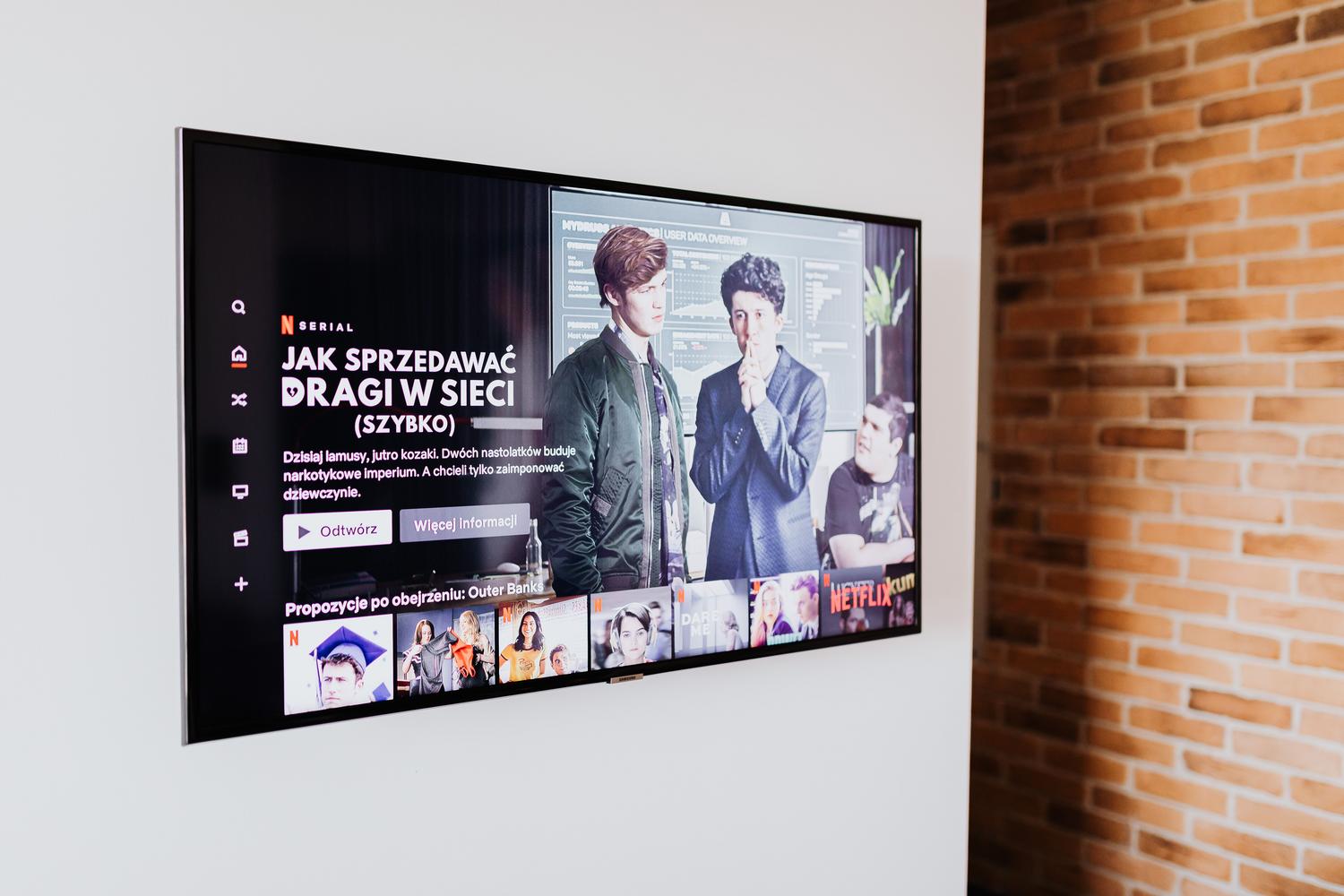
There's nothing more frustrating than settling down on the couch with your popcorn to watch a movie and realizing that, no matter how hard you try, the subtitles just won't appear on the screen. It's a fairly common glitch that can happen at any time, regardless of whether you have a high-end or a more basic setup, leaving you with the feeling that something's wrong with the configuration.
This problem usually occurs because the TV doesn't recognize the text file format or there's a conflict with the app you're using, as sometimes happens with Plex. The strange thing is that, occasionally, the content displays perfectly on your phone or computer, but the Smart TV stubbornly ignores the subtitle file even when you manually select it from the menu.
Common problems with applications like Plex

If you use media servers like Plex, you might encounter a frustrating situation: the system lets you choose the language and turn on subtitles, but the screen remains blank . This frequently occurs on Samsung TVs, where there's a discrepancy between how the web application handles the file and how the version installed on the TV does, causing the text to be invisible despite being enabled.
Tricks to force subtitles on Sony Bravia and other brands
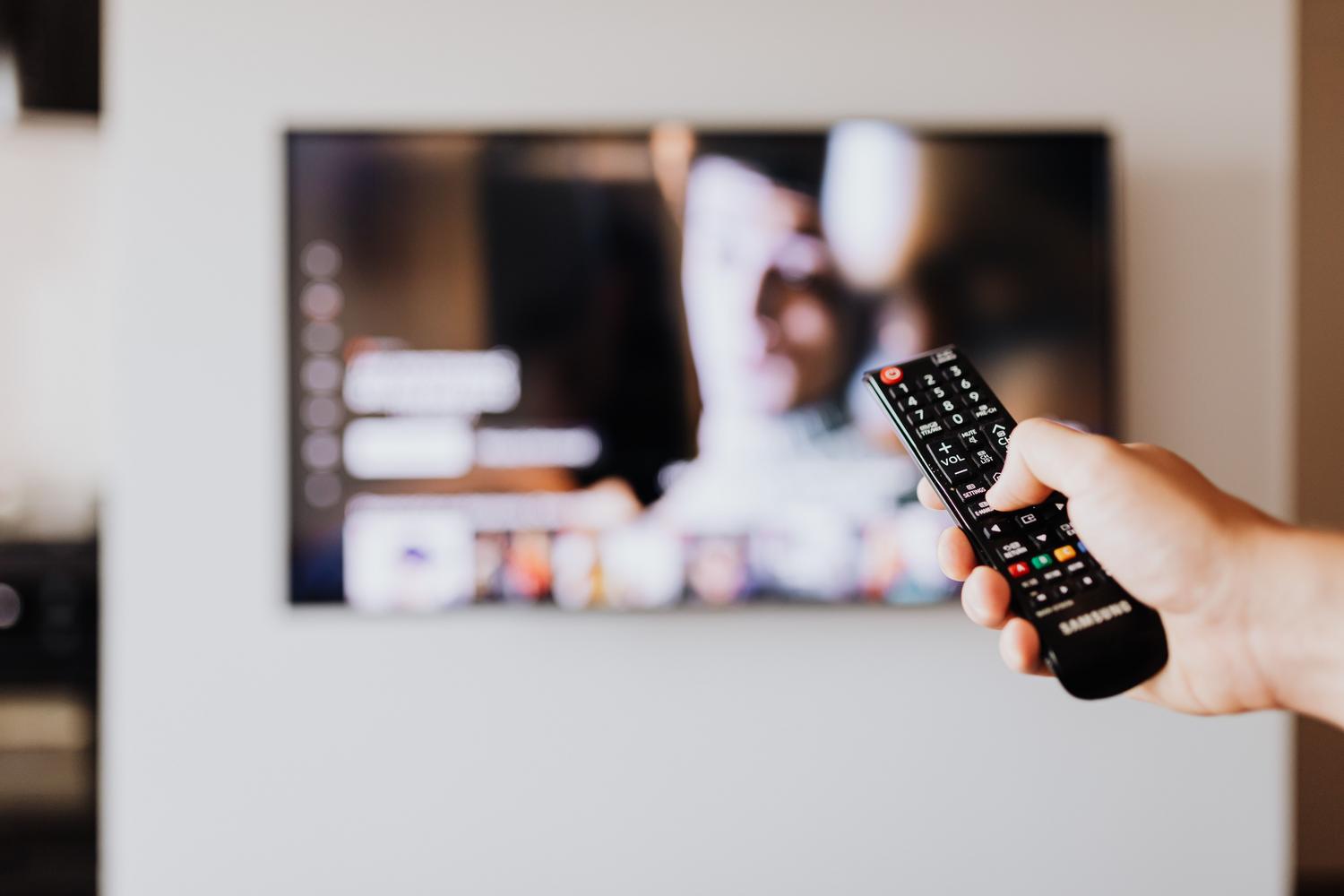
For those who own a Sony Bravia or similar television that struggles with MP4 or AVI files, there's a very effective manual method to change the file encoding so the TV will read it without issue. It's not magic, but rather ensuring the text is in a language the TV's operating system fully understands.
To make the text appear, you must follow these detailed steps:
- First, get the subtitle file in format SRT extension of the movie you want to see.
- Open the file using your computer's notepad and, when saving it, select the Unicode format maintaining the .srt extension.
- To ensure full compatibility, repeat the process but save the same file this time with the .txt extension, making sure again that the encoding is Unicode.
- It is essential that both the folder and the SRT and TXT files have exactly the same name that the video file so that the TV automatically associates them.
- Finally, place the files on the device and use the subtitles button on the remote to adjust visual style until they appear on screen.
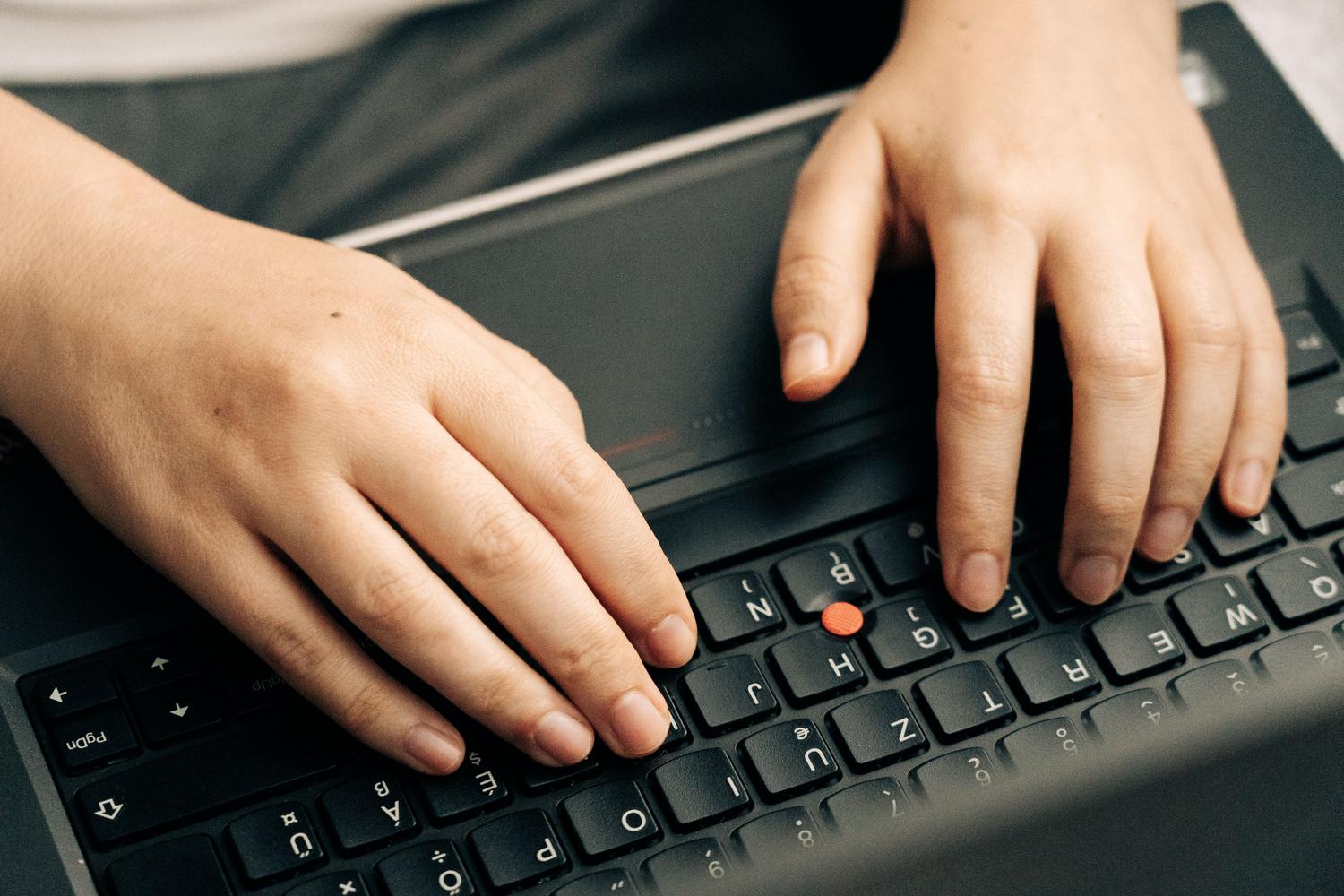
Once these adjustments are made, most TVs will stop having problems and will recognize text files instantly. It's a somewhat tedious solution because it has to be done file by file, but it's the surest way to avoid reading errors and enjoy the movie without interruptions or technical complications.
Keep in mind that the key lies in the Unicode encoding and the identical file names allow you to solve most display problems on Smart TVs, either by optimizing external files or checking the compatibility of installed streaming applications.

Passionate writer about the world of bytes and technology in general. I love sharing my knowledge through writing, and that's what I'll do on this blog, show you all the most interesting things about gadgets, software, hardware, tech trends, and more. My goal is to help you navigate the digital world in a simple and entertaining way.