- The shortcuts of iOS They allow you to automate tasks by combining actions of apps and system settings.
- There are very useful shortcuts for travel, photos, security, battery, music, and messaging.
- The Shortcuts app makes it easy to create custom flows without knowing how to program, just by configuring actions.
- If a shortcut fails, it can usually be fixed by checking permissions, sharing settings, or downloading its updated version.
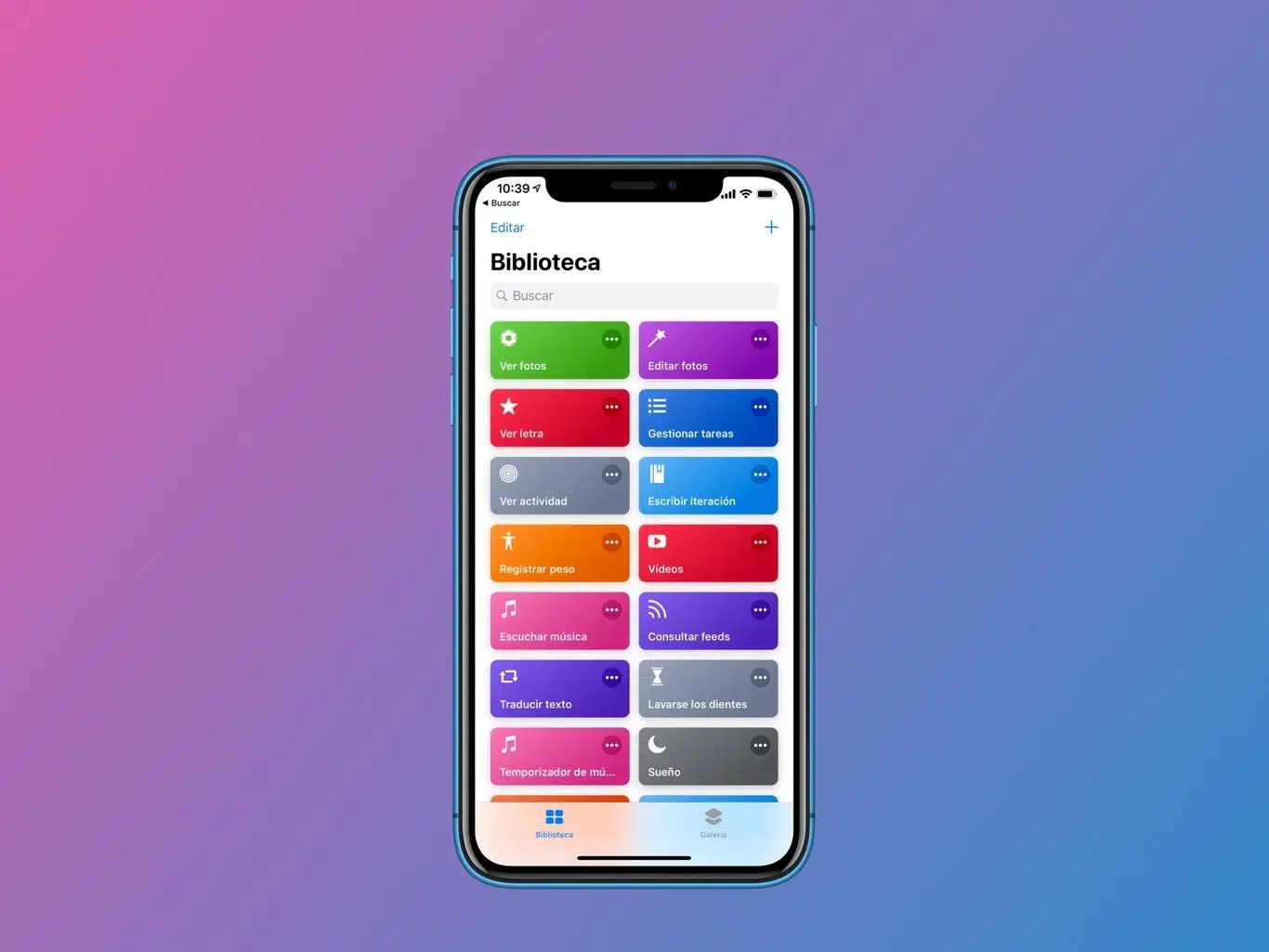
If you have an iPhone or iPad and you're not yet using the Shortcuts app, you're missing out on a ton of hidden features and automations that can make your life much easier. From opening your COVID passport or boarding pass in seconds to spraying water from the speaker or recording an emergency with a single tap, Shortcuts turns your phone into a true Swiss Army knife.
The good news is you don't need to be a programmer: with the Shortcuts app and a few well-explained examples, you can automate repetitive tasks, save time, battery, and frustration , and even have fun creating your own workflows. In this guide, you'll find the most useful shortcuts for iOS, how to use them, how to create your own, and what to do when they fail—all explained in a clear and easy-to-understand way, designed for everyday use.
What is an iOS shortcut and how do actions work?
An iOS shortcut is essentially a small program that sequences several actions to run automatically on your iPhone, iPad, or even your Mac running macOS. They are managed through the Shortcuts app, which comes pre-installed on iOS and iPadOS and is also available on modern versions of macOS.
With this tool, you can create shortcuts for quick tasks : open an app with a specific setting, check information, process photos, manage music, automate messages, control connectivity, and more. It's like telling your iPhone, "Do this, then this, and then this," with a single tap or a voice command to Siri.
The Shortcuts app not only allows you to create your own automations from scratch, but also runs shortcuts already prepared by Apple or other users , which you can download from the official gallery or from shared links (usually via iCloud).
At the heart of every shortcut are what are called actions, which are the basic building blocks of the shortcut. Each action does something very specific: open an app, get your location, send a message, convert a file, change a system setting, play a playlist, and so on. By logically linking several actions together, you achieve the complete workflow.
An important detail is that many of these actions require specific permissions (access to contacts, calendar, photos, location, files, etc.). The first time you run a shortcut that accesses this data, iOS will ask for your authorization.
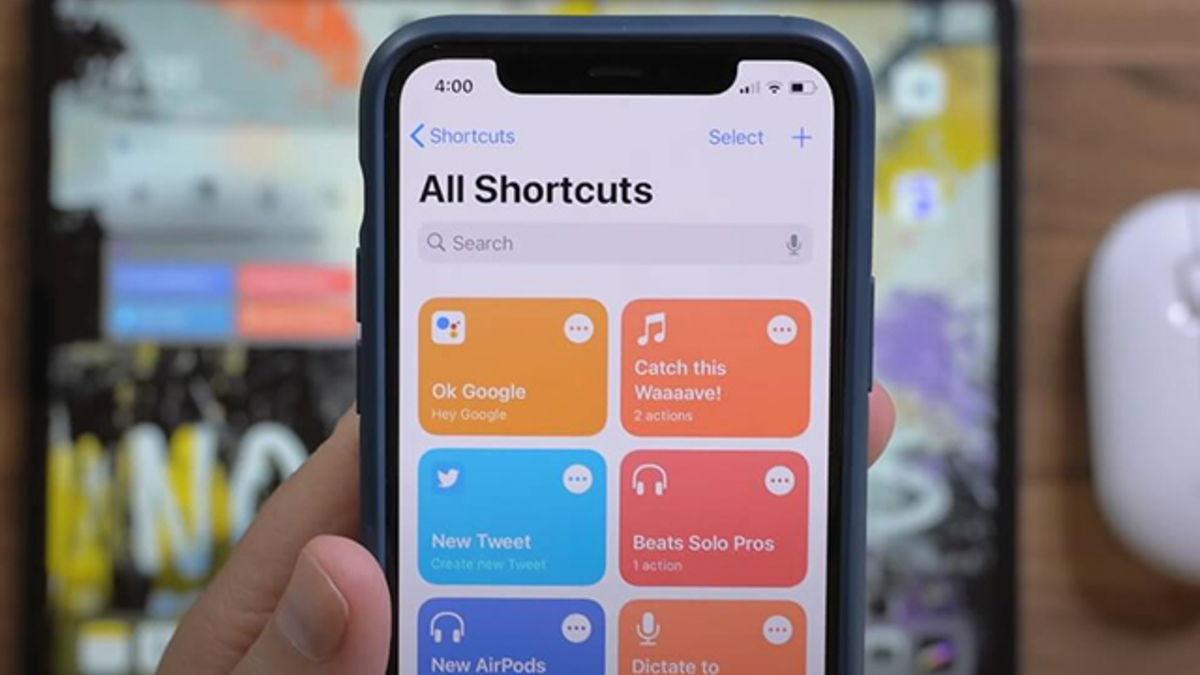
How to allow the use of external or unreliable shortcuts
In addition to the official gallery, it's very common to install shortcuts created by other advanced users and shared via iCloud . By default, Apple blocks the execution of shortcuts categorized as "untrusted" (that is, those not from the official gallery), so you have to enable an option in the settings.
To use these third-party shortcuts, go to Settings > Shortcuts and enable the option to allow untrusted shortcuts . iOS may require you to have previously opened and run a shortcut from the Gallery before this switch becomes available.
Enabling this feature tells the system that you trust the shortcuts you import . Even so, it's wise to be cautious: only install shortcuts from known sources and, if possible, review the action list to see exactly what each shortcut does before using it with your sensitive data.
When you run a newly installed shortcut for the first time, the system will display several alerts requesting access permissions to photos, contacts, location, files, or online services . If you deny any permissions the shortcut needs, it may stop working correctly.
The best useful shortcuts for everyday use on iOS
There are hundreds of shortcuts circulating online, but one group stands out because it solves very common problems or automates repetitive tasks that almost everyone does with their iPhone. We're going to look at an extensive collection, grouping together several of the most popular shortcuts from iOS 15, iOS 16, and iOS 17, many of which are equally valid on iPad.
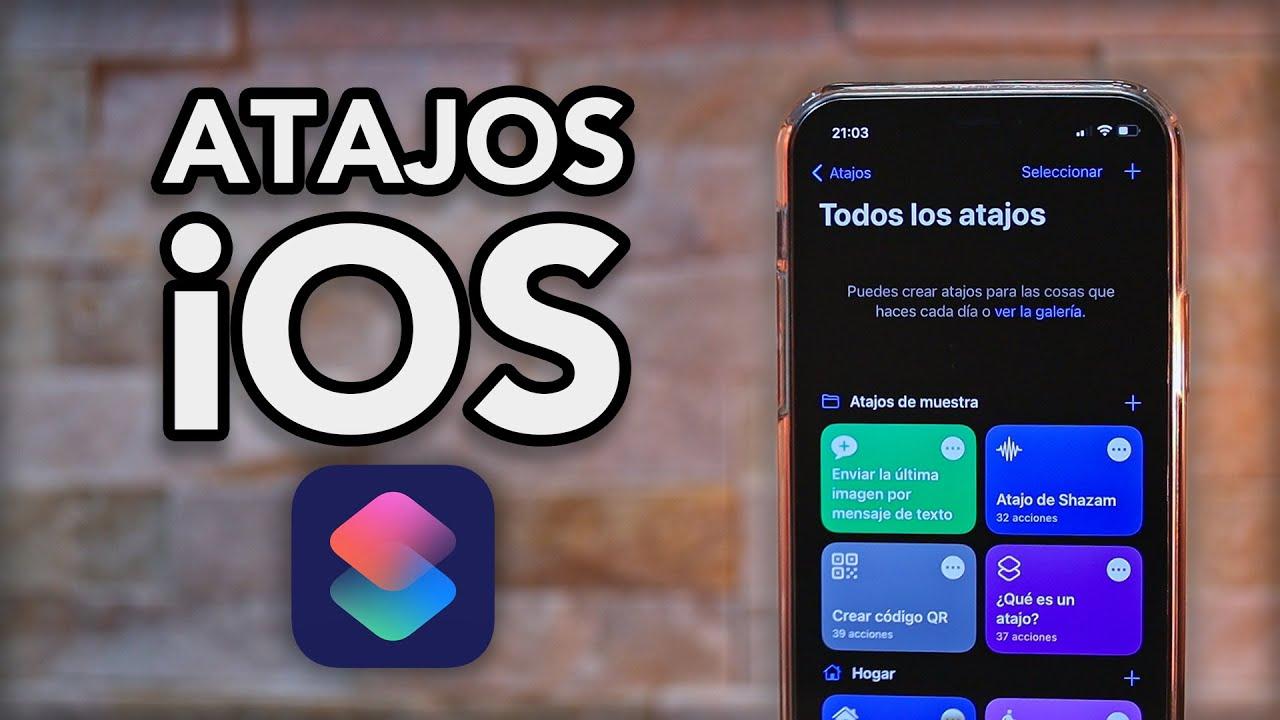
Shortcuts for productivity, calendar, and personal reminders
A classic among advanced users is the shortcut that automatically generates a list of birthdays coming up next week . It's usually called "Remind me of birthdays" and pulls the information from the Contacts app, so you'll need to grant it permission to access those files.
This flow can be adjusted to show you only a maximum number of birthdays per notification , the order in which they appear, or the text of the notification. It's especially useful if you want to plan ahead for buying a gift or preparing a greeting without missing the date.
Another very practical shortcut for everyday life is "Days Between," which calculates how many days are between two dates . It might seem trivial, but when you have to coordinate travel dates, bookings, or projects, having the calculation done instantly saves you a lot of trouble.
If you tend to be right on time for appointments, there are several very useful automations. For example, "I'm running late" calculates the time you have left to reach a specific address based on your current location, inserts that information into a predefined message, and sends it to a contact to quickly notify them.
Related to this, the "Send Travel Time" shortcut does something similar when you already have a route open in Maps : it takes the information from that journey and allows you to send it by message to the contact you choose, indicating the estimated time of arrival and the remaining time.
Navigation and travel shortcuts for iPhone
If you're someone who's always in your car or spends half the year traveling, there's a set of shortcuts designed to make your iPhone your personal assistant for routes, flights, and locations.
One of the best-known shortcuts is "Directions to Next Event." This shortcut reads your next appointment in the calendar , checks if it has a defined location, and then uses that information to calculate the route to that location with Maps. All in one tap, without having to manually open the calendar, search for the appointment, copy the address, and paste it into Maps.
For those traveling by car, shortcuts like "Find Gas" or "Search for nearby gas stations" are very popular, as they locate the nearest service stations to your location . Ideal when your gas gauge is already low and you're not up for manually searching on a map.
Another gem designed for getting home without hassle is the shortcut known as "Take Me Home." When activated, your iPhone automatically starts navigation to your home address , shows you the estimated travel time, and in many cases, even plays your favorite music in the background while you drive. However, a good mobile data connection is key for the maps and traffic to update in real time.
For more advanced experiences, there are authentic travel "packs" like "Travelmate" or "On My Way" that combine several functions: saving where you parked your car, getting directions to the next calendar event , sending a map thumbnail with your route to a contact, or recording refueling through shortcuts like "Refill Tracker" to calculate how much you spend on the road.
If you frequently fly, some specialized shortcuts allow you to track your flight status simply by entering the flight number and date , while others help you assess alternatives when a flight is canceled. You can also ask Siri, using custom commands , to "show your boarding pass" and directly open Wallet with the next available boarding pass.
Shortcuts for photos, images, and multimedia content
The Shortcuts app truly shines when it comes to processing photos without requiring any additional apps . One of its most basic and useful shortcuts is "Delete Last Photo," which does exactly that: removes the most recent image from your camera roll. It's perfect for undoing screenshots, blurry photos, or pictures you took by mistake.
The best part is that before deleting, this workflow shows a preview of the photo so you can confirm it's the correct one, preventing any surprises. While it might seem trivial, it ends up saving you quite a few taps throughout the day.
If you create a lot of social media posts, "Combine Images" is a shortcut that replaces several collage apps. It lets you select multiple photos and decide whether you want to combine them in a grid, in portrait or landscape format . The result is a single image with all the photos separated by a thin white line.
Another highly valued workflow is "Convert Image," which focuses on changing the format of photos or graphics on your device. With it, you can transform images to HEIF, JPG, PNG, PDF , GIF, or TIFF, and even compress them in just a couple of steps. The shortcut creates a copy in the new format that you can save, send, or upload wherever you need.
iOS 17 introduced automations designed to enhance your portraits. For example, there's a shortcut called "Add Portrait Effect" that lets you add a portrait effect (blurred background) to any image you already have , even if the photo was taken with a different phone or without portrait mode. Simply select the photo and adjust the intensity of the effect.
If you're someone who takes photos in rapid succession, "Photos Deduper" or similar programs can help you locate duplicate photos and delete them to free up space . These shortcuts compare files to detect exact matches; they don't identify similar shots, but rather verbatim copies downloaded multiple times.
Shortcuts for managing documents, certificates, and QR codes
In recent years, a workflow for keeping your COVID certificate or similar documents readily available has become very popular. The idea is to create a shortcut that directly opens the PDF version of your passport stored in iCloud . The process involves uploading the file to Files, sharing it with a public link, and using that link in a "URL" action within Shortcuts, followed by "Open URL."
Once saved, you can ask Siri to "show my passport" or whatever name you gave it , and the document will instantly appear ready to show, without having to search through Files, email, or messaging apps.
There are also automations designed to make creating and using QR codes more convenient. For example, "QR Code Maker" generates a QR code from the text or web address you specify , useful for sharing links without having to dictate them. You simply type the content, the shortcut generates the QR code image, and then you can save or send it.
On the other hand, shortcuts like "Share WiFi" create a QR code with your WiFi network details . When your guests scan it, their devices connect automatically without you having to dictate the password or touch anything on their phones.
In the realm of passwords, there's a very interesting workflow called "Password" that acts as a DIY alternative to the iCloud Keychain Generator. Through a series of actions, it creates secure 21-character passwords by combining uppercase and lowercase letters, numbers, and symbols , ready to be pasted wherever you want and saved in your favorite password manager .
Shortcuts for music, Spotify, Apple Music, and audio
If you're a music lover, you'll appreciate not having to dive into your music apps every time. A common Apple Music shortcut, often called "Play Playlist," lets you set up multiple favorite playlists right within the stream . When you open it, the three playlists you've assigned are displayed, and you just have to tap the one you want to start playing.
In the case of Spotify , iOS 17 has enhanced the "App Shortcuts" that appear in Siri settings. From Settings > Siri & Search > App Shortcuts > Spotify, you can create shortcuts to specific playlists , so that simply saying something like "Hey Siri, open my favorite playlist" will launch that selection without touching the screen.
There are even more advanced shortcuts, such as "Search Song Lyrics," which automatically finds the lyrics to any song you choose by adding the word "lyrics" to your search. It's a quick way to go directly to the lyrics without having to open your browser and type anything.
In the audio realm, more specialized workflows like "Emergency Recording" also stand out. When launched, the iPhone starts a five-minute recording, saves it to Dropbox, and sends a link via message to a pre-set contact. This is very useful if you need to document a critical situation quickly.
If you often get bored searching for podcasts or songs, there are even shortcuts that combine music with route automation, like that "Take me Home" that starts navigation while playing your favorite music in the background , all integrated into the same flow of actions.
iPhone security shortcuts, emergencies, and protection
One area where shortcuts make a difference is personal safety and device security . Several workflows have become very popular precisely for this reason.
The "Emergency Recording" shortcut we mentioned earlier is a clear example: it allows you to document a potentially dangerous situation and notify a trusted contact almost invisibly, simply by activating the shortcut.
Another striking feature is the so-called "Anti-Theft Mode." When activated, the iPhone locks, displaying only the Calculator app , and uses Guided Access to prevent the app from closing or the device from turning off. The would-be thief is trapped inside the Calculator app, unable to easily exit or power down the phone.
Meanwhile, you can configure your phone to display a message on the screen with contact information if someone finds it. Before using this shortcut, you must have guided access properly configured in your accessibility settings.
On a different but also related level of device integrity, "Water Eject" is a well-known shortcut that emits sounds at specific frequencies and high volume to expel water and moisture from the speaker. This way, you can clean the speaker without resorting to external apps or waiting for it to dry on its own.
There are other interesting utilities like "Morse Code," which converts text you type into light signals using the flashlight and Morse code . It's not something you'll use every day, but it can come in handy in specific situations or simply as a technical curiosity.
Battery shortcuts, connectivity, and energy savings
Another area where shortcuts make a big difference is in battery control and connectivity , avoiding having to constantly go into Settings to tap the same switches over and over again.
iOS 17 introduced the "Super Power Saving Mode" shortcut, which, when activated, can modify several settings at once : enabling low power mode, lowering brightness, disabling background services, halting updates, and more. It can also be scheduled to activate automatically when the battery level drops below a specific percentage , such as 30%.
Other streams, such as "WiFi and Bluetooth" or "WiFi and Mobile Data," focus on controlling multiple connectivity elements at once. For example, they can permanently turn off Wi-Fi and Bluetooth with a tap (not just temporarily like Control Center) or switch between Wi-Fi and mobile data to save battery.
There's also the idea of a "Siri SpeedLimit" feature that allows Siri to inform you of the speed limit of the road you're driving on, based on Maps data. This way, you can stay aware of the limits without taking your eyes off the road as much.
All these shortcuts can be placed as widgets on the home screen or invoked with voice commands, making it much more convenient to change several settings at once without wasting time navigating through menus.
Shortcuts for WhatsApp, messaging, and ChatGPT
Messaging isn't left out of the world of Shortcuts. There are very popular shortcuts for sending WhatsApp messages to numbers that aren't in your contacts , something the official app doesn't directly allow.
The idea is simple: you create a shortcut that opens the URL "wa.me" followed by the number you want to message. The workflow is configured so that the iPhone prompts you for the number each time you run it , automatically adding the international prefix. When you run it, the conversation opens directly in WhatsApp without having to create a new contact.
If this seems too complicated, there are handy shortcuts like "Open in WhatsApp" that perform the exact same function: you run them, they ask for your number, and they open the chat in the app. There are also shortcuts like "Send message with WhatsApp," which automatically sends a predefined text (for example, "Good morning" or an arrival notification) to your configured contact list.
With the advent of language models, a shortcut called "S-GPT" and its variants has gained popularity. It connects to ChatGPT , allowing you to ask questions directly as if it were a system function . Essentially, you open the shortcut, type or dictate your question, and receive the answer without opening a separate app.
These types of integrations make the iPhone almost a conversational assistant integrated within Shortcuts flows , allowing things like translating texts, writing responses, or generating summaries semi-automatically.
Interesting shortcuts and extra utilities for iOS
Beyond its "serious" uses, there are shortcuts that add convenience and even a touch of geekiness to everyday iPhone use. One highly sought-after shortcut is "Say Potato," designed to take an instant photo without opening the Camera app . You can configure it to use either the front or rear camera and save the photo to a specific album.
This shortcut works especially well with Siri: just say "Hey Siri, shortcut Say Potato" and the phone will automatically take the picture, perfect when your hands are busy or you want to capture a quick moment.
If you're someone who constantly changes their wallpaper, "WallCreator" (or similar apps) can generate custom wallpapers . The shortcut can work with random colors or let you choose your own palette, and it adapts the background size to your exact iPhone model.
There are also workflows like "Video to GIF," which convert video clips into short GIFs —ideal for sharing specific moments without sending the entire clip. They perform many functions: locating the video, allowing you to trim the desired section, and exporting it as a lightweight GIF.
Continuing with the topic of downloads and content, shortcuts like "Pritam Download," "Social Media Downloader," and "Save Video From Safari" specialize in downloading videos from YouTube, Twitter, Facebook, Instagram , and other websites . Instead of copying links page by page, the shortcut combines everything and detects the video to save it to Files or Photos.
Another little gem of a classic is "What Is My IP?", which does something as simple as it is invaluable: it retrieves your public IP address and copies it directly to your clipboard . This way, you don't have to visit specific websites or manually copy the address; you simply paste it wherever needed.
Finally, there are shortcuts designed for comfortable reading, such as "Safari Auto Scroll," which automatically scrolls the content of a webpage in Safari so you can read without moving your finger. It also allows you to adjust the scrolling speed to suit your pace.
How to create your own custom shortcut in iOS
Once you grasp the logic behind the actions, creating your own shortcuts goes from seeming like magic to being quite accessible. First, open the Shortcuts app and, in the "My Shortcuts" tab, tap the "+" button to start from scratch.
Once inside the editor, you need to click on "Add action." You'll see a search bar and several categories. This is where you start selecting the actions that will make up your flow : open an app, request text, get the location, process a file, etc.
Each time you add an action, Shortcuts will show you its configurable parameters: which app to use, what text to enter, which file to play, which number to dial… You can add as many actions as you need and rearrange them by dragging until the flow makes sense.
When you're ready, tap the shortcut settings button (the three-dot icon) to name it, give it an icon, and decide how you want to run it: from Siri, as a widget, from the share menu, or even automatically based on a time, location, or device status change.
Finally, press "OK" to save. From then on, you can invoke it by the name you gave it or by clicking on its tab in "My Shortcuts." If you later find that something isn't working as it should, you can go back to the actions list and adjust the steps or add new conditions.
What to do if shortcuts aren't working on your iPhone
Not everything is perfect: sometimes a shortcut stops working or doesn't behave as expected . Most of the time, the problem lies in permissions, settings, or the shortcut has become outdated due to iOS changes.
One common issue is that the shortcut works fine within the Shortcuts app but doesn't appear or function in the Share menu of other apps . To resolve this, open Shortcuts, tap the three-dot icon for the relevant flow, go to its settings (top right icon), and enable the "Show when sharing" option.
Another common problem is that the shortcut needs a permission you haven't granted. To check this, go to Settings > Shortcuts and in the "Advanced" section, make sure you enable the necessary permissions . You should also review the location, photos, contacts, and similar permissions the shortcut uses in Settings > Privacy.
If you suspect the shortcut is broken or no longer compatible with your iOS version, a good strategy is to delete it and download it again from its original link . Often, the creators update their shortcuts to adapt them to newer operating system versions.
If it still fails, open the shortcut and carefully review the list of actions. Check if the order still makes sense, if there are any steps marked as errors, or if any actions are now flagging . Adjusting these points can often revive it without having to remove it.
Your iPhone goes from being a simple mobile phone to becoming a personal automation center capable of saving you time, money and more than one headache , and the best part is that you can start using ready-made shortcuts and gradually customize them to your liking until your experience fits perfectly with your daily life.


Passionate writer about the world of bytes and technology in general. I love sharing my knowledge through writing, and that's what I'll do on this blog, show you all the most interesting things about gadgets, software, hardware, tech trends, and more. My goal is to help you navigate the digital world in a simple and entertaining way.