- SmartScreen blocks by reputation: digital signature, dynamic lists, and popularity.
- It is preferable to set it to “Warn” or allow it occasionally rather than disable it.
- Total control with Security Windows, GPO, Registry and PowerShell.
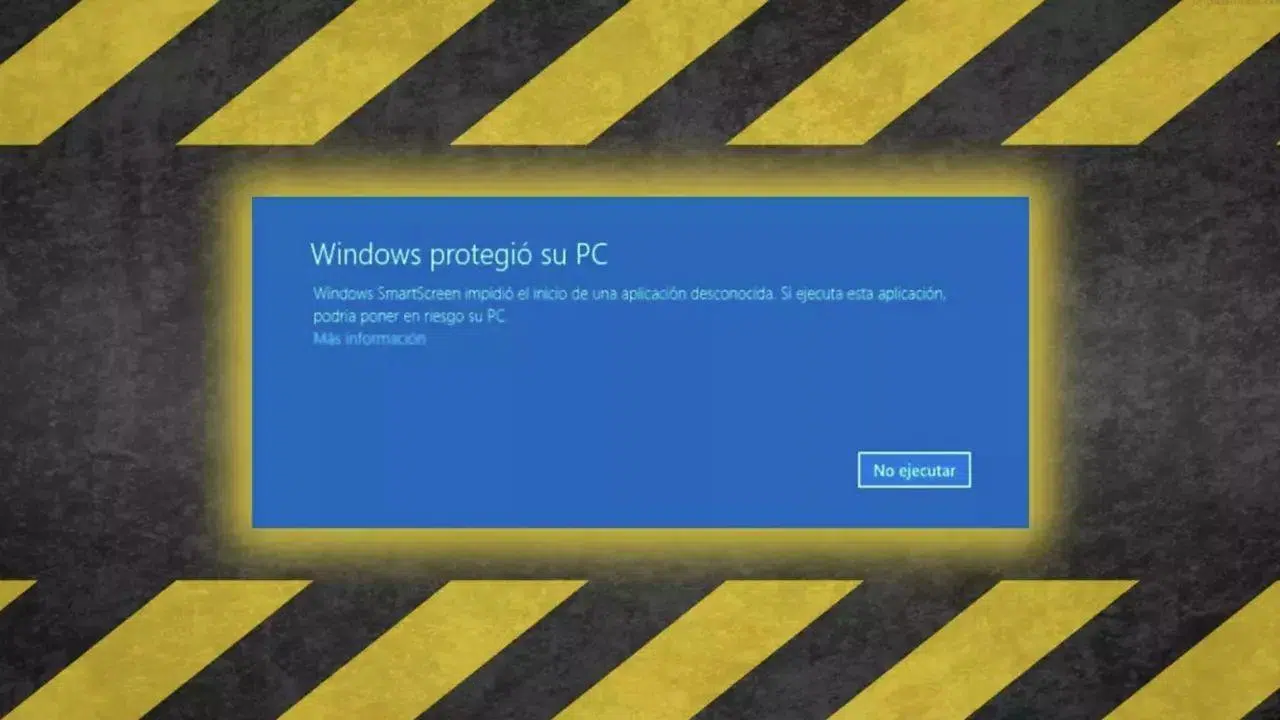
Is Windows blocking a perfectly trustworthy app with a SmartScreen warning? Don't worry: you're not alone. This Microsoft Defender filter works based on reputation and sometimes applies too much pressure when a program isn't well-known, has an expired certificate, or hasn't been around for very long. In this guide, you'll see why this happens, when it's appropriate to allow execution, and how to adjust its behavior without compromising security.
The key is understanding how SmartScreen decides what to block and what to allow. It checks digital signatures, dynamic lists of phishing and malware threats , and a reputation database maintained by Microsoft. By default, you can ignore the warning , but your organization can enforce it with policies. Below, I explain its advantages, differences from a pop-up blocker, methods to disable it (both temporary and permanent), and advanced options using Group Policy, the Registry, and PowerShell.
What is Microsoft Defender SmartScreen and how does it work?
Microsoft Defender SmartScreen is a reputation-based layer of protection that evaluates websites, downloads , and executables the first time you access them from the internet. To determine their suitability, it consults a Microsoft service that assesses digital signatures , user prevalence, and security reports. If something lacks a good reputation or is malicious, it displays warnings or blocks it, depending on your current settings.
In browsing mode, SmartScreen analyzes pages in real time and cross-references them with dynamic lists of phishing and malware threats. If it detects a suspicious site, it displays a prominent alert screen to prevent you from proceeding. You can also provide feedback to Microsoft, which helps improve its reputation.
It performs a double check on downloads : it compares the file against lists of reported malware and also against a catalog of popular downloads known to Edge users. If it doesn't fit the "popular" list or has a bad reputation, it warns you or interrupts the download to minimize risks.
When running applications , the filter checks the executable's signature and its origin. If the program is unsigned, the certificate has expired, or there is little usage data, a security warning appears . You can usually continue at your own risk, unless an administrator has blocked the bypass via policies or Intune.
Advantages and limitations of the filter
Disabling SmartScreen isn't ideal , as it provides several valuable real-world protections. However, it's important to understand what it offers and where it might be intrusive so you can adjust it to your liking.
- Suspicious Page Alert: Analyzes websites and displays a warning if it detects signs of phishing or anomalous behavior, prompting you to act with caution and submit feedback.
- Dynamic phishing and malware lists: Checks the URL against constantly updated databases; if there's a match, it blocks it for security reasons and notifies you immediately.
- Download protection: Compares files against malware lists and an inventory of popular downloads. If the file is untrusted or uncommon, issues warning or blockage.
- Defense against invisible injections: Attackers exploit flaws to inject code into websites; if you detect dangerous behavior, SmartScreen cuts to the chase with red screen to prevent automatic infections.
- Report by the user: You can mark sites as safe or unsafe in Edge to help improve overall reputation.
Does it impact performance? It might occasionally slow down access to some pages or flag a legitimate download as "uncommon." In practice, it doesn't usually prevent normal installation when you choose to continue, although the warning might be insistent.
When does it make sense to turn it off (even for a while)?
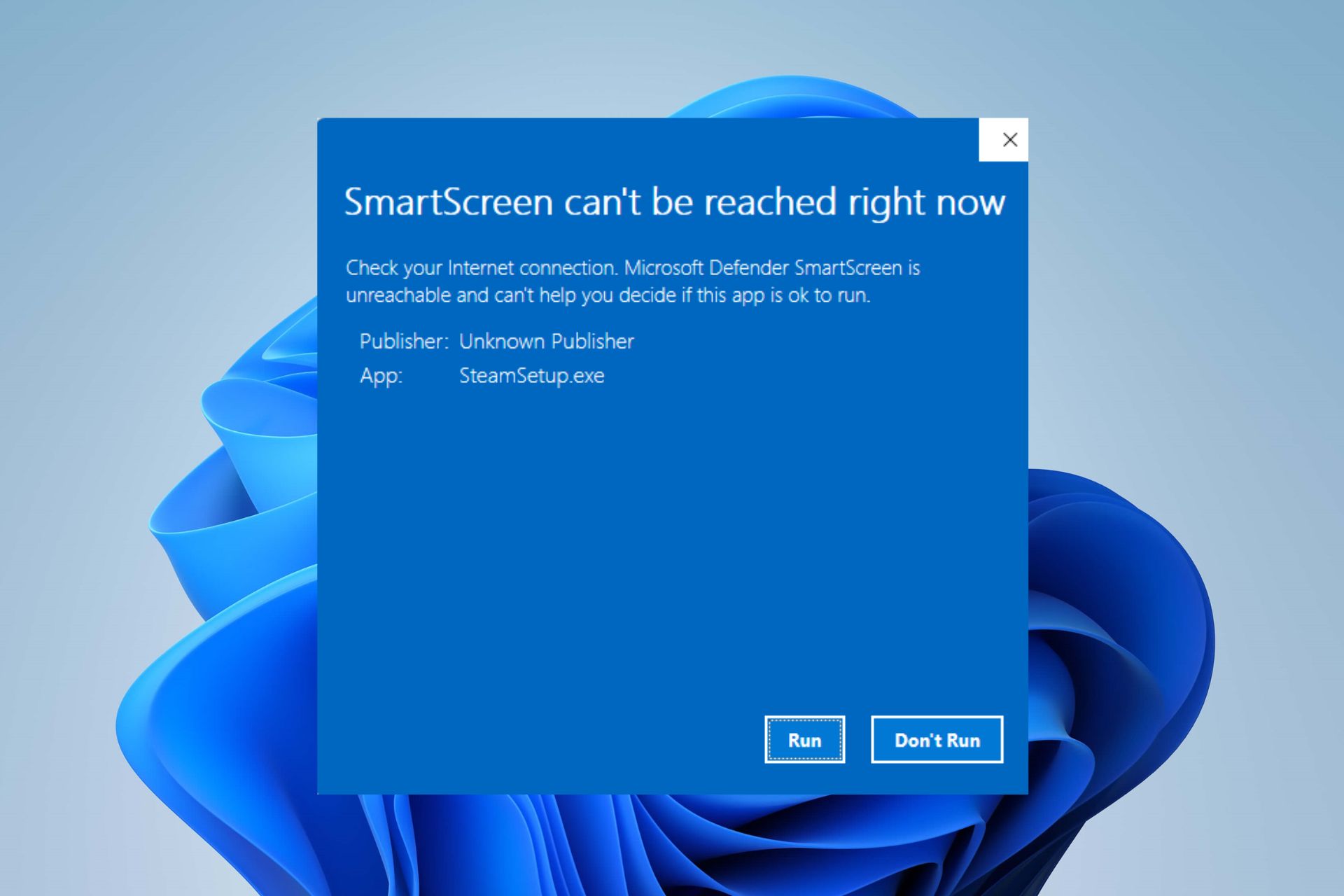
Windows 10 and Windows 11 have taken a step forward in security , and SmartScreen is part of that advancement. However, if you have complete control over the source and necessity of the software, you can temporarily disable it to complete a specific installation and restore protection afterward.
If you're overwhelmed by alerts and usually operate in low-risk environments, setting the level to "Warn" (instead of "Block") gives you control without sacrificing protection . This is the recommended option for most people: view the alert and decide on a case-by-case basis.
Be careful about disabling it for unrelated errors : some people turn it off trying to fix errors like 0xC0000005 (when Windows fails to process certain settings or files). Sometimes this fixes the problem, but often the cause lies in the registry, RAM, or system settings. First, try other solutions before disabling protection.
Final warning : Disabling SmartScreen on outdated devices or those with unsafe download habits leaves you unprotected . Only disable it if you understand the risks and fully trust the software source.
SmartScreen is not a pop-up blocker.
They are often confused, but they are not the same . SmartScreen scans websites and files for threats; a pop-up blocker simply stops pop-up windows , which are usually ads and rarely malicious.
They are distinct but complementary functions : you can use both. The pop-up blocker is configured in each browser; SmartScreen works at the system level and also in Edge.
How to open a legitimate blocked app (without touching global settings)
If you are sure that the app is safe , there is no need to alter the global SmartScreen configuration to run it just once.
- Try to open the app; you will see the notice “Windows protected your PC.”
- Press on More Information and choose Run anyway to continue under your responsibility.
This method is targeted : it only affects that executable and avoids modifying the protection level across the entire system.
Disable SmartScreen from Windows Security (Windows 10 and 11)
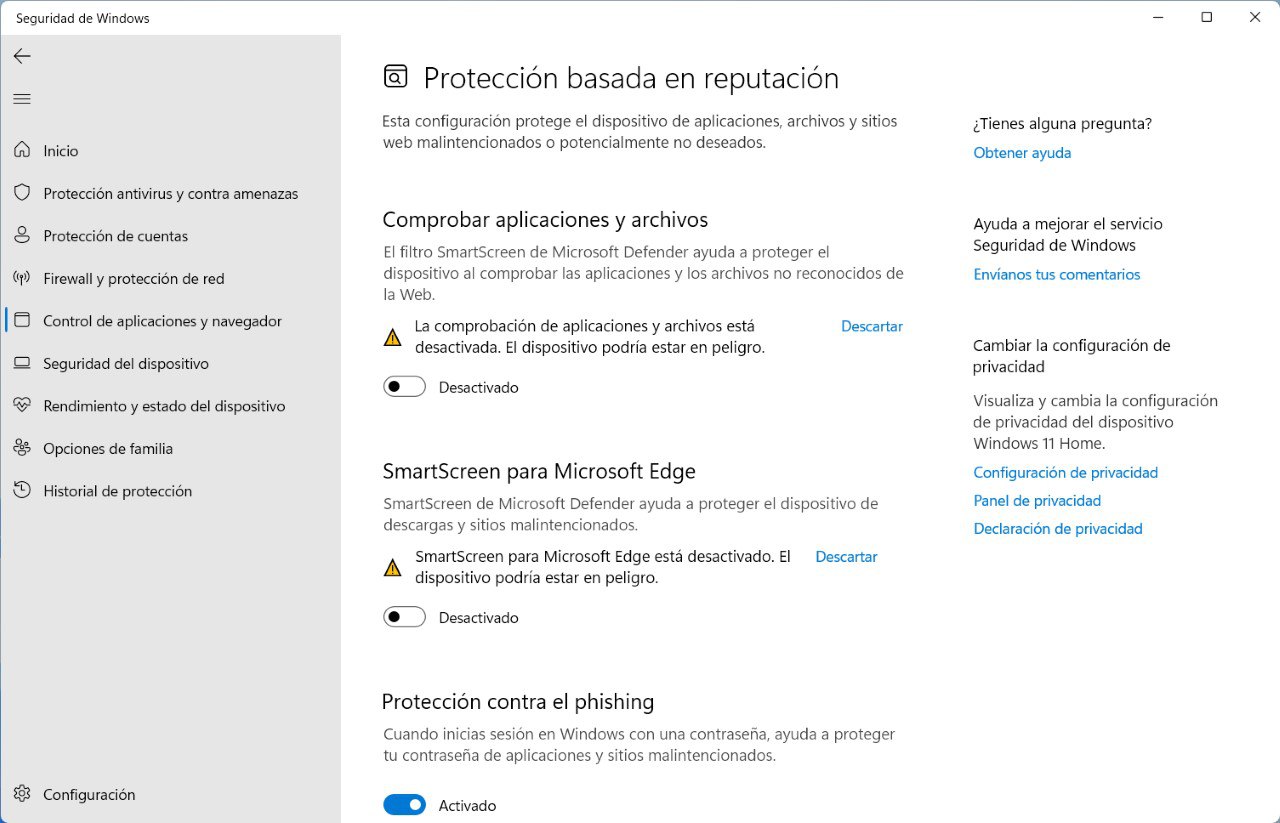
For global settings, you can access the Microsoft unified security dashboard.
- Opens Windows security from the Start search engine.
- Sign in Application and browser control.
- Press on Reputation-based protection settings.
- Manage these options according to your case:
- Check apps and files: Scans executables and documents; set to Warn or Disabled if needed.
- SmartScreen for Microsoft Edge: Protects browsing and downloads in the browser.
- SmartScreen for Microsoft Store apps: : Reduce risks by installing from the official store.
- Blocking potentially unwanted applications (PUA/PUP): Stop software with a bad reputation; you can decide to block apps and specific downloads.
The same procedure applies in Windows 11 , which has a redesigned interface. If you notice that "Reputation-based protection" is disabled in the summary, go into the submenu because some SmartScreen options may still be active internally.
Enable or disable in Microsoft Edge and Internet Explorer
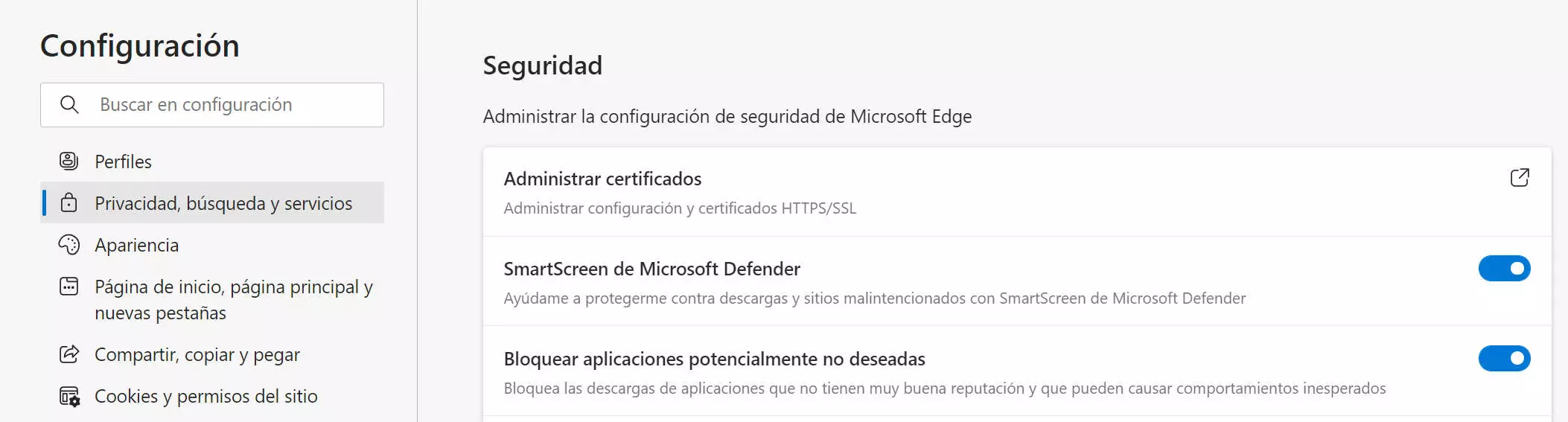
In Microsoft Edge , you can control SmartScreen at the browser level.
- Go to Settings and more > Settings > Privacy, search, and services.
- Here in Services, activate or deactivate Microsoft Defender SmartScreen.
Internet Explorer (IE) is still present in legacy environments and also has the filter integrated.
- In current IE: Tools > Security and select Turn SmartScreen on or off according to the current option.
- En Internet Explorer 8: button Security > SmartScreen Filter and press Deactivate or activate, confirming in the dialog box.
If Windows Defender is not enabled , you will see those options as "Turn SmartScreen on or off". The behavior will be the same.
Disable it in older versions via Control Panel
On older systems (which is not recommended for security reasons), you can still access it through the Control Panel.
- Opens Control Panel > System and Security.
- Sign in Change Windows SmartScreen settings and select Do nothing to disable it; accept the changes.
The path may vary slightly depending on the system edition, but the idea is similar.
Granular Control with Group Policy (Pro/Enterprise)
To manage devices in an organization , you can use group policies to define SmartScreen's behavior and prevent users from modifying it.
Open the policy editor by pressing Windows + R , type gpedit.msc and navigate through these paths:
Configuración del equipo / Plantillas administrativas / Componentes de Windows / SmartScreen de Windows Defender / Explorador / Configurar SmartScreen de Windows DefenderActivate or deactivate automatic review of applications and files.Configuración del equipo / Plantillas administrativas / Componentes de Windows / SmartScreen de Windows Defender / Explorador / Configurar App Install ControlPrevents the execution of unknown files downloaded from the Internet; does not affect USB nor network resources.Configuración del equipo / Plantillas administrativas / Componentes de Windows / SmartScreen de Windows Defender / Microsoft Edge / Configurar SmartScreenProtection on sites and downloads in Edge.... / Microsoft Edge / Impedir la omisión de avisos de SmartScreenBlocks the user from continuing after warnings on potentially dangerous sites.
These policies also adjust the switches in Windows Security to prevent local changes.
Modify the Windows Registry (advanced)

The Registry allows for direct and precise adjustment , although it is delicate. First, make a copy by exporting the database from the Registry Editor.
- Opens regedit with Windows + R.
- Navigate to
HKEY_LOCAL_MACHINE\SOFTWARE\Policies\Microsoft\Windows\System. - Create a DWORD value (32 bits) called EnableSmartScreen and set it to 0 to disable or 1 to enable.
- Also, create a string value ShellSmartScreenLevel with the values:
- Warning: displays a warning, which the user can ignore.
- Block: warns and prevents manual execution.
PowerShell: Enable or disable with a command
To automate or quickly revert the configuration , PowerShell offers simple commands (always run with administrator privileges):
Set-MpPreference -EnableSmartScreen $falseDisable SmartScreen temporarily.Set-MpPreference -EnableSmartScreen $trueTurn it back on when you need it.
How to check if SmartScreen is working
Microsoft offers pages and files to verify the filter's behavior without risking your computer.
- Test websites: URLs known to be phishing or contain malware so you can verify that the warning is displayed.
- Trial downloads: Links designed to cause SmartScreen to block or warn.
- Sample files: Executables with different reputation levels, including some labeled as malicious, to check for alerts.
These resources do not harm your equipment ; they only serve to confirm if SmartScreen is active and how it responds in different scenarios.
Risks, known failures and reliability
Like all security technologies, SmartScreen has experienced incidents . Some researchers have identified vulnerabilities where its availability could be exploited as an attack vector.
The positive aspect is that these cases didn't affect all users, and Microsoft reacted quickly to fix the vulnerabilities. This doesn't mean they won't happen again in the short term, but it reinforces the importance of keeping all system components up to date.
It is advisable to consider SmartScreen as a useful and recommendable layer, adapting its use according to the user's risk profile, software source control, and technical level.


Passionate writer about the world of bytes and technology in general. I love sharing my knowledge through writing, and that's what I'll do on this blog, show you all the most interesting things about gadgets, software, hardware, tech trends, and more. My goal is to help you navigate the digital world in a simple and entertaining way.