- Unifies Wi‑Fi, Bluetooth, and chipset driver versions on AX201 (CNVi) to avoid incompatibilities.
- Combines Windows Update, network/WinSock troubleshooters and resets before touching BIOS.
- Reinstall or roll back drivers from the AX201; consider uninstalling recent updates from Windows if they broke the stability.

If your connection keeps dropping with the Intel Wi-Fi 6 AX201 card on Windows 11 , you're not alone: it's a common problem that usually involves a combination of driver, system, and, to a lesser extent, hardware issues . Here are the best troubleshooting steps based on official support, manufacturer recommendations, and technical expertise to get you back to a stable Wi-Fi connection without driving yourself crazy.
The idea is to follow a logical order : quick checks, Windows tools, network restarts, drivers (including reverting to previous versions), power/BIOS settings, and only as a last resort, aggressive measures. We'll also explain why the AX201 is special (CNVi) and how that affects driver selection to avoid incompatibilities.
What is Intel Wi-Fi 6 AX201 and why it might be lagging on Windows 11?
The Intel Wi-Fi 6 AX201 is an M.2 2230 module with integrated Wi-Fi 6 (802.11ax) and Bluetooth , featuring a 2x2 MIMO configuration and support for 160 MHz channels in the 5 GHz band. It is theoretically capable of exceeding 2.000 Mbps and can offer around 600 Mbps in the 2,4 GHz band if supported by the router. It is commonly found in modern laptops due to its compact size and low power consumption.
A key detail: the AX201 uses the Intel Connectivity Integration (CNVi) interface . This means that some of the Wi-Fi "intelligence" resides in the platform/CPU, so performance and stability depend not only on the card driver but also on the chipset/processor drivers and, sometimes, the Windows version. If there are significant discrepancies in versions or dates between them, you may experience micro-interruptions, 10/43 errors in Device Manager , and random adapter disappearances.
That's why many issues are resolved by aligning driver versions (Wi-Fi, Bluetooth, and chipset) or even by reverting to a known good version. You'll see this in the steps: first, we try the latest version, and if that doesn't work, we revert to older versions and uninstall conflicting updates.
Don't rule out external causes : if other devices are also losing connection on the same network, it could be a problem with the router or the ISP. Below I'll explain how to quickly identify the issue before touching anything on your PC.
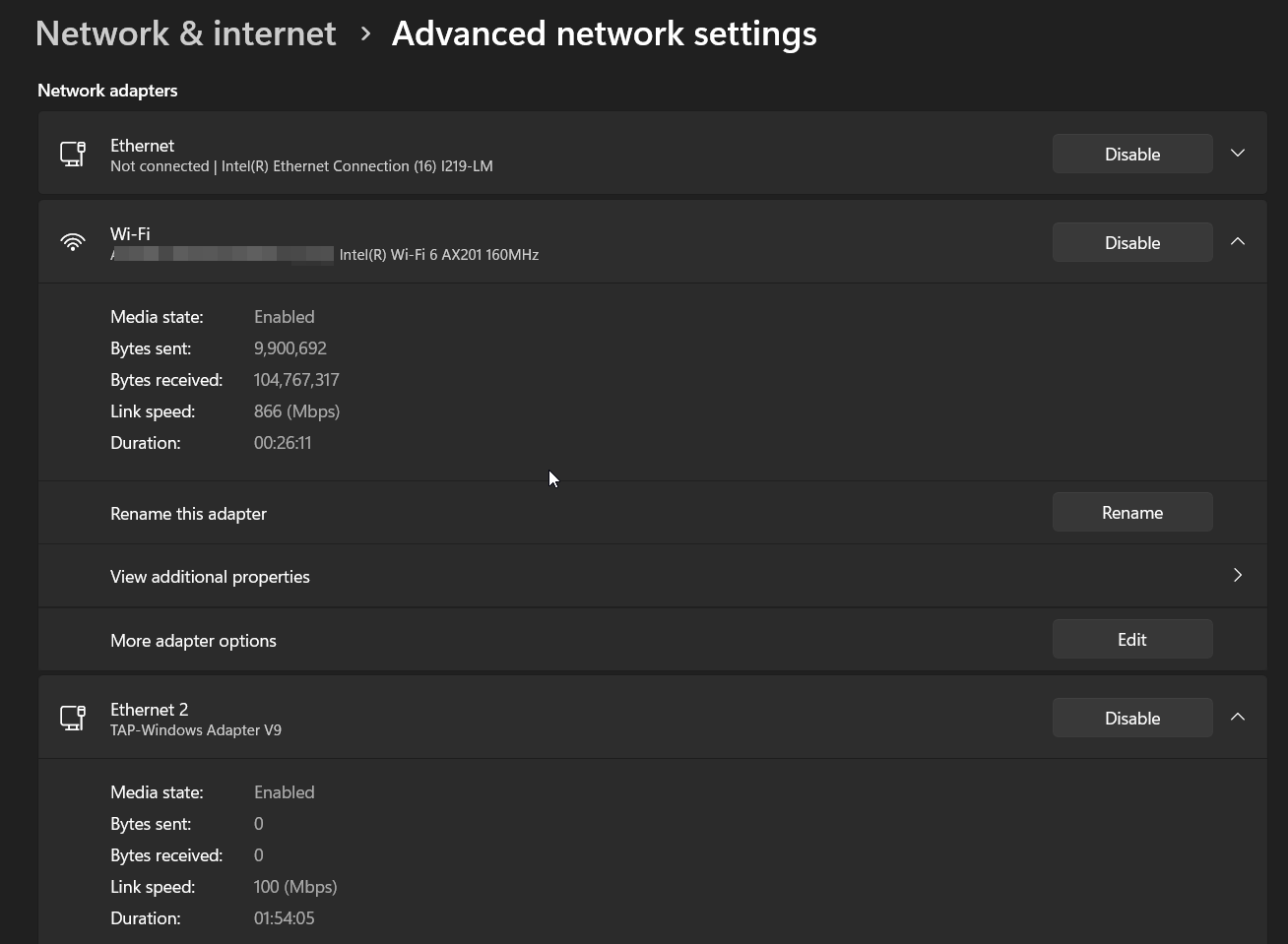
Quick checks and system data
First, make sure the Wi-Fi radio is active : open the Quick panel from the taskbar (Network icon), check that Wi-Fi is set to On, and that Airplane Mode is not enabled. Many laptops also have a function key that enables/disables Wi-Fi.
Rule out a network/ISP problem : also connect your mobile phone to the same Wi-Fi network. If both the laptop (A) and mobile phone (B) disconnect, it's a router/ISP issue; if only the laptop fails, the problem lies with Windows/drivers. This saves you time and unnecessary steps.
Gather key information about your computer in case you need drivers from the manufacturer: press Windows+R, type "msinfo32", and confirm. Note the exact make and model. Also check the Windows edition/version by pressing Windows+R, typing "winver", and making a note of it (e.g., Windows 11 23H2).
Note any changes you made before the outages started (Windows updates, third-party antivirus installations, new drivers, network management programs, etc.). These triggers help determine whether to uninstall recent updates or revert to a previous driver.
Update Windows and drivers (including “Optional Updates”)
Windows Update may include specific fixes for networking and AX201 itself . Go to Settings > Windows Update and click Check for updates. Install any pending updates and restart. Also, go to Optional updates to install drivers that Windows doesn't include by default.
Repeat after restarting to ensure no packages remain. Sometimes, the second pass unlocks network or Bluetooth drivers that didn't appear the first time.
If the disconnections started right after an update , consider uninstalling that specific update from Settings > Windows Update > Update history > Uninstall. This is helpful when a patch breaks compatibility with certain drivers. This process can help prevent automatic disconnections.
Windows 11 Network Troubleshooters
Windows 11 includes troubleshooters that detect and fix faulty settings . Go to Settings > System > Troubleshoot > Other troubleshooters. Run Internet Connections and Network Adapter. If an error message appears, note it down to guide the next steps.
After each troubleshooter, test if the connection stabilizes . While they don't always fix everything, they do restore services that have become corrupted after an update or power outage.

Restart the network stack from the Command Prompt
A complete reset of the TCP/IP stack and Winsock usually eliminates micro-interruptions . Open the Start menu, search for "CMD", right-click, and select Run as administrator. Run these commands one by one (press Enter after each line):
netsh int ip reset
netsh advfirewall reset
netsh winsock reset
ipconfig /flushdns
ipconfig /release
ipconfig /renew
Restart your PC afterward and check if stability improves. This step cleans up corrupted configurations and renews IP/DNS addresses that might be causing the drops.
Reinstall or roll back to a previous driver for the AX201
If you've already tried "Updating the driver" and it's still not working, you'll need to reinstall or roll back the version . Open Device Manager, expand Network adapters, right-click on Intel(R) Wi-Fi 6 AX201, and choose Uninstall device. Check "Attempt to delete the driver for this device" if it appears and confirm.
Next, on the Action menu, click Scan for hardware changes to have Windows reinstall the adapter. If the problem persists, try forcing a different driver: Update driver > Browse my computer for drivers > Let me pick from a list of available drivers. Try the compatible options that appear, one by one, and see which one works best.
Plan B: Use a known good older version of the driver . Download a stable, older version from your computer manufacturer's website (or Intel's, depending on your model). In many cases, an older version works better than the latest one if there are conflicts with your Windows build.
If your PC is an ASUS, you can download drivers from their support website by selecting your exact model and the correct vendor (in this case, Intel for Wi-Fi/Bluetooth). Install them and restart.
Keep Wi‑Fi, Bluetooth, and chipset aligned (CNVi)
With AX201 (CNVi), Wi-Fi and Bluetooth are closely linked and dependent on the chipset/CPU . If Wi-Fi and Bluetooth are implemented on separate tracks (with very different versions), incompatibilities will arise. Update or reinstall both drivers at the same time.
Practical recommendation : Uninstall Wi-Fi and Bluetooth from Device Manager (choosing to remove the software if offered), check for hardware changes, and if necessary, manually install the corresponding versions, keeping similar release dates for Wi-Fi, Bluetooth, and chipset.
If the disconnections persist after updating everything , try the reverse strategy: roll back Wi-Fi/Bluetooth to previous versions and, if you changed the chipset, update its version accordingly. Avoid combinations with large date gaps between them.
Check third-party antivirus
Some antivirus programs interfere with the network and cause outages (cases have been reported with Avast, Bitdefender, ESET, and others). Temporarily uninstall it, restart your computer, and test the connection. If it stabilizes, you can reinstall and check again; if the problem reappears, consider changing your antivirus solution or configuring network exceptions.

Power and hardware resets that help on laptops
A complete shutdown and system power drain can revive the adapter . Press Start > power icon and, while holding Shift, choose Shut down. Turn it back on and test. This "cold shutdown" prevents resuming states that perpetuate the fault.
If a yellow triangle appears next to the Wi-Fi adapter in Device Manager on your laptop , perform a hard reset: unplug the charger, press and hold the power button for 40 seconds, and wait for the computer to boot up (around 90 seconds). Note: Some ASUS models have instructions not to unplug the charger for this process; check your specific model's instructions.
For desktop or all-in-one (AIO) computers , turn them off, unplug them for a minute, plug them back in, and turn them on. Sometimes the controller gets stuck and is released with a full power discharge.
Restore BIOS/UEFI settings and update firmware
If the problem persists, enter the BIOS/UEFI and restore the default settings . To access it, you usually turn on your computer while holding F2 (or Delete on some desktops) until you see the setup screen. Load the factory settings, save, and restart.
Keeping your BIOS updated improves compatibility and stability . Check the manufacturer's website for your model and follow their instructions (for example, EZ Flash on ASUS). Update your BIOS, restart Windows, and check if your Wi-Fi connection holds up for extended periods without interruption.
Diagnostics with MyASUS and manufacturer utilities
If your laptop is an ASUS, the MyASUS app includes a connectivity diagnostic tool . Open it, go to System Diagnostics > Diagnostic Tool, and run "Wireless Connectivity Issues." Apply the recommendations displayed and validate.
If your model doesn't display that feature , continue with the remaining steps in this guide. Manufacturer utilities can be helpful, but not all devices include them or offer the same options.
Reset network, browser, and use restore points
If only the browser is failing but chat apps are working, reset the browser . In Microsoft Edge : Settings and more > Settings > Reset settings > Restore settings to their default values.
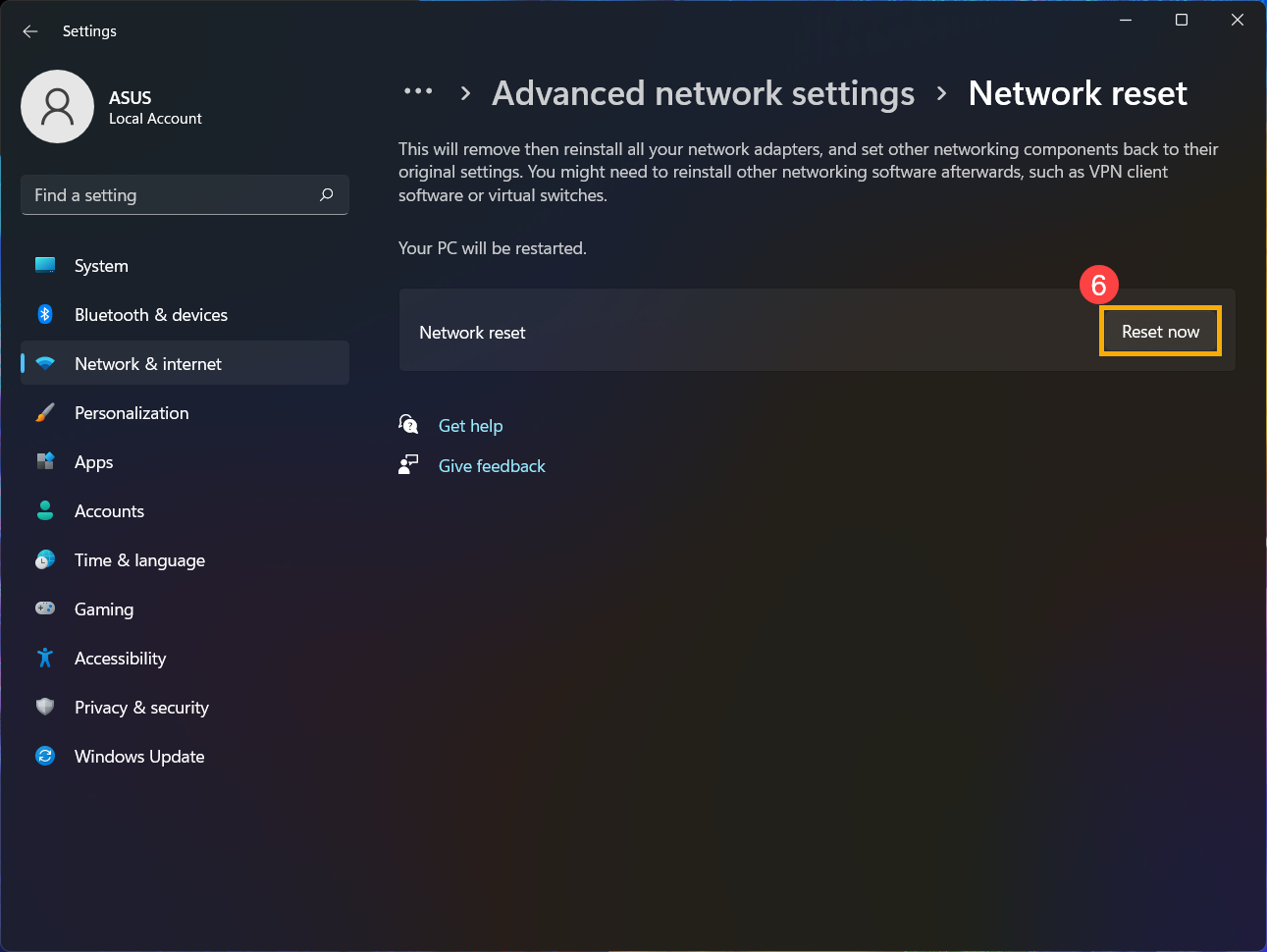
Try a network reset in Windows : Settings > Network & Internet > Advanced network settings > Reset network. Click Reset now, accept, and let it restart. This uninstalls and reinstalls adapters and resets components to clean values.
If the problem started "yesterday to today" and you have System Restore points, revert to a previous state: go to "Create a restore point" > System Restore and choose a date before the outages. This is a non-destructive and very effective method when the culprit was a recent change.
As a last resort , back up your data and reset your PC to factory settings from Settings > System > Recovery. Restoring/updating the BIOS and some firmware will also restore your system to its original state.


Passionate writer about the world of bytes and technology in general. I love sharing my knowledge through writing, and that's what I'll do on this blog, show you all the most interesting things about gadgets, software, hardware, tech trends, and more. My goal is to help you navigate the digital world in a simple and entertaining way.