- Samsung DeX offers a more mature and stable desktop experience, with better audio management, screen off, and multitasking than Motorola's solution.
- Motorola Smart Connect (formerly Ready For) stands out for its TV and gaming modes and its integration with WindowsHowever, it suffers from audio problems, reconnections, and a lack of automatic startup.
- Recent Motorola models often lose wired desktop mode by omitting DisplayPort Alt-Mode, while Android prepare a native desktop mode for future versions.
- Android's next official desktop mode could unify the experience across brands, but it still needs polishing and is expected mainly from Android 17 onwards.
If you own a Samsung phone with DeX or a Motorola with its desktop mode (Ready For / Smart Connect), you've probably asked yourself the same question as many other users: which platform is more convenient, powerful, and practical for using your phone as a "pocket PC"? The truth is, both have matured considerably over the years, but not in the same direction or with the same priorities.
Throughout this article we will calmly break down everything that is known about these solutions: Samsung DeX versus Motorola's desktop mode (first Ready For, now integrated into Smart Connect) , their advantages, their real drawbacks in day-to-day use, how they connect, how well they work with Windows, with XR glasses, with the TV or with a monitor, and what's coming in the future with the new official Android desktop mode that Google is preparing.
What are Samsung DeX and Motorola Desktop Mode?
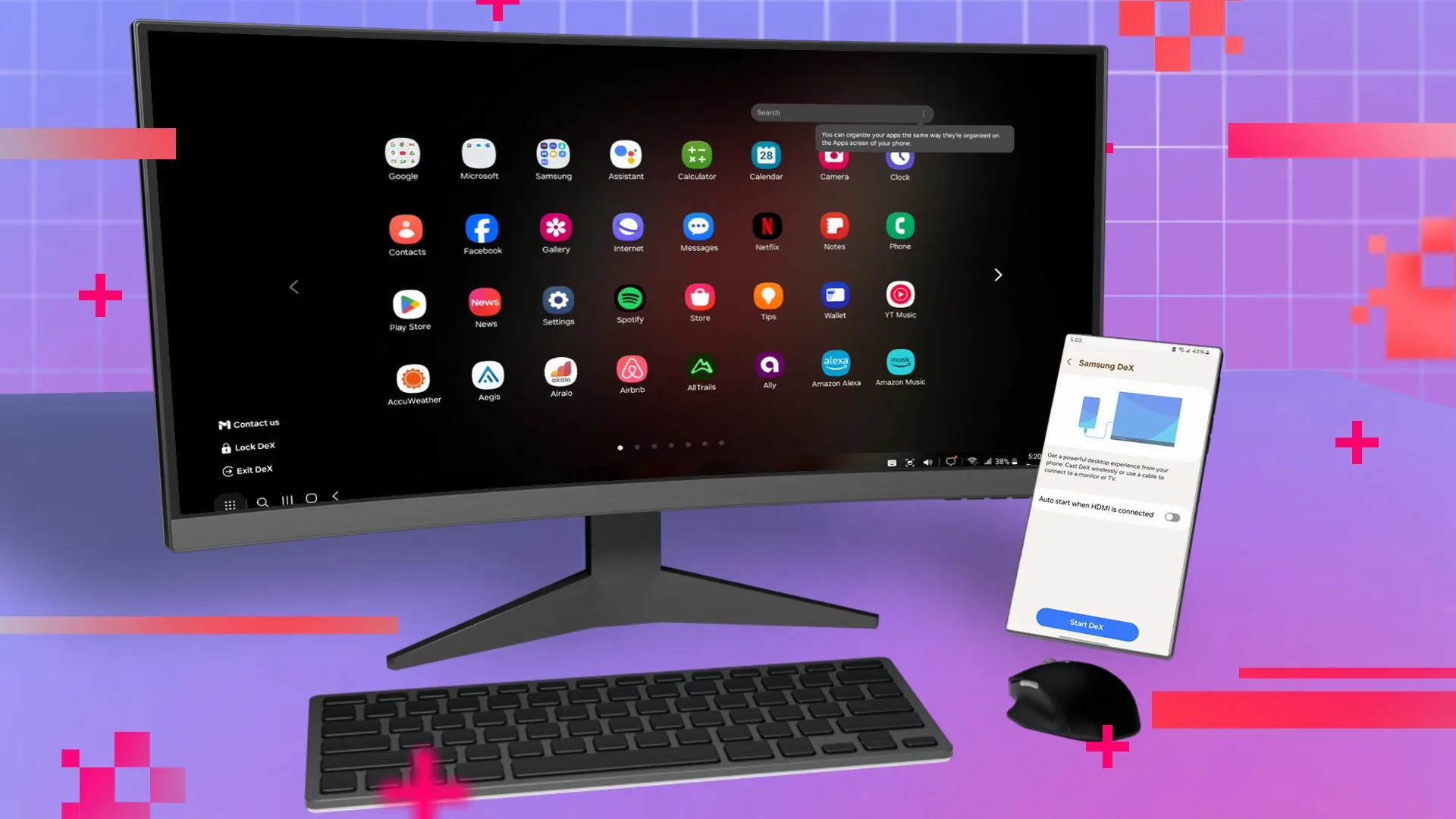
Both solutions share the same idea: to transform your mobile device's interface into something resembling a desktop computer when connected to an external display. Instead of seeing a duplicated mobile screen, you get a desktop with a taskbar, resizable windows, and a more comfortable environment for working, playing games, or consuming content.
In Samsung's case, this experience is called Samsung DeX and has been on the market for several years, being refined generation after generation. It began as a system designed almost exclusively for using a mobile phone with a monitor, keyboard, and mouse, and today it is one of the most polished mobile desktop solutions available.
Motorola, for its part, first launched its platform under the name Ready For , and later integrated it into Motorola Smart Connect . Its approach is similar: when you connect the phone to a TV, monitor, or PC, you can access different usage modes (PC, TV, games, video calls) with an interface adapted to each case.
What's interesting is that, although the general idea is identical, Samsung and Motorola have made very different decisions regarding compatibility, advanced features, and actual user experience , especially when accessories like XR glasses, docks, or Windows connections come into play.
Evolution of connections: wired, wireless and PC
When they were launched, both Samsung DeX and Motorola's desktop mode were quite simple in one key aspect: they only worked via a wired connection . You connected your phone to a monitor or TV using USB-C to HDMI, the phone detected the second screen, and launched its adapted desktop.
Over time , both brands embraced greater freedom of movement. Wireless support was added using technologies like Miracast , along with options to configure mobile app mirroring , allowing users to send their desktop image to a compatible TV or monitor without cables. This is especially useful on modern televisions and in offices with screens that have wireless reception.
A further step was computer integration. Both Samsung and Motorola incorporated the ability to use their virtual desktop through a Windows PC , so that a special window or mode opens on the computer screen where you see the DeX or Ready For environment and can control the mobile phone as if it were another machine, for example using Windows 11 Remote Desktop.
Herein lies a significant difference: Samsung has been gradually abandoning DeX for Windows , while Motorola has continued to prioritize its PC compatibility and highlights it as one of the advantages of Smart Connect. This means that, today, those who prioritize Windows integration have more reason to consider Motorola.
The problem for Motorola is that, while it has focused on the Windows side of things, it has neglected wired desktop support in many of its more recent models , primarily due to the lack of DisplayPort Alt Mode on the USB-C port. This means that not all current Motorola devices can output a wired video signal to a monitor, limiting the experience to wireless mode or PC use.
Motorola's desktop mode: Ready For and Smart Connect
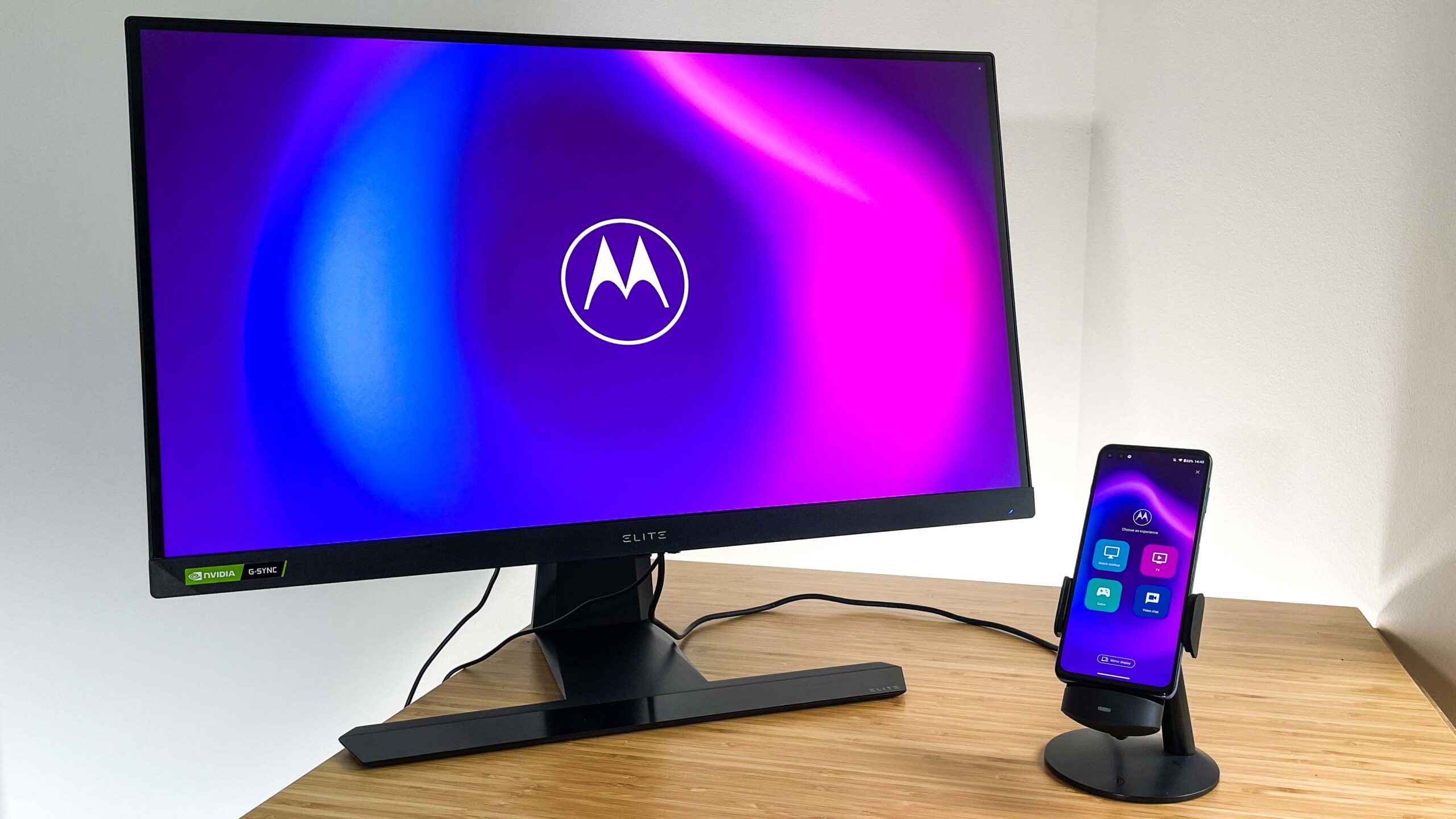
Motorola's commitment to desktop mode materialized visibly with the Motorola Edge+ , which received an update to Android 11 that activated Ready For. From that moment on, the device was able to offer a very versatile desktop mode and TV mode , clearly inspired by what Samsung was already doing with DeX, but with some unique features.
The basic idea is simple: you connect your phone to a TV or monitor using a USB-C to HDMI cable (on compatible models), and the system automatically detects the second screen. At that point, you can choose between several modes: a PC-like environment, a multimedia mode focused on video and streaming apps , a gaming mode, or a video call mode.
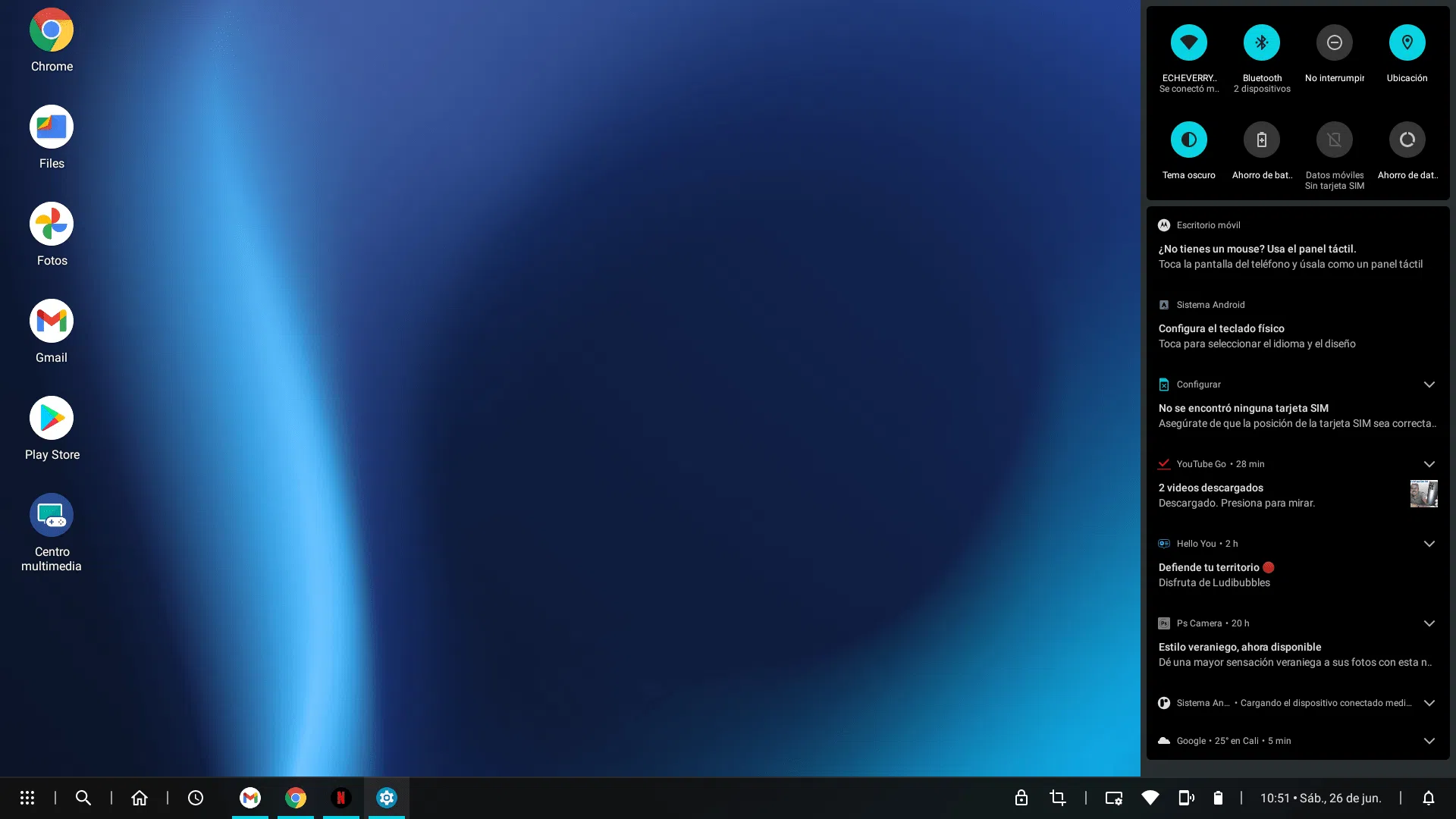
When you select PC mode , a desktop-style interface with a taskbar and windows appears. From there, you can open your applications in windowed format , move them, resize them, and even work with several at once. To top it off, you can pair a Bluetooth keyboard and mouse, or even use the phone itself as a touchpad, turning the whole thing into a kind of makeshift mini-laptop.
The best part is that your phone continues to function independently while connected in PC mode . You can still use your phone's screen to reply to messages, make calls, or perform any other task without interrupting what's happening on the external display. It's like having two devices in one: a large desktop and your phone in your hand.
If you choose to use TV mode, Motorola displays a multimedia launcher optimized for large screens , effectively turning any TV into a kind of Smart TV . From this launcher, you can open apps like YouTube, Netflix , Disney+, and many others, with an interface designed for viewing from the couch.
Furthermore, TV mode opens the door to making large-screen video calls using the phone's camera and playing games by connecting a Bluetooth controller, so your mobile games end up being displayed on a giant screen. Motorola even marketed a specific accessory, the Ready For dock , designed to prop up the phone and make it more comfortable to use in these kinds of scenarios, although it's not essential for everything to work.
Real-world experience with Motorola: advantages and problems
On paper, Motorola's proposal sounds very well-rounded, but intensive use reveals both strengths and weaknesses. Some users have thoroughly tested Ready For with devices like Viture Pro XR glasses and have found both very positive aspects and some rather annoying drawbacks; the interaction with glasses and remote environments like Windows 11 Remote in Meta Quest 3 demonstrates both the potential and the challenges of these workflows.
Among the advantages, the "TV" and "Games" screens stand out as very intuitive . They allow you to pin specific applications to a large interface for quick access: Netflix, YouTube, Disney+, Prime Video, and others are well integrated, making them very convenient to use on a TV or with extended reality glasses.
The hardware of some compatible models, such as the Motorola Edge+ 2023 , also works in its favor: it's a phone with very good specifications and an attractive price, with ample internal storage and a powerful processor. For someone looking for a secondary phone designed for multimedia or as a backup , it could be a reasonable purchase, at least on paper.
Another positive detail is that the trackpad integrated into the Ready For interface works reasonably well , and the so-called Air Mouse mode (which allows you to move the cursor by tilting the phone in the air) is visually appealing and precise. In terms of responsiveness, the platform is capable of working at 120 Hz on some models, although sometimes you have to manually activate that refresh rate in the settings while in desktop mode.
However, as you delve deeper into its use, several limitations become apparent. One of the most frequently mentioned is that Ready For doesn't automatically launch in desktop mode : when you connect your phone, you often see a simple vertical mirror of the screen. You have to go to the Ready For icon on your phone and manually select whether you want Desktop, TV, Game mode, etc. For someone who frequently plugs and unplugs their device, this becomes a bit cumbersome.
Another drawback is that it's impossible to turn off the phone's screen without affecting what the glasses or external display see . If you press the power button, the lock screen appears on the projected image. Some users have tried to mitigate this by changing the screen timeout to one minute and disabling features like "wake with motion," but this creates other undesirable effects: the connected screen goes black while the connection drops and re-establishes several times.
During this "dance" of reconnections, video playback may continue, but the audio blasts at maximum volume through the phone's speakers for a second or two while the system decides to resend the sound to the glasses. For anyone wanting to watch a movie in silence on a plane or in a quiet environment, this is a real nightmare.
Audio management is another weak point. Sometimes, when you take wireless earbuds out of their case, the phone doesn't automatically switch the sound to the earbuds and continues using the phone's speakers . To fix this, you have to go into Bluetooth settings, change audio profiles (for example, enabling LE Audio on some Sony earbuds), and hope it remembers the setting next time.
There have even been reports of problems such as the phone forgetting recently paired headphones , forcing users to delete and re-pair them within minutes. In contrast, the experience with many Samsung phones is that as soon as you turn on your Bluetooth headphones, the phone automatically and predictably switches the audio, exactly as you'd expect.
In addition, models like the Edge+ have a design with very curved screen edges that causes constant ghost touches simply by holding the phone. Samsung mitigated this problem years ago by adjusting touch detection via software and smoothing the curvature in its latest models, while with Motorola the problem is more noticeable when using the device as a controller or touchpad.
Finally, when comparing streaming image quality, some users perceive that video compression and banding in dark scenes are more evident on Motorola than on Samsung , which detracts somewhat from the experience when watching movies or series on a large screen or XR glasses.
Samsung DeX: maturity and refinement in daily use
Samsung DeX has been on the market longer, and that experience is evident in many small details that, in everyday use, make a clear difference in convenience and stability . For many heavy users, the general feeling is that DeX "just works" almost every time, with very few unpleasant surprises.
One of the key features is that DeX can be configured to automatically launch in desktop mode when you connect your phone to an external display. There's no need to accept prompts or choose a mode each time: simply plug in the cable or establish a wireless connection, and the desktop interface appears instantly.
The experience with Bluetooth headphones, speakers, and audio destination switching is also very polished. When you turn on your headphones, the system almost always routes the sound to them, without having to go into complicated settings or manually change profiles. It's the kind of detail you don't appreciate until you use another platform where this fails.
Another highly valued feature is the ability to turn off the phone's screen while DeX runs uninterrupted . Simply press the power button to turn off the phone's display, and video playback or work sessions on the external screen will barely flicker, even if, for example, a 120Hz mode is activated. There are no disconnections, prolonged black screens, or audio glitches.
In productivity environments, Samsung DeX offers very stable multitasking with resizable windows, keyboard shortcuts , and good compatibility with most Android apps . Not everything behaves like a native desktop program, but for many office tasks, browsing, and email management, it's more than sufficient, especially with high-end phones like the Galaxy S or Fold. If you're interested in comparing modes, it's worth checking how tablet mode compares to desktop mode on other systems.
Even in more niche scenarios, such as use with XR glasses, DeX typically offers a more robust and seamless integration . Users who have directly compared DeX and Ready For with the same pair of glasses have clearly favored Samsung's solution due to its superior resource management, audio performance, and phone screen control.
It's not all perfect, though. Samsung has been withdrawing official support for DeX on Windows , so PC integration is no longer the brand's main focus. If using desktop mode through a Windows computer is critical for you, rather than connecting directly to a monitor or TV, this decision could be a drawback.
It's also worth noting that DeX, by default, operates at 60 Hz , and to fully utilize the 120 Hz available on some phones, you need to use software extras like Good Lock and the Multistar module (for example, with settings like "I Love Samsung DeX"). Once configured, the smoothness is very noticeable, but it requires a certain level of advanced customization.
Technical limitations in recent Motorola phones and Android support
One of the major issues looming over the future of Motorola's desktop mode is hardware compatibility in its new models . Some recently released phones from the brand have dropped support for DisplayPort Alt-Mode over USB-C, meaning a wired desktop experience is no longer possible.
In practice, this means that the wired desktop experience will be limited to older models , many of which last received a major update to Android 16. Looking ahead, when Android 17 arrives with a new official desktop mode framework, there's a risk that no new Motorola device will allow combining this new feature with a wired video output.
Some expect the company to be working on adapting its platform to the new desktop framework that Google is developing with partners like Samsung, but as of today, there are no firm guarantees. If Motorola decides to rely solely on wireless connections or Windows integration, it may still be an interesting option, but it will lose some of the versatility offered by using a simple USB-C to HDMI cable.
On the other hand, Motorola continues to emphasize its support for using desktop mode with Windows computers , something that is indeed part of its brand message. For those who always work with a laptop or PC and want to integrate their mobile phone into that workflow, this feature makes a lot of sense and can compensate for the lack of direct video output on some models.
The point is, if your priority is maximum flexibility in how you connect your phone to external displays (wired, wireless, PC), you need to carefully review the specifics of each recent Motorola model, because they don't all offer the same features. With Samsung, although there are also differences depending on the model, the high-end line generally maintains fairly consistent support for DeX.
The future: Android's official desktop mode
While Samsung and Motorola have been developing their own desktop modes for years, Google is working on a native desktop mode for Android that aims to change the landscape in the medium term. This feature, known as "Android Desktop Mode," is designed to offer a more unified and standardized experience across brands.
According to leaks and tests conducted by experts like Mishaal Rahman, this Android desktop mode will include resizable windows, PC-style navigation elements, and an application management system similar to Windows or ChromeOS . The idea is to make switching between mobile and desktop modes seamless, without having to struggle with drastically different interfaces.
The connection to the external screen would be made primarily through the USB-C port, but it is very likely that wireless connections will also be explored as development progresses, something almost mandatory if it wants to compete head-to-head with what Samsung and Motorola already offer in this area.
However, all indications are that this feature still needs considerable interface polishing and stability improvements , so it's not expected to arrive fully with Android 16. More realistic predictions point to a more robust launch with Android 17, likely debuting first on the new generation Pixel phones before rolling out to other brands.
When Android's official desktop mode becomes a mature reality, we can expect manufacturers like Samsung and Motorola to integrate it or combine it with their own solutions . Samsung already collaborates closely with Google on other fronts, so it's logical to think that DeX will eventually rely on this standard framework, adding its own improvements and customizations on top.
In Motorola's case, it will be key to see how its Smart Connect integrates with this new native mode and, above all, which devices will have compatible hardware to take full advantage of it, especially if wired video output is still absent in the most recent releases.
Ultimately, everything points to an ecosystem where mobile desktops will cease to be an eccentricity of a few brands and will become a more integrated option in Android, which can benefit users with better adapted apps, more stability, and fewer "patched" solutions.
It's clear that Samsung DeX and Motorola's desktop mode share the same goal, but they achieve it with very different approaches : Samsung prioritizes a highly polished, stable, and consistent experience, even with accessories like XR glasses, despite having reduced integration with Windows; Motorola offers visually appealing modes and an attractive multimedia hub, maintains good PC connectivity, and boasts flexibility, but suffers from practical issues with audio, reconnections, automatic activation, and, in recent models, a worrying loss of wired desktop functionality. In this clash of philosophies, DeX currently tends to prevail in overall usability, while Motorola is more appealing to those who value the Windows connection above all else and aren't as concerned with perfection in the smallest details.

Passionate writer about the world of bytes and technology in general. I love sharing my knowledge through writing, and that's what I'll do on this blog, show you all the most interesting things about gadgets, software, hardware, tech trends, and more. My goal is to help you navigate the digital world in a simple and entertaining way.