- MSI Mystic Light integrates with MSI Center and requires a clean installation. drivers updated and real compatibility of hardware to function correctly.
- The loading circle error when opening Mystic Light is usually resolved by closing processes, reinstalling the module or MSI Center, and avoiding conflicts with other RGB programs.
- To control the graphics card and case, it is essential to use appropriate cabling connected to the motherboard's RGB/ARGB header and verify that both devices are compatible with Mystic Light.
- Saved profiles, controlled updates, and a single RGB management platform help maintain stable and synchronized lighting across the entire system.
RGB lighting has become a fundamental part of any modern gaming setup, and MSI Mystic Light is one of the most popular tools for controlling these effects, as we explained in our RGB LED tutorial . However, it doesn't always work perfectly the first time: crashes when opening the program, devices that don't appear, profiles that aren't saved… all of this can turn what should be an aesthetic feature into a real headache.
If you've downloaded MSI Center and the Mystic Light plugin , clicked "Open," and only see a loading circle that never seems to finish, don't worry: you're not alone. It can be frustrating when you're trying to manage the lighting on your MSI graphics card and the case connected to your account and the software simply doesn't respond. In this guide, we'll walk you through, step by step, how to properly configure Mystic Light, what to do when it won't open, and how to ensure your graphics card, case, and other components are synchronized correctly.

What is MSI Mystic Light and how does it work within MSI Center?
MSI Mystic Light is MSI's RGB ecosystem , currently integrated within the MSI Center application. It allows you to control the lighting of graphics cards, motherboards, compatible memory, LED strips, and some peripherals, offering dynamic effects and the ability to synchronize all devices to display the same lighting pattern.
In recent versions, MSI has unified many of its utilities (monitoring, overclocking, fan control, and RGB) into MSI Center. Mystic Light is no longer typically offered as a standalone application, but rather as a downloadable feature or module from within MSI Center itself. Therefore, it's crucial to understand that if Mystic Light is causing problems, the issue often stems from MSI Center itself or how it's installed.
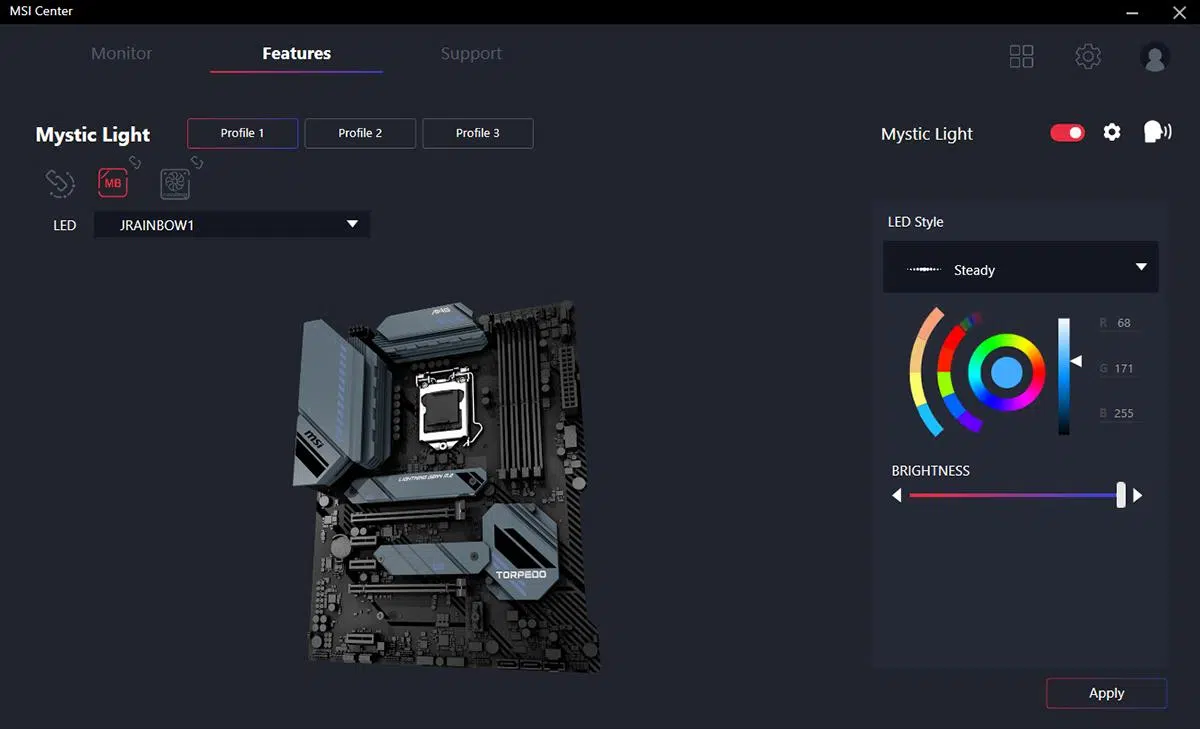
The basic operation is simple : once MSI Center recognizes your compatible hardware, the Mystic Light module displays a list of devices (for example, your graphics card and RGB case) and allows you to choose colors, effects, synchronization modes, and, in some cases, link the lighting to music or system temperature. If you're interested in dynamic effects, check out our guide on dynamic lighting for your RGB devices . All of this is managed through a relatively intuitive graphical interface.
The problem usually arises when the program doesn't reach that stage : if clicking "Open" in MSI Center only shows an infinite loading icon, the module isn't starting up and therefore you won't see any lighting controls. In these cases, you need to check the installation, permissions, plugins, and compatibility.
Mystic Light prerequisites and compatibility
Before you drive yourself crazy troubleshooting errors, it's a good idea to check some basic requirements to ensure MSI Center and Mystic Light are working correctly. While it might seem obvious, a small misconfiguration can prevent the module from opening or cause you to only see the loading circle.
Operating system and updates : Mystic Light is designed to run on 64-bit Windows 10 and Windows 11. It's important to keep your system up to date, especially the .NET Framework components and cumulative updates, as MSI Center relies on them to start certain background services. You can also check out our entry on RGB lighting control in Windows 11 for specific system requirements.
Graphics card and chipset drivers : If you're trying to control the lighting on your MSI graphics card, you need to have the latest NVIDIA or AMD drivers installed, as applicable, along with your motherboard's chipset drivers. A corrupted or outdated driver can prevent the device from being recognized correctly by MSI Center.
RGB Hardware Compatibility : Not all cases, fans, or LED strips on the market work with Mystic Light. Many cases include a proprietary controller or hub, and only some models are compatible with MSI. You must ensure that the case you want to control connects to the MSI motherboard's RGB header (3-pin ARGB or 4-pin RGB) and that the manufacturer indicates support for Mystic Light, JRAINBOW, or similar.
Correct physical connections : If your case is "registered" to your MSI account but the lighting is actually connected to a separate controller without a link to the motherboard, Mystic Light will have no way to control it. Make sure the case lighting cables are connected to the motherboard's RGB/ARGB header, and not just to a physical controller or one that isn't MSI compatible.
Correct installation of MSI Center and the Mystic Light module
If you have already downloaded MSI Center from the official website and added the Mystic Light plugin but the module does not open, it is recommended to review the installation process and, in many cases, redo it from scratch to rule out corrupt files or faulty configurations.
Always download MSI Center from the official MSI website , from the utilities section for your motherboard or graphics card. Avoid older or modified versions found on other websites, as they may not include the current module system or may cause incompatibilities with newer versions of Windows.
During the MSI Center installation, it's advisable to run it as administrator (right-click on the installer and select "Run as administrator"). This ensures that the program can properly register its services, components, and dependencies on the system, which is essential for modules like Mystic Light to function without crashes.
Once MSI Center is installed, open the application and go to the "Features" section . There you should find the Mystic Light module and click "Install" or "Download" if it's not already added. Wait for the process to complete; it's important not to close MSI Center while the module is downloading and configuring.
If Mystic Light was already installed and you see the "Open" option but nothing happens , it could be an internal module error. In that case, within MSI Center, you can usually uninstall Mystic Light from the list of features and then reinstall it from scratch. This sometimes resolves issues caused by an interrupted or incomplete installation.
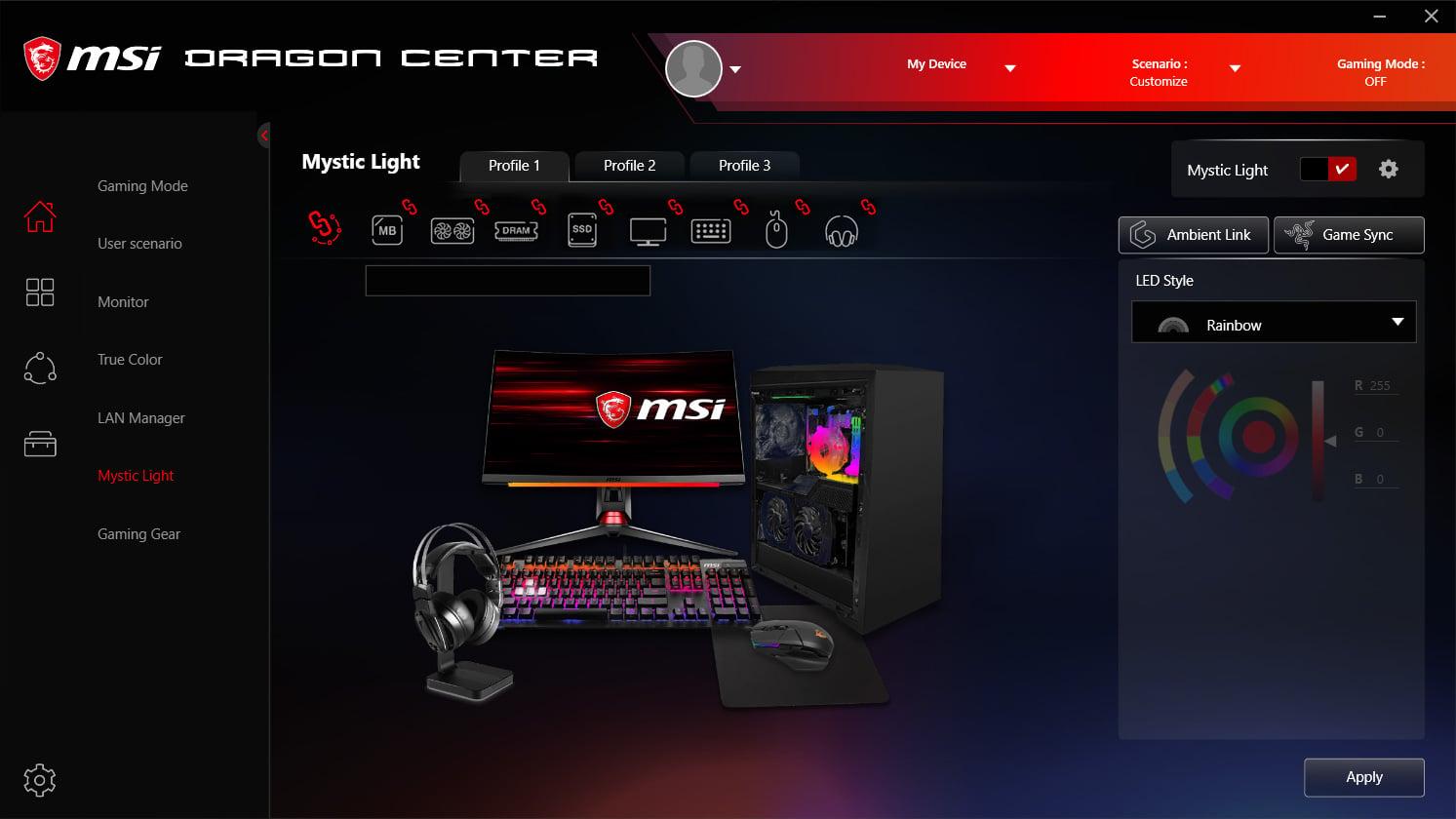
It's also a good idea to clean up any remnants of previous standalone versions of Dragon Center or Mystic Light. If your PC previously had older MSI RGB software installed, there may be conflicts. Completely uninstall those programs from "Add or Remove Programs" in Windows and, if possible, use the official MSI cleanup tool or restart your computer before reinstalling MSI Center. To decide between a full reinstall or an upgrade, you can consult our guide on clean install vs. upgrade in Windows.
What to do when Mystic Light won't open and only shows the loading circle
The most common symptom described by many users is clear : MSI Center starts, the Mystic Light add-on appears in the list with the "Open" button, but when clicked, only a spinning loading circle is visible, and the interface never appears. This behavior is usually related to a module initialization failure.
The first thing you should try is completely closing MSI Center , not just the window, but also the background process. Right-click the MSI Center icon in the system tray (next to the clock) and select "Exit." Then, open Task Manager and make sure no processes related to MSI Center remain. If any remain, end them manually and relaunch the application.
The next recommended step is to uninstall the Mystic Light module within MSI Center and reinstall it. Go to the "Features" tab, locate Mystic Light, click uninstall or remove, wait a few seconds, and then reinstall it. This simple process resolves the infinite loading circle issue in many cases.
If that doesn't work, consider a complete uninstallation of MSI Center . Go to Windows settings, find "MSI Center," and uninstall it. Then, carefully delete any residual folders in C:\Program Files (x86)\MSI or similar locations and restart your computer. Next, download the latest version from the official MSI website and perform a clean install, following the administrator steps already described.
Another factor that can cause crashes is the coexistence of other RGB programs such as ASUS Armoury Crate, Gigabyte RGB Fusion, ASRock Polychrome, or utilities specific to some cases. These programs compete to control the same devices and drivers and can interfere with Mystic Light. If you need help diagnosing problems with Armoury Crate or other suites, please consult our dedicated guide.
Don't forget to check your antivirus or security software . Some aggressive antivirus programs may block parts of MSI Center, considering them suspicious, especially when the program downloads additional modules from the internet. Try adding MSI Center to your antivirus's exclusion list or, as a last resort, disabling real-time protection during installation to rule out these types of conflicts.
MSI account management and detection of your RGB devices
In your specific case, you mentioned that you have the graphics card and case registered to your MSI account and that you're logged into MSI Center. This is positive for general product management, warranties, and updates, but it's important to clarify that account registration alone doesn't guarantee that the lighting can be controlled from Mystic Light.
Logging into MSI Center allows you to link your products to your profile , access some cloud features, and receive specific notifications, but RGB hardware detection relies primarily on direct communication between the program and the devices connected to the motherboard or compatible controller.
When Mystic Light starts correctly, it should display a list of detected devices : motherboard, graphics card, LED strips, fans connected to compatible hubs, etc. If only the motherboard appears in that list, or if nothing appears at all, it means the software is unable to "see" the other components.
In the case of the MSI graphics card, it should normally be detected without problems as long as you use the official drivers and the power cable and PCIe cable are properly connected. If it still doesn't appear in Mystic Light, reinstalling the GPU drivers or trying a different version of MSI Center might help, as updates sometimes correct identification errors for specific models. If you're using alternative tools, keep in mind that OpenRGB doesn't detect lights in some scenarios and may cause conflicts.
Regarding the case, the situation is more varied . Even if the chassis is registered to your MSI account because it's an MSI model or because you added it manually, its lighting will only be accessible if the LED system is wired to the motherboard's RGB or ARGB header or to a Mystic Light compatible controller. If the case comes with its own controller or remote without integration, MSI Center won't be able to modify those effects.
Basic RGB lighting settings in Mystic Light
Once you've managed to get Mystic Light to open without freezing and your devices appear in the list, the fun part begins: configuring your device's lighting style to suit your taste. While the interface may vary slightly depending on the version, the fundamental options are usually very similar.
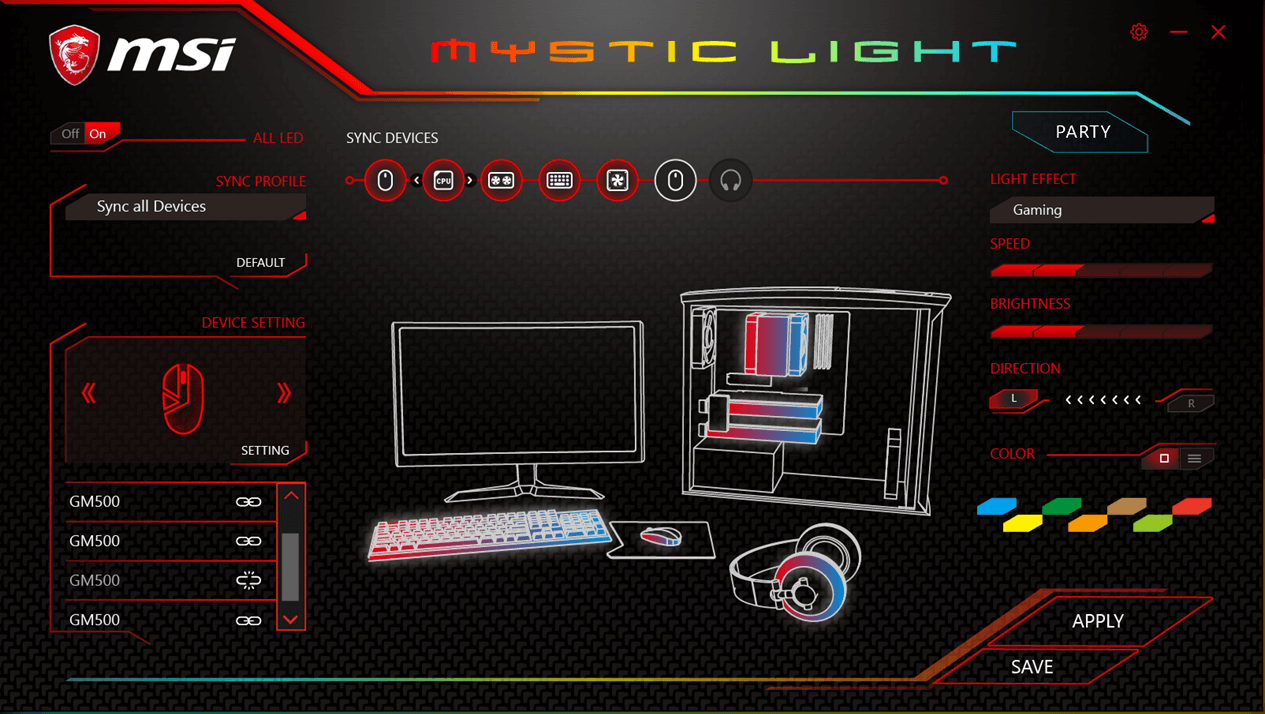
Typically, an overview of all compatible devices is displayed , allowing you to select them individually or activate a synchronization mode that applies the same effect to the entire system. This is especially useful when you want the graphics card and case to change color in a coordinated way.
For each device or group of devices, you can choose the type of effect : fixed color, breathing, rainbow cycle, blinking, sound reaction, temperature-based lighting, and other more specific modes depending on the hardware. Each effect is usually accompanied by controls to adjust speed, brightness, and, in the case of static colors, the exact hue using a selector or RGB values.
If your MSI graphics card has separate lighting zones (for example, the side logo and some front details), Mystic Light may allow you to customize them individually or link them together. Similarly, some cases with multiple ARGB strips or fans may appear as a single grouped device or as multiple channels, depending on the controller used.
Once you find a lighting combination you like, it's highly recommended to save a profile . MSI Center usually offers the option to create custom profiles with your lighting settings, allowing you to quickly retrieve them if you try other effects or if an update resets the configuration. This way, you won't have to remember each setting manually.
Synchronize graphics card, motherboard and case with Mystic Light
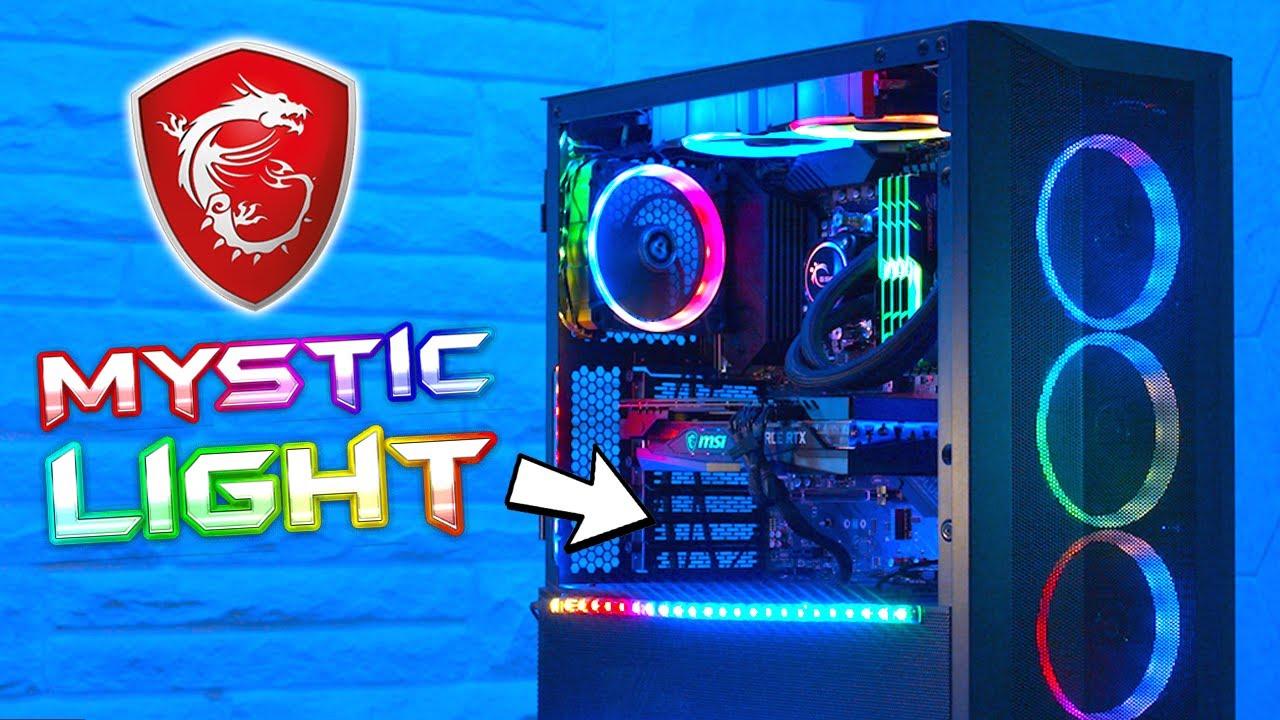
One of the main goals of Mystic Light is to ensure all the lights work in unison , avoiding the classic chaos of different colors on each part of the system. This synchronization allows the graphics card, motherboard, LED strips, and chassis to follow the same lighting pattern.
The Mystic Light interface usually includes a "Sync" button or switch. Activating this button or switch applies the same profile to all selected devices. It's important to select only the components you want to include in this synchronization; you can exclude, for example, any device you want to keep with a different, fixed color.
To achieve optimal synchronization with your case , ensure that all chassis fans and LED strips are connected to the same compatible ARGB hub, which in turn connects to a motherboard header controlled by Mystic Light. If each fan is connected to its own controller or a different controller, it may be more difficult for the software to treat them as a single, coherent system.
In the case of the graphics card, synchronization is usually more straightforward . As long as the GPU is compatible with Mystic Light, simply add it to the synchronized group. If you notice that the graphics card has a different effect than the rest, check that it's not in an "independent" mode within the software itself and that no other utility (for example, from the GPU manufacturer if it's not MSI) is trying to manage its LEDs.
It's also common for users to experiment with partial synchronization : for example, keeping the motherboard and graphics card in "gaming" mode with vibrant colors, while the case remains in a softer or even off tone. Mystic Light allows for this flexibility if you take a few minutes to organize your device groups.
Troubleshooting common problems when controlling your computer case and graphics card
When your goal is to illuminate both the graphics card and the case , specific problems can arise depending on how they are mounted and the compatibility of each component. It's worth reviewing some common issues and how to address them practically.
If your MSI graphics card doesn't appear in Mystic Light , start by verifying that the model is actually compatible with MSI's RGB ecosystem. Not all GPUs include lighting. If it does, update your graphics card drivers, reinstall MSI Center, and check for any other software, such as chip manufacturer utilities (NVIDIA/AMD), attempting to take exclusive control of the LEDs.
When the case doesn't respond to color changes , the first suspect is always the cabling. Many cases have a physical lighting control button which, if set to a certain mode, can disconnect the hub from the signal coming from the motherboard. Consult your case manual to see if a specific cable needs to be connected to "JRAINBOW" or "JRGB" and how to disable manual control mode to give control to the motherboard.
If MSI Center detects the case but the changes are applied erratically (for example, some fans change correctly and others don't), it could be because the hub is saturating the ARGB channel or because there are mixed devices from different brands with slightly different protocols. In these cases, splitting the load across two different ARGB headers on the motherboard, if it has them, can sometimes help.
Another confusing situation is when software works one day and stops the next , seemingly without any changes you've made. This often coincides with automatic Windows updates or driver changes. Whenever you notice strange behavior after an update, check if a new version of MSI Center is available and install it. You can also try restoring a previous Windows restore point if the problem is very recent.
Finally, don't rule out permission or user issues in Windows . On computers with multiple user accounts, MSI Center may have been incompletely installed or configured for the account you're trying to use to control the lighting. Trying another account, preferably with administrator privileges, can help determine if the problem is related to the user profile.

Passionate writer about the world of bytes and technology in general. I love sharing my knowledge through writing, and that's what I'll do on this blog, show you all the most interesting things about gadgets, software, hardware, tech trends, and more. My goal is to help you navigate the digital world in a simple and entertaining way.