- A functional PC needs a motherboard, processor, RAM, storage, power supply, cooling, case, and, in many cases, a graphics card.
- The choice of motherboard and CPU defines compatibility, overall performance, and future expandability of the computer.
- Fast RAM, modern SSDs and a good power supply make the computer's daily fluidity and stability.
- Expansion cards and peripherals allow you to adapt your PC to specific sound, network, video and connectivity needs.
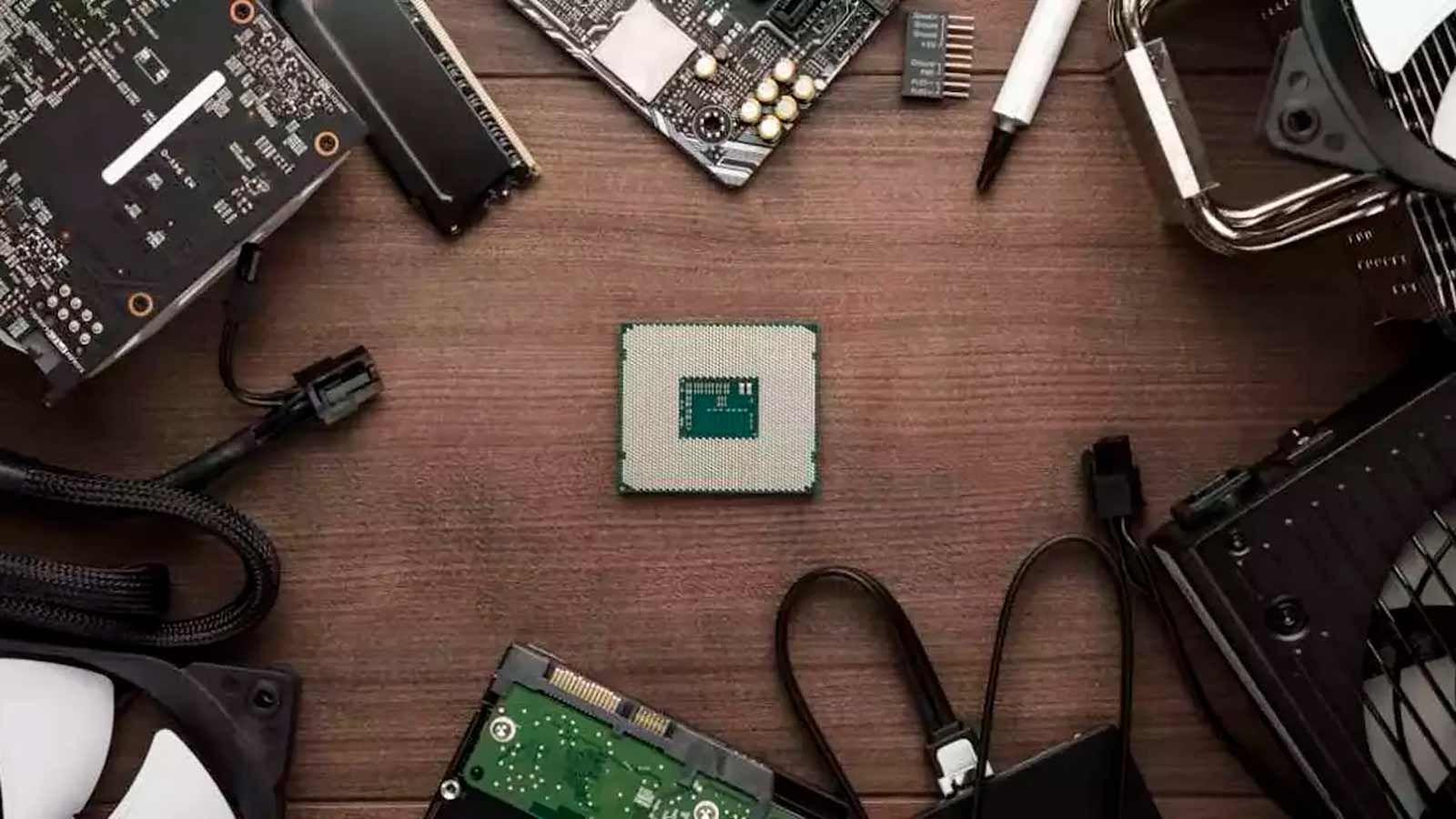
If you've ever considered building your own computer or upgrading your existing one, you've probably been bombarded with questions about which PC components to buy and how they fit together . It's not just about choosing the most expensive option or what everyone recommends, but about understanding what each part does and how it affects the overall performance of your system.
Throughout this guide, we'll calmly break down all the main parts of a computer, their functions, and what you should consider when choosing them . You'll see that, although it might seem a little daunting at first, once you understand four key concepts, it's much easier to make the right decision about your next purchase and get the most out of your PC, whether you want it for gaming, work, study, or simply browsing the web.
What computer parts are essential for a PC
For a PC to truly function and not just power on, you need a minimum set of essential internal components: motherboard, processor, RAM, storage, power supply, cooling system, graphics card (when required), and a case to house everything. Without any of these parts, the computer won't start or will be unusable.
These components are based on the classic computer architecture (Von Neumann model) : a central processor that executes instructions, a fast memory (RAM) where the programs and data being used are loaded, and various input, output and storage devices that communicate with each other through the motherboard.
From that basic "skeleton", we can add optional components to expand functions or improve the experience : dedicated sound cards, advanced network cards, video capture cards, cards for watching DTT, USB port expansions or PCIe adapters to add more M.2 storage units, among others.
Motherboard and processor: the heart of the computer
The motherboard is where most of the PC's components connect and, in practice, determines which processor you can use, how much RAM it supports, what type of storage you can install, and how many expansion cards you can add . It's the computer's main hub, handling both communication between components and distributing the power from the power supply.
On the motherboard, you'll find the processor socket , the RAM slots, the PCIe slots for graphics cards and expansion cards, the M.2 and SATA connectors for hard drives, and all the circuitry that connects these components. That's why it's so important that, before buying, you consult our hardware analysis guide and check compatibility with the CPU you're interested in and the type of RAM you want to install.
Today, the consumer market is dominated by two major processor platforms: AMD (with sockets like AM4 and AM5) and Intel (which tends to update its sockets more frequently) . With AMD, it's quite common to be able to upgrade to a new CPU while keeping the same motherboard if it shares the same socket, whereas with Intel, a change to a powerful processor more often requires a new motherboard as well.
The processor or CPU (Central Processing Unit) is the true "brain" of the PC. It is responsible for executing instructions from programs and the operating system, coordinating the other components, and managing the tasks performed on the computer . It works using binary language (ones and zeros) and continuously processes lists of instructions that indicate what operations to perform and with what data.
Modern CPUs are no longer a single computing unit: they integrate multiple cores that act as independent processors capable of working in parallel . We can find dual-core, quad-core, six-core, eight-core, or many more models, allowing them to handle several applications and processes simultaneously without the system easily crashing.
In addition to the number of cores, you should also consider the operating frequency, expressed in GHz, which reflects how many clock cycles per second the CPU can complete . A higher frequency, within the same processor generation, usually means more performance, although it's not the only factor to consider (architecture, cache, and power consumption also play a role).
In current generations, many processors combine high-performance cores (P-cores) and high-efficiency cores (E-cores) . The former are reserved for demanding tasks (gaming, video editing, rendering, etc.), while the latter handle background and system processes, thus reducing power consumption and heat generation.
To minimize waiting times when accessing critical data, the CPU incorporates on-chip cache memory, which is much faster than RAM . This cache temporarily stores instructions and data that the processor will need immediately; without it, even the most powerful processor would be constantly slowed down by the latency of other components.
Another important aspect is that many modern CPUs include specialized units for artificial intelligence workloads, known as NPUs or other dedicated engines . These units are optimized to accelerate machine learning and natural language processing algorithms, freeing up the main cores and enabling new "smart" features in the system without significantly increasing power consumption; you can read more about these improvements in Agents and PC usage.
Graphics card: who handles the graphics
The graphics card, or GPU, is the component responsible for generating the images displayed on your monitor, freeing the main processor from graphics calculations and providing the necessary power for gaming, video editing, 3D design, and any demanding visual task . Without a graphics solution, you wouldn't see anything at all on the screen.
There are two main approaches: dedicated graphics cards (PCIe expansion cards with their own memory and cooling) and integrated graphics (iGPUs). Dedicated graphics cards are usually much more powerful and are designed for gaming or working at high resolutions and settings, while integrated graphics cards utilize system RAM and are intended for more basic or multimedia use.
Modern GPUs have become so complex that many programs no longer rely solely on the CPU, but offload some of the work to the graphics card . This is especially noticeable in games, 3D applications, video editing with effects, and massively parallel computing tasks that take advantage of their architecture.
Another key point is the type and number of video outputs on the graphics card (HDMI, DisplayPort, etc.) . If you want to set up a multi-monitor configuration for comfortable work or for gaming with an ultrawide setup using two or three screens, you'll need to make sure the graphics card has the necessary connections and supports the required resolution and refresh rate.
RAM memory: the PC's workspace
Random Access Memory (RAM) acts as the computer's "workbench." It's where the programs and data currently being used by the CPU and GPU are temporarily loaded , allowing them to be accessed very quickly and randomly, without following a strict sequential order.
Programs don't run linearly from top to bottom: they jump from one part of the code to another depending on conditions met and events occurring . That's why RAM needs to allow high-speed random access, much faster than a hard drive or even an SSD, or the system would become sluggish and slow with even the slightest context switch.
In a desktop PC, RAM is usually installed as DIMM modules connected to the motherboard, very close to the processor for the fastest possible communication . In many modern laptops, however, some or all of the memory is soldered directly to the motherboard to save space, which limits future upgrade options.
Both the amount and speed of RAM greatly influence the overall smoothness of the system. Often, upgrading RAM is the most effective way to revive a sluggish computer , allowing it to run more applications simultaneously and handle larger files without lag. In some specific cases, you can also use ReadyBoost for a temporary boost.
When choosing RAM, it's important to find a balance between sufficient capacity for your needs (gaming, editing, office work, etc.) and a suitable frequency for your platform . It doesn't always make sense to pay for the fastest RAM on the market if your CPU or motherboard can't take full advantage of it, but it's also unwise to fall short and suffer from a lack of gigabytes.
Storage systems: where you store your data
Since RAM loses its data when the computer is turned off, you need permanent storage devices to store the operating system, programs, games, and all your personal files . Without internal storage, the PC might turn on, but you wouldn't have an operating system or anything to run at startup.
Currently, two main types of internal drives coexist: mechanical hard drives (HDDs) and solid-state drives (SSDs) . The former use rotating platters and magnetic heads, while the latter store information on flash memory chips, without moving parts.
Hard drives are known for offering high capacity at a low price, making them ideal for storing large libraries of photos, videos, music, or backups . However, they are much slower in terms of access and transfer times, so they aren't the best choice as a primary drive if you need speed when opening programs or loading games.
SSDs, on the other hand, offer a far superior response: the operating system boots much faster, programs open almost instantly, and loading screens in games are drastically reduced . Within the SSD category, there are SATA models (simpler and more limited in speed) and NVMe SSDs in M.2 format, which take advantage of the motherboard's PCIe bus and offer significantly higher transfer rates.
It's also important to distinguish between internal storage units, which we do consider PC components, and external storage peripherals such as USB flash drives, external hard drives, or SD cards . The latter expand storage capacity or serve to transport data, but they are not strictly part of the computer's internal components.
Power supply: the part that brings everything to life
The power supply unit (PSU) is one of those components that sometimes receives little attention, yet it is absolutely critical: its function is to transform the alternating current from the electrical grid into the direct current voltages needed by all the other components . Without it, the PC simply won't work.
There are external power supplies (the typical "bricks" found in many ultralight laptops) and internal ATX power supplies for desktop computers, with wattages ranging from a few hundred watts to 1000W models or more , designed for systems with very demanding processors and graphics cards. The required power depends directly on the combined power consumption of the other components.
For example, if your processor and graphics card together draw around 400W under load, there's no point in using a 300W power supply because it would be overworked, overheat, and could cause shutdowns or instability . It's advisable to leave a safety margin above the system's estimated maximum power consumption.
Inside the PC, the power supply connects to the motherboard via the 24-pin ATX connector and, typically, one or more 4- or 8-pin EPS connectors dedicated to the processor . Additionally, power cables run from the power supply to the graphics card (using specific PCIe connectors), to SATA storage drives, and, in some cases, to other internal devices.
Beyond wattage, it's important to consider the quality of the power supply, its efficiency rating, and the protection system it includes . A good power supply protects your investment from voltage spikes, prevents electrical noise, and reduces heat and electricity bills compared to cheap, low-efficiency models.
Cooling systems: keeping the temperature under control
Almost all computer components generate heat when they are working, and if that heat is not dissipated properly, the temperature rises, performance is automatically reduced (throttling), and the hardware can even be damaged . That's why the cooling system is not just an accessory, but a fundamental part of the computer.
In the case of the processor, it's mandatory to use at least a stock cooler or an upgraded model compatible with its socket . If the CPU overheats, the protection mechanisms kick in and the computer may shut down abruptly to prevent damage, which is very annoying if you're working or gaming.
Air coolers are the most classic: they consist of a metal block (usually aluminum and/or copper) that absorbs heat from the CPU and expels it with one or more fans into the case's airflow . They are reliable, easy to install, and there are very quiet and powerful options for almost any budget.
Another increasingly popular alternative is all-in-one (AIO) liquid cooling solutions, which combine a water block, pump, and radiator with fans . These allow for very effective processor temperature reduction and, when properly installed, can quickly remove heat from the CPU area.
At the more enthusiast-oriented level, we find custom liquid cooling systems , with reservoirs, tubing, blocks for various components, and coolant circulating throughout the entire system. These are more complex to install and maintain, but they allow for very low temperatures in high-end systems, as well as an added aesthetic for those who want a spectacular build.
Don't forget the case fans, which are responsible for creating good airflow: bringing in cool air and expelling hot air . Their placement and orientation are key to preventing heat buildup inside and ensuring that the graphics card, CPU, and other components always operate within a healthy temperature range.
Case or tower: the chassis that organizes everything
The PC case, chassis, or tower is the physical "container" where all the internal components are mounted and protected: motherboard, power supply, expansion cards, storage drives, and cooling system . Although it may seem like a minor element, it greatly influences ventilation, ease of assembly, and future upgrade possibilities.
Depending on its size, the case supports different types of motherboards: ATX, Micro ATX, Mini ITX, and other less common form factors . The larger the motherboard (and the case), the more expansion slots, connectors, and drive bays it typically offers, which is useful if you want to have room for new components in the medium term.
Many modern towers feature a separate compartment for the power supply, so the heat it generates doesn't directly impact the motherboard or graphics card . They also typically include dust filters, cable management for better internal organization, and dedicated areas for mounting radiators or large air coolers.
From an aesthetic standpoint, it has become very common to see cases with tempered glass side panels and components with RGB lighting : RAM modules, fans, graphics cards, liquid cooling blocks, etc. This lighting has virtually no impact on overall power consumption, although it does tend to increase the price of the components that incorporate it.
When choosing a case, it's important to consider both appearance and functionality: space for your current and future components, good ventilation, ease of assembly, and build quality . A well-designed case will save you headaches when you want to change or add parts.
Optional components to upgrade your PC
Once the basic components for the computer to function are covered, the motherboard usually offers PCIe slots and other connectors that allow you to add optional components to improve the PC's sound, connectivity, storage, or multimedia capabilities . These aren't mandatory, but they can make a significant difference depending on your needs.
These components include dedicated sound cards, higher-performance network cards, video capture cards, digital terrestrial television (DTT) tuners, and cards for adding more USB ports and M.2 drives . Each one expands the computer's capabilities in a specific area.
The great thing about this modular approach is that you can start with a relatively simple PC and gradually improve it , installing these cards as you need them, as long as your motherboard and case offer enough space and connectors.
Sound card
In most modern computers, sound is included as standard thanks to an audio chip integrated into the motherboard, which is perfectly adequate for the vast majority of users . It allows you to play music, movies, games, or make video calls without needing any additional equipment.
However, for those seeking superior audio quality, or needing advanced surround sound setups, home cinema, or professional audio work , there are dedicated sound cards that connect via PCIe or specialized external USB interfaces.
These dedicated solutions typically offer better digital-to-analog converters, more inputs and outputs, less noise, and more configuration options . If you use Windows, learn how to configure a PC equalizer.
NIC
Something similar happens with network connectivity: today, virtually 100% of motherboards include an integrated Ethernet (RJ-45) network chip for wired connection to the router . Many laptops and some desktop motherboards also include built-in Wi-Fi.
If your computer only has a wired network connection and you want to connect via Wi-Fi, you can purchase very inexpensive external adapters that plug in via USB, just like a flash drive . They are the easiest way to add wireless connectivity without opening your PC or worrying about internal compatibility.
For users who need more features (for example, 2.5G or 10G network cards, next-generation Wi-Fi, or more Ethernet ports ), there are advanced PCIe network cards available. These allow for a significant expansion of connectivity capabilities, which is useful in demanding professional or home environments.
Cards for watching digital terrestrial television (DTT)
If you want to watch digital terrestrial television directly on your computer without relying on the internet, you can install a TV tuner card that connects to the antenna via a coaxial cable . These cards come with the necessary software to scan for channels, change stations, and, in many cases, record programs you're interested in.
Some advanced models even allow you to watch and record multiple channels simultaneously, pause live TV, and schedule recordings . They are a very practical solution for second homes or places where a good internet connection isn't always available.
Video Capture
Video capture cards have become very popular among content creators and streamers because they allow you to input the signal from another computer, video game console, or other video devices into your PC . This way, you can record or stream what's happening on them through platforms like Twitch or YouTube.
They can be internal (via PCIe slot) or external, connected via USB, and offer different resolutions and refresh rates depending on the model and intended use . If you plan on streaming or capturing console gameplay in good quality, a reliable capture card is practically essential.
Expansion of storage units
When you run out of storage space or want to take full advantage of the speed of NVMe SSDs, you can use PCIe cards that add extra M.2 slots to your computer . Some models allow you to install up to four M.2 2280 form factor drives on a single card.
However, it's important to keep in mind that the total bandwidth of the PCIe bus is shared among all connected peripherals . The more NVMe drives or high-performance cards you add, the more crucial it becomes to check the available PCIe lanes and distribute the connections properly to avoid throttling performance.
Add more USB-C and USB-A ports
If your PC is older and lacking modern connectors, there are also PCIe cards designed to expand the number of USB-C and USB-A ports on your computer . These are especially useful if you frequently connect external devices or want to take advantage of USB-C's benefits (reversible, more power, faster speeds).
These cards are generally compatible with relatively older versions of Windows and, as with other PCIe expansions, share the bus bandwidth with the other components . To take full advantage of their speeds, it's best not to overload all the connections at the same time.
Peripherals: essential, but outside the PC's internal components
When we talk about "PC components," we usually mean the internal parts that make up the computer itself. Peripherals, on the other hand, are external devices that connect to the computer to enable its use and expand its functionality.
Essential peripherals include the monitor, keyboard, and mouse , without which you couldn't use your computer in the usual way (beyond occasional remote connections). Even though they aren't included in the box, they are absolutely necessary for working, studying, or playing games on your PC.
Other common peripherals include speakers, headphones, webcams, microphones, printers, game controllers, and external hard drives . If you record audio, learn how to remove background noise.
Furthermore, in the realm of gaming and intensive work, you can find monitors with high refresh rates, mechanical keyboards, mice with advanced sensors, specific chairs, steering wheels, joysticks, and a long list of other accessories that improve comfort and the user experience.
Understanding the function of each internal component, how it interacts with the others, and which peripherals best suit your computer usage allows you to configure a truly balanced PC that doesn't fall short on the essentials and that you can upgrade as needed . With this clear foundation, choosing a motherboard, processor, RAM, graphics card, storage, and the rest of the components ceases to be a hassle and becomes an opportunity to build the machine that best suits you.


Passionate writer about the world of bytes and technology in general. I love sharing my knowledge through writing, and that's what I'll do on this blog, show you all the most interesting things about gadgets, software, hardware, tech trends, and more. My goal is to help you navigate the digital world in a simple and entertaining way.