- ReadyBoost is useful on computers with low RAM and a mechanical hard drive.
- It is recommended to use memories USB fast and with sufficient capacity
- Complementing ReadyBoost with space cleanup and program uninstallation helps to further improve performance
Have you noticed your computer running slower than usual and wondered if there's a simple solution? Many users often look for ways to speed up their systems without spending money on new parts, and that's where interest in technologies like ReadyBoost comes in. This feature, integrated into Windows for several versions now, promises to improve performance by utilizing flash memory such as a USB drive or SD card.
In this article, you'll discover everything about ReadyBoost: what it actually does, who it's useful for, and, most importantly, how to configure it step by step. We'll also review the requirements, situations where you'll notice a difference, and tips for getting the most out of it, along with alternatives for improving your computer's overall performance. Get comfortable and forget about confusing tutorials!
What is ReadyBoost and how does it work?
ReadyBoost is a Windows feature designed to improve file access and overall system speed on computers with limited RAM. It leverages the flash memory of a USB drive or SD card, using it as a cache for temporary and system files that Windows frequently needs to read and write. This reduces access times compared to a traditional mechanical hard drive. It doesn't increase RAM capacity, but rather reduces the load on the hard drive by storing certain temporary data on the USB drive or external storage instead of the hard drive itself.
This feature has been available since Windows Vista and is still present in Windows 7 , 8, and Windows 10. Its main purpose is to improve performance when RAM is limited (less than 4GB) and the hard drive is slow (without an SSD ). On modern computers with SSDs, it offers little benefit, but for older PCs, it can be a significant help.
In what situations is it worth using ReadyBoost?
ReadyBoost is designed for older computers, modest laptops , or machines with less than 4GB of RAM and a mechanical hard drive . If your computer already has an SSD or plenty of RAM, Windows will warn you that you won't notice any improvement, and in that case, you won't be able to activate the feature. However, if you have an older laptop or a PC that's running low on memory, ReadyBoost can provide a real boost, especially when opening multiple applications simultaneously or browsing with many tabs in your browser.
Results vary depending on your hardware , but you'll typically notice increased responsiveness when moving windows, opening programs, or working with large documents. Some users have experienced improvements of between 5% and 12% in their usual tasks. It can also be useful for giving the system a break when RAM is overloaded and the much slower disk paging file is being used frequently.
What do you need to use ReadyBoost?
To get the most out of ReadyBoost, the USB memory stick, flash drive, or SD card you use must meet certain requirements :
- Minimum capacity of 1 GB (better if you have 4 GB or more, even up to three times the installed RAM is recommended).
- USB 2.0 or higher compatibility (preferably USB 3.0 for improved speeds).
- Minimum read speed of 3,5 MB/second and write speed of at least 2,5 MB/second.
When you connect the memory, Windows will perform an automatic check . If the device doesn't meet the speed requirements or isn't compatible, you'll see a message indicating this, and you won't be able to enable ReadyBoost with that drive. If you see the ReadyBoost tab in the device properties, it means it meets the requirements.
How to activate ReadyBoost step by step
Follow these simple steps to enable ReadyBoost on your computer:
- Connect the compatible USB flash drive or SD card to your computer.
- Open the File Browser and locate the corresponding removable drive.
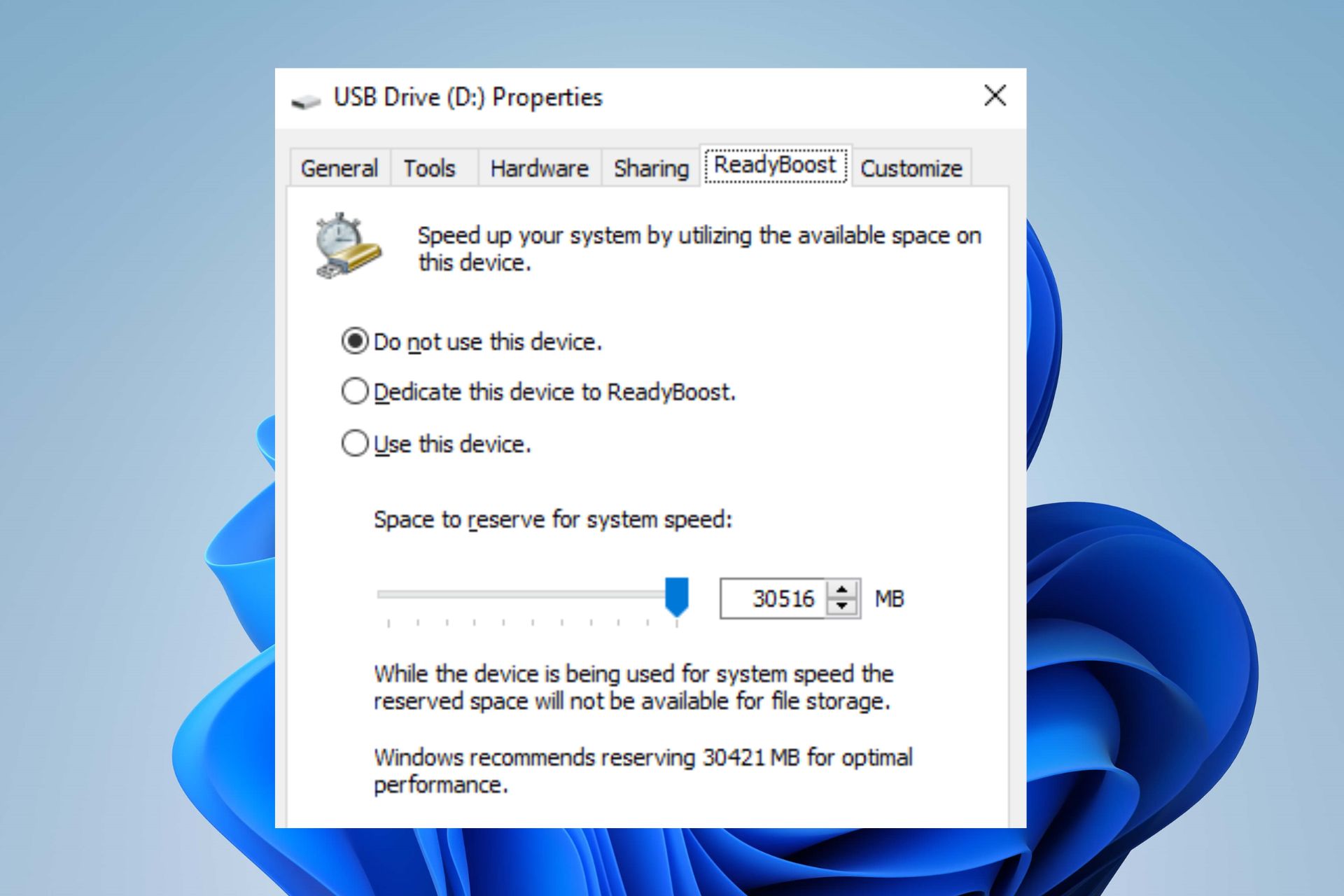
- Right click on the drive and select Properties.
- Find the tab ReadyBoostIf it doesn't appear, the memory is not supported or your computer doesn't benefit from this feature.
- Select option "Use this device" and choose how much space you want to allocate (Windows usually recommends the optimal amount).
- Balance Accept and wait for the system to configure the ReadyBoost cache.
Important: The space reserved for ReadyBoost cannot be used to save other files while it is in use. If you wish to reclaim the memory for other purposes, simply disable ReadyBoost from the same menu.
Tips and tricks to get the most out of it
Use high-quality USB flash drives; the higher the speed and capacity, the better . If you have several, try different ones until you find one that allows you to activate the option. It's advisable to dedicate the entire drive to ReadyBoost for best results, although you can allocate only a portion if needed.
The cache file created by ReadyBoost ( ReadyBoost.sfcache ) is encrypted with 128-bit AES and compressed to save space. If you accidentally disconnect the USB drive, you won't lose important data: the cache is read-only, and Windows will revert to using the hard drive.
Don't forget that this method is ideal for recovering old laptops, reviving office computers, or giving a second life to a PC that uses a mechanical hard drive . If you already have a USB drive that you don't use to store documents, this is the perfect opportunity to put it to good use.
Limitations and potential drawbacks of ReadyBoost
You may encounter one of these warnings:
- "The device does not have the necessary performance characteristics..." – It means the USB flash drive isn’t fast enough, try another one.
- «ReadyBoost is not enabled because the performance of this team "It's high enough…" – Your computer is sufficiently optimized; the feature doesn't provide any improvements based on having an SSD or too much RAM.
Additionally, while using ReadyBoost, the USB drive will not be available for other uses, and if you have to remove it, remember to disable the option to avoid losing data from the temporary cache.
Keep in mind that not all USB flash drives on the market are suitable, even newer ones. Some inexpensive models don't meet the actual speed requirements.
What improvements can you expect after activating ReadyBoost?
In everyday use, the performance gain depends heavily on your computer's specifications and the amount of RAM installed . On a laptop with 2 or 4 GB of RAM, you'll notice smoother operation when opening multiple programs, switching between windows, or browsing with many tabs open. The difference is most apparent when the system frequently uses the page file ( virtual memory ).
Tests show modest but noticeable improvements, typically between 5% and 12% in various everyday tasks. While it's not a miracle, it does provide "smoothness" in everyday use, especially on computers that are underpowered.
If you have an SSD, forget about ReadyBoost: SSDs work much faster than any USB flash drive, so the system will automatically disable the feature.
What about security and stored files?
ReadyBoost uses a special encrypted and compressed cache file, so no one can easily access your data even if they remove the USB. When you unplug the memory, your system continues to function normally, as everything stored in the cache is also on the main hard drive.
This feature is completely safe and does not affect personal data stored on your computer. If you want to dedicate part of the memory to ReadyBoost and the rest to saving files, you can do so by choosing the amount of space to allocate during setup.
Alternatives and suggestions to improve performance
ReadyBoost is just one of the options for optimizing your computer . If you still notice your computer is slow after enabling the feature, you can free up disk space and uninstall unnecessary programs . Windows includes tools like Disk Cleanup and Optimize PC Startup , which help you remove temporary files, cache, and other items you no longer use.
To use hardware-accelerated GPU scheduling and further improve graphics performance, you can follow these steps.
If your computer doesn't have this feature or you're looking for alternatives, Disk Cleanup is another useful tool for removing unnecessary files and system files that are taking up space.
Extra steps if your PC is still running slow
Sometimes, slow performance is caused by installed apps you no longer use. Uninstalling programs that take up a lot of memory or that you no longer use can make a difference. Simply go to Start > Settings > Apps > Apps & features, find the large programs, and remove them.
Another way to improve performance is to move large files to another drive , such as an external hard drive. This frees up space on your main hard drive, and the system runs more smoothly. Photos, videos, music, and old documents can be stored on a USB drive or external hard drive and accessed only when needed.
Remember to restart your computer after each major change to see if performance has improved significantly.

After learning all the secrets of ReadyBoost, you now have a simple strategy to improve the performance of your old computer or that laptop that seemed destined for the drawer. Select the appropriate USB drive, follow the steps to activate it, and complement the improvement by freeing up space and removing unnecessary programs. This way, you can continue using your computer more smoothly, taking advantage of a simple USB drive and the resources that Windows offers. Turning a slow computer into a faster one can be just a few clicks and a USB drive away.

Passionate writer about the world of bytes and technology in general. I love sharing my knowledge through writing, and that's what I'll do on this blog, show you all the most interesting things about gadgets, software, hardware, tech trends, and more. My goal is to help you navigate the digital world in a simple and entertaining way.