- Tools like MSConfig allow you to manage the programs and services that start with Windows.
- Disabling unnecessary processes improves the speed of Boot and overall performance.
- There are multiple ways to access MSConfig, and it is safe to use if done with caution.
- Correct configuration and use of SSD can drastically reduce There Of start.

Tired of waiting forever for your PC to boot? If your computer takes ages to start up, it might not just be a hardware issue . Many processes and programs run every time you log into Windows, and if left unchecked, they can significantly slow down startup. In this article, we'll show you how to use MSConfig and other system tools to speed up your computer's startup, even if you don't have advanced technical skills.
MSConfig, or System Configuration, has been a crucial tool since the early versions of Windows. Although it has lost prominence in recent versions of the system, it remains very useful if you know how to use it effectively. Here, we'll explain step by step how to use it, along with other effective techniques, to improve your PC's boot speed and get it up in the blink of an eye.
What is MSConfig and how can it help you?
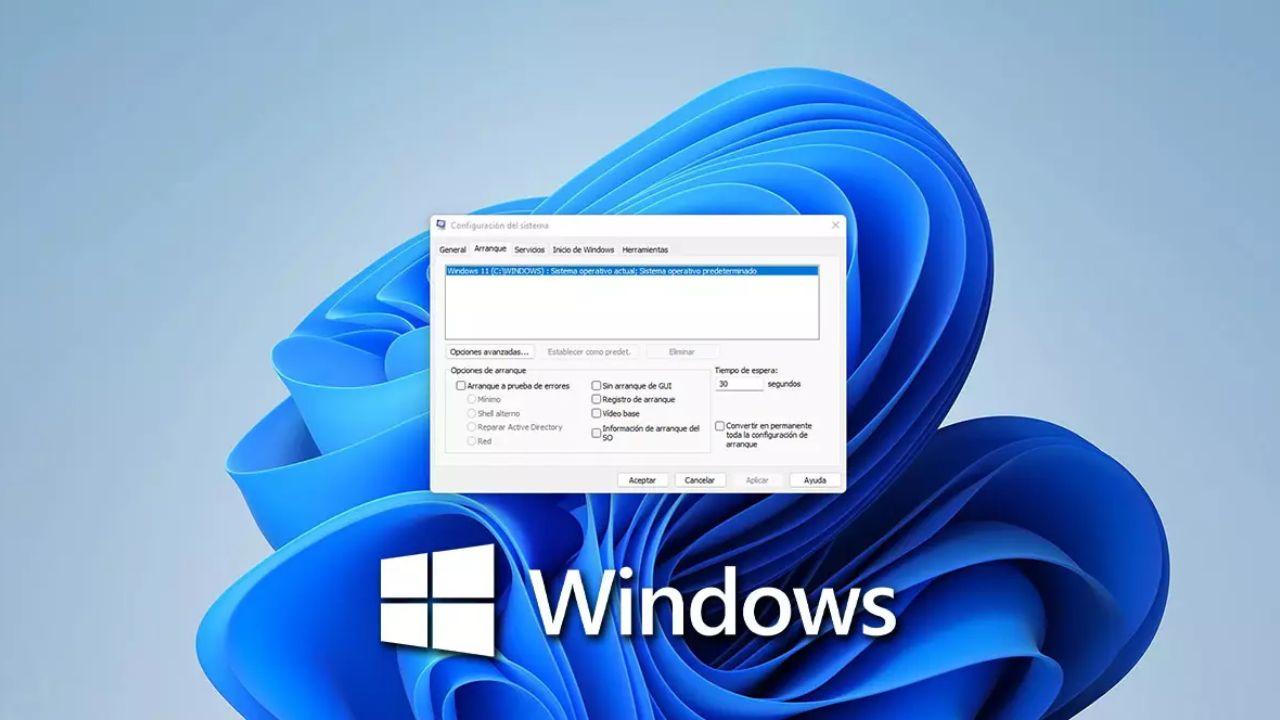
MSConfig is a native Windows utility that allows you to manage how your operating system starts. With it, you can enable or disable applications, services, drivers, and other functions that run during startup.
It has been available since very old versions, such as Windows 98, and although it has been partially replaced by the Task Manager and other system functions, it is still a very powerful tool for monitoring startup and detecting what is causing slowdowns.
The main features of MSConfig include:
- Diagnostic mode: starts Windows with only essential services.
- Selective start: allows you to customize what loads at system startup.
- Service Management: You can disable unnecessary services that start in the background.
- Tools tab: shortcut to diagnostic utilities such as performance monitor, registry editor, and others.
How to access MSConfig
There are several ways to open system settings, all equally valid. Here are the most common ones:
- With the run window: press the combination Windows + R, writes msconfig and hit Enter.
- From Task Manager: pulsa Ctrl + Shift + Esc, go to File > Run New Task and type msconfig.
- Using the start menu: open start and type msconfig, it will appear as “System Configuration”.
- From PowerShell o Symbol of the system: just write msconfig and hit Enter.
How to use MSConfig to speed up startup
1. Startup and Diagnostic Mode
Within MSConfig, you'll find several options on the General tab . By default, "Normal startup" will be selected. Here, you can switch to diagnostic mode , which loads only essential system components, or use selective startup , which allows you to disable startup programs without affecting essential services.
This mode is useful for detecting the cause of slow startup and simplifies identifying which component is causing the slowdown, by activating the elements one by one until the culprit is found.
2. Boot Configuration and Advanced Options
The Startup tab gives you access to more technical settings. Here you can:
- Reduce operating system wait time default if you have several.
- Enable "No GUI Boot" to remove the startup animation and gain a few seconds.
- Limit the use of processors or RAM (not recommended except in specific cases).
- Enable boot with base video If there are problems with the drivers graphics.
3. System services control
On the Services tab , you can manage the services that Windows starts in the background. Many are necessary, but others correspond to programs you don't use or that you can manually activate.
First, select the "Hide all Microsoft services" option to avoid disabling critical system services. Then, you can safely uncheck services such as:
- Automatic updaters for Java, Adobe, Chrome, etc.
- Printer services if you don't use any.
- Cloud sync services you don't need at the start (Dropbox, Drive, iCloud...)
4. Disable startup programs
The Startup tab in MSConfig now redirects to the Task Manager , where you can more visually manage the programs that start with your PC.
To access, right-click on the Start button, select Task Manager > Startup tab.
From there, you can disable unnecessary programs by right-clicking and selecting "Disable." Pay attention to those with a high startup impact , as they slow down the system the most.
Which services and programs can you safely disable?
Not everything that runs when Windows starts is essential. Here's a list of items you can safely disable:
- Automatic updates of apps: RealPlayer, Java, Adobe Updater, etc.
- Agents for editing or playing programs: QuickTime, PowerDVD, etc.
- Remote help or diagnostic services that you don't need.
- Chat and messaging apps like Skype, Teams or Slack if you don't use them at first.
- Cloud backup applications or synchronization if you don't always use them.
Remember: if you don't know what a service or program does, it's best to leave it running or search for its function on Google by typing the name + "Windows service".
If your computer displays a menu to select an operating system when starting up (common if you have multiple versions or installed Windows without formatting ), you can adjust that time from MSConfig.
On the Boot tab, you have the Timeout option . You can set it to 3 seconds to reduce delay or disable the option to display the OS list if you don't need it.
This adjustment can reduce the time by up to 30 seconds in some cases, making the process much more agile.
Further increase boot speed with other methods
Disable lock screen
Windows can log you in faster if you skip the login screen. To do this:
- Balance Windows + R and writes netplwiz.
- Select your account and uncheck the option that requires a password to log in.
- Save your changes, you will be asked for your password again to confirm.
This way, your computer will go straight to the desktop after booting, saving time in the process.
Replace HDD with SSD
One of the most effective improvements for reducing boot times is installing an SSD . Traditional mechanical hard drives (HDDs) are much slower, especially if they are fragmented or full of unnecessary files. When the operating system is on an SSD, boot time can drop from minutes to approximately 10-15 seconds.
You don't need to spend a lot: a small 128 or 256 GB SSD is enough to run Windows and essential programs.
Even on more modern hardware, NVMe drives offer superior speeds and are ideal for laptops or recent motherboards.
Enable Windows Fast Startup
Fast startup is a feature that saves an image of the kernel and drivers when you shut down to speed up the next boot. To enable it:
- Open the Control panel and go to Energy options.
- Click on Choose behavior of the on / off buttons.
- Check the box Quick start and save the changes.
If the option is grayed out, first click "Change settings that are currently unavailable."