- The message "Emergency calls only" indicates that the mobile phone is unable to connect to its operator's network, even though the device remains switched on.
- The most common causes are problems with the SIM card, network configuration errors, lack of coverage, airplane mode active, or operator issues.
- Solutions range from checking the SIM card and coverage, to adjusting the network, resetting settings, updating the system, or ultimately, forma tear and go to the technical service.
- Detect if the fault lies with the SIM card, the mobile phone, the network, or even a security issue (IMEI block or malware) allows you to act quickly and avoid being cut off from communication.

This message means your phone isn't properly connected to your carrier's network and, for safety reasons, is only allowing you to call emergency numbers (112, 911, etc.). Many factors can contribute to this: from a simple configuration error to a damaged SIM card, coverage problems, a carrier outage, or even a blocked IMEI. Let's take a detailed look at all the common causes and the most comprehensive solutions so you can restore network access on both Android and iPhone.
What exactly does "Emergency calls only" mean?
When the "Emergency calls only" message appears , your phone is switched on, but the network module is unable to register correctly with your carrier's network. Technically, the phone can "see" a nearby network, but it is not authorized to use it normally , so only emergency services are allowed access.
In this situation, the device will be unable to make regular calls, send SMS messages, or use mobile data , even though Wi-Fi may still function perfectly. This creates a lot of confusion because you can browse the internet using Wi-Fi but not make calls or use mobile data, giving the impression that "only the calls are failing" when the problem actually lies with the mobile network connection.
Most frequent causes of the message "Emergency calls only"
This error can occur for several different reasons, ranging from the simplest to the most complex. It's worth reviewing each of the typical causes one by one, because often the solution lies in the most basic details :
1. Lack of coverage or unstable network
One of the most common explanations is that you're in an area with very weak coverage or no signal at all . This can happen in rural areas, basements, buildings with very thick walls, tunnels, mountainous areas, remote beaches, or at large events where thousands of people overload the antennas.
In these circumstances, the phone tries to connect to the network but can't establish a stable connection, and for security reasons, it only allows you to make emergency calls . Sometimes you'll see the signal bars fluctuate or even disappear completely.
2. Airplane mode activated by mistake
Airplane mode is a classic: it activates accidentally when you swipe down the quick settings panel, and suddenly all mobile connections (voice, data, SMS) are turned off. Wi-Fi and Bluetooth can be manually turned back on, so you can be using the internet via Wi-Fi and still have no mobile network and only be able to make emergency calls, without realizing that airplane mode is the culprit.
3. SIM card problems
Another very common cause is that the SIM card is inserted incorrectly, is dirty, damaged, or even inactive on the part of the carrier. If the phone can't read the SIM properly, the network won't identify you, and the phone will be limited to emergency calls.
It's also possible that the SIM card is slightly misaligned in the tray, that the gold contacts are dirty, or that it has micro-cracks that are difficult to see with the naked eye . All of these can cause intermittent network outages or a complete inability to register on the network.
4. Damaged SIM tray
It's not just the SIM card that can fail: the tray it sits on can also be bent, broken, or loose . If the tray doesn't fit correctly, the SIM card won't make good contact with the phone's pins, and the system will interpret that the card is either missing or unreadable.
This problem usually appears after bumps, falls or rough handling when changing SIM or memory card, and can lead to constant network disconnections or the permanent message "Emergency calls only".
5. Network configuration errors
In many cases, the problem is due to a misconfigured mobile network : an incorrect network type, an incorrectly selected operator , or corrupted network settings. For example, if the phone is forced to use only 5G in an area with little or no 5G coverage, you may lose service. This can also happen if the operator is not in automatic mode or if internal network parameters have been altered.
6. Maintenance or outage of the operator's network
Sometimes the problem isn't with your phone, but with your service provider. There might be maintenance work, outages, or general service disruptions affecting a specific area. In these situations, even if your phone is working perfectly, you won't be able to connect properly, and only emergency calls will be allowed.
It's common for these problems to be discussed on social media, so often a quick search on Twitter/X or asking people nearby will clear up any doubts about whether it's a widespread issue.
7. Roaming deactivated abroad
If you travel to another country and, upon landing, see the message "Emergency calls only," it's very likely that you haven't activated roaming on your plan or your phone. Without this permission, your phone cannot register on other operators' networks and is limited to emergency calls.
In addition to adjusting the settings in your carrier's app or website, you must also enable data roaming on your device itself . Even if your carrier allows roaming, if this option is not active on your phone, there will be no connection to the foreign mobile network.
8. IMEI block or account problems
If you've bought a second-hand phone or one from a dubious source, there's a chance the device is IMEI blocked due to loss, theft, or non-payment. When this happens, carrier networks can prevent the phone from connecting, leaving emergency calls as the only option.
The line can also be blocked if there are non-payments or issues with your account : in some cases the company restricts the service and the mobile phone is left without the possibility of making normal calls.
9. Interference from software, malware, or conflicting apps
Sometimes the problem originates within the system itself: software errors, improperly installed updates, or malicious applications, including malvertising attacks , can interfere with network management. Some apps with excessive permissions (for example, certain VPNs , blocking tools, or APKs from dubious sources) can alter how the phone handles calls or the connection , resulting in only emergency calls being allowed.
In extreme cases, an attack or malware can modify security settings, block access to the SIM, or cause strange behavior (failed calls, strange network changes, etc.), so security problems should not be ruled out if everything else seems fine.
10. Signal jammers and restricted areas
Signal jammers are used in some places for security reasons: police stations, security force headquarters, certain government buildings, prisons, and high-risk sporting events. These devices disrupt the signal so that mobile phones cannot communicate normally , but they usually allow emergency calls.
If you suspect you are in an area with signal jammers, you will find that coverage is nonexistent or very unstable, and you will not regain full service until you move a few hundred meters away from that location.
Physical checks: SIM, tray and coverage
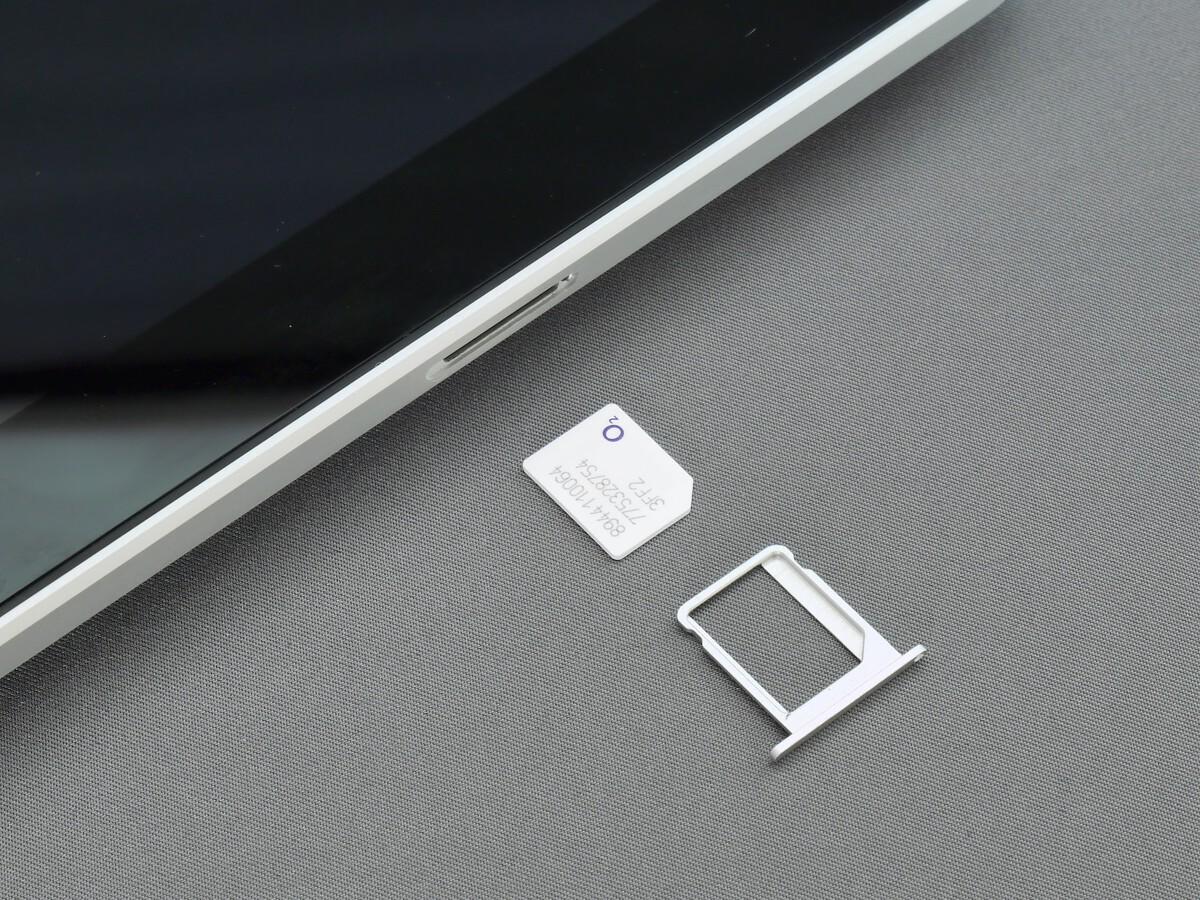
Before delving into more advanced settings, the wisest course of action is to check all the physical components: SIM card, tray, contacts, and surrounding area . Often, the problem is resolved here.
Clean and reinsert the SIM card
Start by turning off your phone and removing the SIM tray with the tool or a thin paperclip. Remove the SIM card and check the gold part for any dents, bends, or scratches . Even if it doesn't look bad, a little dirt can cause problems.
To clean the metal contacts, you can use a soft eraser on the gold area , without pressing too hard. Then blow on it or wipe it with a dry cloth to remove any residue, place the SIM card correctly in the tray (following the notch), and carefully reinsert it into the phone.
When you turn on your phone, it should ask for your PIN if everything is working correctly. If it doesn't ask for your PIN or indicates that there is no SIM card , the device is probably not recognizing it and further investigation will be necessary.
Check if the SIM card is damaged or inactive
If the problem persists after cleaning and reinserting the card, it's worth checking if the SIM card is active and working. The SIM card status—network, signal strength, and whether the service is active—is usually displayed in the Settings menu, under Device information or About phone.
A very clear way to rule out the SIM card as the problem is to try it in another phone . If it doesn't work in the other phone either, the card is most likely damaged or blocked, and you'll have to request a replacement from your carrier or resolve a possible line block with them.
Conversely, if you insert someone else's SIM card into your phone and it doesn't recognize it properly either, the problem points more to the phone (tray, SIM reader or motherboard) than to the card.
Check the SIM tray
While you have the tray out, examine it carefully. Check if it's bent, cracked, or has any broken corners . Even though it may seem like a simple piece of plastic, it's crucial for the SIM card to be properly aligned and make good contact.
If you notice any damage, the best solution is to get a new tray for the exact model of your phone. Sometimes replacements can be found, but if you're unsure, it's best to have it checked by an authorized service center , because forcing a faulty tray can worsen the problem.
Evaluate external coverage factors
Before you go crazy with settings, check if it's a general coverage issue. Ask someone nearby with the same carrier or network if they have a signal. If they're also experiencing no signal or similar messages, it's very likely the carrier is down or performing maintenance on their network.
You can check on your company's official social media channels or on platforms where people report service outages. If the issue is confirmed to be widespread, all you can do is wait for the operator to resolve it.
Basic mobile settings that can interrupt the network
If everything physical seems fine, it's time to check the settings. This includes airplane mode, SIM PIN, network type, and selected carrier , on both Android and iOS.
Check airplane mode
Check the quick settings panel (Android) or the control center (iPhone) to see if the airplane icon is active . If it is, turn it off and wait a few seconds for your phone to search for and reconnect to the network.
A trick that sometimes works when there are temporary glitches is to activate airplane mode, restart the phone, and then deactivate it after the restart . This forces the system to reset the entire radio component and sometimes fixes minor freezes.
Make sure you enter your SIM PIN
If you don't enter your SIM card PIN when you turn it on, the SIM will be deactivated and you'll only be able to make emergency calls . If your phone starts up and doesn't ask for your PIN, you may have deactivated it previously or it may not be detecting the SIM card.
On Android, you can manage this from Settings > Security (or similar) > SIM card lock , where you can enable or disable the PIN request. If you're someone who frequently forgets their PIN, you can remove the request, although keep in mind that this leaves your SIM less protected against theft.
Configure the network type and operator correctly.
Another common source of problems is mobile network settings. On Android, go to Settings > Connections or Network & Internet > SIM & network . Check two key things:
- Preferred network type: Select automatic mode with 4G or 5G if your operator allows it.
- Network operators: Make sure it's set to automatic selection so your phone chooses the correct network.
If you suspect the problem is with 5G or 4G, you can try temporarily switching to 3G or even 2G . You shouldn't be constantly on 2G, but it's a good way to test whether the connection stabilizes.
On your iPhone, go to Settings > Cellular > Network Selection and make sure Automatic is turned on. You can also try manually selecting your carrier if automatic search isn't working properly.
Manually select the network operator
Sometimes, your phone gets stuck trying to connect to the wrong network. In that case, it's helpful to disable automatic selection and manually choose your carrier in the Network Operators section.
After selecting your carrier, wait a few seconds for your phone to register. If it fails again, you can switch back to automatic so it can try to choose the best available network.
Roaming and roaming when you are abroad
If the "Emergency calls only" warning appears as soon as you land in another country, the main suspect is roaming that is disabled or misconfigured.
First, check your mobile provider's app or customer portal to confirm that roaming is enabled on your plan . Second, on your phone, go to Settings and make sure data roaming is activated for that SIM card.
One step you shouldn't skip is turning your phone off upon arrival in the country and turning it back on after a few minutes . This restart helps the phone successfully establish a connection with the foreign network. If you still don't have service, you'll need to contact your mobile operator to check for any additional restrictions.
Reset network settings and other software solutions
Once you've checked the SIM, tray, airplane mode, network type and carrier, and the problem persists, it's time to delve deeper into software settings and, if necessary, format the device.
Reset network settings (Android and iPhone)
Resetting network settings returns all Wi-Fi, mobile data, and Bluetooth settings to their factory defaults , without deleting your photos or apps. Saved Wi-Fi networks, passwords, and Bluetooth pairings will be removed, but it's a very effective measure when internal settings have become corrupted.
- On AndroidGo to Settings and look for System, About phone, or General management (depending on your Android version). You should find it there. Recovery or Reset optionsAnd there's the option of Reset Wi-Fi, mobile data, and Bluetooth or similar.
- On iOSGo to Settings > General > Transfer or Reset iPhone (or just Reset in older versions) and tap on Reset network settings.
After doing this, your phone will restart and have to search for the network again from scratch . You'll have to enter your Wi-Fi passwords again, but if the problem was related to the settings, this usually solves it.
Update the operating system
Many connectivity issues are resolved with software updates released by manufacturers or carriers. If it's been a while since your last update, it's a good idea to check for new versions.
- Android: Settings > System (or Software Update) > check for updates and install them if available.
- iPhone: Settings > General > Software update, and download and install if there is a new version.
These updates not only add features, but also fix bugs that can directly affect your mobile network connection.
Check for suspicious apps, APKs, and security
If the problem started right after installing a strange app, an external APK, or an aggressive security tool, it's best to uninstall those applications first and see if the network returns to normal.
It's also advisable to run a scan with a trusted antivirus app and be aware of the risks of accepting software licenses to rule out malware that might be modifying network settings or improperly managing calls. Also, check the permissions of apps that access sensitive functions (calls, SMS, mobile network, VPN, accessibility, etc.), because overly restrictive settings can block the SIM card or call management.
Format the phone: factory reset
If neither network reset, nor app cleanup, nor updates can get your phone out of "Emergency calls only", the next step is more radical: erase everything and leave the phone as if it were brand new.
- On AndroidSettings > System (or Reset options) > Reset all data o Clear all dataMake sure your battery is at least 70% charged and back up your data beforehand.
- On iPhoneSettings > General > Transfer or Reset iPhone > Delete content and settingsThe system will ask you for your Apple ID security code or password.
This process removes your personal data, apps, accounts, and settings, but it also eliminates any deep-seated software errors that might be causing the problem. If, after setting it up from scratch and before restoring backups, the network still isn't working, it points to a hardware failure or external blockage.
How to rule out an IMEI block or line failure
When the usual solutions are not enough, you have to consider that the mobile phone or line may be blocked by the operator or that the IMEI of the terminal is listed as stolen or lost.
Check the phone's IMEI
To find your phone's IMEI, dial *#06# on the keypad . One or more 15-digit numbers will appear on the screen (depending on the number of SIM cards in your device). Write this information down carefully.
With that IMEI number, you can call your carrier and ask them to check if it's blocked due to theft, non-payment, or any other reason. You can also check some public databases to see if the IMEI is listed as reported, but your carrier will always provide the most reliable information.
Check with your operator regarding any potential account issues.
Take advantage of the call to also confirm that your line is active and unrestricted : no outstanding bills, no temporary suspensions, and no security blocks. Sometimes an administrative error or a one-off billing issue can leave the line blocked even if the phone is working perfectly.
If the operator confirms that the IMEI is clean and the line is active, and yet your phone still only makes emergency calls , the suspicion again points to a physical failure in the device.
When to go to technical service
If you've tried everything: cleaning and changing the SIM, network settings, resets, software updates, checking the IMEI and contacting the carrier, and you still have no network, it's most likely a hardware problem with your phone.
The most delicate components are usually the SIM card reader, the tray, the antenna, or even parts of the motherboard. These components are not easy to repair at home, so it's advisable to use your warranty if it's still valid . Network issues are typically covered by the manufacturer's official support for the first few years.
If your phone is no longer under warranty, you can take it to a specialized, official, or trusted repair service . The price of repairing a SIM card slot or network components can vary considerably, but in many cases it ranges from 50 to 100 euros or more, depending on the model and the extent of the damage.
At that point, you need to assess whether it's worth paying for the repair or investing in a new phone , taking into account the age of the phone, the cost of the repair, and how much you use it on a daily basis.
Tips to prevent future connectivity problems
In addition to fixing the current fault, it's a good idea to adopt certain habits to reduce the likelihood of the mobile phone being restricted to emergency calls again in the future.
- Always keep your mobile phone updated with the latest system versions and security patches.
- Avoid hard blows and exposure to moisture that could damage the SIM or internal components.
- Clean the periodically SIM tray and port to prevent dust accumulation.
- Do not download applications from suspicious sources nor unverified APKs.
- Check from time to time the apps that have permissions over calls and network to avoid interference.
- Don't always force 5G mode if you know that coverage is poor in your area; A stable 4G connection is usually better. than an intermittent 5G.
With all this in mind, when your mobile phone displays the message "Emergency calls only," you'll know it's not the end of the world: you have a fairly comprehensive set of steps to detect if the problem comes from the coverage, the SIM, the configuration, the operator, the software, or the hardware itself, and thus decide with authority whether a quick adjustment, a change of card, or whether it's time to call a technical service or consider a new smartphone is enough.

Table of Contents
- 1 What exactly does "Emergency calls only" mean?
- 2 Most frequent causes of the message "Emergency calls only"
- 2.1 1. Lack of coverage or unstable network
- 2.2 2. Airplane mode activated by mistake
- 2.3 3. SIM card problems
- 2.4 4. Damaged SIM tray
- 2.5 5. Network configuration errors
- 2.6 6. Maintenance or outage of the operator's network
- 2.7 7. Roaming deactivated abroad
- 2.8 8. IMEI block or account problems
- 2.9 9. Interference from software, malware, or conflicting apps
- 2.10 10. Signal jammers and restricted areas
- 3 Physical checks: SIM, tray and coverage
- 4 Basic mobile settings that can interrupt the network
- 5 Roaming and roaming when you are abroad
- 6 Reset network settings and other software solutions
- 7 How to rule out an IMEI block or line failure
- 8 When to go to technical service
- 9 Tips to prevent future connectivity problems
