- Correctly identifying the laptop model and using the manufacturer's official drivers improves touchpad stability. Windows 11.
- Adjusting sensitivity, gestures, and touchpad lock prevents unpredictable cursor movements and unintentional clicks.
- Diagnostic tools and the safe mode help differentiate between problems of hardware, drivers and software conflicts.
- If all else fails, restoring the system or reinstalling Windows, along with updated drivers, usually resolves most persistent issues.
If your Windows 11 laptop's touchpad is unresponsive , moving erratically, or has lost its gestures , the problem is almost always with the drivers or settings. While it may sometimes seem like the hardware is broken, in many cases simply checking drivers, system options, and manufacturer tools is enough to get the touchpad working again.
In this guide, you'll learn step-by-step how to install, reinstall, and adjust touchpad drivers on Windows 11 laptops, both using the system's built-in options and by visiting official manufacturer websites such as Dell, HP, and others. We'll also cover multi -touch gestures , sensitivity, panel locking, hardware testing, and what to do if the problem persists.
Check your hardware and system information before touching the drivers.
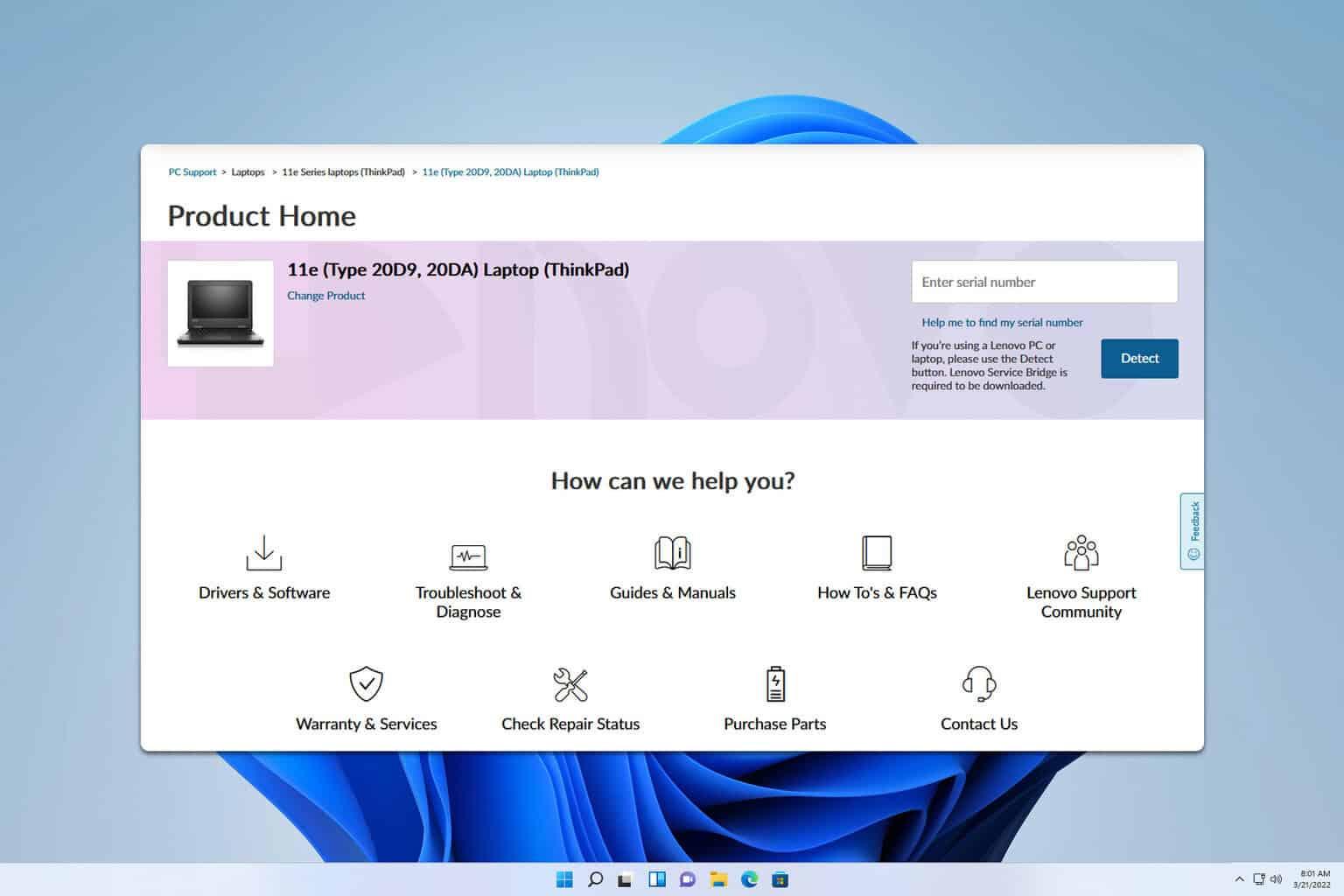
Before you start installing drivers willy-nilly, it's a good idea to check exactly what computer you have and what components it uses . This will prevent you from downloading the wrong or generic drivers that won't work properly with your model.
Windows 11 includes a built-in tool called System Information that lets you see basic hardware configurations at a glance: system model, manufacturer, BIOS type , Windows version, etc. This information is crucial when you go to the manufacturer's official website looking for specific drivers for your laptop.
To open this panel in Windows 11, you can use the shortcut Win + Q (the combination that opens the search bar), type msinfo32, and press Enter. The System Information window will open, where you'll see all the relevant information about your PC on the right. In a technical support environment, a screenshot of this window is often requested to verify that the hardware matches the installed drivers.
It's a good idea to note down or have handy the exact laptop model and manufacturer (for example, Dell Inspiron, HP 15-dw1085la, XPS, Latitude, etc.), because you'll need it to locate the correct touchpad driver on the official website. If you use professional or gaming equipment (Alienware, G Series, Latitude, Mobile Workstations…), this information is even more important.
Uninstall the touchpad from Device Manager and let Windows do its work.
A very effective trick when the touchpad is acting strangely is to remove the device from Device Manager so that, after restarting, Windows 11 will detect it again and automatically download the most appropriate driver from Windows Update.
For quick access, you can use the Win + X shortcut and select Device Manager from the menu that appears. Within this tool, the touchpad is usually listed under the "Mice and other pointing devices" category, although on some computers it may be under "Human Interface Devices (HID)" or something similar.
When you locate the touchpad (for example, it may be listed as Synaptics , ELAN, Precision Touchpad, or by a manufacturer's name), right-click it and select Uninstall device . Accept the prompt and let the system remove the current driver. It's recommended to check the box, if it appears, to delete the driver software so that Windows doesn't reuse the same corrupted driver.
After uninstalling, restart your computer: in most cases, Windows 11 detects the new hardware and searches for the appropriate driver through Windows Update. This process sometimes takes a few minutes after startup , while background services and drivers launch. It's a good idea to check the touchpad both at startup and a few minutes later to see if it remains stable.
If after this procedure the touch panel continues to fail or no new driver appears, it's time to go directly to the most reliable resource : the manufacturer's official support page.
Download and install the touchpad driver from the manufacturer's website.
Laptop manufacturers (Dell, HP, Lenovo , etc.) typically offer optimized drivers for each specific model on their support websites . These drivers are usually more stable and comprehensive than generic Windows drivers, especially when advanced gestures, special sensitivity settings, or BIOS integrations are involved.
The general procedure is similar for almost all brands: you go to the support page, find your exact model, and download the latest touchpad or mouse driver compatible with Windows 11. For example, on HP computers, you can go to the official HP Support website, enter the model (such as HP 15-dw1085la), and in the drivers section, locate the one corresponding to the touchpad.
Once you've downloaded the installer, simply run it and follow the on-screen instructions . You'll usually be asked to accept a license agreement, choose an installation folder, and that's about it. When the wizard finishes, it's highly recommended to restart your computer so the system loads the new driver at startup.
Keep in mind that, as Microsoft often reminds users, third-party links and downloads are the user's responsibility . In other words, even though the Microsoft community and official support recommend visiting the manufacturer's website, they are not responsible for the content of those sites and offer no guarantee on the third-party software you install.
If your manufacturer offers different driver versions (for example, several revisions for Synaptics or ELAN), the most sensible thing to do is choose the latest version certified for Windows 11. And, if you're unsure whether to use Windows 10 or Windows 11 drivers, in many cases the Windows 10 drivers will work fine in the new version, but ideally you should use the one specifically designed for the current version of the system.
Adjusting touchpad settings in Windows 11
Once the drivers are installed, the next step is to ensure the touchpad isn't disabled in Windows settings and that the gesture and sensitivity options are set to your liking. Sometimes the touchpad works, but a disabled setting can make it feel broken.
To review these options, open the Windows 11 Settings app (you can press Win + I), go to the Devices or Bluetooth & devices section (depending on the version), and locate the "Touchpad" section. There you'll see a general option to turn it on or off, and different controls for clicks, scrolling, and gestures.
Make sure the box that enables the touchpad is checked . From here you can also adjust settings like tap-to-click, two-finger scrolling, pinch-to-zoom, and three- and four-finger gestures. If these gestures are behaving erratically (jumping, unintentional zooming, etc.), you might just need to adjust the settings before assuming it's a serious problem.
Modern laptops with Windows 11 typically come with a precision touchpad , which is deeply integrated with the system and allows for advanced configuration from this menu. However, on some older computers or those with specific drivers, some configuration is still done through a manufacturer's own panel, accessed from Mouse Properties in the classic Control Panel.
In any case, spending a few minutes reviewing these options usually makes the difference between an uncomfortable touch panel and one that works smoothly, especially if you often use gestures to switch desktops, zoom, or scroll through long pages.
Multi-touch gestures and unexpected cursor movements
Many modern laptops incorporate advanced gesture features in the touchpad hardware and controllers. These include two- or three-finger scrolling, pinch-to-zoom, circular zoom, rotation, and quick left or right swipes to switch between applications or desktops.
These capabilities are great for productivity, but they can also cause seemingly unpredictable cursor movements . For example, a light touch with the palm of your hand might be interpreted as a scroll gesture, or an unintentional pinch could zoom in on a page unexpectedly. The most troubling aspect is that almost all of these features are enabled by default.
In the touchpad's specific settings panels (for example, Dell, Synaptics, or Cypress software), there's usually a section called Gestures. From there, you can completely disable a particular gesture that's causing problems, or modify its behavior to make it less sensitive or change its function.
Fine-tuning gestures often involves trying various combinations until you find the one that best suits your workflow. If you use the keyboard a lot, you might want to reduce the number of three- or four-finger gestures to avoid accidental activations ; if you work with design or video editing, you might find it crucial to keep pinch-to-zoom but disable unnecessary rotations.
If, after installing the official driver and experimenting with the gestures, you continue to notice strange behavior, it's also worth checking the diagnostic tools offered by some manufacturers, as they can show if the touch panel is sending erratic signals due to a physical problem.
Adjust sensitivity, pointer speed, and panel lock
Another key aspect for a comfortable touchpad is managing the sensitivity and speed of the pointer . An overly sensitive panel can register phantom touches, while an undersensitive one forces you to press or slide more than you intend.
Many Dell laptops and models with specific drivers include a dedicated touchpad utility, accessible from Mouse Properties (Control Panel > Hardware and Sound > Mouse). There's usually a tab specifically for the touchpad, where you'll see a picture or icon of the touchpad: tapping or clicking this icon opens the advanced utility.
In that utility, one of the most important sections is Sensitivity. There you can find options like Touch Guard or Touchpad Lock , designed to prevent your palm from activating the touchpad while you're typing. It's usually represented by a slider: if you move it all the way to the right, the system becomes very strict and greatly reduces the response to light touches or light touches.
It's recommended to enable the touchpad lock option, and then carefully adjust the Touch Guard slider , experimenting with different levels. If you set it too high, you might notice the cursor barely responds when you type; if you leave it too low, you'll still experience accidental clicks. There's no single perfect value; it largely depends on the size of your hands and how you position your wrists.
In that same section, there's usually a Pointer Speed control , which lets you define how fast the cursor moves on the screen based on the movement you make in the panel. If you find the pointer moves too slowly or too quickly, move the slider until you find a balance. After applying the changes, click Save and close the utility using the X in the upper right corner; then, in the main Mouse Properties window, click OK to save the settings.
Once you've finished reviewing these settings, close the touchpad utility with the usual X and accept the changes by clicking OK in the Mouse Properties window. A couple of quick tests (left click, right click, drag and drop) will confirm whether the buttons are now responding correctly.
If, even after correctly activating the buttons and having the touchpad driver up to date, the physical click does not respond, it could be a hardware problem in the button mechanism , so it would be advisable to run the diagnostic tests offered by the manufacturer or, directly, consider a repair.
Test the touchpad using the manufacturer's diagnostic tools (Dell SupportAssist and similar)
Some manufacturers, like Dell, integrate diagnostic and maintenance applications into their laptops , making it much easier to determine whether a problem originates from the hardware or the software. In Dell's case, this tool is called SupportAssist and usually comes pre-installed on most recent Windows computers.
To open SupportAssist on a Dell laptop running Windows 11, go to the Start button, navigate to the Dell folder, and locate the SupportAssist application within it. When you launch it, you'll see several sections; one of the most useful for this purpose is Hardware Checkup.
Within Hardware Checkup, you have the option to Scan a Specific Device. If you select it and scroll down, you'll find the Mouse or Pointing Devices category . There you can choose the device you want to test, which includes both the integrated touchpad and external mice connected via USB or Bluetooth.
The tool will guide you with on-screen instructions to perform click, movement, and response tests . If the tests indicate that the touchpad is functioning correctly at the hardware level, the problem is almost certainly limited to drivers or configuration. If, on the other hand, the diagnostic detects physical faults, you'll need to contact technical support.
Keep in mind that when you see more than one mouse device listed, there's likely an additional mouse connected to your computer . You can test them individually to rule out an external device interfering with cursor control.
Disconnect peripherals and check for interference
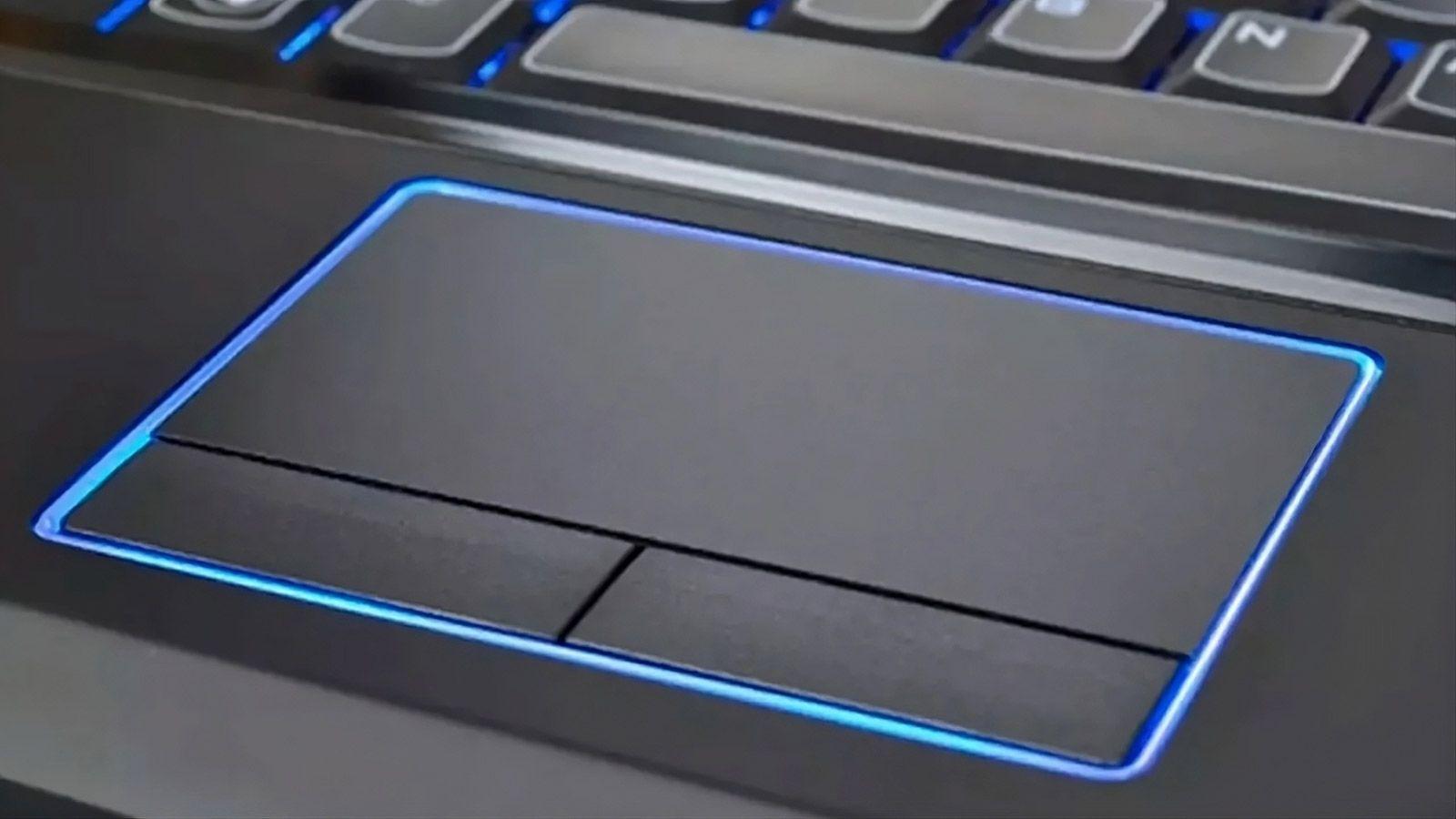
Sometimes, touchpad problems aren't due to corrupted drivers, but rather conflicts caused by external devices , especially USB mice, wireless receivers, or even keyboards with integrated trackpads. When Windows detects multiple pointing devices, it may prioritize one over another or apply different settings.
A simple testing method involves completely turning off the computer , disconnecting all external peripherals (speakers, printers, scanners, USB keyboards, mice, USB drives and other storage devices ) and turning the laptop back on with only the essentials.
With the machine free of accessories, check the cursor movement using only the touchpad. If it now works correctly, it's quite likely that an external device was causing the conflict . In that case, connect them one by one until you identify the culprit.
However, if the touchpad continues to malfunction with all peripherals disconnected, you can rule out this type of interference and focus again on drivers, settings, or physical problems with the panel itself.
Updating the BIOS and its relationship with the touchpad
In some specific models, especially professional or gaming laptops, the BIOS version can influence touchpad behavior. Manufacturers like Dell often release BIOS updates that fix compatibility, power consumption, and integrated device management issues.
To check if your BIOS is up to date, you should go to the manufacturer's support website, enter your computer model, and check the BIOS or firmware downloads section. If there's a newer version than the one you have installed (you can see this in System Information in Windows), the manufacturer's website will provide instructions for a safe update.
Updating the BIOS is a delicate process: it's crucial not to interrupt it and to follow the instructions precisely . While it doesn't always resolve touchpad issues, when the manufacturer mentions input device improvements in the release notes, it's worth considering.
If, after a recommended BIOS update and with the correct drivers, the touchpad continues to malfunction, the hypothesis that the failure is due to a physical fault or some third-party software interfering with the boot process becomes more likely.
Testing the touchpad in Windows 11 safe mode
Windows 11's Safe Mode starts the system with a minimal set of services and drivers , making it an excellent tool for isolating problems. If the touchpad works for a while in normal mode and then starts malfunctioning, but behaves stably in Safe Mode, this indicates that a third-party program or service is causing the conflict.
To start Windows 11 in Safe Mode, you can follow Microsoft's official guide ("Start your PC in Safe Mode"), which explains several methods, such as using Recovery Settings or restarting the system by holding down the Shift key while clicking Restart. From the Advanced Startup Options, you can select to boot into Safe Mode or Safe Mode with Networking.
Once inside this restricted environment, test the touchpad: move the cursor, click, and try basic gestures if they are enabled. If everything works smoothly, it's reasonable to assume that some additional driver, resident software, or utility that loads at startup is affecting the touchpad in normal mode.
In that case, the strategy involves reviewing which applications and services start with Windows (from Task Manager > Startup tab) and temporarily disabling those that may interfere with input devices, such as customization software, third-party mouse manufacturers' tools, third-party gesture utilities, etc.
Once you find the program responsible, simply uninstalling or keeping it disabled will restore stable, day-to-day behavior to the touchpad.
Reinstall the touchpad driver using Device Manager
In addition to visiting the manufacturer's website, Device Manager itself can be used to force the reinstallation of the touchpad drivers through Windows Update. This can be useful when the driver is corrupted or there isn't a specific version from the manufacturer for Windows 11.
The procedure is similar to the uninstallation process we saw earlier: locate the touchpad under "Mice and other pointing devices" or "Human Interface Devices (HID)," right-click it, and select Uninstall device. Upon the next restart, Windows will attempt to download the appropriate driver from its servers.
In some cases, you can also right-click on the device and choose "Update driver," allowing Windows to automatically search the internet for updated drivers. If a newer version is available through Windows Update, the system will install it and prompt you to restart.
This reinstallation technique is especially useful when you can't find recent drivers on the manufacturer's website but you know that other users have managed to get the touchpad working properly in Windows 11 with drivers provided by the system itself.
When the touchpad works fine at first and then fails
A curious but quite common case in Windows 11 is that in which the touchpad behaves perfectly right after turning on the PC and entering the PIN or password, but after a few minutes of logging in the problems begin: the buttons stop working, the gestures do not respond, the touch to click disappears, etc.
This pattern suggests that while Windows finishes loading background services and tasks, some process is conflicting with the touchpad driver . Some users have found that even manually stopping the manufacturer's service (for example, the Synaptics service) worsens the situation, indicating that it's not as simple as disabling a single component.
In this context, safe mode and checking startup programs are even more important. It's also worth observing the behavior immediately after reinstalling the drivers: if the same problem persists (working fine initially, then worsening after a few minutes), the clue clearly points to a software conflict that arises during the full Windows 11 boot process.
Another possibility is that the driver that worked well in Windows 10 isn't fully optimized for the newer versions of Windows 11. While they can sometimes be reused without problems, it's not uncommon for system updates to introduce changes that affect older drivers, especially when it comes to advanced touchpad gestures and power management.
If the problem arose after a major Windows 11 update, it's worth reviewing the update history and, if appropriate, considering a rollback or waiting for the manufacturer to release a new driver version adapted to the current build.
Use system restore or reinstall Windows as a last resort
When you've tried everything: manufacturer drivers, reinstallation from Device Manager, gesture and sensitivity adjustments, hardware diagnostics, safe mode and checking startup programs, and the touchpad still doesn't work properly , it's time to consider more drastic measures at the operating system level.
A less drastic first option is to use a system restore point . If you had system protection enabled and there are restore points created from dates when you remember the touchpad working properly, you can revert to that state. In Windows 11, this mechanism preserves your personal files but reverts changes to the system, drivers, and programs installed after the restore point date.
If system restore is unavailable or doesn't resolve the issue, the next step would be to reset or reinstall Windows . Manufacturers like Dell offer specific guides for restoring the operating system to its factory settings, restoring without losing files, or performing a clean installation. Each method has its advantages and disadvantages in terms of time and potential application loss.
Before opting for a complete reinstallation, make sure you have a backup of your important data . Once the process is complete, reinstall the manufacturer's drivers, starting with the chipset, then the BIOS if necessary, the graphics card, and of course, the touchpad driver. In most cases, after a clean installation with up-to-date drivers, the touchpad will function normally again if the hardware is not damaged.
This entire process, from verifying the exact model and using System Information, through uninstalling devices, downloading official drivers, adjusting gestures and sensitivity, diagnosing with tools like SupportAssist, testing by disconnecting peripherals, updating the BIOS, using Safe Mode, and ultimately, performing a system restore or reinstalling Windows, provides a complete path to recovering the touchpad on laptops running Windows 11. Following these steps carefully, it's very rare to get stuck: either the touchpad will come back to life with a few adjustments, or you'll be certain that the problem is physical and it's time to seek specialized technical support.


Passionate writer about the world of bytes and technology in general. I love sharing my knowledge through writing, and that's what I'll do on this blog, show you all the most interesting things about gadgets, software, hardware, tech trends, and more. My goal is to help you navigate the digital world in a simple and entertaining way.