- Directory Opus and XYplorer are the most complete options to replace the Explorer of Windows in demanding environments.
- There are free and powerful alternatives, from Files and Double Commander to FileVoyager or Q-Dir.
- The choice depends on your workflow: tabs, dual panel, keyboard shortcuts or advanced search.
- Complementing it with search engines like Everything or Listary further boosts productivity in Windows.
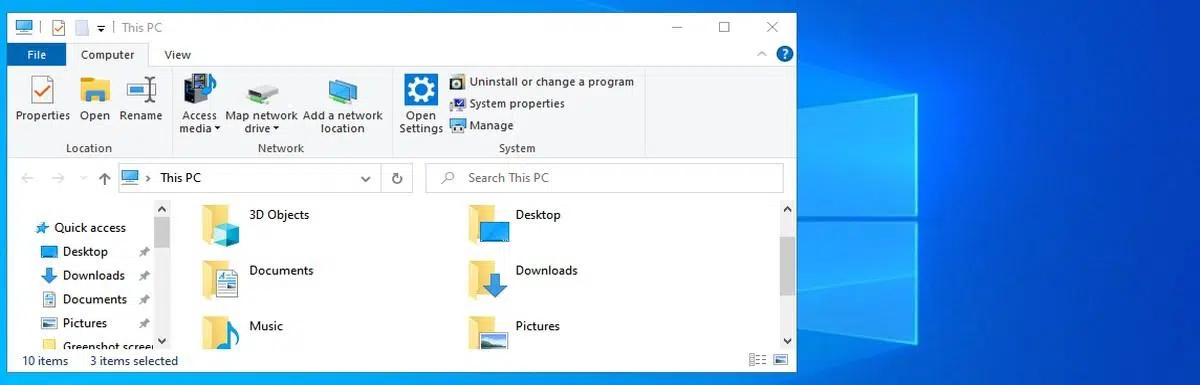
If you've been using Windows for years, you've probably thought more than once that File Explorer falls short . It's functional, yes, but inflexible, lacking in customization options, and quite clumsy when it comes to managing large volumes of data, batch renaming files, or navigating between many folders at once.
That's precisely why so many advanced users end up looking for ways to improve Explorer with Directory Opus or XYplorer , or even replace it with a much more powerful file manager. And, while they're at it, they discover other alternatives like Total Commander, Files, Double Commander, or search tools like Everything and Listary that take productivity to another level.
Why Windows Explorer falls short for advanced users
To this day, Windows Explorer remains virtually unchanged since the Windows 7 era : a few cosmetic tweaks, integration with new system features, and little else. It's fine for basic use, but when you start handling large projects, repositories, multiple disks, or network work, its shortcomings become apparent.
For example, if you want to move multiple files between different folders one by one , you end up with an absurd choreography of clicks, keyboard shortcuts, and open windows everywhere. Batch renaming is another nightmare: no regular expressions, no powerful previews, and few automation options.
Another frustrating point is that the Explorer doesn't properly utilize features like tabs, dual panes, or macros , which are almost standard in other file managers. It also doesn't allow for in-depth customization of lists, mouse or keyboard behavior, or the integration of complex workflows (FTP, SFTP, archives, tags, etc.) into a single interface.
And all this without forgetting seemingly minor but very annoying details, such as the fact that you cannot rename the pinned shortcuts in the side panel without changing the actual folder names, something that many Windows 10 and 11 users demand in order to separate the actual structure from personal organization.
If you manage files daily for work, development, multimedia, or as a sysadmin, File Explorer stops being helpful and becomes a bottleneck . That's where Directory Opus, XYplorer, and similar tools come in.

Directory Opus: the complete replacement for Windows Explorer
Directory Opus (or simply DOpus ) is one of the oldest and most respected file managers on the market. It was launched in 1990 for the Commodore Amiga, and its evolution has been constant, culminating in a professional-level tool for Windows, developed by GPSoftware (Jonathan Potts and Greg Perry).
Unlike other managers created with high-level languages such as Delphi or Lazarus, Directory Opus is developed in Microsoft Visual C++ , which translates into a remarkable feeling of fluidity: copying , listing, filtering and refreshing views feel agile even with directories full of files.
One of its greatest strengths is its seamless integration into the system . If you wish, Directory Opus will automatically appear whenever you open a folder or Windows Explorer. It also integrates with the context menu, making it easily accessible with any right-click.
Its interface is based on the classic dual-pane design , allowing you to open two folders simultaneously to copy, move, or sync files without switching between windows. Furthermore, it supports tabs within each panel, so you can keep multiple locations open in a very organized way.
Another very practical detail is its system tray icon: it allows you to keep Opus always accessible without taking up space on the taskbar, which is ideal for those who use it continuously throughout the day.
At the advanced features level, Directory Opus allows you to hide and show files with one click , search directly from the window itself, work with compressed files as if they were normal folders, manage administrator permissions with quick access, and save view configurations to files for reuse or sharing.
In terms of compatibility, the current branch revolves around version 12.x, with builds for x86 and x64 , and even versions compatible with older systems like Windows XP in previous releases (such as 12.20). It's paid software, with Light and Pro editions: the former costs around €30 , while the latter is around €54 . There's no permanent free version, but there is a generous 60-day fully functional trial period .
The absence of a limited free edition is perhaps its least attractive point for users with a tight budget, and a truly portable official version to carry on a USB without installation is also missed (although workarounds can be done, it is not its main focus).
XYplorer: tabs, dual panel and power in a single manager
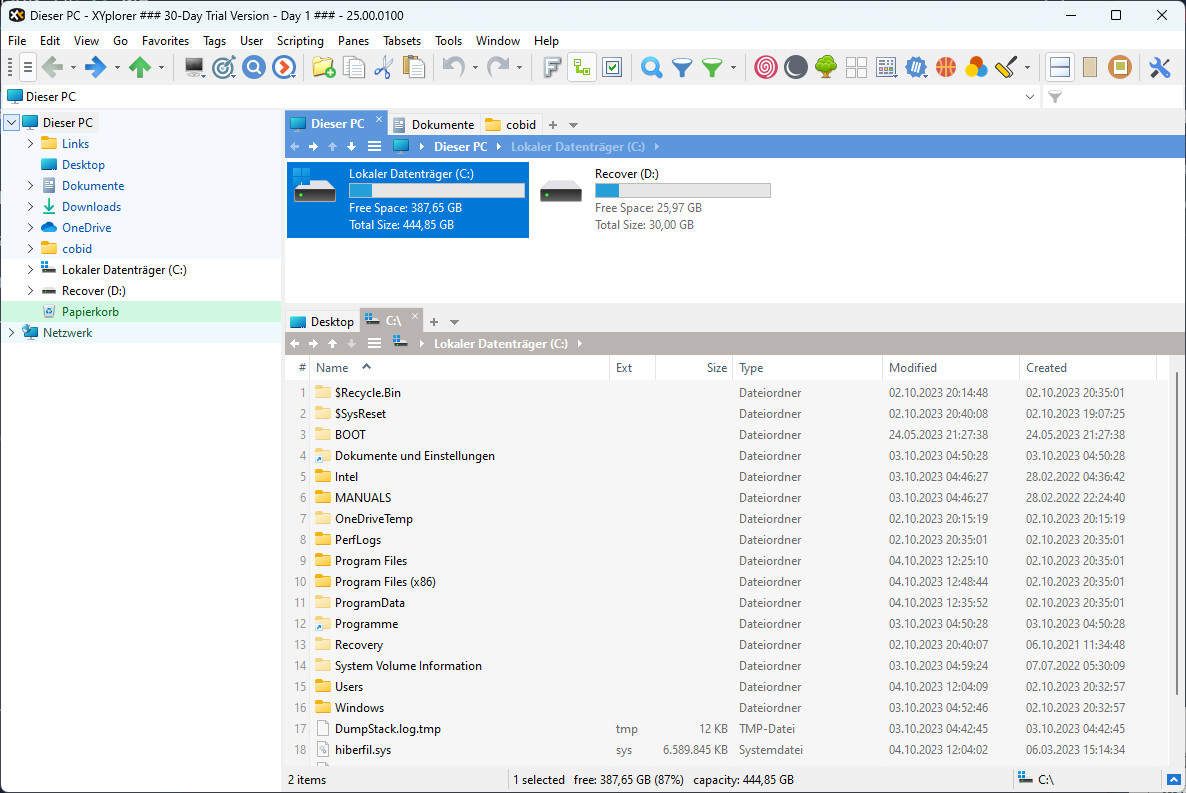
XYplorer is the other big star in the sector when it comes to improving or replacing Windows Explorer . It's designed for users who want to combine tabbed browsing, dual-window functionality, advanced search, and a multitude of small shortcuts that, added together, save many hours a year.
Its main interface displays two vertical panels where you can open multiple tabs in each, mimicking the logic of a web browser but applied to the file system. A directory panel usually appears on the right, allowing you to quickly jump between deep folders without losing context.
At the top, XYplorer incorporates large buttons for the most frequently used functions (copy, move, rename, create folders, etc.), so you're not solely reliant on menus or shortcuts. The context menu is also much more extensive than in File Explorer, with options such as file comparison, path copying, advanced pasting, and more.
One of the features that many users highlight is the integrated preview : you can preview images, and even videos in formats like webm or mp4, in very convenient preview panels or even by hovering the mouse over them, which is great if you work with multimedia material.
In terms of file management itself, XYplorer is especially powerful for batch renaming , advanced filtering, searching within complex directories, and automation using scripts and macros. For those with an intensive workflow, all of this can easily replace several separate tools.
XYplorer is offered as paid software with a 30-day trial . Many users are unsure whether it's worth investing in, especially if they only plan to use a subset of its features (like the media preview). If that's the case, you might want to explore other alternatives, particularly if you only need the visual aspect and not the rest of the toolkit.
Other powerful alternatives to Windows Explorer
Beyond Directory Opus and XYplorer, the ecosystem of file managers for Windows is vast. There are free options, classic ones, minimalist ones, and also true Swiss Army knives. Some integrate with Explorer; others almost completely replace it.
Explorer++: The Explorer that should come standard
Explorer++ offers a very similar experience to the traditional Explorer, but with tabs and several key improvements . You open each folder in a new tab, can duplicate them, close them all at once, and move between them with familiar shortcuts like Ctrl+T or Ctrl+W, just like in a web browser.
The application works seamlessly with drag and drop , both within its own tabs and to the standard File Explorer or other programs. In addition, it includes useful features such as splitting and merging files, marking favorite folders, advanced search, and a more capable preview pane.
Another key advantage is that it's a portable application : you carry it on a USB drive, run it anywhere, and don't need to install anything. Ideal for technicians, administrators, or users who frequently switch between different PCs.
Total Commander: the dual-panel classic
Total Commander is one of the oldest and most powerful dual-window file managers for Windows. Its interface may not win design awards, but its efficiency is hard to beat, especially if you prefer to do almost everything with the keyboard.
The main screen is split into two panels, allowing you to open two separate folders and seamlessly transfer files between them . You can change the view of each panel independently, add side panels for navigating directories, and even list all the files in a directory in a single view.
It includes advanced tools such as bulk renaming , file comparison, an integrated archiver, an FTP client, a duplicate finder, a favorites system, and much more. It offers a fully functional trial version for approximately one month; after that, a license is required.
TagSpaces: organization with tags and colors
TagSpaces takes a different approach: instead of focusing on copying and moving files, it prioritizes organization through smart file tags and colors. You can group files and folders by project, status, or theme without changing their location or name.
A typical example is tagging files with "all" and "done" to track task status, or using colors to identify content types. It also integrates a viewer that opens many formats directly in a side panel with a click.
The Lite version is free and sufficient for basic tagging. The Pro edition adds features such as descriptions, change tracking, geotagging, and advanced search options for tags and metadata.
xplorer²: dual panel and integrated macros
xplorer² combines a dual-window view with excellent customization capabilities . One of its most interesting features is the ability to open an additional panel within the same window to navigate to subfolders without losing sight of the main folder.
It allows you to change the size and orientation of the panels (vertical or horizontal), adapting to different workflows. But perhaps its most distinctive feature is the macro function : you can record repetitive actions (such as a sequence of filters, sorts, and movements) and then play them back automatically.
It offers a 21-day free trial; beyond that period, you need a license to continue using it.
Clover: tabs for Windows Explorer
If you like the Explorer as it is, but miss tabs, Clover is an ideal lightweight extension . It doesn't replace Explorer; it simply adds a tab bar similar to Chrome or Edge.
Thanks to this, you can open multiple folders in the same window , move files between them without cluttering your desktop, and save favorite folders like browser bookmarks. It also includes additional keyboard shortcuts for convenient tab management.
The best part is that Clover is completely free , so it's a very easy way to give your browser a quality upgrade without changing programs.
FileVoyager: Dual panel with its own unique touches and it's free
FileVoyager is a tabbed, dual-window file manager that, unlike some competitors, is completely free. It adds some unique visual features, such as a 3D panel at the top that displays icons and folders with a 3D effect.
Although this 3D panel is primarily aesthetic, it helps visualize which folders contain files at a glance. Each window has a preview tab capable of displaying many file types without leaving the program.
The tabs are displayed at the bottom, and when you create a new one, it duplicates the current tab instead of opening the typical "This PC" view. It includes comparison tools and the ability to create compressed files, though it doesn't offer as many secondary features as some other paid file managers.
More notable file managers for Windows
If you haven't yet found your ideal tool , there are a good number of additional alternatives, many of them free or with very affordable licenses, that cover specific use cases.
Q-Dir focuses on offering four simultaneous panels to manage multiple locations at once. It's not loaded with extras, but if you like having many directories visible side-by-side, it's a very good and completely free option.
FreeCommander XE offers a dual-pane interface, with a directory bar at the top of each window for quickly navigating frequently used paths. Dedicated copy and move buttons are located between the panels, streamlining your workflow. It's also free.
Altap Salamander revives the style of classic dual-pane file managers, but with an architecture that can be extended through plugins . These plugins allow you to add archives, automation tools, file comparison tools, FTP clients, and much more.
SpeedCommander combines dual-window functionality, tabs, and multiple themes and layouts. Its key advantage is its integration with cloud storage services directly from the interface. It offers a 60-day trial period, after which a license must be purchased.
Unreal Commander also offers dual panels and tabs, with a highly customizable interface through themes and icons. However, some users note that its command structure isn't as intuitive as other command-line tools, which can lengthen the learning curve. It's free.
fman presents itself as a minimalist, lightweight, and fast dual-panel file manager with a search bar at the top that allows users to jump to folders and files by typing. It's ideal for modest computers or users who prioritize speed and keyboard responsiveness over a cluttered graphical interface.
Advanced file search engines that complement any file manager

It's not all about moving and organizing folders: often the bottleneck is finding a specific file among thousands of documents, photos, PDFs, or projects scattered across multiple drives. This is where the Windows 11 search indexer typically falls far short in speed, filters, and accuracy.
Ideally, you should combine your favorite file manager (Directory Opus, XYplorer, Files, Total Commander, etc.) with specialized search applications that offer fast indexing, advanced filters, and support for multiple formats.
Everything: Find everything in seconds
Everything is one of the most popular search engines for Windows for a very simple reason: it's incredibly fast . It indexes the contents of your NTFS volumes by reading the Master File Table (MFT) directly, without relying on Windows mechanisms, allowing it to display results almost in real time as you type.
Its interface is very lightweight and minimalist, but it incorporates a powerful filtering system to narrow down searches by file type, path, name, or specific patterns. It also offers an HTTP server to launch remote searches from other devices connected to the network.
It weighs just over 1 MB and consumes very few resources. You can save favorite searches and reuse them whenever you want. The main limitation is that it only works with NTFS volumes , so if you have disks with other file systems, it won't help you.
VX Search: Rule-based filters for complex searches
VX Search takes the concept a step further, focusing on extremely flexible, rule-based searches . You can define criteria by file type, category, size, location, extension, regular expressions, binary or text content, creation, modification, and last access dates, EXIF tags, and much more.
Its interface is more information-dense than that of other search engines, but it remains relatively easy to understand. It allows you to create search profiles , categorize and filter results, copy, move, or delete found files, generate reports, and export data to an SQL database.
There is a free version for home use with certain limitations, and then more complete professional editions geared towards corporate environments.
WizFile: Extreme speed and change tracking
WizFile is another search engine focused on speed. Like Everything, it relies on directly reading the Master File Table (MFT) of the hard drive, bypassing Windows. This way, the results appear almost instantly.
It allows searching by both file name and full path , supports multiple search terms, and can display and update the size of folders and files in real time when they change.
DocFetcher: the “Google” of your documents
DocFetcher is an open-source search engine focused on finding text within documents, rather than simply by filename. Its developers describe it as a "Google for your files," and that's no exaggeration when you work with large amounts of text.
It supports HTML, TXT, PDF , Office documents, RTF , ODT, ODG, ODS, SVG, VSD, and other common formats. It creates indexes and offers filters by size, file type, and location, so you can find a specific phrase within a PDF or DOCX file in seconds.
Listary: instant search and integration with managers
Listary is a curious tool because it combines a very fast search engine with a launcher and deep integration with file explorers such as Total Commander, Directory Opus, XYplorer, xplorer², WinRAR or FileZilla.
Thanks to this integration, with just a couple of keystrokes you can locate any file and open it directly in your favorite file manager , without having to navigate up and down the directory tree. The results are grouped by extension and can trigger custom actions.
Agent Ransack, SearchMyFiles and PowerToys Run
Agent Ransack is another veteran search engine highly regarded by users who give it a try. It allows content-based searches, supports regular expressions , directly displays text snippets found within files, and offers wizards to create complex queries without driving yourself crazy.
SearchMyFiles , by Nirsoft, stands out for its level of customization . Although its interface is basic, it offers dozens of filters: by creation, modification, or last access date, size, name, type, etc. It's portable and completely free.
PowerToys Run, for its part, is part of Microsoft's suite of open-source utilities for Windows. It functions as a quick launcher with configurable keyboard shortcuts, allowing for smooth file and application searches, as well as access to some system functions, and integrates seamlessly with Windows itself.


Passionate writer about the world of bytes and technology in general. I love sharing my knowledge through writing, and that's what I'll do on this blog, show you all the most interesting things about gadgets, software, hardware, tech trends, and more. My goal is to help you navigate the digital world in a simple and entertaining way.