- Microsoft Lens and the Office Scan feature allow you to digitize documents, whiteboards, and cards and convert them into PDFs or editable files integrated with OneNote, OneDrive, and Microsoft 365.
- Applications such as CamScanner, Adobe Scan, Text Fairy, Tiny Scanner, Genius Scan, and iScanner expand the options for OCR, annotation, signing, and exporting to multiple cloud services.
- Native scanning functions in iOS (Notes) and Android (Google Drive) cover spot scans well, while the apps Specialized ones are more suitable for intensive use.
- Good lighting, proper framing, and manual edge adjustment are key to obtaining clean, legible scans that are easily editable from your mobile device.

Turning your phone into a powerful scanner is no longer science fiction. Today, with Office's Scan feature and the Microsoft Lens app , you can transform a crumpled piece of paper into an editable Word , PowerPoint, or Excel document in seconds, without needing a physical scanner at home or in the office. It also works alongside other apps like CamScanner, Adobe Scan, and the native scanners on iOS and Android, which have revolutionized the way we work and study.
In this article, we'll take a detailed look at how to use the scanning function to digitize editable documents , what Microsoft Lens offers compared to other scanning apps, how to integrate it with OneNote, OneDrive , and Office 365, and what alternatives exist when you just want something quick and easy from your mobile device. We'll also review best practices to ensure your scans are clean, legible, and ready for editing.
What is Microsoft Lens and the Scan feature in the Office app?
Microsoft Lens (formerly known as Office Lens) is a free Microsoft app designed to turn your mobile phone's camera into a versatile scanner. Its goal is to transform any photo of a document, whiteboard, or business card into something perfectly legible, cropped, and ready to save or edit digitally.
This tool allows you to capture images of documents, whiteboards, photos, or cards , automatically correct perspective, improve contrast, remove shadows and reflections, and, most interestingly, recognize text using OCR ( Optical Character Recognition ) so you can edit it in Word, PowerPoint, or even extract it to Excel.
The Scan feature in the Office app (or Microsoft Lens, integrated into the Microsoft 365 ecosystem) focuses on digitizing documents so they don't just remain as images , but are converted into PDFs or editable files that you can save to OneNote, OneDrive, or your device. You can also import images already in your phone's gallery and convert them into digitized documents.
Main uses of Microsoft Lens and the Scan function
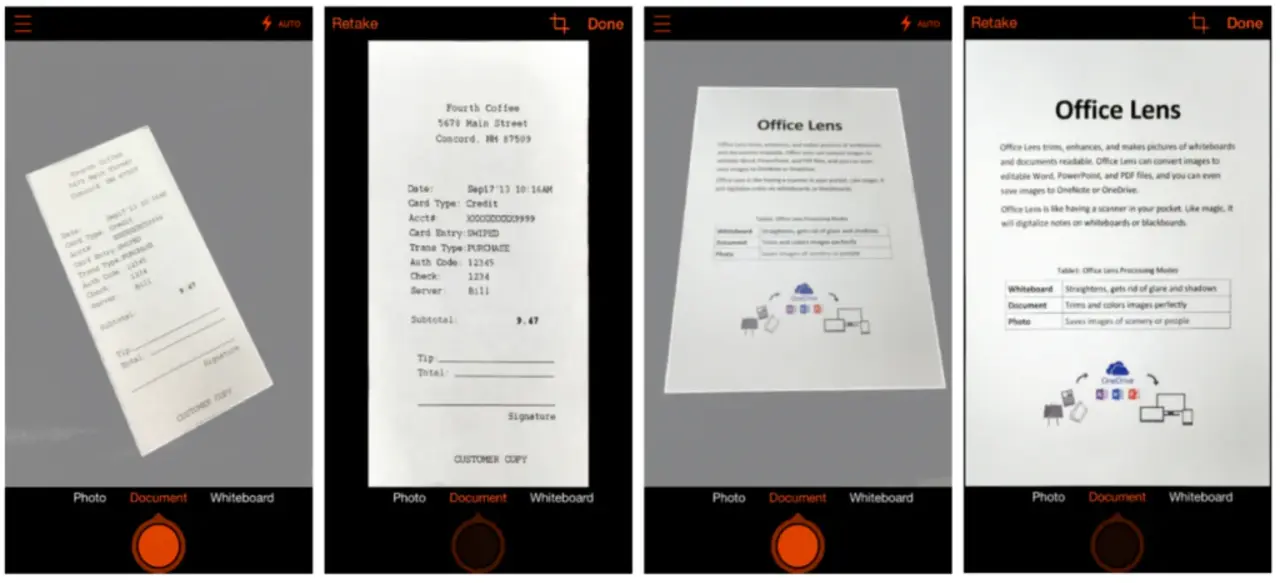
Microsoft Lens is designed for work, study, and personal use. Its main advantage is that it centralizes most scanning scenarios in a single app : from an invoice to a whiteboard full of ideas after a meeting.
productivity at work
In a professional setting, the app functions as a true pocket scanner for any type of document . It's especially useful if you work remotely, travel frequently, or simply don't have a traditional scanner readily available.
With Microsoft Lens, you can scan notes, tickets, printed documents, and contracts and quickly upload them to the cloud. Once captured, you can save them as PDFs , images, Word documents, or PowerPoint presentations, and then email them, share them with your team, or archive them on OneDrive.
Another very practical use is capturing the contents of a whiteboard at the end of a meeting . Lens corrects perspective, removes glare, and enhances contrast so that the information is perfectly legible, even if you took the photo from an awkward angle. This way, agreements and pending tasks aren't lost when the whiteboard is erased.
The app also lets you digitize business cards and turn them into contacts . You scan the card, Lens recognizes the name, phone number, email, and other information, and lets you save them directly to your address book or Microsoft services like Outlook. It's a quick way to organize your network without having a stack of cards on your desk.
Productivity in the educational field
In the educational environment, Microsoft Lens has become a very useful tool for students, teachers, and those preparing for competitive exams who want to increasingly move away from paper. It facilitates both content capture and its subsequent organization and editing.
With Lens, you can scan lecture notes, printed notes, and materials provided by teachers , and then open them in Word or OneNote to add comments, summaries, or digital highlights. The OCR-recognized text can be edited (it works especially well with English documents and clear printed text).
It's also very useful for capturing whiteboards and chalkboards during classes . You take a photo using whiteboard mode, and the app removes reflections, corrects tilt, and enhances text and marker or chalk strokes, so you can later review the explanation without relying on crooked or blurry photos.
Thanks to its integration with OneNote , it's easy to keep all your class notes organized by subject and topic. You can scan notes, upload them to a OneNote notebook, and access them from your computer, tablet, or any other device where you have your Microsoft account.
Specialized scanning modes in Microsoft Lens
One of the key features of Microsoft Lens is that it offers specific scanning modes depending on the type of content . Each mode automatically applies cropping, color enhancements, and adjustments designed for the specific use you'll give to the capture.
Document mode is optimized for capturing printed text on sheets, contracts, invoices, or forms . It adjusts the perspective, enhances contrast, and improves the readability of black and white or color text, making it ideal for generating PDFs or editable Word documents.
Whiteboard mode focuses on capturing images on whiteboards or blackboards in classrooms and meeting rooms . It eliminates much of the shadows, reflections, and glare from the plastic, corrects tilt, and highlights marker writing so that the result is legible even if you were far away or at an angle to the board.
Photo mode is useful when you want to save images as more traditional photographs , but corrected and cropped. Here, the priority isn't so much the text, but preserving the image well—for example, a slide from a presentation or an informational poster.
Business Card mode is designed to recognize and extract contact information from a business card . It identifies fields such as name, company, phone number, email, and website, and offers the option to directly create a new contact on your phone or in your Microsoft 365 account.
From photo to editable document: OCR and output formats
A key aspect of the Office Scan function and Microsoft Lens is its integrated OCR capability, or Optical Character Recognition . This system analyzes the letters in the image and converts them into selectable and editable digital text.
When you scan a document with Lens and choose to save it as a Word file or PowerPoint presentation , the system attempts to preserve the original layout: titles, paragraphs, lists, images, and, as far as possible, the document's formatting. You can then edit the content just as you would with any standard Office file.
The screenshots can also be saved as PDFs or as JPG images . PDFs are perfect for sending documents that don't require much further editing and for archiving, while image format is useful if you're going to quickly share something via messaging or social media.
Another very interesting option is using Lens to digitize handwritten notes . Although handwriting recognition is more delicate than with printed text, the app allows you to capture notebooks, notes, or diagrams written in pen or pencil, and in certain languages (such as English) it can attempt to convert some of that content into editable text.
Integration with OneNote, OneDrive and the Microsoft 365 ecosystem
One of Microsoft Lens's greatest strengths compared to other scanning apps is its deep integration with OneNote, OneDrive, and the rest of Office . If you use Microsoft 365 at work or school, Lens fits seamlessly into your workflow.
From within the app, you can save scanned documents directly to OneNote , within a specific notebook and section. This allows you to keep your scans organized alongside handwritten notes, screenshots, web clippings, and other study or work materials.
Integration with OneDrive makes it easy to automatically sync every PDF, image, or Word file you create to the cloud . So, if you scan a contract with your phone, you can open and print it instantly from your office computer, or share it with your team without having to manually send files.
When you connect Lens to an Office 365 account , the possibilities expand: automatic cloud saving, easy access from Word, PowerPoint, and Excel, and more convenient editing on any device. Without that account, you can still use the app, but the options are more limited to local storage and basic image or PDF manipulation.
Other mobile scanning apps: alternatives and add-ons
Although Microsoft Lens and the Scan function in the Office app cover the productivity aspects of Microsoft 365 very well, the market for scanning apps is quite broad and there are other very powerful solutions for digitizing documents , each with its own particular focus.
Text Fairy: Advanced OCR on Android
Text Fairy is an Android app focused almost exclusively on multilingual OCR recognition . Its main purpose is not so much to generate pretty PDFs, but to extract editable text from an image.
With this app, you can take a photo of a document or choose an image from your gallery . Then, you adjust the framing, indicate the language of the text, and let the system recognize the characters. It's important that the photo is in focus and well-lit to improve the OCR results.
Once the process is complete, Text Fairy displays the resulting text and highlights any potentially misinterpreted words in red , allowing you to review and correct them. Afterward, you can edit the text almost as if you were in Word, copy it to the clipboard , translate it with Google Translate, save it as a PDF, or even have the app read it aloud.
Tiny Scanner: simple file without OCR
Tiny Scanner is available for iOS and Android and focuses on providing a very easy-to-use document scanner, although it lacks OCR . In other words, it allows you to digitize, organize, and share documents, but it cannot convert the text into an editable format.
With this app, you can create multi-page documents from new photos or images already on your phone . The thumbnail preview makes it easy to rearrange pages by dragging them with your finger, which is convenient for assembling a multi-page PDF in the correct order.
The captures can be saved as an image or as a PDF , with different color modes: full color, grayscale or black and white, plus several levels of contrast to better highlight monochromatic texts.
Another advantage of Tiny Scanner is the ability to organize documents into folders , similar to how you would on a computer. It even allows you to set a password to access the app and protect your content. There is a paid Pro version that removes ads and adds some extra features.
Genius Scan: Batch scanning and extended export
Genius Scan, available on iOS and Android, is quite similar to Tiny Scanner in concept: it digitizes documents such as images or PDFs without full OCR , but it does so with a strong focus on productivity.
The app allows you to scan documents individually or in batches , using the built-in camera or previously saved images. It offers basic functions such as cropping, rotating, and applying automatic filters adapted to black and white or color documents, as well as selecting different page formats (A4, letter, receipt, business card, etc.).
In the free version, scans are saved as PDFs to the device's memory or sent via email . The paid version, Genius Scan+, greatly expands export options: it allows you to send documents to services like Box, Dropbox, Evernote, Google Drive, OneDrive, OneNote, and others, as well as import PDFs from other apps, protect files with a passcode, and work without ads.
iScanner: scanning with the option to sign documents
iScanner, available for iOS and Android, follows a similar approach to Tiny Scanner and Genius Scan: digitizing documents without focusing on OCR , but adding a key feature for many users: the signature.
With iScanner you can scan with your camera or import existing images , crop the captures, adjust brightness and contrast, and add pages to the same file. The result can be saved as a JPG or PDF and easily shared.
What makes this app different is that it allows you to write and sign directly on digitized documents . If you receive a contract, you print it, sign it with a pen, scan it with iScanner, add your signature or any necessary notes, and send it by email without ever needing a computer.
The Pro version of iScanner removes ads and adds cloud storage options with services like Dropbox, Google Drive, and Evernote. It's a very attractive option for those who handle many documents that require signatures or quick notes.
CamScanner and Adobe Scan: giants of mobile scanning
Alongside Microsoft Lens, two names stand out in the world of mobile scanning: CamScanner and Adobe Scan . Both applications offer a very high level of image quality and advanced features, and they compete directly with each other in many aspects.
CamScanner: Multi-language OCR and advanced features
CamScanner is one of the most popular scanning apps thanks to its powerful OCR in over 100 languages and its extensive set of document editing and management tools.
Its text recognition technology allows you to convert the content of a contract, invoice, or long document into editable and searchable text . You can export the result to formats such as TXT, Word, or Excel, which is very useful for students digitizing notes or professionals who work with many contracts or reports.
In addition to OCR, CamScanner includes tools for annotation, highlighting, digital signatures, and custom watermarks . It also allows you to merge multiple PDFs into one, split large documents into smaller files, and password-protect documents.
Their business model is freemium: the free version is quite comprehensive, but it adds a watermark to documents and limits certain features . The premium subscription, paid monthly or annually, removes these limitations, expands cloud storage, unlocks full OCR editing and advanced export to Office formats, making it almost indispensable in intensive professional environments.
Adobe Scan: High-quality scanning at no cost
Adobe Scan relies on Adobe Sensei 's artificial intelligence to deliver very high-quality scans , with a strong focus on visual document cleanliness and integration with the Adobe cloud.
The application automatically detects document edges, corrects perspective, removes shadows, and adjusts brightness and contrast , typically producing very clean and legible PDFs, often comparable to or better than many traditional desktop scanners.
Documents are saved by default as PDFs in Adobe Document Cloud , allowing you to access them from any device with Adobe Acrobat Reader. If you're an Acrobat Pro subscriber, you can edit the text and images in these PDFs, rearrange pages, or export them to various file formats.
Unlike other apps, Adobe Scan is completely free and doesn't add watermarks to documents. Unlimited scanning, OCR, and basic cloud storage are free; Adobe's business model relies on you subscribing to Acrobat Pro if you need advanced PDF editing.
Native scanning features on iOS and Android
If you only need something occasionally and don't want to install more apps, both iOS and Android offer built-in scanning functions that work very well for basic use.
On iOS, the Notes app lets you scan documents directly from a note . Simply create a new note, tap the camera icon, and select "Scan Documents." The system detects the edges, corrects the perspective, and generates a multi-page document if needed, with more than decent quality for occasional use.
On Android, the Google Drive app includes a scanning option that saves the result as a PDF to your Drive . Simply tap the "+" button, select "Scan," and point your camera at the document. The text in the resulting PDF becomes searchable thanks to Google's OCR, making it easy to find documents later.
Best practices for scanning documents with your mobile phone
To get the most out of the Scan function in Office, Microsoft Lens, or any other app, it's a good idea to follow a few best practices that improve scan quality . Simply pointing and shooting isn't enough: small details make a big difference.
The first thing to consider is the lighting and background . Try to scan in a well-lit area, ideally with diffused natural light. Avoid harsh shadows on the paper and reflections from lamps. Place the document on a contrasting surface (for example, a dark background if the paper is white) so the app can better detect the edges.
It's also important to keep your phone as parallel to the document as possible . Although apps can correct perspective, if you start from an exaggerated angle, the quality will suffer. Make sure the entire document is within the frame before taking the photo.
Third, it's a good idea to take advantage of automatic edge detection , but don't rely on it completely. Let the app define the outline and then manually adjust the corners, if necessary, to prevent background images from showing through or text from being cut off. Precise cropping gives the PDF a much more professional look.
Finally, if you're going to use OCR, make sure the text is well-defined, without blurriness or smudges . Avoid heavily wrinkled or stained paper; if you must, take several shots and choose the clearest one. In handwritten documents, write clearly and neatly to facilitate recognition.
In a world moving towards a paperless environment, combining the Office Scan function, Microsoft Lens, and various scanning apps like CamScanner, Adobe Scan, Text Fairy, Tiny Scanner, Genius Scan, or iScanner allows you to instantly transform stacks of paper documents into organized, searchable files that are always available in the cloud . Choosing one tool over another will depend on whether you prioritize Microsoft 365 integration, image quality, OCR capabilities, the ability to sign documents, or simply the speed of an occasional scan from iOS or Android. In all cases, however, your smartphone becomes a key tool for working and studying without relying on a traditional scanner.


Passionate writer about the world of bytes and technology in general. I love sharing my knowledge through writing, and that's what I'll do on this blog, show you all the most interesting things about gadgets, software, hardware, tech trends, and more. My goal is to help you navigate the digital world in a simple and entertaining way.