- There are several ways to insert a signature in Word, from hand-signed images to legally valid digital signatures.
- Word allows you to add both simple electronic signatures and cryptographic signatures using digital ID or specialized solutions.
- External applications and specific add-ons offer advanced options and automation, ideal for professional environments.
Adding a signature to a Word document is a common need for both individuals managing personal paperwork and professionals and businesses seeking to optimize document management. Digitally signing in Word might seem complex, but the truth is that there are easy methods adapted to all needs, from simple home solutions to alternatives that meet all legal requirements.
If you've come here looking for the fastest, safest, and easiest way to add your signature in Word —whether for work, an online process, or simply to save time and project a more professional image—this article offers the most up-to-date guide. Discover each method explained in detail and all the available options for both PC and Mac , including solutions for those seeking legal validity and maximum security.
Why is it important to know how to insert signatures in Word?
The digitization of administrative and work processes has made the ability to sign documents without printing and scanning essential. Knowing how to insert a signature in Word saves time, eliminates repetitive tasks, and allows you to respond quickly to any request . Furthermore, depending on the method chosen, you can give your document the legal guarantees required by companies and public organizations.
Methods for inserting signatures in Word
Let's review all the ways to sign a Word document, from the simplest and most universal method to advanced options that comply with legal requirements around the world. Be careful to choose the one that best suits your context.
1. Inserting a scanned or digitized signature (quick and basic method)
This is the most common method used by those who need to quickly get a document signed but don't require strict legal guarantees. It's perfect for informal situations, such as approving budgets, internal contracts, or communicating with colleagues.
- Sign on a piece of paper and scan your signature using a traditional scanner, a mobile app like Office Lens, or your device's camera. The goal is to get a clean image with little background and good resolution.
- Save the image to your computer in .jpg or .png format, preferably with a white or transparent background for a more professional visual integration.
- Open the document in Word and place the cursor where you want to place the signature. Go to the "Insert" menu and select the "Image" option. Choose the file with your scanned signature.
- Adjust image size and position so that it fits naturally. From the Format tab, you can use features like Crop to remove unnecessary margins, and the "Remove Background" tool if you've scanned the signature against a non-white background.
- To make things more organized, you can write your name, title, or other relevant information below the image, select everything, and save it as an automatic text block in Word to make it easier to insert your signature in the future.
This method is simple and very popular, but it lacks legal validity compared to a cryptographic digital signature. It is ideal for situations where speed takes precedence over formality.
2. Sign in Word using a device with a stylus or touch screen
If you have a device that allows handwriting input (Surface, graphics tablets, iPads , or touchscreen laptops ), you can sign directly on a blank image and save it to insert into Word:
- Create a new image (blank canvas) and sign with the stylus.
- Crop and save the image as .png to preserve transparency.
- Insert the image as explained in the previous method.
This alternative improves the visual quality of the signature and is perfect for those seeking a more natural and personalized result without resorting to paper or a scanner.
3. Add a signature line in Word (prepare a document for someone else to sign)
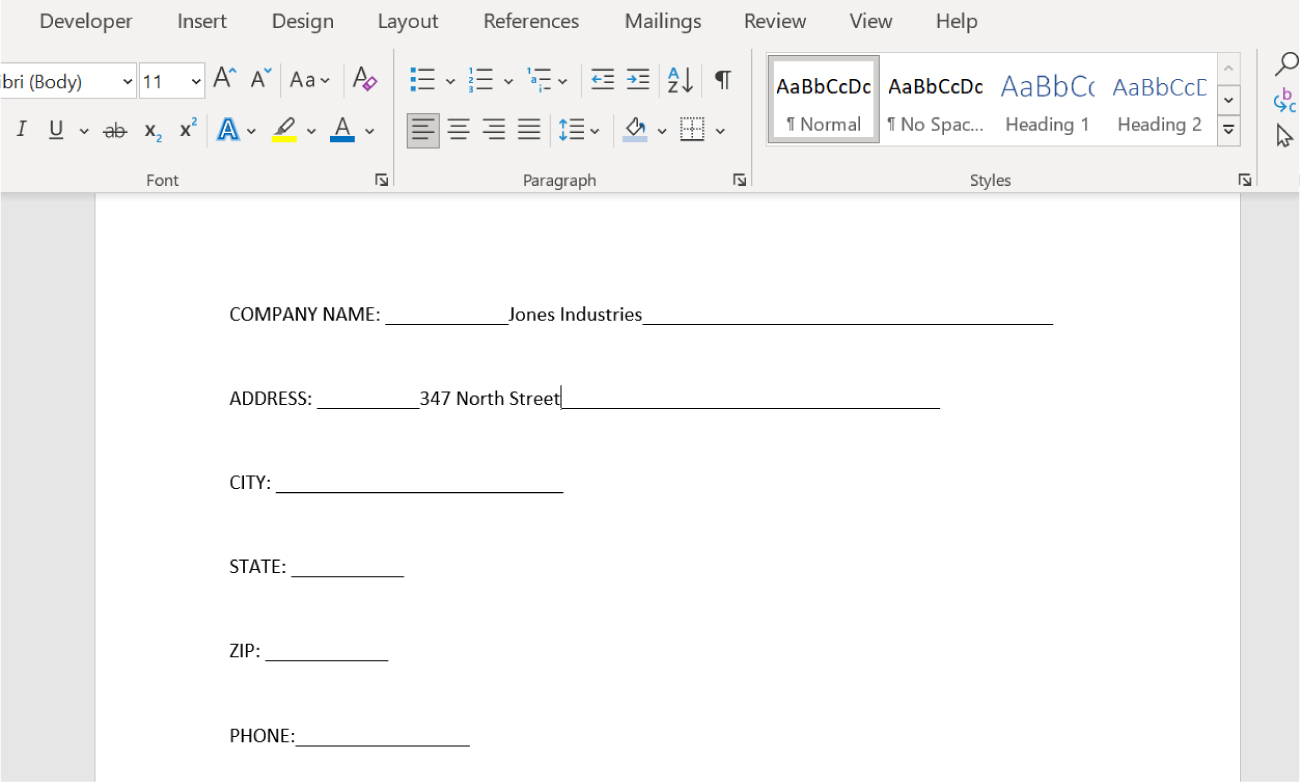
Word has a specific feature that allows you to insert a signature field or line . This is useful when you want someone else to complete and digitally sign the document, especially when it comes to forms, agreements, or contracts.
- Place the cursor where you want to insert the signature line.
- On the “Insert” tab, click “Signature Line” in the “Text” group.
- A configuration box will open where you can enter the signer's name, title, email address, and even additional instructions.
- You can select options to allow signer comments and display the signing date.
- When you accept, a signature line appears with an X and the information you've configured. You can insert as many signature lines as you need for multiple signers.
The recipient of the document simply right-clicks on the signature line and selects "Sign." This allows you to:
- Write your name (print signature).
- Sign with your finger or stylus if your device allows it.
- Upload an image of a handwritten signature.
By signing in this type of field, Word adds a digital signature to the document (if the user has a valid digital certificate), guaranteeing authenticity and non-repudiation.
4. Legally valid digital signatures in Word
When a digital signature is required to have full legal effect, cryptographic security, and traceability , Word offers the option of signing using a recognized digital certificate. This type of signature complies with international standards (such as eIDAS in Europe) and requires a more rigorous process.
- You must have a digital certificate issued by a recognized certifying entity (Electronic DNI, FNMT, Camerfirma, etc.).
- Open the document and follow the signature line process, but when you confirm the signature, you will be asked to select the digital certificate installed on your system.
- Word will add an invisible or visible digital signature, as appropriate, and the file will be protected from modification.
Digital signatures offer guarantees of integrity, authenticity, and non-repudiation . Once signed, you will see a "Signatures" icon at the bottom of the document, and you can also view the signature information from the "File" > "Information" tab.
If you want to learn more about how to insert a legally valid signature in Word, you can consult our tutorial on drawing signatures in Word and PowerPoint.
5. Remove or modify digital signatures in Word
Sometimes, it may be necessary to remove a digital signature (visible or invisible), either because a mistake has been made or because the document needs to be updated. The process is simple:
- Right-click on the visible signature and select “Remove Signature.”
- For invisible signatures, go to “File” > “Info” > “View Signatures,” select the signature you want to delete, and then click “Remove Signature.”
- Please note that deleting the signature makes the document editable again and loses the protection associated with the digital signature.
Sign Word documents on Mac
The process on Mac is almost identical, but with slight variations in the menus and options:
- Sign on paper, scan it, and save it to your Mac as an image.
- In Word for Mac, go to “Insert” > “Pictures” > “Picture from File” and select your signature.
- Crop the image as needed and use the “Format” tab to adapt it.
- If you want to reuse your signature, select the image and associated text, and from “Insert” > “Auto Text” > “New,” create an entry to quickly add it to other documents.
- Every time you want to insert your signature, you just have to search for it in the autotext menu.
This functionality greatly speeds up the process of adding a signature to any document in the macOS environment, without relying on external tools.
Electronic signatures: difference between digital signature and electronic signature in Word
It is important to clarify that electronic signature and digital signature are not exactly the same , although in everyday language they are used interchangeably.
- Electronic signature: It refers to any visual mark added to a document to show the intent to sign, such as a scanned image of your handwritten signature or writing your name on the file. It's legally valid in many contexts, but can be vulnerable to tampering.
- Digital signature: It is an advanced electronic signature based on encryption, associated with a digital certificate issued by a recognized certification authority and legally bound to the signer. It provides authenticity, integrity and a time stamp that certifies the validity of the signature.
Depending on the level of security and legal requirements, you'll need to choose one or the other. For business documentation, official procedures, and important contracts, it's recommended to use a digital signature.
Specialized solutions and add-ins for electronic signatures in Word
In addition to Word's native features, there are external applications and professional services for managing the electronic and digital signature of documents . These alternatives offer advantages such as automation, traceability, cross-platform compatibility, and compliance with international standards.
1. Add-ins for Word (example: PandaDoc)
Some providers, such as PandaDoc, offer official add-ons that you can install directly from the Microsoft app stores:
- Install the add-in from “Insert” > “Get Add-ins” in Word. Search for “PandaDoc” and follow the steps to install it.
- Once installed, access the electronic signature features, upload your document, and add signature fields wherever you want.
- You can self-sign, request signatures from others, or check the status of the document.
- Upon completion, a certificate of authenticity is generated and you can download the signed document in formats such as PDF or DOCX.
These add-ons are ideal for companies or professionals who manage a high volume of documents and require additional control and security during the signing process.
2. Integrated digital signature platforms
In addition to the use of plugins, platforms such as PandaDoc, Viafirma and others offer cloud services specialized in the creation and management of documents and electronic signatures :
- Upload the Word document to the platform and configure it for signing, adding the signers you want (you can add several in a chain).
- Add handwritten or digital signature fields in the desired position.
- Each signer receives an email notification to complete the signing process, ensuring authenticity and traceability.
- Documents often incorporate unique codes and legally binding signature certificates.
These tools automate the workflow, are compatible with mobile devices , and allow you to download the final documents with all the guarantees of authenticity and legal validity.
Sign Word documents from Google Docs and PDFs
You can't just sign in Word. Documents often arrive in other formats, and you need to adapt:
Sign in Google Docs
- Open the document in Google Docs.
- Insert an image of your signature from the “Insert” > “Image” > “Upload from computer” menu.
- Adjust the position and size according to your needs.
- When you're done, download the document as a PDF to send it signed more securely.
Sign PDF from Mac
Tools like PDFelement make it easy to add a signature to a PDF in several ways:
- Write your signature with text, use a scanned image, take a photo with your camera, or draw your signature with your mouse.
- Specialized programs also allow you to protect PDFs and add extra layers of security, such as hiding sensitive information.
Advantages of using electronic and digital signatures in Word
Adopting these methods brings agility, security, and professionalism to business and personal processes:
- Eliminates the need to print, hand-sign, and scan documents.
- Facilitates control of signers and signature fields in processes with multiple participants.
- Allows integration with document management platforms and workflow automation.
- It provides an essential legal and security layer in today's digital environment.
Legal and safety aspects
A digital signature in Word is legally valid as long as you use a recognized certificate and the document hasn't been modified after signing. Professional platforms and add-ins comply with regulatory frameworks in Europe (eIDAS) and other regions, guaranteeing authenticity, integrity, and non-repudiation. If your document requires it, you can find more details here.


Passionate writer about the world of bytes and technology in general. I love sharing my knowledge through writing, and that's what I'll do on this blog, show you all the most interesting things about gadgets, software, hardware, tech trends, and more. My goal is to help you navigate the digital world in a simple and entertaining way.