- Interaction between OneDrive and Office to edit and save documents in the cloud
- Advantages of file synchronization for collaborative work and security
- Configuration and administration methods for users and companies
In today's work and academic world, having your files available on any device has become essential. The integration between OneDrive and Office simplifies this process, ensuring that documents, spreadsheets, and presentations are always at hand, whether you're working from a computer, your mobile device, or the web. However, while synchronization is straightforward in most cases, understanding the details and available options can make all the difference between a smooth experience and one riddled with problems.
If you've ever wondered how to get the most out of OneDrive and Office synchronization , this article guides you step by step and answers all the frequently asked questions. From setting up the application, managing folders, and troubleshooting issues, to the most advanced features for administrators: here you'll find all the information you need, explained clearly and directly.
What are the benefits of syncing OneDrive with Office?
OneDrive keeps your files synchronized across your computer, the cloud, and other devices . This means any changes you make on your laptop will automatically be reflected in the version on your mobile device or the web, saving you time and ensuring you always work with the latest version of each document.
Furthermore, by syncing with Office, you can open and save documents directly from Word , Excel, or PowerPoint to your personal or professional cloud storage. This facilitates real-time collaboration, enabling multi-user editing and version control so you don't lose anything important.
Another key feature is the ability to access your files even offline . When you reconnect to the internet, all changes will be updated in the cloud, which is convenient for those who work on the go or in locations with limited connectivity.
The integration also offers automatic backup options for folders such as Documents, Desktop, and Pictures, helping to protect that information against system failures or device loss.
And finally, managing your computer's storage space is much easier thanks to on-demand files: you only download what you need and the rest stays in the cloud, ready to access whenever you want.

Requirements for syncing OneDrive with Office
Before you start configuring everything, make sure you meet the minimum requirements for an optimal experience:
- Windows 10, 11 or Office 2016 or laterThe OneDrive app usually comes pre-installed, but if not, you can easily download it from the official website.
- Microsoft account (personal, work, or school): It is essential to log in and connect both services.
- Updated version of the OneDrive app: : For access to the latest features and greater stability.
- Allow connections to addresses required by Microsoft from the corporate network, if you are in a company.
Office editions distributed by some manufacturers may come with the OneDrive app included, making it even easier to initially link and automatically sync your Office files.
Getting Started: Installing and Setting Up OneDrive
First, make sure you have OneDrive installed on your computer. If you're using a modern system, it's probably already installed. If not, you can download it from the Microsoft website in just a few minutes. Then, follow these steps:
- Open the OneDrive app from the Start menu by typing “OneDrive”.
- Enter your Microsoft account (whether personal, work or educational) and click on “Sign in”.
- Accept the default OneDrive folder or change the location if you prefer to save it to another disk or external drive.
- Choose which folders to sync if you don't want all your OneDrive to be downloaded to your computer (very useful on computers with little space).
During setup, you'll see several screens explaining how Files On-Demand and other key features work. Pay attention to these options, as they directly affect how and when your files will be downloaded to each device.
Link OneDrive with Office: Sync directly from apps
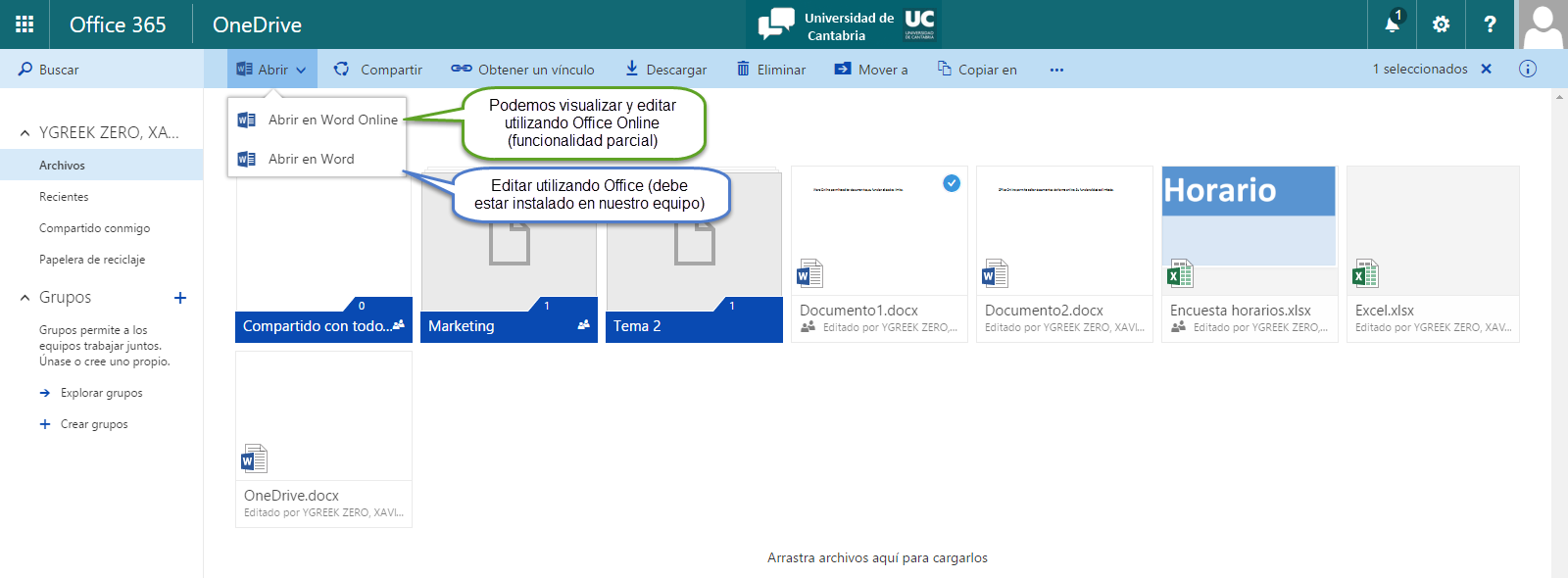
One of the best features offered by the integration between OneDrive and Office is the ability to open, save, and edit Word, Excel, or PowerPoint files directly in the cloud without having to worry about local copies or losing your changes.
How does it work? Very simple:
- Sign in to any Office app (Word, Excel, PowerPoint) using the same Microsoft account linked to OneDrive.
- When you create or open a document, go to the menu File> Save As and select OneDrive among the available locations.
- Choose the folder where you want to save the file and give it a name, as you normally would.
From that moment on, any changes you make are synced in real time with the cloud, and if you're collaborating with others, everyone will see the updates immediately. You can even take advantage of features like co-authoring to edit the same file together.
This integration is also available in Office Online and mobile versions , so no matter where you work from, your files will always be up-to-date and accessible.

Managing synchronized folders and files
The OneDrive app lets you control which folders are physically synced to your computer and which are only stored in the cloud. This is very useful if you have limited disk space or if you don't need all your files all the time.
To adjust these options:
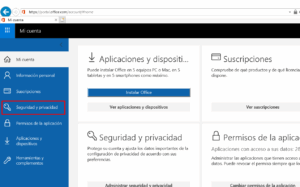
- Right-click on the OneDrive cloud icon on the taskbar (next to the clock).
- Choose Settings > Account > Choose folders.
- Check or uncheck the folders you want to physically sync to your computer.
This way, you can work with all your files from File Explorer , even if only some are actually downloaded. The rest will appear as accessible online and will download instantly if you need them.
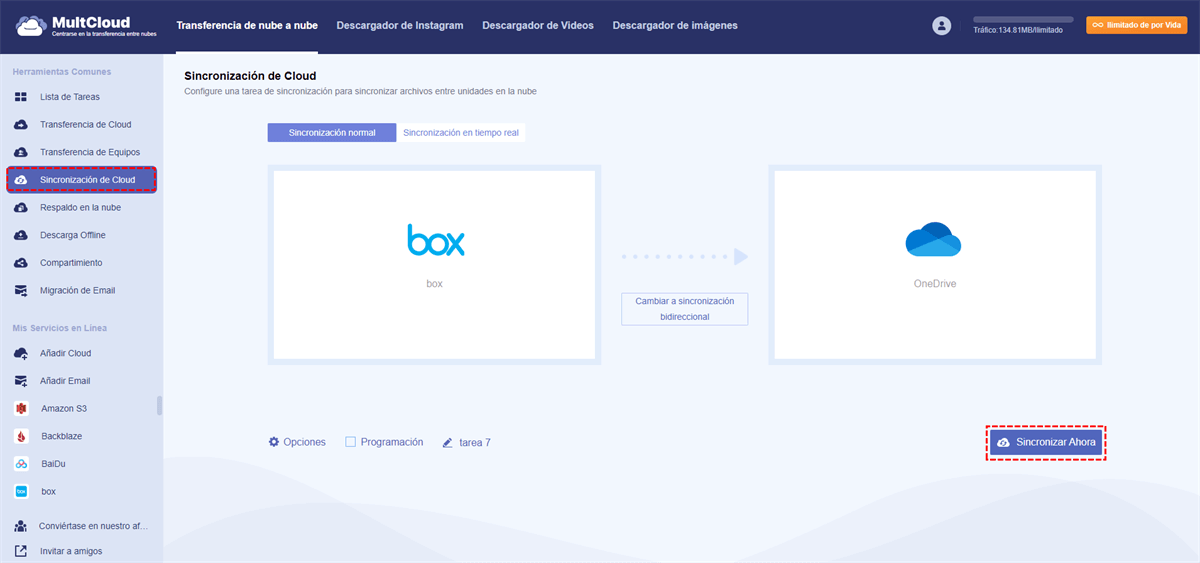
Additionally, you can automatically back up key folders like Documents, Desktop, or Pictures, so that any files placed there are automatically synced to your OneDrive and protected against any unforeseen events.

Advanced options and administration for companies
If you manage multiple teams or are an administrator of an organization , there are tools and dashboards that allow you to monitor OneDrive synchronization on a large scale.
From the Microsoft 365 admin center , you can check the synchronization status of all company devices, troubleshoot common errors, and ensure that users have the necessary settings enabled to protect their data.
Some of the most relevant options include:
- Check synchronization reports by device or user, including the status of known folders and OneDrive app updates.
- Configure the “EnableSyncAdminReports” policy to receive automatic reports on synchronization status and possible errors.
- Customize filters and quickly search for users or devices with issues to provide immediate support.
- Manage application and operating system versions to ensure everyone is working in up-to-date and secure environments.

Troubleshoot common synchronization issues
As with any technology, synchronization problems can sometimes arise , affecting file updates, causing conflicts between devices, or leading to cloud errors. Here are some practical tips to help you resolve them:
- Unlink and relink your computer to OneDrive: This usually resolves most sync errors and is a safe process. When you reconnect, OneDrive will allow you to use the same folder without downloading everything again.
- Reset OneDriveIf problems persist, resetting the app often resolves deeper issues.
- Manually select the folders to synchronize after re-linking the device.
- Verify policy settings if you manage an enterprise environment (for example, that the EnableSyncAdminReports policy is correctly applied).
In enterprises, if synchronization reports do not appear, make sure that the devices meet the minimum connection time (at least five hours activated) and that the compatible version of the application is running .
Customization and tips to get the most out of the integration
In addition to the basic options, there are small tricks and tweaks that can improve your experience using Office and OneDrive:
- Enjoy files on demand to save space by using only what you need at any given time.
- Activate the backup important folders so you don't have to worry about accidental losses.
- Customize sync notifications to stay on top of any issues that require your attention.
- Use mobile integration to scan documents directly to your OneDrive using the application in the smartphone.
If you are an administrator, remember that you can apply specific configurations per user or device and receive regular reports to stay up to date on the synchronization status across the entire organization.
Considerations, limitations and privacy
OneDrive and Office synchronization is very robust, but there are some limitations and considerations to keep in mind:
- Devices with Mac App Store Edition may not report the most current version of the app in the admin panels.
- Device inventory is maintained for 30 days; after that period, they are removed from the reports.
- The impact on the network The synchronization is minimal, but it is advisable to monitor it in very large environments.
- Privacy is guaranteedMicrosoft complies with the strictest regulations, including the European Data Protection Regulation. You can customize the amount of data shared at any time using the "EnableSyncAdminReports" setting.
- At present, There are no Power BI templates for these reports and errors in the panel appear in the user's language, not the administrator's.
OneDrive and Office form a perfect partnership for those seeking productivity, accessibility, and security for their documents . The ability to edit and save files in the cloud from anywhere, along with control options and automatic backups, makes this integration one of the best solutions for both individuals and businesses. Setting it up correctly from the start and taking advantage of advanced management options ensures that your files are not only always available but also protected and up-to-date. Proper management allows for seamless collaboration and keeps information secure at all times.

Passionate writer about the world of bytes and technology in general. I love sharing my knowledge through writing, and that's what I'll do on this blog, show you all the most interesting things about gadgets, software, hardware, tech trends, and more. My goal is to help you navigate the digital world in a simple and entertaining way.