- Multiple GPU Rendering can be managed from the driver (such as the control panel). NVIDIA) or directly from modern rendering engines.
- Engines like Redshift, Octane, Cycles, or FStorm take advantage of multiple GPUs to drastically reduce render times.
- Mix iGPU Intel And using NVIDIA dGPUs in Windows 10 for OpenGL has limitations; it's more reliable to use multiple NVIDIA GPUs or cloud services.
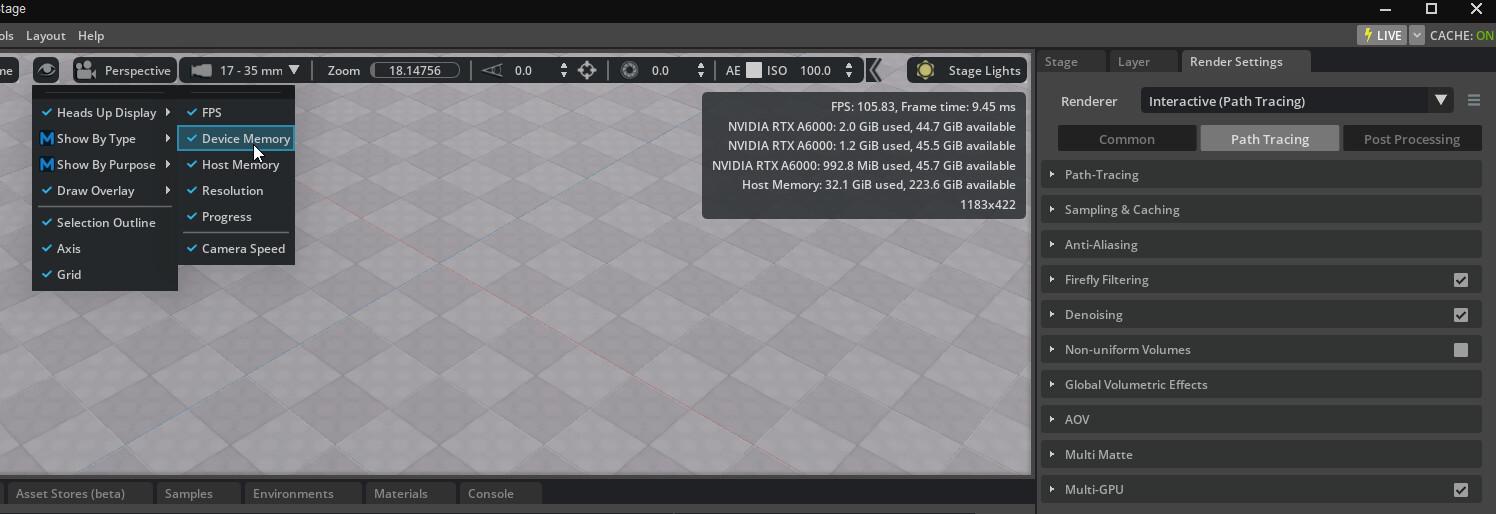
If you work with 3D graphics, video games , or design applications, sooner or later you'll wonder how to take advantage of multiple GPUs running simultaneously . The idea of distributing the workload between two or more graphics cards (or between an integrated iGPU and a dedicated GPU) is very tempting, especially when rendering times start to increase dramatically.
The problem is that simply plugging two graphics cards into the motherboard and expecting magic isn't enough: truly leveraging Multiple GPU Rendering in compatible apps depends on the operating system, drivers (NVIDIA, Intel, etc.), the graphics engine (Direct3D, OpenGL, Vulkan, and Vulkan Compute ), and, above all, the rendering software itself. We'll break down everything known from official documentation and real-world examples, and supplement that with how it's currently being used in Multi-GPU engines like Redshift, Octane, and Cycles.
What is Multiple GPU Rendering and why does it matter?
When we talk about Multiple GPU Rendering, we're referring to using two or more GPUs to accelerate graphics processing , whether in real time (games, 3D viewers) or offline (film, architecture, animation). In practical terms, there are two main approaches:
On one hand, there are driver-controlled multi-GPU modes, such as NVIDIA's traditional Direct3D and OpenGL modes , where the driver decides how to distribute the load across multiple cards of the same brand. On the other hand, there are modern rendering engines that directly manage the use of multiple GPUs to achieve maximum performance.
In the first case, the system ensures that multiple GPUs work together to render the same scene , typically in 3D applications for entertainment or professional use. In the second, the software (for example, Redshift or Octane) distributes the tiles or samples among the available GPUs, achieving very aggressive speed scaling when the project and configuration are suitable.
What makes this approach truly interesting is that GPU rendering, as opposed to CPU-based rendering, is designed to take advantage of thousands of cores in parallel . If you then multiply the number of GPUs, the improvement can be 5 to 10 times compared to a single card in some professional workflows.
Multi-GPU in the NVIDIA Control Panel
On systems with two or more NVIDIA GPUs, the Control Panel offers specific options to enable and adjust multi-GPU mode on platforms without traditional SLI . This is crucial for those using Direct3D and OpenGL applications that support driver profiles.
Within the NVIDIA Control Panel, under the 3D Settings section , you'll find a page called "Set Multi-GPU Configuration" or "Set a Multi-GPU Configuration," depending on your driver version. This page is only enabled if your system detects at least two functioning NVIDIA GPUs.
The basic procedure for activating multi-GPU mode is quite straightforward. In the left navigation tree, select Set multi-GPU settings , and in the main area, choose the option that best suits your intended use: more displays, more 3D performance, or disable the mode.
Once you've selected your desired configuration, the driver displays a graphical visualizer of the GPU and display topology , showing which cards are paired to work together, which ones have active displays, and how multi-GPU acceleration flows between them. Nothing takes effect until you click "Apply," so this is the essential step for the changes to take place.
This visualizer also shows which connectors are enabled or disabled and which monitors are active, which is especially useful on laptops or docking stations, where sometimes the physical connector you use doesn't match the one you imagine the GPU is handling.
Multi-GPU configuration options in NVIDIA
The NVIDIA Control Panel's multi-GPU page isn't just a simple on/off switch; it offers several settings that directly impact performance and display usage . The main options typically available are:
On one hand, there's the option to disable multi-GPU mode . In this mode, all GPUs operate independently, allowing you to control multiple displays from each card without them collaborating on the rendering of the same scene. This is useful if you prioritize having multiple monitors over peak performance in games or 3D.
Another option is "Span Display with Surround," which allows you to combine multiple screens on a single desktop surface , creating a panoramic view for full-screen gaming or expanding your workspace. Here, the focus is more on the immersive experience than on raw performance.
The "Maximize 3D performance" setting is often the most useful for working with apps that support Multiple GPU Rendering , as it aims to maximize GPU collaboration in 3D application rendering. When selected, the driver links the GPUs that can work together and displays the multi-GPU bar in the rendering interface.
Finally, the "Activate all displays" option focuses on activating all possible monitors , attempting, if possible, to maintain multi-GPU acceleration. This option strikes a balance between performance and flexibility, especially in configurations with multiple video outputs.
In all these cases, the GPU configuration viewer serves as a visual guide to understand how the screens and rendering load are organized , so you can adjust the topology to your specific needs, whether for gaming, simulation, or professional visualization.
Selection of the main screen and "central" GPU
When you have multiple NVIDIA GPUs and multiple monitors connected, simply enabling multi-GPU isn't enough: it's also crucial to decide which display will be the primary one for gaming and accelerated rendering . This is managed from the "Set up multiple displays" page in the NVIDIA Control Panel.
In that section, you can specify which monitor you want to use to view your 3D game or application in full screen. The GPU associated with that monitor is considered the primary GPU , while the others act as secondary GPUs that either assist or are used for auxiliary displays.
If the display you choose as primary is within the multi-GPU group, it becomes the central multi-GPU display . This means that full SLI or multi-GPU acceleration from the driver is applied to that display when running full-screen applications that support the scheme.
If none of the displays in the multi-GPU group are designated as primary, the controller will make the decision itself and choose a display to show games or accelerated applications. This is an internal process, so if you want fine-tuned control, it's best to explicitly set which monitor will be the primary one.
This detail may seem minor, but it directly influences how the workload is distributed and which card actually ends up rendering the final image . On workstations with many screens, dedicating a single screen to be the "central" renderer and leaving the others for secondary views or interfaces can significantly help stabilize performance.
Multi-GPU rendering on professional engines
In the world of professional 3D production, Multiple GPU Rendering is much more mature. Engines like Redshift, Octane, V-Ray GPU, Iray, FStorm, Eevee, and Cycles have thoroughly developed the simultaneous use of multiple graphics cards to drastically reduce rendering times.
The idea is simple: instead of leaving all the responsibility to the driver, the rendering engine takes control and distributes the workload between the GPUs. Each card processes part of the scene or a set of samples, and the engine combines the results. This translates to a 5- to 10-fold increase in speed compared to working with a single GPU in many professional workflows.
Major companies in the sector, such as Maxon (Redshift) or Otoy (Octane) , have invested heavily in optimizing multi-GPU performance, to the point that their products have become de facto standards for animation studios, 3D designers, freelance artists and filmmakers looking to reduce waiting times without sacrificing quality.
Furthermore, these engines are becoming increasingly popular compared to traditional CPU renderers because they take better advantage of the massive parallelization offered by modern GPUs. This doesn't mean the CPU disappears from the equation, but rather that it shifts to a role of coordination and sequential tasks, while graphics cards handle the heavy lifting of ray tracing and shading.
Let's see how some of the best-known Multi-GPU engines fit together and what hardware requirements you should keep in mind if you want to get the most out of them on your own system.
Redshift: Biased Multi-GPU and Production Rendering
Redshift was born in 2012 with a very specific goal: to offer a GPU-accelerated, production-ready rendering engine with biased global illumination and features previously only seen in CPU renderers. Over time , it became part of the Maxon family, integrating seamlessly with Cinema 4D and maintaining compatibility with Maya, 3ds Max, Houdini, and Katana, among others.
In terms of hardware, Redshift recommends having at least 16 GB of RAM in the system and a Core i7 or equivalent Xeon CPU, at 3.0 GHz or more, to ensure that the rest of the workflow doesn't drag while the GPU is working overtime rendering.
The critical component, of course, is the graphics card. Redshift relies on CUDA, so it recommends NVIDIA GPUs with Compute Capability 7.0 or higher and, preferably, 10 GB or more of VRAM. Gamers and professionals often look to the Quadro, Titan, or GeForce RTX series, which also include dedicated hardware for ray tracing.
To truly take advantage of Multiple GPU Rendering, Redshift seamlessly supports multi-GPU configurations . In fact, many studios commonly set up workstations with 4, 6, or 8 cards, balancing the budget between the GPUs, CPU, motherboard, and a power supply capable of handling the load.
If your budget is more modest, you can start with a single GPU and upgrade over time. The engine will scale almost linearly as you add more cards, provided the scene you're rendering doesn't run into VRAM or system bandwidth limitations.
OctaneRender: unbiased spectral engine on GPU
OctaneRender is one of the first fully GPU-supported, unbiased, and spectrally correct rendering engines . It originated under the Refractive Software brand, founded by Terrence Vergauwen (of LuxRender fame), and was later acquired by Otoy in 2012, with backing from Autodesk. Since then, it has evolved to offer integrations with a vast array of 3D applications.
Among the compatible tools are 3ds Max, Maya, Cinema 4D, Houdini, Daz Studio, Unreal Engine and many other programs, which has made Octane a key piece in very varied pipelines , from static illustration to cinematics and architectural visualization.
In terms of requirements, Octane is also based on CUDA, so it requires an NVIDIA GPU with Compute Capability 3.0 or higher and, again, 10 GB or more of video memory to work with complex scenes without constantly being on the verge of the VRAM limit.
Regarding system RAM, they recommend at least 16 GB to avoid bottlenecks when loading large scenes, high-resolution textures, or lighting caches. In practice, anyone doing substantial professional work usually goes straight to 32 GB or more.
Octane also scales remarkably well with multiple GPUs , allowing users to build true computing powerhouses with several RTX cards or with combinations of RTX, Titan, and Quadro cards. As with Redshift, the initial cost can be high, but the rendering time savings ultimately compensate for this in professional productions.
Eevee and Cycles: Blender's GPU tandem
In the open-source software ecosystem, Blender has become the undisputed leader in 3D creation, and one of its strengths is that it includes two GPU-accelerated rendering engines as standard : Eevee and Cycles. Comparing the two is almost a cliché, because they represent two distinct philosophies.
Eevee is designed for real-time rendering with modern rasterization techniques, ideal for previs, motion graphics, fast animation and any situation where speed and interactivity take precedence over absolute ray tracing precision.
Cycles, on the other hand, is a ray tracing engine with a more physical approach , much better suited for final renders with realistic lighting, soft shadows, and complex materials. It's slower than Eevee, but produces high-quality results without relying on as many shading tricks .
In terms of hardware, Blender recommends at least 16 GB of system RAM and a 64-bit quad-core CPU for smooth operation. For the GPU, 4 GB of VRAM is suggested as a minimum , although for large scenes, significantly more graphics memory is preferable to reduce reliance on system RAM.
For an optimal experience, we recommend upgrading to 32 GB of RAM, an 8-core CPU, and a GPU with 12 GB of VRAM or more, preferably a modern RTX or Quadro. Blender supports multiple GPUs for Cycles , so you can add additional cards to further reduce render times for final frames and long animations.
FStormRender: next generation of unbiased GPU rendering
FStormRender is a relatively new engine that has gained fame for offering highly realistic, unbiased rendering with a simple workflow . Currently, it is focused on 3ds Max, with deep integration that facilitates the use of all the application's critical tools.
Key features include advanced tone mapping, highly refined reflection shaders, glare effects, efficient light sampling, and an improved ray tracer with optimized QMC sampling . All of this is geared towards achieving visually striking images without having to grapple with overly cryptic parameters.
FStorm includes a scene converter capable of transforming Corona, Octane, or V-Ray setups into the engine's internal format, making it easier to migrate established pipelines. Furthermore, the engine is interactive : you can modify lighting, materials, camera, and many other elements during rendering and see the changes almost instantly.
You only need to activate real-time geometry updates or press the reload button when you alter the geometry, but even then, the workflow is much smoother than that of traditional CPU-based engines. Support for multiple GPUs is also included, so you can add power to your workstation as needed.
In terms of requirements, FStorm suggests at least 16 GB of system RAM and an NVIDIA GeForce GTX or RTX series GPU, which offer the best balance between price, raw power, and compatibility . The option to use multiple GPUs in parallel is available when needed.


Passionate writer about the world of bytes and technology in general. I love sharing my knowledge through writing, and that's what I'll do on this blog, show you all the most interesting things about gadgets, software, hardware, tech trends, and more. My goal is to help you navigate the digital world in a simple and entertaining way.