- Most PS, Xbox, Switch and generic controllers can be used on PC with the appropriate drivers and software.
- Steam is key to mapping buttons, improving compatibility, and customizing each controller for each game.
- Peripherals such as steering wheels, external hard drives, keyboards, mice, and console VR headsets can also be repurposed in Windows.
- Many controller problems can be solved by checking the connection, drivers, Bluetooth, and the Steam or game settings.
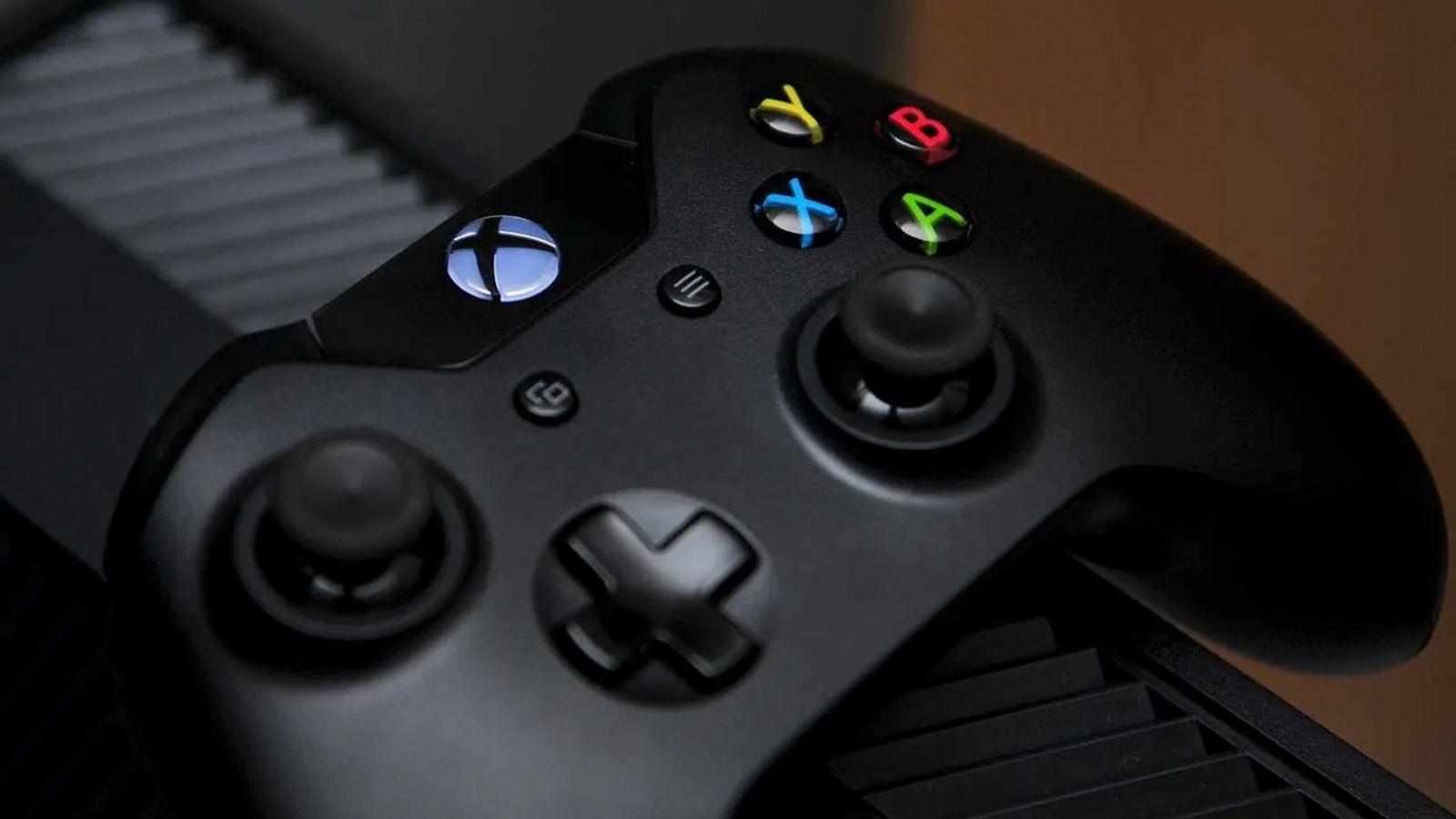
If you've been considering switching from console to PC gaming without giving up your peripherals , you've come to the right place. Many people think that switching to a computer means buying everything from scratch, but the truth is that in many cases you can reuse controllers, hard drives, and even VR headsets you already own.
The key is knowing what's natively compatible, what needs additional drivers or software , and what's simply not worth forcing. In theory, most modern peripherals are plug and play : Windows detects them when you connect them via USB or Bluetooth and downloads the necessary drivers. In practice, especially with older or cheaper models, you'll need to use third-party software, remap buttons, and have some patience to get them working properly in all games. It's also worth checking your PC's specifications before deciding which peripherals to keep.
It's also important to understand that a PC recognizing a peripheral is not the same as a game properly supporting it. Some titles only accept XInput controllers (the Xbox standard) , while others also work with DirectInput (more common in generic controllers and some older devices). Therefore, certain configurations require software that emulates an Xbox 360 controller so the game "thinks" it's compatible.
Furthermore, to get the most out of your equipment, it's worth knowing how Steam, Epic Games, GOG, and other launchers handle controllers : sometimes it will be better to go through Steam even if the game is from another store, and other times you'll want to close Steam to avoid conflicts.
Which console peripherals can you use on your PC
The world of gaming consoles encompasses more than just controllers; it also includes virtual reality headsets, steering wheels, external hard drives, keyboards, mice, and generic controllers that can be connected to a computer with varying degrees of ease. Compatibility largely depends on the manufacturer and the standard each device uses.
In theory, most modern peripherals are plug and play : Windows detects them when connected via USB or Bluetooth and downloads the necessary drivers. In practice, especially with older or cheaper models, you'll need to use third-party software, remap buttons, and have some patience to get them working properly in all games.
It's also important to understand that a PC recognizing a peripheral is not the same as a game properly supporting it. Some titles only accept XInput controllers (the Xbox standard) , while others also work with DirectInput (more common in generic controllers and some older devices). Therefore, certain configurations require software that emulates an Xbox 360 controller so the game "thinks" it's compatible.
Furthermore, to get the most out of your equipment, it's worth knowing how Steam, Epic Games, GOG, and other launchers handle controllers : sometimes it will be better to go through Steam even if the game is from another store, and other times you'll want to close Steam to avoid conflicts.
PlayStation controllers on PC: PS3, PS4 and PS5
PlayStation controllers can be used on PC, but not as easily as an Xbox controller. Depending on whether we're talking about a DualShock 3, DualShock 4, or DualSense , the configuration varies considerably, and it's easy to get lost if you don't know the right tools.
Using the PS3 controller (DualShock 3) on Windows
The PlayStation 3 controller works on PC, but its support is outdated and somewhat fragile . The official drivers haven't been updated in years, and a simple Windows 10 or 11 update can break compatibility.
To make it work relatively stably, SCPToolkit is usually used . This package installs the necessary drivers and makes the controller behave like an Xbox 360 controller (XInput) in games. Before installing it, it's important to have up-to-date components such as .NET Framework, Visual C++ Redistributable, DirectX Runtime, and the Xbox 360 controller drivers , because SCPToolkit itself relies on them.
The typical process involves connecting the PS3 controller via USB, letting Windows install its generic drivers, and then running the SCPToolkit installer, selecting the options to install the Windows service, the Bluetooth driver (if you want to use it wirelessly), and the DualShock 3 controller. If the installation fails, it's usually resolved by forcing the installation from within the same wizard. Once completed, the controller should be detected by games as a standard Xbox 360 controller , although you may need to remap the buttons within each title.
PS4 controller on PC: improved integration thanks to Steam and DS4Windows
Things improve considerably with the DualShock 4. Steam offers native support for the PS4 controller , so in many cases, simply plug it in and let the platform handle everything. In the Steam client, under Settings > Controller, you can enable PlayStation controller support and configure profiles for each game.
If you want to use it outside of Steam or in games that don't recognize it correctly, DS4Windows comes in handy . This popular tool makes your PS4 controller appear to Windows as an Xbox 360 controller, allowing full compatibility with almost any title. The program installs its own drivers and offers advanced options for mapping, stick sensitivity, dead zones, and more.
The PS4 controller can connect via both USB and Bluetooth. To pair it wirelessly, press and hold the Share and PS buttons simultaneously for a few seconds until the light starts flashing rapidly, then select the "Wireless Controller" device in your Windows Bluetooth settings. If you use Steam, you can remap buttons for each game and take advantage of features like community profiles and genre-specific configurations.
PS5 DualSense controller: adaptive triggers and haptics on PC
The PS5 DualSense is currently one of the most advanced controllers on the market thanks to its haptic feedback and adaptive triggers. On PC, however, these special features aren't always fully utilized: they depend on the game implementing them natively and how you connect the controller.
To use adaptive triggers and haptic feedback, you need to connect the DualSense controller to your PC via USB cable (full Bluetooth compatibility is more limited), and the game must officially support these technologies. Some titles like Metro Exodus, Assassin's Creed Valhalla, Call of Duty: Black Ops Cold War, and F1 22 have added DualSense support in their PC versions, but it's still a very short list; therefore, it's helpful to check the actual PC requirements before expecting advanced features.
On Steam, if you want the game to directly manage the DualSense's special features, it's best to disable the PlayStation controller configuration in the controller's general settings . This will allow Windows and the game itself to take control of the device. If you re-enable this option, you'll be able to use all the Steam Input tools again, although you'll lose some of the unique DualSense experience.
If your PC doesn't have Bluetooth, you can use an official Sony USB dongle or connect via cable. A wired connection offers lower latency and eliminates battery issues, with the only drawback being that you're tethered to the computer. Tools like DS4Windows are also compatible with DualSense to expand compatibility, although they don't always fully replicate its special features in every game.
Xbox controllers on PC: the easiest option
Xbox controllers are a home team: Xbox and Windows are both Microsoft products , so support is practically seamless. For the operating system, these controllers are the standard to follow (XInput), and that's very noticeable in games and platforms.
With Xbox 360, Xbox One, Xbox Series S/X, and Elite controllers, Windows typically recognizes them as soon as you connect them via USB and automatically downloads the drivers from Windows Update. You'll see a notification indicating that the device is installed and ready, and almost any modern game that supports controllers will detect it effortlessly.
If you want to use them wirelessly, you have two options: Bluetooth connection (on models that support it, such as updated Xbox One and Series controllers) or using the official Xbox 2.4 GHz wireless adapter. In both cases, simply press the pairing button on the controller and the button on the receiver, or search for the device in the Windows Bluetooth settings.
To get the most out of advanced models like the Xbox Elite , Microsoft offers the free "Xbox Accessories" app in the Microsoft Store. With it, you can remap buttons, adjust joystick sensitivity, configure vibration intensity, and create multiple profiles and switch between them depending on the game you're playing.
The integration is so good that many times you don't even need additional tools on Steam, Epic, or GOG: the controller behaves as most games expect and compatibility problems are minimal compared to other devices.
Nintendo Switch controllers and Joy-Con on the computer
Nintendo also has its place on PC, albeit with a few twists. The Switch Pro Controller and Joy-Cons can work on Windows (and Mac), but to achieve full compatibility with all games, you sometimes have to resort to emulating an Xbox 360 controller.
Using the Switch Pro Controller on PC
The Nintendo Switch Pro Controller easily connects to your PC via Bluetooth or USB-C cable. To pair it via Bluetooth, press the sync button next to the controller's connector until the lights on the bottom flash, then add it from the Bluetooth & devices section in Windows.
Once connected, many DirectInput- based games and Steam itself (if you enable Switch controller support) recognize it without issue. However, in some titles that only support XInput, the Pro Controller can cause problems: incorrectly mapped buttons, inverted sticks, or it simply not appearing as a valid controller.
For these cases, the typical solution is to use tools like x360ce , which emulate an Xbox 360 controller using the Pro Controller's input. The process involves placing the x360ce executable in the game's folder, creating the corresponding library (32 or 64 bits depending on the title), and mapping each button on the Pro Controller to its equivalent on the Xbox controller.
It's a somewhat tedious process because you have to repeat it game by game , but in return, it allows you to use the Pro Controller in titles that don't natively support it. Once the configuration is saved, the game will think you're using an Xbox controller, with the advantage that most are optimized for that standard.
Use Switch Joy-Con as a controller on PC or Mac
The Switch's small Joy-Con controllers can also be used on a computer, especially for retro games or simple arcade titles where you don't need as many buttons or perfect ergonomics. Each Joy-Con functions as an independent Bluetooth device.
The procedure is very simple: leave the console in the dock, remove the Joy-Con you want (left or right, it doesn't matter), activate Bluetooth on your PC or Mac, and press the Joy-Con's sync button (the round one on top) until the lights start flashing. When the computer detects it, pair it, and you'll see it as an available controller.
Then, in the game's control menu, you select the Joy-Con as the input device and assign the keys to each button . It's not the most comfortable for long sessions, but for quick games and making the most of what you already have at home, it's more than adequate.
Some computers even allow you to charge the console or the Joy-Con itself while you play if you use the Switch's USB port, which is perfect for not getting stuck in the middle of a game.
Other console peripherals you can use on PC
Beyond controllers, there are other console accessories that can be used without much trouble in the Windows environment, especially when it comes to external storage, steering wheels, keyboards, mice, and compatible VR glasses.
Console virtual reality glasses on PC
In the console ecosystem, the manufacturer truly committed to virtual reality is Sony with PS VR2 . These next-generation glasses, designed for PS5, have an official adapter that allows them to be used on PC as well.
To connect them to a computer, you need to purchase a specific adapter , sold separately, which acts as a bridge between the headset and the PC. Given that PS VR2 is an expensive peripheral, it's usually worth paying a little more for this adapter rather than buying a different headset specifically for PC.
Once the adapter is connected and the corresponding software is configured, you can use PS VR2 on compatible PC titles, although the experience and available features may vary from versions specifically designed for the console.
Console steering wheels on PC
Steering wheels are one of the most popular peripherals among racing fans. The good news is that many models designed for consoles work perfectly on PC , at least as far as the steering wheel itself is concerned. Windows usually recognizes it natively when you connect it via USB.
The problem arises with the pedals, the gear shifter, and the force feedback (the wheel's resistance). To get the most out of them, you'll almost always need to install the manufacturer's official software (Logitech G HUB, Thrustmaster Control Panel, etc.). These programs allow you to calibrate the wheel, adjust the force feedback strength, and verify that all the elements are detected correctly.
Without this software, the steering wheel will typically function in a basic way, but you'll lose much of the driving feel that makes all the difference. Once installed, you can configure each racing game through its internal settings and choose the steering wheel profile within the game. As an alternative to buying another peripheral, you can also use your mobile phone as a gyro steering wheel controller in certain titles.
External hard drives used in console
If you have an external hard drive or SSD that you used in your console, it can almost certainly be reused in your PC. These devices are simply a standard HDD or SSD inside an enclosure , identical to those used in computers.
What changes is the file system they use. Consoles often use proprietary partition formats or formats that aren't directly compatible with Windows. Therefore, when you connect the hard drive to your PC, Windows might ask you to format it or simply not recognize it in File Explorer, even if it appears in Disk Management.
To use it, you'll need to create a new partition and format it as NTFS (if you're only using it on Windows) or exFAT (if you want it to be compatible with other systems like macOS or even some consoles). Note: this process erases all data, so you should back up your data from the console beforehand if you want to keep it.
Keyboards and mice designed for consoles
Many "console" keyboards and mice are simply standard peripherals that work just as well, or even better, on PCs. In fact, most are originally designed for computers, and console compatibility is only listed as an added feature.
In most cases, simply connecting them via USB or Bluetooth is enough for Windows to recognize them instantly. If they have their own software (for example, for configuring macros, RGB lighting, or profiles ), it's best to download the manufacturer's application to your PC, as these options are usually more limited on consoles.
If your keyboard or mouse is certified to work on consoles, it's logical that you won't have any problems on PC, and you might even gain access to features that weren't even available on consoles.
How to connect controllers to your PC: cable vs Bluetooth
Most modern controllers offer two connection options: USB cable or Bluetooth . Each method has its advantages and disadvantages, and it's important to know when to use one or the other.
A wired connection is the fastest and most reliable way to connect any controller. Simply plug the appropriate cable (microUSB, USB-C, etc.) into the controller and your PC, and let Windows install the necessary drivers. It typically offers lower latency and also keeps the controller charged, so you don't have to worry about the battery.
Bluetooth, on the other hand, gives you much more freedom of movement. Playing without being "tied" to the computer is a real treat, especially if you connect your PC to the living room TV. However, wireless connections can be more prone to dropouts, interference, or failed pairings , particularly if you're using older adapters or have many devices connected simultaneously.
The controller setup process once connected (whether by cable or Bluetooth) is usually the same: it's done from within the game itself, through Steam, or via the manufacturer's apps. The only difference is how you pair the controller with your PC.
Configure controllers on Steam to get the most out of them
Steam isn't just a game store: it's also one of the most powerful tools for configuring controllers on PC . It allows you to use Xbox, PlayStation, Switch Pro, and generic controllers, even in games not designed for them.
From the Steam client, under Steam > Settings > Controller, you have access to several sections. The most important is General Controller Settings , where you can enable or disable support for Xbox, PlayStation, Switch, and generic (XInput) controllers. Here you also decide whether the guide button (Xbox logo, PS button, etc.) opens Steam, and whether wireless controllers turn off when exiting Big Picture mode or after a period of inactivity.
On this screen, you'll see all detected controllers. You can select each one and access its preferences to adjust vibration, light color (for PS4 controllers), and other specific options. The "Identify" button makes the controller vibrate so you know which one you're configuring if multiple controllers are connected at the same time.
From the calibration section, you can adjust analog stick dead zones, initiate auto-calibrations, or calibrate the gyroscope on controllers that include it. This helps eliminate deviations and improve accuracy, which is especially useful in shooting or racing games.
If Steam doesn't automatically detect your controller, you can manually register it to associate it with your account. This way, when you use the same controller on another PC with your Steam session, your settings and mappings will be retained, saving you a lot of time.
Map a controller per game on Steam
In addition to global settings, Steam allows you to create specific settings for each game. In your library, right-clicking on a title and going to Manage > Controller Settings opens an editor where you can view your controller's button layout and remap each button to your liking.
From there you can change the functions of buttons, triggers, sticks, and the touchpad (if present), activate combinations, or even make a single button behave like several keyboard keys. It's also possible to load community configurations , created by other players or the developers themselves, which are usually fine-tuned for certain genres.
The great advantage is that you can have a completely different controller profile for each game without them interfering with each other: one for shooters, another for simulators, another for platformers, etc. Steam will automatically remember which configuration to use each time you launch that title.
Using controllers in non-Steam games
If you want to use a controller with games from Epic Games, GOG, or other platforms, you have two options. The first is to add the external game to Steam as a "non-Steam product." This way, you launch it from your Steam library and can use the full power of Steam Input (profiles, mappings, extended support) even if the game is from another store.
The second option is to completely close Steam when you're going to play outside of its platform. If Steam is running in the background, it can "capture" the controller and cause conflicts with the game or other launchers, making the device unresponsive.
On Epic Games and GOG, most modern games natively detect controllers without any extra setup. You simply plug in the controller, and the game prioritizes it over the keyboard. If you start mixing too many inputs (keyboard, mouse, and controller simultaneously), some titles might get a little confused, but usually, turning the controller off or unplugging and plugging it back in is enough.
In any case, if a game on another platform doesn't officially support a controller, you can always resort to tricks like Steam Input, mapping the controller to a keyboard and mouse , or external tools to emulate an Xbox controller and trick the game.
Generic controllers and other drivers in Windows
Generic or budget controllers are often the most troublesome. Many use older or poorly documented standards and depend entirely on how Windows and games handle DirectInput or XInput . Even so, they can be made to work with a bit of ingenuity.
If your controller connects via USB, Windows should normally detect it and download a generic driver . If this doesn't happen, you can check Device Manager and force a driver update, or go to the manufacturer's website to install their specific software. Some controllers still include a driver CD, although this is becoming less common.
For generic Bluetooth controllers, the process is similar to any other device: you put it into discoverable mode , go to Settings > Bluetooth & devices, and add it. Windows will treat it as a generic gamepad, which is sufficient for Steam or some games to recognize it.
When games don't detect your controller properly, Steam is often your best friend. By enabling support for generic controllers in the Controller General Settings, the client can translate the device's signals to XInput and allow you to remap buttons for each game. It sometimes requires a little experimentation, but once you find the right configuration, you can save and use it without any problems.
Common problems with PC controllers and how to fix them
Although on paper everything should be a breeze, the reality is that controllers and Windows don't always get along as well as we'd like. There are a number of fairly common errors that keep recurring, and it's worth checking them before going crazy reinstalling things randomly.
The first thing to check is if Windows detects the controller. If it's wired, try a different USB port and wait a few seconds; if it's Bluetooth, check Settings > Bluetooth & devices to see if it's listed as paired. If the computer doesn't detect it at all, the problem is usually with the physical or wireless connection , not with Steam or the game.
Another critical issue is outdated drivers , both for the controller itself and the Bluetooth adapter. You can try updating drivers or uninstalling and reinstalling the device through Device Manager. It's also a good idea to keep Windows and your game clients (Steam, Epic, GOG) updated to their latest versions, as many compatibility improvements come through these updates.
If the controller is malfunctioning via Bluetooth (drops, lag, disconnections), a quick way to rule out problems is to connect it with a cable and see if it responds properly. If it works perfectly via cable, the problem is almost certainly with the adapter, interference, or some system setting related to power or Bluetooth.
When the conflict arises within Steam, it's helpful to check the client's controller settings : you might have support enabled for the wrong controller type, or a game profile might be incorrectly mapped. Sometimes, the quickest solution is to reset the game to its default settings and start over.
It's also common for controllers to stop responding correctly after the PC wakes from sleep mode. In these cases, turning the controller off and on again, unplugging and plugging it back in, or restarting Steam usually resolves the issue without further problems.
Ultimately, using console peripherals on your PC is much more viable than it seems: you can take advantage of controllers from all platforms, steering wheels, discs, keyboards, mice, and even VR headsets , as long as you're clear on what requires drivers, what's plug and play, and when it's worth relying on Steam or other tools to remap controls. With a good combination of wired or Bluetooth connections, up-to-date drivers, and some skill with the configuration, you'll usually achieve an experience very close to that of a console, but with all the flexible advantages of a PC.

Table of Contents
- 1 Which console peripherals can you use on your PC
- 2 PlayStation controllers on PC: PS3, PS4 and PS5
- 3 Xbox controllers on PC: the easiest option
- 4 Nintendo Switch controllers and Joy-Con on the computer
- 5 Other console peripherals you can use on PC
- 6 How to connect controllers to your PC: cable vs Bluetooth
- 7 Configure controllers on Steam to get the most out of them
- 8 Generic controllers and other drivers in Windows
- 9 Common problems with PC controllers and how to fix them
