- Windows 11 will allow updates to be paused in renewable 35-day blocks, effectively providing an indefinite pause at the user's discretion.
- The system will incorporate an interactive calendar, clear options to shut down or restart without updating, and more information about each patch and driver.
- Updates can be skipped during initial setup and application updates can be better managed thanks to a new "Application Update" panel.
- This entire change of focus seeks to reduce restarts and interruptions, offering more control without sacrificing security, as long as the user does not abuse the pauses.
Windows 11 is preparing to completely change how it manages updates , something that has been one of the system's most criticized aspects for years. After more than a decade in which patches were practically mandatory and were installed sooner or later, Microsoft has decided to backtrack and put much more power in the hands of the user.
For all this time, many users have felt that Windows updated whenever it felt like it , without asking too many questions and sometimes at the worst possible moment: in the middle of a game, right before a meeting, or when all we wanted was to shut down our PCs and leave. With the new features the company is testing in Windows 11, that experience is starting to change fundamentally, offering more control, more flexibility, and fewer interruptions.
From forced updates to almost total user control
Since Windows 10, Microsoft had opted for a model of practically mandatory updates . While updates could be delayed for a few weeks, the system would ultimately install them automatically, whether you wanted it to or not. This led some users to search for ways to permanently disable Windows Update . This represented a significant shift from Windows 7 or 8, where users decided when to download and install patches.
In recent years, the company had loosened the reins a bit: Windows 11 allowed users to pause updates for up to 35 days . Once that limit was reached, the system would download and install the pending updates, even if you were using your PC for gaming, work, or had simply left it on without touching anything.
This approach has generated considerable resistance among veteran users, accustomed to having the final say on what gets installed and when . Many people began systematically delaying each patch for fear of bugs, driver incompatibilities , or performance issues that, unfortunately, were not so uncommon.
With the newly announced measures, Microsoft aims to regain that trust: Windows 11 will cede much more control over updates , to the point of allowing indefinite pauses and a much more predictable management of restarts.
Pause Windows 11 updates indefinitely
The most talked-about new feature is the ability to pause updates indefinitely . Microsoft has confirmed that it wants to allow Windows 11 users to stop installing updates if they wish, without the system forcing them to do so after a certain period of time, as was the case until now.
In practice, the company maintains the classic 35-day limit for each break, but introduces a crucial nuance: once that period expires, you can extend the break as many times as you want . In other words, you still choose a 35-day block, but when it ends, you can chain together another, and another, and another… as many times as you need.
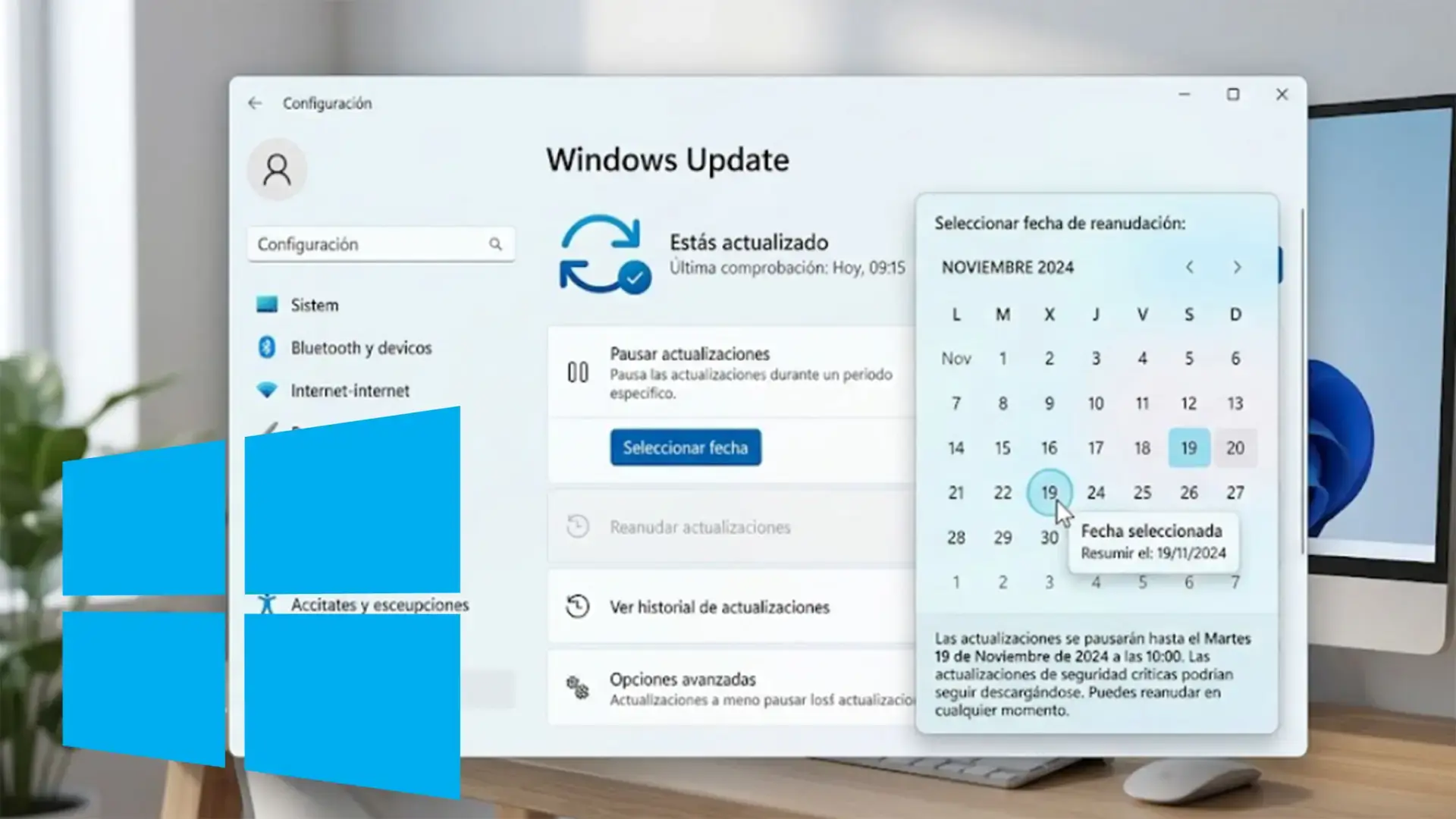
According to Microsoft, the idea is to offer a much more flexible calendar experience within Windows Update . You'll be able to select a specific day of the month to pause updates for up to 35 days, adjusting it to your actual circumstances: travel, conferences, exams, busy periods, or simply weeks when you don't want your PC to interrupt you.
If you still need more time as the date approaches, simply extend the pause for another 35 days . This behavior effectively turns the feature into an indefinite pause: you'll never be obligated to install anything as long as you keep renewing the decision.
It's important to note that this pause option also affects security patches . This provides enormous control, but it comes with a risk: the longer you go without updating, the more exposed your system becomes to malware, exploits, and known vulnerabilities. Microsoft emphasizes that, even though you can choose not to install anything now, it's recommended to apply at least critical security updates as soon as possible.
An interactive calendar to choose the exact day of the break
Until now, Windows 11 offered default options like pausing for one, two, three weeks… up to a maximum of five . It was useful, but very rigid. The new preview versions of the system are introducing a different, much more granular way to manage that pause.
The key lies in an interactive calendar integrated into the Windows Update settings . Instead of choosing between fixed durations, you can click on a calendar icon and select the specific day until which you want to keep updates paused, always within that 35-day limit.
It works quite intuitively: go to Settings > Windows Update, click on the calendar, and select the desired date . From that moment on, Windows will stop searching for and downloading new updates until the date you specified, without forcing automatic installations in between.
If your plans change, you can easily modify the date by adjusting the calendar as many times as needed . There's no need to undo everything or reconfigure Windows Update from scratch; simply select a new date.
At any time, you'll also have the option to resume updates early . Doing so returns the system to its standard behavior: it checks for available patches and offers them for download and installation following the usual Windows 11 procedures.
Skip updates during initial setup (OOBE)
Another much-appreciated improvement is to the initial Windows setup experience, the well-known OOBE (Out Of Box Experience). Setting up or restoring a PC could be a real ordeal if Windows decided to search for and install updates before you could even reach the desktop.
With the announced changes, Windows 11 will allow you to skip installing updates during the initial setup . This way, you can complete the setup wizard much faster and start using your computer without having to wait for all the pending patches to download and install.
This option is not absolute: on some managed commercial devices, or when an update is essential for the hardware to function correctly , Windows will still apply the necessary patches during the initial process. In corporate environments, this is usually managed with solutions like WSUS , which allow for the application of centralized policies.
Microsoft's message is clear: if you choose to skip updates initially, your computer won't have the latest security patches or features until you install them later. However, those who want to get to the desktop as quickly as possible and then update later when it suits them will find it much easier.
Shut down or restart without being forced to update
One of the most frustrating Windows experiences in recent years has been trying to shut down the PC only to find that the system insists on installing updates . Often, the only options seemed to be "Update and shut down" or "Update and restart," which could lengthen the process considerably longer than expected.
To address this feeling of imposition, Microsoft is changing the Windows 11 power menu to clearly separate normal actions from those related to an update . Part of this improvement aims to work in conjunction with measures to optimize startup and shutdown times , making the power cycle less unpredictable.
Where applicable, Windows will also add the specific options "Update and shut down" and "Update and restart ." This way, if you only want to shut down or restart without touching updates, you can do so without the system automatically installing anything.
Microsoft explains that, along with this clearer separation, the system will attempt to restore the applications you had open before a restart more quickly , so the impact of updating is less on your daily workflow. This aligns with improvements in application management and distribution, such as those related to MSIX.
Essentially, the change aims to stop Windows from feeling like it's forcing you to update just when you're in a hurry . If you choose to shut down, the computer shuts down. If you choose to restart, it simply restarts. And it will only update when you explicitly select one of the update options.
More transparency and information about what is being installed
Another important area where Microsoft is taking action is improving the clarity of the information provided by Windows Update about each update . For years, many users have complained that patches appear with cryptic names, especially drivers, making it difficult to know exactly what's being changed.
After an attempt to simplify update titles, the company received feedback requesting more detail for drivers and other sensitive components . In response, Windows 11 will begin to better indicate which type of device each driver update affects. It will also be easier to follow practical guides, such as updating USB drivers or other components when necessary.
This way, when a new driver is released, you can see if it's related to the graphics card, audio, battery, or other hardware categories . This detail helps you make more informed decisions and, if a problem arises, allows you to perform processes like driver rollbacks.
In addition, Microsoft wants to better unify the various updates (Windows, .NET, firmware, drivers) so that users don't have to deal with multiple separate installations . The idea is to group them in a common "Available updates" section within Settings > Windows Update; concepts like enablement packages help to understand how certain feature changes are delivered.
From there, those updates can be downloaded in the background and wait to be installed at a more predictable time , ideally coordinated with the monthly quality patch or with a manual action by the user who decides to install them earlier.
Fewer restarts and fewer outages during the month
One of Microsoft's commitments within its security initiative is to continue releasing patches quickly when vulnerabilities are detected . However, the company acknowledges that, in practice, this can result in multiple restarts and minor outages spread throughout the month.
With the new Windows Update improvements, the company aims to better coordinate most updates and install them in bulk when it makes the most sense , minimizing the feeling that Windows is constantly "tweaking things." For managed environments, this can be complemented by server solutions that allow for centralized grouping and scheduling of updates.
In this new approach, drivers, .NET patches, firmware, and the monthly Windows Quality Update will be presented in a more unified interface . Users can, if they wish, install specific components beforehand, but if they don't change anything, the system will attempt to bundle everything into a single, more predictable update process.
Microsoft is also working on improving download and installation times , which is crucial for slow or unstable connections. In some cases, the entire process may take a little longer due to additional internal checks, but the goal is to make it more reliable and require less manual intervention if something goes wrong.
This effort includes automatic recovery mechanisms for when an update fails . Instead of leaving the user with an unclear error, Windows will attempt to revert or correct the situation more autonomously, which will also help reduce the fear of clicking the "Update" button.
New panel for managing application updates
The changes aren't limited to the system itself: Windows 11 is incorporating a new section called "App updates" within the Apps section of Settings . Its aim is to centralize control over app updates, without relying solely on the Microsoft Store.
This new panel will act as a control center where you can press a "Check for updates" button to have Windows check the versions of installed applications (especially those linked to the Microsoft Store) and detect if there are any new features available.
For now, in the preliminary builds, the feature is in an early stage and is limited to performing automatic checks , without yet offering immediate installation directly from that panel. It is expected that later it will allow for more direct and convenient updates.
It's important to understand that third-party apps installed outside of the Microsoft Store will still require their own update mechanisms . Many of them have built-in updaters or are downloaded manually, and this new section doesn't completely replace them.
Even so, for those who rely heavily on the Store ecosystem, this new feature greatly simplifies management . Furthermore, another complementary function is being tested that will allow users to uninstall apps managed by the Microsoft Store directly from the library page , centralizing app installation, updates, and removal in one place.
Having such a high level of control over Windows 11 updates has two sides. On the one hand, it's something many users have been demanding for years : the ability to decide whether or not to install a patch, skip a problematic update, or simply leave the system as is for months if everything is working fine.
On the other hand, Microsoft insists that updates, especially security updates, remain essential to keep your PC protected . Not applying patches for a long time can leave your PC vulnerable to attacks that already have available solutions.
The company itself, through its Secure Future Initiative, wants to maintain a brisk pace of security update releases , but at the same time acknowledges that limited bandwidth, installation failures, or simply the fact that the PC is only connected for a short time complicates things.
With the indefinite pause, users gain the opportunity to wait for confirmation that patches don't cause serious problems before installing them, a common practice among those who have experienced errors in the past. However, it's advisable to apply some basic judgment: for example, keep quality updates on hold, but prioritize critical security updates.
In any case, Microsoft makes it clear that the ultimate responsibility now rests with the user . Windows will offer more options for pausing, scheduling, grouping, and understanding updates, but each user will have to decide what level of risk they are willing to take by delaying these changes.
All these new features are part of the internal "Windows K2" project, with which Microsoft aims to strengthen and refine Windows 11 for the coming years . Many of the features mentioned are initially being tested in the Dev and Experimental channels of the Windows Insider program.
This means that, for now, not all of these improvements are present in the stable versions that most people use . Microsoft typically tests changes with Insiders, gathers feedback, adjusts the behavior, and only then rolls them out generally to all users.
Regarding the indefinite pause on updates, the company has indicated that its general rollout is expected sometime in 2026 , although without a specific date. Meanwhile, details will be finalized on exactly how it will be implemented in home and business environments.
Another outstanding issue is the degree of control system administrators will have on managed systems , such as those in businesses and educational institutions. In these scenarios, maintaining a certain level of discipline in updates is usually essential to comply with security policies and internal regulations.
In any case, Microsoft's direction is clear: it wants Windows Update to be less intrusive, more predictable, and much more respectful of the user's time , without compromising security. If everything goes according to plan, updating Windows 11 should cease to be a dreaded process and instead be seen as an important task, but one that's under your control.
This entire set of changes—from the ability to skip patches during initial setup, to the interactive calendar and indefinite pause, to the new app panel and a more transparent power menu—points to a scenario where Windows 11 informs you better, interrupts less, and forces you much less . Now the key will be for each user to know how to take advantage of this new flexibility without neglecting their computer's security.


Passionate writer about the world of bytes and technology in general. I love sharing my knowledge through writing, and that's what I'll do on this blog, show you all the most interesting things about gadgets, software, hardware, tech trends, and more. My goal is to help you navigate the digital world in a simple and entertaining way.