- Keeping the firmware updated on your LG with webOS improves stability, security, and smart features.
- Updates can be installed automatically from the TV or manually via USB.
- LG plans the arrival of webOS 24 and 25 according to the year, range and capabilities of each model.
- Not all televisions will reach the latest version, but they will receive the most advanced version available to their audience. hardware It allows.
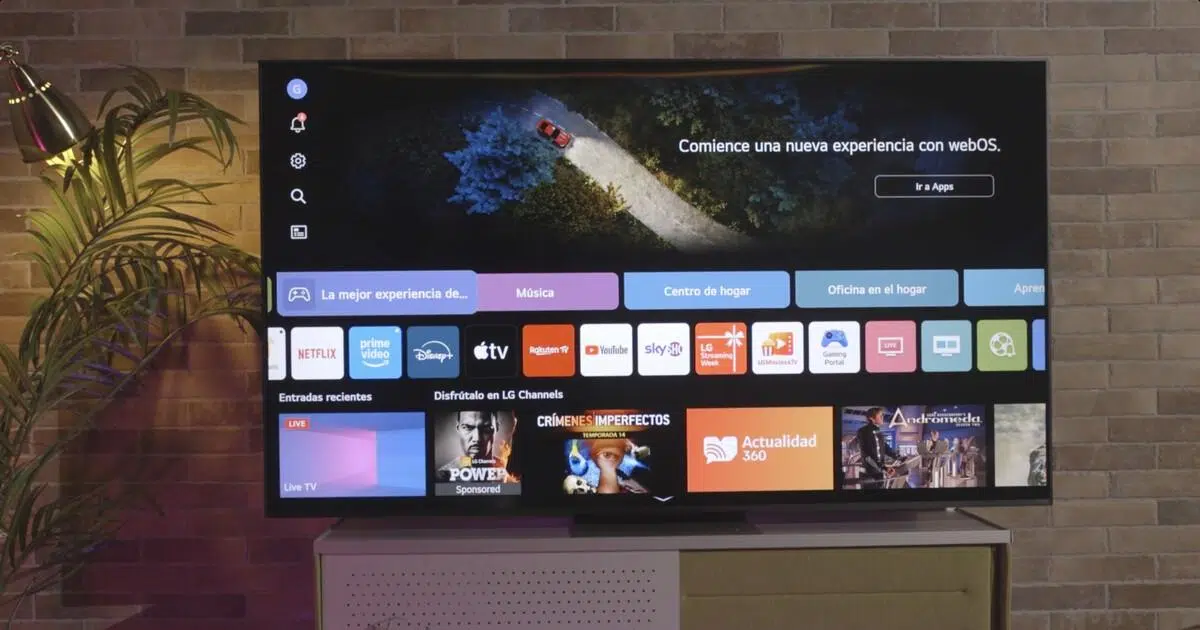
If you own an LG TV and are wondering how to update your webOS Smart TV to get the most out of it, you've come to the right place. While the TV often handles everything automatically, there are times when it's helpful to know how to force a search for new versions or even install them manually from a USB drive.
It's also important to understand that not all models can always be updated to the latest version of webOS. Just like with mobile phones, there comes a point where the hardware can no longer meet the requirements of the new system, and no matter how much we might want it to, that TV simply can't go any further. Even so, LG usually keeps its TVs updated as long as performance isn't compromised.
Can any LG Smart TV be updated with webOS?
Before we delve into the menus, it's worth understanding the extent to which an LG TV can be updated . Each new version of webOS has minimum requirements for processor, memory, and internal capabilities, and these requirements increase over time. Therefore, some older models remain "frozen" on a specific version that is still stable and functional.
LG explains that it guarantees each TV the latest software version it can run without losing fluidity or stability. This means that even if you see news reports about webOS 25 or a later version, your model may not receive it, but it will still receive security patches or minor improvements within its corresponding branch.
In practice, this means that newer TVs will continue to receive major updates for several years, while older models will only receive minor tweaks. Even so, it's always worth checking for a newer version available in the settings menu or on LG's support website.
Keep in mind that each product family and launch year may follow a different schedule: a high-end OLED is not the same as a basic LCD, nor is a 2024 model the same as a 2019 model. LG's update planning takes all of this into account and prioritizes maintaining a smooth experience.
Automatic update from the TV itself (recommended method)
The easiest way to keep your LG Smart TV up to date is to update directly from the TV itself , as long as it's connected to the internet. In many cases, updates download and install almost automatically, requiring nothing more than pressing the "accept" button when a notification appears.
For these OTA (Over The Air) updates to work, it's essential that your TV is connected via cable or Wi-Fi . If you're experiencing connection problems, you should update your router's firmware . Without a network connection, the system can't communicate with LG's servers or check for new versions. Ideally, you should have a stable connection, especially if the update file is large.
On newer models, with webOS 6.0 (2021) or higher, the process is very straightforward. The system detects if a newer firmware version is available and, if you have automatic updates enabled, it will download and install the new features in the background . In many cases, the TV itself will notify you that the process is complete when you turn it off.
If you prefer to be in control, you can disable automatic updates and manually check for new versions from the settings menu. This way, you decide when to update and prevent the process from starting at inconvenient times, such as while you're watching a movie or playing a game.
Furthermore, this method has the advantage of being the safest and most recommended channel by LG , as it handles the entire process: download, file integrity verification, and installation without you having to handle files or USB drives.
How to check for updates in webOS step by step
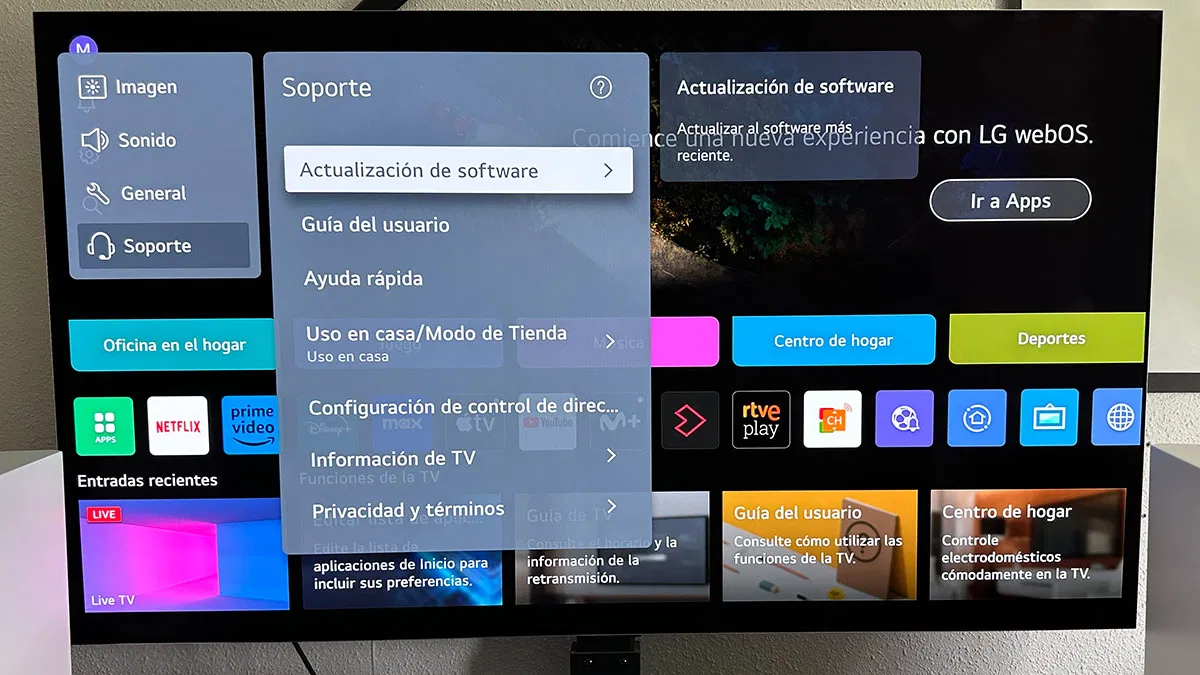
If you want to check for yourself whether there's a new version of the system, the first step is to access the Settings menu on your LG Smart TV . You can do this using the dedicated settings button on your remote control or the gear icon that appears on the screen on many models with the latest webOS.
Once you're in the quick settings, you'll need to access "All settings" or a similar option that displays the full menu. From here, the exact path may vary slightly depending on the year and version of webOS, but generally, the process is quite similar on all recent models.
On most TVs with webOS, the path you should follow is "General" → "About this TV" or "Support" or "Customer Support," and within that, the section related to software. There you will see the currently installed firmware version and the options to check for new updates.
When you go to "About this TV," you'll usually see a button like "Check for updates" or "Check for updates ." If the system detects a newer firmware version, it will display the version number, the download size, and a button to start the process, usually "Download and install."
In webOS 6.0 (released from 2021 onwards) and later versions, you'll also find a switch to enable or disable "Automatic Update ." If you leave it on, the TV will handle everything as soon as a new version is available for your model; if you disable it, you'll have to repeat this manual check process periodically.
Updates according to webOS version and TV year
LG TVs with webOS are organized by system versions linked to their release year . This determines both the on-screen interface you'll see and the available update features, and, most importantly, the highest version you can expect in the future.
On models with webOS 6.0 (2021) and later , the update menu is fairly standardized: go to Settings, then to "All settings," find the "Support" section, and then to "Software update." From there, you can tap "Check for updates" and enable or disable the automatic installation option.
Televisions with webOS 5.0 (2020) and earlier versions also allow updates from the menu, but the path may vary: sometimes it's under "General," other times under "Customer Support," and the text may differ slightly. In any case, there will always be a section dedicated to the device's software where you can view the installed version and search for available downloads.
The generic LG guide you find on their website may show screenshots or menu names that are slightly different from those on your TV, as it's designed to cover many models at once. Don't worry: even if the image isn't a perfect match, the essential options are the same and are usually located in very similar places.
When the update is downloaded and installed, your TV will usually ask you to turn it off or restart it to complete the process . It's important not to unplug the TV or interrupt the power supply during the update to avoid firmware errors. Once it restarts, you'll have the new version up and running.
Manual update via USB: when and how to use it
In addition to automatic updates, LG offers a second method: manually installing the firmware via USB drive . This option is very useful if your TV isn't connected to the internet, if the connection is unstable, or if the update hasn't yet arrived over the air (OTA) but is listed on the official support website.
The procedure is a bit more technical, but it's still quite simple if you follow the steps, similar to the process for updating a game console's firmware . First, go to LG's official support page , find your exact model (for example, an OLED, a QNED, or a specific LCD), and access the "Manuals and Software" section associated with that television.
In that section, you can download a compressed file, usually a .zip package, containing the latest firmware version for your model. Once you have it on your computer, you'll need to extract it to obtain the .epk file, which is the one your TV will recognize when you connect the USB cable.
Next, you'll need to prepare the USB drive. To do this, connect the drive to your computer and create a folder inside it called exactly “LG_DTV” , respecting the capitalization and without adding spaces or other characters. Copy the .epk file that you extracted from the .zip file into that folder.
Once the setup is complete, safely eject the USB drive from your computer and connect it to the LG TV's USB port . If everything is working correctly, the system should recognize the contents and display a message such as "USB Update Ready," giving you the option to click "Install" to begin the process.
When you accept, the TV will copy the firmware and install the new version from its memory . Do not disconnect the USB cable or turn off the power during the update. Once finished, the TV will restart and have the new software installed, just as if you had performed the update via the internet.
Automatic updates and network settings on your LG Smart TV
To ensure everything runs smoothly, it's important to check your network access settings and automatic update options on your LG Smart TV. Without a stable connection, downloads may fail or take longer than expected.
The first step is to check that your TV is connected to the internet via Ethernet cable or Wi-Fi . You can verify this in the settings menu, under Network or Connections. If you're using Wi-Fi, make sure the signal is strong, especially if the TV is far from the router or in another room.
Next, go to the "Support" or "Customer Support" section and look for the "Software Update" area . Within this menu, many models will have a checkbox or button to enable "Allow Automatic Updates." Enabling this will allow your TV to download and install new versions as LG releases them for your model.
Keep in mind that the way you access these menus may vary slightly from one generation to another. On newer webOS systems, the Settings button on your remote takes you quickly to the main options, from where you can access "All settings" and locate the Support section. On older devices, you may have to navigate through traditional menus, but the key functions are still there.
If you notice that updates aren't arriving, check two things: that the automatic update option is enabled and that your TV has a stable internet connection. A problem with the router, the Wi-Fi password, or a network outage can prevent the system from checking for new versions.


Passionate writer about the world of bytes and technology in general. I love sharing my knowledge through writing, and that's what I'll do on this blog, show you all the most interesting things about gadgets, software, hardware, tech trends, and more. My goal is to help you navigate the digital world in a simple and entertaining way.