- Always keep your firmware up to date to improve security and stability.
- On PS4, be careful with the format USB (FAT32/exFAT) and correct names if you update manually.
- The basis of Nintendo Switch 2 It is updated from System with the console on the base.
- If this fails, consider reinstalling your system after a previous backup.
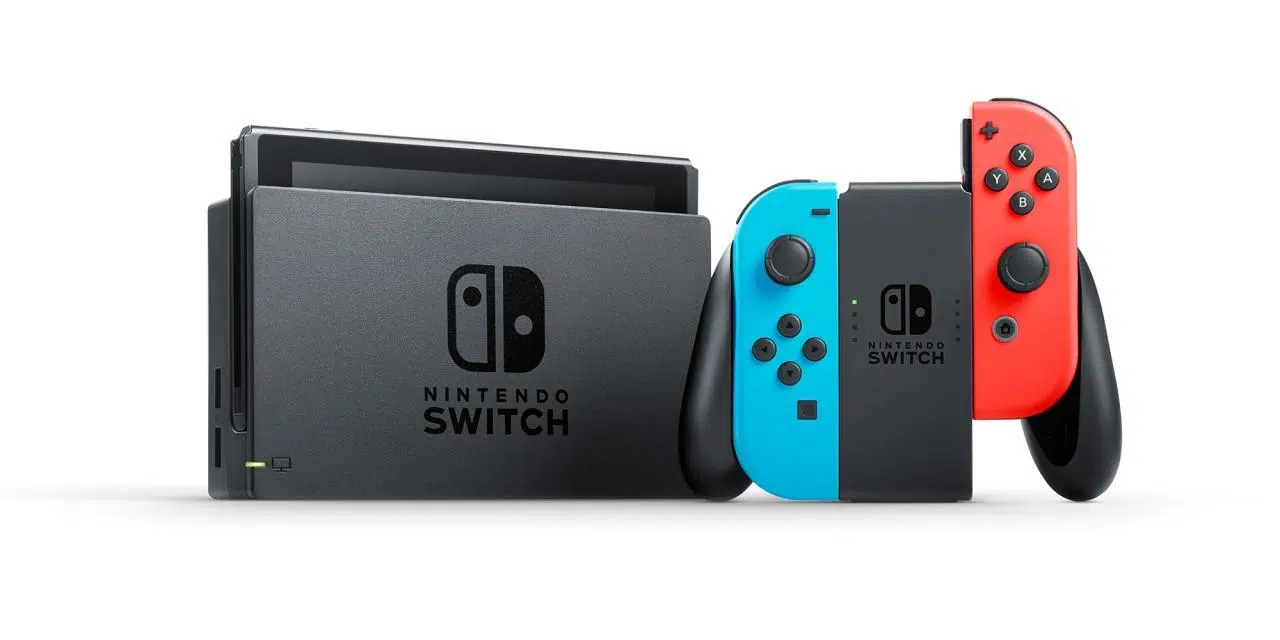
Updating a console's firmware isn't just about having the latest version: it's crucial for maintaining stable performance, fixing bugs, and preventing security issues. On consoles like the PS4 or the Nintendo Switch 2 dock , these updates are released periodically, and it's best to install them as soon as possible.
In the following lines, you'll find a clear, straightforward guide with solutions to the most common errors, incorporating official recommendations and practical tips. From automatic update notifications on PS4 to how to start updating the Switch 2 dock, and what to do if a manual update fails using a USB drive: here's everything you need to make the process run smoothly.
Why it's a good idea to keep your console up to date
Manufacturers regularly release system software updates with improvements, stability patches, and security updates . In the case of the PS4, these versions are necessary for everything to function correctly and to protect the system from vulnerabilities.
Besides fixing bugs, these updates often improve compatibility with new games, accessories, or online services. Ignoring them can leave you vulnerable to security risks or cause erratic behavior in certain features, so it's worth taking a few minutes to check for them.
Generally, it's best to install the latest version as soon as it's available. In fact, if your console is connected to the internet or you insert a game that requires the latest software, you'll usually receive an update notification that guides you through the process.
Basic preparation before upgrading
Before doing anything, make sure you have a stable internet connection and, if you're going to update manually via USB, prepare the drive properly. Specifically, the USB drive should be formatted as FAT32 or exFAT , as other file systems may not be recognized by the console.
It's also advisable to free up some space and close background games or applications. Although it may seem like a minor detail, reducing the system load during the update helps prevent unexpected interruptions and long wait times.
If you suspect you might need a full reinstall later, consider backing up your data. Having a backup in time will save you trouble if you need to restore settings or lose save files and personal configurations.
PS4 Updates: Warnings, Game Discs, and Best Practices
The PS4 usually notifies you when a new system software version is available. If it's connected to the internet, you'll see a notification to download and install it; and if you insert a game disc that requires a newer version, the console will also prompt you to update before running it.
While the automatic method is the most convenient, you can opt for a manual USB update if you prefer. The advantage of this method is that it allows you to control the process, download the version to your computer, and apply the update without relying on the console's network connection .
Regardless of the method, the recommendation is clear: always install the latest version as soon as it's released. Delaying this can lead to incompatibilities with games or services, or even a greater risk of exposure to threats.
If a manual PS4 update fails: diagnostic steps
When the console doesn't recognize the update file on the USB drive , the first thing to check is its format. Make sure the USB drive is formatted as FAT32 or exFAT ; if not, format the drive (note that this will erase all data) and copy the update file again.
The second step is to confirm the folder structure and filename. Consoles are strict about this: use names with single-byte characters , in uppercase, and without accents. On PS4, the typical method is to create a main folder and a subfolder for the update, and place the correct file with its exact name inside.
Always download the file from official sources and avoid modifying or renaming it manually unless the guide instructs you to do so. An incorrect file name, different locations, or a USB drive with an altered structure are usually the reasons why the PS4 doesn't recognize the update.
If the problem persists after checking the format and filenames, try copying the file to the USB drive again, make sure it's not corrupted, and try a different port on the console. Sometimes simply repeating the process is enough for the PS4 to correctly detect the update package.
Ultimately, if all else fails, you'll have to reinstall the system software. Keep in mind that this is equivalent to a factory reset and will return the console to its original state; if possible, back up your data beforehand to avoid losing important information.
Reinstalling system software on PS4: when and why
Reinstalling is your best bet when an update just won't install or if the system has become corrupted. This process erases your settings and returns the console to its factory state, so it's vital to try and back up your save data and settings beforehand if you can still access the menu.
It's a drastic measure, yes, but also the most effective way to resolve persistent errors. Once you've reinstalled the system software, you can apply the latest available version and start fresh with a clean and stable foundation.
If you're unsure how to prepare the reinstallation file on the USB drive, follow the official guidelines step by step and verify the integrity of the download. Avoid interrupting the process and keep the console connected to a stable power source throughout the operation.
Update the firmware on the Nintendo Switch 2 dock
In the case of the Nintendo Switch 2, the dock also receives firmware updates. To complete these updates, the console must be docked and have an active internet connection ; without these requirements, the process will not progress.
Before anything else, it's a good idea to confirm that your console is up to date. Go to your console's Settings, navigate to the System section, and check if a version is available . This will ensure that nothing is blocking the update.
Once you're in System, look for the Database Update option. If the database is already up to date, you'll see a pop-up notification and you can close the message with a simple OK . If there's a pending version, continue with the process.
To begin, select the update action. Depending on the language, the button may be displayed as Start Update, Begin Update, or other variations, but the purpose is the same: to apply the new firmware to the base unit.
If the base update stops before finishing, repeat the step. There may be occasional network outages or minor temporary glitches; persisting usually resolves the issue, and if everything is working correctly, the firmware will be installed.
What you need for the Switch 2 dock upgrade
Have three things ready: your Nintendo Switch 2, its dock, and a working internet connection. The console must be docked to complete the firmware update; if you remove it or leave it in handheld mode, the process will not finish.
Also verify that the base cables are securely connected and that there is no accidental movement during unloading and installation. Ensuring physical and electrical stability prevents unexpected outages that require restarting.
If you've recently changed your router or Wi-Fi password, make sure your console is still connected to the network. A disconnection during the update can halt progress and force you to repeat the steps.
Backups: prevention is better than cure
Whenever you're faced with a critical update or a potential reinstall, think about your data. Backing up save files, screenshots, and settings will save you a lot of trouble if something goes wrong. On PS4 and other consoles, there are options to back up to external storage or the cloud, depending on the service you use.
Don't leave backups until the last minute. If the system goes into a loop or fails to boot, you may not be able to recover anything without more complex intervention. Prioritizing regular backups is the best insurance policy for your digital library.
If you're going to reinstall the system software because there's no other option, first check if you can export your essential data. Even if the reinstallation process gives you a like-new console, your time and game progress are irreplaceable.
Typical errors and quick solutions
The common "file not recognized" error during manual updates is usually due to three reasons: an incorrect USB format (fix it with FAT32 or exFAT), an incorrect folder structure, or an incorrect file name. Double-check everything carefully and use uppercase letters and single-byte characters in the file names, as recommended in the guides.
If the system tells you that you already have the latest version but something still isn't working, restart your console and check again. Sometimes, after applying an update, a restart is recommended to ensure all the changes take effect correctly.
When an update stops or is interrupted, the first step is to repeat it. In the case of the Switch 2 dock, pressing the button to start the update again is usually enough; if the problem persists, check your network and make sure the console is still docked.
Security and best practices during the update
Avoid turning off or unplugging your console while system files are being installed. A power outage at that time can corrupt data and force you to perform a complete reinstall , something we always want to avoid unless absolutely necessary.
Download files only from official websites to reduce the risk of malware or compromised packages. If the file comes from an untrusted source, you could cause a bigger problem than the one you're trying to solve.
If you're using a USB drive to update, safely eject it from your computer before disconnecting it. Incomplete or corrupted files are a common cause of the console rejecting the update.


Passionate writer about the world of bytes and technology in general. I love sharing my knowledge through writing, and that's what I'll do on this blog, show you all the most interesting things about gadgets, software, hardware, tech trends, and more. My goal is to help you navigate the digital world in a simple and entertaining way.