- Keep the software up to date Smart TV Samsung improves security, stability and compatibility with apps.
- The most common way to update is from the TV menu via the Internet, using the "Software Update" option.
- It is also possible to install new versions by USB by first downloading the correct firmware from the Samsung website.
- Enabling automatic updates allows the TV to always stay up-to-date without user intervention.
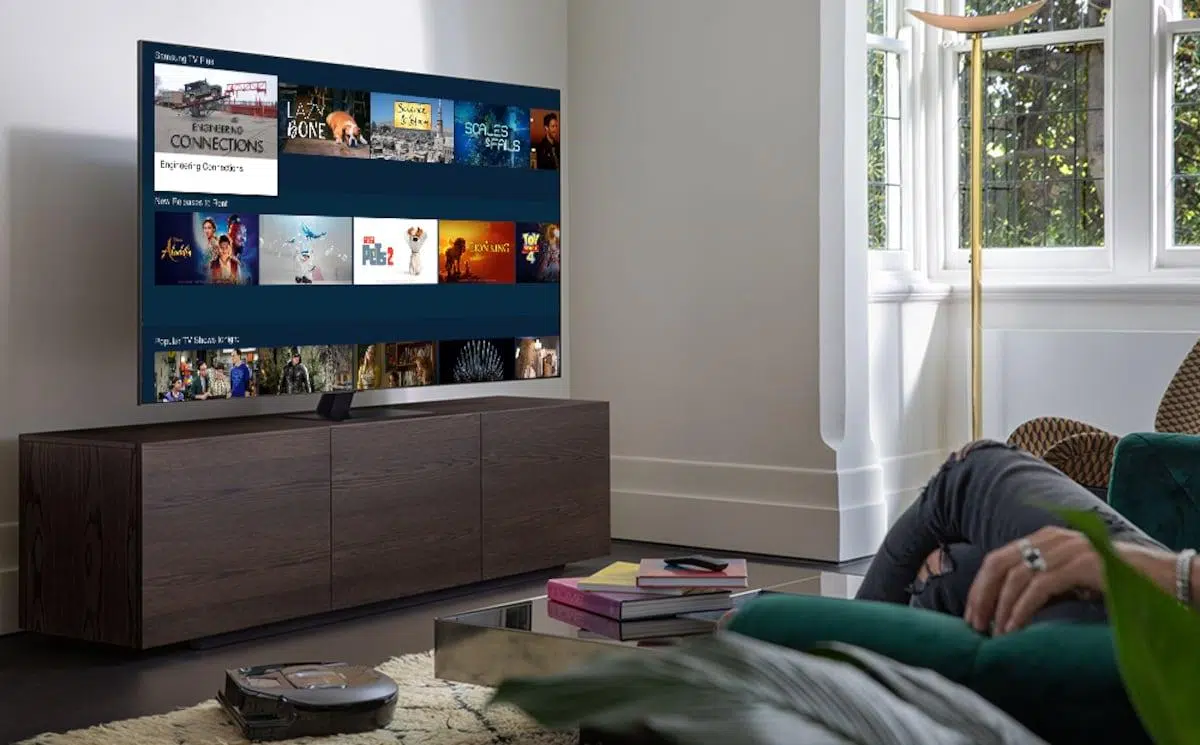
If you own a Samsung TV and have received a notification about a new version, you might be wondering how to update your Samsung Smart TV without any problems or data loss . The good news is that the process is usually very simple, and with a stable internet connection, you can have your TV up to date in just a few minutes.
Besides being convenient, keeping your TV's software up to date is key to getting the most out of it : new features, fewer errors, more security, and better compatibility with apps like Netflix , YouTube, Disney+, or any other you use daily, as well as making it easier to update applications when necessary.
Why it's worth upgrading your Samsung Smart TV
Beyond the typical new features that each version may bring, Samsung Smart TV updates include internal improvements that are not visible, but are noticeable : security patches, performance optimizations, and bug fixes that may be affecting the daily operation of the television.
With each new version of Tizen, Samsung introduces stability improvements to make the system run more smoothly and crash less , something you'll appreciate if you use apps a lot or constantly switch between HDMI, consoles, and streaming platforms.
Another important reason is compatibility: if you don't update, some apps may stop working properly or even disappear from the store . Applications adapt to the latest system versions, and models that fall far behind in software start to experience problems.
Security is also an important issue. Your TV is connected to the internet just like your mobile phone or computer , making it another device on your home network. With updates, Samsung closes vulnerabilities that could compromise your data or privacy.
In some cases, especially in the more recent ranges, new versions of Tizen bring interface changes and fresh features : clearer menus, better-placed shortcuts, mobile integration, new image or sound options, content recording, etc.
Tizen operating system on Samsung TVs
Samsung Smart TVs have been using Tizen as their operating system for years, designed specifically for their televisions . It's a fast system with fairly intuitive menus and a very comprehensive app store for most users.
Within Tizen, the menu path may change slightly depending on the year and range, but essentially you will always control everything from the Home or Menu button on the remote , then entering Settings or Configuration to reach the Support section and the update options.
In newer models, Tizen is combined with a layer called One UI, which introduces a more modern interface, redesigned icons, and shortcuts designed to make everything more convenient . That's why you'll see that, depending on your model, some names like Technical Support, Assistance, or About This TV may vary slightly.
Regardless of the specific design, the idea is the same: from the support menu you access the "Software Update" section , where you can search for new versions, update instantly, or activate automatic updates to forget about it.
Preparations before updating your Samsung Smart TV
Before touching anything in the menus, it's a good idea to make sure your TV has everything it needs to complete the update successfully . There aren't many requirements, but meeting them will save you from errors and unnecessary waiting.
The first thing to check is the connection: make sure your TV is connected to the internet, either via Wi-Fi or Ethernet cable . A stable network prevents interruptions during the firmware download, which is essential for the process to succeed. If you're having connection problems, this guide to troubleshooting Wi-Fi issues on Smart TVs may be helpful.
It is also advisable to have the original remote control on hand, because some support and update options only appear using the buttons on the full remote and not from very basic universal remotes or mobile apps.
In terms of time, set aside a few minutes without rushing. Downloads are usually quick, but the installation may take a little longer depending on the size of the update . The important thing is not to turn off the TV or unplug it until everything is finished and it restarts on its own.
If you want to be on the safe side, you can close all open apps. It's not mandatory, but it helps keep the system as "clean" as possible when the update starts , especially on models with less memory.
How to update a Samsung Smart TV (Tizen) from the TV itself
The easiest and most common way to keep your Samsung Smart TV up to date is to update it directly from the TV's menu, provided it's connected to the internet. This is the method you'll use most of the time because it's fast and doesn't require any external software.
On most recent models, the steps you need to follow are very similar: press the Home button on the remote, go to Settings, then to Support, and finally to the Software Update section . Depending on the year, the exact name of some options may change, but the structure is similar.
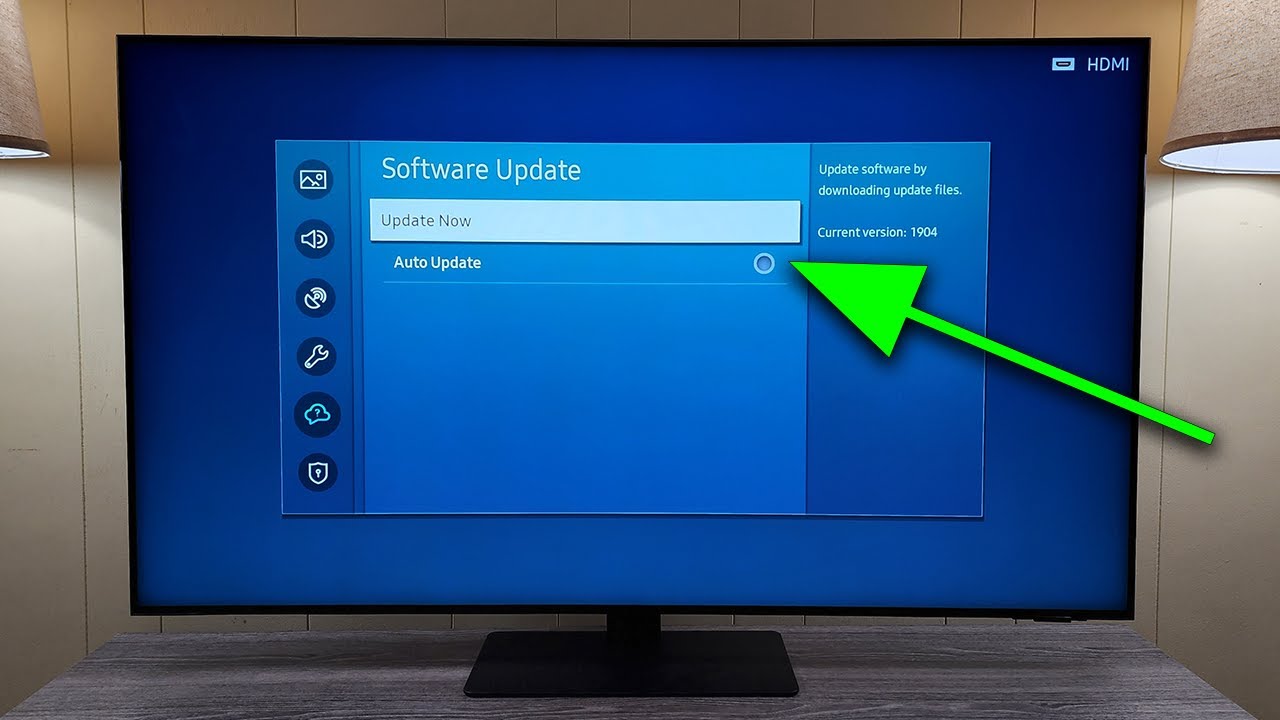
Once you're in "Software Update," you'll usually see the "Update Now" option. Selecting it will connect your TV to Samsung's servers to check if a newer version is available for your specific model.
If the system finds an update, you'll see an on-screen notification asking for confirmation. Once you accept, the download will begin, which may take several minutes depending on the file size and your internet connection speed.
Once the file has fully downloaded, the TV will begin the installation process. During this time, it's essential not to turn off the TV, unplug it from the power outlet, or use the remote control excessively . You'll see progress bars or messages indicating the status until it automatically restarts.
If the system detects that you already have the latest software version, a message will simply appear indicating that no updates are available , and you can exit the menu by pressing OK or the back button on the remote.
Detailed path in Samsung menus for updating
Although each model may have slight variations, the general structure for updating your Samsung Smart TV from the menu is quite similar across generations. These are the most common paths you'll encounter on TVs with Tizen.
In many models, the path is this: press the Home button on the remote, enter Settings , and if necessary, select "All settings" to see the full menu with all options.
Within Settings, you need to scroll down to the section usually called "Support," "Technical Support," or sometimes "Assistance ." This is where Samsung groups the tools related to system information, diagnostics, and updates.
Once you're in Support, look for the "Software Update" option. Upon entering, you'll see "Update Now" to perform a manual check . If you choose this option, the TV will search the internet for new versions for your model.
If an update is available, the system will ask you to confirm the download and installation. After accepting, let the process run without turning off the TV ; when it finishes, the TV will restart and boot up with the new version.
In other models, especially those from certain series or specific years, the path may have slightly different names in the menus, but you'll always end up in the same "Software Update" section within Support. If you're unsure, remember that the option is usually associated with tool icons, gears, or help symbols.
Enable automatic updates on your Samsung TV
To avoid having to periodically check for new versions, you can activate the "Automatic Update" function within the Software Update menu . This way, when new firmware is available, the TV will install it automatically.
On the same screen where "Update now" appears, you'll find a checkbox or switch to enable automatic updates. Enabling this will allow your TV to download and install new versions normally when it's idle , without interrupting what you're watching.
The main advantage of this option is convenience: you won't have to worry about notifications or reminders to update . Simply turn on your TV after a night, and a new version of the system will likely already be installed.
However, it's worth noting that, occasionally, after a major update, the TV may take a little longer than usual to turn on or load the initial menu . This is perfectly normal while it finishes applying internal changes.
If at any point you prefer to control the process manually, simply return to that menu and disable automatic updates . From then on, the TV will only install a new version when you instruct it to do so.
Update your Samsung Smart TV connected to the Internet
As long as your TV is connected to the network, you can use its own menu to keep both the internal software and the operating system up to date. The updates you download from "Update now" are the necessary foundation for you to then enjoy the latest Tizen improvements.
In some cases, once you have the necessary software version installed, the update to certain system components is applied almost instantly , without you having to do anything else. You'll see the TV restart, and when it boots up, the changes will already be in effect.
If your internet connection isn't very fast or is somewhat unstable, you might notice that the download and installation take longer than expected. It's important not to disconnect the network cable or turn off the router during the process to avoid errors during the update.
Once the TV has finished and restarted, it's a good idea to check the settings. While most preferences will be retained, occasionally some options may revert to their default values , especially after major version updates.
If you notice that any apps have become misconfigured, simply log back in or readjust your picture, sound, or network settings. Once you've done that, you'll continue enjoying your Smart TV with the latest Samsung enhancements.
Update on recent Samsung TVs with Tizen and One UI
The latest Samsung TVs, especially models released from certain generations onward, receive advanced versions of Tizen accompanied by the One UI interface . This not only changes the appearance of the menus but also adds very practical features.
Among the most striking new features are, for example, the ability to save content to view later , a more convenient organization of apps, sections dedicated to gaming, and better integration with mobile devices or cloud services.
On these models, the update to versions like Tizen 8.0 with One UI is usually rolled out gradually. Even if your TV is compatible, the update might take a while to appear , as Samsung doesn't release it for all countries and models at the same time.
To check if the update is already available, the method is the same: go to Settings, then Technical Support, access Software Update , and search using the "Update now" option. If your model is on the list of those that can already be updated, you will see the corresponding notification.
As this is a major update, the process may take a little longer, and after restarting, you may notice visible changes in the appearance of the main menu. In any case, the basic image, sound, and app options will still be in familiar places , although with a different presentation.
How to update your Samsung Smart TV via USB
In addition to updating directly over the internet, Samsung allows you to install new software versions via a USB flash drive . This method is useful if your TV doesn't connect to the network well, if you have a very slow connection, or if you prefer to download the file from your computer.
The first thing you need to know is the exact model of your TV and the software version you have installed . This information appears in the TV's menus: go to Settings, then Technical Support, and select the "About this TV" option or something similar.
On that screen you'll see a model code (for example, UE, QN, etc.) and the current software version. Note this information down, because you'll need it on the Samsung support website to download the correct file.
Next, using a computer, go to the Samsung support page and enter your TV's model number. In the "Manuals and Downloads" section, you can check if there's a newer firmware version than the one you currently have installed.
If there's a new version, download it and extract the file (it usually comes in compressed format). Prepare a USB flash drive formatted in FAT32 with enough space, and copy the update folder or file to it following the manufacturer's instructions; consider the USB flash drive 's uses and limitations before starting.
Once ready, connect the USB drive to one of the TV's ports. On many models, the TV will automatically detect the update file and offer to start the installation process from the USB drive, displaying a message on the screen.
If no notification appears, you can manually go to the "Software Update" menu and select the option to update from USB, if available. Again, let the TV complete the installation without turning it off or removing the USB drive until you see it restart and return to the main menu.
When it's finished, you'll have the new software version installed, with the corresponding improvements. It's a good idea to return to the "About this TV" screen to check that the version number has been updated correctly.


Passionate writer about the world of bytes and technology in general. I love sharing my knowledge through writing, and that's what I'll do on this blog, show you all the most interesting things about gadgets, software, hardware, tech trends, and more. My goal is to help you navigate the digital world in a simple and entertaining way.