- Edge is updated from "About Microsoft Edge" and now also notifies in the browser's Essentials.
- Automatic updates may be limited on metered connections and managed environments.
- Updating provides performance (Startup Boost, Sleep Tabs), security, and privacy.
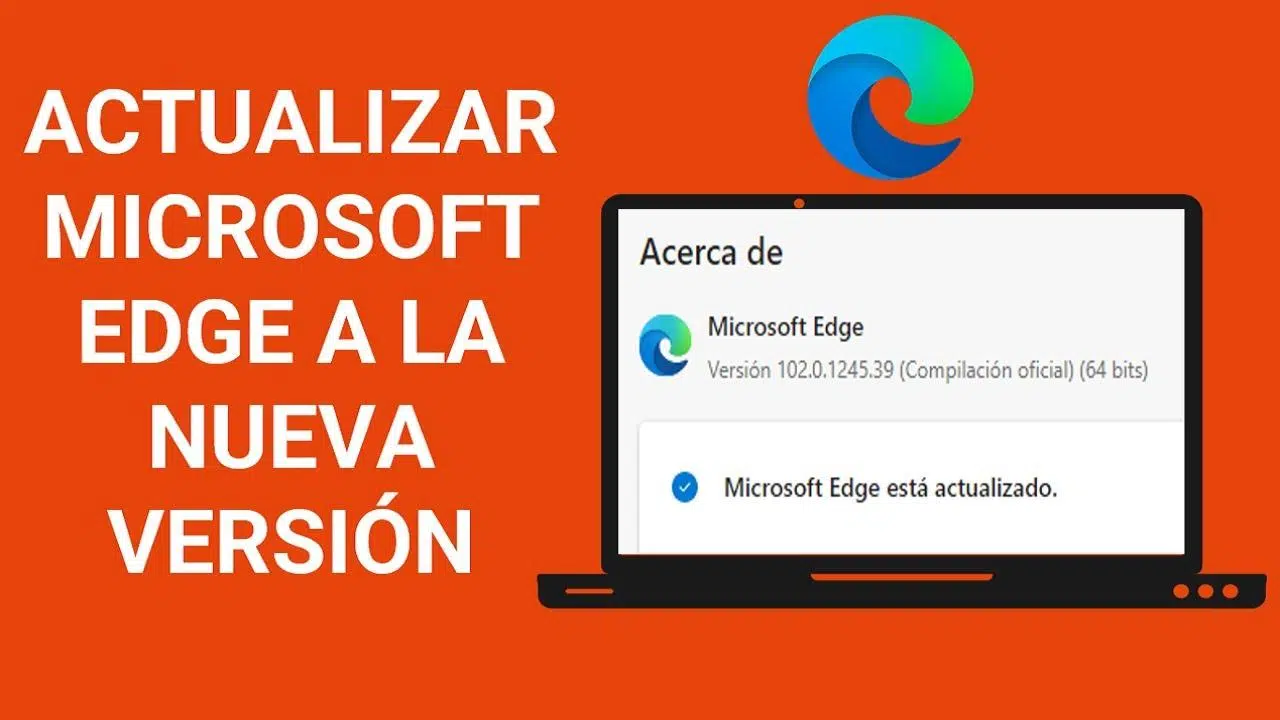
If you use Windows 11 and are wondering how to keep Microsoft Edge up to date , you've come to the right place. Keeping your browser current isn't just about new features; it's also vital for security, performance, and compatibility with modern services. Plus, Edge itself is designed to update automatically with minimal effort on your part.
In the following lines, you'll find everything you need to check your version, update manually, enable automatic downloads , and troubleshoot common problems. You'll also see what the update brings in terms of privacy, productivity, and security, how to set Edge as your default browser, and what's new in the browser's Essentials panel, which now notifies you of new versions more prominently.
How to update Edge to the latest version on Windows 11
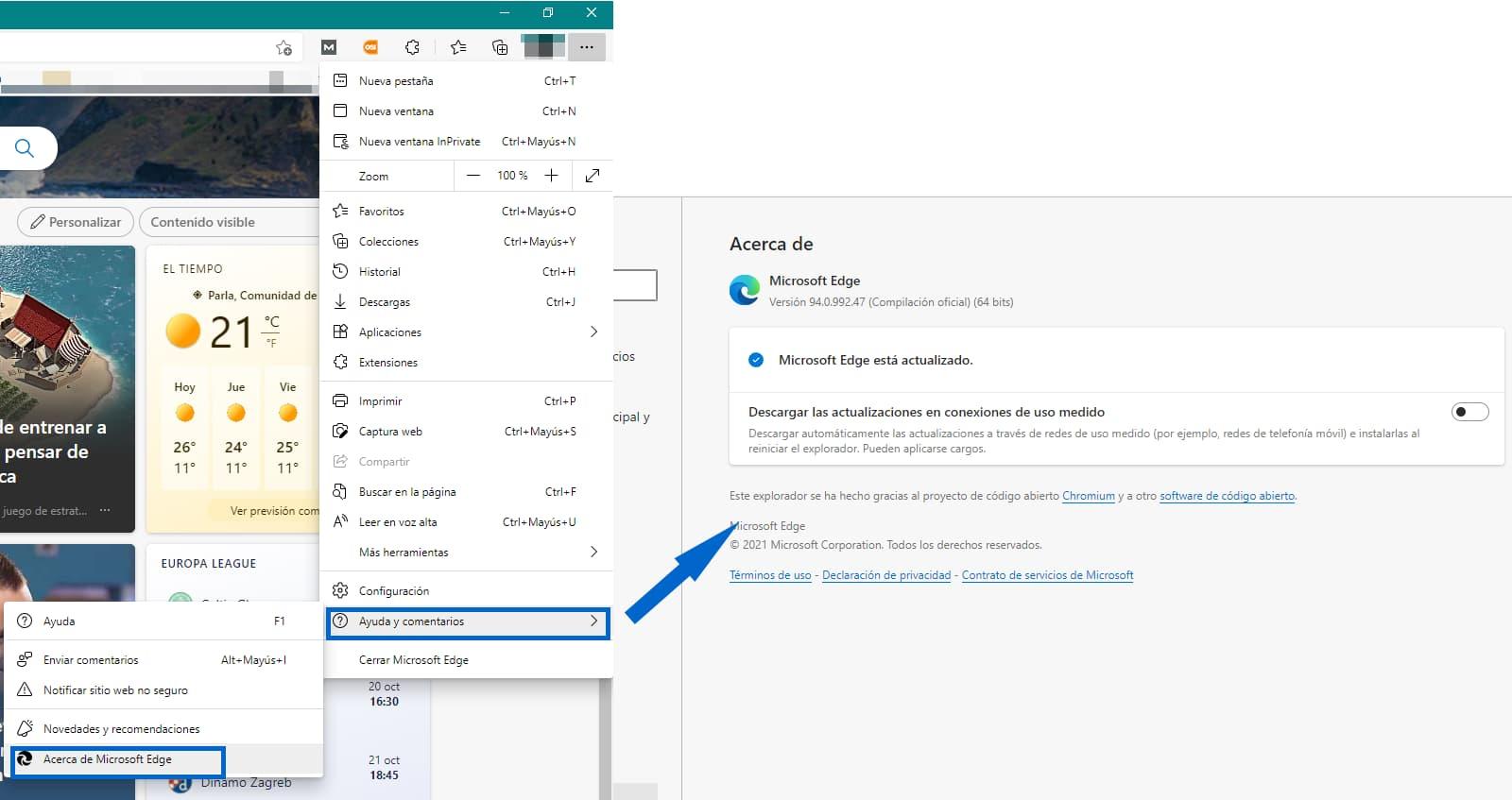
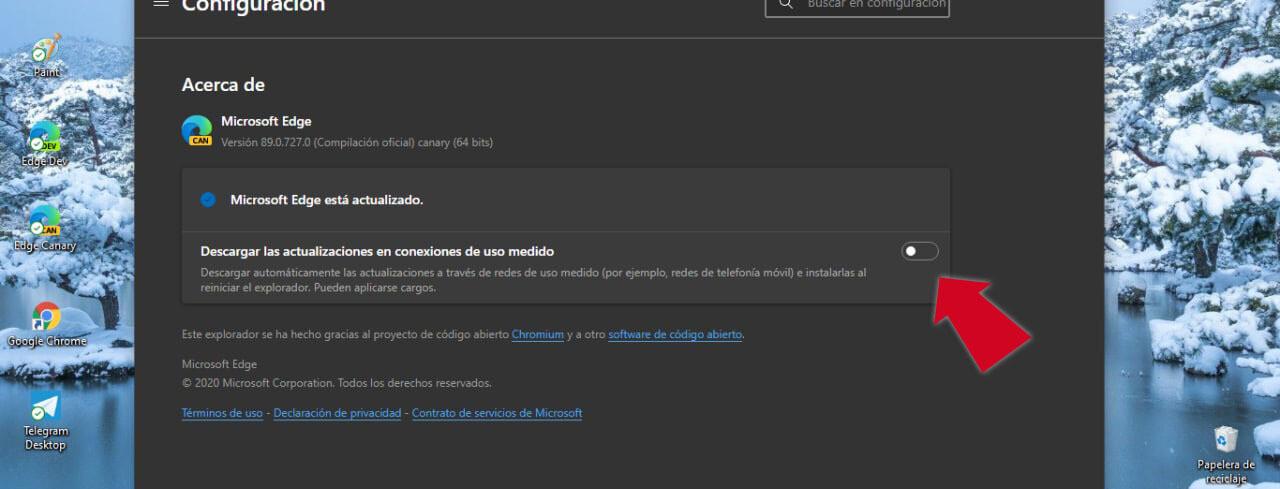
Edge updates automatically upon restart, but if you want to force a search, go to Settings and more > Help and feedback > About Microsoft Edge or go directly to edge://settings/help. On that screen, the browser checks for new packages and downloads them if necessary.
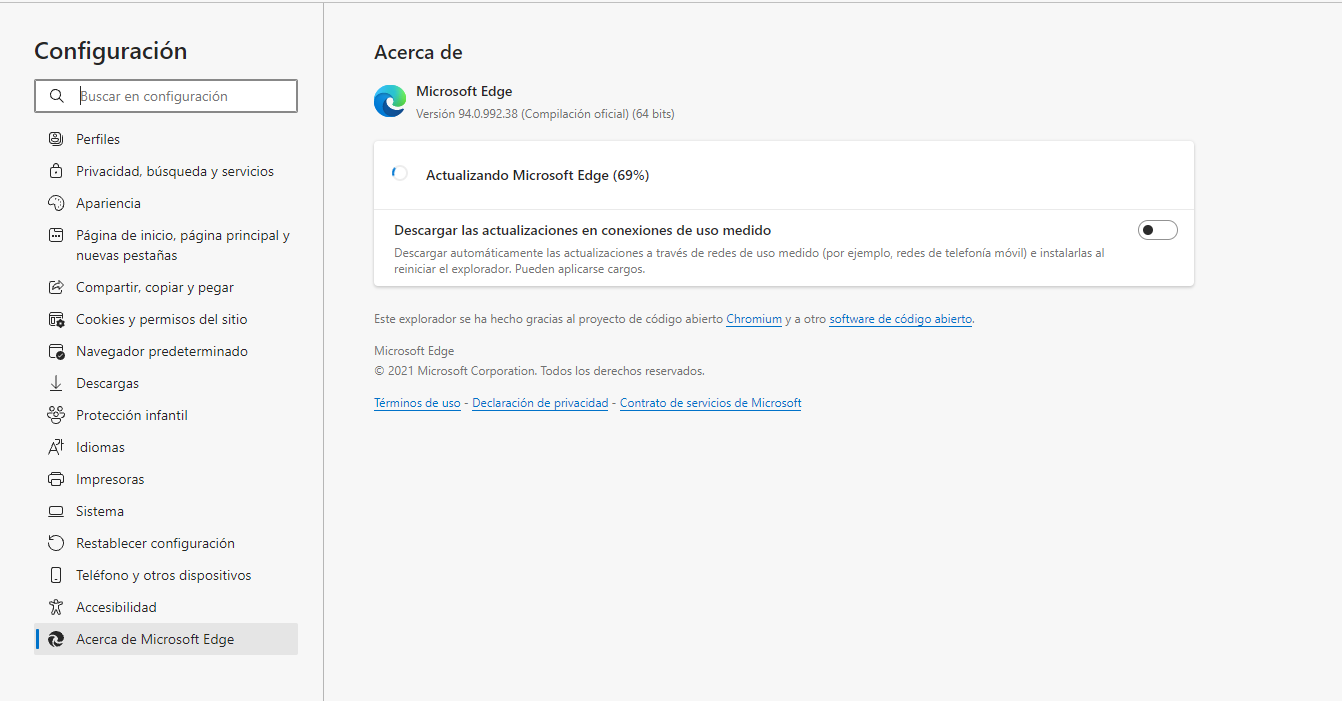
In “About” three states may appear: 1) “Microsoft Edge is up to date” , in which case you don't need to do anything; 2) “An update is available” , where you will see the Download and install button; 3) “To complete the update, restart Microsoft Edge” , a sign that it has already been downloaded and only needs to be restarted.
When you tap Download and install , Edge will download the package and apply it the next time you restart your browser. If you're on a mobile network, keep in mind that data charges may apply depending on your carrier and the size of the update.
If you don't see any changes after updating, close all Edge windows and reopen it. Your tabs and sessions will be automatically restored, so you won't lose what you were doing while the new version is being applied.
Enable automatic downloads and metered connections
By default, Edge tries to keep up to date in the background and finishes installing the update upon restart. However, you can check its automatic update toggles on the About page to ensure they are enabled according to your preferences.
If you're connected to a network marked as metered (for example, mobile data or certain Wi-Fi networks), Edge can wait for you to decide. Only enable the option to download updates over metered connections if it's worthwhile for you, as it can consume a significant amount of data depending on your plan.
There's one exception: some devices recently purchased in China with mobile capabilities may have updates disabled by default . If you're in this situation, use the manual method in About Microsoft Edge to update it when needed.
The goal is simple: to keep you "always up to date" to ensure your browser runs smoothly and securely . In corporate environments, the IT department may manage this policy centrally, which would explain why you can't modify certain switches.
New: Update notifications in Browser Essentials
Starting with version 124, Edge includes an additional way to notify you when a new stable version is available: the browser's Essentials panel . In addition to the alert in "Settings and more," you'll see a notification in the toolbar to make it perfectly clear that an update is waiting for you.
When Edge releases security fixes and feature improvements , the Essentials icon will display a notification with a red dot. Opening it will show the recommended update action in the upper right corner, giving you the option to apply it immediately or postpone it for later.
To apply the new version immediately, select Restart now . The browser will close and reopen with the update applied. Don't worry about your pages: your tabs will be restored automatically when Edge reloads.
If you unpinned Essentials from the taskbar, don't worry: when a new update is available, the icon will reappear to get your attention . After the update process is complete, Edge will respect your preference, and the icon won't reappear until the next available version.
Microsoft is testing several versions of this notification to improve clarity and reduce the time updates remain pending. This improved experience makes it easier to stay up-to-date and is key to security: new versions block malware , neutralize vulnerable extensions , and implement internal changes that make the latest exploits more difficult.
Advantages of upgrading: performance, security, and privacy
Edge is based on Chromium and offers top-tier compatibility and performance on the modern web. On Windows, it also includes native features like Startup Boost to speed up boot times by keeping essential processes running in the background without adding extra resources when windows are open.
Another standout feature is Sleeping Tabs , which frees up system resources by automatically pausing tabs you're not using, reserving memory and CPU for what you're currently doing. If you work with dozens of tabs, you'll definitely notice the difference.
In terms of security, Edge integrates Microsoft Defender SmartScreen , which identifies suspicious sites, blocks phishing attempts, analyzes potentially dangerous downloads, and helps remove browser hijackers . It's not foolproof, but it adds a very useful layer of defense for everyday use.
If you're concerned about privacy, you can choose from three levels of Tracking Prevention : Basic, Balanced, or Strict. Adjust the setting to best suit your desired balance between site customization and protection from trackers.
InPrivate browsing hides your history, forms, cookies, and passwords from other users of the same device. It also includes InPrivate Search with Bing, so those searches aren't associated with your identity or affect your recommendations.
In terms of productivity, Edge offers Immersive Reader on certain pages, ideal for listening to text or reading an article without visual distractions. And with Collections, you can easily organize links and snippets by topic: travel, shopping, or research projects, and create a digital mood board.
Finally, if you sign in with the same Microsoft account, you sync favorites, passwords, and more across all your devices, giving you a seamless experience on your mobile, laptop, and desktop.
Customize Edge after the update
Updating is a great time to customize your browser. Open Settings and more > Settings and go to Appearance to change the theme, zoom level, toolbar buttons, and default fonts to suit your preferences.
If you want to change what appears when you open the browser, go to Home, Homepage & New Tab , and choose whether you prefer a specific page, previous pages, or the new tab screen. It's a simple way to adapt Edge to your workflow.
To customize the new tab, in the same section click on Customize and choose your design, background image, content cards, and quick links. This way, you can easily access the information and resources you use most often without wasting time.
You can also open a new tab using the "+" button above the address bar and, in the top corner, go to Page Settings . Adjust the layout (focused, inspirational, informative), decide whether to show the feed, and configure quick links and news sources.
Bonus tip: If visual elements bother you, choose a minimalist design with fewer distractions. A well-executed customization improves both your focus and how quickly you find what you need.
Set Edge as default browser
Is your Edge updated but another browser is opening the links? On Windows 11, open Edge and go to Settings > Default browser and click Set as default. It's the most direct way and avoids having to go through each application individually.
In Windows 10, go to Start > Settings > Apps > Default apps > Web browser and select Microsoft Edge from the list. With two clicks, you'll ensure that every link on the system opens in the correct browser.
If you're working on macOS, go to the Apple menu > Desktop & Dock , and under Default web browser, choose Microsoft Edge. This keeps your experience synchronized when switching between platforms.
Setting Edge as the default browser ensures consistency with its integration into Windows, speeding up the opening of links from system apps or Microsoft 365.
If the "Set as default" button appears disabled, your organization likely manages this preference through policies. In that case, contact your IT administrator to enable the change.
Download and install Edge from scratch
If you don't have Edge or want to reinstall it, first make sure your account has administrator privileges on the computer. Then, visit the official Microsoft Edge website and download the installer for Windows, macOS, iOS , or Android , and, if applicable, the Microsoft Edge WebView2 Runtime.
When you run it on Windows, you'll see User Account Control (UAC) asking: "Do you want to allow this app to make changes to your device?" Choose Yes to continue, as the installer needs permission to copy files and register browser components.
If you don't have administrator privileges, you have two options: 1) request access from your IT department or whoever manages the computer; 2) ask someone with an administrator account to complete the installation for you.
After installation, sign in with your Microsoft account to retrieve passwords, favorites, and settings from the cloud using secure synchronization.
Troubleshooting update and installation problems
Are the update switches not appearing or are they grayed out? Most likely, Edge's settings are managed by your organization . In that case, you should contact your IT administrator to check the browser policy.
If you see a specific error at edge://settings/help when trying to update, follow Microsoft's troubleshooting recommendations for installing and updating Edge. Often, simply restarting the browser, checking your internet connection , and retrying the download will resolve the issue.
Quick troubleshooting steps that often work: 1) Open Edge as administrator (Start, type Microsoft Edge, right-click, Run as administrator); 2) Check the Windows Update service in services.msc (start it if it's stopped); 3) Temporarily disable your third-party antivirus or firewall and try again. If you encounter a specific error, search for solutions related to the result_code_hung error.
To disable your antivirus for a few minutes, open its application, find the "Pause protection" option in Settings/Protection , select 10 minutes or 1 hour, and try the installation or update again. Don't forget to turn it back on when you're finished.
If you're on a metered connection or a device with limited downloads (like some devices sold in China), force the update from About Microsoft Edge and confirm that you allow downloads on that type of network when you actually want to.
Common issues after updating: Store and YouTube
Some users report that after updating their system, the Microsoft Store either fails to download apps or freezes after "Start Download." Changing the time or region doesn't always resolve the issue. While this problem isn't related to Edge, you can try the following: running wsreset to clear the Store cache, signing out and signing back in, checking automatic time and time zone synchronization settings, and verifying that Windows Update doesn't have any pending updates that might be blocking the Store.
Another common issue is that after upgrading from Windows 10 to 11, Edge may run slowly when playing YouTube videos , with the GPU process increasing CPU usage. Changing the hardware acceleration setting isn't always enough; try updating your GPU drivers , disabling extensions that inject scripts into videos, clearing YouTube's data, and restarting Edge without any add-ons to rule out interference. More tips can be found in the article " Microsoft Edge is slow ."
If the problem persists, reset Edge from Settings > Reset settings , remove any experimental flags you may have changed, and verify that the system isn't forcing incompatible video enhancements ( HDR , super resolution, or manufacturer post-processing) that might be impacting decoding. As a temporary alternative, use InPrivate mode to test if a clean profile plays smoothly.
On systems with multiple GPUs (integrated and dedicated), force the use of either the dedicated or integrated GPU as needed from the Windows graphics settings for edge.exe . On certain laptops , changing the preferred GPU resolves stuttering and reduces CPU spikes while streaming.
Finally, check the acceleration and decoder status at edge://gpu. If you see errors like status_access_violation , reinstalling or updating the graphics driver and restarting your computer usually restores hardware acceleration to normal.
Everything you need to get started with Edge
If you're coming from Internet Explorer or a legacy version of Edge, the transition will feel seamless: you can import bookmarks and data to pick up right where you left off. This will speed up startup and ensure you keep track of your sites and passwords.
In addition to the update, it's advisable to enable or review Startup Boost and Sleep Tabs to ensure optimal performance. Both features are designed to balance speed and resource consumption under real-world workloads involving numerous tabs, extensions, and web apps.
If you use Microsoft 365, remember that Edge is Microsoft's browser compatible with its current apps and web services. With Internet Explorer and the classic Edge browser no longer supported, upgrading will help you avoid compatibility issues at work.
In your daily life, rely on Immersive Reader for distraction-free reading, use Collections to organize ideas, and share the same profile across all your devices with Edge sync . These are small adjustments that multiply productivity.
To complete the setup, take two minutes to adjust your tracking prevention and InPrivate Browsing settings. This will give you an experience where you decide your privacy level without sacrificing a fast and secure browser.
Updating Edge in Windows 11 is a simple process, and with recent improvements like the notification in the browser's Essentials, it's become even clearer when to apply the new version. Between performance improvements (Boost Startup, Sleep Tabs), built-in security (SmartScreen), and privacy controls, keeping your browser up to date is the best way to enjoy the web with less risk, faster speeds, and a personalized interface tailored to your preferences.


Passionate writer about the world of bytes and technology in general. I love sharing my knowledge through writing, and that's what I'll do on this blog, show you all the most interesting things about gadgets, software, hardware, tech trends, and more. My goal is to help you navigate the digital world in a simple and entertaining way.