- VLC allows you to add subtitles external and choose between several tracks, but their synchronization settings are temporary.
- The synchronization can be fine-tuned with keyboard shortcuts and with the advanced “Track Sync” panel in Windows and macOS.
- On mobile devices, VLC includes touch controls to adjust subtitle delay in Android e iOS without complications.
- For permanent synchronization, it is recommended to use subtitle editors or specialized alternative players.
If you use VLC to watch movies or series on your computer, you've probably encountered the typical problem of... The subtitles are out of sync with the videoSometimes they appear too early, other times they lag behind, and you have to juggle things to figure out what's happening on screen. The good news is that VLC has several very powerful functions to adjust and synchronize subtitles on virtually any device.
In the following lines you will see a very complete guide that explains how to synchronize them With keyboard shortcuts and advanced menus, what to do when the delay is very large, how it works on Windows, macOS, Android and iOS, and also alternatives to permanently record the synchronization in the video file using other specialized programs.
How to quickly add subtitles in VLC
Before discussing synchronization, it's important to be clear How to properly load a subtitle file in VLCBecause if the file is not the right one or is not being used properly, there's little point in fiddling with delays or advances.
The classic method in VLC is to work with external subtitle files, usually in formats such as .srt, .ass or .ssawhich you can download from various websites. These files contain the text and the timing that indicates when each line should be displayed on the screen.
Add subtitles by renaming the file
A very simple way to get VLC to load subtitles automatically is Give the subtitle file the exact same name as the video.Only the extension changes, of course. For example:
- Video: The_movie.mkv
- Subtitle: The_movie.srt
To do this, go to the folder where you have the files, Right-click on the subtitle file and choose the rename optionWrite the same name as the video, respecting capitalization, spaces, and so on, and leave the original extension of the subtitle.
Once renamed, all that remains is The video and the subtitle file are in the same folder When you open the movie with VLC, the player will automatically detect the .srt file (or other compatible format) and display the subtitles without you having to do anything else.
Manually open a subtitle file in VLC
If you prefer to have the subtitles in another folder or don't feel like renaming files, you can Load subtitles manually from the VLC menu at any time during playback.
Simply start the video in VLC and, once the sound or image is displayed, go to the top bar and click on the option "Caption"A menu will appear where you will see the option “Add subtitle file…”.
Clicking “Add subtitle file…” will open a file explorer window for your operating system. From there you can Browse through your folders, locate the correct subtitle file, and double-click on it. To load it into VLC, the player will immediately begin displaying the text associated with that file.
In many cases, especially if the subtitle file comes from a more elaborate source, A single file can contain multiple tracks in different languages.To choose between them, return to the top menu “Subtitle”, and enter the option “Subtitle Track” (or “Tracks”) You'll then see a list of all available tracks. Simply select the one you want (for example, Spanish, English, etc.).
Sync subtitles in VLC with keyboard shortcuts
When subtitles don't perfectly match the audio, one of the easiest ways to adjust them is to use VLC keyboard shortcuts for advancing or delaying subtitles on the fly While watching your video. It's much more practical than having to navigate through menus every few minutes.
This feature exists in both Windows and macOS, although The specific keys vary depending on the operating system.Also, keep in mind that these changes are temporary: if you close the video, when you reopen it the synchronization will be reset and you will have to repeat the adjustment if the problem persists.
Shortcuts to synchronize subtitles in VLC on Windows
In Windows, during playback of any video with loaded subtitles, you can use the keys G and H To modify the subtitle delay relative to the audio:
- G key: delays the appearance of subtitles (makes them appear later) in steps of about 50 milliseconds.
- H key: advances the subtitles (makes them appear earlier) also in increments of about 50 milliseconds.
Ideally, you should try things out: Let a phrase play, notice when the text appears, and press G or H. until the text and voice appear to be in sync. Although doing it "by eye" might be a little imprecise at first, after a few seconds of practice you'll get the hang of it and be able to perfectly align the scene.
VLC displays the offset value you have applied on screen, so you can see if, for example, you have shifted the subtitles. -0,5 seconds or +1 secondThis helps you repeat the adjustment if you have a similar problem again at another time.
Shortcuts to sync subtitles in VLC on Mac
The idea is the same on macOS, only that The default keys change slightlyIn many versions of VLC for Mac the keys are used H and J to control the delay:
- J key: is usually used to delay the subtitles when they appear ahead of the sound.
- H key: advances the subtitles so they catch up with the audio if they fall behind.
Just like in Windows, each keystroke applies a tiny adjustment in milliseconds, so you can Make fine adjustments until everything is synchronizedSome users also mention additional shortcut combinations (e.g., Command key shortcuts) depending on the exact version of VLC they have installed, but the logic is always the same: one key to add delay and another to subtract it.
Remember that, as in Windows, These synchronization changes are not saved when the video is closed.Each time you open that specific file, you will have to repeat the shortcut adjustment if the problem persists in the subtitle file.
Adjust synchronization from VLC's advanced menus
When the discrepancy is very large or you need to fine-tune things a lot, shortcuts may fall short. In those cases, it's worth going into the VLC advanced synchronization optionswhere you can write exact values and adjust more technical parameters.
VLC offers a specific panel called something like “Track synchronization” or “Synchronization” (the exact name may vary slightly depending on the interface language), which lets you change both There of the appearance of the subtitles as well as their playback speed, often expressed in FPS (frames per second).
Subtitle synchronization in VLC for Windows
On Windows, with the video and subtitles already loaded, go to the top and click on the menu "Tools"Within that menu you will see an option called “Track synchronization” (or similar). Clicking it opens an advanced settings window, usually under the heading “Effects and filters”, directly in the synchronization tab.
In that panel you will find a specific section for “Subtitles/Video”. Here you can:
- Adjust the "subtitle advance over video"If the subtitles are delayed, enter a negative value (for example, -5,000 seconds to advance them by 5 seconds). If they are ahead, enter a positive value to delay them.
- Modify the “subtitle track synchronization” in milliseconds: is another way of indicating how much earlier or later you want them to appear relative to the audio.
- Adjust subtitle speed (FPS): useful when the subtitles seem to work fine at first but gradually become out of sync, indicating that the problem is with the frame rate rather than a simple fixed offset.
Once you've applied the changes, you can use the refresh button or simply continue playing the video to check if the adjustment was sufficient. If you still notice a slight discrepancy, return to the panel and adjust the value. until you find the exact spot.
Subtitle synchronization in VLC for macOS
On a Mac, the procedure is very similar, although access is through slightly different menus. With the movie playing and the subtitles visible, Open the “Window” menu and select the “Track Sync” option..
A similar window will open with synchronization parameters. Again, you'll see a section dedicated to “Subtitles/Video”, where you can use the field of “Subtitle track synchronization” to indicate in seconds or milliseconds how much you want to advance or delay the text track.
The logic is the same as in Windows: A positive value delays, a negative value speeds upIf you have a significant delay (for example, the subtitles start appearing several seconds too late), simply enter that value with the correct sign to reset everything at once.
Some macOS configurations also have specific keyboard shortcuts to quickly open these sync options, in addition to the shortcuts for fast-forwarding or rewinding while watching video. If you notice your subtitles gradually becoming out of sync, Checking the FPS ratio and video settings can make all the difference.
Sync subtitles in VLC on mobile devices (Android and iOS)
VLC isn't just available on computers: it also has smartphone apps where you can Play local videos and adjust subtitle delayAlthough the interface is different, the basic synchronization function is still there.
Note that, depending on the app version and deviceThe exact location of the buttons may change slightly, but in general the flow is very similar to the one detailed below.
Adjusting subtitle delay in VLC for iPhone (iOS)
On iOS, when you play a video in VLC with subtitles loaded, you'll see several icons on the interface. Among them is a clock-shaped icon in the lower left areaThat's the one that lets you adjust the “Subtitle delay”.
If you press that icon, a control will appear where you can add or subtract delay in milliseconds or secondsThis way, if the subtitles are ahead of schedule, you add delay; if they're late, you subtract delay to advance their appearance. It's the touch equivalent of the G/H or H/J keys on the desktop version.
Adjusting subtitle delay in VLC for Android
On Android, the system works very similarly. Open your video in the VLC app and go to the playback controls that appear above the image. There you will find a icon associated with subtitles, usually also located in the lower left or in the options menu.
After tapping that subtitles icon, a section will appear called “Subtitle delay” or similar. There you can move a slider or enter values to advance or delay the text track until it is synchronized with the video's audio.
These mobile settings are ideal when You watch series and movies from the sofa using your mobile phone or tabletbecause you don't need to keep testing on the computer every time you detect a small synchronization mismatch.
Why do subtitles become out of sync in VLC?
Not all synchronization problems are caused by VLC. Very often the problem lies in the subtitle file itself or in how it was created or downloaded. It's worth keeping this in mind. the most common causes of desynchronization to know if it's worth adjusting by hand or if it's better to look for another, better-made file.
Some of the most frequent reasons That's why your subtitles don't match the audio. are:
- Wrong subtitle file: An .srt file has been downloaded that does not exactly correspond to that version of the video (different edit, director's cut, different duration, etc.).
- Differences between video formats and subtitlesThe subtitle may be created for a file with a different frame rate, a different footage duration, or even a different encoding system.
- Player settings: certain advanced synchronization, refresh rate, or acceleration settings hardware They can interfere and cause small lags.
- Video conversion or recompression: if you have recoded If the video file was processed with another program and the timeline wasn't properly adjusted, the subtitle timing may no longer match.
- Errors in the subtitle file itselfThere are poorly edited subtitles, with incorrect timestamps or sections where synchronization errors accumulate in the middle of the film.
In many cases, with the methods explained above (shortcuts or manual synchronization) you will be able to compensate for the lag, But if you see that no matter how much you adjust it, it always gets misaligned againPerhaps you should look for a better subtitle or move on to a more advanced solution for editing it and leave it perfect permanently.
Temporary solutions vs. permanent solutions
Everything you do within VLC to adjust subtitles, both with keyboard shortcuts and with the synchronization menus, has something in common: These are temporary changes that only apply during that playback.As soon as you close the video, the settings revert to their default values.
This means that if you always use the same video file and the same subtitle, You'll have to repeat the adjustment every time you want to watch that movie or episode.VLC does not modify the .srt file or the original video, it only alters the way they are displayed together during that session.
If what you need is for the video to have The subtitles are permanently synchronized, integrated into the file itself, or corrected in the subtitle file.You will need to use specialized external tools that allow you to edit and re-export the content.
Alternatives to VLC to avoid subtitle delay
There are situations where, no matter how much you adjust VLC, The problem of subtitles being delayed or ahead continues to cause problems. Or you simply get tired of having to touch it every time. In those cases, you might consider players or alternative solutions that allow you to save the synchronization or that work better with certain formats.
VideoByte Blu-ray Player: alternative for PC
A popular alternative to VLC is VideoByte Blu-ray Playera multimedia player designed primarily for It plays Blu-ray and DVD discs, but it also works very well with conventional video files.One of its advantages over VLC is that it is geared towards avoiding typical errors such as constant subtitle delay and offers a very polished integration of external tracks.
Among the most notable features This player includes:
- High Definition SupportIt plays 1080p HD files and even 4K files smoothly, maintaining fluidity and image quality.
- Support for most video and audio formats, in addition to protected Blu-ray/DVD discs.
- Retains the original sound effects, with compatibility for technologies such as Dolby and DTS.
- It offers a very intuitive navigation menu, ideal for easily managing audio tracks, subtitles and chapters.
- Allows you to adjust video effects such as brightness, contrast, saturation, hue, or gamma.
- Includes GPU acceleration to avoid stuttering and performance problems, which in some cases are related to subtitle lag.
Their workflow is simple: Install VideoByte Blu-ray Player, open the video or disc, and from the subtitles menu, import your .srt, .ass, or .ssa files.After that, you can start playback and the program itself tries to adjust and maintain synchronization very stably, reducing the risk of continuous mismatches.
Elmedia Player: A practical approach on macOS
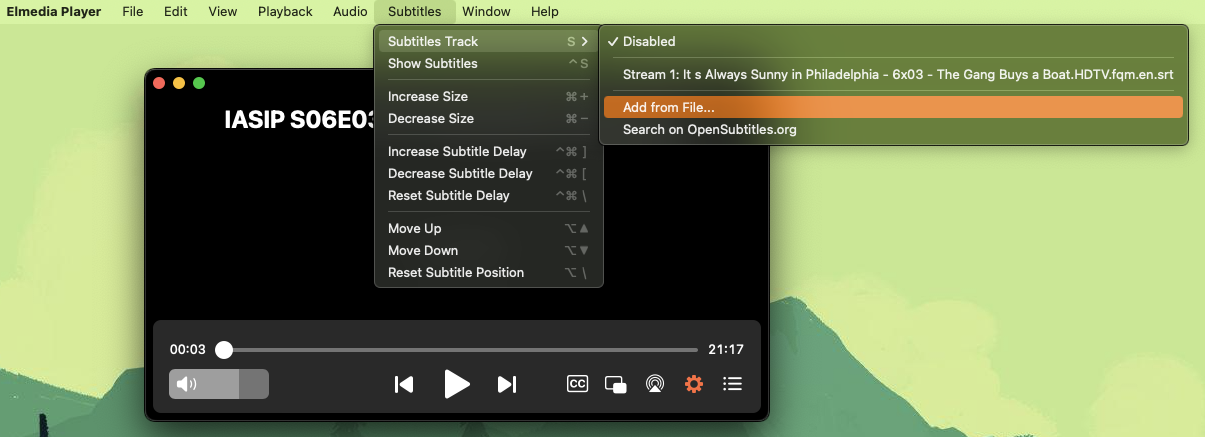
On Mac, another player highly valued for its subtitle management is Elmedia PlayerIts main advantage over VLC, if you're only thinking about subtitles, is that It allows you to synchronize them and save those preferences., saving you the hassle of repeating the process every time you open the same video.
Furthermore, Elmedia makes it easier to get subtitles because It includes functions to search for them and download them directlywithout needing to open other applications or browse third-party websites. Combined with a very user-friendly interface, this makes it a very convenient tool for those who frequently watch content in its original version with subtitles.
Edit and permanently synchronize subtitles with Wondershare UniConverter
If you're looking for something deeper, like Correct a faulty subtitle file and produce a new video with perfect synchronizationOne interesting option is to use an editor and converter such as Wondershare UniConverter.
Basic workflow for adjusting subtitles with UniConverter
The general process The process you would follow with UniConverter to create 100% synchronized subtitles would be this:
Firstly, Open Wondershare UniConverter and go to the “Toolbox” section. (Toolbox) in the side menu. Inside it you will find the option to “Subtitle Editor”By clicking there, you can import the source video from your hard drive, which will be the file you will be working on.
Next, in the editor window, you will use the button “Import subtitles” to upload your .srt file (or whatever format you use, as long as it's compatible). Then, with the button "Add" You will be able to add that file to the project's subtitle timeline.
Once loaded, you will see a list with all subtitle entries (Each line of dialogue with its start and end times). You can select any line that is incorrect and correct the text in the field. “Subtitle text” and, most importantly, adjust the fields of “Start Time” and “End of Time” to move forward or back that specific phrase.
This method allows you correct the problematic lines one by one or adjust entire segments of the video that are out of sync, something that is virtually impossible to do so precisely with VLC's shortcuts.
In addition to synchronization, you can take advantage of this to Modify the font, size, text color, opacity, outline width, and screen position (above, in the center or below), adapting the subtitles exactly to your liking or the needs of the video.
Once you've finished adjusting and reviewing, all that remains is to specify an output folder using the option “File Location” and click on "To export"UniConverter will generate a new video file with the subtitles already integrated and synchronizedso that when you open it in VLC (or any other player) you don't have to touch anything else.
Frequently asked questions about subtitle synchronization in VLC
The same questions often arise regarding synchronization in VLC. Many people wonder, for example, Why does the problem return after adjusting, or is there a way to permanently fix the subtitles in VLC?.
As we have already seen, VLC does not save the synchronization as a permanent change to the file.Therefore, even if you adjust it perfectly using G/H, the Track Sync window, or the menus on Mac and mobile devices, you'll lose those settings when you close the video. If the subtitle track has the same problem when you reopen the movie, you'll have to repeat the process.
To break free from that loop, the solution lies in Edit the subtitle using tools like UniConverter or add the text track to the video using authoring softwareor use alternative players that allow you to save the synchronization settings per file.
It is also common to confuse subtitle synchronization with audio problemsVLC offers similar settings for synchronizing audio with video, and in some cases you can do something similar to what's been explained (using different shortcuts and menus). Even so, it's important to distinguish between whether the audio track or the subtitle track is out of sync, because the specific solution differs.
In general, if you choose a subtitle file that matches your video version, You use keyboard shortcuts for quick tweaks and rely on external editors when you need in-depth corrections.You can almost completely forget about out-of-sync subtitles and enjoy the content without distractions.
Once these tools are mastered and you know how to react to a mismatch, Watching movies and series with subtitles in VLC becomes much more convenientWhether on Windows, macOS, Android or iOS; and, for extreme cases, you can always use alternative players and specialized editors that allow you to tie everything up and secure permanently.


Passionate writer about the world of bytes and technology in general. I love sharing my knowledge through writing, and that's what I'll do on this blog, show you all the most interesting things about gadgets, software, hardware, tech trends, and more. My goal is to help you navigate the digital world in a simple and entertaining way.