Setting up Android Auto might seem daunting at first, but with a clear guide and a few practical tips, getting started is quick and hassle-free. In the following lines, you'll see how to connect via cable and wirelessly, which permissions to grant, which settings to review, and how to troubleshoot common problems to ensure everything runs smoothly. The idea is to connect, grant the necessary permissions, and then configure it to your liking.
In addition to the initial setup, we'll explain how to customize the app menu, adjust notifications, activate the voice assistant, and automate startup, along with recommendations for using maps, messaging, and music without taking your eyes off the road. If your car is compatible, you can enjoy Android Auto on the vehicle's screen ; if not, you'll also see options on your phone when applicable, depending on your Android version.
Step 1: Prepare your phone and car
Before plugging anything in, confirm that your smartphone meets the minimum requirements and is one of the compatible Android phones , and that your vehicle supports Android Auto. If you're unsure about your car's compatibility, it's best to check with the manufacturer or dealership to be sure.
Make sure your phone has mobile data coverage. Seeing active signal bars is enough to know you have service. Android Auto needs connectivity for navigation, voice, and cloud services , so avoid areas with no coverage during setup.
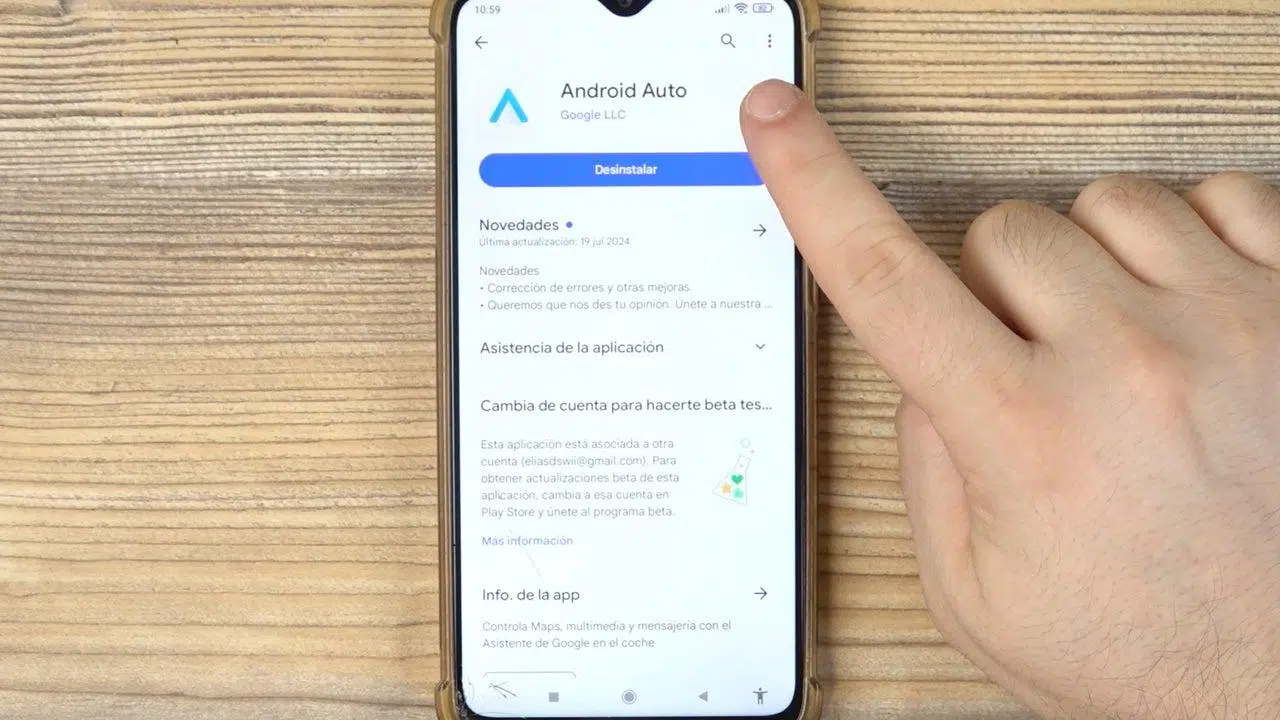
On many current phones, Android Auto is already integrated into the system (especially from Android 10 onwards), so you won't need to download anything. On earlier versions (such as Android 9 or lower), you may need to install Android Auto from Google Play to manage the experience.
Android Auto on the car screen (wireless connection)
Most compatible cars and sound systems allow you to start by connecting a USB cable to the vehicle's data port. Sometimes there is more than one USB port, and only one is for data/Android Auto , so if the setup wizard doesn't appear, try another port in the car.
If your car supports wireless connectivity, you can also set it up wirelessly (see how to use Android Auto without a USB cable ). On your phone, go to Android Auto settings and tap "Connect a car." If you see the option "Connect to Android Auto wirelessly," your phone supports this mode ; otherwise, you can only use a cable with that device.
To pair wirelessly, put your car into pairing mode (often done by pressing and holding the voice command button on the steering wheel, though this may vary depending on the model). On your phone, start the process by tapping "Connect" and, when prompted, choose "Connect via Bluetooth ." Then, tap "Pair a car" and select the Bluetooth device that corresponds to your vehicle on your phone.
Once paired, some cars will connect automatically every time you start them. In others, you'll see the Android Auto icon on the car's screen and you'll have to tap it to open it. After the initial setup, subsequent launches are usually immediate , especially if you enable automatic startup.
Wired connection: easy first steps
To use Android Auto via cable, park your car before starting and connect your phone to the USB data port. Use the original cable or a good quality one (see which cable is needed ), as faulty cables are one of the most common causes of problems.
When the car detects your phone, follow the instructions on the vehicle's screen and your phone. It will usually ask if you want to use Android Auto; say yes and continue. At this stage, you'll also see permission requests and terms of service , which you must accept to proceed.
Then, grant the necessary permissions
On the first connection, Android Auto will ask you to activate Bluetooth, pair your phone with the car, and sync contacts for hands-free calling and calls. It will also request access to notifications so it can securely read messages and display alerts.
On your car's screen, you'll see an Android Auto welcome message and a permission reminder: vehicle data, calendar, call logs, contacts, location, microphone, phone, and SMS (even with your phone locked). Tapping "Manage" will take you back to your phone to accept each permission individually.
On your phone, the interface explains what each permission is used for and lets you enable or disable related settings. For example, if you select the option to display the weather in your car's status bar, you'll need to grant location access ; if you don't use it, you can leave that permission disabled, and map apps will continue to function with their own location permission.
When you're finished, tap "OK" and Android Auto will have what it needs to work. You can always adjust these permissions later from System Settings, although restricting them may disable some features until you grant them again.
Accept the terms of use
Before you can start using Android Auto, you'll need to accept the terms of service. These specify that you are responsible for any data charges and the exchange of information between your car and phone. There's no option to select sections: you either accept everything or you won't be able to continue.
Set up Android Auto in your car
Once the connection is established, open the Settings app from your vehicle's screen. Here you can adjust the appearance and behavior of notifications, and even apply your phone's wallpaper if you prefer , and check out the latest Android Auto features.
One particularly useful setting is "Start Android Auto automatically," which allows it to open automatically when you connect your phone, either by cable or wirelessly. You can also choose whether music should start playing automatically upon pairing , which is very convenient if you regularly use Spotify or your favorite app.
Other settings let you force day or night mode on the maps, choose which side the media block appears on, and show or hide shortcuts or the playback widget in the navigation bar. Spending a couple of minutes adjusting these settings greatly improves your daily experience.
Activate boot with the phone locked and “Hey Google”
If your car and phone support wireless mode, you can have Android Auto start even with your phone locked. Go to Android Auto settings on your phone, then to the General section, and enable "Start Android Auto with phone locked." While you're at it, also enable "Start Android Auto automatically" if you haven't already.
To avoid touching the screen while driving, open "Hey Google" detection and enable voice commands (if you haven't already). This way, you can say "Hey Google" to request directions, messages, or music without taking your eyes off the road . Don't forget to check that the "While driving" option is enabled.
Customize the app menu and create shortcuts
From the Android Auto settings, go to "Customize app menu." Here you can disable apps you don't need to prevent them from cluttering your car's launcher, and reorder the list by dragging the six-dot icon to put your most frequently used apps (navigation, music, messaging) at the top.
If you frequently call a specific person, add a shortcut to initiate calls with a single tap. In "Customize app menu," tap "Add shortcut to app menu" and select the contact. It's a quick and secure way to call without having to search through your contacts.
Manage notifications to avoid distractions
In Settings > Notifications, you'll find four options to control how notifications from chats and compatible apps are displayed. To minimize distractions, it's highly recommended to disable them , especially the sound for conversations, so that if you choose to keep visual notifications, at least you won't be interrupted by sound alerts.
Music control and navigation: Google Maps or Waze
In Android Auto, you can open and control your favorite music app from the headphone icon. Playback is integrated with the car's interface and controls, and you can use your voice to pause, skip songs, or adjust the volume without touching the screen.
For navigation, Google Maps and Waze are fully compatible. Maps shines with its real-time traffic information and alternative routes, while Waze stands out for its collaborative alerts about speed cameras, accidents, and road closures . Choose the one that best suits your needs at any given time: both work seamlessly with Google Assistant.
Remember that you can ask the assistant to take you to a destination, find a gas station, or change your route, all by voice. The key is to minimize touch interaction while driving to keep your attention on the road.
Text and call without letting go of the wheel
When messages arrive from apps like WhatsApp or Telegram, Android Auto can read them aloud and let you reply by dictating the text. It's the safest way to stay connected without looking at the screen.
With calls, the hands-free system activates automatically when an incoming call is received. You can answer or hang up using the car's screen or the steering wheel controls, if your vehicle has them. Audio quality and phonebook integration depend in part on Bluetooth pairing and contact synchronization , so make sure you've granted those permissions.
Mobile screen active only with the essentials
While using Android Auto, your phone can maintain an "Always On" display with minimal information, such as the time or key notifications. This prevents you from having to constantly unlock and lock your phone. The primary interaction should always be done through the car's screen , not the phone.
Automate Android Auto
In Android Auto, under Settings > Car settings, you can configure it to open automatically when you connect to the vehicle's Bluetooth or when motion is detected. This way, you don't have to launch the app every time you get in the car and enjoy a more immediate experience.
If your car is not compatible: options on your mobile
If your vehicle doesn't support Android Auto on your screen, you can manage the app and its permissions on your phone if you have Android 8.0 or higher. Android Auto is integrated into recent systems (Android 10 and later), while on Android 9 and earlier you may need to download the app or even convert an old tablet to use as a screen.
With Google Assistant, you can say "OK Google" to ask for directions, start a playlist, or send dictated messages. This allows you to enjoy part of the experience even without the car's screen , always prioritizing safety while driving.
Troubleshooting common problems
If you can't connect via USB or Bluetooth, start with the basics: confirm compatibility between your car and phone, check that your phone has signal, and make sure you're using the correct USB port (data) with a cable in good condition. Low-quality or damaged cables are a common cause of disconnections and errors.
For wireless connections, delete previous pairings on both the car and your phone, and pair them again from scratch. Activate Bluetooth and, if applicable, Wi-Fi according to the vehicle's instructions. Remember to put the car into pairing mode (sometimes by pressing and holding the voice button) before initiating pairing from your phone.
If your USB connection fails, check the "Connect a car" setting in your Android Auto settings, try a different cable and port, and re-enable USB debugging by accepting any on-screen prompts. Some devices also offer an option to allow wireless connection after the initial wired connection ; accept this if you want to avoid using USB in the future.
When none of this works, consult the Android Auto Community and your vehicle manufacturer's documentation; each infotainment system has its own particularities and sometimes there are specific software updates to improve compatibility.
What's new and recent versions
According to recent guides, Android Auto 12.0, released in May 2024, has improved stability and compatibility with different vehicles, including features designed for electric cars. It also mentions support for streaming apps like Netflix and YouTube when the car is stopped , expanding entertainment options safely. See also the Android Auto 14.3 update for more recent changes.
As always, feature availability depends on the vehicle, country, and installed version, so it's a good idea to check the options in your car and keep both your phone's operating system and the vehicle's software up to date. Updating often resolves connection issues, pairing errors, and visual glitches.
Tricks and tweaks that make a difference
• Make sure Android Auto starts automatically and, if convenient, turn on auto-play music. You save touches and get into the car with everything ready..
• Put the apps you use most at the top of the menu and disable irrelevant ones. A clean launcher reduces distractions and speeds up every interaction..
• Check notification alerts and turn off conversation sounds. Less noise, more attention while driving. Ideas to entertain passengers
• If you call the same contacts, create shortcuts and use the voice button on the steering wheel. With two presses you are talking without taking your eyes off.
• Switch between Google Maps and Waze depending on your route. In the city, Waze's collaborative notifications can be gold; on road trips, Maps and its alternative routes shine..
After completing the initial setup, take a few minutes to test a route, play music, and send a dictated message. This quick test ensures everything is working properly before your first long trip.
Once you master wired and wireless pairing, you'll find that Android Auto fits seamlessly into your driving routine. With the right permissions granted, the assistant activated, and notifications under control , you'll have hassle-free navigation, calls, and music, with safety as your top priority.


Passionate writer about the world of bytes and technology in general. I love sharing my knowledge through writing, and that's what I'll do on this blog, show you all the most interesting things about gadgets, software, hardware, tech trends, and more. My goal is to help you navigate the digital world in a simple and entertaining way.